
Signing and encrypting Exchange emails with S/MIME
Find out how to publish your S/MIME certificate and sign and encrypt your Exchange emails in Outlook, the OWA webmail, iOS and Android
Objective
S/MIME adds two guarantees to your Exchange emails, using a personal certificate:
- Encryption ensures that only the intended recipient can read the message. If the email is intercepted in transit, or if an unauthorised person gains access to it, its content stays unreadable.
- Digital signature guarantees the sender's identity and the message's integrity. It proves that the email was sent by the expected sender, and that its content has not been altered in transit.
The two are independent: an email can be signed, encrypted, or both.
S/MIME relies on a certificate specific to each user, containing a public key and a private key. OVHcloud does not issue S/MIME certificates: you order yours for the primary email address of your Exchange account from a certificate authority (CA) such as Sectigo.
This guide explains how to publish your S/MIME certificate and how to sign and encrypt your emails in Outlook, in the OWA webmail, and on mobile devices.
Requirements
- A Hosted Exchange, Private Exchange or Trusted Exchange service
- An S/MIME certificate issued for the primary email address of your Exchange account
- Outlook for Windows installed and configured with your Exchange account
- To encrypt an email: each recipient's certificate, which your email client retrieves from the Global Address List (GAL) — see the How encryption works section below
Start with Outlook, whichever client you plan to use. Publishing your certificate to the Exchange organisation can only be done from Outlook for Windows. Until that is done, the other users of your organisation cannot encrypt emails addressed to you or verify your signatures — and the other clients (OWA, iOS, Android) cannot be used for S/MIME.
How it works
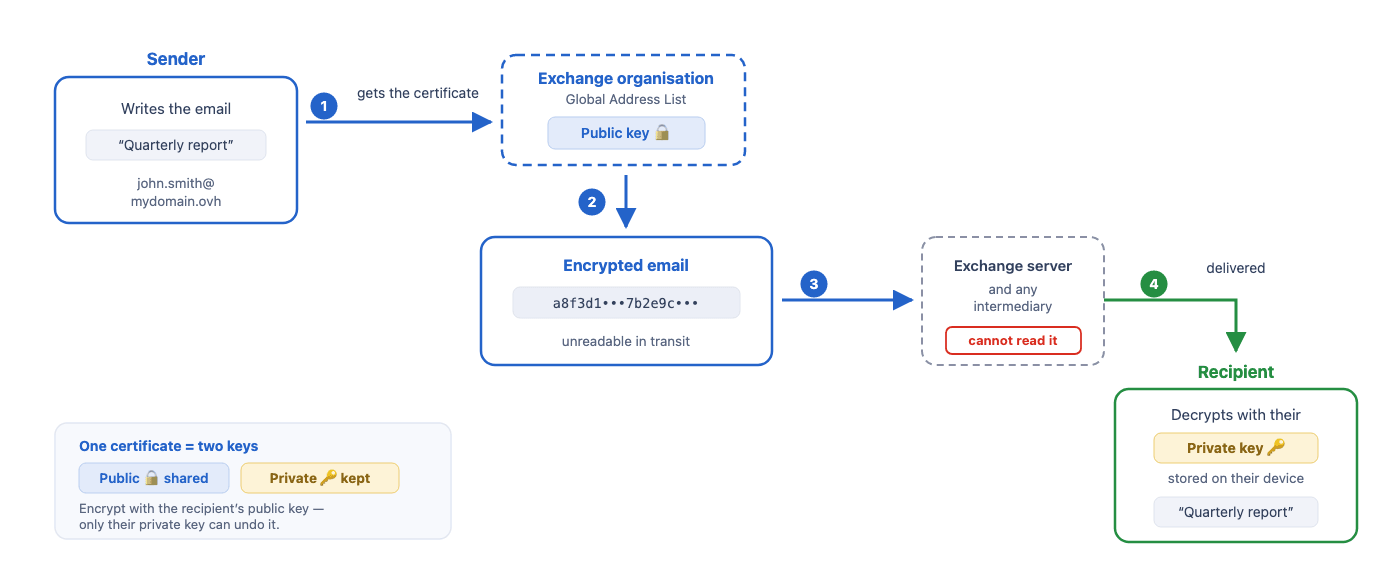
How encryption works
Each user has a certificate containing a public key and a private key. When an encrypted email is sent:
- The email client retrieves the recipient's certificate, and therefore their public key.
- The message is encrypted with this public key.
- Once encrypted, the message is unreadable to any intermediary, including the Exchange server.
- Only the recipient can decrypt it, with their private key stored on their device.
This is why you must already have the recipient's certificate to encrypt an email to them.
How the signature works
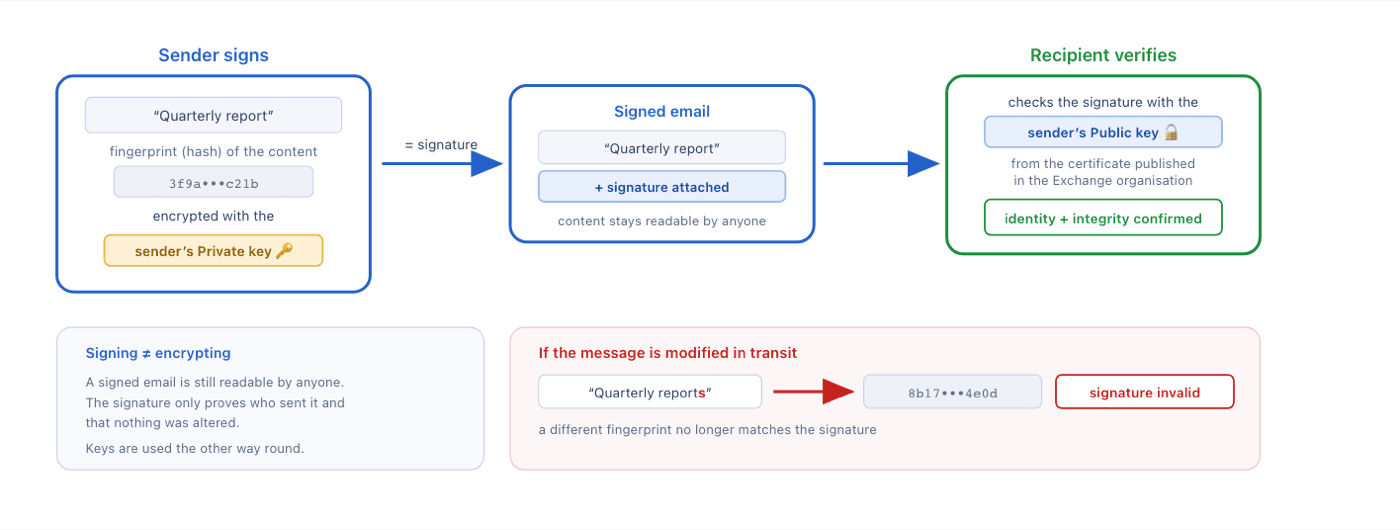
- The email client computes a fingerprint (hash) of the email content.
- This fingerprint is encrypted with the sender's private key: this forms the signature.
- The recipient's email client verifies the signature with the sender's public key, retrieved from their certificate published in the Exchange organisation.
Any modification of the message invalidates the signature.
Instructions
Step 1: publishing your certificate from Outlook
Publishing your certificate makes it accessible within your Exchange organisation. The other users then retrieve it automatically to encrypt the emails they send you, and to verify the digital signature of the messages you send them. You can then use the other email clients.
Follow the 4 tabs below in order:
Opening the Trust Center
-
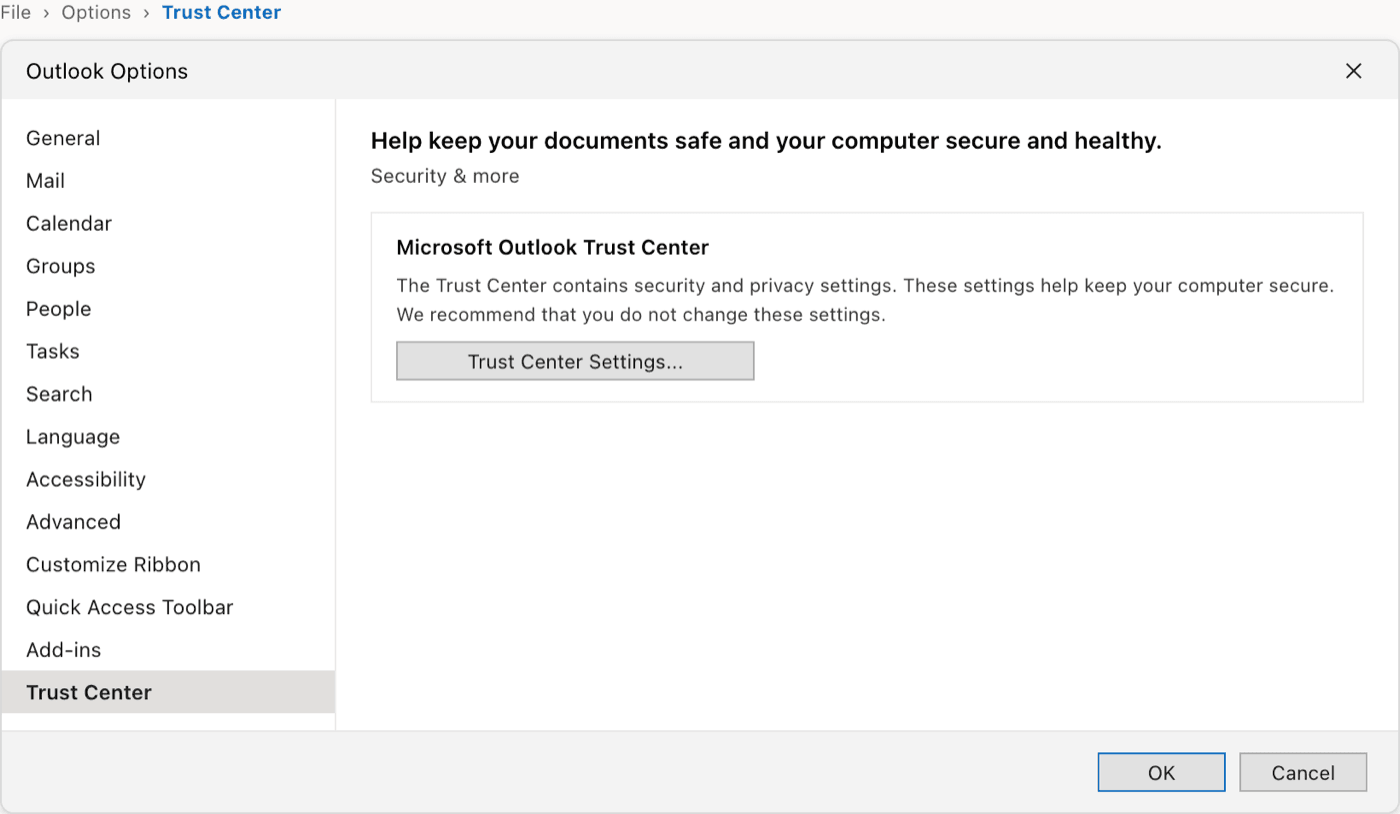
In Outlook, click
File, thenOptions. -
In the left-hand list, select
Trust Center, then clickTrust Center Settings.... -
Open the
Email Securitysection.
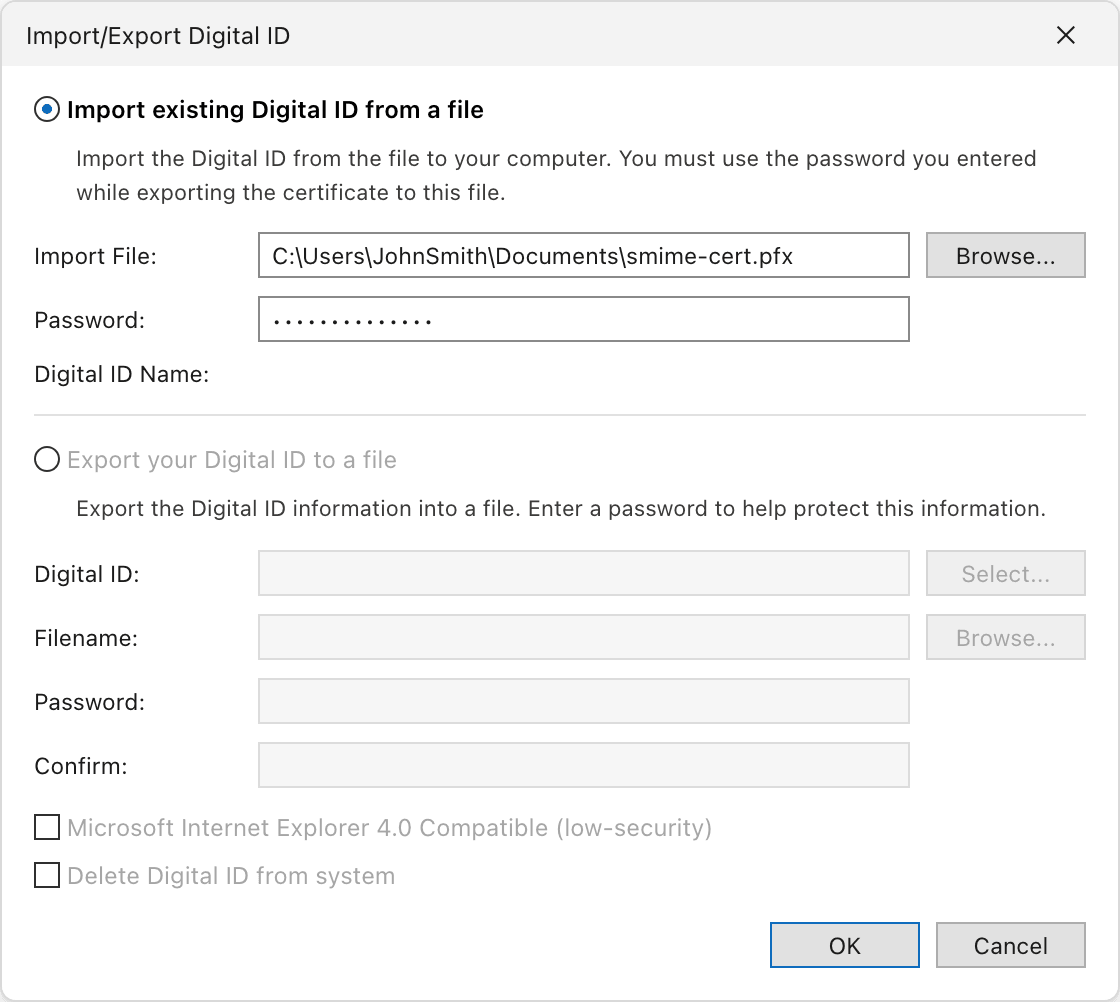
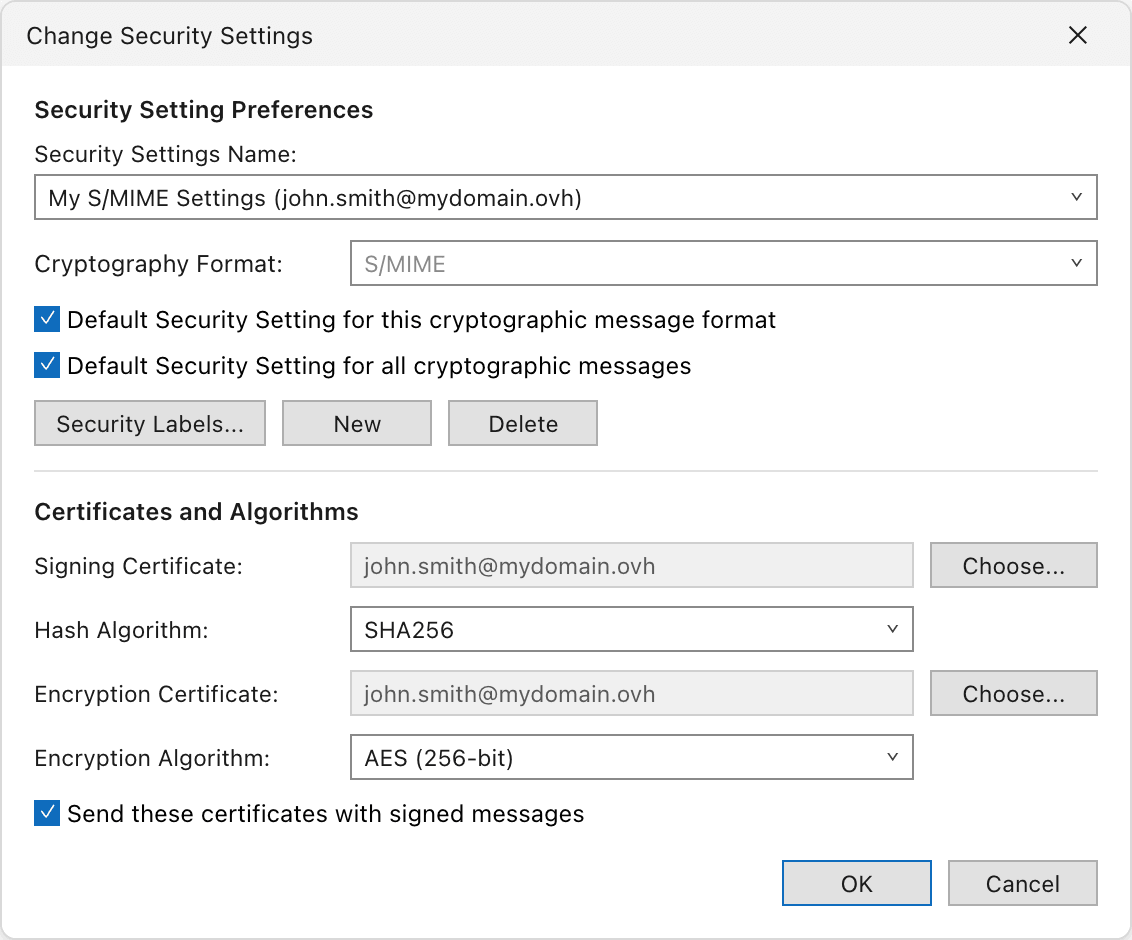

Your certificate is now published. In Outlook, you can sign and encrypt a message from the Options tab of the compose window, with Sign and Encrypt.
A signed and/or encrypted email indicates this in its header: a padlock icon (encryption) and a rosette icon (signature) on the right, and a Signed By line with the signing address.
Step 2: configuring your other clients
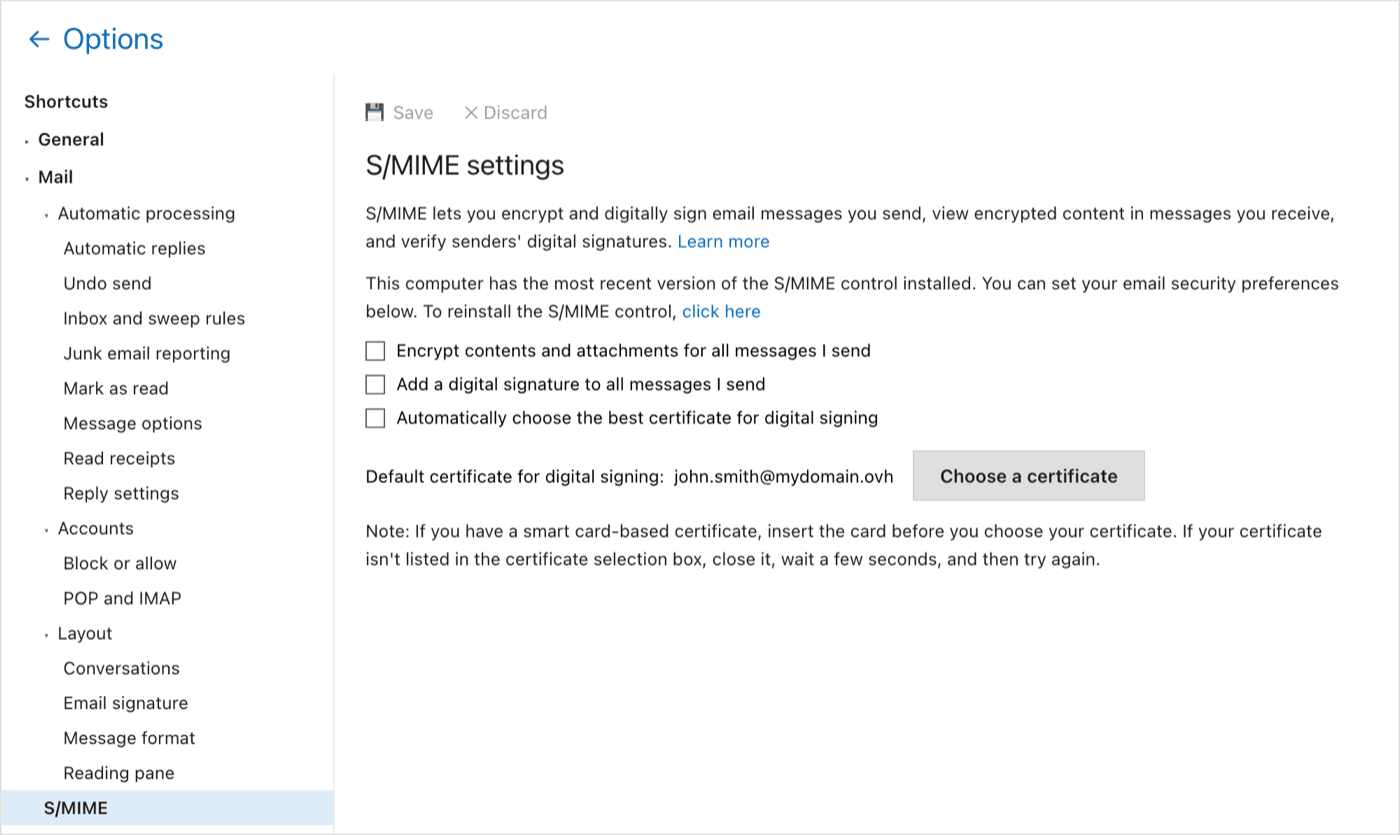
Finding the S/MIME options
From the OWA webmail, you can decrypt received emails and verify their signature, as well as sign and encrypt the messages you send. The S/MIME settings are in the OWA options, under Mail > S/MIME. That page lets you encrypt and digitally sign every message you send by default, and choose the certificate used for signing.
Installing the S/MIME control
To read an encrypted email or verify a signature, you need a compatible browser with the S/MIME control installed and configured. The control ships as a browser extension.
If the control is missing, OWA displays a message with a direct download link for the control.

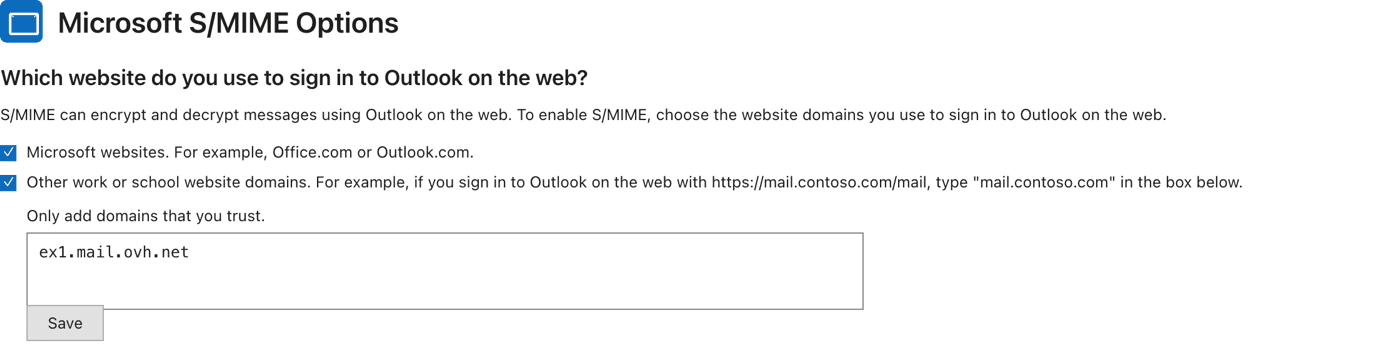
Declaring the webmail domain
Once the control is installed, open its settings and add your Exchange webmail domain to the trusted domains, then save.
The control does not work in the reading pane. Open the email in a dedicated window to use the S/MIME functions.

Limitations
- To encrypt an email, you must already have the recipient's certificate.
- Without a backup, losing the device or the certificates means losing access to encrypted emails. Keep a backup copy of your certificate in a safe place.
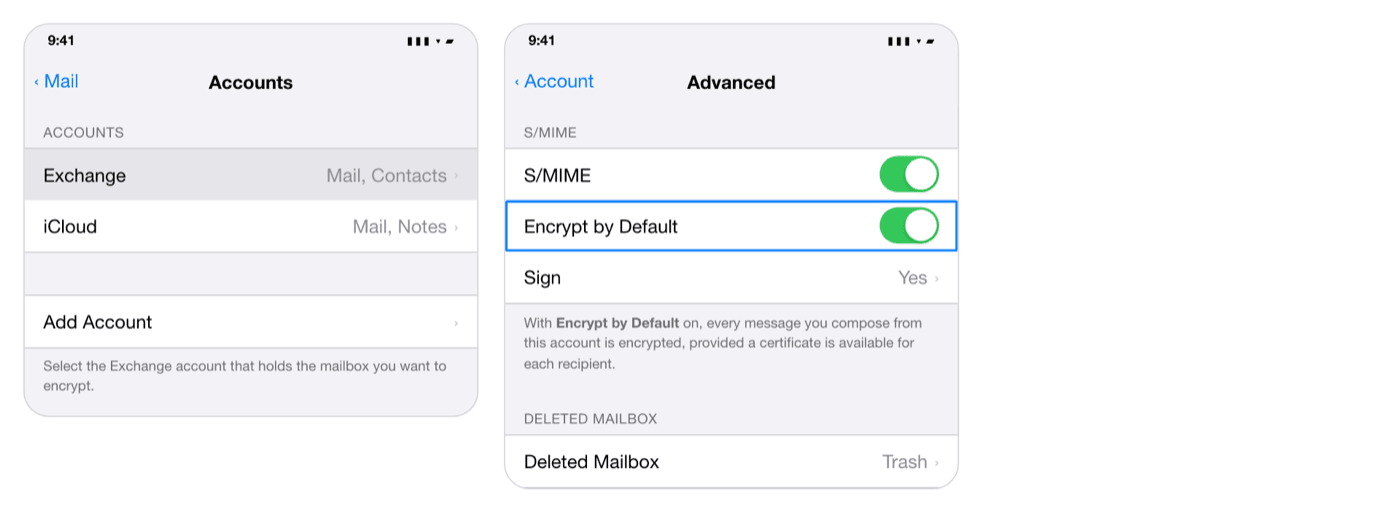
- S/MIME is configured on each client separately. On mobile, the iOS Mail app supports it natively; on Android, use an email client that supports S/MIME for Exchange (see Step 2).
- If a transport rule modifies the body of the email, the signed email is shown as an attachment in the recipient's Outlook.
Go further
Exchange - Configure your email account on Outlook for Windows
Using your email address from the Outlook Web App (OWA) webmail
Configuring two-factor authentication on an Exchange account
Join our community of users.