Connect using Workbench for Public Cloud Databases for MySQL
Connect to your Public Cloud Databases for MySQL using MySQL Workbench
Objective
Public Cloud Databases allow you to focus on building and deploying cloud applications while OVHcloud takes care of the database infrastructure and maintenance in operational conditions.
This guide explains how to connect to a MySQL database instance with MySQL Workbench.
Requirements
- A Public Cloud project in your OVHcloud account
- A MySQL database running on your OVHcloud Public Cloud Databases (this guide can help you to meet this requirement)
- Configure your MySQL instance to accept incoming connections
- A MySQL Workbench stable version installed and public network connectivity (Internet). This guide was made with MySQL Workbench version 8.0.28.
Concept
A MySQL instance can be managed through multiple ways. One of the easiest, yet powerful, is to use a Command Line Interface (CLI), as shown in our guide: Connect to MySQL with CLI or by using programming languages, such as PHP or Python.
Another way is to interact directly using a management tool like MySQL Workbench.
Instructions
Installation
MySQL Workbench can be downloaded for free at the following link: https://dev.mysql.com/downloads/workbench/.
Once you have downloaded and installed it, follow the steps below to set up a remote connection to your MySQL instance.
Connect with MySQL Workbench
Configuration
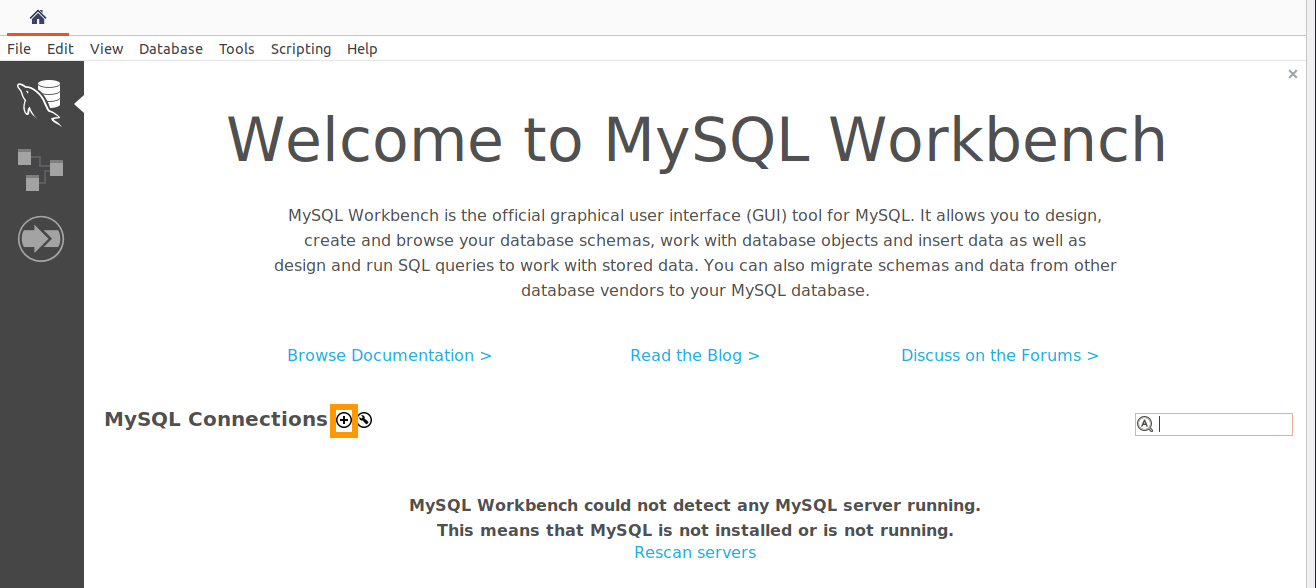
Click New Connection.
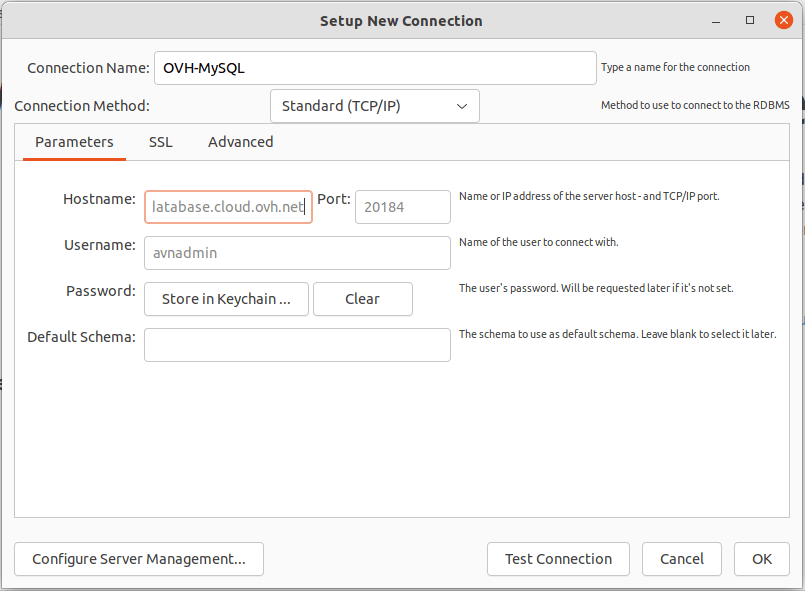
In the Setup New Connection dialog box, fill in the Parameters tab form with your service's details, shown in the Connection details card of the Overview tab: hostname, port (specific to each service), username (for example avnadmin) and defaultdb as the default schema.
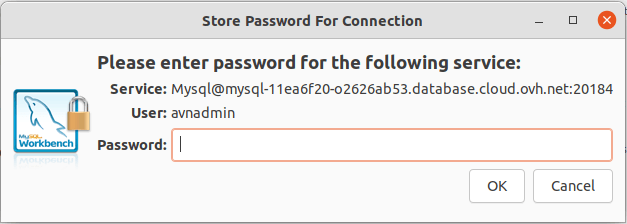
Store the password for connection in keychain.
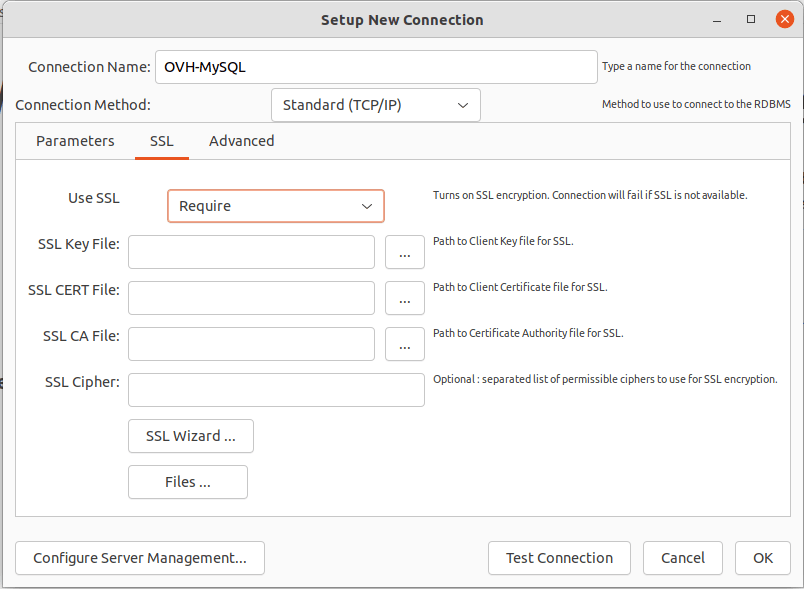
Switch to SSL tab and set Use SSL to Require.
Require encrypts the connection without verifying the server identity. To verify it, download the CA certificate of your service from the CA certificate field of the Connection details card, select it in SSL CA File and set Use SSL to Require and Verify Identity.
Once done, select your new connection. If it fails with a timeout, check that the IP address of your computer is authorised on your service (see the Configure incoming connections of a Public Cloud Databases for MySQL service guide).
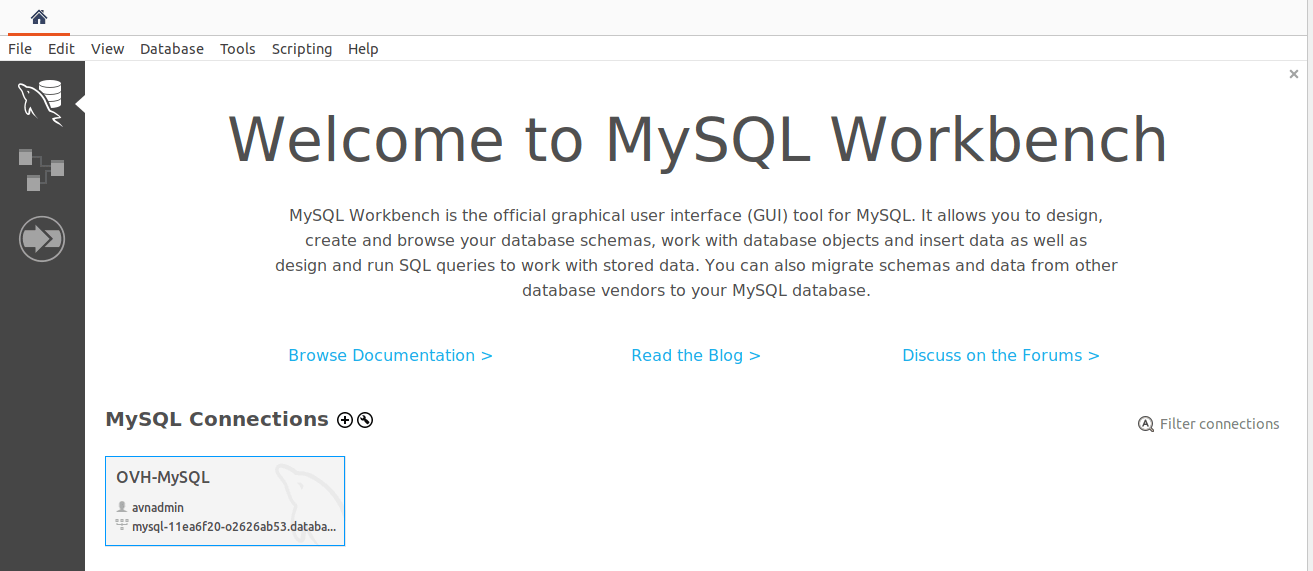
Congratulations, in the Schemas tab, you will see your databases.
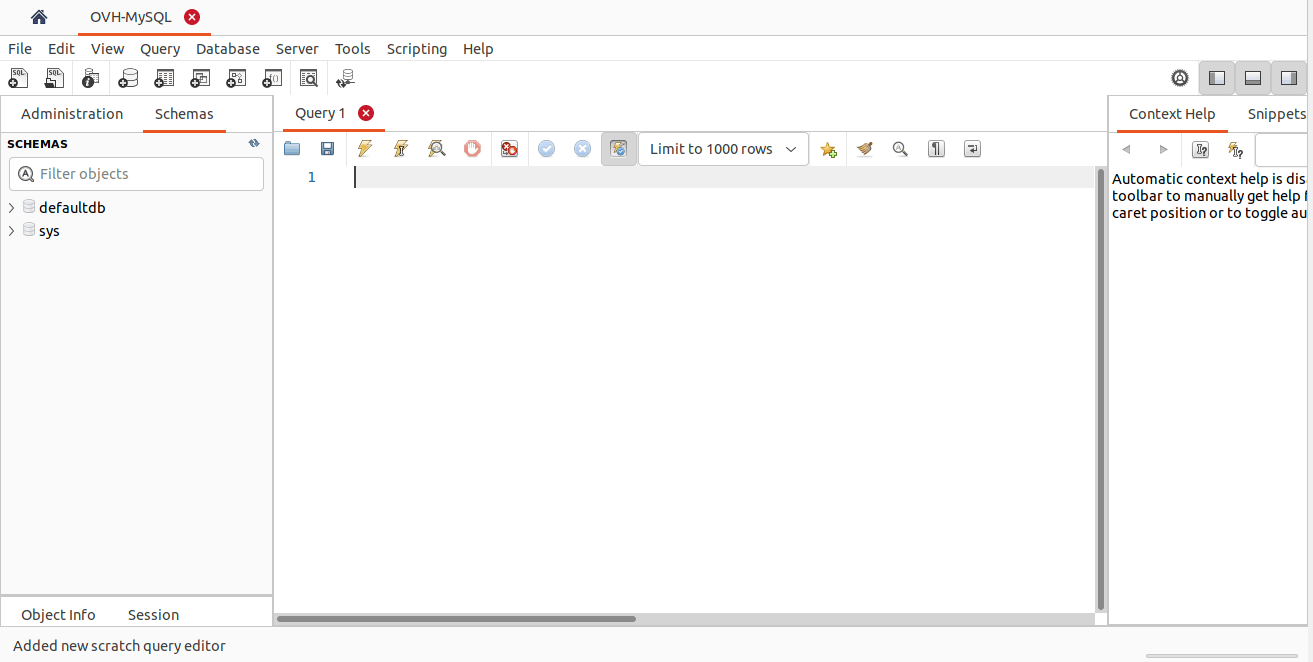
Once connected, MySQL Workbench facilitates many actions such as querying your databases and managing used or even import data. Please read the official documentation to discover the whole feature list: https://www.mysql.com/products/workbench/features.html.
Go further
Visit our dedicated Discord channel: https://discord.gg/ovhcloud. Ask questions, provide feedback and interact directly with the team that builds our databases services.
For training or technical assistance implementing our solutions, contact your sales representative or visit our Professional Services page to request a quote and have your project analysed by our experts.
Join our community of users.