
Redirecting a domain name managed by OVHcloud
Find out about the various redirection types, and how to create one for a domain name managed by OVHcloud
Objective
Redirecting a domain name means redirecting it to a new target. Different types of redirections exist, each responding to a specific need.
Find out about the different ways to redirect your domain name.
Requirements
- A domain name
- Access to your web hosting plan (for a redirection via a .htaccess file).
OVHcloud Control Panel Access
- Direct link:
- Navigation path:
Web Cloud>Domain names> Select your domain name
Instructions
Understanding domain name redirection
This feature allows you to redirect a domain name/subdomain to:
- Another existing domain name/subdomain:
- Example:
domain.tld
- Example:
- A website URL (Uniform Resource Locator):
- Examples:
http://www.domain.tld/welcome/orhttps://www.domain.tld/welcome/(if the target domain name has a compatible SSL certificate).
- Examples:
There are several ways of doing this:
- From the , where a configuration wizard can be used to set up your redirection.
- Via a method that requires programming. You will need to create the redirection yourself in a file (usually a .htaccess).
Setting up a redirection can affect your website's SEO ranking. Be careful about the changes you make, or contact a specialist provider for SEO if necessary.
Please note: a redirection created from the does not allow you to redirect a https:// URL to another domain name or URL.
To create this type of redirection, you must use a URL rewrite, for example via a ".htaccess" file.
Redirecting a domain name from the Control Panel
Apart from "pointing" redirections to DNS A, AAAA and CNAME records, 3 redirection options are available from the .
If needed, refer to our documentation on DNS records.
To use one of the 3 options below, the active DNS zone for your domain name must be managed in your OVHcloud Control Panel. These redirection options will modify your DNS zone configuration in order to work.
Otherwise, the redirections will not work.
Whichever redirection option you choose, the change requires a propagation time of 4 to 24 hours maximum before it is fully effective.
Click on the options below to view the content.
Option 1 - Permanent visible redirection to a web address
This option allows you, after entering the redirected domain name, to display the target domain name in your browser's address bar instead of the redirected domain name.
- Example: if you redirect
domain1.tldtodomain2.tld,domain2.tldwill be displayed in the address bar of your browser.
This "standard" redirection will return an HTTP 301 code.
Click on the tabs below to view each of the 7 steps.
Go to the page, then choose the domain name concerned.
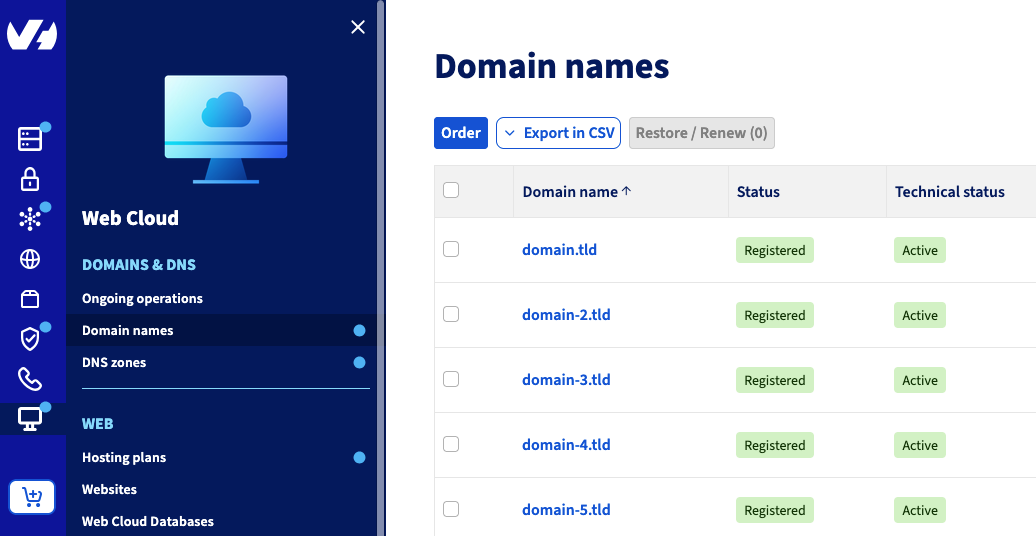

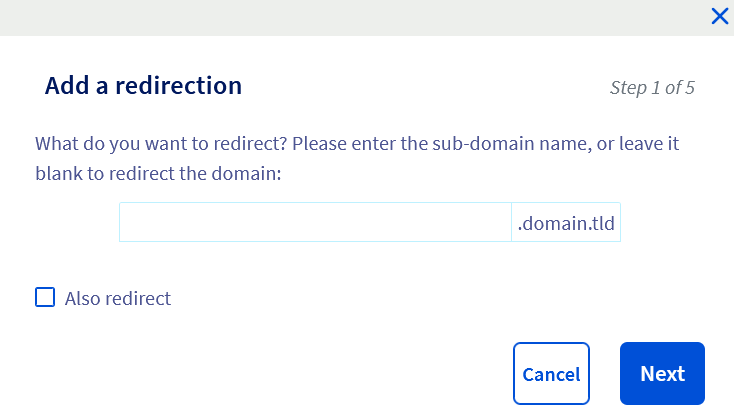
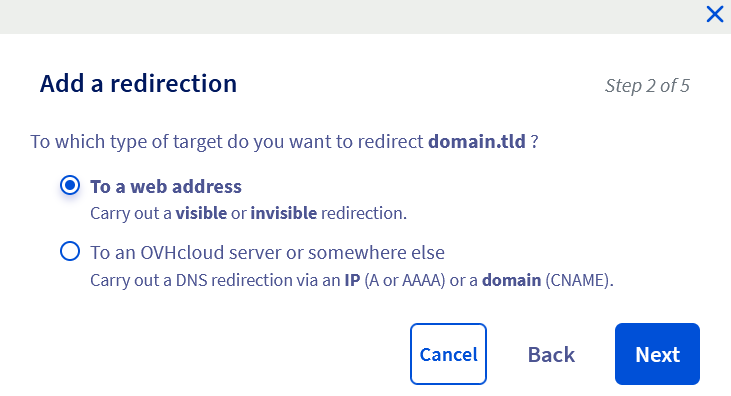


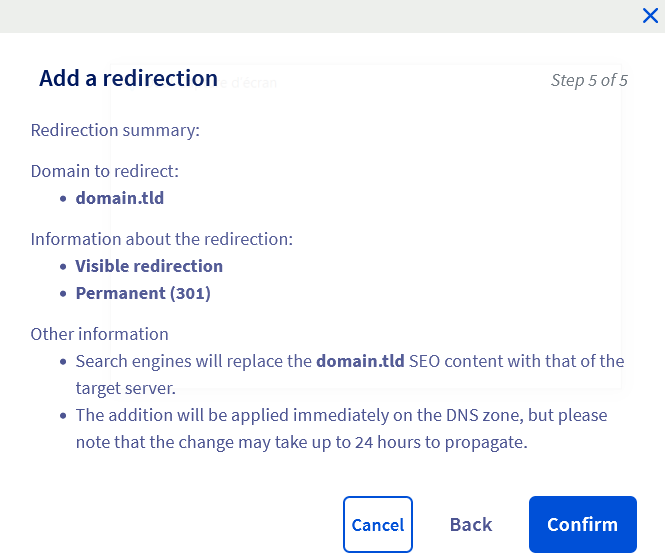
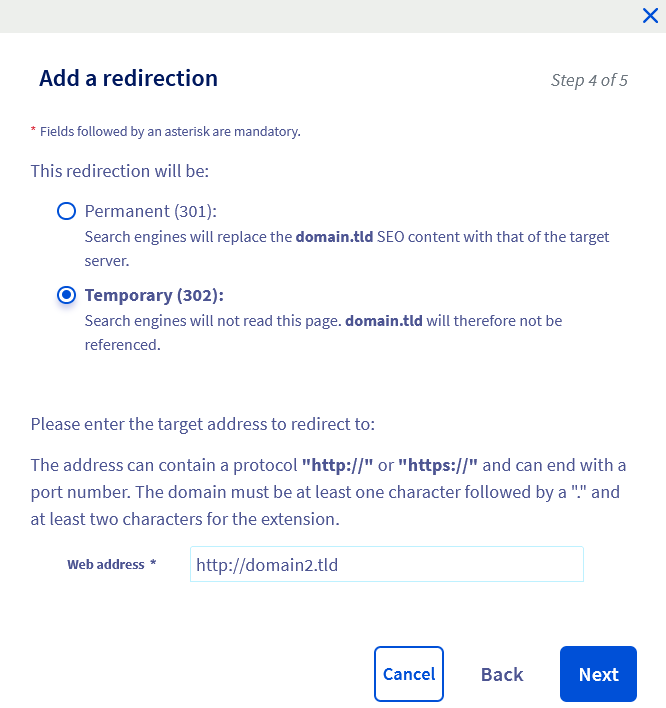
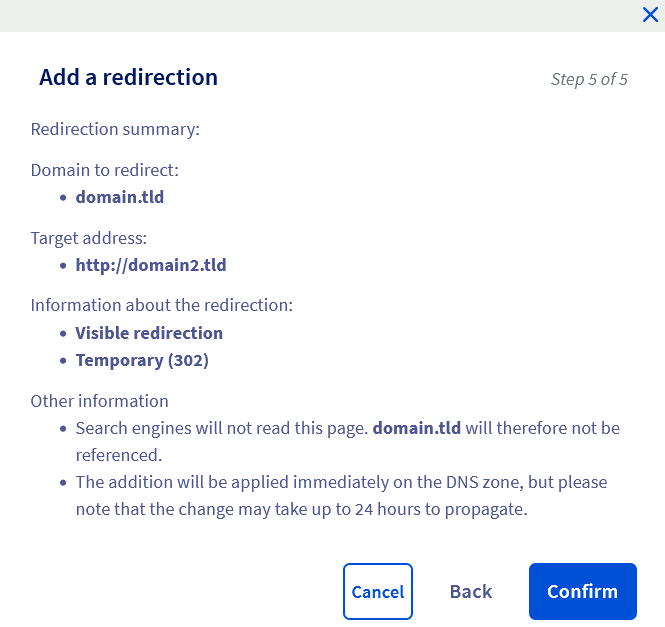
Option 2 - Temporary visible redirection to a web address
As with option 1, this option displays the target domain name in your browser's address bar instead of the redirected domain name after you enter the redirected domain name.
However, this option should be used on a one-off basis, for example for temporary events.
Positioning on search engines is less efficient than with a permanent visible redirection of type 301 (HTTP code).
- Example: if you redirect
domain1.tldtodomain2.tld,domain2.tldwill be displayed in the address bar of your browser.
This redirection will return an HTTP 302 code.
Click on the tabs below to view each of the 7 steps.
Go to the page, then choose the domain name concerned.
Option 3 - Invisible redirection to a web address
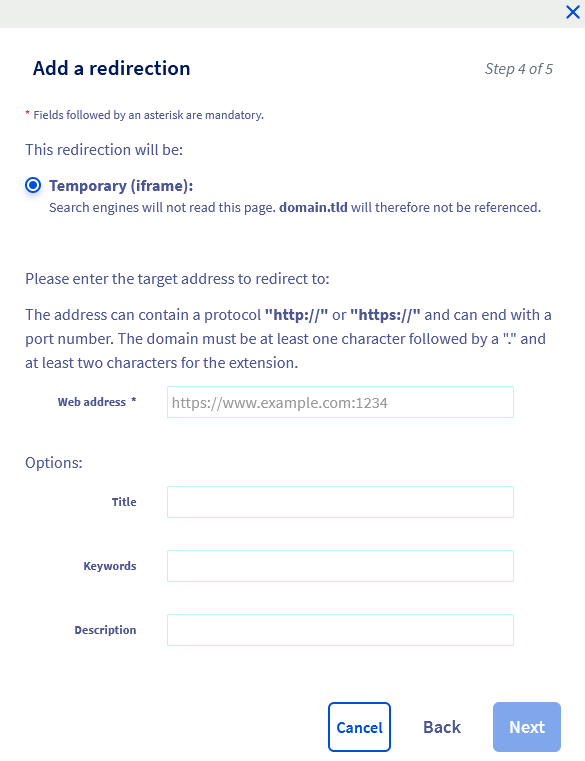
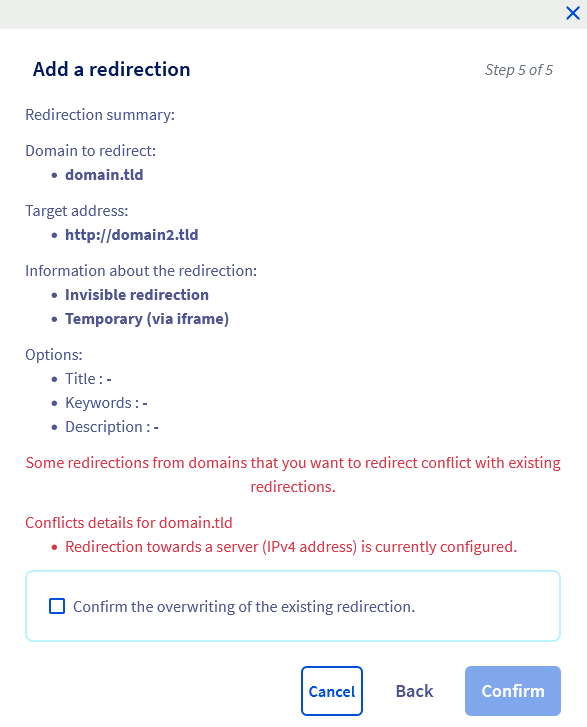
This redirection allows you, after entering the redirected domain name, to keep it displayed in your browser's address bar instead of replacing it with the target domain name.
Warning, this action is not compatible with all websites and affects your website's SEO.
- Example: if you redirect
domain1.tldtodomain2.tld,domain1.tldwill be displayed in the address bar of your browser.
Invisible redirection works with an iFrame HTML tag. This allows your redirected domain name to integrate the content of the other page corresponding to the target domain name into its own HTML page.
This encapsulation prevents your website visitors from viewing the target domain name.
This option will return an HTTP 200 code.
Please note, pages embedded with an iFrame tag may not be readable on smartphones. Their content is generally not taken into account by search engines for your website's SEO and indexing.
Click on the tabs below to view each of the 7 steps.
Go to the page, then choose the domain name concerned.

Redirecting a domain name via a ".htaccess" file
Information regarding OVHcloud service administration and how to find appropriate assistance
When using OVHcloud guides, please be aware of the following conditions:
- User instructions aim to provide as many details as possible but cannot cover individual use cases. You might need to adapt the pertinent actions to your requirements.
- The OVHcloud ecosystem is built for flexibility and freedom of choice. Customers are therefore responsible for the secure and proper configuration of their services. To prevent data loss, we strongly recommend to apply backup strategies to all your important data.
- Our guides and tutorials may reference third-party software or services in combination with OVHcloud solutions. The technical support provided by OVHcloud does not include the configuration of systems or products outside of our responsibility. This includes but is not limited to:
- Operating systems and user interfaces (Windows, Debian, Plesk, etc.).
- Any other third-party software (FTP clients, email software, etc.).
- Services offered by other providers (DNS, APIs, user interfaces, etc.).
To receive the appropriate assistance for any issues you might experience, follow these guidelines:
- You seek personalized advice or you would like to discuss a topic that is not covered in detail by our documentation?
Join the OVHcloud Community to search for your topic and reach out to other users. - You need to report an incident regarding your OVHcloud service or you are experiencing difficulties in the OVHcloud Control Panel?
Create a support request in our Help Centre. - You require professional assistance for your project or you need help with tasks outside our support scope?
Visit our partner portal to search for experts who are familiar with OVHcloud solutions. - You are looking for more detailed information regarding our support levels and Professional Services?
Please visit our web pages for OVHcloud support levels and OVHcloud Professional Services.
You can participate in improving our documentation:
- You would like to share feedback to improve a guide page or you want to report insufficient information on a specific page?
Use the "Was this page helpful?" buttons at the bottom of the page to let us know. - You would like to propose a specific documentation update?
Use the "Edit this page" function, available at the bottom of the page and in the sidebar.
".htaccess" files are configuration files in which commands can be specified. When the web server (Apache) runs your website's code, the commands are interpreted and executed.
You can use such commands to create redirections.
Editing a ".htaccess" file can make your website inaccessible. If in doubt, contact a specialist provider.
You can find all of our documentation on ".htaccess" in the Go further section of this guide.
We recommend that you back up your .htaccess file before making any changes. This way, you can restore the previous version of the file if you make a mistake.
Below are 4 variables for creating redirections via the ".htaccess" file.
Variable 1 - "Redirect permanent"
This variable allows you to redirect a website as a whole, or only part of a website, to another website or another part of a website. Visitors are automatically redirected to the correct address/URL when they try to access your website via the historical address/URL.
To redirect an entire website:
To redirect one directory to another:
To redirect a file to another:
Variable 2 - "Redirect gone"
This variable is useful for deleted files. It replaces the 404 document not found message with a more explicit message such as 410 document no longer exists. Your website visitor is informed that the file they are trying to access no longer exists.
Variable 3 - "Redirect seeother"
If you change the extension of a file, the seeother variable allows you to change the file type. The visitor who tries to access the old file will be automatically redirected to the one with the correct extension.
Variable 4 - "Redirect Temp"
This variable can be used when you temporarily move files to another website. Visitors who try to access your website via the historical address/URL are automatically redirected to the new temporary address/URL.
Go further
Blocking access to my website for certain IP addresses via a ".htaccess" file.
Protecting your website's administration interface with a ".htaccess" file.
Rewriting URLs using mod_rewrite.
Performing other operations with ".htaccess" files.
For specialised services (SEO, development, etc.), contact OVHcloud partners.
If you would like assistance using and configuring your OVHcloud solutions, please refer to our support offers.
Join our community of users.