
Exchange - Outlook sign-in prompts to Office 365
Diagnose and fix the recurring Outlook sign-in prompts pointing to Office 365 when your mailbox is actually hosted on Exchange OVHcloud
Objective
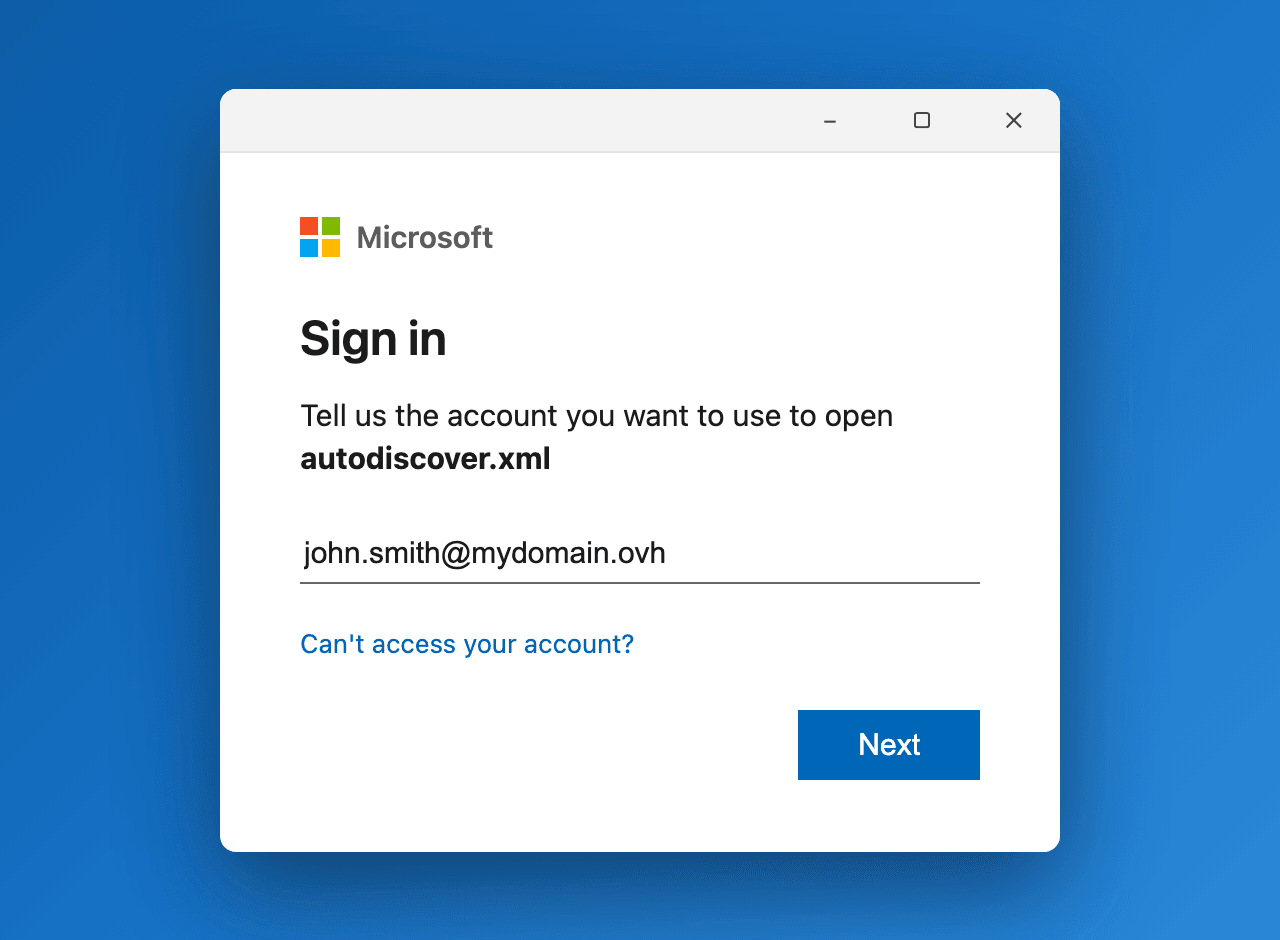
Outlook may repeatedly display a Microsoft 365 sign-in window asking for your credentials, sometimes accompanied by the message "Tell us the account you want to use to open autodiscover.xml". This window can reappear even after restarting Outlook or creating a new profile. Yet the affected mailbox is not hosted in the Microsoft cloud: it is located on an Exchange OVHcloud solution (Hosted Exchange or dedicated Exchange).
This behaviour is caused by an Outlook feature called "Direct Connect to Office 365", which forces the client to query the Office 365 autodiscover and bypasses the one on your Exchange OVHcloud server.
This guide explains how to identify the cause of these repeated connection prompts and prevent Outlook from connecting to Office 365.
Requirements
- Have an Exchange OVHcloud solution already set up.
- Have the classic Outlook application (Outlook 2016, 2019, 2021 or Microsoft 365) on Windows.
- Have administrator access to the client computer to edit the Windows registry. This is not required if you use the alternative described below.
- The OVHcloud SRV record must be correctly configured in the domain name's DNS zone. See our guide Add a domain name to your Exchange service.
OVHcloud Control Panel Access
- Direct link:
- Navigation path:
Web Cloud>Exchange> Select your platform
Information regarding OVHcloud service administration and how to find appropriate assistance
When using OVHcloud guides, please be aware of the following conditions:
- User instructions aim to provide as many details as possible but cannot cover individual use cases. You might need to adapt the pertinent actions to your requirements.
- The OVHcloud ecosystem is built for flexibility and freedom of choice. Customers are therefore responsible for the secure and proper configuration of their services. To prevent data loss, we strongly recommend to apply backup strategies to all your important data.
- Our guides and tutorials may reference third-party software or services in combination with OVHcloud solutions. The technical support provided by OVHcloud does not include the configuration of systems or products outside of our responsibility. This includes but is not limited to:
- Operating systems and user interfaces (Windows, Debian, Plesk, etc.).
- Any other third-party software (FTP clients, email software, etc.).
- Services offered by other providers (DNS, APIs, user interfaces, etc.).
To receive the appropriate assistance for any issues you might experience, follow these guidelines:
- You seek personalized advice or you would like to discuss a topic that is not covered in detail by our documentation?
Join the OVHcloud Community to search for your topic and reach out to other users. - You need to report an incident regarding your OVHcloud service or you are experiencing difficulties in the OVHcloud Control Panel?
Create a support request in our Help Centre. - You require professional assistance for your project or you need help with tasks outside our support scope?
Visit our partner portal to search for experts who are familiar with OVHcloud solutions. - You are looking for more detailed information regarding our support levels and Professional Services?
Please visit our web pages for OVHcloud support levels and OVHcloud Professional Services.
You can participate in improving our documentation:
- You would like to share feedback to improve a guide page or you want to report insufficient information on a specific page?
Use the "Was this page helpful?" buttons at the bottom of the page to let us know. - You would like to propose a specific documentation update?
Use the "Edit this page" function, available at the bottom of the page and in the sidebar.
Instructions
Understanding the problem
Microsoft introduced an Outlook feature called "Direct Connect to Office 365". When it is active, Outlook connects directly to the Office 365 autodiscover and ignores your Exchange server's autodiscover URL.
This server can be an Exchange installed on your company's premises (on-premises) or a Hosted Exchange OVHcloud solution. A Hosted Exchange solution is not hosted on the Office 365 / Microsoft 365 servers: it is an Exchange server hosted on the OVHcloud servers.
Outlook then queries Office 365, assuming the mailbox is in the Microsoft cloud, instead of first checking the Exchange OVHcloud server's autodiscover. This triggers the repeated Microsoft sign-in windows.
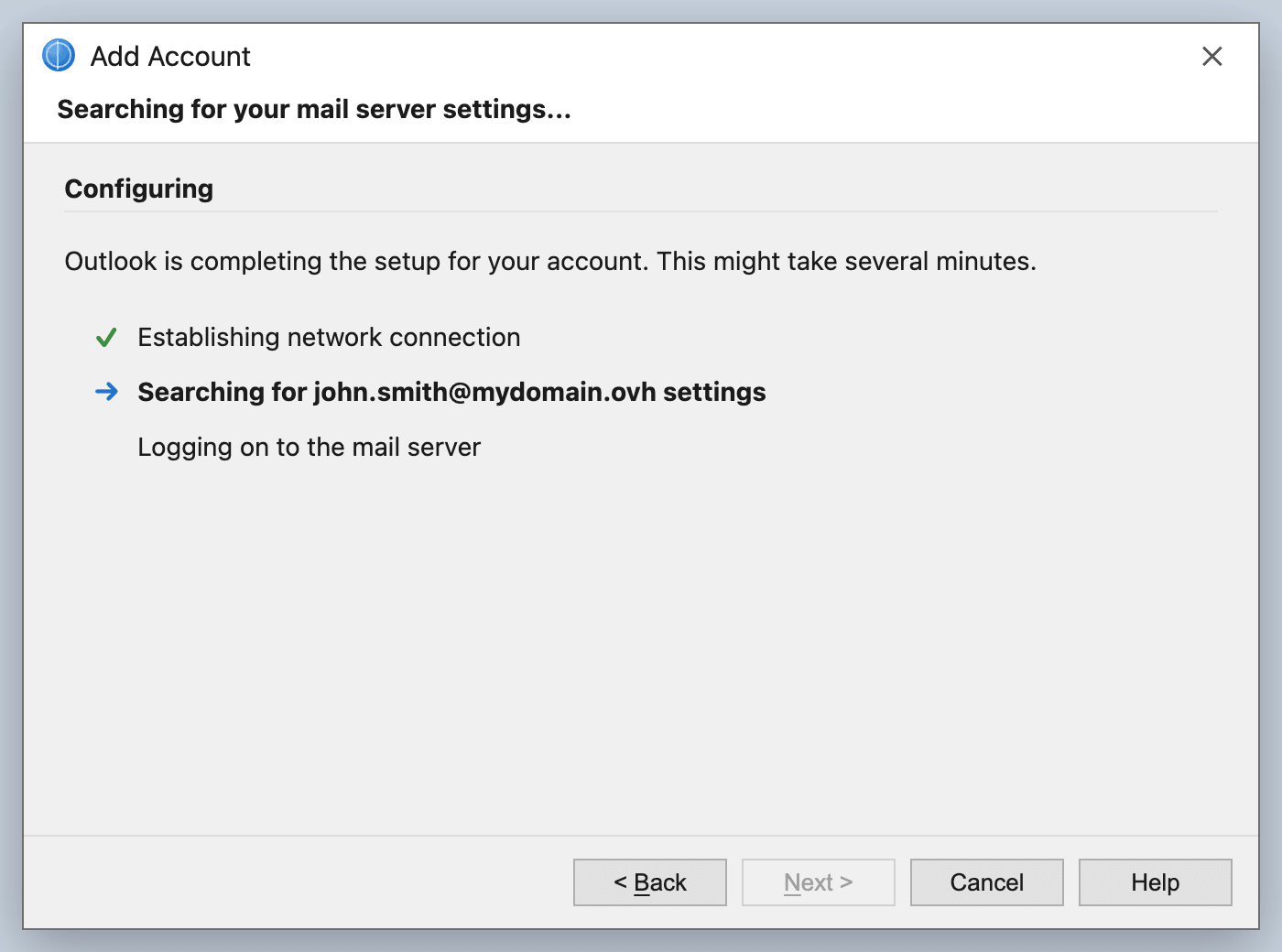
When you add the account, this automatic settings lookup (autodiscover) is visible at the "Searching for your mail server settings" step:
Identifying the symptoms
You are affected if you see the following:
-
A Microsoft 365 sign-in window appears repeatedly in Outlook and keeps asking for credentials.
-
The message "Tell us the account you want to use to open autodiscover.xml" appears.
-
The window persists after restarting Outlook or creating a new Outlook profile.
-
The mailbox is nonetheless correctly hosted on Exchange OVHcloud and the OVHcloud autodiscover is correctly configured.
-
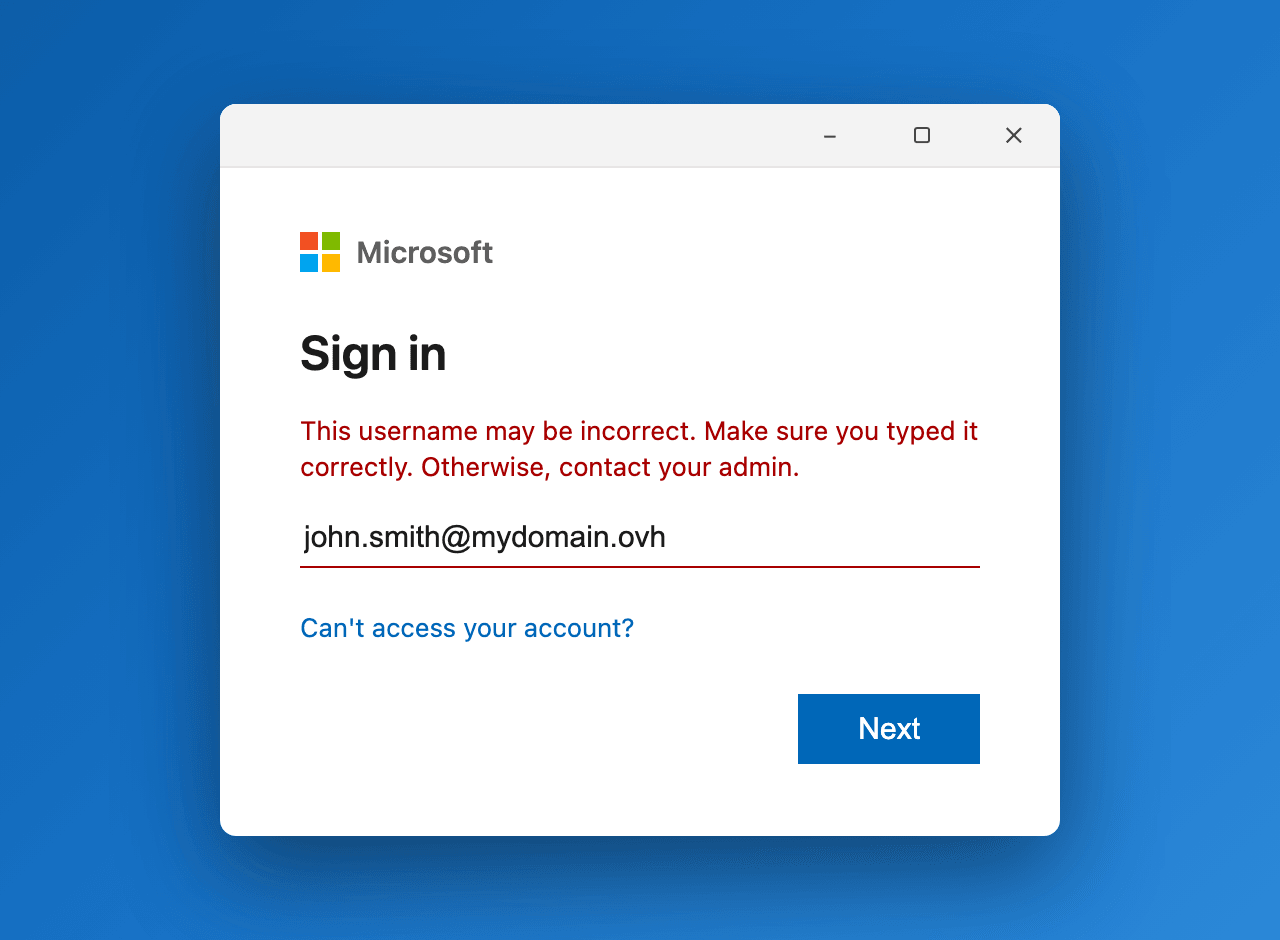
A red error message "This username may be incorrect…" may appear when the account you entered is not recognised by the Microsoft 365 tenant.
Checking that the mailbox is hosted on Exchange OVHcloud
Before applying the fix, check that the OVHcloud-side configuration is correct:
-
Check that the domain name's
_autodiscoverSRV record points to the OVHcloud servers, as described in the guide Add a domain name to your Exchange service.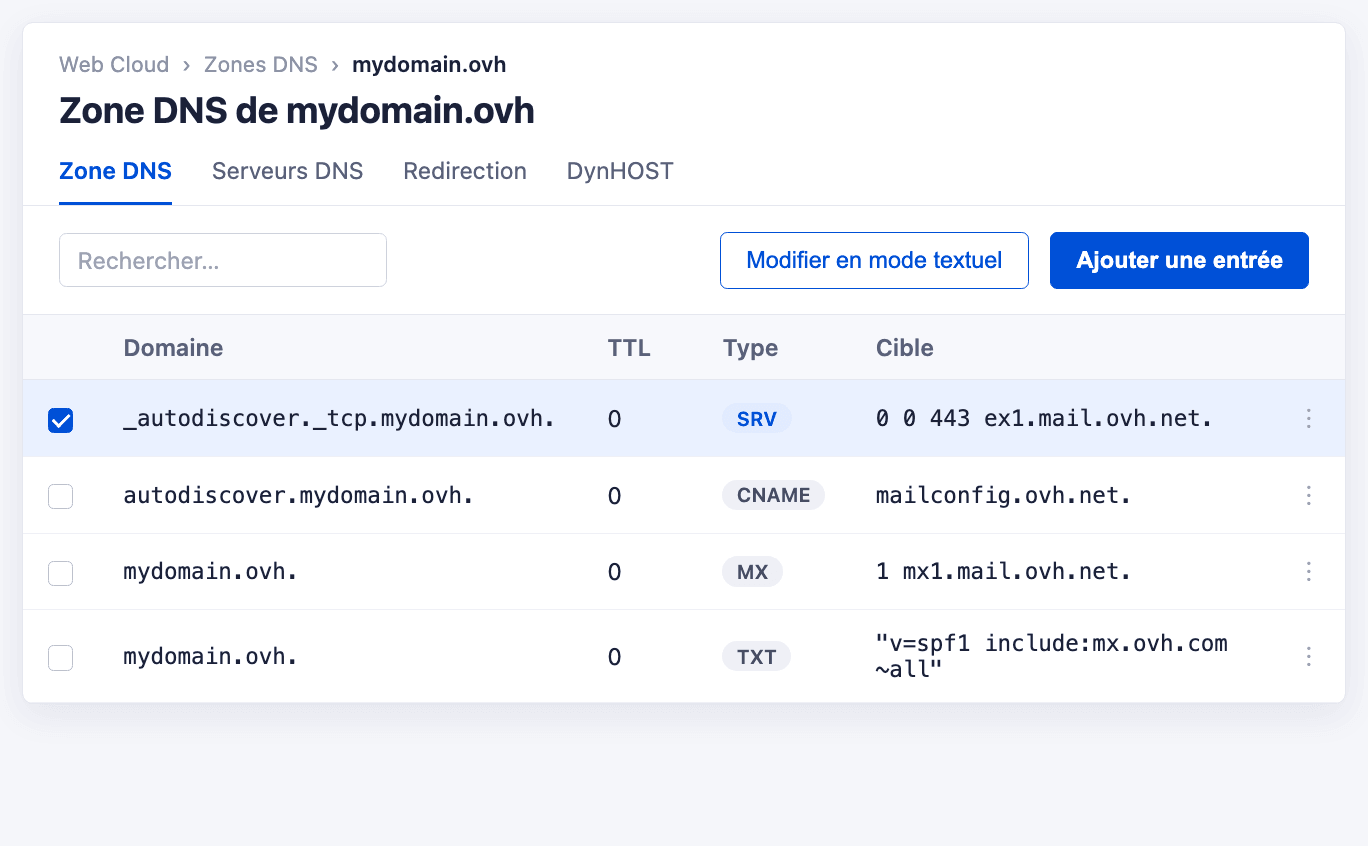
-
Run a diagnostic from your Control Panel to confirm the account status, following the guide Using the Exchange error diagnostic.
If the OVHcloud configuration is correct but the sign-in windows persist, the cause is on the client side: Outlook favours the Office 365 endpoint.
Identifying the cause
This behaviour is triggered in 2 main situations:
- The domain name has been declared on an Office 365 tenant. When you add a domain to a Microsoft 365 tenant, Microsoft assumes that the mailboxes for that domain are in the cloud. Outlook then connects to the Office 365 autodiscover instead of the OVHcloud one.
- A Microsoft account already uses the same email address. This can be a user in a Microsoft 365 tenant, with the same address or the same UPN. It can equally be a personal Microsoft account — one created to activate an Office licence, for example — whose sign-in address is your Exchange address. In both cases Outlook finds that account first and follows it, even though no mailbox is attached to it.
If you no longer use Office 365 for this domain, also consider removing the relevant domain or account from the Microsoft 365 tenant. As long as Outlook keeps favouring the Office 365 endpoint, you still need one of the two fixes below.
Two fixes follow. The registry key works whatever the cause, but requires administrator rights on the computer. If the conflict comes from a personal Microsoft account, changing its sign-in address removes the cause and needs no such rights.
Applying the fix: the ExcludeExplicitO365Endpoint registry key
To prevent Outlook from using the explicit Office 365 endpoint during autodiscover, add a registry key on the client computer.
Editing the Windows registry is a sensitive operation. A mistake can prevent the system or applications from working correctly. We recommend backing up the registry before making any changes.
Using the Registry Editor
-
Open the Registry Editor (
regedit) in the session of the affected user on the client computer.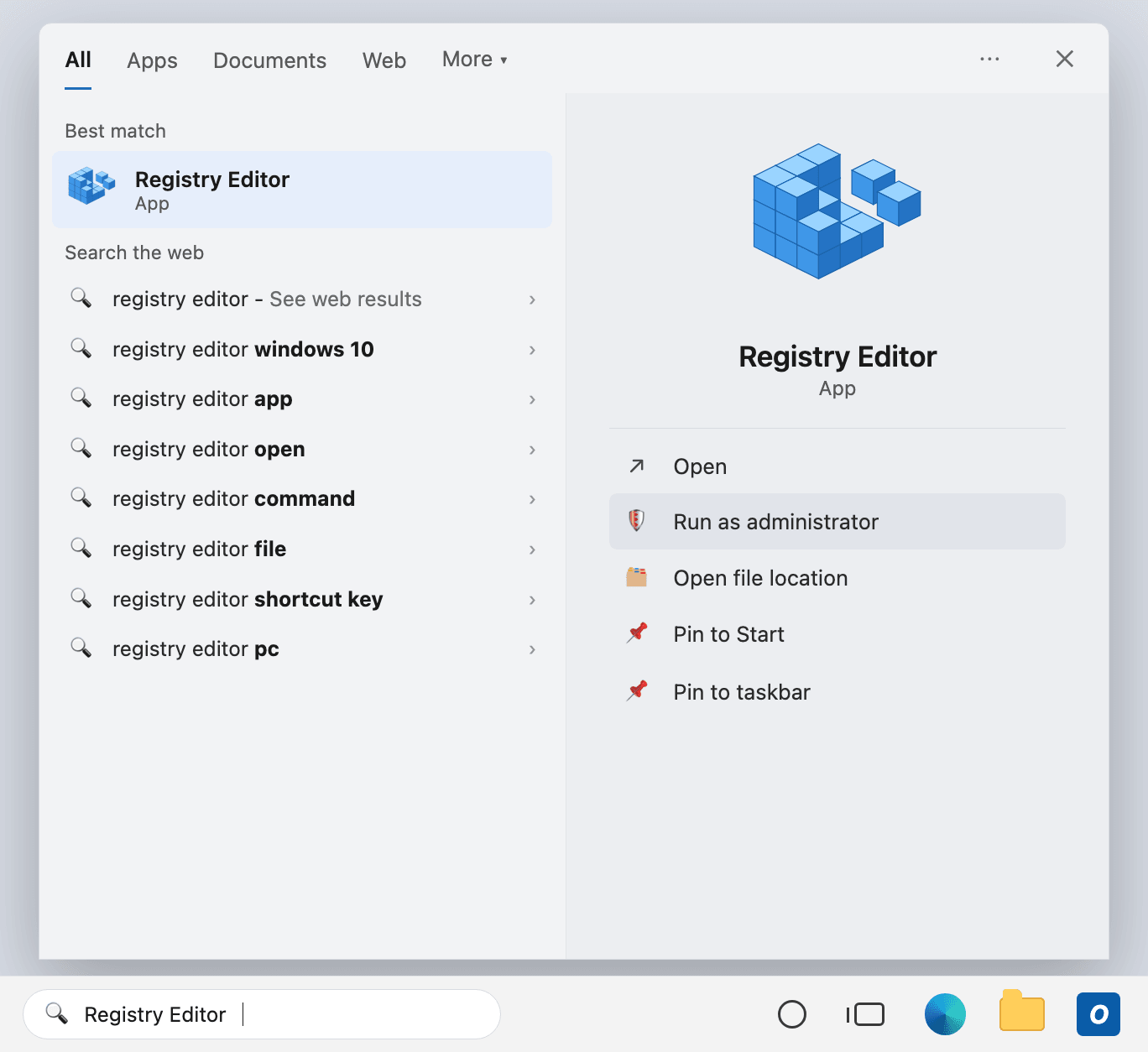
-
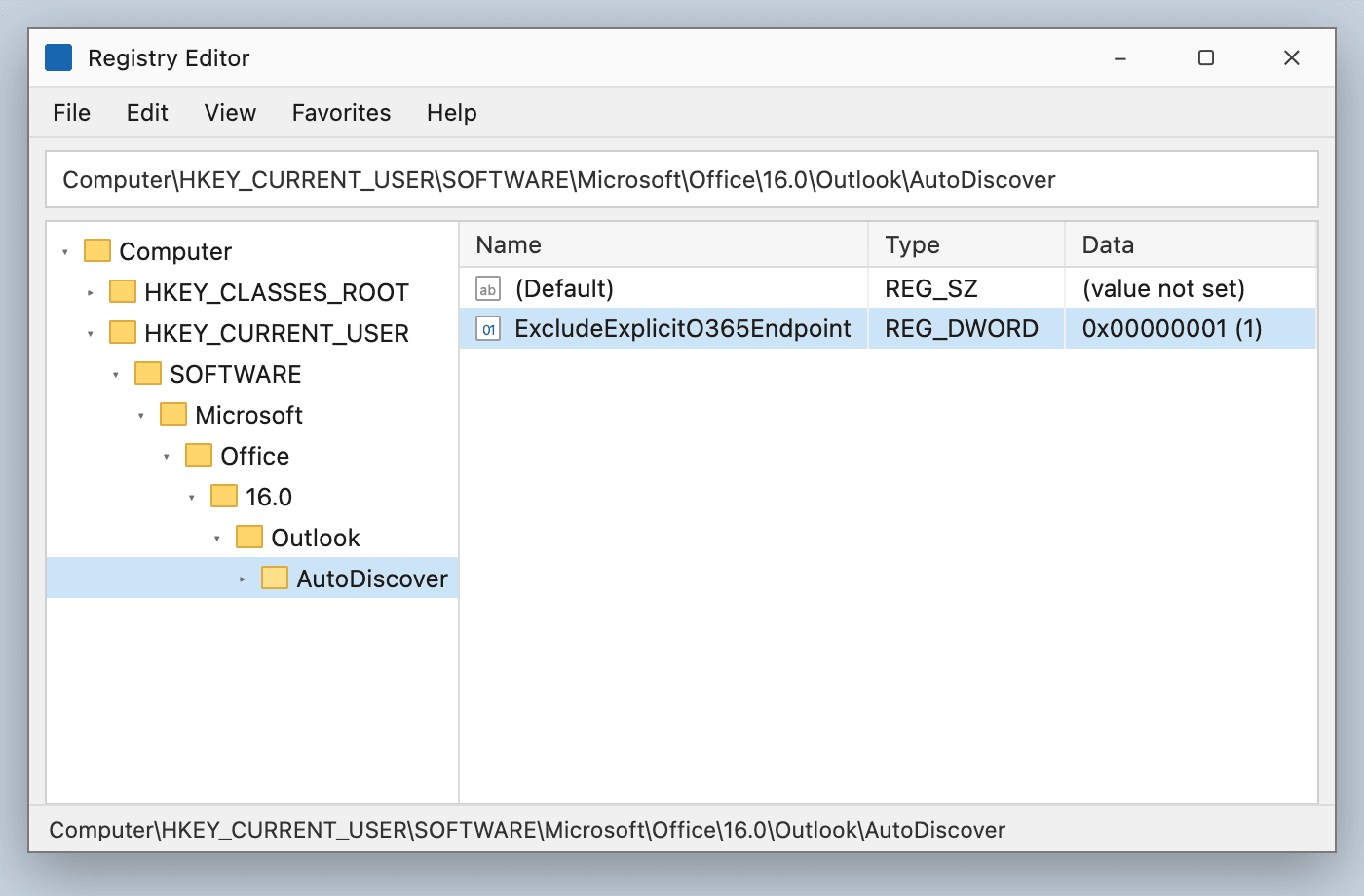
Go to the following key. If the
AutoDiscoversubkey does not exist, create it:
The version number 16.0 corresponds to Outlook 2016, 2019, 2021 and Microsoft 365.
- Create a new DWORD (32-bit) value, name it
ExcludeExplicitO365Endpointand set its value to1. - Close the Registry Editor.
Using the command line
You can also add the key with a single command in a command prompt:
On Windows 11 with Office 2024 LTSC (and, more broadly, on recent versions), the AutoDiscover key is no longer in the system context but in the context of the logged-in user. Therefore, launch the Registry Editor (or the command prompt) in the session of the affected user, not as an administrator of another account.
Alternative: change the sign-in address of the Microsoft account
If the conflict comes from a personal Microsoft account, you can remove the cause instead of working around it. This method requires no administrator rights on the computer, which makes it the only option on a workstation managed by your IT department.
- Create an alias on your OVHcloud Exchange account, following our guide Using email aliases and redirections.
- Sign in to account.microsoft.com, open Your info then Manage how you sign in to Microsoft, and add this alias to your Microsoft account. The verification message arrives in your Exchange mailbox, since the alias points to it.
- Set the alias as the primary alias, then remove your Exchange address from the Microsoft account.
Outlook no longer finds a Microsoft account for your Exchange address, and autodiscover falls back to the OVHcloud server.
Microsoft applies its own limits: 10 aliases per account, the primary alias can only be changed twice a week, and an address linked to a work or school account cannot be made primary. This method therefore applies to a personal Microsoft account only. For a Microsoft 365 tenant, use the registry key above.
Checking the connection to Exchange OVHcloud
Start Outlook and check that the Microsoft 365 sign-in window no longer appears. Outlook now connects directly to your Exchange OVHcloud server rather than to Office 365 / Microsoft 365.
There is no need to recreate the Outlook profile after adding the registry key.
To confirm the connection, open classic Outlook and look at the status bar at the bottom of the window: it should display Connected to: Microsoft Exchange. Outlook is then communicating with your Exchange OVHcloud server, and no longer with Office 365:
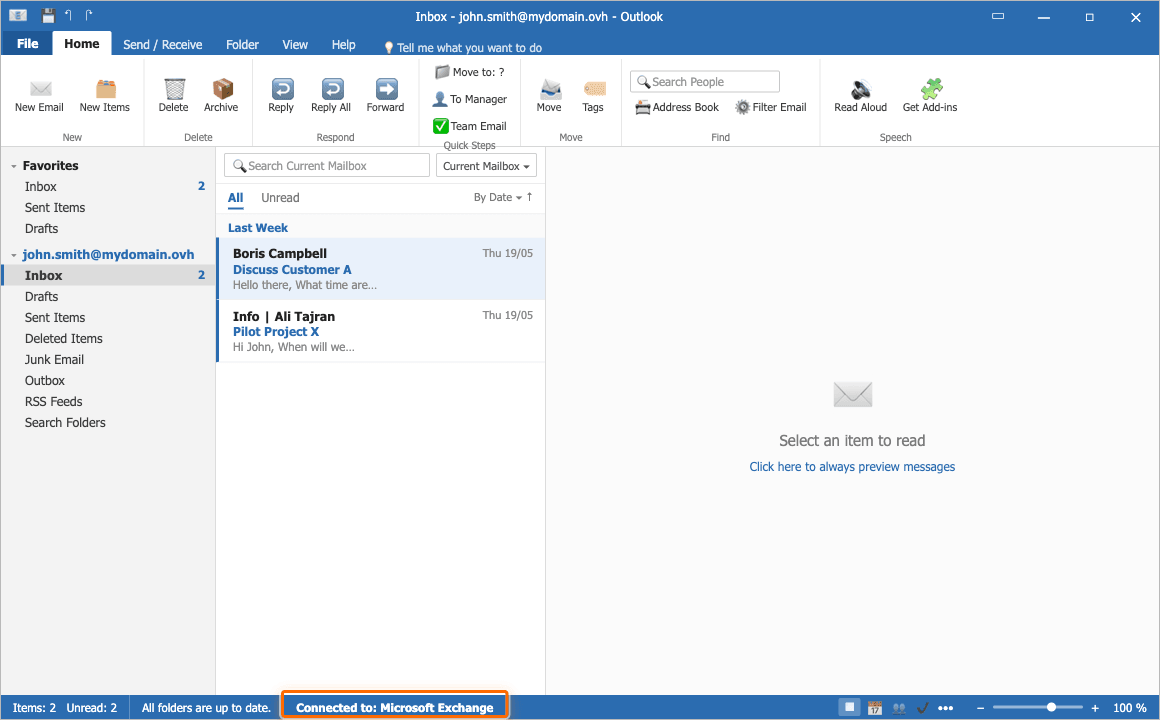
To check the exact server name (ex?.mail.ovh.net), hold down the Ctrl key and right-click the Outlook icon in the Windows notification area, then select Connection Status.
If you plan to migrate mailboxes to Office 365 / Exchange Online later, remember to delete the ExcludeExplicitO365Endpoint registry key. As long as it is present, it prevents Outlook from connecting to Exchange Online.
Go further
For more information about the autodiscover feature and Outlook configuration, see the Microsoft help centre.
Exchange - Configure your email account on classic Outlook for Windows
Using the Exchange error diagnostic
Add a domain name to your Exchange service
Join our community of users.