
OPCP Cloud Console
Find out how to log in to the OPCP Cloud Console, use the services enabled for your Organization and create user accounts
Alpha version — This guide documents the alpha version of Cloud Store. Features, interfaces and procedures will change until general availability (GA), and this guide will be updated along with them.
Objective
This guide shows Organization Admins and Organization Users how to log in to the OPCP Cloud Console, use the services enabled for their Organization, and create the user accounts of the Organization.
The OPCP Cloud Console is the Cloud Store interface for Organizations. For an overview of Cloud Store and its concepts, read the guide Getting started with Cloud Store.
Requirements
- An Organization created by your IT Admin, with at least one Enabled Service.
- The URL of the OPCP Cloud Console, your login (your email address) and your first-login password: the default password, provided by your IT Admin, if you are the Organization Admin; the temporary password set by your Organization Admin otherwise.
- HTTPS access (TCP/443) to the OPCP Cloud Console URL from your workstation.
Instructions
Logging in to the OPCP Cloud Console
-
Navigate to the URL of the OPCP Cloud Console. If the URL does not already include your Organization, enter the Organization name and click
Submit.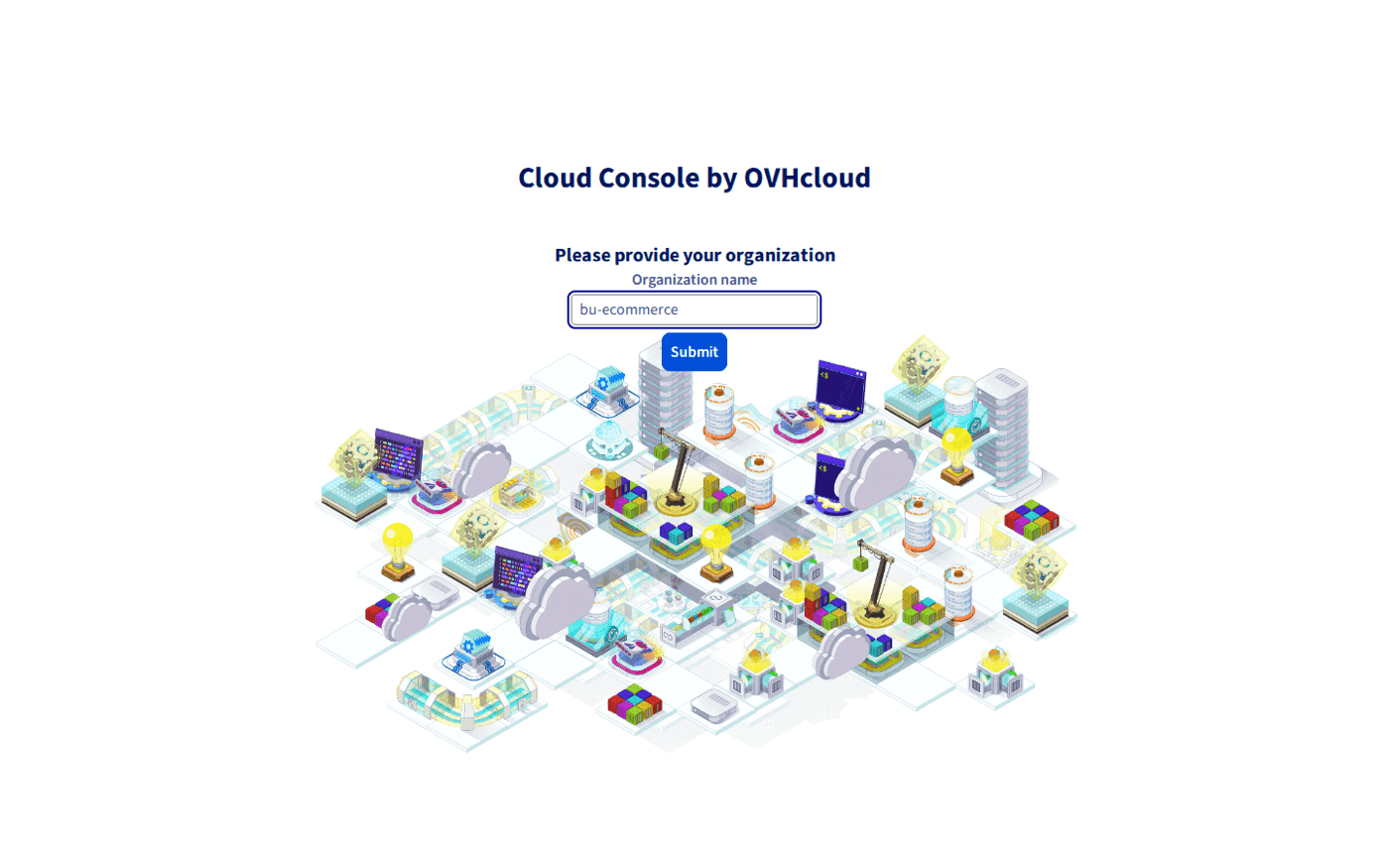
-
A page shows the selected Organization. Click
Log in, then, on the login form of your Organization, enter your email address and password and clickSign In.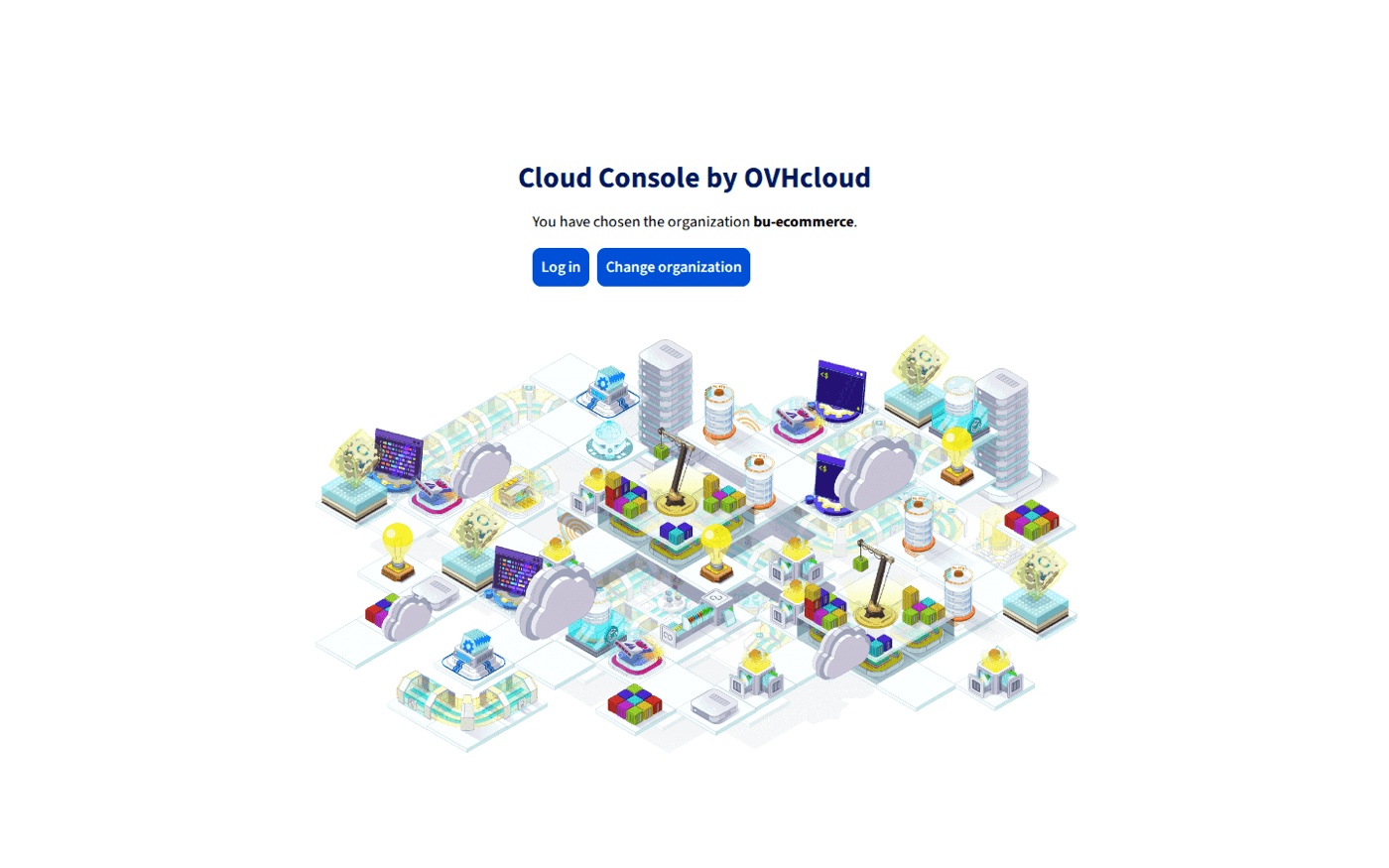
-
At first login, set a new password.
The first-login default password of the Organization Admin is shared and defined at Cloud Store installation. Change it as soon as you log in for the first time.
Logging out
To log out, click your user badge at the top right, then choose the logout option in the menu.
The session expires after 30 minutes of inactivity, and at the latest 10 hours after you log in.
Using the Enabled Services
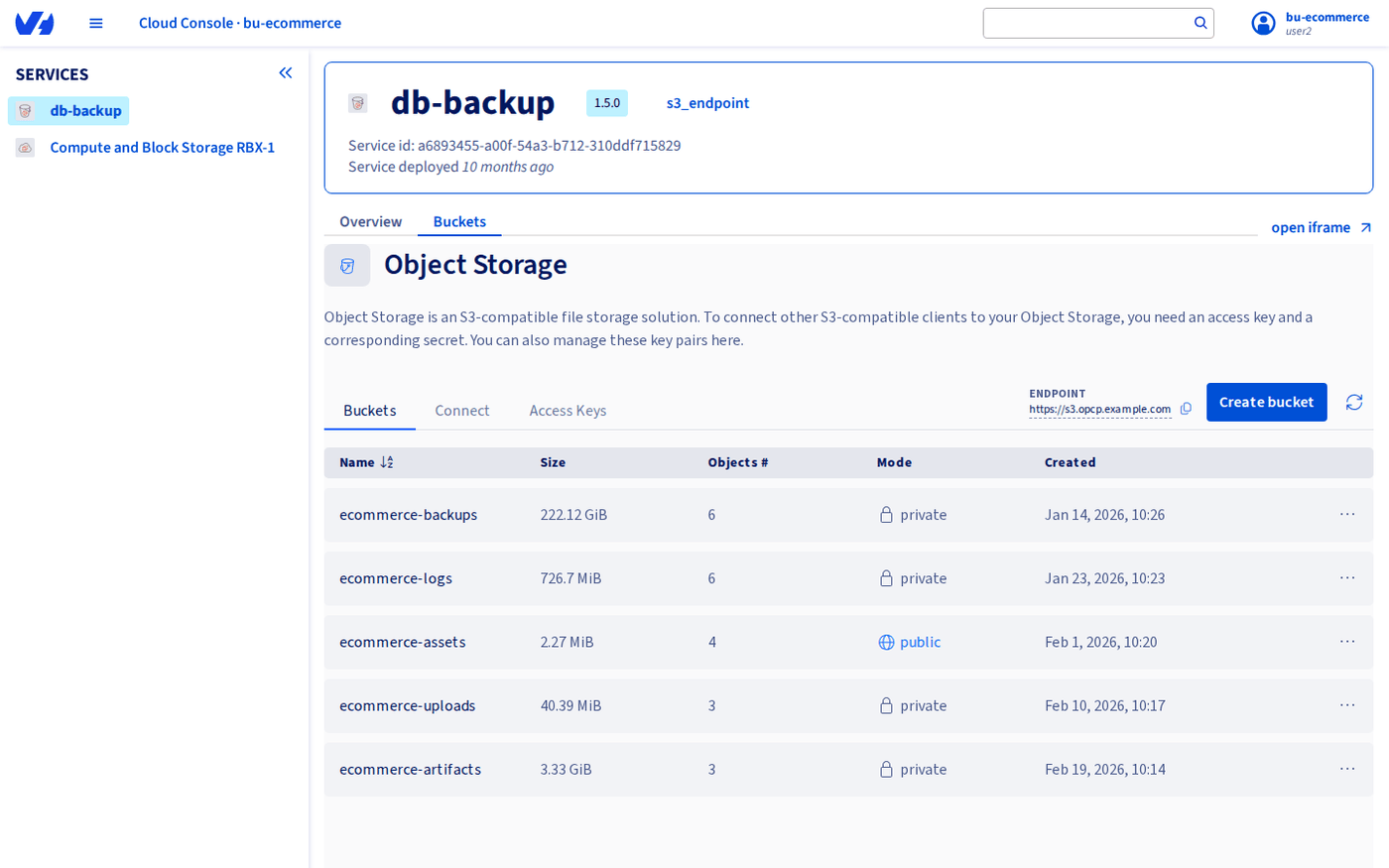
The sidebar lists the Enabled Services of your Organization, that is the services your IT Admin has enabled for it.
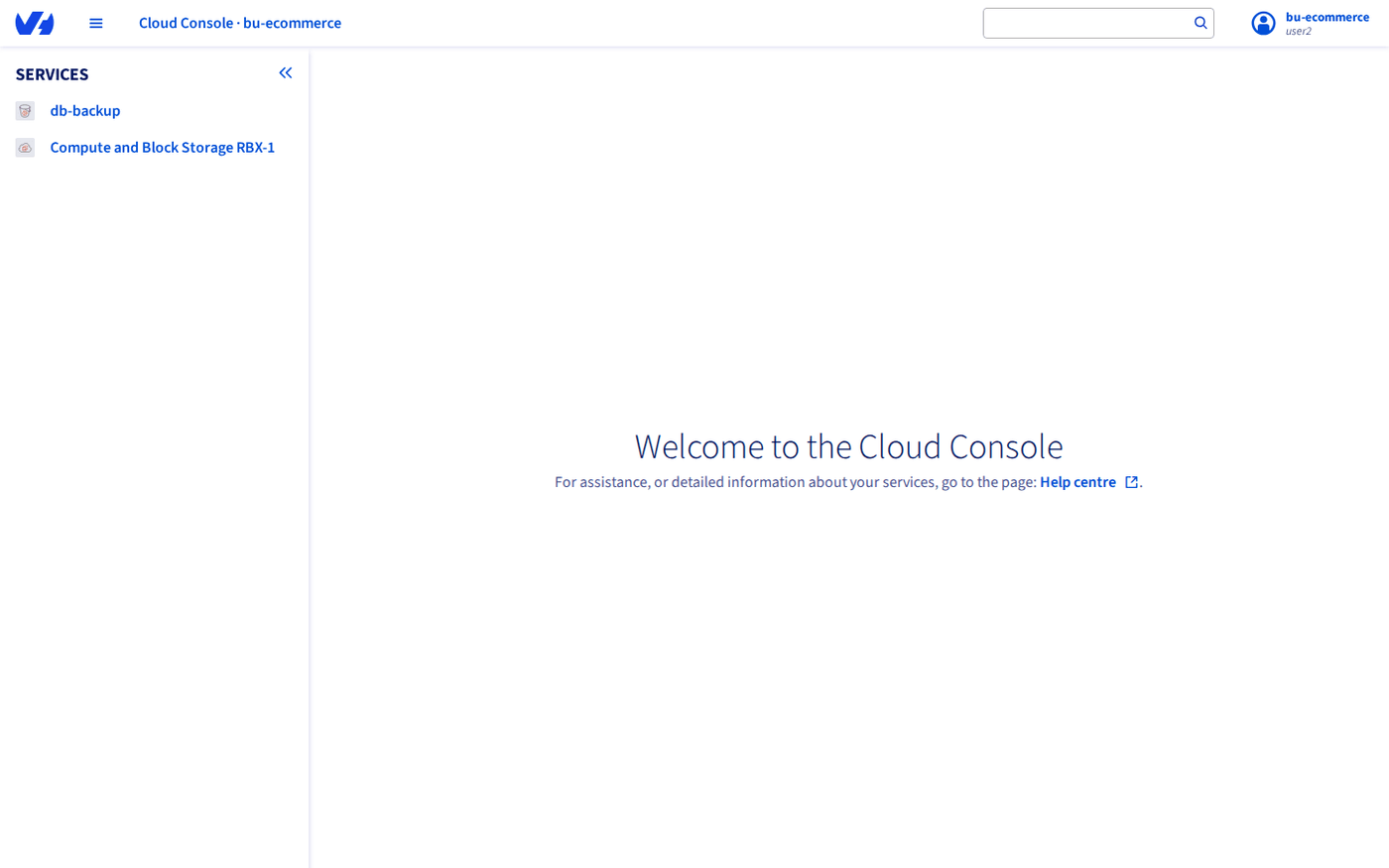
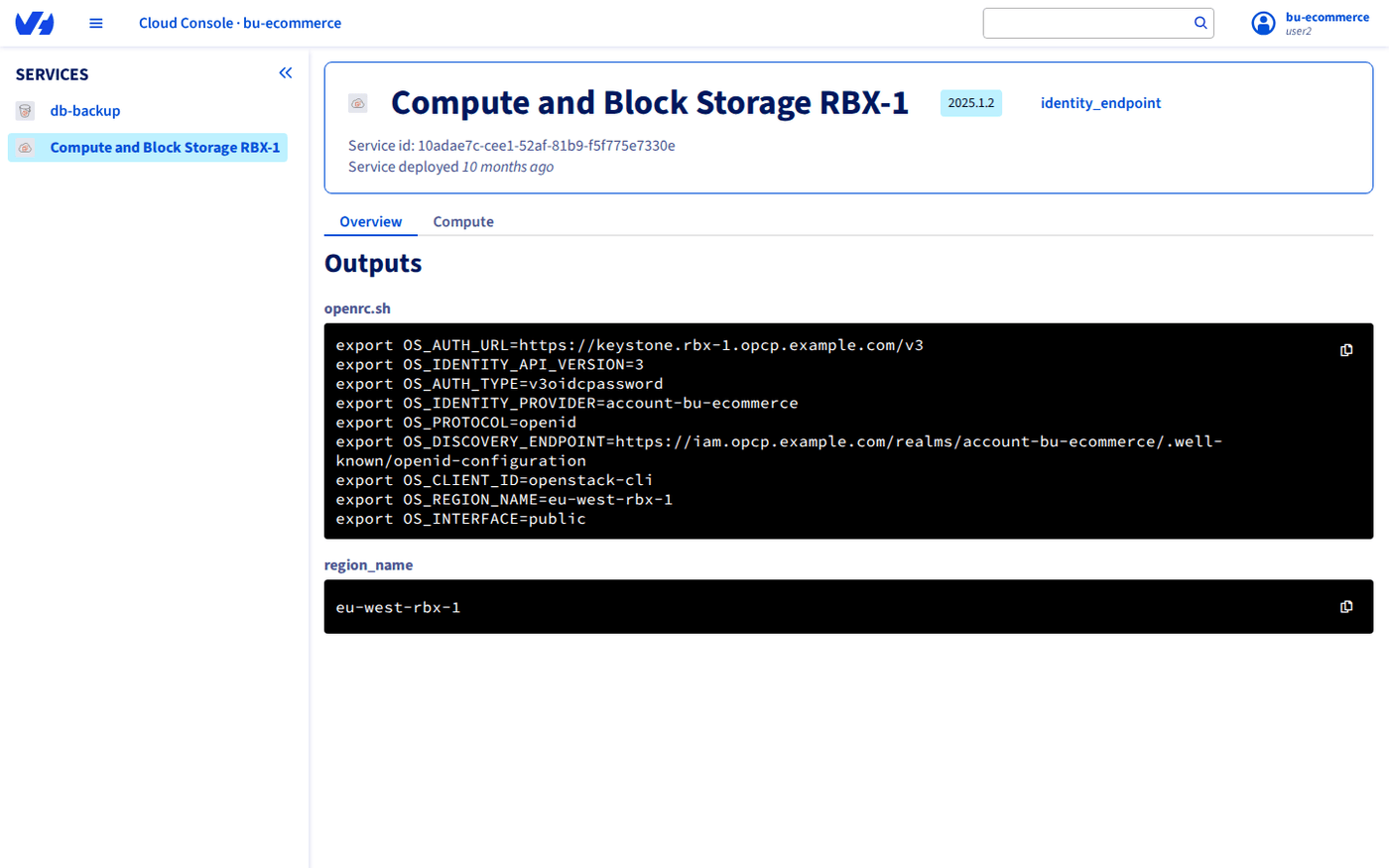
Open a service to see its version and its tabs:
- Overview shows the Outputs of the service: what you need to connect to it with your own tools, for example an
openrc.shfile for the OpenStack CLI and the region name. - Service tabs: each service can add its own tabs to manage its Cloud Resources, for example
Computefor virtual machines orBucketsfor Object Storage.
Creating a user account
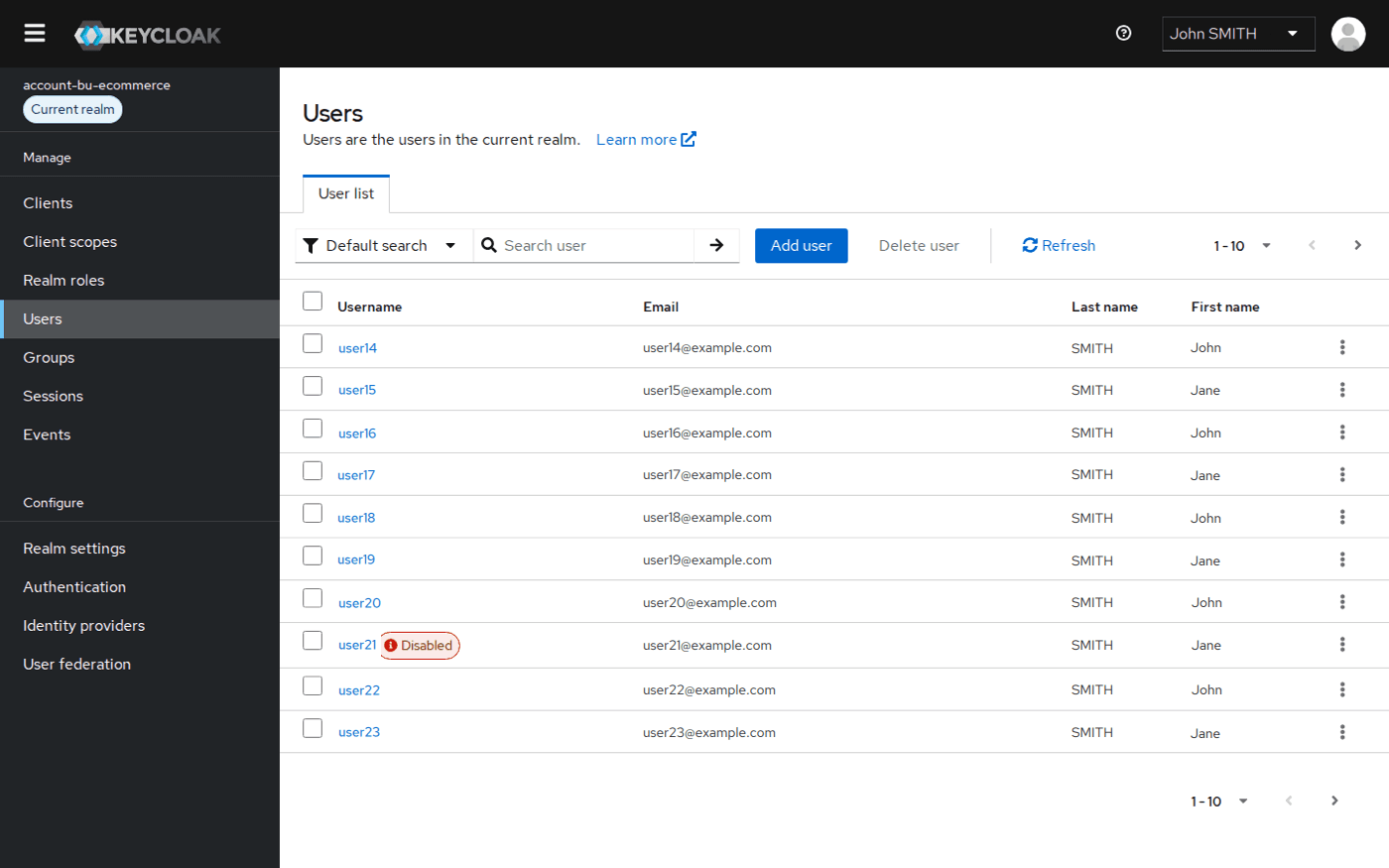
The Organization Admin creates the user accounts in the Organization's Keycloak realm. Each Organization has its own realm, isolated from the other Organizations: any identity operation (adding users, configuring federation, defining roles) is performed in the realm of the target Organization.
-
Open the Keycloak administration console of your Organization and log in as Organization Admin. Your IT Admin can give you its URL: in the OPCP Admin Console, under
Management>Organizations, the shield icon of your Organization opens it, as does theIAM Admin Consolelink on the Organization page. The URL has the formhttps://keycloak-layer-3.<domain>/admin/account-<name>/console/. -
Go to
Usersand clickAdd user. -
Fill in the username, email, first name and last name. The email is the user's login.
-
Click
Create. The new user has no password yet. -
Open the
Credentialstab of the user and clickSet password. -
Enter a password and confirm it, keep
Temporaryon, and clickSave. WithTemporaryon, the user must set a new password at first login.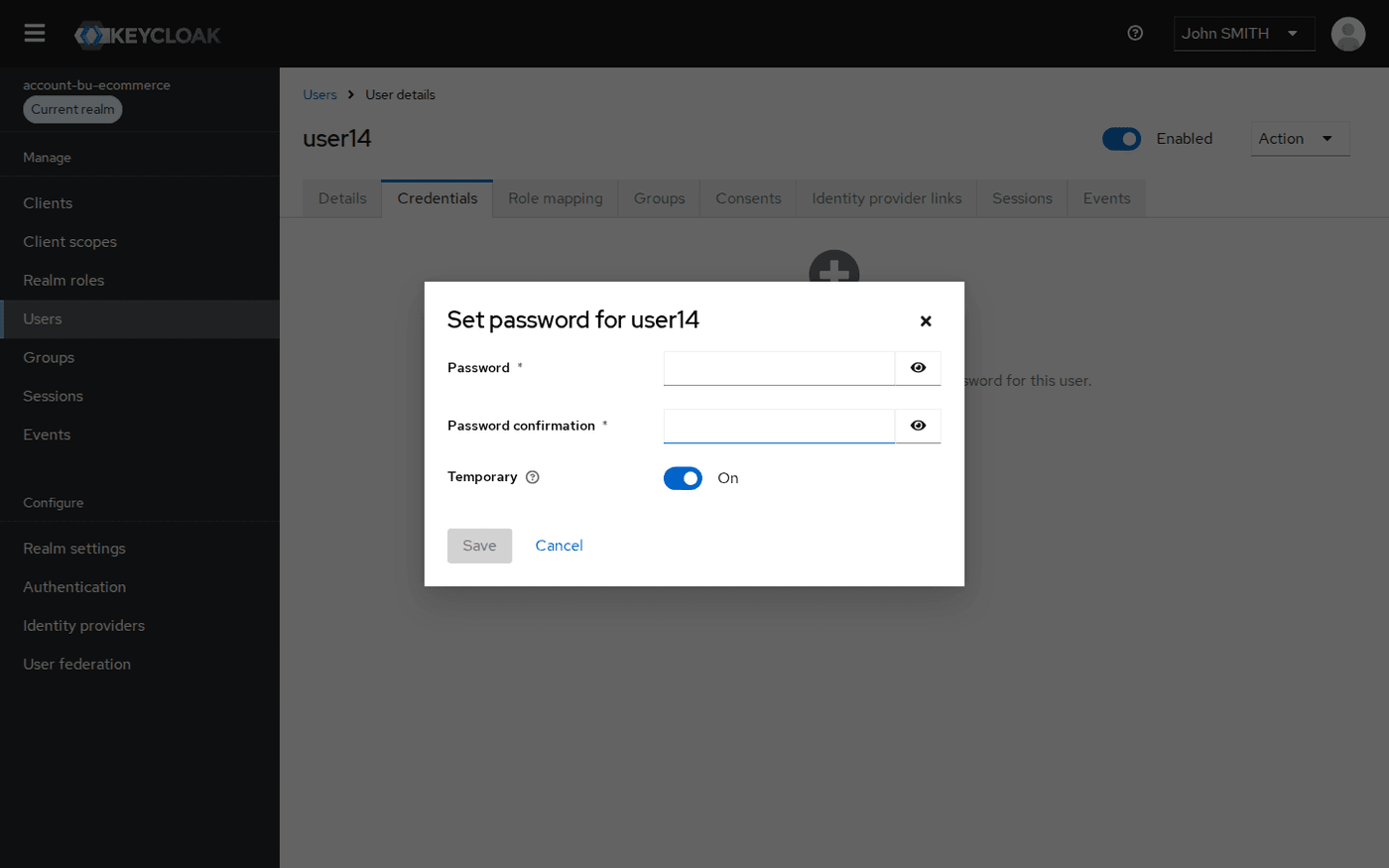
-
No email is sent: send the user the OPCP Cloud Console URL, their email and their temporary password, through a secure channel.
To remove access for a user, turn off their Enabled toggle.
From the same realm, the Organization Admin can also configure user groups (Groups), connect the company identity provider (Identity providers) or an LDAP / Active Directory directory (User federation).
Services declare their own roles and groups, which the platform creates in the realm when they are enabled for the Organization. Compute and Block Storage and Object Storage do not create groups or per-user rights: every user of the Organization can use them.
How Organizations are mapped in Keycloak
The OPCP Cloud Console runs on its own dedicated Keycloak stack, independent from the OPCP Core Keycloak and from the OPCP Admin Console Keycloak. It is not federated with these instances: identities, realms and credentials managed for the OPCP Cloud Console are fully isolated from the administrators of the other OPCP identity layers.
Every Organization automatically gets a dedicated realm, named account-{name}. This design ensures:
- independent configuration of authentication flows per Organization;
- separate user bases and role mappings per realm.
Go further
Getting started with Cloud Store
For training or technical assistance implementing our solutions, contact your sales representative or visit our Professional Services page to request a quote and have your project analysed by our experts.
Join our community of users.