
Upload a custom world to your Minecraft server
Upload a custom Minecraft world to your game server with the Game Panel File Manager, then match the world name in Game Config so your server loads it.
Objective
The OVHcloud Game Panel lets you upload a custom Minecraft world by transferring files with the File Manager and adjusting the world name configuration.
This guide explains how to upload a custom world to your Minecraft server on the OVHcloud Game Panel.
Requirements
- A VPS or a dedicated server in your OVHcloud account with the Game Panel feature enabled.
- A Minecraft server running one of the following variants: Minecraft Java Edition, Minecraft Bedrock Edition, PaperMC, Fabric, or NeoForge. Refer to Deploy a Minecraft server on the Game Panel.
- A map folder ready to upload.
Instructions
Step 1 — Stop the Minecraft server
Before uploading a new world, you must stop your server.
- Open your server in the Game Panel.
- Click
Stopto shut down the server completely.
Never upload or replace a world while the server is running, as this may cause world corruption.
Step 2 — Upload your custom world
- Open your server in the Game Panel.
- Go to
Settings. - Open the
File Managertab.
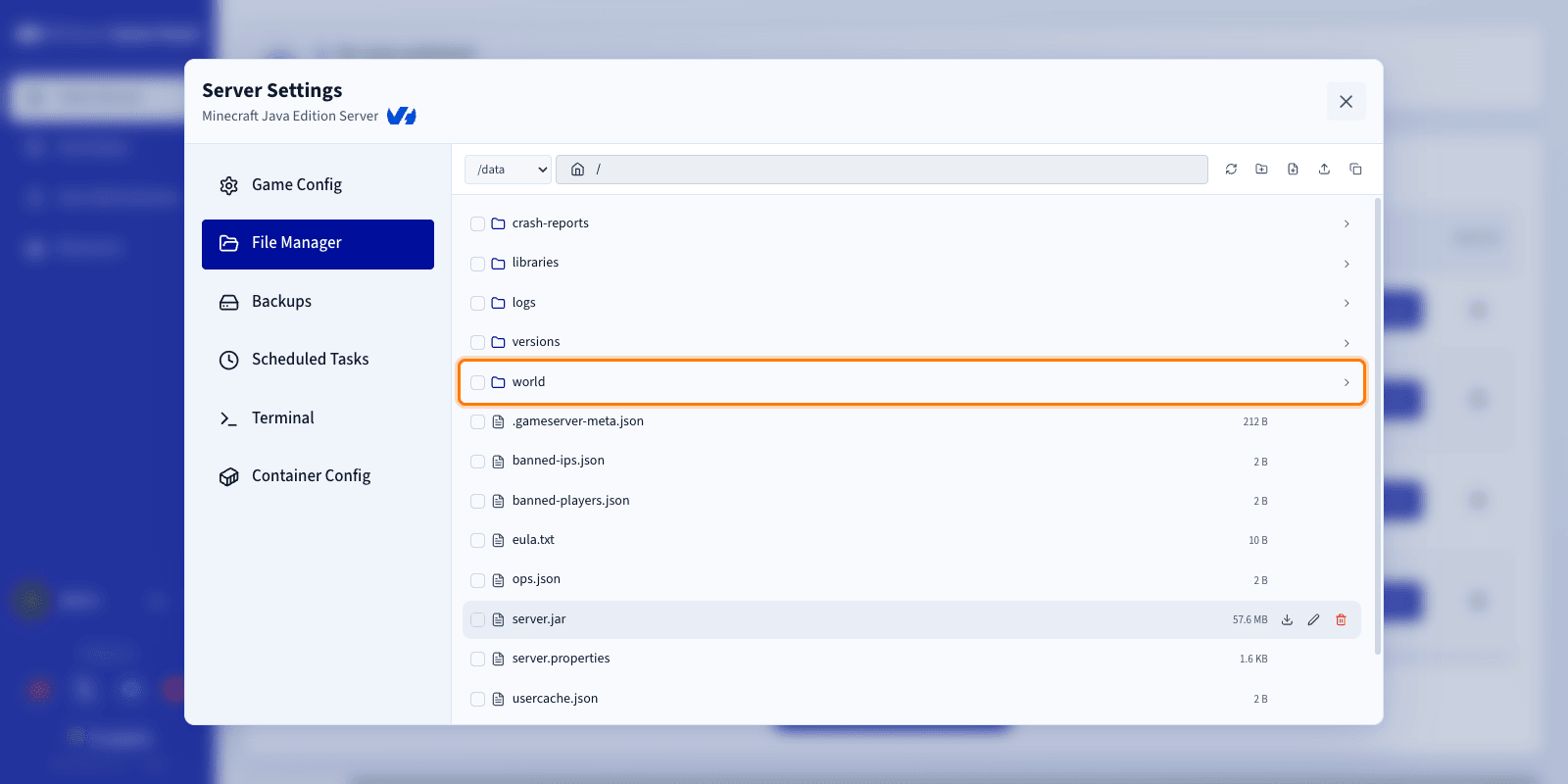
Remove the existing world
By default, the main world folder is named world. You can either delete the existing world folder, or download it first if you want to keep a backup.
Upload your new world
Once the old world has been removed:
- Locate your custom world folder on your computer.
- Drag and drop the folder directly into the File Manager.
- Wait for the upload to finish.
Your custom map should be uploaded as a folder containing the world files.
We strongly recommend that the world you upload uses the same Minecraft version as your server. A version mismatch can cause the world to fail to load or behave unexpectedly.
Step 3 — Verify the world name
The world folder name must match the world name configured in your server settings.
Check the uploaded folder name
In the File Manager, note the exact name of the world folder you uploaded.
Update the server configuration
- Go to the
Game Configtab. - Find the World name setting.
- Make sure its value matches the uploaded folder name exactly.
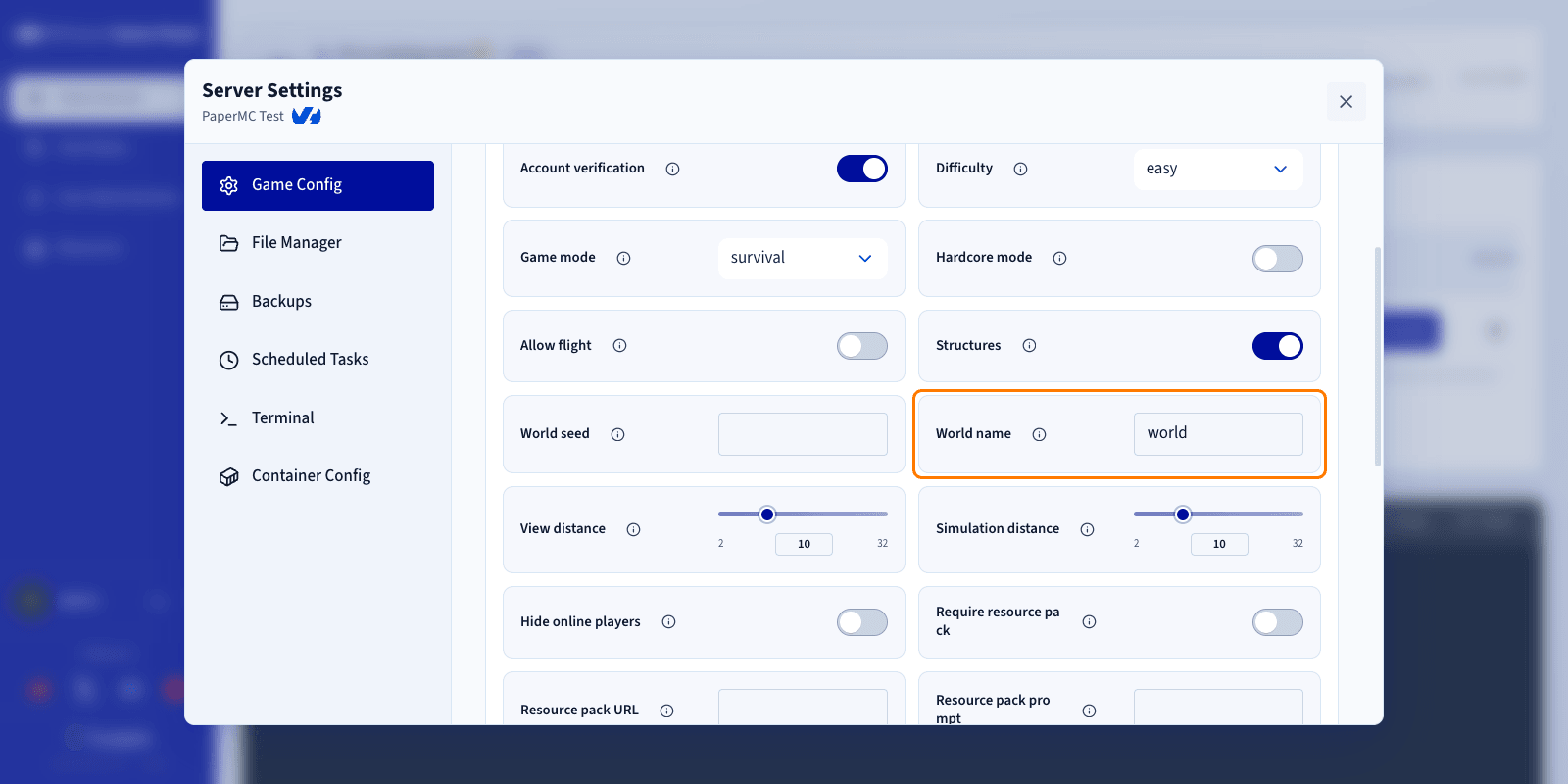
Final step
Once the upload is complete and the World name setting matches your folder name:
- Save your changes.
- Start the server again.
Your Minecraft server should now load and use your custom world.
Go further
Join our community of users.