
How to obtain the carbon footprint of your OVHcloud services
Find out how to retrieve the monthly carbon footprint of your OVHcloud services using our carbon calculator
Objective
As part of your professional activities or out of interest on the subject, you may need to calculate the carbon footprint of your services.
Find out how to retrieve the monthly carbon footprint of your OVHcloud services.
Requirements
- Being the billing contact for the service(s) you would like to create a carbon footprint for. For more information, see our guide to managing contacts.
OVHcloud Control Panel Access
- Direct link:
- Navigation path: Click your name in the top right >
Access my account
The carbon footprint calculation is available for the following services:
- Dedicated Server (Advance, Game, Scale, High Grade, Storage)
- Eco Dedicated Server (Rise, Kimsufi, So you Start)
- VMware on OVHcloud
- Public Cloud
Instructions
Carbon footprint data is not yet available for 3AZ architectures and Local Zones.
Please note the following information:
- You cannot generate a carbon footprint report for the current month.
- When using the OVHcloud API, whether you enter a date at the beginning, middle or end of a month, the carbon footprint report always covers whole months.
- No carbon footprint report can be generated for more than the last 24 months.
- No carbon footprint can be generated before the date of implementation of the feature for each OVHcloud service (see table below).
Availability of carbon footprint data:
Retrieving the monthly carbon footprint report for the previous month via the OVHcloud Control Panel
- On the , scroll down to the Useful links section in the left-hand column, then click on the
My carbon footprinttab. - On the new page that appears, click
Download my [Month] [Year] footprint.
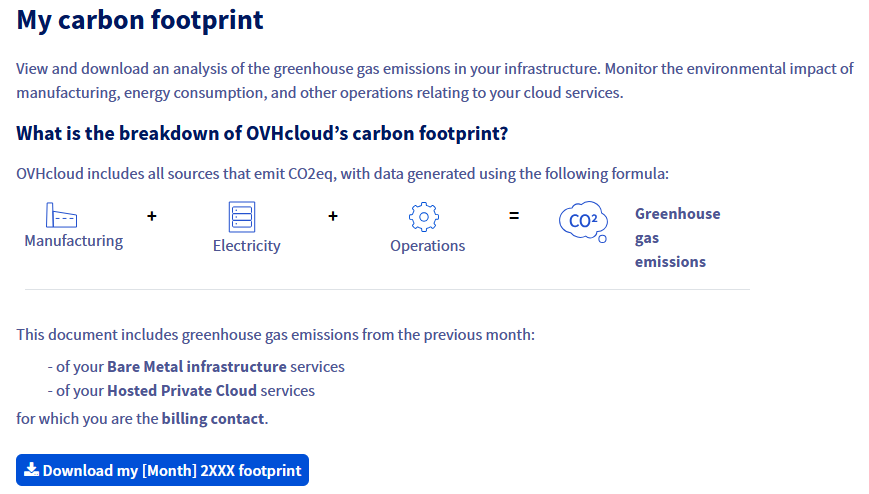
You can recover the carbon footprint of the previous month for your eligible services every month.
If you need the carbon footprint for a month prior to the month preceding the current month, or a report covering several months, you will have to use our APIs to retrieve it.
Retrieving a carbon footprint report prior to the previous month via our APIs
By default, OVHcloud APIs are made available to developers or integrators to associate features, such as those not present in the OVHcloud Control Panel, directly with their applications or solutions.
Step 1 - Access the OVHcloud APIs
- Go to our website (make sure you are on
https://api.eu.ovhcloud.comif your services are hosted in Europe, and onhttps://api.ca.ovhcloud.comif they are hosted outside Europe). - On the page that pops up, click
Explore the OVHcloud API. - On the left-hand side of the new page that appears, go to the form to the right of the
v1field, then select/enter the choice/me. - From the list of APIs that appear below in the left-hand column, locate and click the API call matching the format you want: POST /me/carbonCalculator/pdf for a report in PDF format, or POST /me/carbonCalculator/csv for a report in CSV format. You can also access them directly via the API calls below:
- On the right-hand side of the page, you will then see the API with its fields to complete.
- Click the button in the top right-hand corner labeled
Authenticate, then theLogin with OVHcloud SSObutton. - The login page will open.
- Log in with your customer credentials, then click
Authorizeto use the OVHcloud APIs with your services. - You will then be automatically redirected to the previous page of the API call you selected.
Step 2 - Request the carbon footprint generation and retrieve the requested Task ID
Two API calls are available, depending on the format you want. The taskID you obtain at this step will produce either a PDF or a CSV, according to the call you selected in step 1. Select the corresponding tab below.
The POST /me/carbonCalculator/pdf API call generates a report covering a single month.
Replace the current date that appears in the API sidebar with a date in the month you want the report for. Please respect the following date format:
The day is ignored: whichever day you enter, the report covers the full month. The month requested cannot be the current month, nor go back further than 24 months.
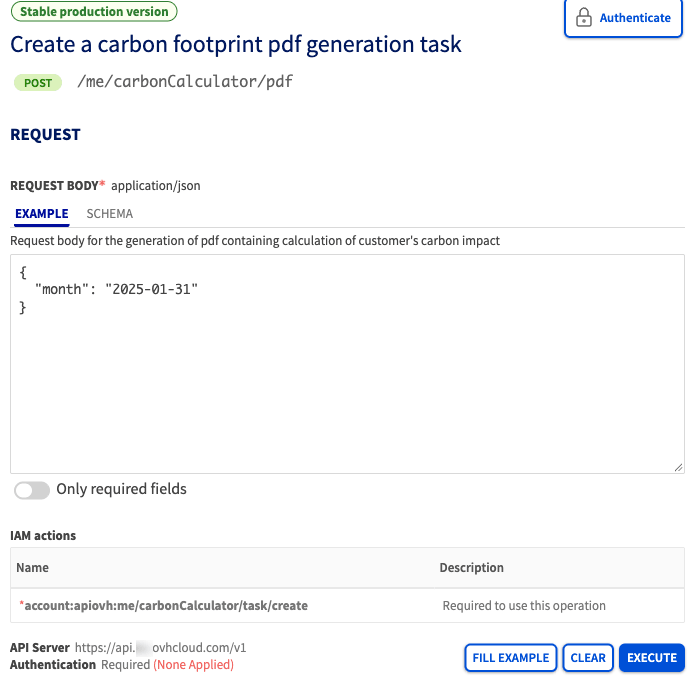
Once you have chosen the correct date, click the blue EXECUTE button.
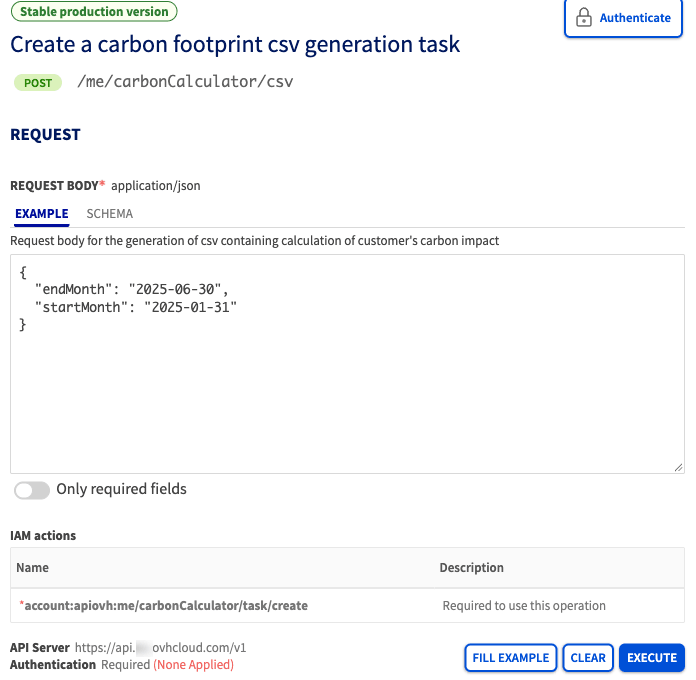
Whichever call you used, if everything has been done correctly, a taskID will appear in the RESPONSE window when you scroll down the page below the EXECUTE button.
For example, if your OVHcloud account ID is aa00000-ovh and you requested a report in PDF format for January 2025, then you will get the following result:
Copy only the obtained value which must be equivalent to the value of our example aa00000-ovh_202501 (without copying the quotation marks (")).
Step 3 - Retrieve the carbon footprint report in PDF or CSV format
Thanks to the taskID value previously retrieved — from the PDF call or from the CSV call — you can now retrieve the carbon footprint of your services.
To do this, stay on our website and perform the following actions:
- On the left-hand side of the page, go to the form to the right of the
v1field, then select/enter the choice/me. - From the list of API calls that appear below, locate and click the following API: GET /me/carbonCalculator/task/{taskID}. You can also access it directly via the API call below:
- On the right-hand side of the page, you will then see the API with a form to fill in.
Complete the form in the PATH PARAMETERS section as follows:
taskID: Copy here thetaskIDvalue retrieved earlier in step 2, whichever format you requested.
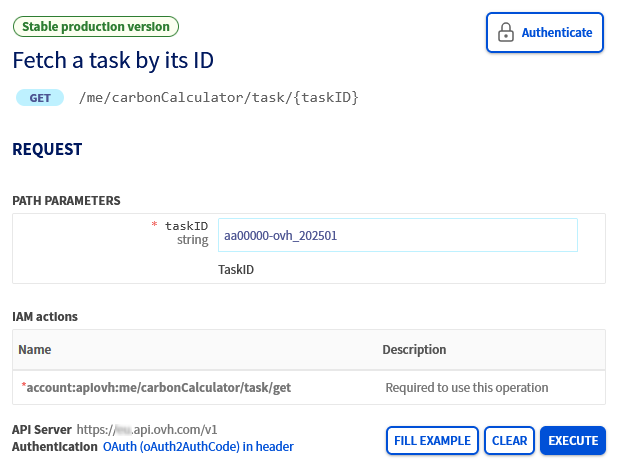
Once you have entered the value for your taskID correctly, click the blue EXECUTE button.
The following result appears in the RESPONSE window when you scroll down the page below the EXECUTE button:
In this result, copy the entire URL in HTTPS (without the quotation marks) on the right-hand side of the comment "link":, then paste it into the address bar of your web browser to start downloading the carbon footprint in the format you requested.
Your web browser will automatically download the file, and may display it directly in the case of a PDF report.
Depending on your browser’s configuration, the file may not be downloaded and displayed properly. If this is the case, check your browser configuration, then reload the page.
Once you have opened the file, you will find the following items.
In the PDF report:
- A summary table of CO2 emissions by category for the requested month.
- A summary table of CO2 emissions by category between the beginning of the calendar year and the requested month.
- A table detailing the values by type of product subscribed.
- A graph showing CO2 emissions by category.
In the CSV report:
- A summary of CO2 emissions per physical server, or per server range (PCI), for the requested month or months.
The link generated is only valid for 24 hours. Make sure to download the carbon footprint from your browser once the link is open.
Go further
First Steps with the OVHcloud APIs
For specialised services (SEO, development, etc.), contact OVHcloud partners.
If you would like assistance using and configuring your OVHcloud solutions, please refer to our support offers.
Join our community of users.