
VPS - Management from the OVHcloud Control Panel
Find out how to use the OVHcloud Control Panel to manage your VPS: dashboard, reinstallation, reboot, backups and service configuration
Objective
- Understand the VPS management interface.
- Identify essential information.
- Know where to perform the main actions.
Requirements
- An active VPS offer in your OVHcloud Control Panel
Some VPS features mentioned on this page are not available in OVHcloud Local Zones.
Please visit our Local Zones page for more information.
OVHcloud Control Panel Access
- Direct link:
- Navigation path:
Bare Metal Cloud>Virtual private servers> Select your VPS
Instructions
This guide helps you understand the VPS management interface in the OVHcloud Control Panel, identify essential information and use the main available actions (reinstallation, reboot, backup, configuration).
Content overview
Dashboard
The Home tab is the main dashboard of your VPS.
It centralises key information about the service and provides access to essential management actions.
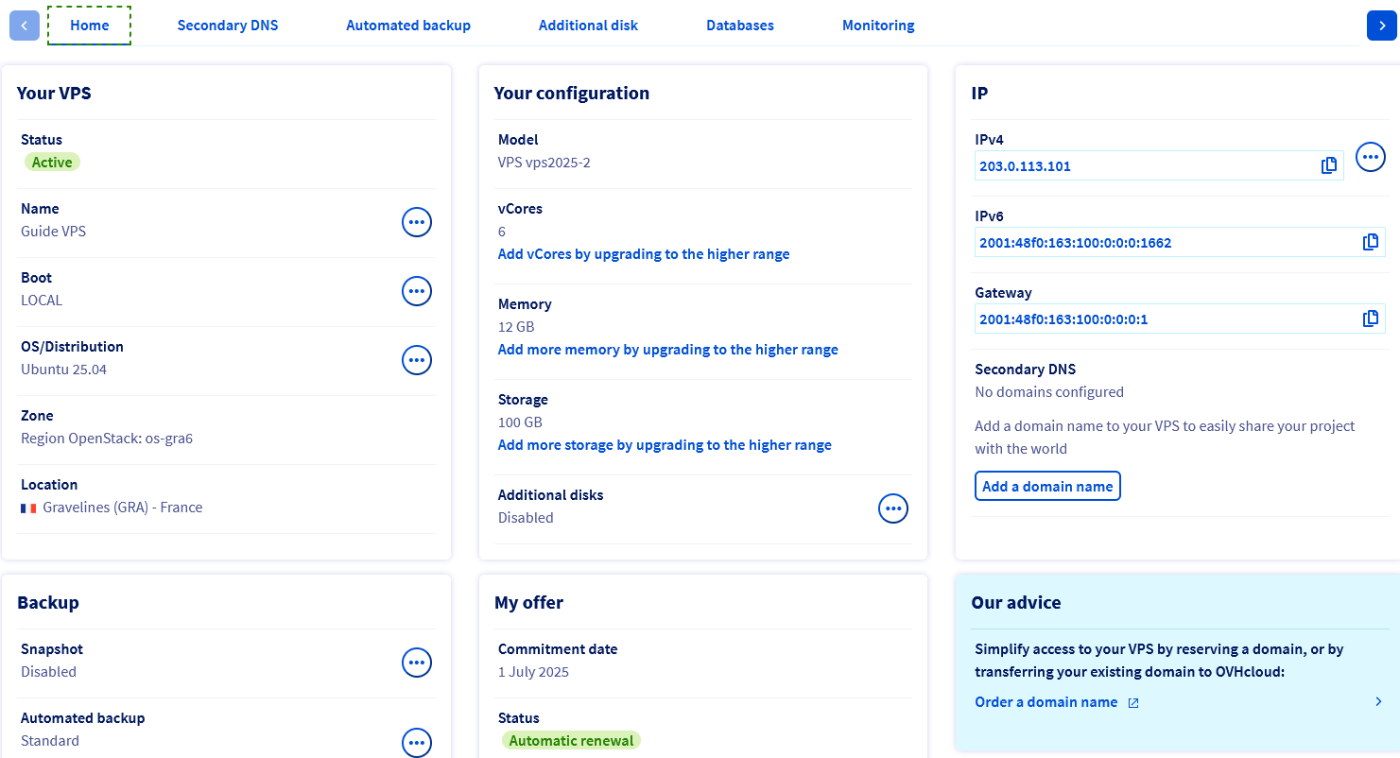
Your VPS
Find below the basic information about your VPS and the service status. Click on the tabs below to display the details.
To customise the name of your VPS, click on the ... button and select Change the name. This feature is useful for easier navigation in the Control Panel when managing multiple VPS services. However, the internal service name remains in the format VPS-XXXXXXX.VPS.ovh.net.
Your configuration
Click on the tabs below to display the details of this section.
This item indicates the commercial reference identifying the VPS model, corresponding to the VPS offers on our website.
IP
Click on the tabs below to display the details of this section.
The main public IPv4 address of the VPS is automatically configured during installation. Find more information on IP management in our guide "Configuring an alias IP address".
Backup
These options refer to additional VPS services for backing up and restoring your system.
A snapshot on a VPS is an instant backup of the server's state, allowing you to quickly restore the system in case of a problem. The Snapshot option allows you to create a manual snapshot as a single restore point.
Find all information on the backup solutions available for your service on the VPS product page and in our respective guides.
My offer
This section presents the most important information regarding the billing of your service. Find all information on this subject in our respective guides.
VPS functions available in the "Home" tab
Information regarding OVHcloud service administration and how to find appropriate assistance
When using OVHcloud guides, please be aware of the following conditions:
- User instructions aim to provide as many details as possible but cannot cover individual use cases. You might need to adapt the pertinent actions to your requirements.
- The OVHcloud ecosystem is built for flexibility and freedom of choice. Customers are therefore responsible for the secure and proper configuration of their services. To prevent data loss, we strongly recommend to apply backup strategies to all your important data.
- Our guides and tutorials may reference third-party software or services in combination with OVHcloud solutions. The technical support provided by OVHcloud does not include the configuration of systems or products outside of our responsibility. This includes but is not limited to:
- Operating systems and user interfaces (Windows, Debian, Plesk, etc.).
- Any other third-party software (FTP clients, email software, etc.).
- Services offered by other providers (DNS, APIs, user interfaces, etc.).
To receive the appropriate assistance for any issues you might experience, follow these guidelines:
- You seek personalized advice or you would like to discuss a topic that is not covered in detail by our documentation?
Join the OVHcloud Community to search for your topic and reach out to other users. - You need to report an incident regarding your OVHcloud service or you are experiencing difficulties in the OVHcloud Control Panel?
Create a support request in our Help Centre. - You require professional assistance for your project or you need help with tasks outside our support scope?
Visit our partner portal to search for experts who are familiar with OVHcloud solutions. - You are looking for more detailed information regarding our support levels and Professional Services?
Please visit our web pages for OVHcloud support levels and OVHcloud Professional Services.
You can participate in improving our documentation:
- You would like to share feedback to improve a guide page or you want to report insufficient information on a specific page?
Use the "Was this page helpful?" buttons at the bottom of the page to let us know. - You would like to propose a specific documentation update?
Use the "Edit this page" function, available at the bottom of the page and in the sidebar.
Reboot your VPS
A reboot may be necessary to apply configuration updates or to resolve a malfunction. Where possible, perform a "software reboot" from the server's graphical interface (Windows, Plesk, etc.) or via the command line below:
However, you can perform a forced reboot at any time in your . From the Home tab, click on the ... button next to Boot in the Your VPS section. Select Reboot my VPS and click Confirm in the window that appears.

Reinstall your VPS
The reinstallation of your VPS can be done from your Control Panel. This operation is generally used in case of system problems, environment change or to start with a clean installation.
Click on the ... button to the right of OS/Distribution, then on Reinstall my VPS.

In the window that appears, choose an operating system from the drop-down list. The options offered are images compatible with an OVHcloud VPS and are immediately functional after installation.
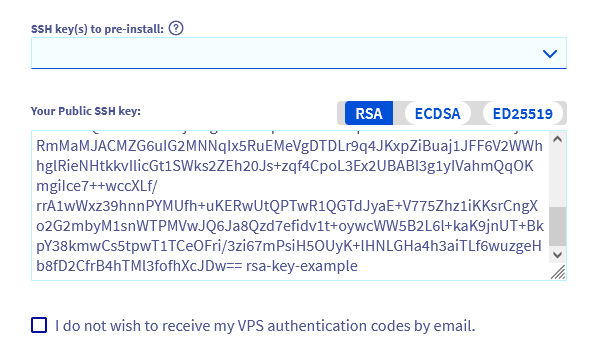
If you have selected a compatible operating system, you can provide a public key to be automatically installed. Two options are available:
- Manually copy the key string and paste it into the
Your SSH Public Keyfield. - If you have previously stored a public key in your , select the desired key from the
SSH Key to pre-installdrop-down menu.
For more information on this topic, consult our guides:
- How to create and use authentication keys for SSH connections to OVHcloud servers
- Tutorial - How to use PuTTY for SSH connections and authentication
If you have selected an SSH key and do not need a password to connect, enable the option I do not wish to receive my VPS authentication codes by email.
Reinstallation will format all the server's disks. It is strongly recommended to create a snapshot of your VPS before proceeding, so that you can return to the previous state in case of a problem.
Licenses
Some operating systems or proprietary platforms, such as Plesk or cPanel, require licenses that generate additional costs. Licenses can be managed from your Control Panel: go to the Bare Metal Cloud section, then click on Licenses in the left-hand navigation bar.
To have a Windows operating system running on a VPS, you must have previously chosen it in the ordering process. A VPS with another OS installed cannot be reinstalled with Windows via the method described above.
The reinstallation process can take a few minutes.
Go further
How to recover access to the server in case of lost user password
Join our community of users.