
Web hosting - View website statistics and logs
Find out how to view your website's statistics and logs with your web hosting plan
Objective
Access to your website's logs and statistics is included in your web hosting plan, and is accessible via the OVHcloud Control Panel.
Find out how to view your website's statistics and logs with your web hosting plan.
Requirements
OVHcloud Control Panel Access
- Direct link:
- Navigation path:
Web Cloud>Hosting plans> Select your web hosting plan
Instructions
To access the different statistical data and logs on your web hosting plan, click on the tabs below to view each of the 3 steps.
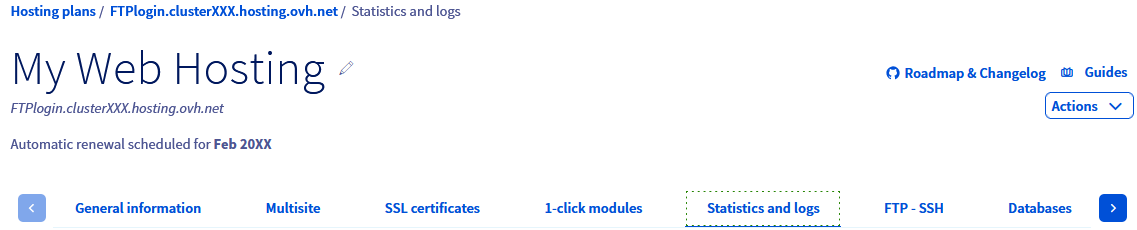
Go to the page, then select the web hosting plan concerned.

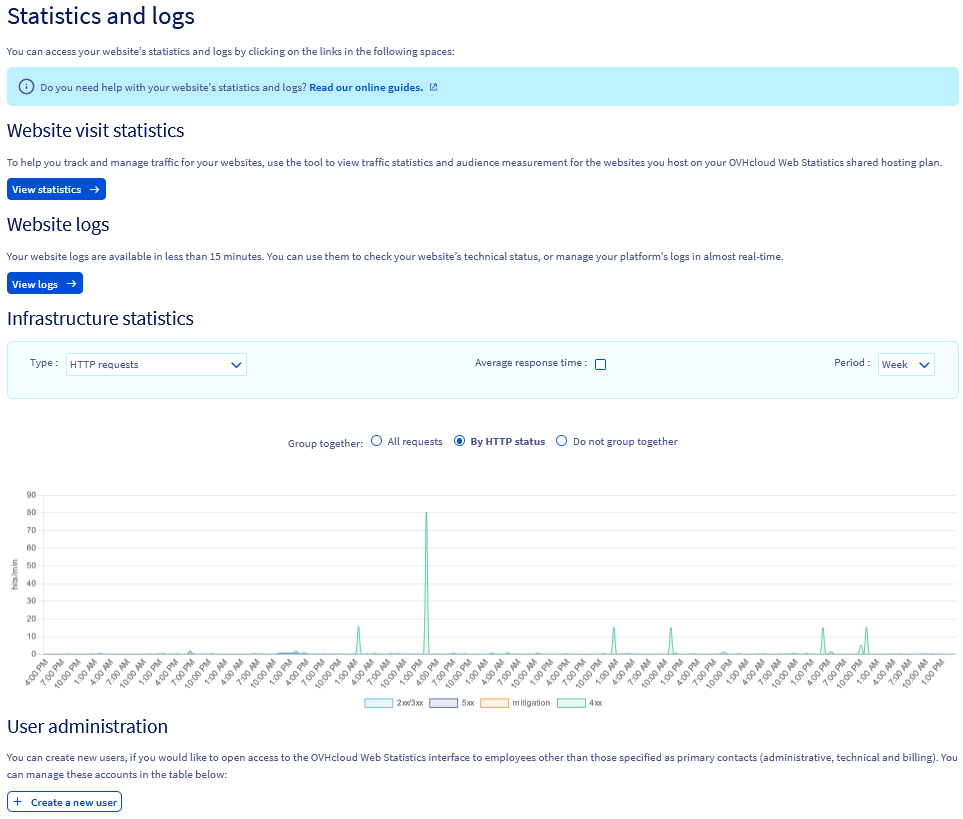
Visit statistics
To better monitor and manage traffic for your websites, you can use OVHcloud Web Statistics, a tool for statistics on visits to and audience measurement of your websites hosted on your web hosting plan.
The OVHcloud Web Statistics dashboard has 7 sections:
- Dashboard: Shows traffic on your web hosting plan's websites.
- Browsers: Ranking of the most frequently used web browsers for browsing your websites.
- Geolocation: Proportion of visitors depending on their location.
- Requests: Ranking of the most visited pages on your websites.
- Robots: Lists the robots that pass through your sites.
- Status: Failure and success statistics based on HTTP codes returned.
- FAQ: Section dedicated to the most common questions, also explains technical terms that you may encounter in the tool.
The Period selection field in the top right-hand corner allows you to select a specific period.
Website logs
We will not be able to assist you in interpreting your web hosting plan's logs, as this is strictly a web development issue not related to web hosting plans.
Do not hesitate to contact a specialist provider if you experience any difficulties.
You can view your website's raw logs with a delay of around 5 minutes.
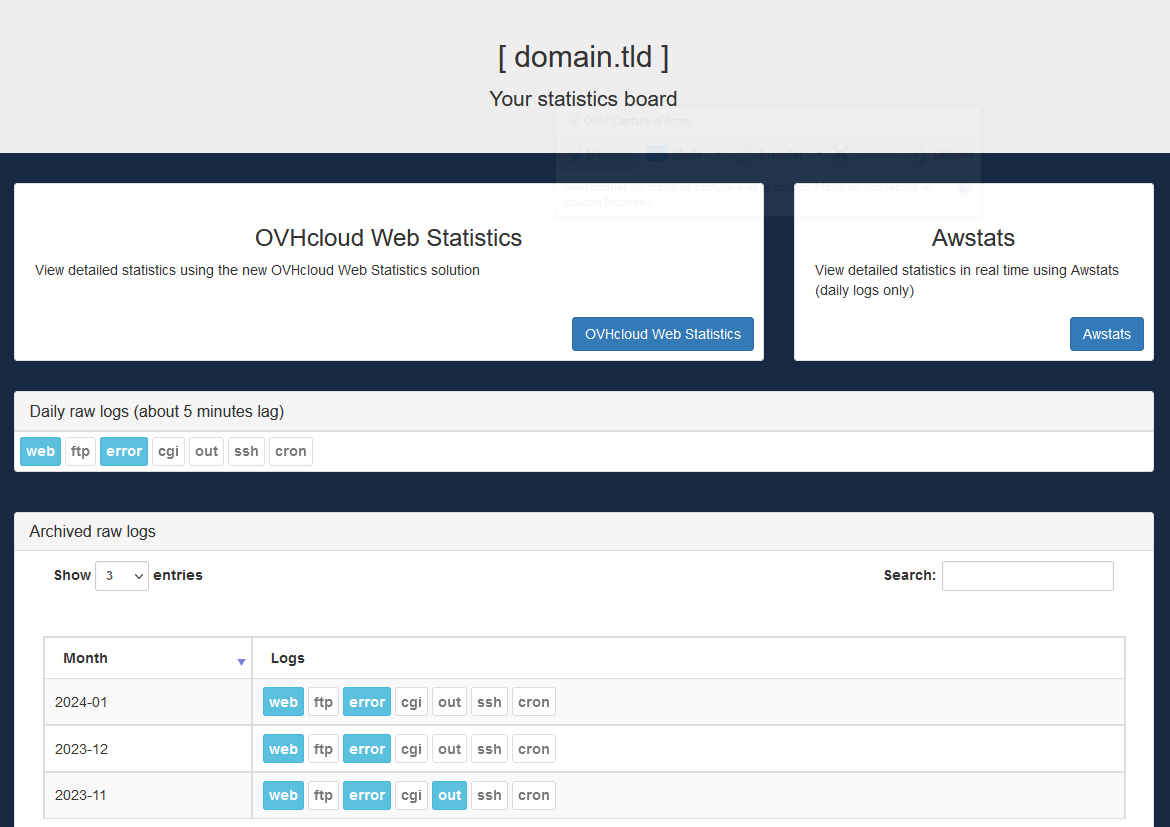
Different types of logs are available:
- Web: Contain the different logs for visits to your website, as well as the different actions taken on your website. For example, you can use it to detect attempts at malicious actions.
- FTP: The different connections/commands in FTP will be recorded and stored in these logs.
- Error: Find the errors generated by your website here.
- CGI: The various calls to cgi.bin scripts that have been made are recorded in these logs.
- out: Contain the history of various external requests (TCP outgoing connections) made from your web hosting plan to remote hosts.
- SSH: These logs show the different connections/commands made with the SSH protocol.
- CRON: Find here the results of the execution of your scheduled tasks (CRON) on your web hosting plan.
To view CDN statistics and/or logs, please refer to our dedicated guide: "Web Hosting - View CDN statistics and logs".
Infrastructure statistics
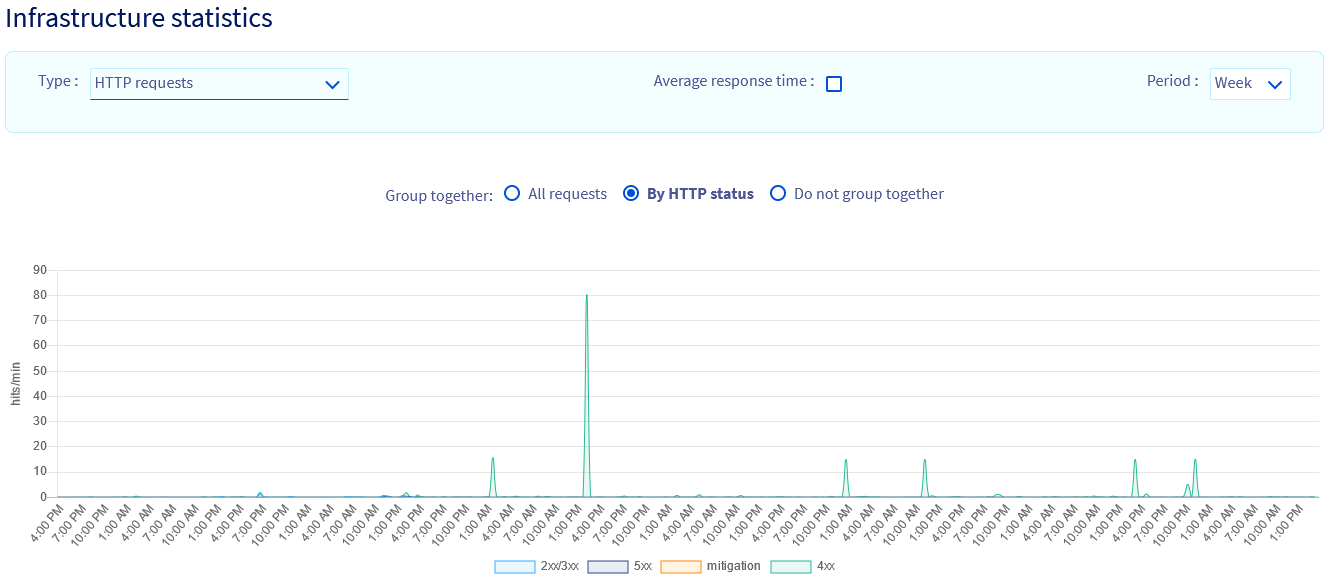
In this section, you can view the activity of your Web Hosting plan's infrastructure, in order to view resource usage.
To do this, click on the tabs below to view each of the 3 steps.
Go to the page, then select the web hosting plan concerned.
User administration
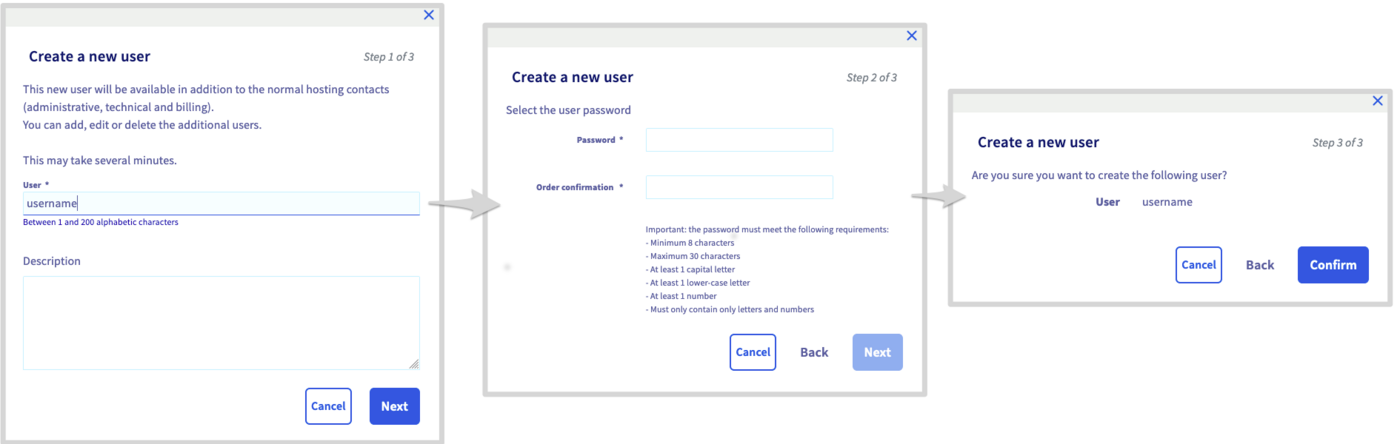
Creating a user will allow someone to access your web hosting plan's statistics without having access to the OVHcloud Control Panel.
To create a new user, click on the tabs below to view each of the 3 steps.
Go to the page, then select the web hosting plan concerned.
To access your website's statistics with a user you have created, you must enter the following address by replacing 000 with the cluster number of your web hosting plan and domain.tld with the domain name of your website (without www):
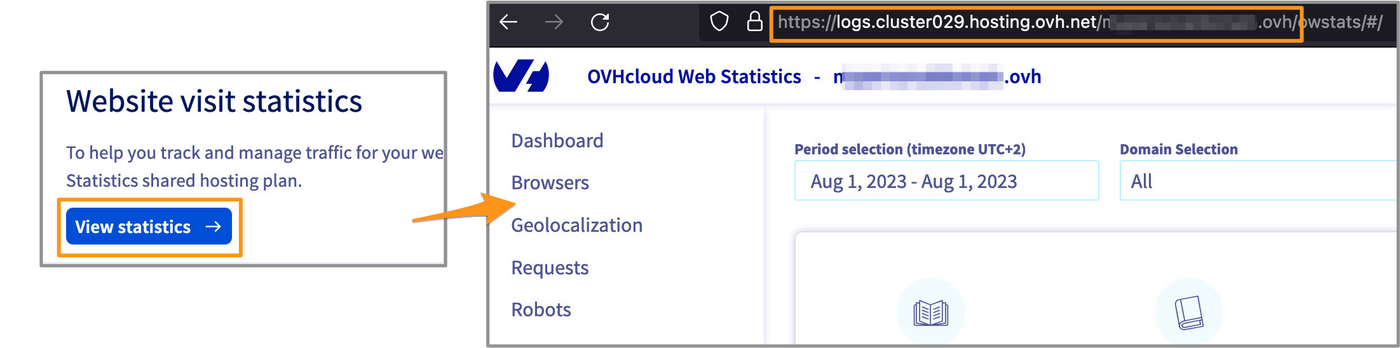
You can also retrieve the statistics/logs access link directly from your Control Panel.
To do this, click on the tabs below to view each of the 3 steps.
Go to the page, then select the web hosting plan concerned.
If you have enabled separate logs on one of your websites, users created here cannot access statistics for that specific website.
Go further
For specialised services (SEO, development, etc.), contact OVHcloud partners.
If you would like assistance using and configuring your OVHcloud solutions, please refer to our support offers.
Join our community of users.