
Confirming a change of holder or an outgoing transfer
Find out how to confirm or decline a change of holder or an outgoing transfer request received by email for your domain name
Objective
When a change of holder (domain name trade) or an outgoing transfer is initiated on a domain name, OVHcloud sends a confirmation email — containing a secure validation link — to the parties concerned so they can approve or refuse the request.
This confirmation step is an authorisation (sometimes called a Form of Authorization, or FOA) that ensures the operation is legitimate and approved by the people entitled to authorise it. For a change of holder, the operation is completed only once it has been confirmed. For an outgoing transfer, accepting speeds up the transfer and declining cancels it, while taking no action lets the transfer complete automatically after a few days (usually 5).
This guide explains how to confirm or decline such a request from the email you received.
Requirements
- You have received a confirmation email from OVHcloud regarding a change of holder or an outgoing transfer for a domain name.
- You are one of the parties entitled to authorise the operation (for example, the current holder, the new holder, or the domain name's administrative contact, depending on the operation and the extension).
OVHcloud Control Panel Access
- Direct link:
- Navigation path:
Web Cloud>Ongoing operations> Select theDomainorDNStab
Instructions
Who needs to confirm?
The number of confirmation emails depends on the operation:
-
Change of holder (domain name trade): a confirmation email is sent to both the current holder and the future holder. Both parties must confirm the request for the change to take effect.
If the current holder and the future holder share the same email address, a single confirmation email is sent.
-
Outgoing transfer: a confirmation email is sent to the party entitled to authorise the transfer (typically the administrative contact).
The exact recipients can vary depending on the domain name extension (TLD) and the registry's own rules. Always follow the instructions contained in the email(s) you received.
Confirming or declining the request
Click on the tabs below to view each step.
Open the confirmation email sent by OVHcloud. It identifies the domain name concerned and the type of operation (change of holder or outgoing transfer). Click the validation link (or button) in the email.
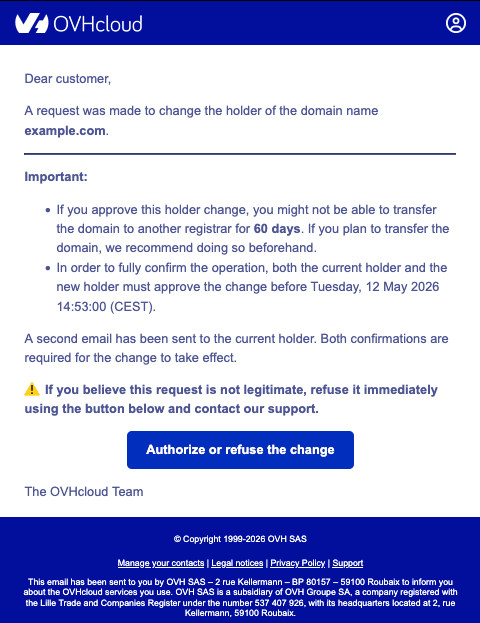
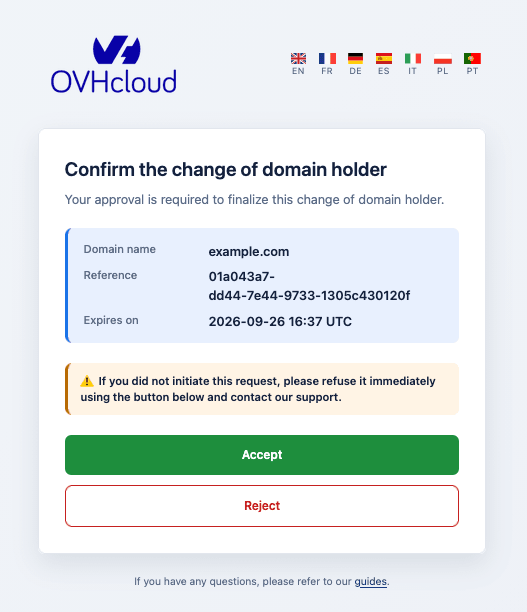
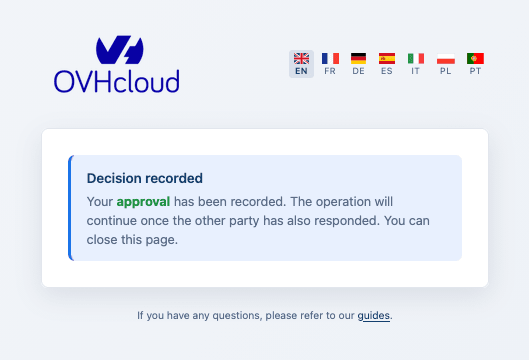
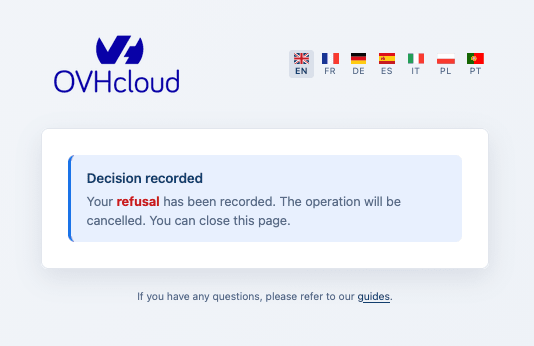
- For a change of holder, the request must be confirmed by all parties within a period defined by the registry (14 days by default). After this period, the operation is automatically cancelled and a new request must be initiated. Declining the request cancels the change.
- For an outgoing transfer, if you take no action within the period defined by the registry (usually 5 days), the transfer completes automatically. Accepting the request speeds it up, while declining it cancels it.
Validating a change of holder as a Designated Agent
If you manage the domain name from your OVHcloud account, you can validate a change of holder directly from the OVHcloud Control Panel, acting as a Designated Agent on behalf of the holders — without waiting for them to click the link in their confirmation email.
This option is available for a change of holder only, and only for certain extensions (mostly generic TLDs, such as .com, .net, .org...). It does not apply to outgoing transfers, for which the administrative contact is already the party that validates.
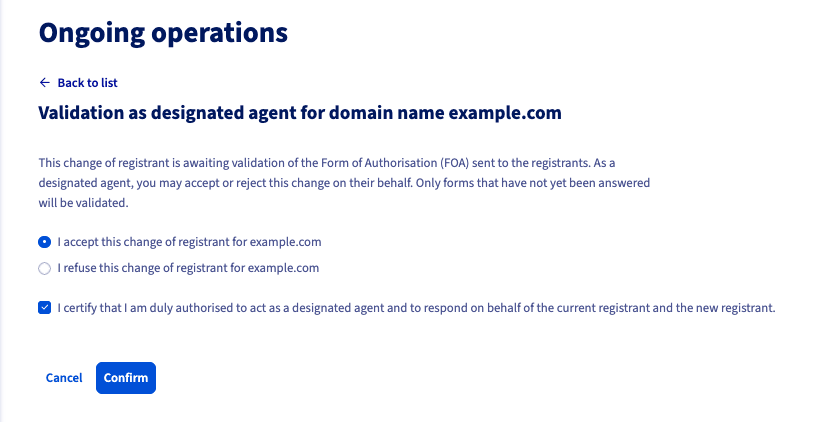
By validating as a Designated Agent, you certify that you are duly authorised to approve (or refuse) this change on behalf of the holder(s). Your decision applies to every party who has not yet answered — forms already answered from the confirmation email are left untouched — and the change then proceeds exactly as if those holders had answered that way: an approval advances the change, a refusal cancels it.
This action is available to the account administrator, as well as to any user to whom the corresponding right has been delegated.
Click on the tabs below to view each step.
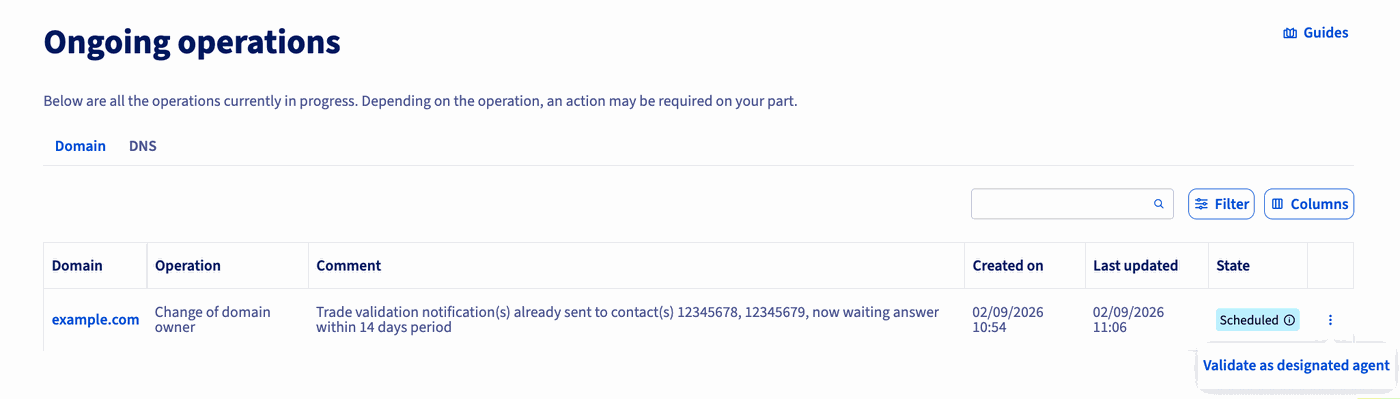
On the change of domain owner operation for the domain name concerned, click the ⋮ button on the right, then click on Validate as designated agent.
Troubleshooting
You get an error when opening the validation link
Each confirmation email contains a unique, time-limited validation link. If a new request is initiated (for example, if the email is resent), the previous link becomes invalid and only the most recent email can be used.
If you see an error on the validation page:
- Go back to your mailbox and check whether you have received a more recent confirmation email for the same domain name.
- Use the link contained in the latest email.
- Make sure the link has not been altered (for example, split across several lines or truncated by your email client).
You did not receive the email, or the recipient email address is obsolete or inaccessible
Check your spam or junk folder first. If you still cannot access the confirmation email, contact our support team by creating a ticket from your OVHcloud Help Centre.
Go further
Domain name - How do I change the holder?
Transferring a domain name to another registrar
For specialised services (SEO, development, etc.), contact OVHcloud partners.
If you would like assistance using and configuring your OVHcloud solutions, please refer to our support offers.
Join our community of users.