For AI agents: the complete documentation index is available at https://docs.ovhcloud.com/en/llms.txt, the full documentation bundle is available at https://docs.ovhcloud.com/en/llms-full.txt, and this page is available as Markdown at https://docs.ovhcloud.com/en/guides/public-cloud/compute/activate-windows-license-private-mode.md.
Find out how to activate a Windows licence on an instance in private mode
Objective
Unlike Windows instances created in the public network, Windows instances created with private network mode (vRack) do not have their Windows licences automatically enabled.
In this case, you must activate the licence manually to access all Windows services.
This guide is designed to help you configure the public interface for your Public Cloud instances within your vRack.
openstack server list+--------------------------------------+-------------------+--------+---------------------------------------------------------------------+----------------------------------------+----------+| ID | Name | Status | Networks | Image | Flavor |+--------------------------------------+-------------------+--------+---------------------------------------------------------------------+----------------------------------------+----------+| f095ad19-5c0a-4ef5-8e01-b3590bc9c6f1 | MyInstance | ACTIVE | | Windows Server 2016 Standard (Desktop) | win-b2-7 |+--------------------------------------+-------------------+--------+---------------------------------------------------------------------+----------------------------------------+----------+
openstack port list --name Ext-Net+--------------------------------------+---------+-------------------+---------------------------------------------------------------------------------------+--------+| ID | Name | MAC Address | Fixed IP Addresses | Status |+--------------------------------------+---------+-------------------+---------------------------------------------------------------------------------------+--------+| ed34add5-aa76-4aab-97af-815724d76e2c | Ext-Net | fa:16:3e:68:35:9c | ip_address='2001:41d0:304:400::128f', subnet_id='4aa6cac1-d5cd-4e25-b14b-7573aeabcab1'| DOWN || | | | ip_address='57.128.42.227', subnet_id='22e2d853-1b86-48f3-8596-9d12c7693dc7' | |+--------------------------------------+---------+-------------------+---------------------------------------------------------------------------------------+--------+
Attach the port to the instance:
openstack server add port <server_id> <port_id>
Activate your Windows licence
To activate Windows, you must go through PowerShell.
Once you have logged in to your Windows instance, right click on the Start menu and select Windows PowerShell.
Enter the following command:
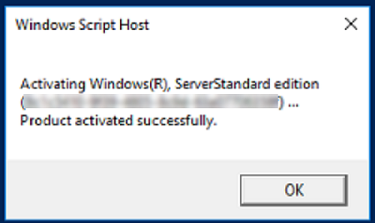
slmgr.vbs -ato
The Windows licence will be activated for 180 days.
You will need to repeat this operation every 180 days.
Info
In the meantime, if you want to isolate your instance from the public network, you can disable the public port you have created via Horizon or the OpenStack API.
You can also disable the network port directly via Windows.
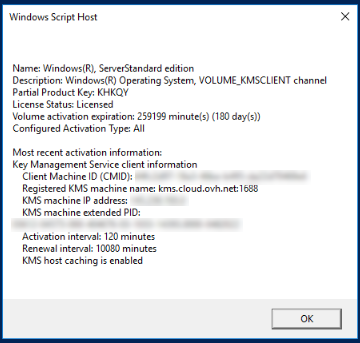
To check the licence status and expiration date, use the following command:
For training or technical assistance implementing our solutions, contact your sales representative or visit our Professional Services page to request a quote and have your project analysed by our experts.