
Linking a domain name to your Managed Hosting for WordPress
Add, modify or remove domain names from your Managed Hosting WordPress — internal, external or to order — from the OVHcloud Control Panel.
Objective
Managed Hosting for WordPress is OVHcloud's managed WordPress hosting solution: technical maintenance (updates, security, backups) is handled automatically. The offer lets you manage domain names from the OVHcloud interface, without manual intervention. You can associate a domain name or subdomain with each of your WordPress websites, regardless of its origin.
Two flows are available depending on your situation:
- Internal domain name: the domain name is already in your OVHcloud account.
- External domain name: the domain name is managed by another registrar.
Find out how to add, modify or remove domain names from your Managed Hosting WordPress from your OVHcloud Control Panel.
Requirements
- An active Managed Hosting for WordPress offer with at least one WordPress website created.
- For an external domain name: have access to the active DNS (Domain Name System) zone at your current provider.
OVHcloud Control Panel Access
- Direct link:
- Navigation path:
Web Cloud>Managed hosting for WordPress
Instructions
1 - Accessing the domain name management
Adding a domain name is done from the My sites tab of your Managed Hosting for WordPress resource. Click the tabs below to view each of the 4 steps.
Go to the page in your OVHcloud Control Panel.
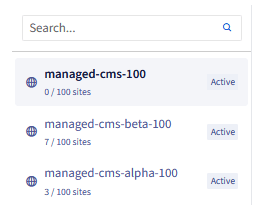
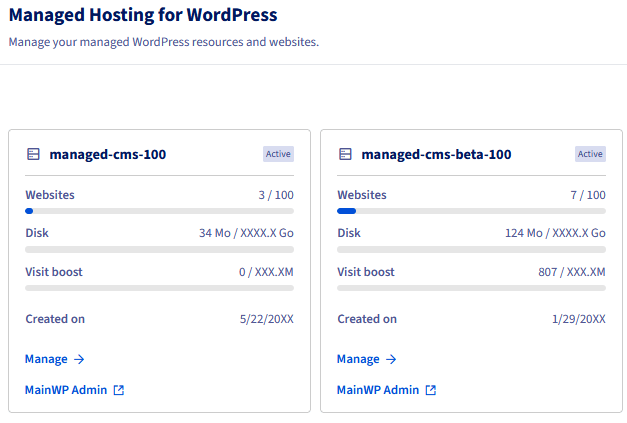
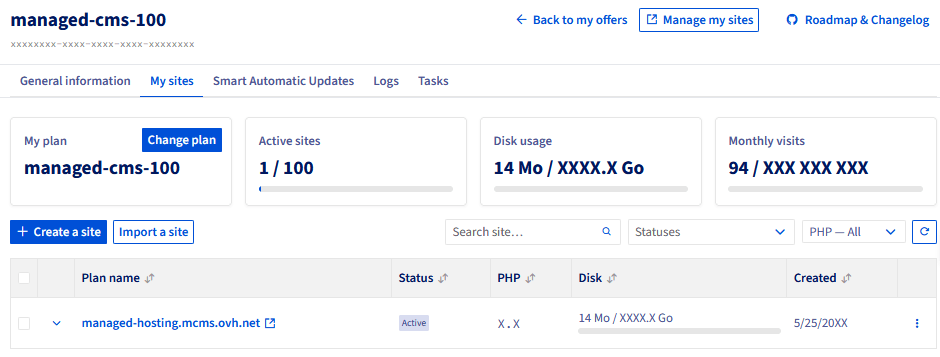
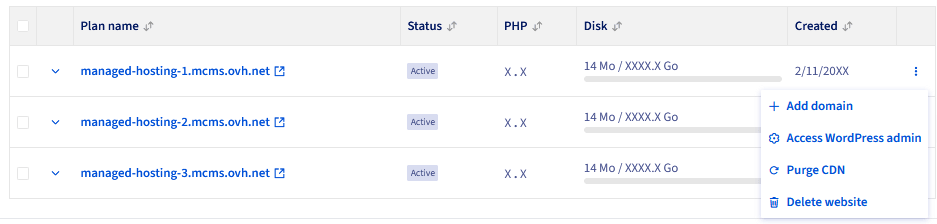
The first domain name added to a WordPress website automatically becomes the primary domain name. You can add more later (multi-domain) and change the primary domain name from the same menu.
2 - Adding a domain name
Click one of the situations below to view the content.
Add an internal domain name
An internal domain name is a domain name already in your OVHcloud account (registered or transferred).
Once the add tunnel is open, select the internal flow to use a domain name already in your OVHcloud account. Click the tabs below to view each of the 3 steps.
In the add tunnel, select Attach an existing OVHcloud domain.
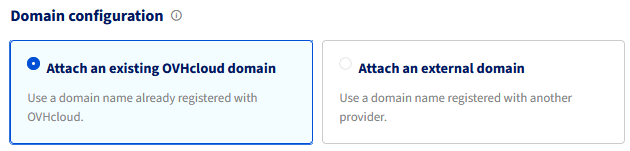

For an internal domain name, DNS propagation is automatic. Your site will be accessible via this domain name within a few minutes to a few hours.
Add an external domain name
An external domain name is managed by another registrar (Gandi, Namecheap, Google Domains, etc.). You must modify your DNS zone manually.
Once the add tunnel is open, select the external flow to use a domain name managed by another registrar. Click the tabs below to view each of the 4 steps.
In the add tunnel, select Attach an external domain.
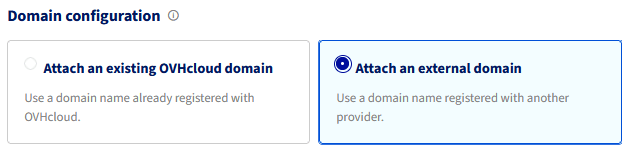

DNS propagation of an external domain name can take up to 24 to 48 hours depending on your provider. Your WordPress website will not be accessible via this domain name during this period.
The SSL (Secure Sockets Layer) certificate is generated automatically after DNS propagation has been validated. No manual intervention is needed on your side.
3 - Managing the domain names of a WordPress site
Click one of the questions below to view the content.
How to change the primary domain name?
Changing the primary domain name is done from the My sites tab of your Managed Hosting for WordPress resource. Click the tabs below to view each of the 5 steps.
Go to the page in your OVHcloud Control Panel.

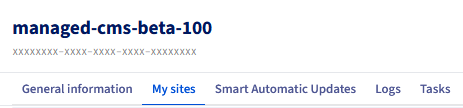
The primary domain name is the one used by default to access your WordPress website. Changing the primary domain name may affect your SEO (Search Engine Optimization) ranking if your WordPress website is already indexed. Consider setting up a redirect from the old primary domain name if needed.
How to remove a domain name?
Removing a domain name does not delete your WordPress website. Only the link between the domain name and the WordPress website is broken. Your WordPress website remains accessible via its permanent technical URL.
Removing a domain name is done from the My sites tab of your Managed Hosting for WordPress resource. Click the tabs below to view each of the 6 steps.
Go to the page in your OVHcloud Control Panel.
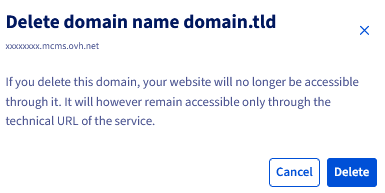
Effects of deletion:
- Your WordPress website remains intact: only the link with the domain name is broken, the site continues to work.
- The permanent technical URL remains accessible: your WordPress website is still reachable via this URL, even without a domain name.
- The SSL certificate is revoked: it no longer covers the deleted domain name.
- SEO ranking may be impacted: if the domain name was indexed by search engines, removing it affects positioning.
- Remember to check your email services: addresses linked to this domain name may be affected by the deletion.
Special case — single primary domain name: if you delete the only primary domain name of a WordPress website, your WordPress website automatically falls back to its permanent technical URL. This URL is always accessible and is never deleted, even when no domain is associated.
The permanent technical URL
Each Managed Hosting for WordPress site has a permanent technical URL, independent of any domain name. This URL is generated automatically when the WordPress website is created and cannot be deleted.

It lets you:
- Access your WordPress website in all circumstances, even without an associated domain name.
- Test your WordPress website before pointing a domain name to it.
- Maintain a fallback access in case of a DNS issue.
The technical URL is of the form *.mcms.ovh.net or similar. Find it in the My sites datagrid, next to each WordPress website.
Go further
Getting started with Managed Hosting for WordPress
For specialised services (SEO, development, etc.), contact OVHcloud partners.
Join our community of users.