For AI agents: the complete documentation index is available at https://docs.ovhcloud.com/en/llms.txt, the full documentation bundle is available at https://docs.ovhcloud.com/en/llms-full.txt, and this page is available as Markdown at https://docs.ovhcloud.com/en/guides/public-cloud/compute/create-and-configure-an-additional-disk-on-an-instance.md.
Administrative (sudo) access to your instance via SSH (Linux) or RDP (Windows)
OVHcloud Control Panel Access
Direct link:
Navigation path:Public Cloud > Select your project > Block Storage
Warning
This feature is currently not available for Metal instances.
Instructions
The different types of volumes
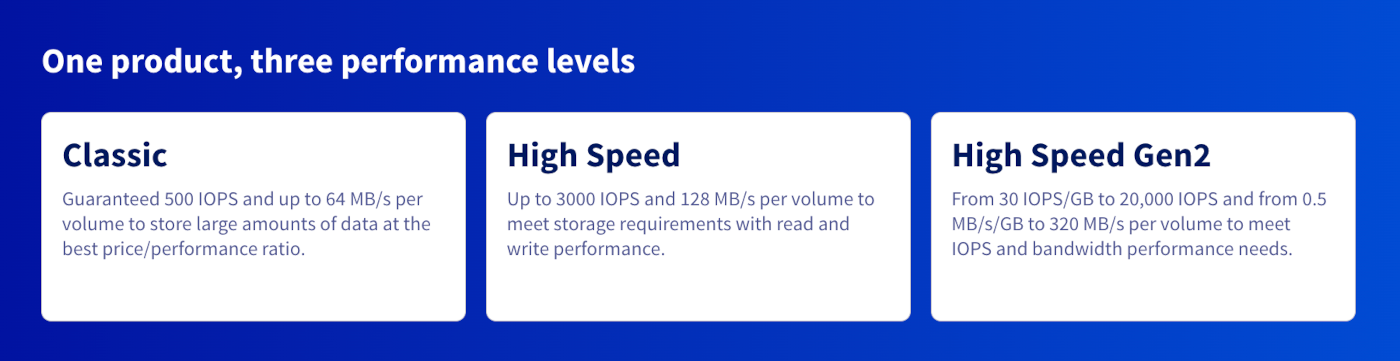
OVHcloud offers three types of Block Storage volumes, each tailored to specific needs in terms of performance, capacity, and cost. These solutions allow you to attach persistent storage volumes to your instances, ensuring a high level of reliability and availability. If the feature is available, encryption can be enabled when creating a volume, for all volume types except Classic Multi-Attach volumes in 3AZ regions.
Classic – 500 IOPS guaranteed
The Classic volume is a reliable, cost-effective storage solution, ideal for workloads requiring moderate performance. It offers 500 guaranteed IOPS, making it suitable for the following uses:
Hosting of classic web applications
Storage of small to medium-sized databases
Data backup and archiving
In 3AZ regions, Classic Volumes are regional services that use distributed erasure coding across multiple Availability Zones. This ensures data remains available without impact or downtime in the event of an AZ failure, provided the multi-attached resilient architecture conditions are met. For more information, please refer to our guide "Proper Usage and Limitations of Classic Multi-Attach Block Storage in 3AZ Regions".
High Speed Gen2 – 30 IOPS/GB and up to 20,000 IOPS
Generation 2 High Speed volumes are optimized for the most demanding workloads. Performance scales with volume size:
IOPS: 30 IOPS/GB (base 3,000 IOPS for 10–100 GB, up to 20,000 IOPS)
Throughput: 0.5 MB/s/GB (base 50 MB/s for 10–100 GB, up to 512 MB/s)
Maximum size: 12 TB
This type of volume is recommended for:
Big Data and real-time analysis
Artificial intelligence and machine learning
Large database processing and high-performance storage
Info
You can no longer order High Speed (Gen1) volumes via the OVHcloud Control Panel. They have been replaced by High Speed Gen2 volumes at the same price, with better performance for volumes above 100 GB. High Speed volumes remain available via the API, Terraform, and OpenStack.
All volume types are also available in an encrypted version (LUKS). These volumes ensure data confidentiality. They are available through the OVHcloud Control Panel as well as via the tools presented in the next section, by specifying the type <volume_type>-luks.
Warning
Performance overhead of encrypted (LUKS) volumes. Encrypted volumes have a performance overhead of about 10% compared to equivalent non-encrypted volumes.
Attaching a new volume
Via the OVHcloud Control Panel
Via Terraform
Via the Horizon interface
Via the OpenStack CLI
Via the OVHcloud CLI
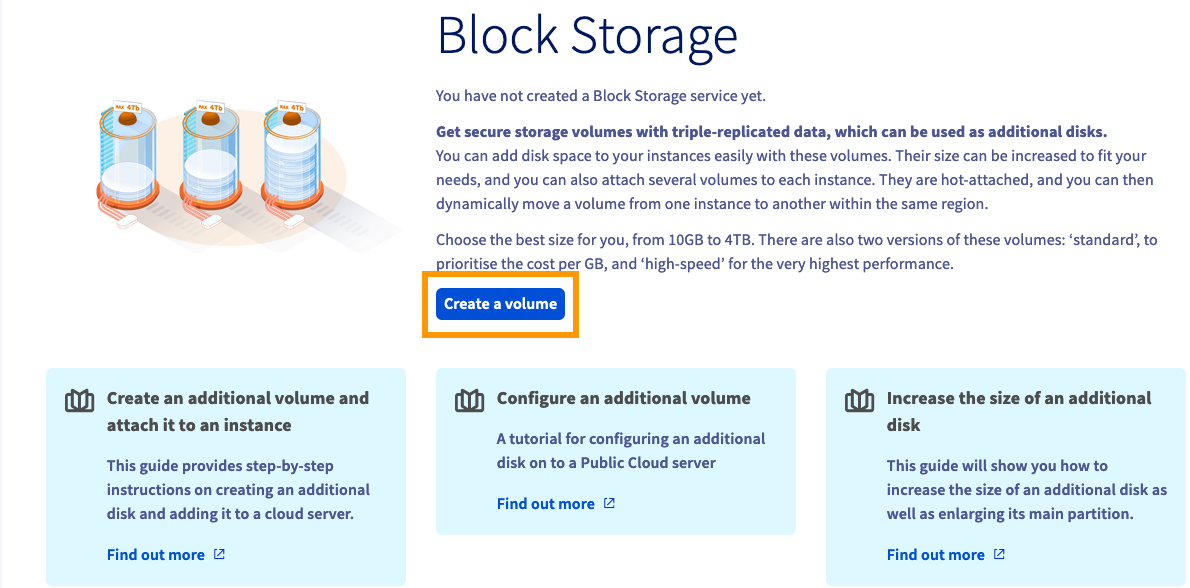
Open Block Storage in the left-hand menu under Storage & backup.
In this section, click on the button Create a volume.
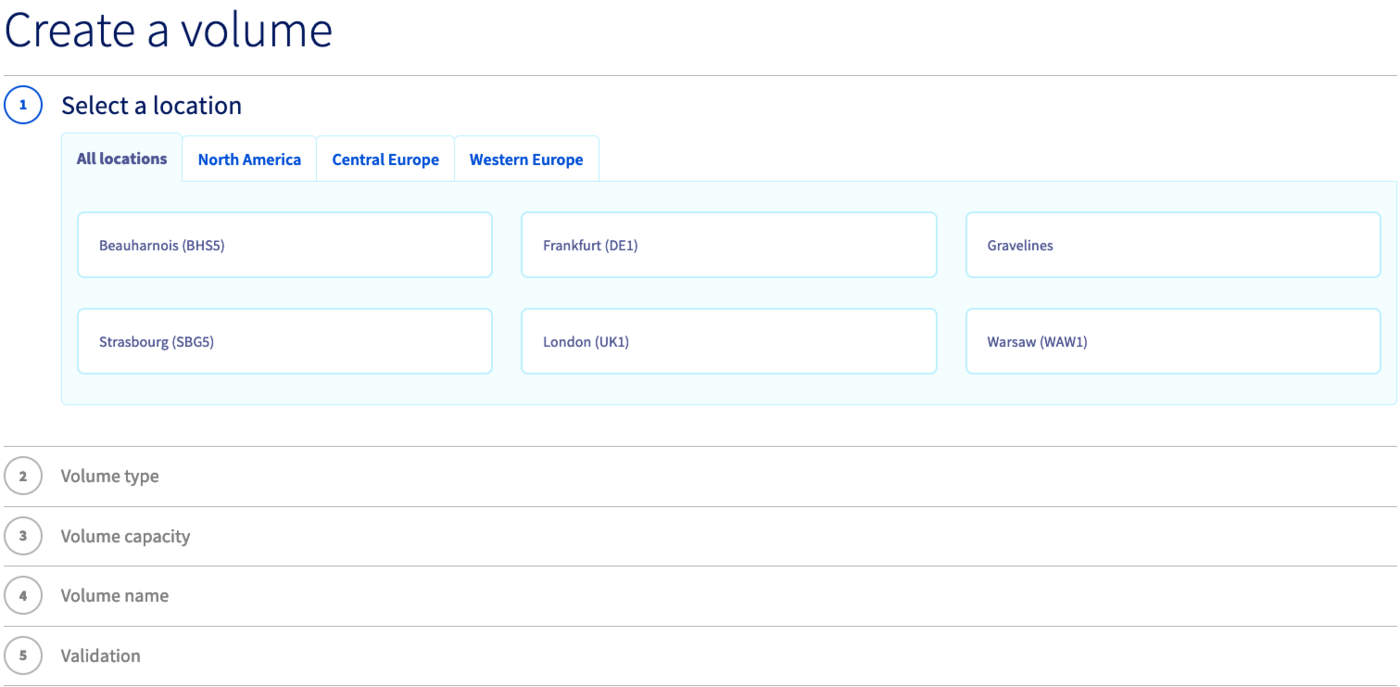
Follow the configuration steps to select the location, disk type, encryption and disk capacity options. Enter a name for the volume and confirm by clicking on Create volume.
Warning
Please note: Your volume must be created in the same region as the instance to which you want to attach it. If you create it in another region, you can delete it and recreate it in the correct region.
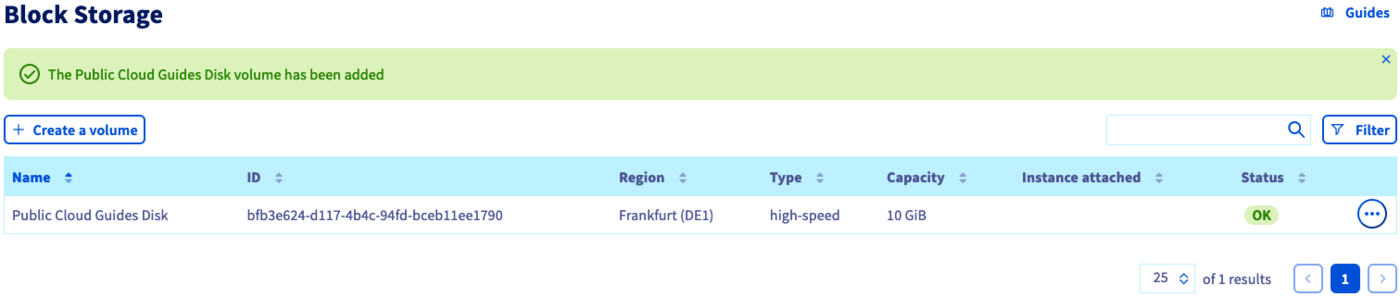
The new disk will now be displayed in the Control Panel.
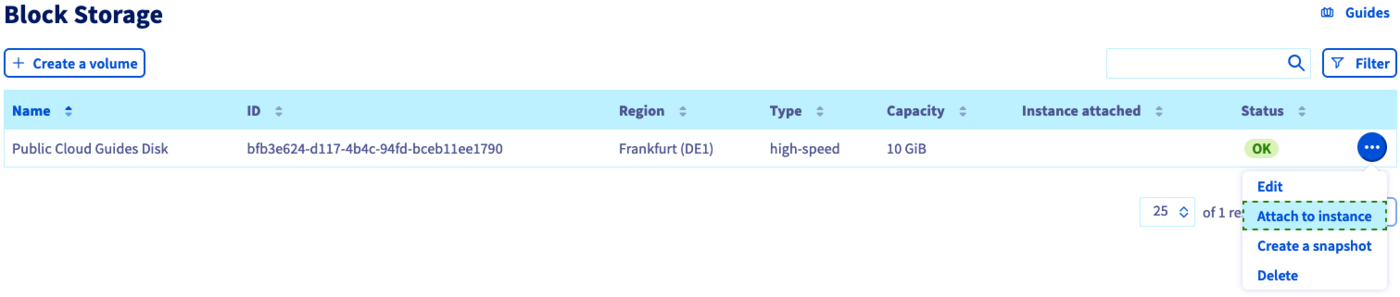
To the right of the volume, click on the ... button, then select Attach to instance.
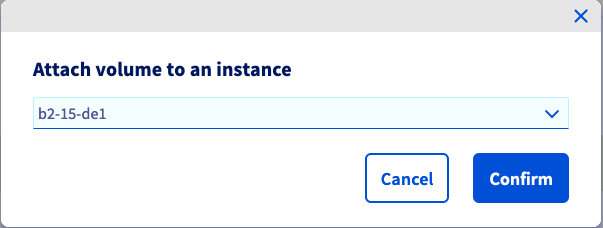
In the popup window, choose an instance from the list and click on Confirm to attach the disk.
The process of attaching the disk to your instance will now begin. This may take a few minutes to complete.
Warning
Make sure to not leave the current page in your OVHcloud Control Panel while the disk is being attached. This might interrupt the process.
Warning
Please note that the "high-speed-gen2" or "luks" volume types may not be available in all regions.
Types of volumes:
Classic
High-speed
High-speed-gen2
Classic-luks
High-speed-luks
High-speed-gen2-luks
The types ending in -luks are encrypted (LUKS).
Warning
Creating a -luks volume automatically generates a dedicated key.
Do not modify or delete this key if it is linked to a Block Storage volume. Doing so would make the data on that volume and all its snapshots permanently unrecoverable.
To create a simple block storage volume, you need 3 elements:
The name of the volume
The region
The size of the volume in GB
In our example, we will create a block storage in the GRA11 region with a size of 10 GB. Add the following lines to a file named simple_blockstorage.tf:
# Creation of a block storage volumeresource "openstack_blockstorage_volume_v3" "terraform_blockstorage" { name = "terraform_blockstorage" # Name of the block storage volume size = 10 # Volume size region = "GRA11" # Region where the volume must be created volume_type = "volume_type" # classic, high-speed, high-speed-gen2 or equivalent `-luks`}
Then we will attach it to the target instance.
Warning
The instance and the volume must be in the same region.
Add the following lines below the previous ones:
# Attach the volume to the instanceresource "openstack_compute_volume_attach_v2" "volume_attach" { instance_id = "<your_instance_id>" volume_id = openstack_blockstorage_volume_v3.terraform_volume.id}
You can create your block storage volume and attach it to the desired instance by entering the following command:
terraform apply
The output should look like this:
$ terraform applyTerraform used the selected providers to generate the following execution plan. Resource actions are indicated with the following symbols: + createTerraform will perform the following actions: # openstack_blockstorage_volume_v3.terraform_blockstorage will be created + resource "openstack_blockstorage_volume_v3" "terraform_blockstorage" { + attachment = (known after apply) + availability_zone = (known after apply) + id = (known after apply) + metadata = (known after apply) + name = "terraform_blockstorage" + region = "GRA11" + size = 10 + volume_type = "high-speed-gen2" } # openstack_compute_volume_attach_v2.volume_attach will be created + resource "openstack_compute_volume_attach_v2" "volume_attach" { + device = (known after apply) + id = (known after apply) + instance_id = "11cc1279-xxxx-xxxx-xxxx-3ace4c954780" + region = (known after apply) + volume_id = (known after apply) }Plan: 2 to add, 0 to change, 0 to destroy.Do you want to perform these actions in workspace "test_terraform"? Terraform will perform the actions described above. Only 'yes' will be accepted to approve. Enter a value: yesopenstack_blockstorage_volume_v3.terraform_blockstorage: Creating...openstack_blockstorage_volume_v3.terraform_blockstorage: Still creating... [10s elapsed]openstack_blockstorage_volume_v3.terraform_blockstorage: Creation complete after 12s [id=daf3a86e-xxxx-xxxx-xxxx-ac7b6ffbb806]openstack_compute_volume_attach_v2.volume_attach: Creating...openstack_compute_volume_attach_v2.volume_attach: Still creating... [10s elapsed]openstack_compute_volume_attach_v2.volume_attach: Creation complete after 14s [id=11cc1279-xxxx-xxxx-xxxx-3ace4c954780/daf3a86e-xxxx-xxxx-xxxx-ac7b6ffbb806]Apply complete! Resources: 2 added, 0 changed, 0 destroyed.
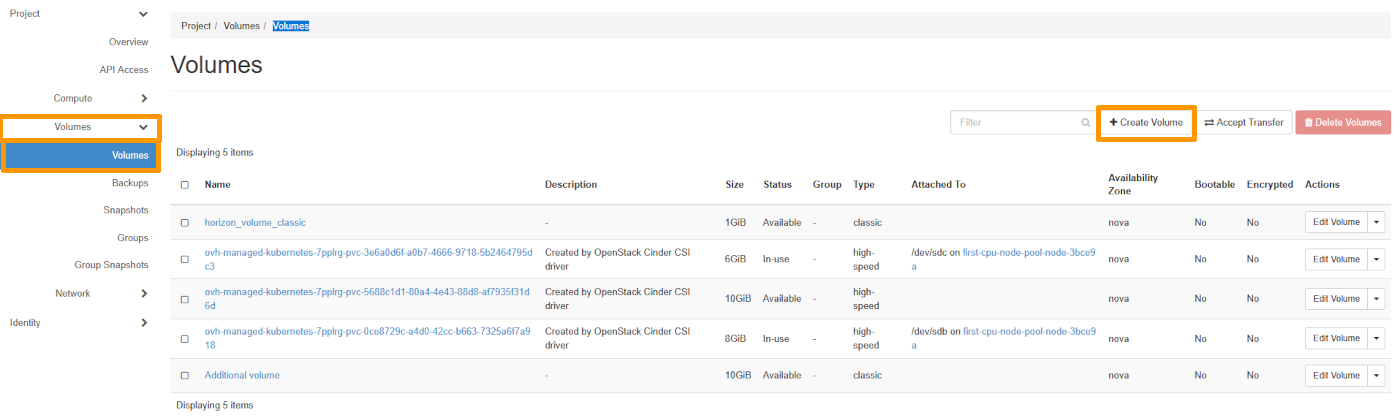
Go to the Volumes drop-down section, click Volumes and then Create Volume.
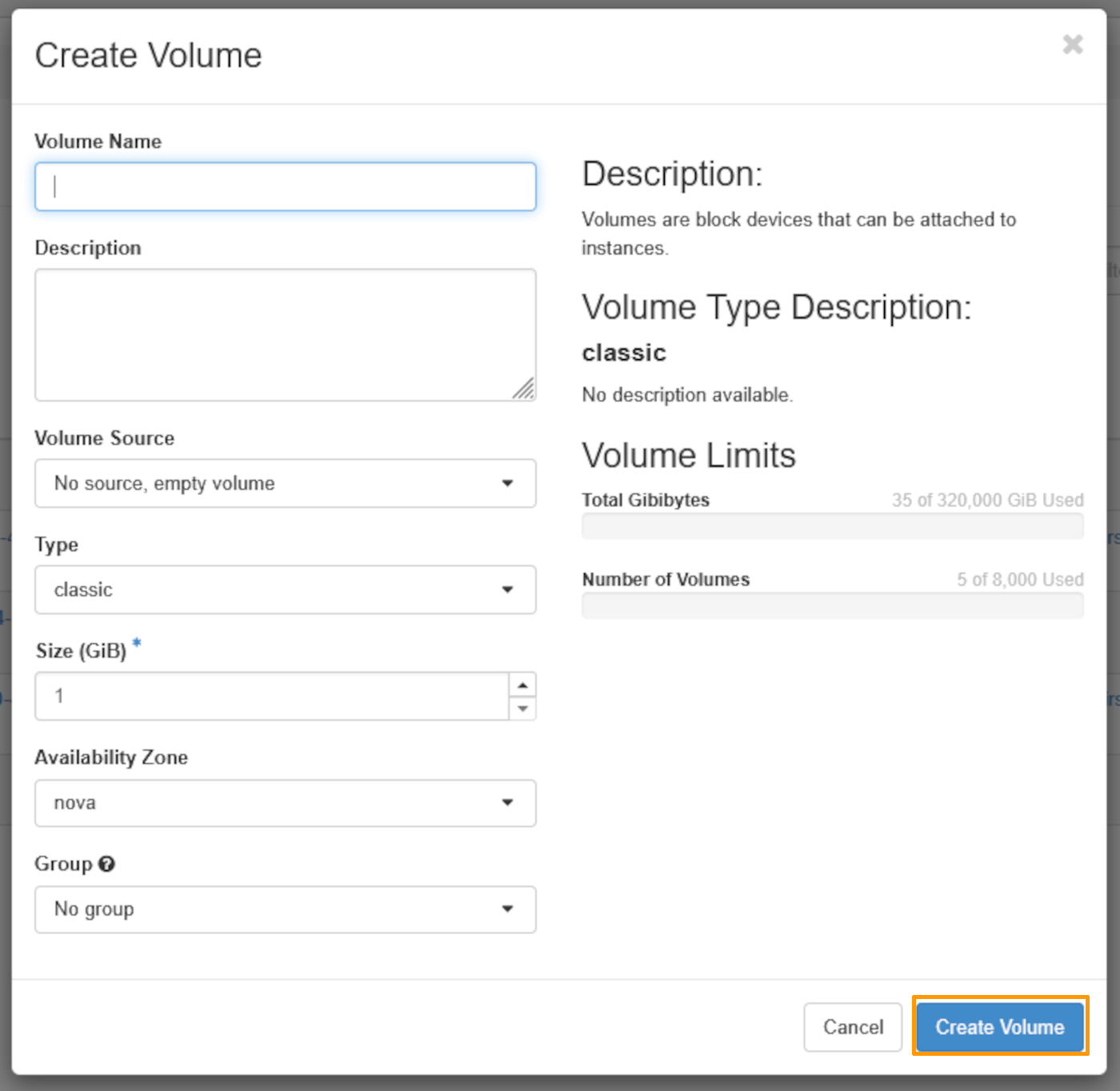
Fill in the Volume Name field and select the type of volume you want. Then click on Create Volume
Warning
Please note that if the volume type "high-speed-gen2" or "luks" does not appear in the list, this means that it is not available in this region.
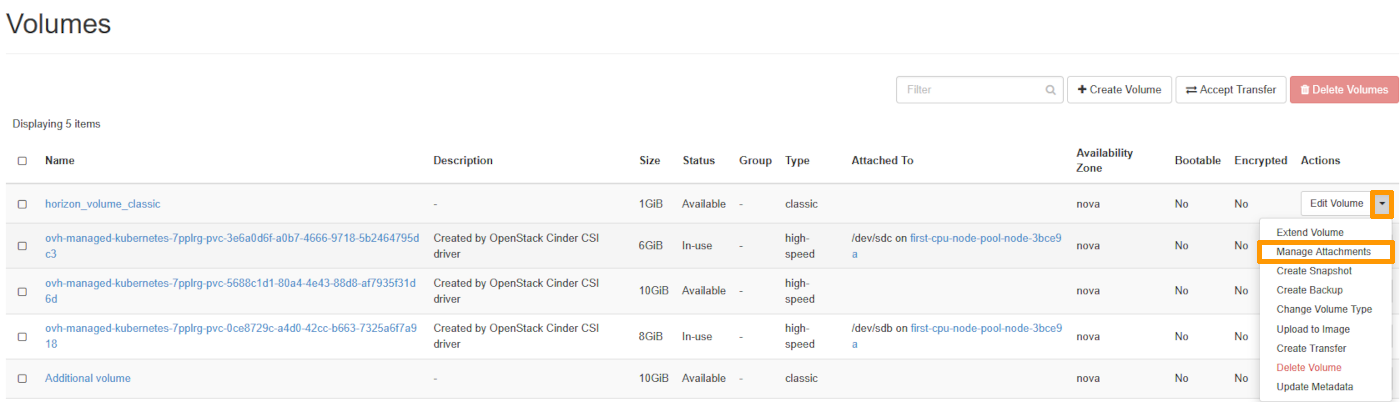
To attach this volume to an instance, on your volume line, click the arrow at the end of the line next to Edit Volume. Then click on Manage Attachments.
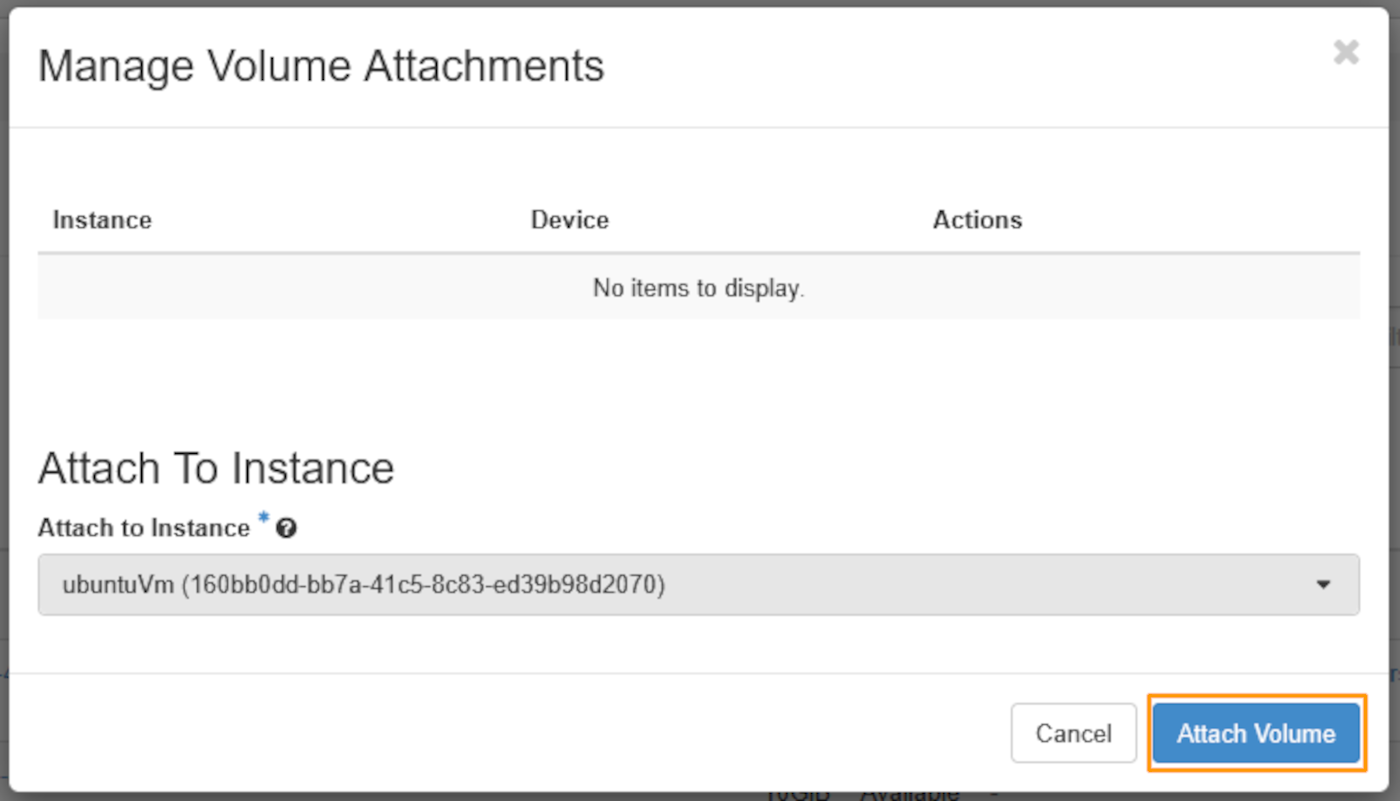
Select the instance to which you wish to attach your volume, then click on Attach Volume.
Warning
Please note that if the volume type "high-speed-gen2" or "luks" does not appear in the list, this means that it is not available in this region.
Types of volumes:
Classic
High-speed
High-speed-gen2
Classic-luks
High-speed-luks
High-speed-gen2-luks
The types ending in -luks are encrypted (LUKS).
Warning
Creating a -luks volume automatically generates a dedicated key.
Do not modify or delete this key if it is linked to a Block Storage volume. Doing so would make the data on that volume and all its snapshots permanently unrecoverable.
List the volume types available in the region:
openstack volume type list
Create a volume, specifying at least its size (in GB) and a type from those listed above. You can also specify a name for your volume at the end of the command.
To attach a volume to an instance available in the region, use the following command:
openstack server add volume <server-id|server-name> <volume-id|volume-name>+-----------+-------------------------------------+| Field | Value |+-----------+-------------------------------------+| ID | 7d3d670f- ****-****-****-60dd1e6**** || Server ID | 74317f97-****-****-80cf2d4**** || Volume ID | 7d3d670f-****-****-****-60dd1e6**** || Device | /dev/sdb || Tag | None |+-----------+-------------------------------------+
Warning
If the volume type "high-speed-gen2" or "luks" does not appear in the list, it is not available in this region.
Option
Description
<region>
Region where the volume will be created (e.g. GRA11)
--name
Volume name
--size
Volume size in GB
--type
Volume type: classic, high-speed, high-speed-gen2, or equivalent -luks variant
--wait
Wait for creation to complete before exiting
Create a volume by specifying the region, a name, the size in GB, and a type:
NAME MAJ:MIN RM SIZE RO TYPE MOUNTPOINTvda 254:0 0 10G 0 disk└─vda1 254:1 0 10G 0 part /vdb 254:16 0 10G 0 disk
Info
vda in this example refers to the default disk of the instance. The additional disk will then be labelled vdb.
Create a partition on the additional disk using the commands below.
If your additional disk is less than 2TB:
sudo fdisk /dev/vdb
Welcome to fdisk (util-linux 2.25.2).Changes will remain in memory only, until you decide to write them.Be careful before using the write command.Device does not contain a recognized partition table.Created a new DOS disklabel with disk identifier 0x95c4adcc.Command (m for help): nPartition typep primary (0 primary, 0 extended, 4 free)e extended (container for logical partitions)Select (default p):Using default response p.Partition number (1-4, default 1):First sector (2048-20971519, default 2048):Last sector, +sectors or +size{K,M,G,T,P} (2048-20971519, default 20971519):Created a new partition 1 of type 'Linux' and of size 10 GiB.Command (m for help): wThe partition table has been altered.Calling ioctl() to re-read partition table.Syncing disks.
If your additional disk is larger than 2TB:
sudo parted /dev/vdb
GNU Parted 3.5Using /dev/vdbWelcome to GNU Parted! Type 'help' to view a list of commands.(parted) help align-check TYPE N check partition N for TYPE(min|opt) alignment help [COMMAND] print general help, or help on COMMAND mklabel,mktable LABEL-TYPE create a new disklabel (partition table) mkpart PART-TYPE [FS-TYPE] START END make a partition name NUMBER NAME name partition NUMBER as NAME print [devices|free|list,all] display the partition table, or available devices, or free space, or all found partitions quit exit program rescue START END rescue a lost partition near START and END resizepart NUMBER END resize partition NUMBER rm NUMBER delete partition NUMBER select DEVICE choose the device to edit disk_set FLAG STATE change the FLAG on selected device disk_toggle [FLAG] toggle the state of FLAG on selected device set NUMBER FLAG STATE change the FLAG on partition NUMBER toggle [NUMBER [FLAG]] toggle the state of FLAG on partition NUMBER unit UNIT set the default unit to UNIT version display the version number and copyright information of GNU Parted(parted) mklabel gpt (parted) mkpart primary 0 3750G Warning: The resulting partition is not properly aligned for best performance: 34s % 2048s != 0sIgnore/Cancel? I (parted) quit
Next, format the new partition vdb1 using the command below.
sudo mkfs.ext4 /dev/vdb1
mke2fs 1.42.12 (29-Aug-2014)Creating filesystem with 2621184 4k blocks and 655360 inodesFilesystem UUID: 781be788-c4be-462b-b946-88429a43c0cfSuperblock backups stored on blocks:32768, 98304, 163840, 229376, 294912, 819200, 884736, 1605632Allocating group tables: doneWriting inode tables: doneCreating journal (32768 blocks): doneWriting superblocks and filesystem accounting information: done
Mount the partition with the following commands:
sudo mkdir /mnt/disk
sudo mount /dev/vdb1 /mnt/disk/
Finally, check the mount point using this command:
The mounting is not persistent because the disk will be detached when the instance reboots. In order to automate the mounting process, the fstab file needs to be edited.
First, retrieve the UUID (block ID) of the new volume:
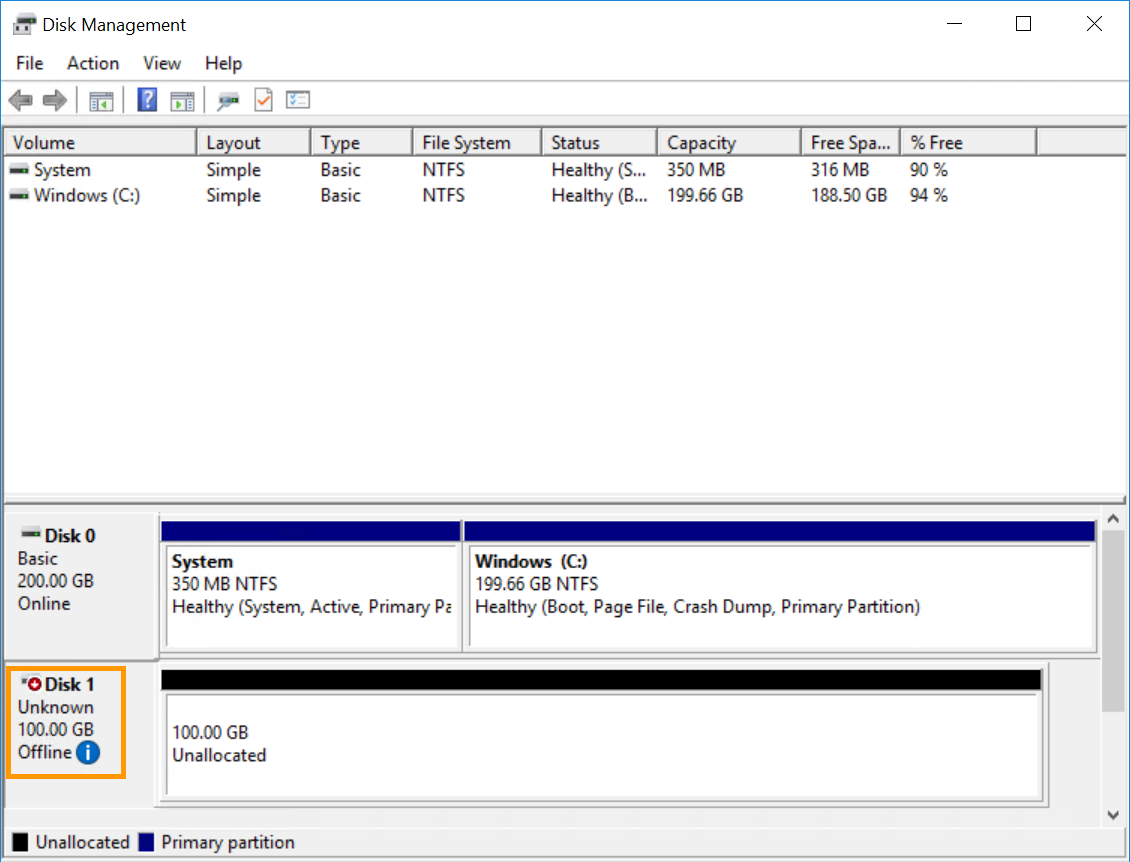
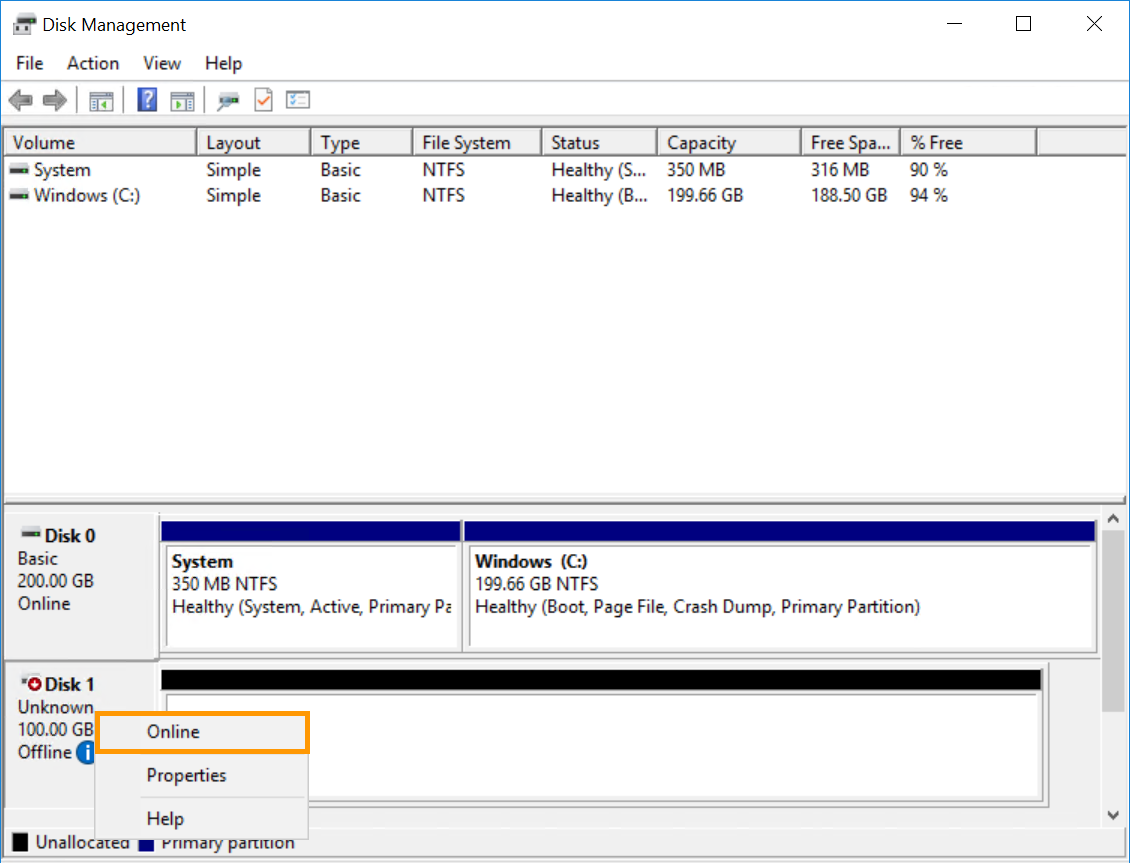
If the disk is marked as offline here, this is likely due to a policy in place on the instance. To fix this, right-click on the disk and select Online.
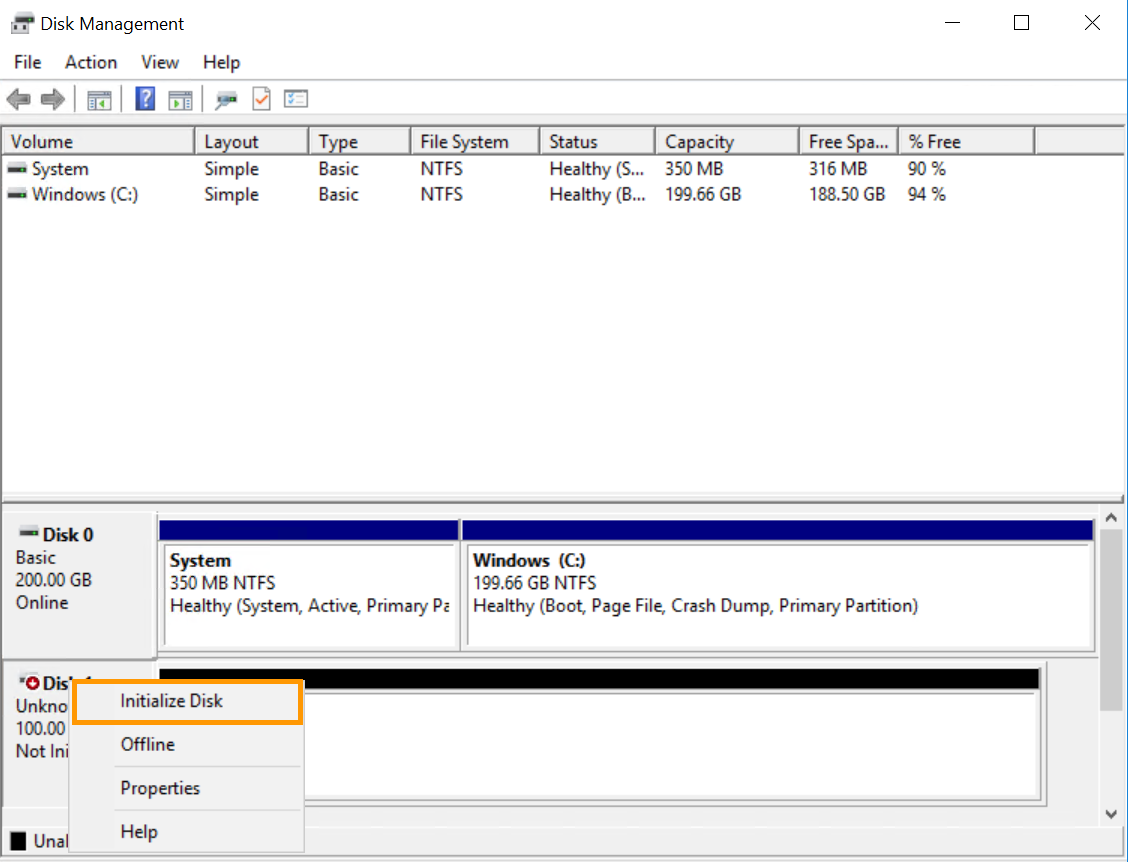
Then right-click it again and this time select Initialise Disk.
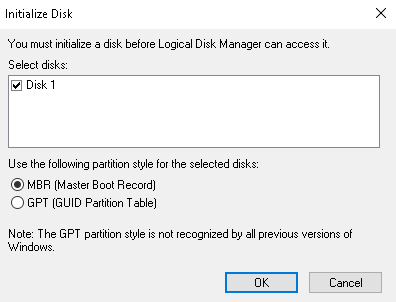
Next, select MBR if your additional disk is less than 2TB, or GPT if it is more than 2TB, then click OK.
Initialising the disk with DISKPART
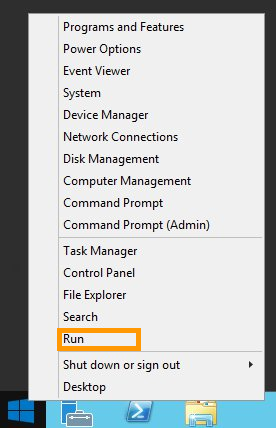
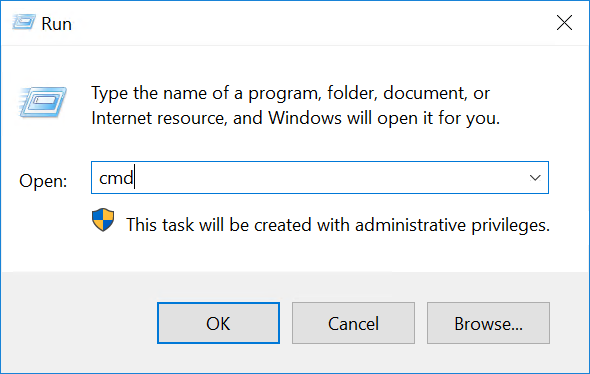
Right-click on the Start Menu button and open Run.
Type cmd and click OK to open the command line application.
At the command prompt, open DISKPART:
C:\> diskpart
Use the following series of DISKPART commands to set the disk to online:
DISKPART> sanSAN Policy : Offline SharedDISKPART> san policy = OnlineAllDiskPart successfully changed the SAN policy for the current operating system .- Implementation of the strategy on the extra disk:[Code] DISKPART> list diskDisk ### Status Size Free Dyn Gpt-------- ------------- ------- ------- --- ---Disk 0 Online 200 GB 0 B* Disk 1 Offline 10 GB 1024 KBDISKPART> select disk 1Disk 1 is now the selected disk.DISKPART> attributes disk clear readonlyDisk attributes cleared successfully.DISKPART> attributes diskCurrent Read-only State : NoRead-only : NoBoot Disk : NoPagefile Disk : NoHibernation File Disk : NoCrashdump Disk : NoClustered Disk : NoDISKPART> online diskDiskPart successfully onlined the selected disk.
Formatting the disk
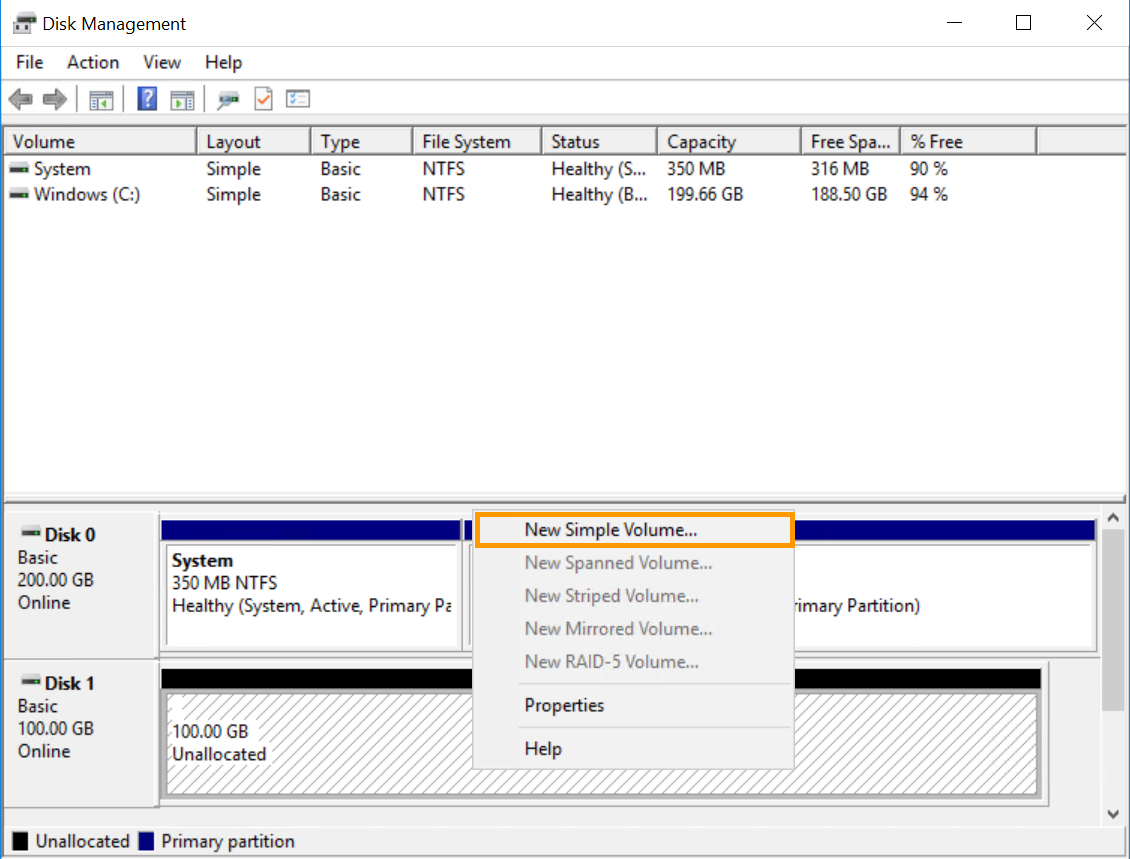
In Disk Management, right-click on the new disk and select New Simple Volume....
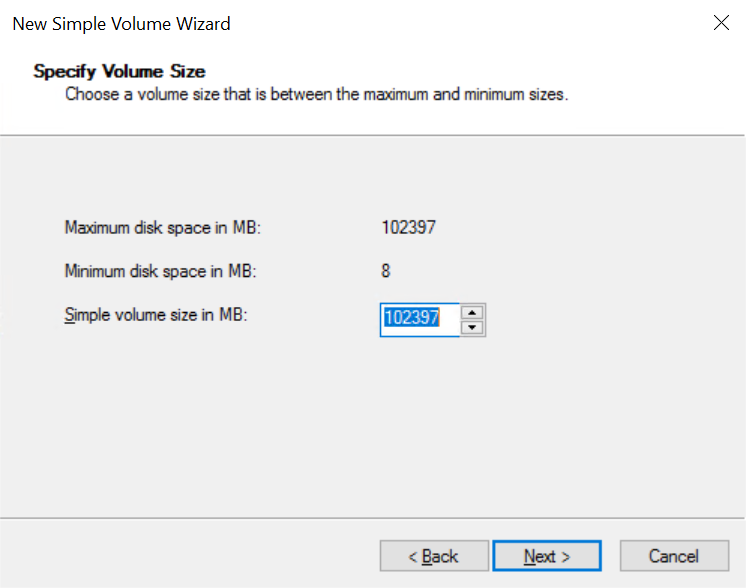
In the wizard, click Next to specify the volume size. It should be set to maximum by default. Click Next to continue.
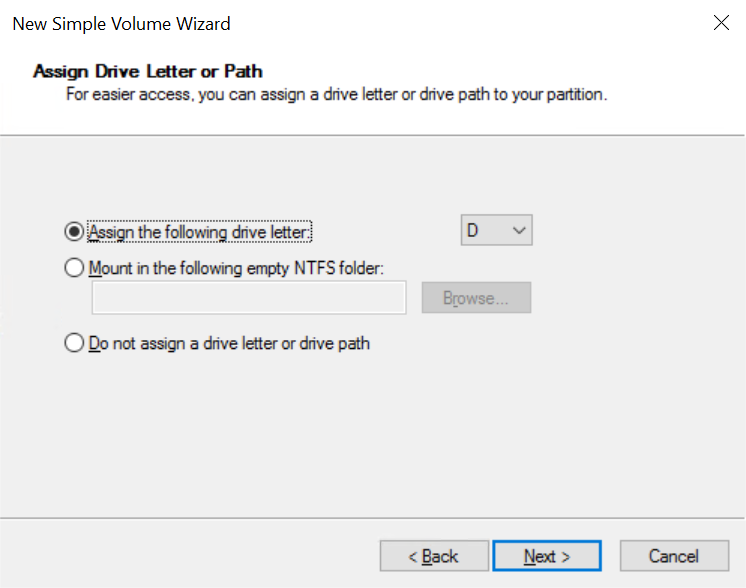
Leave the new drive letter at default or select a different one, then click Next.
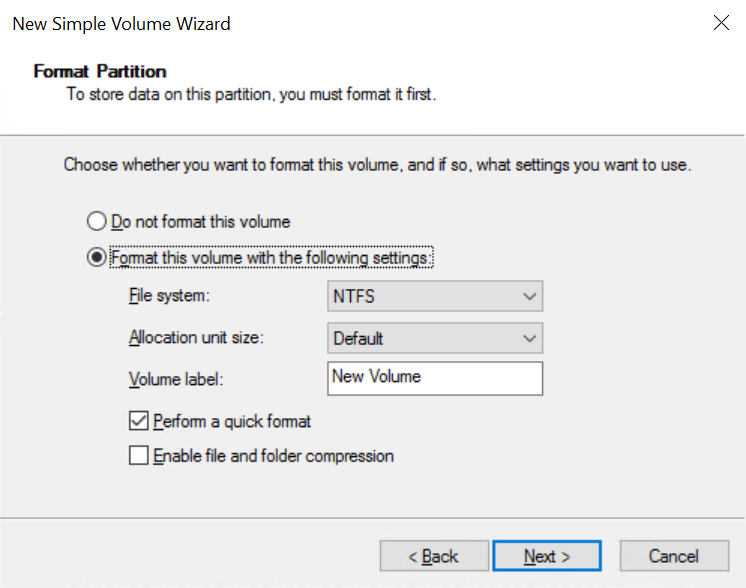
Label the volume (optional) and confirm the formatting options by clicking Next.
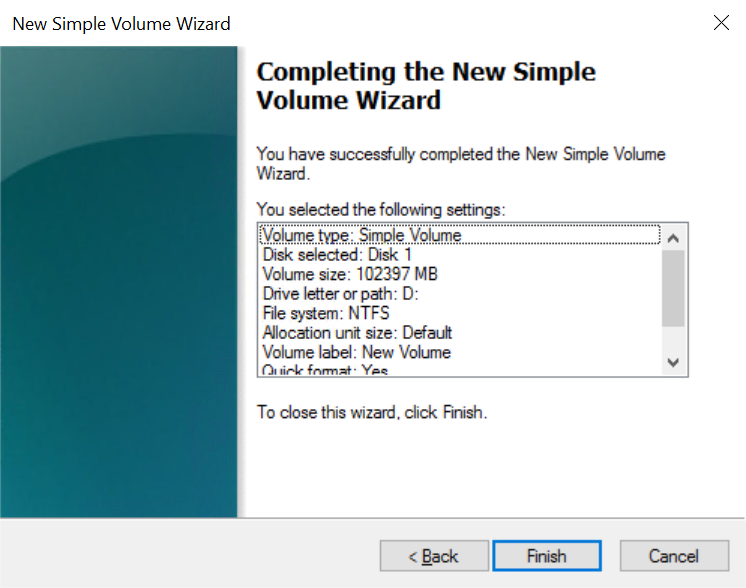
In the last window, click Finish to format the disk.
The disk will be available as a drive in File Explorer after the operation.
Detach a volume
If you wish to detach a volume from your instance, the best practice is to unmount the volume in the operating system before detaching it from the instance.
Warning
An error message may appear if you have software or processes running on the additional disk. In this case, it is recommended to stop all processes before continuing.
Here's how to unmount the volume from the operating system before detaching it from the instance :
NAME MAJ:MIN RM SIZE RO TYPE MOUNTPOINTvda 254:0 0 10G 0 disk└─vda1 254:1 0 10G 0 part /vdb 8:0 0 10G 0 disk└─vdb1 8:1 0 10G 0 part /mnt/disk
Unmount the partition using the command below:
sudo umount /dev/vdb1
Remove the device ID from the fstab to complete the unmount process, if this is not done, the partition will be mounted right back after a reboot.
sudo nano /etc/fstab
Save and exit the editor.
Establish a remote desktop (RDP) connection to your Windows instance.
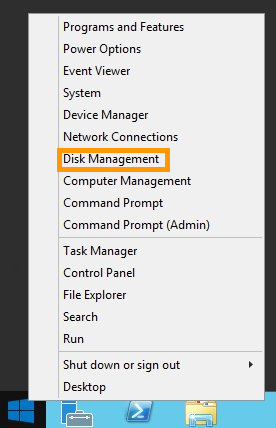
Once logged in, right-click on the Start Menu button and open Disk Management.
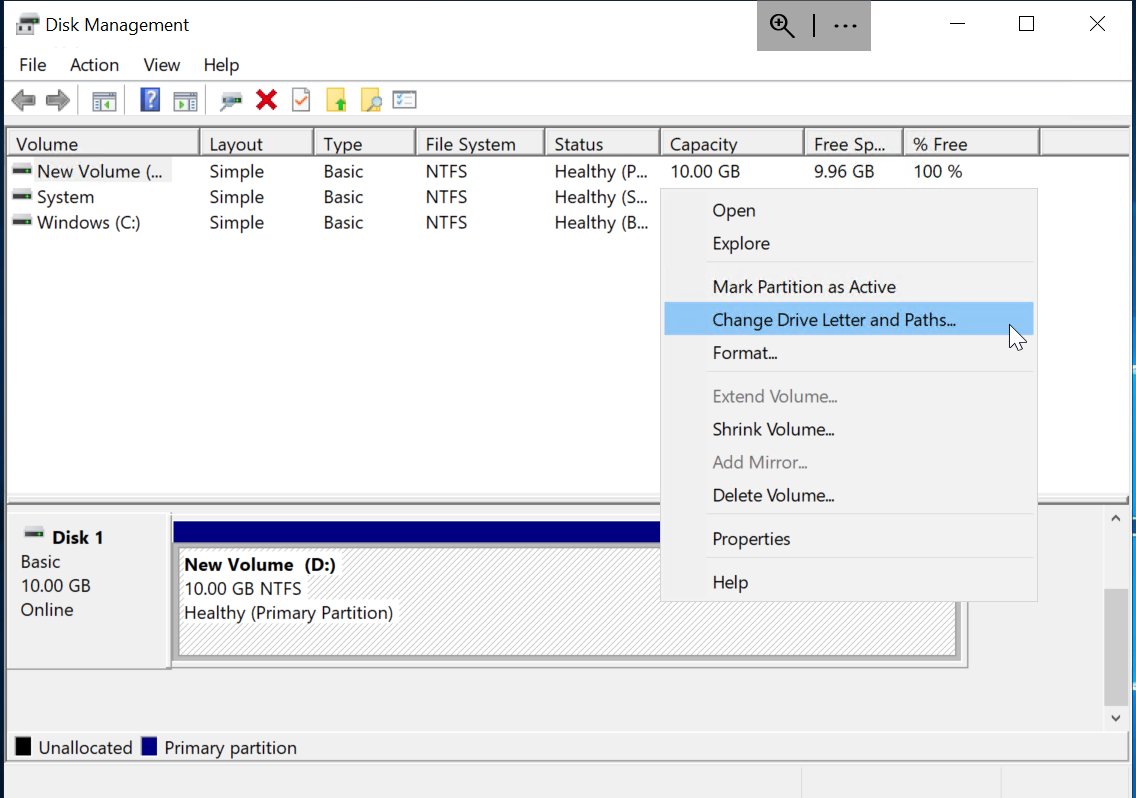
Right click on the volume you wish to unmount and select Change Drive Letter and Paths....
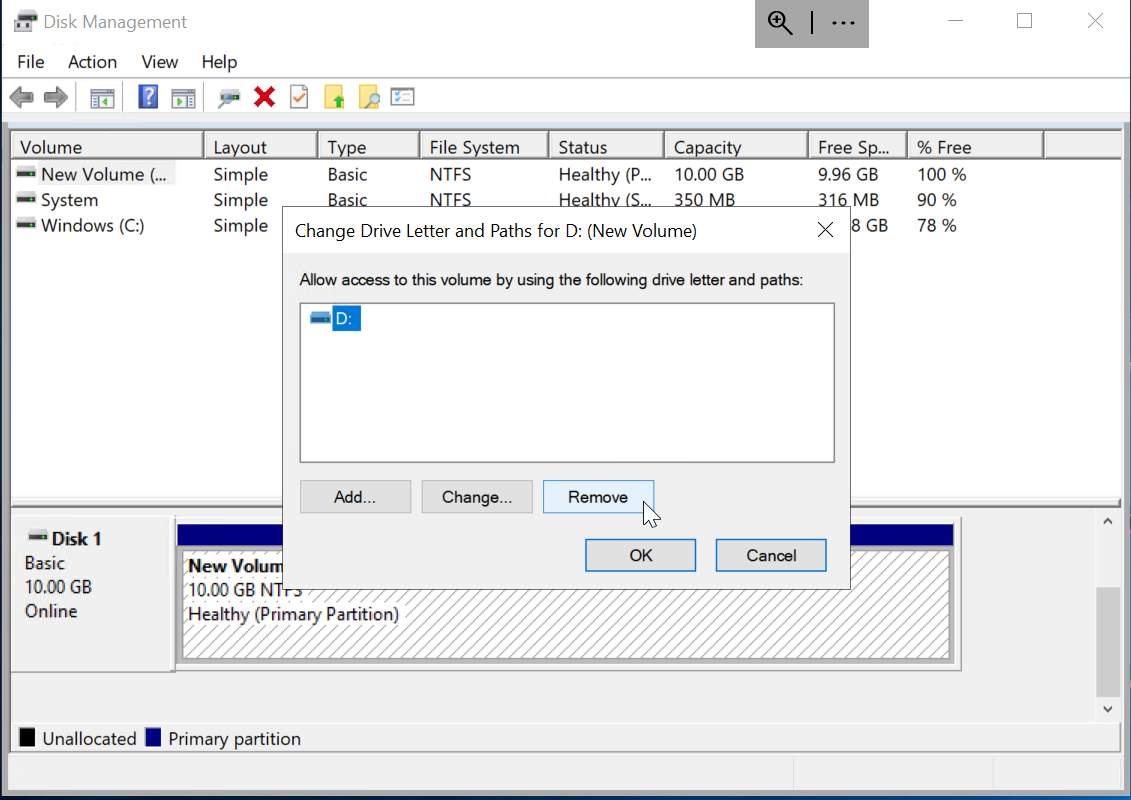
Click on Remove to remove the drive.
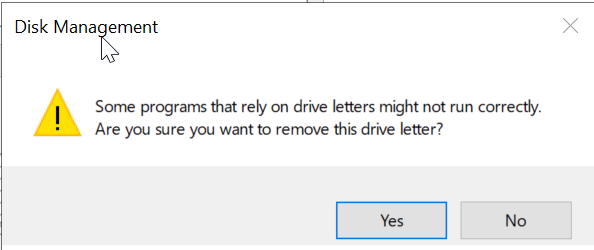
Next, click on Yes to confirm the disk removal.
When finished, you can close the Disk Management window.
Finally, we will detach the volume from the instance:
Via the OVHcloud Control Panel
Via Terraform
Via the OVHcloud CLI
Go to the Public Cloud section of your OVHcloud Control Panel and click on Block Storage in the left-hand menu under Storage & backup.
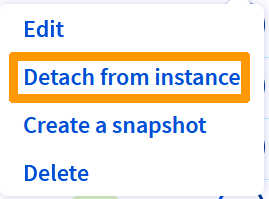
Click the ... button next to the corresponding volume and select Detach from instance.
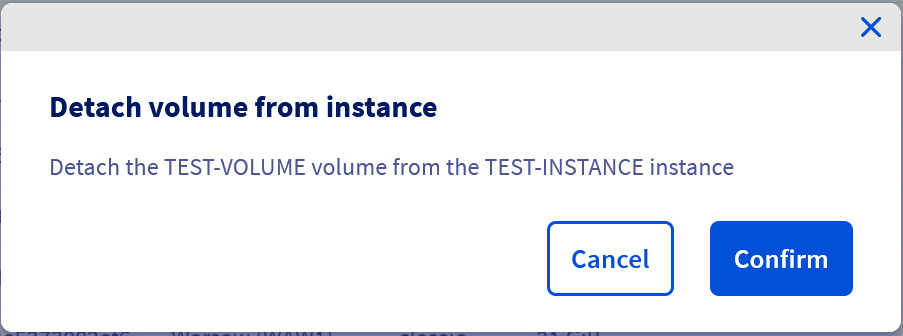
Click on Confirm in the pop up window to start the process.
Start by deleting the lines previously created in your Terraform file:
# Attach the volume to the instanceresource "openstack_compute_volume_attach_v2" "volume_attach" { instance_id = "<your_instance_id>" volume_id = openstack_blockstorage_volume_v3.terraform_volume.id}
Enter the following command to check whether the correct resource will be deleted:
terraform plan
The output should look like this:
$ terraform planopenstack_compute_volume_attach_v2.va_1: Refreshing state... [id=11cc1279-xxxx-xxxx-xxxx-3ace4c954780/daf3a86e-xxxx-xxxx-xxxx-ac7b6ffbb806]openstack_blockstorage_volume_v3.terraform_volume: Refreshing state... [id=daf3a86e-xxxx-xxxx-xxxx-ac7b6ffbb806]Terraform used the selected providers to generate the following execution plan. Resource actions are indicated with the following symbols: - destroyTerraform will perform the following actions: # openstack_compute_volume_attach_v2.va_1 will be destroyed # (because openstack_compute_volume_attach_v2.va_1 is not in configuration) - resource "openstack_compute_volume_attach_v2" "va_1" { - device = "/dev/sdb" -> null - id = "11cc1279-xxxx-xxxx-xxxx-3ace4c954780/daf3a86e-xxxx-xxxx-xxxx-ac7b6ffbb806" -> null - instance_id = "11cc1279-xxxx-xxxx-xxxx-3ace4c954780" -> null - region = "GRA11" -> null - volume_id = "daf3a86e-xxxx-xxxx-xxxx-ac7b6ffbb806" -> null }Plan: 0 to add, 0 to change, 1 to destroy.
Then apply the changes by entering this command:
terraform apply
The output should look like this:
$ terraform applyopenstack_compute_volume_attach_v2.va_1: Refreshing state... [id=11cc1279-xxxx-xxxx-xxxx-3ace4c954780/daf3a86e-xxxx-xxxx-xxxx-ac7b6ffbb806]openstack_blockstorage_volume_v3.terraform_volume: Refreshing state... [id=daf3a86e-xxxx-xxxx-xxxx-ac7b6ffbb806]Terraform used the selected providers to generate the following execution plan. Resource actions are indicated with the following symbols: - destroyTerraform will perform the following actions: # openstack_compute_volume_attach_v2.va_1 will be destroyed # (because openstack_compute_volume_attach_v2.va_1 is not in configuration) - resource "openstack_compute_volume_attach_v2" "va_1" { - device = "/dev/sdb" -> null - id = "11cc1279-xxxx-xxxx-xxxx-3ace4c954780/daf3a86e-xxxx-xxxx-xxxx-ac7b6ffbb806" -> null - instance_id = "11cc1279-xxxx-xxxx-xxxx-3ace4c954780" -> null - region = "GRA11" -> null - volume_id = "daf3a86e-xxxx-xxxx-xxxx-ac7b6ffbb806" -> null }Plan: 0 to add, 0 to change, 1 to destroy.Do you want to perform these actions in workspace "test_terraform"? Terraform will perform the actions described above. Only 'yes' will be accepted to approve. Enter a value: yesopenstack_compute_volume_attach_v2.va_1: Destroying... [id=11cc1279-xxxx-xxxx-xxxx-3ace4c954780/daf3a86e-xxxx-xxxx-xxxx-ac7b6ffbb806]openstack_compute_volume_attach_v2.va_1: Still destroying... [id=11cc1279-xxxx-xxxx-xxxx-3ace4c954780/daf3a86e-xxxx-xxxx-xxxx-ac7b6ffbb806, 10s elapsed]openstack_compute_volume_attach_v2.va_1: Destruction complete after 17sApply complete! Resources: 0 added, 0 changed, 1 destroyed.