
Web Cloud Databases - Connecting to a database
Objective
You can view the content of your database via an interface. There are several ways to connect to it.
Find out how to connect to your database on your database server.
Requirements
- A Web Cloud Databases instance (included in a Performance web hosting plan).
OVHcloud Control Panel Access
- Direct link: Web Cloud Databases
- Navigation path:
Web Cloud>Web Cloud Databases> Select your database service
Instructions
Web Cloud Databases solutions do not provide access to the database management system itself, but to the databases hosted on it.
- There is no super user "root" access.
- Generic SQL commands work normally, and software such as HeidiSQL, SQuirreL SQL or Adminer is fully compatible.
Connect to a MySQL or MariaDB database
Since MariaDB is a fork of MySQL, the commands are exactly the same for both types of databases.
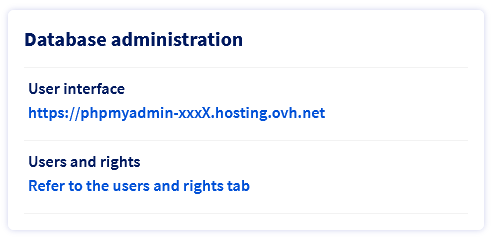
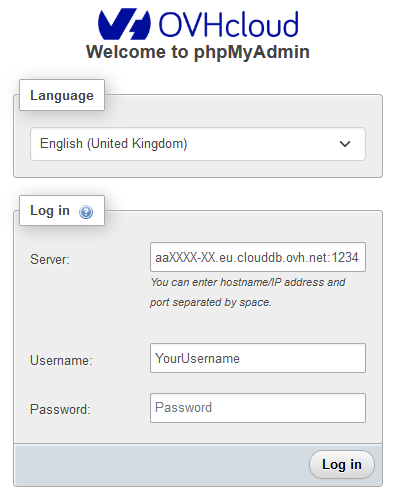
Connection via OVHcloud phpMyAdmin
Click on the tabs below to view each of the 4 steps.
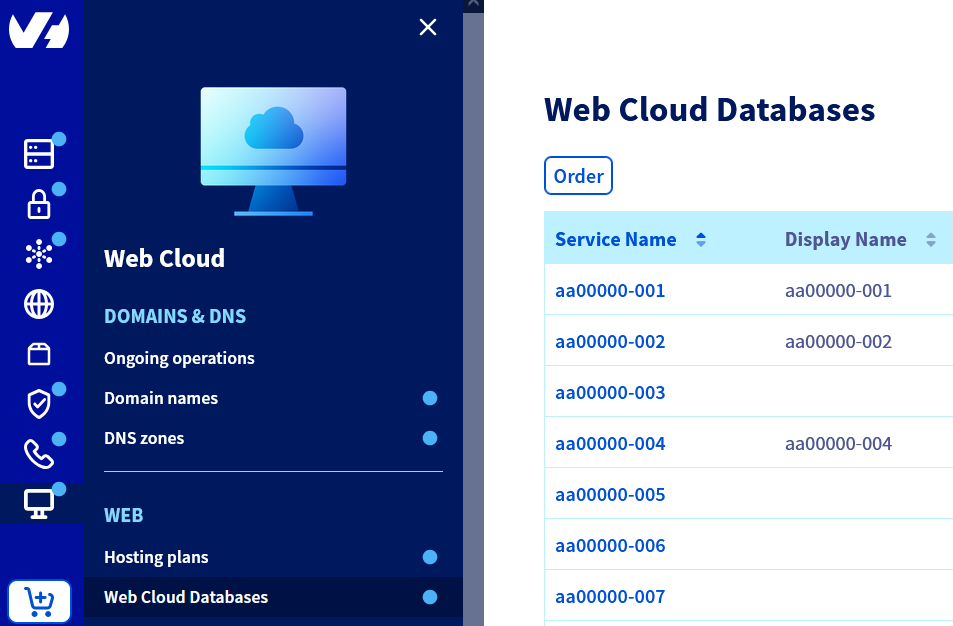
Go to the Web Cloud Databases page, then select the solution concerned.
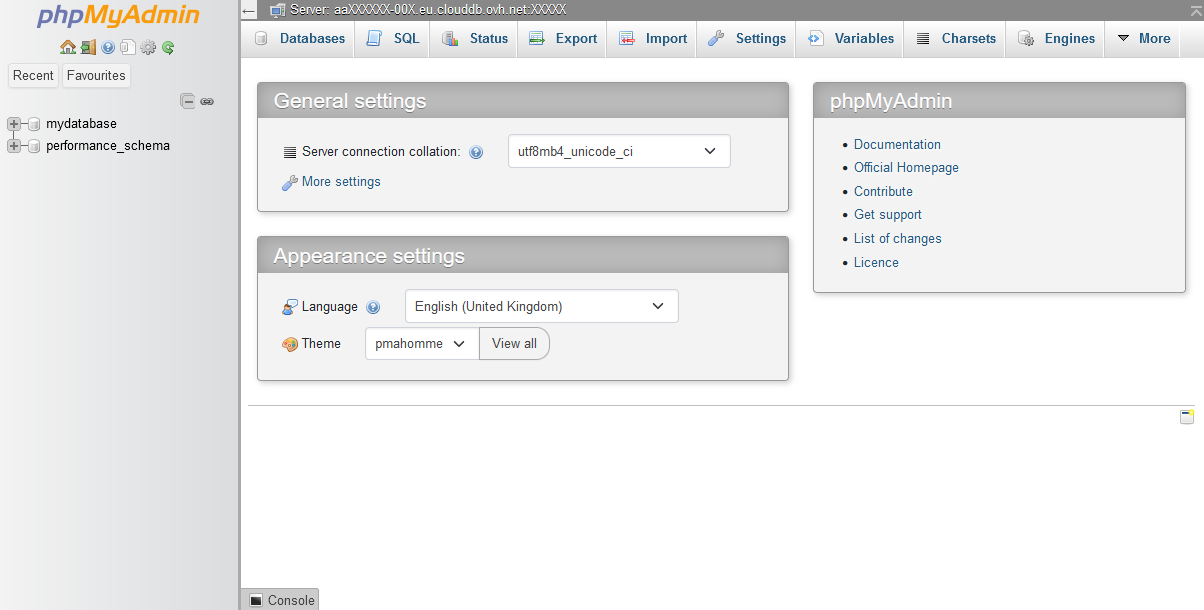
If the connection is successful, the following page will appear.
In case of error:
- Error #1045 means the credentials are incorrect. Check your username and/or password.
- Error #2005 means the server name should be checked, and whether it is functioning correctly.
Connection to the database outside the Control Panel
If you are using a "Web Cloud Databases"/"Private SQL" solution, remember to authorise your IP using the guide on configuring your database server.
Click on the tabs below to view each of the 2 steps.
Go to the Web Cloud Databases page, then select the solution concerned.
Click on the connection method of your choice to view the content.
Command line connection
PHP script connection
Software connection (SQuirreL SQL)
In our example, we use the open-source software SQuirreL, but other interfaces such as HeidiSQL or Adminer are fully compatible.
- Launch SQuirreL SQL and click on
Aliases, then on+
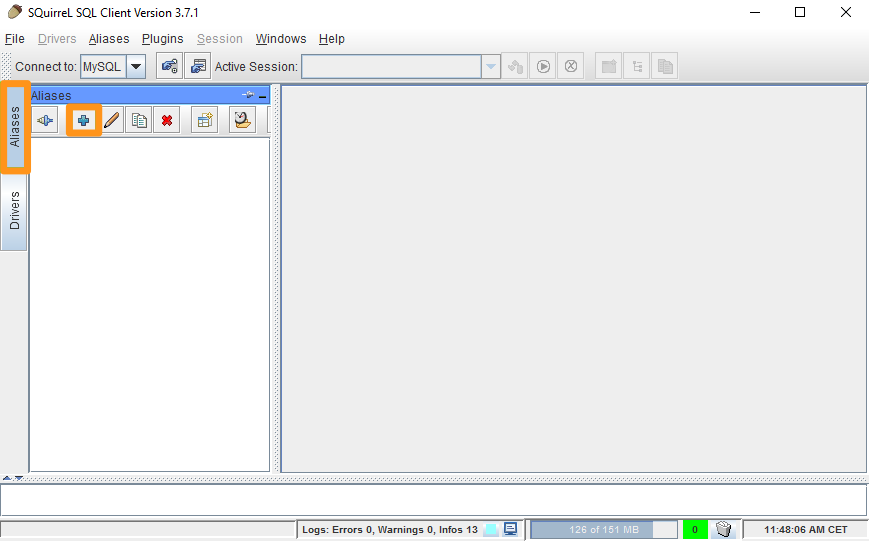
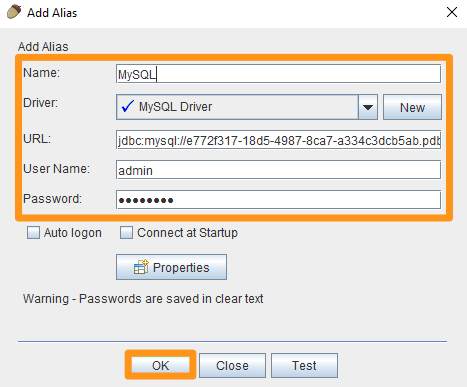
- Fill in the fields below and confirm with the
OKbutton:- Name: Choose a name
- Driver: Choose "MySQL Driver"
- URL: Enter the server address and port in the form jdbc:mysql://server:port
- User Name: Enter the username
- Password: Enter the password
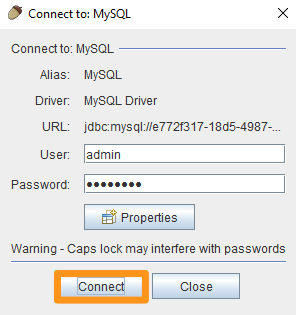
- Confirm again with the
Connectbutton
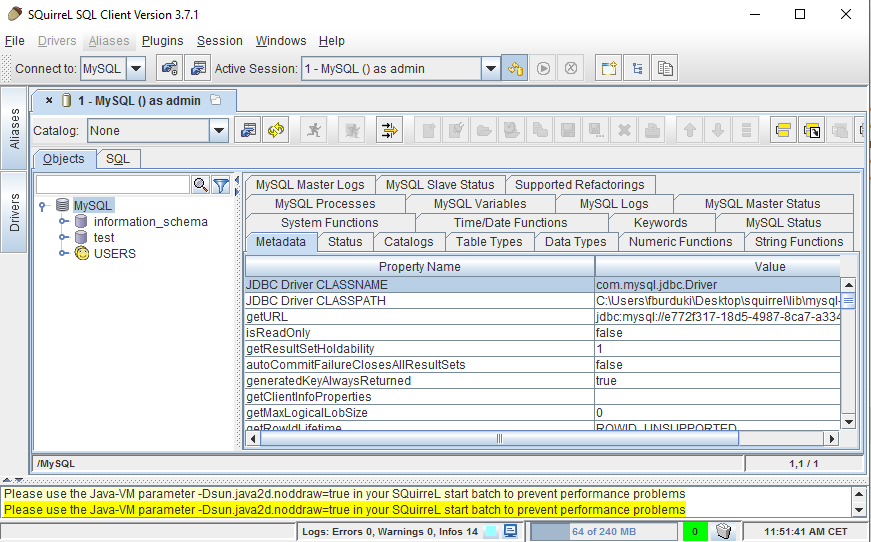
You are now connected to your database:
phpMyAdmin connection
You can use your own phpMyAdmin interface to explore the content of your database. To do this, install phpMyAdmin on your own server or web hosting plan. During installation, make sure you correctly configure the information for your database server and desired database so that phpMyAdmin can connect to it.
Connect to a PostgreSQL database
Click on the tabs below to view each of the 2 steps.
Go to the Web Cloud Databases page, then select the solution concerned.
Click on the connection method of your choice to view the content.
Command line connection
PHP script connection
Software connection (SQuirreL SQL)
In our example, we use the open-source software SQuirreL, but other interfaces such as HeidiSQL or Adminer are fully compatible.
- Launch SQuirreL SQL and click on
Aliases, then on+
- Fill in the fields below and confirm with the
OKbutton:- Name: Choose a name
- Driver: Choose "PostgreSQL"
- URL: Enter the server address and port in the form jdbc:postgresql://server:port/database
- User Name: Enter the username
- Password: Enter the password
- Confirm again with the
Connectbutton
You are now connected to your database:
Go further
Web Hosting - My database is full, what should I do?
For specialised services (SEO, development, etc.), contact OVHcloud partners.
If you would like assistance using and configuring your OVHcloud solutions, please refer to our support offers.
Join our community of users.