
What do I do if I have a 403 forbidden page?
Find out how to get your website back online if it displays a 403 forbidden page
Objective
A "403 forbidden" page may appear in the following cases:
-
FTP access rights (CHMOD) are insufficient or restricted. Access to the file/folder/website you want to access via your browser is then denied by the web server of your web hosting plan.
-
The .htaccess file contains an access restriction rule.
-
A security plugin protects web browser access to your files/folder/websites.
-
An application firewall is enabled.
Following the detection of suspicious operation, our security robots may temporarily block access to files on your web hosting plan. This is supposed to prevent:
-
The progress of any potential hacking of your data stored on your web hosting plan.
-
Sending malicious code to other entities/websites, which could then lead to their being hacked.
-
Carrying out illegal operations.
This device also legally protects you from actions resulting from a possible hack of your web hosting towards other organisations/websites.
If you are affected by this type of blocking, you will be sent a notification via the email address of the "administrator" contact for your Web Hosting plan.
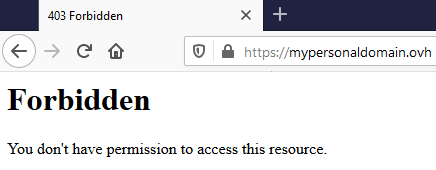
Find out how to unblock access to your website if you see a "403 forbidden" page.
Information regarding OVHcloud service administration and how to find appropriate assistance
When using OVHcloud guides, please be aware of the following conditions:
- User instructions aim to provide as many details as possible but cannot cover individual use cases. You might need to adapt the pertinent actions to your requirements.
- The OVHcloud ecosystem is built for flexibility and freedom of choice. Customers are therefore responsible for the secure and proper configuration of their services. To prevent data loss, we strongly recommend to apply backup strategies to all your important data.
- Our guides and tutorials may reference third-party software or services in combination with OVHcloud solutions. The technical support provided by OVHcloud does not include the configuration of systems or products outside of our responsibility. This includes but is not limited to:
- Operating systems and user interfaces (Windows, Debian, Plesk, etc.).
- Any other third-party software (FTP clients, email software, etc.).
- Services offered by other providers (DNS, APIs, user interfaces, etc.).
To receive the appropriate assistance for any issues you might experience, follow these guidelines:
- You seek personalized advice or you would like to discuss a topic that is not covered in detail by our documentation?
Join the OVHcloud Community to search for your topic and reach out to other users. - You need to report an incident regarding your OVHcloud service or you are experiencing difficulties in the OVHcloud Control Panel?
Create a support request in our Help Centre. - You require professional assistance for your project or you need help with tasks outside our support scope?
Visit our partner portal to search for experts who are familiar with OVHcloud solutions. - You are looking for more detailed information regarding our support levels and Professional Services?
Please visit our web pages for OVHcloud support levels and OVHcloud Professional Services.
You can participate in improving our documentation:
- You would like to share feedback to improve a guide page or you want to report insufficient information on a specific page?
Use the "Was this page helpful?" buttons at the bottom of the page to let us know. - You would like to propose a specific documentation update?
Use the "Edit this page" function, available at the bottom of the page and in the sidebar.
Requirements
- An OVHcloud web hosting plan
- The login details to access your web hosting plan's FTP storage space
OVHcloud Control Panel Access
- Direct link:
- Navigation path:
Web Cloud>Hosting plans> Select your web hosting plan
Instructions
Step 1: Analyse the situation
If the page "403 forbidden" appeared following a modification of your website, restore all or part of the FTP storage space of your hosting to an earlier date.
If the available backups do not allow you to restore access to your website, contact a specialised provider.
If the page "403 forbidden" did not appear following a modification of your website, check your inbox. If you have received an email from OVHcloud notifying you that your web hosting plan has been closed for security reasons, please skip directly to step 2 of this guide.
If the page "403 forbidden" appeared without any action on your part and you have not received any email from our services about it, check the FTP access rights (CHMOD) of your files and folders as well as the code contained in your .htaccess file(s). Also check if the restriction is caused by a security plugin or application firewall. If necessary, contact a specialised provider.
Step 2: Apply security measures on your side
First, check the security of your computers and devices:
-
Perform security updates for all your devices.
-
Check that an antivirus software is installed, update it and run a full scan. If you do not have one, consult a specialised provider before installing.
-
Change all of your account passwords, including those of your email accounts, following the best practices specified in this guide.
-
Change the passwords for all of your OVHcloud services, including your database and your FTP storage.
Before changing the password for your website's database in your , update your website's configuration file so that it connects to the database with the new password.
Otherwise, changing your database password will result in your website and any services accessing it being blocked.
If you have any doubts about the changes to be made, contact OVHcloud partners.
Step 3: Intervene on your web hosting plan
First, take note of the date on which the OVHcloud email regarding the deactivation of your hosting and the list of folder(s) containing the malicious files detected.
Our security robots can apply two levels of access restriction to your web hosting plan:
- Access permissions are set to CHMOD 700 at the FTP root of your web hosting plan
- Access permissions are set to CHMOD 000 at the FTP root of your web hosting plan.
If you wish to revert CHMOD 000 permissions, please contact our support teams to check the status of your issue before following the steps in this guide.
Depending on your situation, access restrictions can be changed from CHMOD 000 to CHMOD 700 to allow you access to your web hosting plan's FTP space.
Case no. 1: Your web hosting plan has been disabled for less than two weeks
If access to your hosting plan was blocked less than two weeks ago and it contains only one website, restore your FTP storage space to an earlier date. If your web hosting contains multiple websites, only restore the folder or folders containing the illegitimate files.
To restore all or part of your FTP storage space, see our guide on this topic.
Restoring only your FTP storage space is not sufficient to correct potential security vulnerabilities previously present on your website. To identify these security vulnerabilities, analyse the web logs of your web hosting plan, or contact a specialised provider to perform a security audit on your websites.
Case no. 2: Your web hosting plan has been disabled for more than two weeks
If your hosting plan was closed more than two weeks ago, please contact a specialist provider to perform a security audit on your websites.
If you would like more details on the previous steps 2 and 3, please refer to our tutorial on what to do if your website is hacked.
Step 4: Reactivating your web hosting with FileZilla
We recommend that you carry out a security audit before reopening your web hosting plan. Any malicious actions originating from your web hosting plan may result in your being held legally responsible.
If you want to install the FileZilla software to manipulate your website files, follow the instructions in this guide.
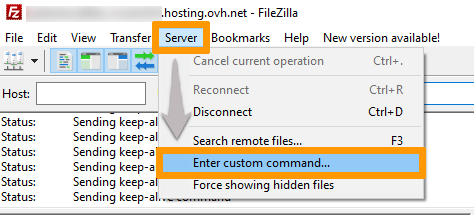
Open the FileZilla application, then log in to your FTP storage space. Click on Server in the menu bar then on Enter custom command (the button may be differently labelled, depending on which version of FileZilla you are using):
In the window that pops up, enter and validate the command below:
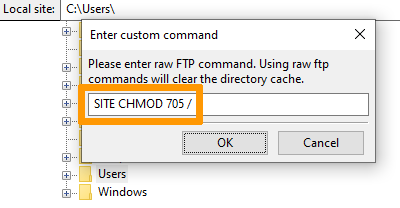
The response "200 Permissions changed on /" confirms that the change was successful. To check, try accessing your site again.
You may need to wait a few minutes (maximum 20 minutes) for the change to be visible in your web browser.
Depending on your website, you may also need to clear your browser's cache.
If the above command does not work, you can try this command:
You may need to wait a few minutes (maximum 20 minutes) for the change to be visible in your web browser.
Depending on your website, you may also need to clear your browser's cache.
Go further
What to do if your WordPress site is hacked
Activating the application firewall
Changing a web hosting plan's PHP version
For specialised services (SEO, development, etc.), contact OVHcloud partners.
If you would like assistance using and configuring your OVHcloud solutions, please refer to our support offers.
Join our community of users.