
Object Storage - Use Object Storage with Owncloud
Learn how to set up storage in Owncloud to use an Object Storage bucket
Objective
Owncloud is a suite of client-server software for creating and using file hosting services.
This guide explains how to set up storage in Owncloud to use an Object Storage bucket.
OVHcloud provides services which you are responsible for with regard to their configuration and management. You are therefore responsible for ensuring they function correctly.
This guide is designed to assist you in common tasks as much as possible. If you encounter any difficulties performing these actions, please contact a specialist service provider and/or discuss the issue with our community of users. OVHcloud cannot provide you with technical support in this regard.
Requirements
- A bucket
- A user with the required access rights on the bucket
- Your Object Storage credentials (access_key and secret_access_key)
See our Getting started with Object Storage guide.
In order to identify your endpoint corresponding to your storage class, please refer to this guide: Object Storage - Endpoints and Object Storage geoavailability.
Instructions
If needed, install the External Storage: S3 plugin from the Market.
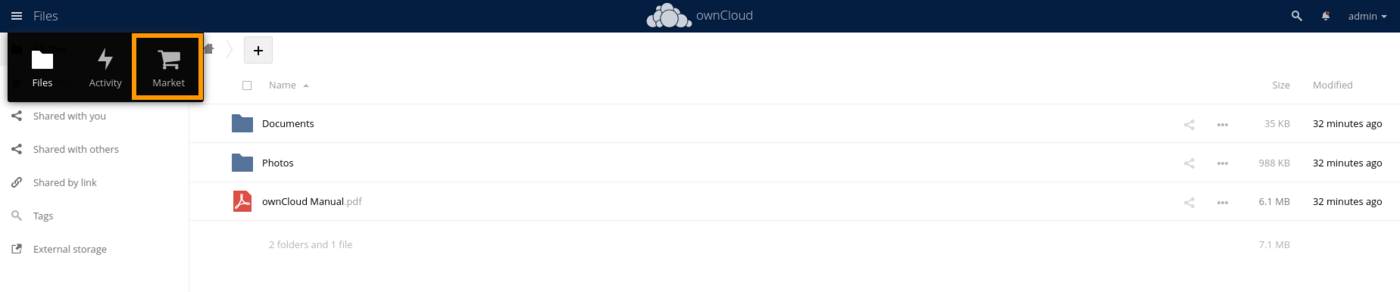
Search for the External Storage: S3 plugin.
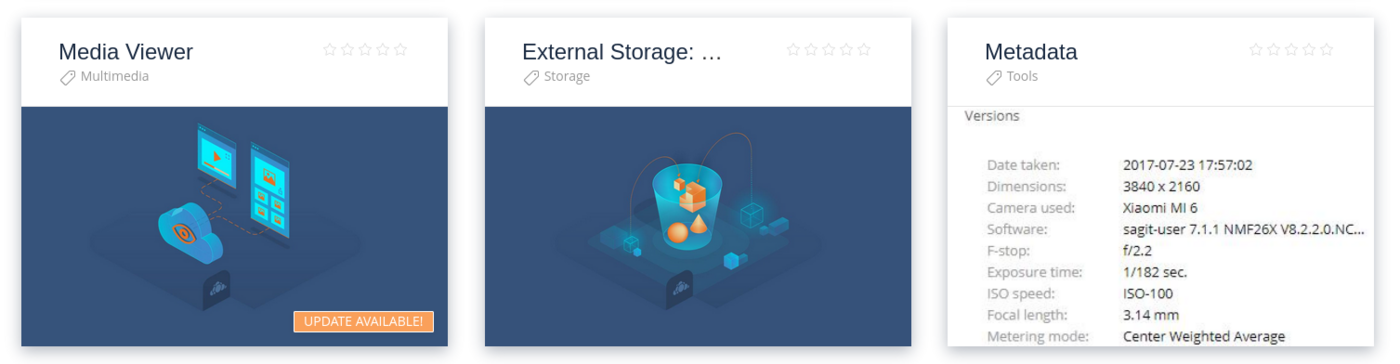
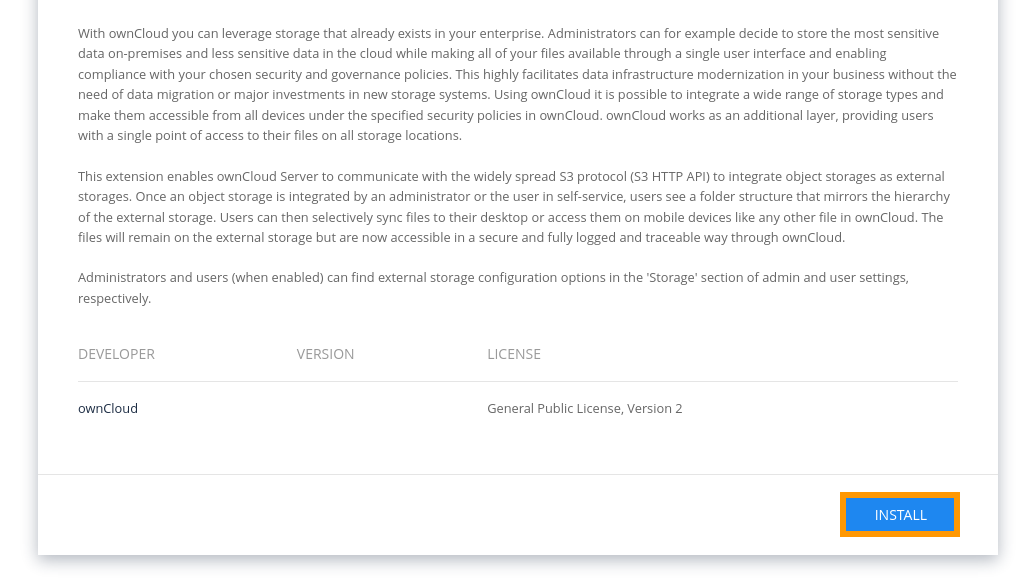
And install it.
Go to the Settings.

Then :
- in
Storage - enable
Enable external storage - name your folder
- add an
Amazon S3 compatible storage (SDK v3)
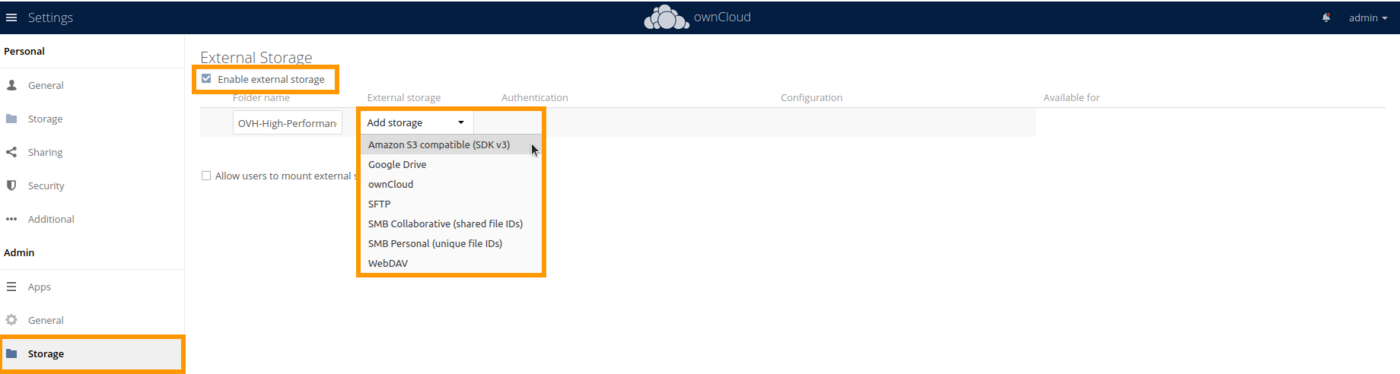
Fill in the following information:
- Enter the name of your bucket
- Set the host as:
s3.<region_in_lowercase>.io.cloud.ovh.net - Set the port to 443
- Specify the region
- Activate SSL
- Enter your access key
- Enter your secret key

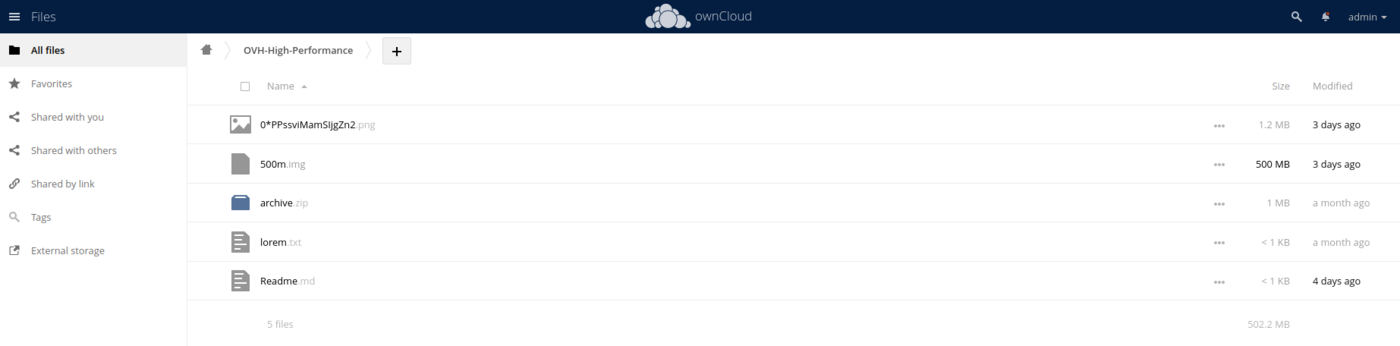
Go to Files.

Then in External storage.

The result should be similar to this:
Go further
For training or technical assistance implementing our solutions, contact your sales representative or visit our Professional Services page to request a quote and have your project analysed by our experts.
Join our community of users.