
Exporting a website
Find out how to export an OVHcloud website
Objective
This guideline will outline the steps to follow in order to export all elements of your website in a standard format, from an OVHcloud web hosting plan.
Find out how to export an OVHcloud website.
Requirements
OVHcloud Control Panel Access
- Direct link:
- Navigation path:
Web Cloud>Hosting plans> Select your web hosting plan
Instructions
1 - Retrieve files from your FTP storage space
1.1 Log in to your storage space
To log in to your storage space, you will need the following:
- The active FTP or SSH user account
- The FTP or SSH user account password
- The server address
- The server connection port
This information was included in the email informing you that your web hosting plan has been set up.
If you don’t have this information, click on the tabs below to view each of the 3 steps.
Go to the page, then select the web hosting plan concerned.

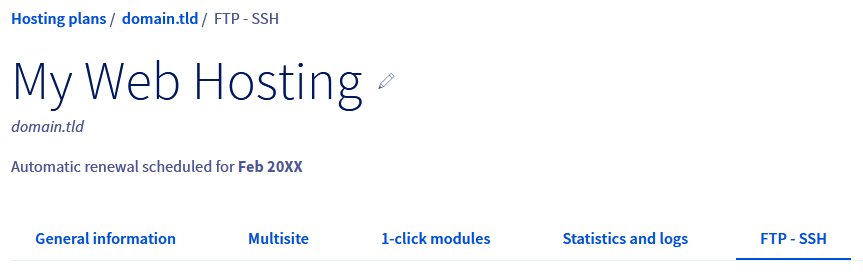
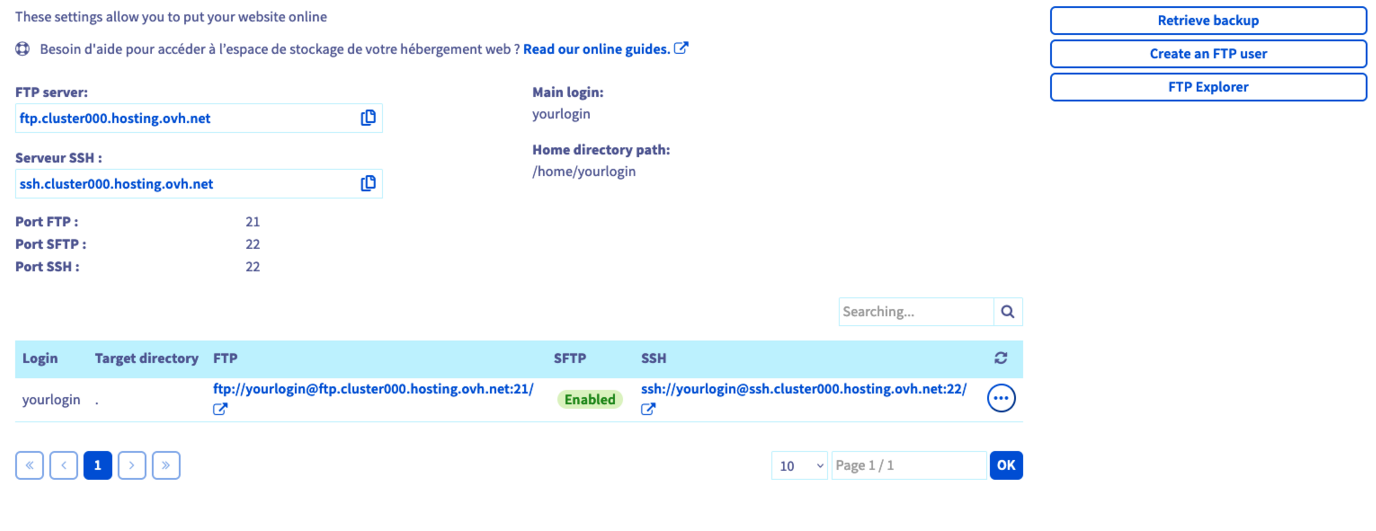
Once you have everything you need, there are two different ways of retrieving your files from the storage space:
-
Using FTP- or SFTP-compatible software. You will need to install a compatible program on your computer (e.g. FileZilla). Since OVHcloud did not create the software package you have installed, please contact the software's publisher if you are experiencing difficulties using it.
-
Using SSH access. You will need to use commands from a terminal to interact with your storage space. More advanced knowledge and a specific OVHcloud hosting plan are required to use this type of access. For further information on this, please refer to our guide on Accessing your web hosting plan via SSH.
2.1 Download the files from your storage space
Once connected to your storage space and depending on the websites hosted on it, several folders may appear.
If needed, identify the root folder where your website is stored. To do this, click on the tabs below to view each of the 3 steps.
Go to the page, then select the web hosting plan concerned.

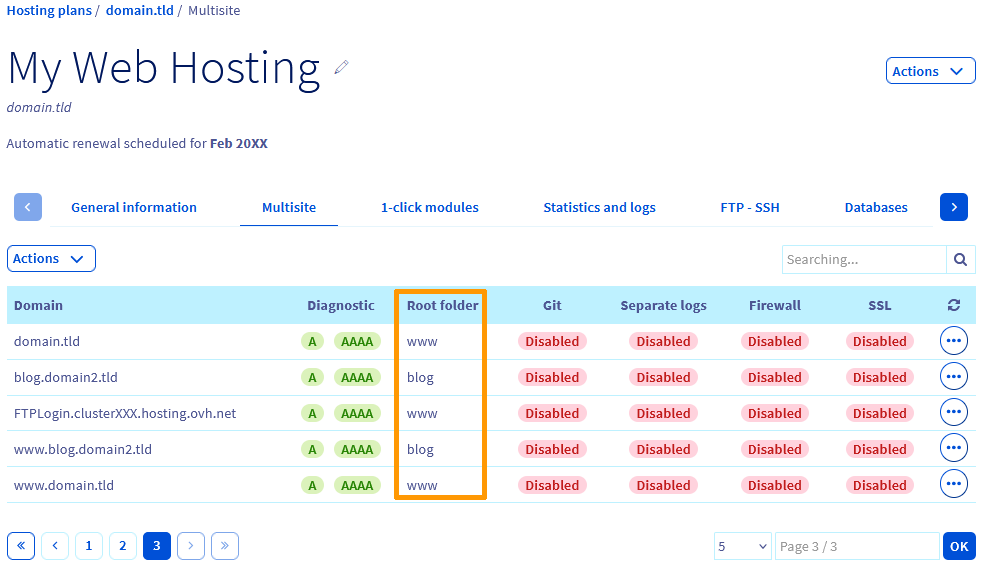
Still connected to your storage space, download the files of your website from the root folder identified above.
2 - Retrieve your database backup (optional)
This step is not required if your website does not use any databases.
To retrieve a backup of your database, please read our guide on Retrieving the backup of a Web Hosting plan's database.
If you are using a Web Cloud Databases database for your website, you can go to the ‘Databases’ tab, click the ... button to the right of the database, and click ‘Back up now’ in the drop-down menu.
You can also download, import and restore backups in this section. Please read our guide Backing up and exporting a database of your database server
3 - Retrieve the logs for your OVHcloud web hosting plan
Refer to our dedicated guide: Web Hosting - Consulting the statistics and logs of a website.
Go further
Logging in to your Web Hosting plan's storage space
Accessing a web hosting plan via SSH
Retrieving the backup of a Web Hosting plan's database
Getting started with the Web Cloud Databases service
For specialised services (SEO, development, etc.), contact OVHcloud partners.
If you would like assistance using and configuring your OVHcloud solutions, please refer to our support offers.
Join our community of users.