
How to start a Public Cloud instance on a bootable volume
Find out how to start an instance on a bootable volume
Objective
Public Cloud instances come with an original disk that is copied from a system image (Debian 12, Windows Server, etc.). It is also possible to use additional volumes, these are persistent disks that will allow data to be stored.
You can also deploy an operating system to and from a volume. The Public Cloud instance will then start on this volume instead of the original disk.
This guide provides you with instructions on how to start an instance on an attached volume.
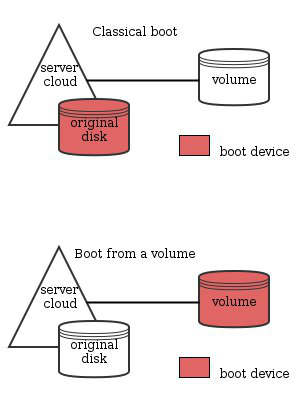
OpenStack natively allows you to boot from a volume. It involves making the volume bootable and starting the instance from this volume. The changes will cause the original disk to disappear as the new volume is taking over. The functionality described in this guide eliminates the need to access the original disk and therefore takes advantage of the volume.
With the current version of OpenStack, rescue-pro mode is not available on an instance booted via a bootable volume.
Requirements
Instructions
Creating a bootable volume from an image.
Log in to the Horizon interface.
Select the appropriate region from the drop down menu at the top left.
On the Project tab, open the Volumes tab and click the Volumes category.
Click on Create Volume.
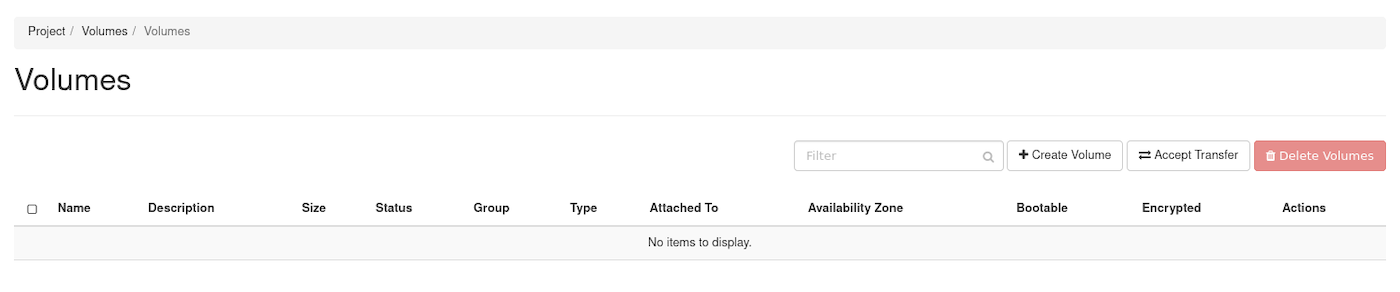
In the dialog box that opens, enter or select the following values:
| Information | Description |
|---|---|
| Volume Name | Specify a name for the volume |
| Description | Optional, provide a brief description for the volume |
| Volume Source | Choose the option Image.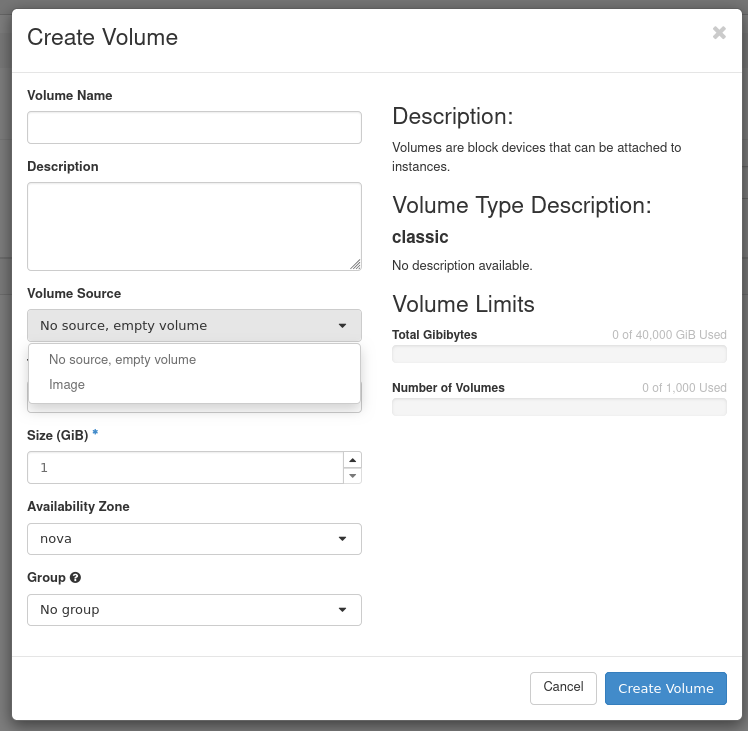 |
| Use image as a source | You can select the image from the list.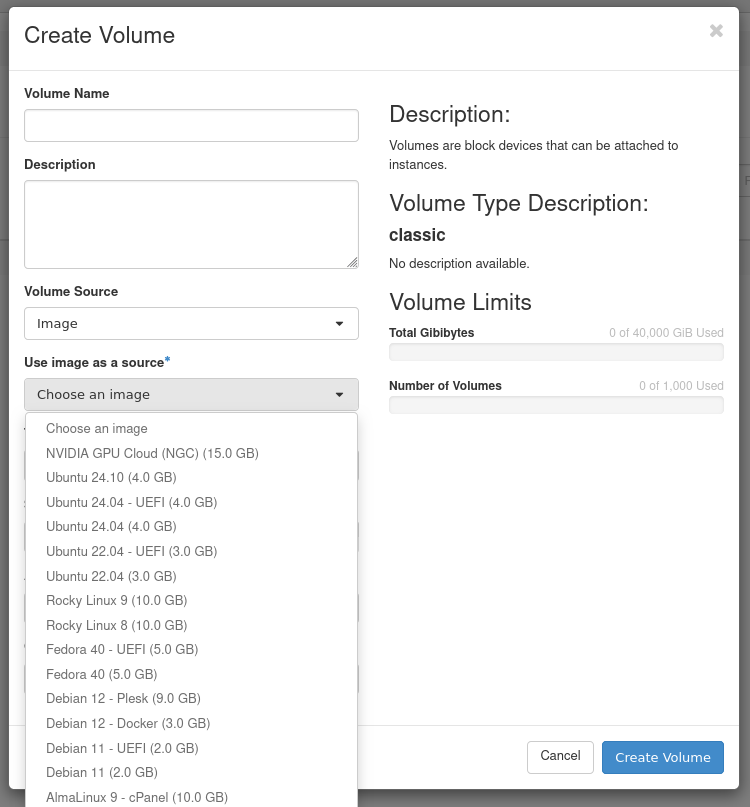 |
| Type | Depends on the volume type you want to use |
| Size (GB) | The size of the volume in gibibytes (GiB) |
| Availability Zone | nova 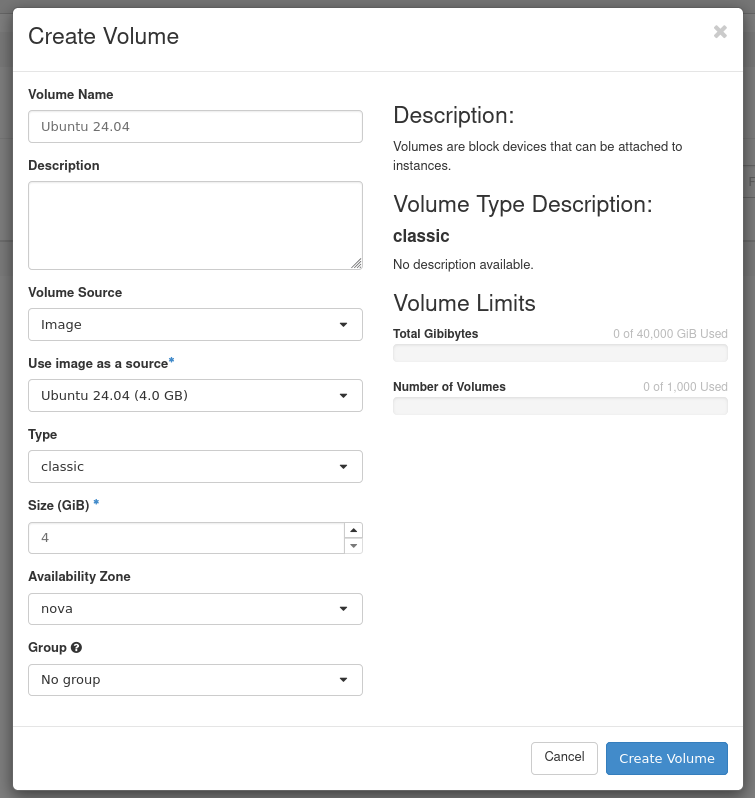 |
Click on Create Volume.
The volume will be in a creating state then a downloading state before being available.
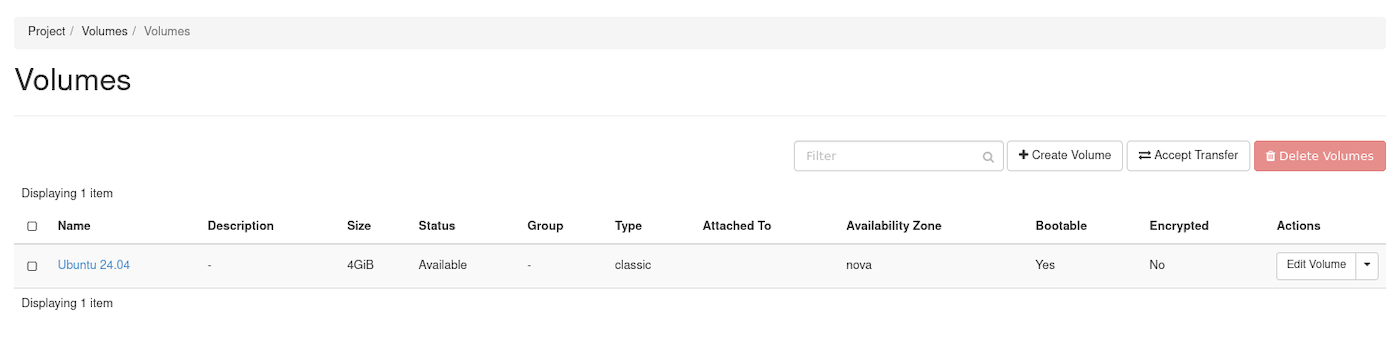
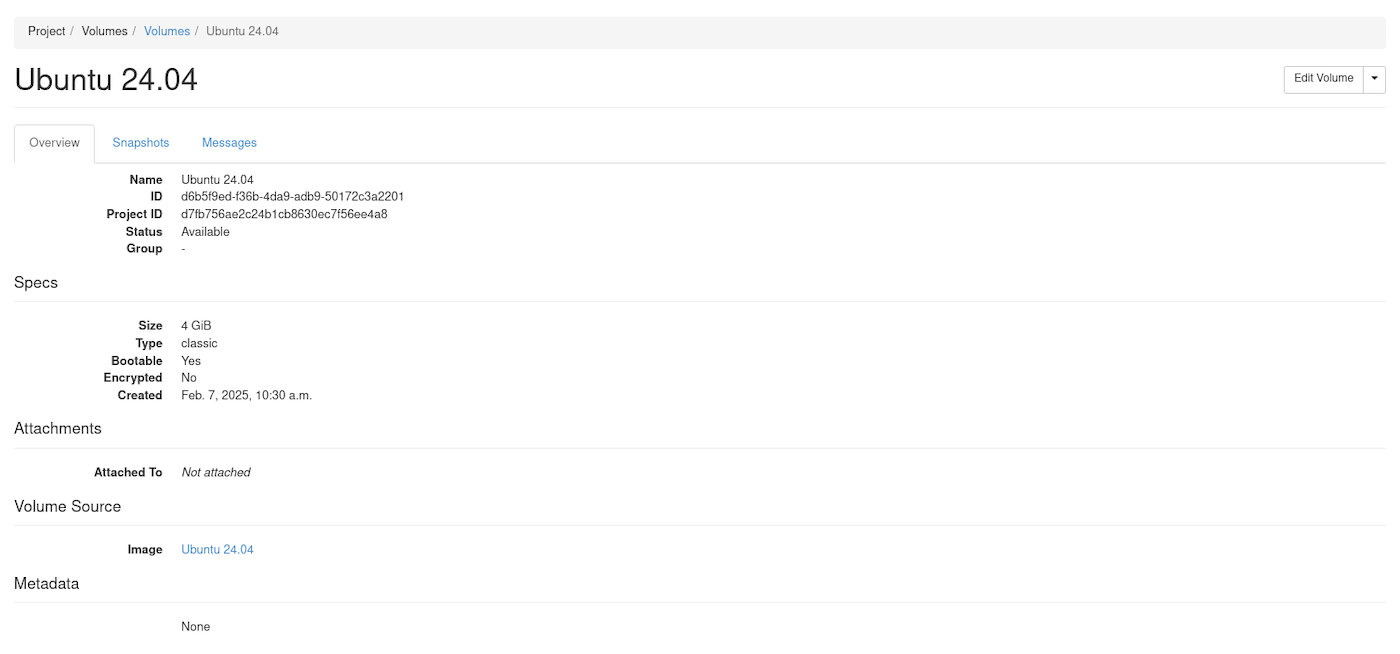
As you can see on the image below or if you click the volume name, it is set as bootable.
Starting an instance using a bootable volume
Log in to the Horizon interface.
Select the appropriate region from the drop down menu at the top left.
On the Project tab, open the Compute tab and click Instances category.
Click on Launch Instance.

In the Launch Instance dialog box, enter the information requested. Refer to the guide Create an instance from the Horizon interface for more details.
In the Source tab, choose "Volume" in the Select Boot Source field.
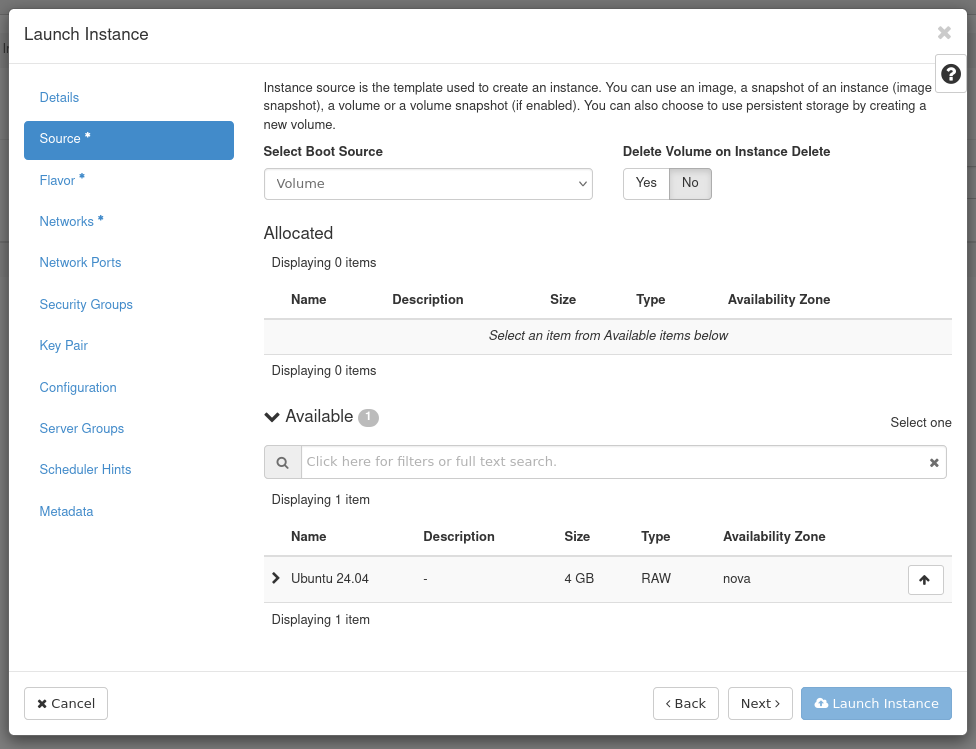
A new field for volume selection appears. You can select the previously created volume from the list.
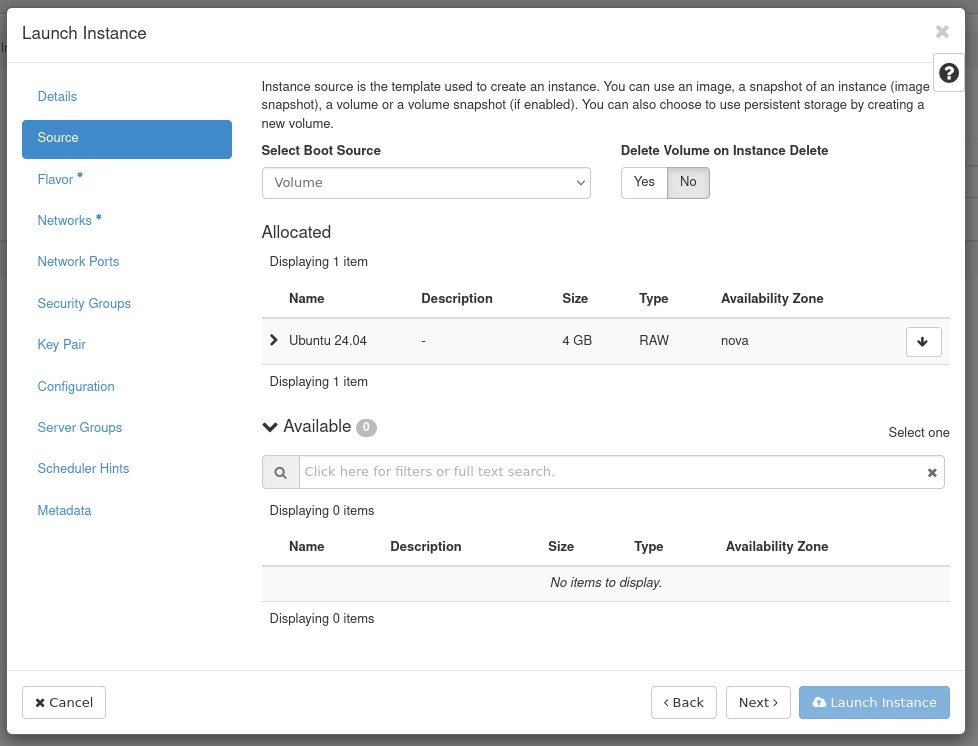
Click on Launch Instance.
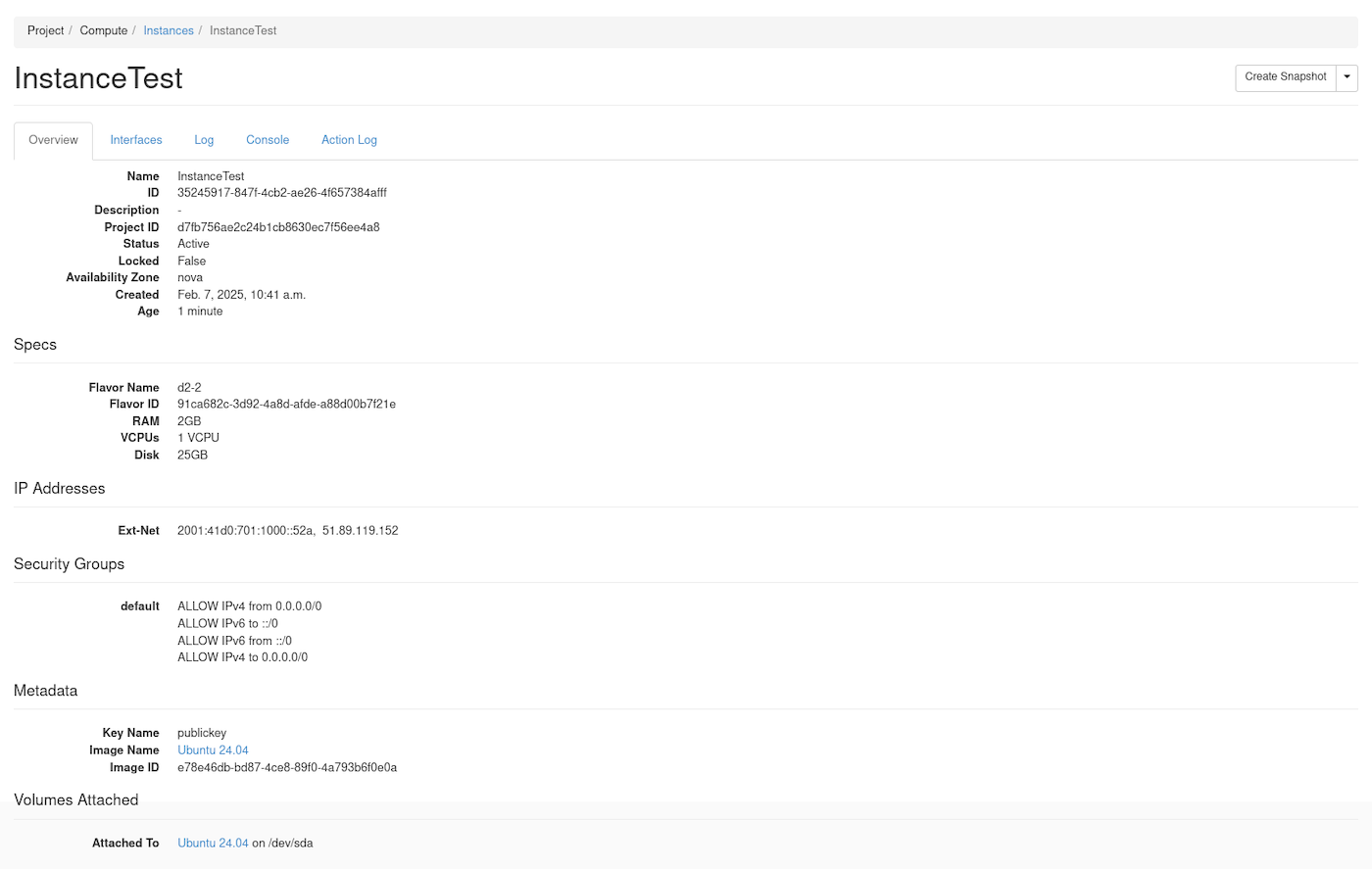
The instance will be in a build state then Block Device Mapping state before being available.
The instance will eventually have the volume attached.
Go further
Join our community of users.