
Time2Chat, conversational SMS messaging for businesses
Find out how to launch two-way SMS conversations with Time2Chat: order a dedicated 09 number and configure your sender from the OVHcloud Control Panel
OVHcloud SMS offers are only available in the following countries: France, the United Kingdom, Ireland, Spain, Italy and Poland.
Time2Chat is available in France only.
Objective
Time2Chat is a conversational SMS messaging solution. It allows a business to send and receive messages from a single number starting with "09", available throughout France.
This guide presents the principle of Time2Chat, its benefits, the access conditions and the first steps to use it.
Requirements
OVHcloud Control Panel Access
- Direct link: SMS
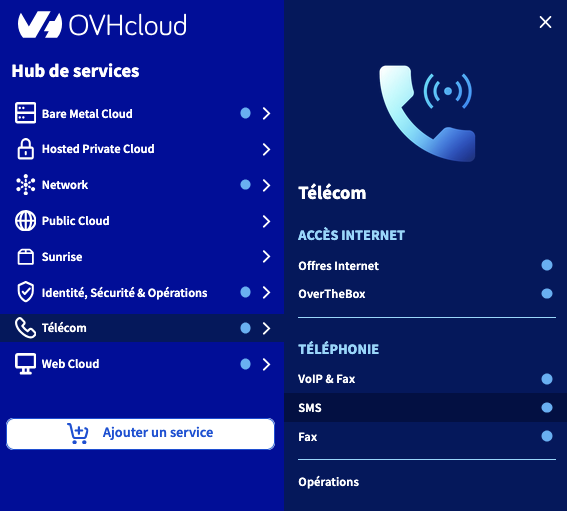
- Navigation path:
Telecom>SMS> Select your SMS account
Instructions
General information about Time2Chat
Time2Chat is a two-way conversational messaging solution (brand ↔ customer) that allows a business and its customers to exchange SMS messages in France.
Unlike a standard SMS send, the service is based on a dedicated number starting with "09", assigned specifically to each business. You can use this number to send and receive SMS messages.
A conversation "session" begins as soon as a first message is sent — whether it comes from the brand or the customer. From that moment, the session remains active for 24 hours. During this period, both parties can exchange an unlimited number of SMS messages through the same channel, subject to credits being available on the brand's side. Once the period has elapsed, any new message from the brand or the customer automatically starts a new 24-hour session.
Usage examples
- Booking or confirming an appointment.
- Order tracking or delivery notification.
- After-sales service and customer support.
- Satisfaction surveys or quick polls.
- Direct interaction with no app to install.
Benefits for your business
- Universal channel: SMS remains accessible to anyone with a mobile phone plan.
- Single, identifiable number (starting with "09"), reinforcing brand recognition.
- Smooth experience: natural and continuous exchanges, with no format constraints.
- Compliance: adherence to French regulations on professional messaging.
Differences with the legacy SMS offer
The Time2Chat service is based on a conversational model, different from standard SMS sends:
The customer agrees to use the Time2Chat service in a balanced way, aiming for an exchange ratio close to 1:1 between messages sent and received.
Access conditions
The launch phase of Time2Chat is reserved for customers who already hold an SMS sender of the virtual number (VLN) type starting with "06" or "07".
We will soon offer this service to all customers who have an OVHcloud SMS account.
Existing SMS credits can be used on Time2Chat.
You can also buy a pack of SMS credits from the SMS section of your Control Panel. Click your SMS account, then click Top up my account from the Home tab.
Ordering a Time2Chat number
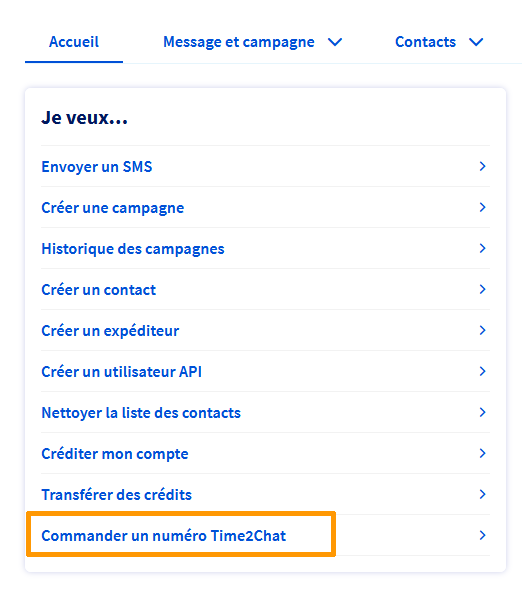
In the Home tab, click the Order a Time2Chat number button.
In the form that appears, fill in all the fields, then click Continue.
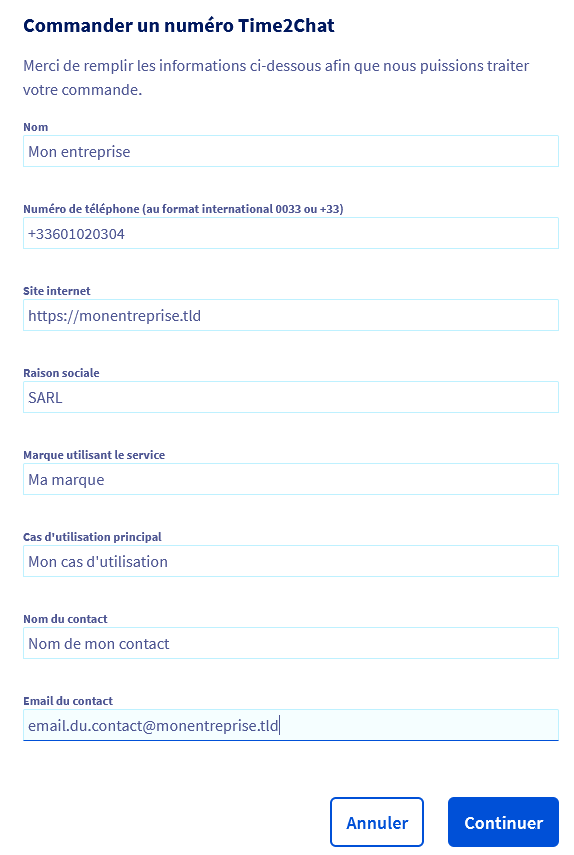
The information entered can be modified later from the Control Panel.
Follow all the steps before proceeding to payment.
Configuring a Time2Chat sender
Once your Time2Chat number has been ordered, click the Senders tab of your SMS account. The Time2Chat number automatically appears in the list of senders with the "Virtual number" type. To configure it, click the ... button to the right of the number, then select Configure. You then access the Time2Chat conversational SMS configuration page.
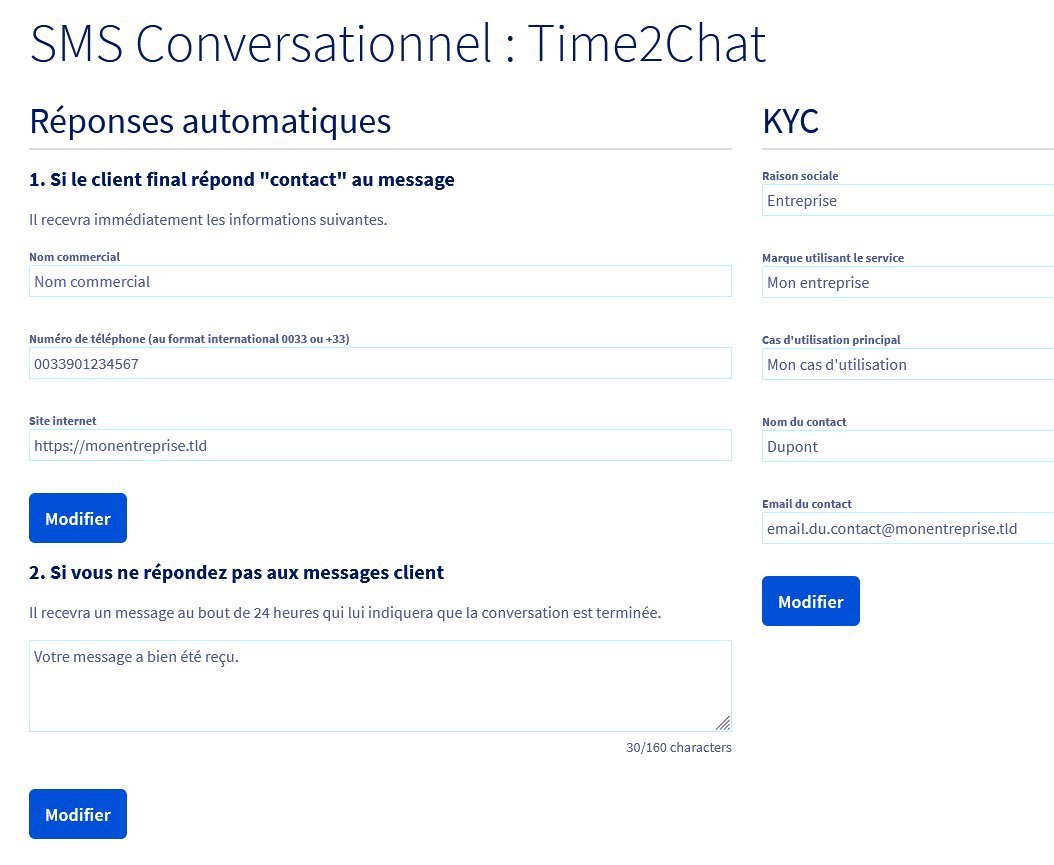
On this interface, you can:
- define the automatic reply information:
- If an end customer replies with the keyword "contact", they will automatically receive a message containing your trade name, your phone number and your website.
- If you do not reply to a customer message within 24 hours, an automatic reply (for example: "Your message has been received") will be sent to indicate the end of the conversation.
- complete the KYC (Know Your Customer) information: enter the company name, the brand using the service, the main use case, as well as the contact details of the main contact (name and email).
These elements allow you to personalise your Time2Chat number and to ensure the smooth operation of two-way exchanges between your brand and your customers.
As soon as the customer replies, the 24-hour session starts. All exchanges made during this period are deducted from your available SMS credits, whether they come from your initial pack or from additional purchases.
Configuring notifications on message reception
You can configure notifications on the reception of SMS messages on your Time2Chat virtual number, so you are alerted by email and/or by SMS whenever a customer replies.
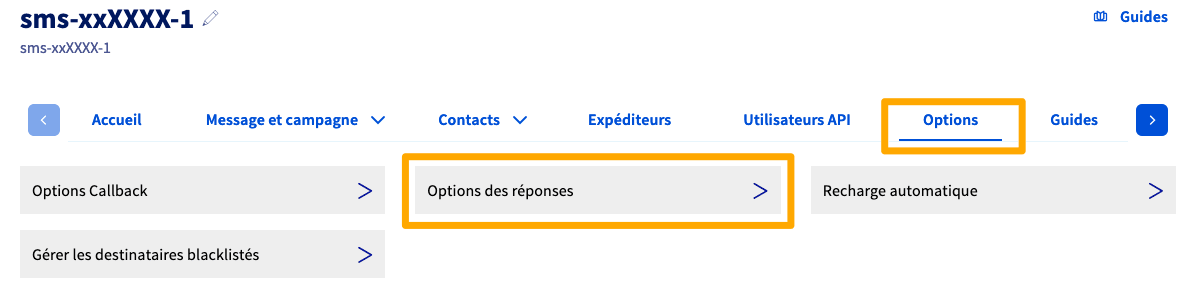
In the tab bar of your SMS account, click Options then Reply options.
Information on data confidentiality
This notification service must be reserved for your own use.
Indeed, the notifications contain information relating to the recipient of your SMS as well as data from your OVHcloud account (name of the SMS account containing your OVHcloud identifier).
In the notification on reception section, click Add a notification, then configure a notification by email or by SMS:
- Email notification
- Sender: you must enter a valid email address belonging to you.
- Email address: enter the recipient email address of the notification.
- SMS notification
- Sender: choose a sender from those already validated in your SMS account.
- Number: enter the recipient number of the notification in international format.
Once your notification is configured, click the Confirm button. You can add several notifications, edit them or delete them.
Using Time2Chat with the OVHcloud API
If you are new to the OVHcloud API, first read the First Steps with the OVHcloud APIs guide.
The OVHcloud API lets you generate a dedicated web chat interface for your number, on which you exchange messages with your customers.
In the methods below, serviceName corresponds to your SMS account (for example sms-XXXXXX-1) and number to your Time2Chat number in international format (for example 00339XXXXXXXX).
To generate the web access to the chat and obtain the URL of the interface associated with your Time2Chat number, call the following method:
The response contains a url field: open this link in a browser to access the chat interface and exchange with your customers. You can also retrieve the URL of an existing access with the GET method, or delete an access with the DELETE method.
You can also manage messages without the chat interface, by integrating Time2Chat directly into your own applications.
The API methods useful for this are:
OVHcloud will not be able to assist you with the development of your applications. We recommend contacting a specialist provider.
Go further
Manage SMS credits and enable automatic top-up
Talk to our community of users.