
Publishing a website on your Web Hosting plan
Find how to publish a website on your OVHcloud Web Hosting plan
Objective
There are many different types of website you can put online. Whether you are creating a blog or an online store, sharing your hobby or promoting your work, your OVHcloud Web Hosting plan lets you host the site you want, provided that it is compatible with the configuration of our infrastructures.
Find out how to publish a website on your OVHcloud Web Hosting plan.
Requirements
- an OVHcloud Web Hosting plan
- an email confirming that your Web Hosting plan has been set up
- a domain name which can be used to access your website
- being up-to-date in the payments and renewals of related services (domain name and web hosting plan)
OVHcloud Control Panel Access
- Direct link:
- Navigation path:
Web Cloud>Hosting plans> Select your web hosting plan
Instructions
1 - Define your project
It is important to have a clear idea of your objective, for your project to succeed. What do you want to do with your website? How will you publish it? There are several ways to get your project off the ground with an OVHcloud Web Hosting plan.
-
Using a turn-key website, with OVHcloud's one-click modules: This solution offers the benefits of a ready-made structure for your website that you can then customise (themes, text, etc.). We offer four different 1-click modules compatible with our infrastructures that are featured on the OVHcloud webpage "How to create a website". Please also see our guide "Setting up your website with 1-click modules".
-
Using a turn-key website that you install manually: This solution gives you the benefit of a ready-made website structure that you can customise (themes, text, etc.), and you set it up yourself on your OVHcloud Web Hosting plan.
-
Creating your website yourself: This is a more technical solution that requires programming skills, but does give you the option of creating a tailor-made project.
-
Migrating an existing website to OVHcloud: this solution may prove complicated if an interruption in service for the website concerned is not an option. To guide you through this process, we recommend that you first consult this documentation: Migrating your website and emails to OVHcloud
Once you have considered the possibilities above, you can choose one of two options.
-
If you want to use our 1-click modules, refer to the instructions set out in our guide on Setting up your website with 1-click modules.
-
If you do not want to use our 1-click modules, you can set up your website manually on your Web Hosting plan. You may find the information in our guide helpful, but it is not a substitute for the support of a webmaster.
Information regarding OVHcloud service administration and how to find appropriate assistance
When using OVHcloud guides, please be aware of the following conditions:
- User instructions aim to provide as many details as possible but cannot cover individual use cases. You might need to adapt the pertinent actions to your requirements.
- The OVHcloud ecosystem is built for flexibility and freedom of choice. Customers are therefore responsible for the secure and proper configuration of their services. To prevent data loss, we strongly recommend to apply backup strategies to all your important data.
- Our guides and tutorials may reference third-party software or services in combination with OVHcloud solutions. The technical support provided by OVHcloud does not include the configuration of systems or products outside of our responsibility. This includes but is not limited to:
- Operating systems and user interfaces (Windows, Debian, Plesk, etc.).
- Any other third-party software (FTP clients, email software, etc.).
- Services offered by other providers (DNS, APIs, user interfaces, etc.).
To receive the appropriate assistance for any issues you might experience, follow these guidelines:
- You seek personalized advice or you would like to discuss a topic that is not covered in detail by our documentation?
Join the OVHcloud Community to search for your topic and reach out to other users. - You need to report an incident regarding your OVHcloud service or you are experiencing difficulties in the OVHcloud Control Panel?
Create a support request in our Help Centre. - You require professional assistance for your project or you need help with tasks outside our support scope?
Visit our partner portal to search for experts who are familiar with OVHcloud solutions. - You are looking for more detailed information regarding our support levels and Professional Services?
Please visit our web pages for OVHcloud support levels and OVHcloud Professional Services.
You can participate in improving our documentation:
- You would like to share feedback to improve a guide page or you want to report insufficient information on a specific page?
Use the "Was this page helpful?" buttons at the bottom of the page to let us know. - You would like to propose a specific documentation update?
Use the "Edit this page" function, available at the bottom of the page and in the sidebar.
2 - Put your website files online in your storage space
There are several steps involved in publishing a website on a hosting space manually. Some of these steps will be optional, depending on which site you install, and there may be multiple ways of carrying them out. For most existing projects, however, there are two major steps involved in publishing a website; the former of these steps is uploading the website's files to the relevant storage space.
Publication takes place in several sub-steps.
2.1. Gather the files for the website
Make sure you have all the files for the website that you are looking to publish. If you are migrating an existing website, you can obtain these files from your former hosting provider.
2.2. Log in to your storage space
To log in to your storage space, you will need the following:
- an active FTP or SSH user account
- FTP or SSH user account password
- the server address
- the server connection port
These elements were sent to you in the email informing you that your Web Hosting plan has been set up. If you don’t have this information, click on the tabs below to view each of the 3 steps.
Go to the page, then select the web hosting plan concerned.

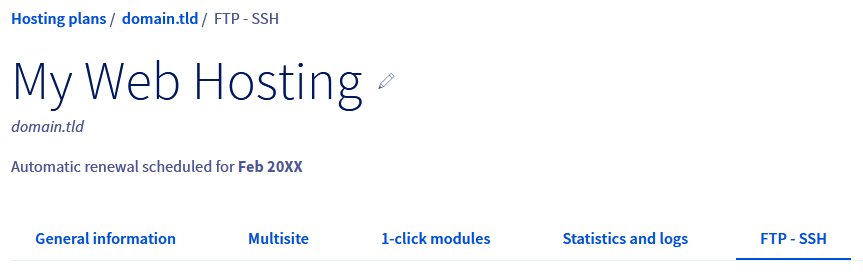
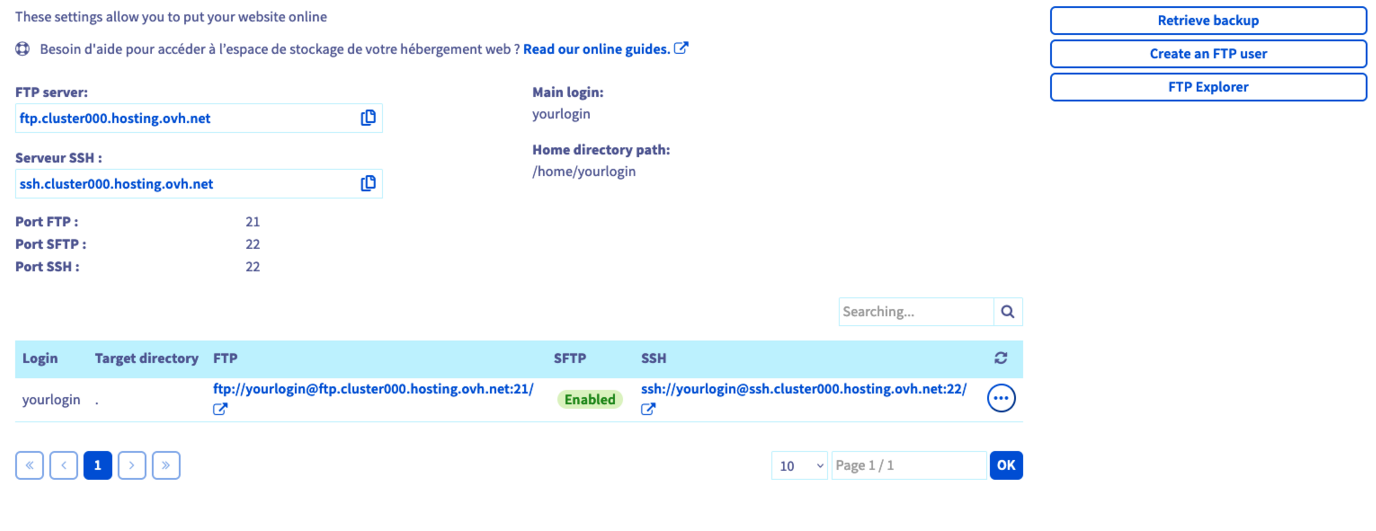
Once you have everything you need, there are two different ways of connecting to your storage space:
-
Using FTP- or SFTP-compatible software. You will need to install a compatible program on your computer (e.g. FileZilla). Since OVHcloud did not create the software package you have installed, please contact the software's publisher if you are encountering difficulties in using it.
-
Using SSH access. You will need to use commands from a terminal to interact with your storage space. More advanced knowledge and a specific OVHcloud Web Hosting plan are required to use this type of access.
2.3. Upload the files to the storage space
If, from your , you have not yet declared your website on your web hosting, please refer to this guide.
If, from your , you have not yet associated your domain name with a website on your web hosting, please refer to this guide.
Once connected to your storage space, you simply need to upload the files of your website. We recommend that you pay particular attention to the directory where you will upload the files, especially if you have declared multiple websites on your web hosting.
To check the folder in which the website should be published, click on the tabs below to view each of the 3 steps.
Go to the page, then choose the web hosting plan concerned.
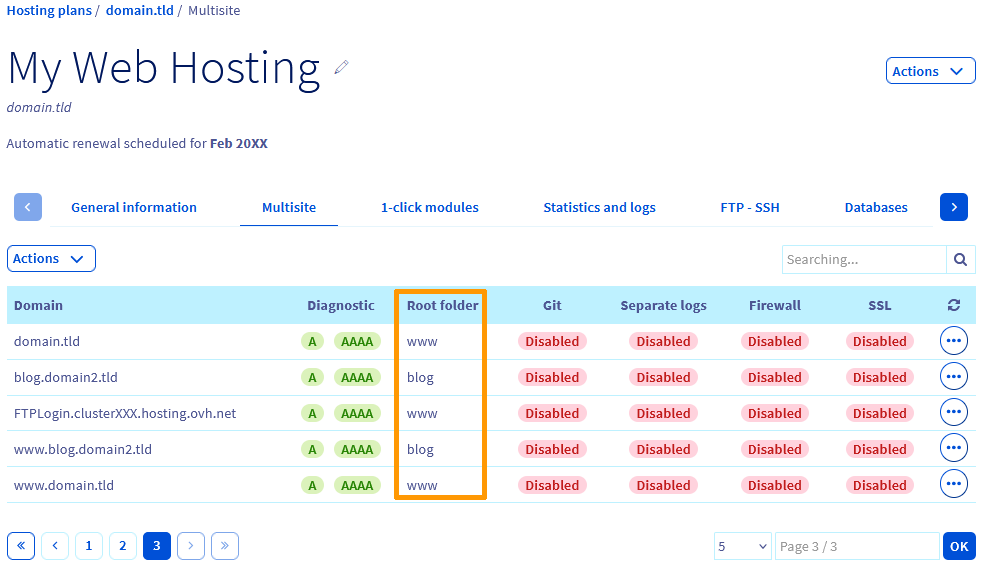
You may find a file named "index.html" in your storage space. This file may have been created by OVHcloud during the installation of your web hosting to display a default page on your website. If this is the case, do not forget to delete it when uploading your files.
An "index.php" file will always take over an "index.html" file. Therefore, when both are present, only "index.php" will be called.
3 - Connect your website to a database
This part is optional if your website does not need to be linked to a database.
Today, most content management systems (CMS), such as WordPress and Joomla!, use a database to store dynamic elements, such as comments or articles. A connection between the website files and the database is therefore essential for the website to function correctly. For this purpose, there is a configuration file containing the database information that allows this connection.
Depending on the website used, this link must be created manually or via an interface generated by the website itself. This involves several sub-steps, some of which may be optional.
3.1. Recover the existing database
If you are migrating an existing website, you can recover your existing database from your former hosting provider. If it is a new website, you can move on to the next step.
3.2. Create the database at OVHcloud
If you already have a database and wish to use it (from an OVHcloud Web Hosting plan or Web Cloud Databases solution), you will need your username and password, the name of the database and the address of the server. You can now go on to the next step.
If you want to create a new database with OVHcloud, click on the tabs below to view each of the 3 steps.
Go to the page, then choose the web hosting plan concerned.
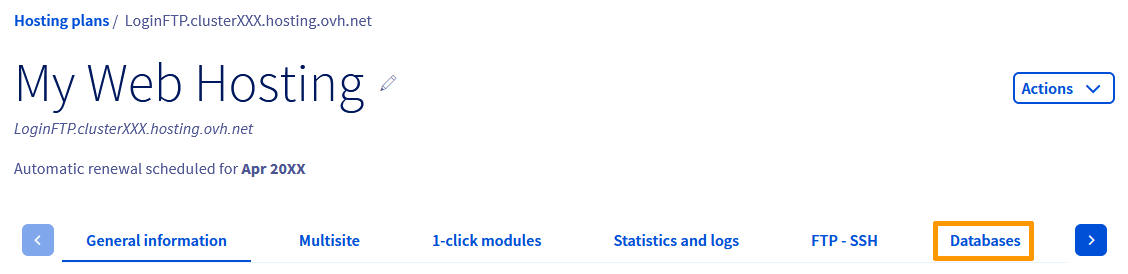
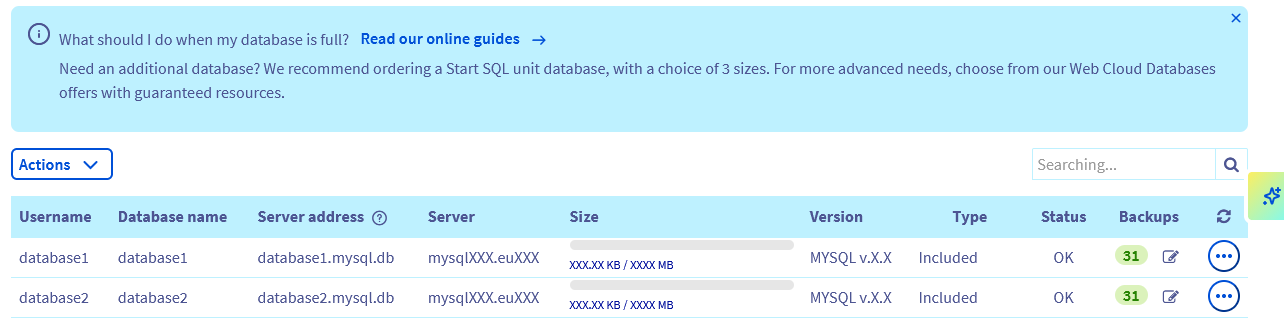
3.3. Import the existing database
If you are migrating an existing website, you can import your existing database into the newly created one. If it is a new website, you can move on to the next step.
There are several methods for importing a database. OVHcloud offers one of these in the OVHcloud Control Panel. Click on the tabs below to view each of the 3 steps.
Go to the page, then choose the web hosting plan concerned.
3.4. Connect your website to the database
Once your database is available and you have uploaded your files to your storage space, all you need to do is connect them. To do this, you need to have the information for connecting to the database: a username, the associated password, the name of the database and the address of the server.
How this connection is established will depend on the type of website you are publishing. This process is dictated by how your website is configured, rather than OVHcloud. As a result, we recommend getting in touch with your website's publisher or another specialist (such as a service provider) if you need assistance with this procedure.
4 - Access your website
Once you have uploaded your files to your storage space and connected your database to it (if your website uses one), you can now access your website. Your website should display properly in your web browser.
If you observe that it does not display properly, we recommend:
-
Checking the domain name configuration: it is possible that the DNS configuration of the domain name does not allow it to display the website you have just uploaded to your OVHcloud web hosting. Make sure that the A record currently set in the DNS zone of your domain name corresponds to the IP address of your OVHcloud web hosting.
-
Ensuring that no files are missing: it is possible that during the upload of the files to your OVHcloud web hosting, you forgot some files or that an error occurred. Be careful during your operations to avoid breaking the link between the website files and the database (if it uses one).
-
Checking that the website code does not contain errors: this check is probably the most technical, but it is possible that the files you have uploaded contain errors and do not allow the server to display your website correctly, or not at all.
As a reminder, if you encounter any difficulties publishing your website, we recommend contacting a specialised provider and/or the publisher of the service (the CMS you have set up, for example).
Go further
Migrating your website and emails to OVHcloud
Setting up your website with 1-click modules
Logging in to your web hosting plan's FTP storage space
Modifying an FTP user password
For specialised services (SEO, development, etc.), contact OVHcloud partners.
If you would like assistance using and configuring your OVHcloud solutions, please refer to our support offers.
Join our community of users.