Adding a public IP address to a new VM
Objective
If you want to create a web front-end or a reverse proxy to create a stack of VMs (web server, database), you will need to add a public IP address to create en entry point.
This guide explains how to use the Nutanix API to deploy a Ubuntu VM with a public IP address.
WARNING
This guide is designed to assist you in common tasks as much as possible. Nevertheless, we recommend that you contact the OVHcloud Professional Services team or a specialist service provider if you have difficulties or doubts concerning the administration, usage or implementation of services on a server.
Requirements
- A Nutanix cluster in your OVHcloud account
- Login credentials and URL for Prism Central, received via email after the installation
- Access to the OVHcloud Control Panel
- An available Additional IP address
Instructions
Adding a new Additional IP to your vRack
Log in to the OVHcloud Control Panel and add an Additional IP address to your vRack.
INFO
The following instructions will use the IP block 123.45.6.78/30 for example purposes.
For vRack purposes, the first, penultimate, and last addresses in any given IP block are always reserved for the network address, network gateway, and network broadcast respectively. This means that the first usable address is the second address in the block, as shown below:
123.45.6.76 Reserved: Network address
123.45.6.77 First usable IP
123.45.6.78 Reserved: Network gateway
123.45.6.79 Reserved: Network broadcast
To configure the first usable IP address, you need to edit the network configuration file.
INFO
In this example, the subnet mask (255.255.255.252) is appropriate for the IP address range used. Your subnet mask may differ, depending on the size of your block. When you purchase your IP block, you will receive an email notifying you of the subnet mask to use.
On Ubuntu 20.04 LTS (Focal Fossa) with "netplan", the configuration should be as follows:
network:
version: 2
renderer: networkd
ethernets:
ens3:
addresses: [123.45.6.77/30]
gateway4: 123.45.6.78
nameservers:
addresses: [213.186.33.99]
Deploying a Ubuntu VM via Nutanix API
Step 1: Upload the OS image
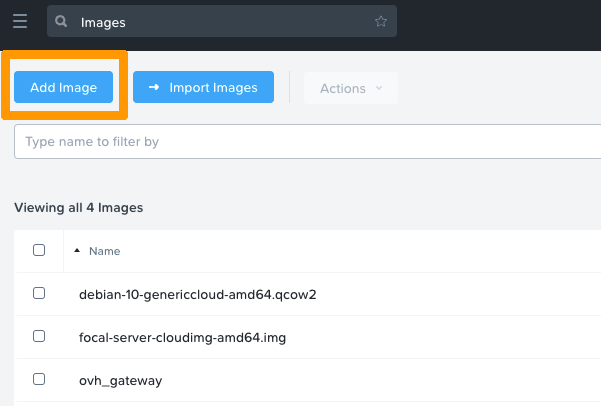
Connect to Prism Central and go to Compute & Storage, then Images.
Click on the Add Image button.

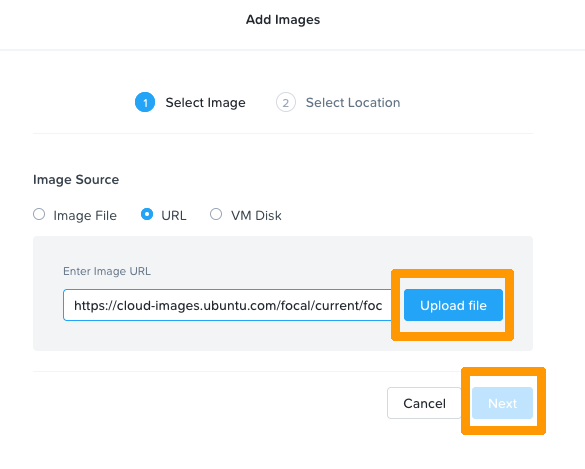
Paste the URL of a compatible cloud image, for example:
https://cloud-images.ubuntu.com/focal/current/focal-server-cloudimg-amd64.img
Click on Upload file then Next.

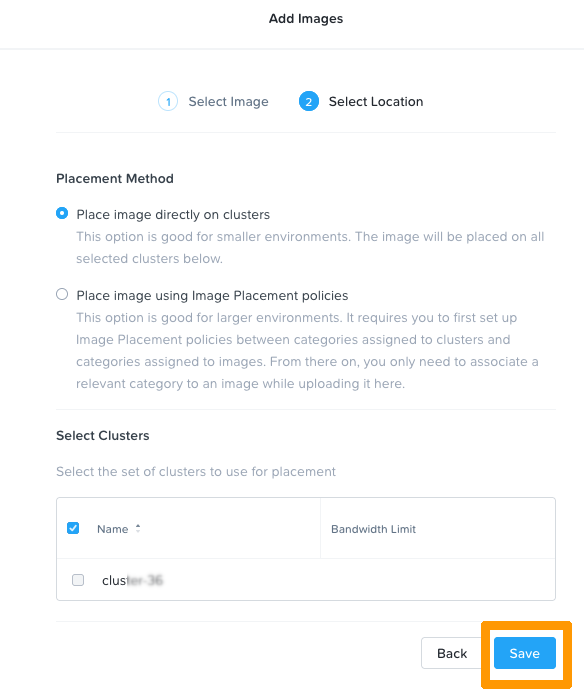
Select Place image directly on clusters, then select your cluster and Save.

To deploy the VM, you need the UUID of the "image" and the network.
Open a terminal and execute the following command:
curl -k -H Accept:application/json -H Content-Type:application/json -u "admin:PRISMADMINPASSWORD" -X POST https://fqdn-cluster:9440/api/nutanix/v3/images/list -d{} | jq .
INFO
Remember to enter your actual password and FQDN as parameters.
INFO
The "jq ." command will provide a readable json.
{
"api_version": "3.1",
"metadata": {
"total_matches": 2,
"kind": "image",
"length": 2,
"offset": 0
},
"entities": [
{
"status": {
"state": "COMPLETE",
"execution_context": {
"task_uuids": [
"4a7d3ce8-8127-4556-b30e-cf7013e74c81"
]
},
"name": "ubuntu-focal",
"resources": {
"retrieval_uri_list": [
"https://127.0.0.1:9440/api/nutanix/v3/images/3cd498a2-99da-49a2-bbdf-14c349036019/file"
],
"current_cluster_reference_list": [
{
"kind": "cluster",
"uuid": "0005cfe0-d7b6-81c8-6173-0c42a12333ee"
}
],
"architecture": "X86_64",
"size_bytes": 2361393152,
"image_type": "DISK_IMAGE",
"source_uri": "https://cloud-images.ubuntu.com/focal/current/focal-server-cloudimg-amd64.img"
}
},
"spec": {
"name": "ubuntu-focal",
"resources": {
"image_type": "DISK_IMAGE",
"source_uri": "https://cloud-images.ubuntu.com/focal/current/focal-server-cloudimg-amd64.img",
"architecture": "X86_64"
}
},
"metadata": {
"last_update_time": "2021-11-08T15:12:31Z",
"kind": "image",
"uuid": "3cd498a2-99da-49a2-bbdf-14c349036019",
"spec_version": 0,
"creation_time": "2021-11-08T15:12:06Z",
"categories_mapping": {},
"owner_reference": {
"kind": "user",
"uuid": "00000000-0000-0000-0000-000000000000",
"name": "admin"
},
"categories": {}
}
}
In the metadata you can find the UUID, in this case: 3cd498a2-99da-49a2-bbdf-14c349036019.
Next you need to find the correct subnet UUID. Execute the command below:
curl -k -H Accept:application/json -H Content-Type:application/json -u "admin:PRISMADMINPASSWORD" -X POST https://fqdn-cluster:9440/api/nutanix/v3/subnets/list -d{} | jq .
INFO
Remember to use your actual password and FQDN as parameters.
{
"api_version": "3.1",
"metadata": {
"total_matches": 2,
"kind": "subnet",
"length": 2,
"offset": 0
},
"entities": [
{
"status": {
"state": "COMPLETE",
"name": "base",
"resources": {
"vswitch_name": "br0",
"subnet_type": "VLAN",
"virtual_switch_uuid": "4a18b6dd-be0a-4c05-bd81-59229e67ac46",
"vlan_id": 0
},
"cluster_reference": {
"kind": "cluster",
"name": "cluster-36",
"uuid": "0005cfe0-d7b6-81c8-6173-0c42a12333ee"
}
},
"spec": {
"name": "base",
"resources": {
"vswitch_name": "br0",
"subnet_type": "VLAN",
"virtual_switch_uuid": "4a18b6dd-be0a-4c05-bd81-59229e67ac46",
"vlan_id": 0
},
"cluster_reference": {
"kind": "cluster",
"name": "cluster-36",
"uuid": "0005cfe0-d7b6-81c8-6173-0c42a12333ee"
}
},
"metadata": {
"last_update_time": "2021-11-04T08:25:18Z",
"kind": "subnet",
"uuid": "ed156bb0-a838-4596-b427-4bbed1968864",
"spec_version": 0,
"creation_time": "2021-11-04T08:25:18Z",
"categories_mapping": {},
"categories": {}
}
}
In the metadata you can find the UUID, in this case: ed156bb0-a838-4596-b427-4bbed1968864.
Step 3: Create the necessary files
To deploy the VM you need two files: vm.json, describing the VM and the cloud-init.yaml configuration file which contains the user data such as password, network etc.
Create the vm.json file:
{
"spec": {
"name": "YOURVMNAME",
"resources": {
"power_state": "ON",
"num_vcpus_per_socket": 4,
"num_sockets": 1,
"memory_size_mib": 4096,
"disk_list": [
{
"disk_size_mib": 41264,
"device_properties": {
"device_type": "DISK",
"disk_address": {
"device_index": 0,
"adapter_type": "SATA"
}
},
"data_source_reference": {
"kind": "image",
"uuid": "3cd498a2-99da-49a2-bbdf-14c349036019"
}
}
],
"nic_list": [
{
"nic_type": "NORMAL_NIC",
"ip_endpoint_list": [
{
"ip_type": "DHCP"
}
],
"subnet_reference": {
"kind": "subnet",
"name": "base",
"uuid": "d1117d0b-015b-4007-a84b-37f196f1af4d"
},
"is_connected": true
},
{
"nic_type": "NORMAL_NIC",
"ip_endpoint_list": [
{
"ip_type": "DHCP"
}
],
"subnet_reference": {
"kind": "subnet",
"name": "base",
"uuid": "ed156bb0-a838-4596-b427-4bbed1968864"
},
"is_connected": true
}
],
"guest_customization": {
"cloud_init": {
"user_data": "USERDATA"
},
"is_overridable": false
}
}
},
"api_version": "3.1.0",
"metadata": {
"kind": "vm"
}
}
INFO
You can adjust the settings with your values as needed: VM name, number of VCPUs, RAM size, disk size, etc.
Check data_source_reference to ensure the UUID is the actual UUID of your OS image:
"data_source_reference": {
"kind": "image",
"uuid": "3cd498a2-99da-49a2-bbdf-14c349036019"
}
Verify as well for your subnet UUID:
"subnet_reference": {
"kind": "subnet",
"name": "base",
"uuid": "ed156bb0-a838-4596-b427-4bbed1968864"
}
Now you have to create the cloud-init.yaml file. This file contains the "user data". When the system boots, these parameters such as users, package, files etc. will be applied to the VM.
Below, find a template that you can amend with your values to create your individual VM.
INFO
- Change "hostname", "fqdn", "name", "passwd", "ssh-autorized-keys" and ip addresses with the desired values.
- This file will create the file for netplan, apply the configuration, and initiate a reboot.
- The password must be a hash value. You can generate it with the command below.
mkpasswd --method=SHA-512 --rounds=4096
#cloud-config
hostname: <yourhostname>
fqdn: <yourhostname.ovh.cloud>
users:
- name: <yourusername>
sudo: ['ALL=(ALL) NOPASSWD:ALL']
groups: sudo
shell: /bin/bash
lock_passwd: false
passwd: <yourhashpass>
ssh-authorized-keys: <your public ssh key>
write_files:
- path: /etc/netplan/50-cloud-init.yaml
content: |
network:
version: 2
renderer: networkd
ethernets:
ens3:
addresses: [123.45.6.77/30]
gateway4: 123.45.6.78
nameservers:
addresses: [213.186.33.99]
runcmd:
- netplan generate
- netplan apply
# Optional: if you want to use access via password instead of SSH key, uncomment the next line
# - sed -i s/PasswordAuthentication/#PasswordAuthentication/g /etc/ssh/sshd_config
- reboot
Step 4: Create the VM
Transform the cloud-init.yaml into "base64" and put it into a variable:
USERDATA=$(base64 -w 0 cloud-init.yaml)
Then replace the chain "USERDATA" in vm.json with the value of the USERDATA variable in the vm.json file:
sed -i s/USERDATA/$\{USERDATA\}/g vm.json
Finally, use a cURL request to register and power on the VM:
curl -k -H Accept:application/json -H Content-Type:application/json -u "admin:PRISMADMINPASSWORD" -X POST https://fqdn:9440/api/nutanix/v3/vms -d @vm.json | jq .
INFO
You can now connect to your VM with SSH through the public IP address.
Go further
Cloud Init Documentation
Nutanix: API v3 reference
Nutanix API: How to create a Linux VM
If you need training or technical assistance to implement our solutions, contact your sales representative or click on this link to get a quote and ask our Professional Services experts for assisting you on your specific use case of your project.
Join our community of users on https://community.ovh.com/en/.