
Configure IP Aliasing on a Dedicated Server
Add and configure Additional IP addresses on your OVHcloud dedicated server for multi-site or service hosting
This article is about Additional IPv4 configuration on a public interface. You can also configure Primary IPv6 addresses on your dedicated servers using this guide.
Additional IP addresses can also be configured in a vRack (private network), which allows interconnection over a wide range of OVHcloud services, offering more flexibility.
Learn how to configure Additional IP addresses in a vRack with our guides for IPv4 and IPv6.
Objective
IP aliasing is a special network configuration for your OVHcloud dedicated servers, which allows you to associate multiple IP addresses with a single network interface.
This guide explains how to add Additional IP addresses to your network configuration.
OVHcloud is providing you with services for which you are responsible, with regard to their configuration and management. You are therefore responsible for ensuring they function correctly.
This guide is designed to assist you in common tasks as much as possible. Nevertheless, we recommend that you contact a specialist service provider if you have difficulties or doubts concerning the administration, usage or implementation of services on a server.
Requirements
- A dedicated server in your OVHcloud account
- An Additional IP address or an Additional IP block (RIPE or ARIN)
- Access via SSH or remote desktop connection for Windows
- Basic networking and administration knowledge
This feature might be unavailable or limited on servers of the Eco product line.
Please visit our comparison page for more information.
Instructions
The following sections cover the distributions we currently offer and the most commonly used operating systems. The first step is always to log in to your server via SSH or a GUI login session (RDP for a Windows server).
Concerning different distribution releases, the procedure for configuring your network interface and file names may have changed. We recommend consulting the manuals and knowledge resources of the respective OS versions if you experience any issues.
Please take note of the following terminology that will be used in code examples and instructions of the guide sections below:
In the examples below, we use the nano text editor. If it isn't installed on your OS, you will be prompted to install it, but you can use any text editor you prefer.
Select the tab corresponding to your operating system.
Fedora 43 and following, AlmaLinux & Rocky Linux (10)
Fedora now uses keyfiles. NetworkManager previously stored network profiles in ifcfg format in this directory: /etc/sysconfig/network-scripts/. However, the ifcfg format is now deprecated. By default, NetworkManager no longer creates new profiles in this format. The configuration file is now found in /etc/NetworkManager/system-connections/.
Step 1: Create a backup
Note that the name of the network file in our example may differ from your own. Please adjust to your appropriate name.
First, make a copy of the configuration file, so that you can revert at any time. In our example, our configuration file is called cloud-init-eno1.nmconnection.
Step 2: Edit the config file
Please note that the name of the network file in our example may differ from yours. Please adapt the commands to your file name.
Run one of the following commands to find the name of your network interface before editing the appropriate network file:
Do not modify the existing lines in the configuration file, add your Additional IP to the file as follows, replacing ADDITIONAL_IP/32 with your own values:
If you have two Additional IPs to configure, the configuration should look like this:
Configuration example
Step 3: Restart the interface
You now need to restart your interface:
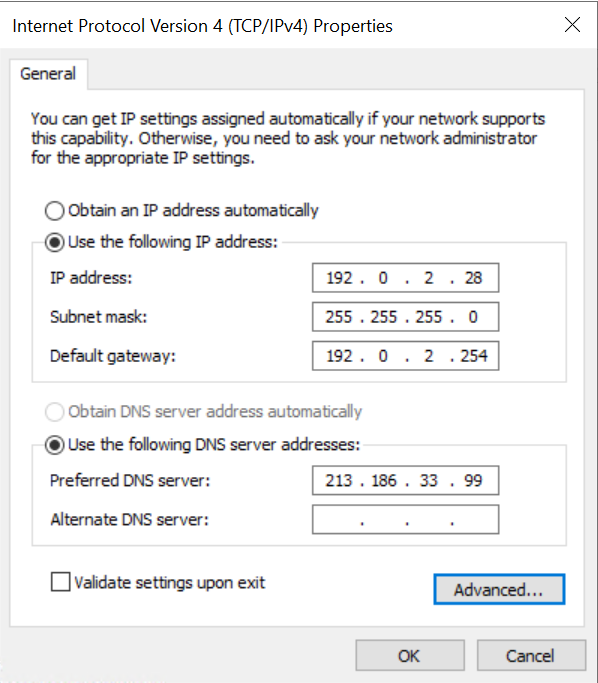
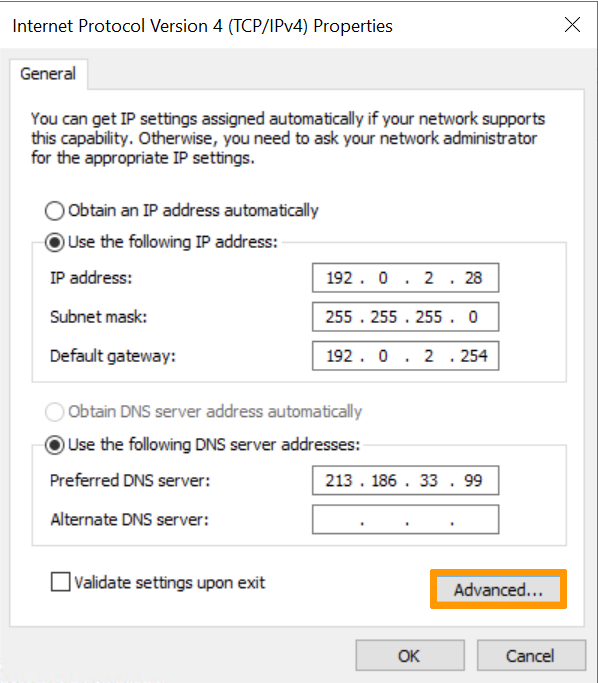
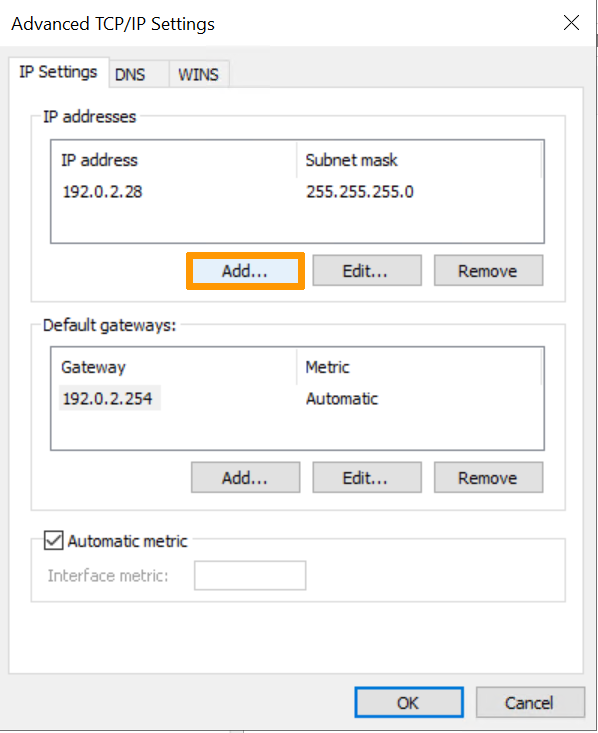
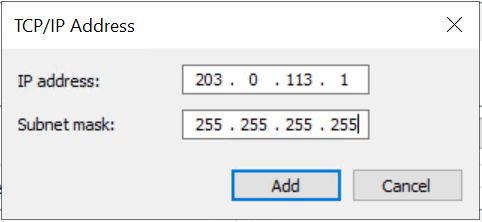
Troubleshooting
If restarting the interface does not work, reboot your server from the command line or its GUI. If you are still unable to establish a connection from the public network to your Additional IP and suspect a network problem, you need to reboot the server in rescue mode. Then you can set up the Additional IP address directly on the server.
Once you are connected to your server via SSH, enter the following command:
To test the connection, ping your Additional IP from outside. If it responds in rescue mode, this indicates a configuration error. If, however, the IP is still not working, please open a ticket with the support team via the OVHcloud Help Center with the following information:
- The operating system name and version you are using on your server.
- The name and directory of the network configuration file.
- The content of that file.
Go further
Moving an Additional IP on a Dedicated Server
Join our community of users.