
How to connect an OVHcloud domain name to a Google Site
Prepare and configure your OVHcloud domain name's DNS zone to connect to a Google Site
Objective
You are the holder of a domain name with OVHcloud and want to connect it to a Google Site. This guide explains how to prepare and configure your OVHcloud DNS zone for your Google Site.
Find out how to connect your OVHcloud domain name to a Google Site.
Information regarding OVHcloud service administration and how to find appropriate assistance
When using OVHcloud guides, please be aware of the following conditions:
- User instructions aim to provide as many details as possible but cannot cover individual use cases. You might need to adapt the pertinent actions to your requirements.
- The OVHcloud ecosystem is built for flexibility and freedom of choice. Customers are therefore responsible for the secure and proper configuration of their services. To prevent data loss, we strongly recommend to apply backup strategies to all your important data.
- Our guides and tutorials may reference third-party software or services in combination with OVHcloud solutions. The technical support provided by OVHcloud does not include the configuration of systems or products outside of our responsibility. This includes but is not limited to:
- Operating systems and user interfaces (Windows, Debian, Plesk, etc.).
- Any other third-party software (FTP clients, email software, etc.).
- Services offered by other providers (DNS, APIs, user interfaces, etc.).
To receive the appropriate assistance for any issues you might experience, follow these guidelines:
- You seek personalized advice or you would like to discuss a topic that is not covered in detail by our documentation?
Join the OVHcloud Community to search for your topic and reach out to other users. - You need to report an incident regarding your OVHcloud service or you are experiencing difficulties in the OVHcloud Control Panel?
Create a support request in our Help Centre. - You require professional assistance for your project or you need help with tasks outside our support scope?
Visit our partner portal to search for experts who are familiar with OVHcloud solutions. - You are looking for more detailed information regarding our support levels and Professional Services?
Please visit our web pages for OVHcloud support levels and OVHcloud Professional Services.
You can participate in improving our documentation:
- You would like to share feedback to improve a guide page or you want to report insufficient information on a specific page?
Use the "Was this page helpful?" buttons at the bottom of the page to let us know. - You would like to propose a specific documentation update?
Use the "Edit this page" function, available at the bottom of the page and in the sidebar.
Google Site support does not have access to your OVHcloud domain name settings and therefore cannot advise you on the information you will need to provide.
Requirements
- A domain name registered with OVHcloud.
- The necessary permissions to manage the domain name.
- A Google Site and be its owner.
OVHcloud Control Panel Access
- Direct link:
- Navigation path:
Web Cloud>Domain names> select your domain name >DNS zonetab
Instructions
Before following the steps in this guide, we recommend reading our guide on Editing an OVHcloud DNS zone.
Your DNS zone is potentially already preconfigured or linked to a hosting plan. We will look at how to identify each DNS record required to connect to your Google Site. Some records will need to be deleted to avoid conflicts with DNS records required in this configuration. Others will simply need to be modified or created. For a better understanding, we will use the domain name "mydomain.ovh" as an example. Replace it with your domain name during configuration.
1. Configure your Google Site
Only the owner of a Google Site can connect it to a domain name. If necessary, find out how to change the owner of the Google site.
First, prepare your Google Site by following the instructions in the Configure a custom domain section from this page of Google support.
2. Configure your DNS records on your OVHcloud account
Click the tabs below to view each of the 5 steps in sequence.
Go to the page, select the domain name concerned, then open the DNS zone tab.
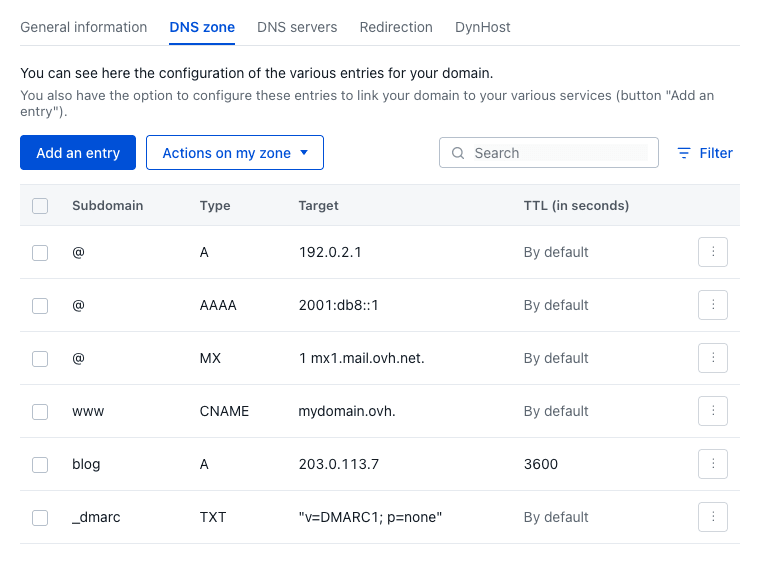
The table that appears lists all of the DNS records for the selected domain name.

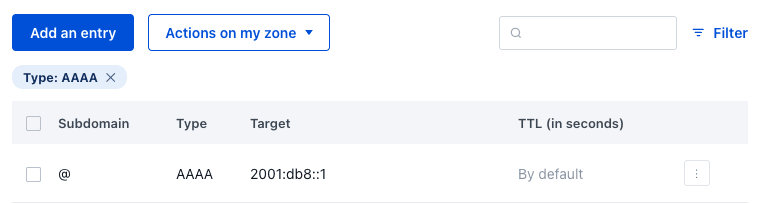
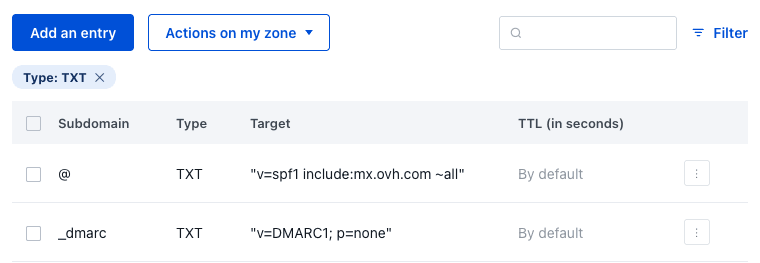
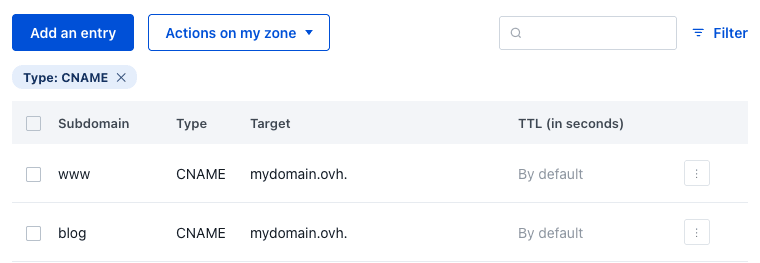
The DNS zone is now configured to point to your Google Site.
It may take up to 48 hours to verify your domain name.
If you are using an OVHcloud email solution, or planning to subscribe to one of our email solutions, you will also need to prepare your DNS zone accordingly. Read our guide on configuring an MX record.
Go further
Modifying an OVHcloud domain name's DNS servers
Creating an OVHcloud DNS zone for a domain name
To delegate the management of your domain name to another OVHcloud customer account, follow the guide on Managing contacts for OVHcloud services.
For specialised services (SEO, development, etc.), contact OVHcloud partners.
If you would like assistance using and configuring your OVHcloud solutions, please refer to our support offers.
Join our community of users.