
Creating an Instance via the Horizon interface
Find out how to create an Instance via the Horizon interface
Objective
You can create multiple Instances directly in the Horizon interface, and also configure a security group to apply to your Instances.
Find out how to create an Instance via the Horizon interface.
Requirements
- A Public Cloud project in your OVHcloud account
- Access to the Horizon interface
Instructions
Create a private network
As a general rule, we recommend creating a private network before creating an instance. You can later attach this network to your instance.
To begin, log in to the Horizon interface. If you are unsure about how to do this, please refer to our guide.
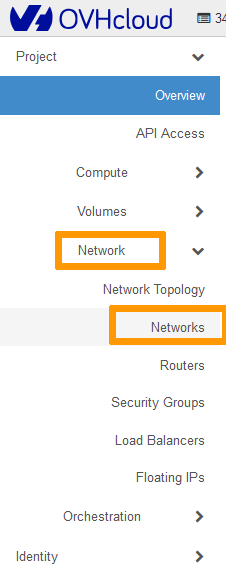
Next, click on Network in the left-hand menu, then Networks.
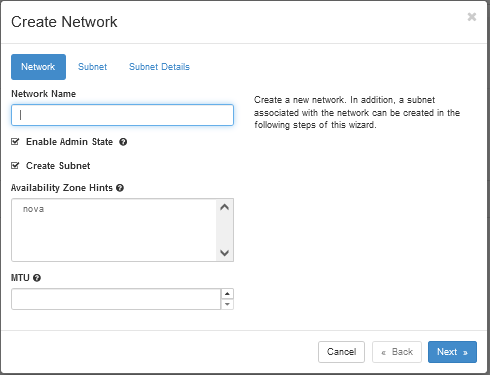
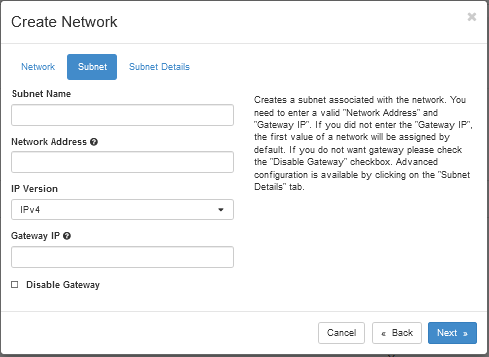
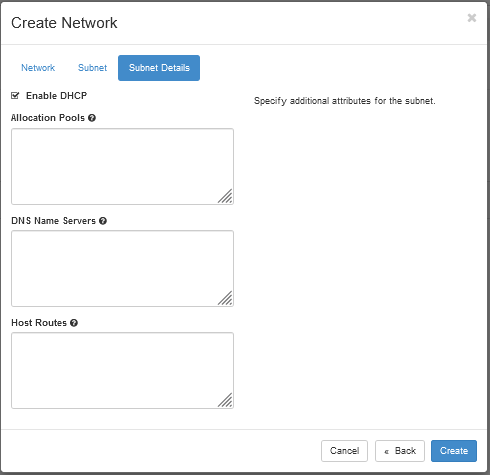
Click on Create Network

Network Name: Enter a name for your network.
Enable Admin State: Leave this option checked to activate the network.
Create Subnet: Leave this option checked to create the subnet.
Availability Zone Hints: Leave the default option.
Create Instance
In the Horizon interface, click on Compute in the left-hand menu, then Instances.
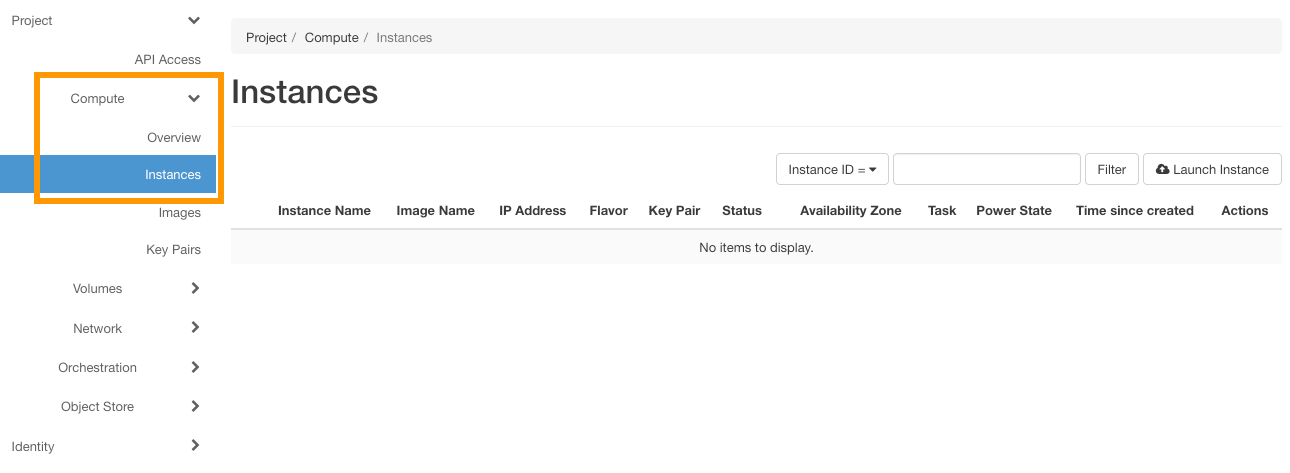
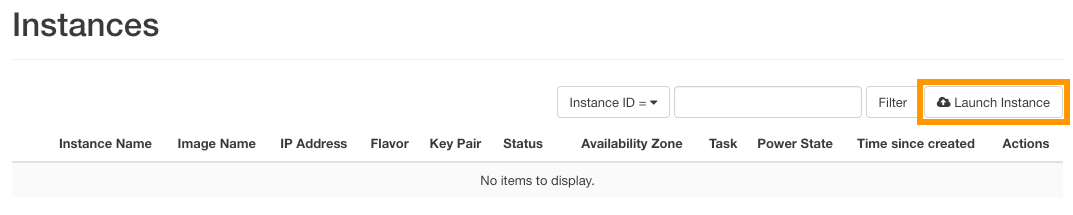
The page that opens can be used to view the Instances that are currently launched. To launch a new one, click the Launch Instance button.
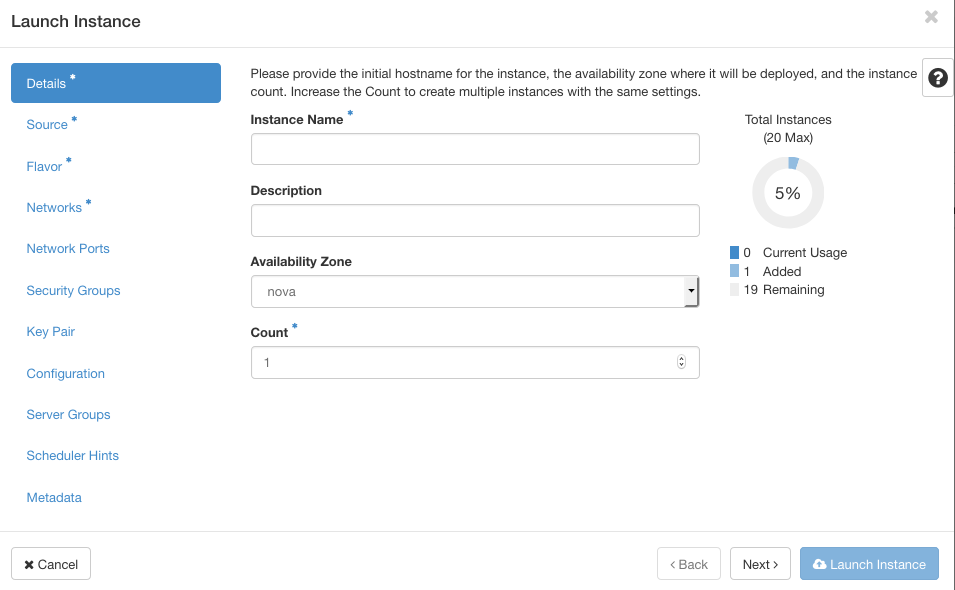
You will then need to fill in the information requested. Please note that this grid is not exhaustive.
Details
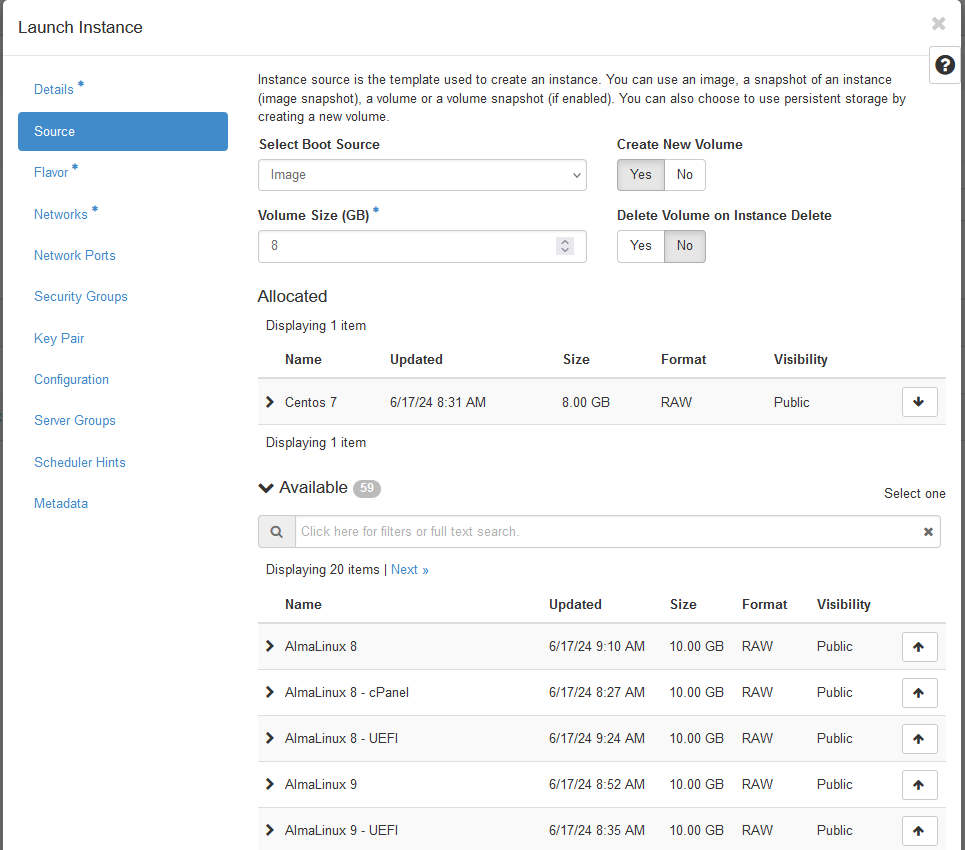
Source
Flavor
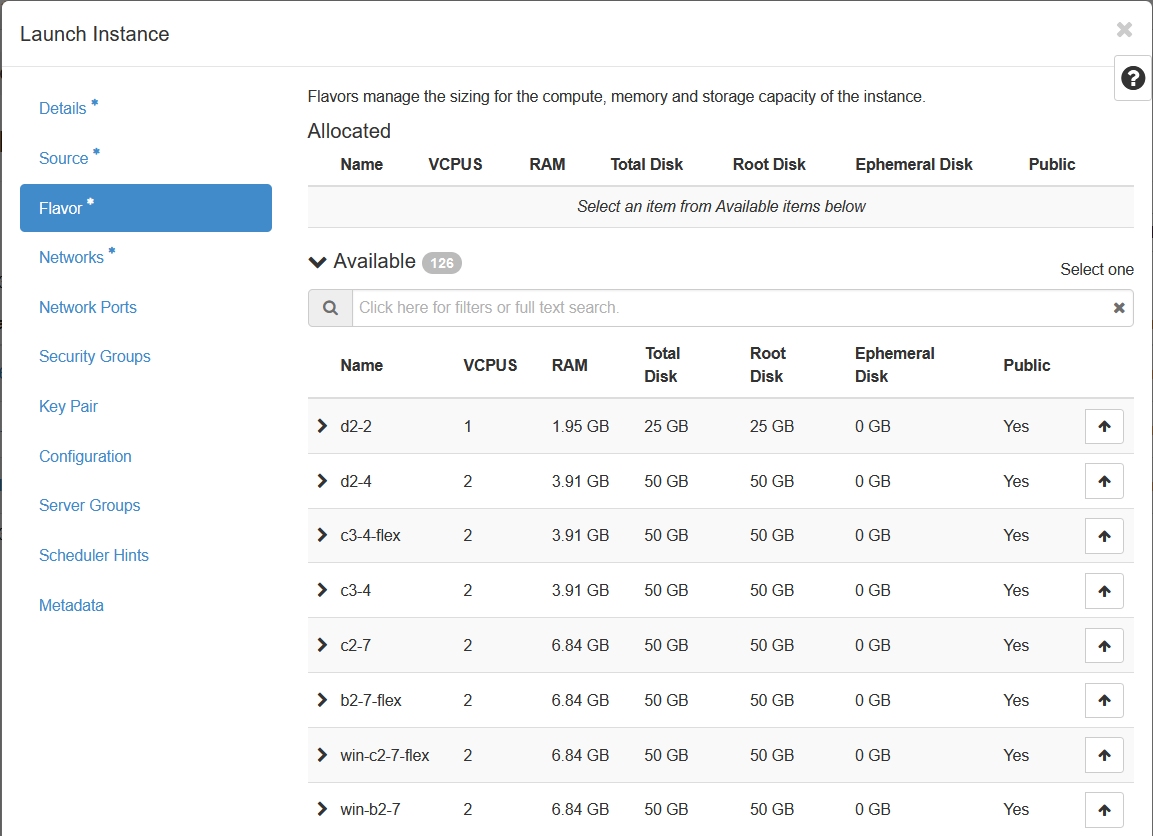
Pre-built flavors are available for you, select the flavor of your choice underneath the Available tab.
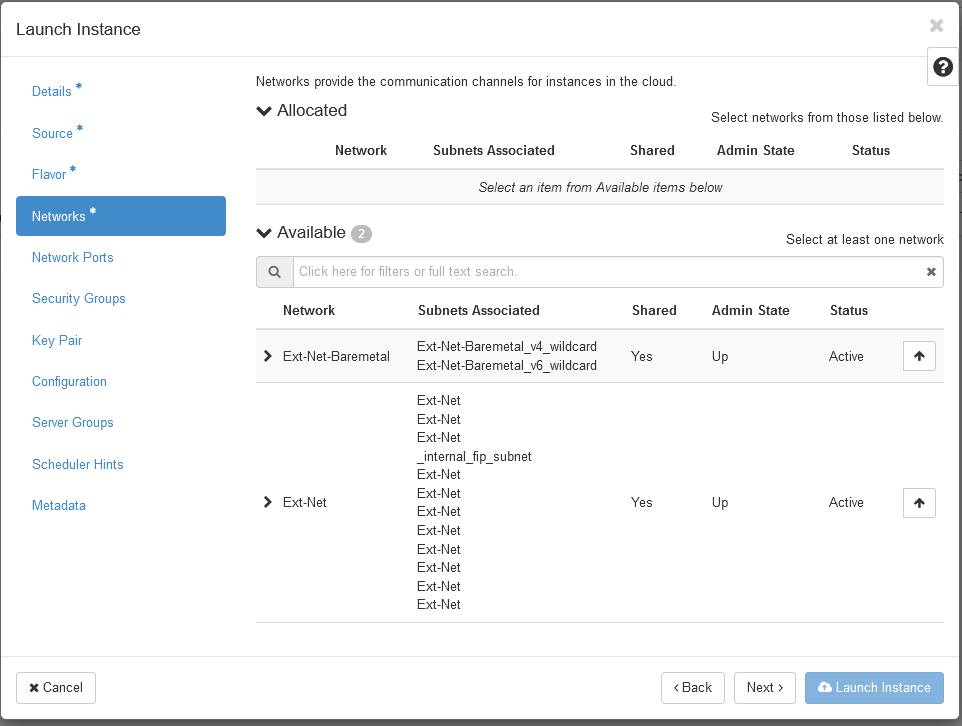
Networks
Security Groups
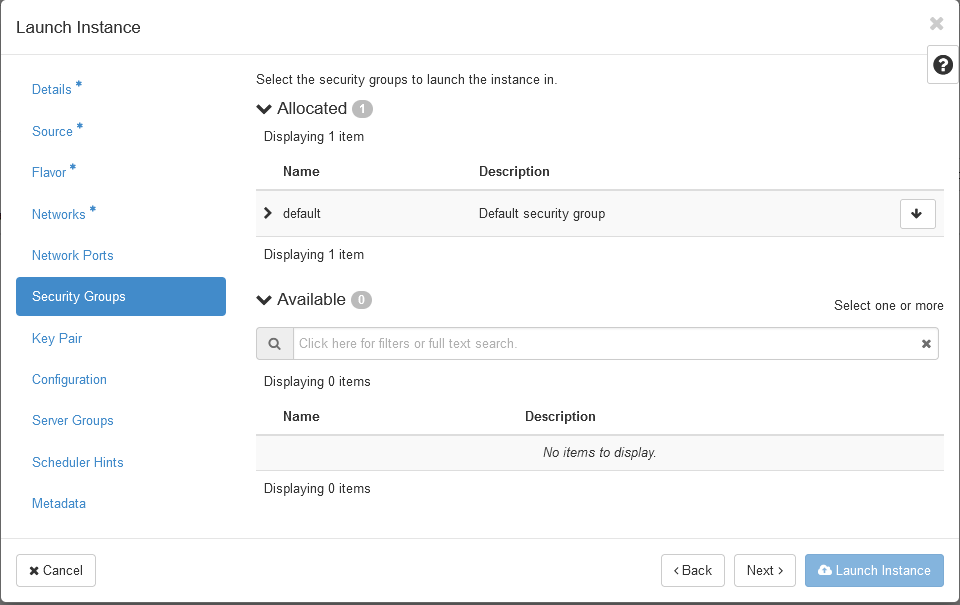
For more information, consult this guide.
Key Pair
Although the "Key Pair" field is not mandatory in the Horizon interface when creating an instance, registering an SSH key is absolutely necessary to be able to connect to an instance. Without an SSH key, you will be required to reboot the instance in rescue mode to either create a password or add an SSH key to the appropriate file (for more information, please refer to the guide on Replacing your lost SSH key pair).
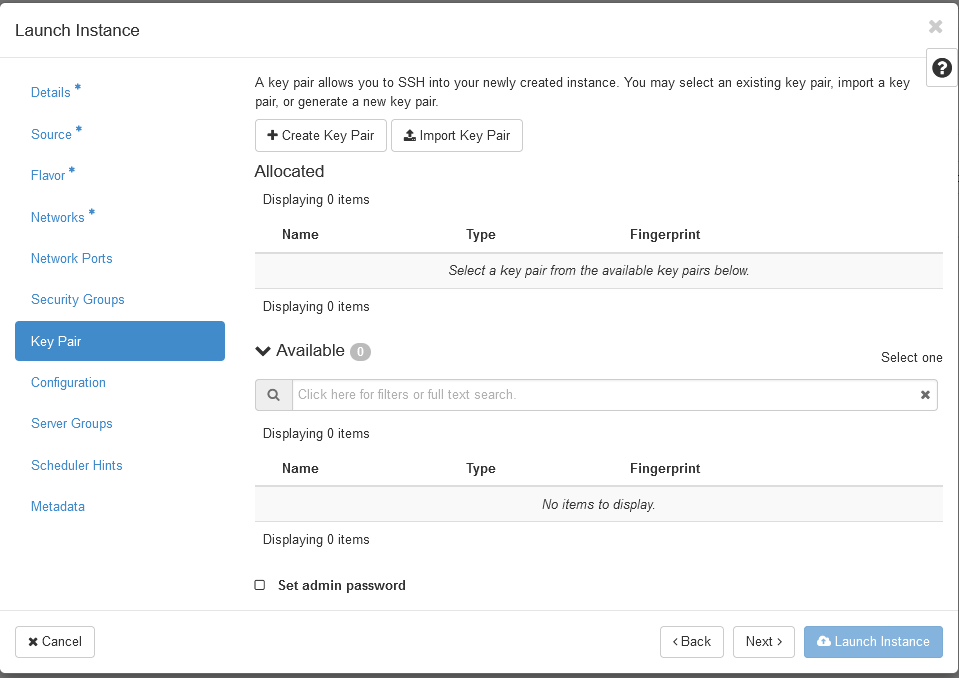
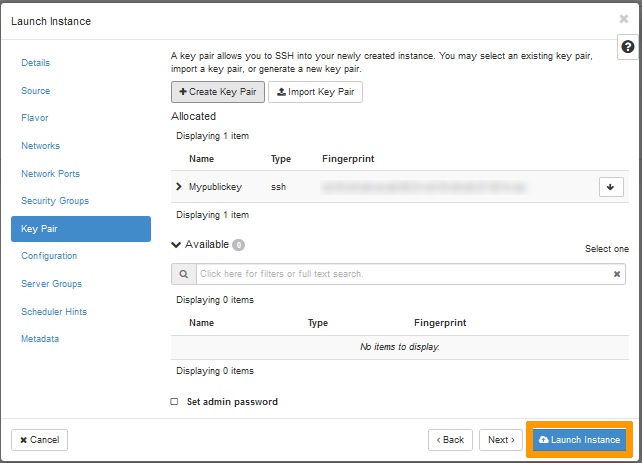
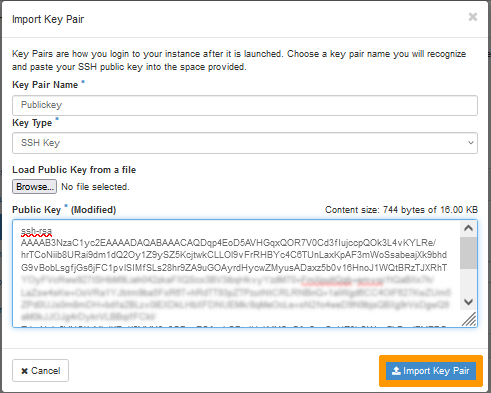
In this section, you have the option to create a keypair, import a keypair or use an existing key pair.
For more information on how to create an SSH key, consult this guide.
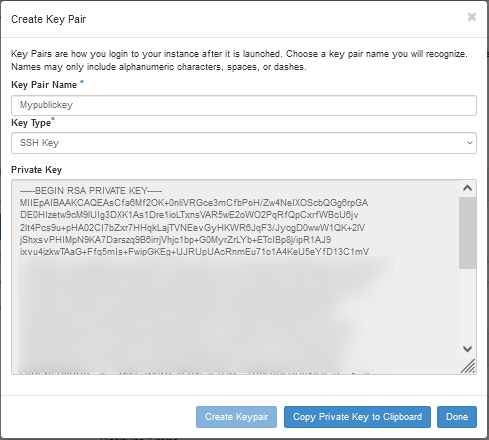
To create a Keypair, click on the + Create Key Pair button. Please note that with this option, additional steps have to be made before you are able to connect to the instance, especially if you are using the software PuTTY to connect to your instance. See this section of the corresponding guide.
Key Pair Name: Enter a name for your key.
Key Type:* Click on the drop down arrow and select SSH Key.
Next, click on Create Keypair to begin the creation of the key pair.
Once the Key Pair is created, click on Copy Private Key to Clipboard, then on Done.
Once done, the newly created key will be automatically selected. Click on Launch Instance to begin the creation of your instance.
Other options
Please note that these options are not mandatory for the creation of a basic instance. If you wish to explore these options further, consult the official OpenStack documentation.
Go further
Join our community of users.