
Creating databases and users on your database server
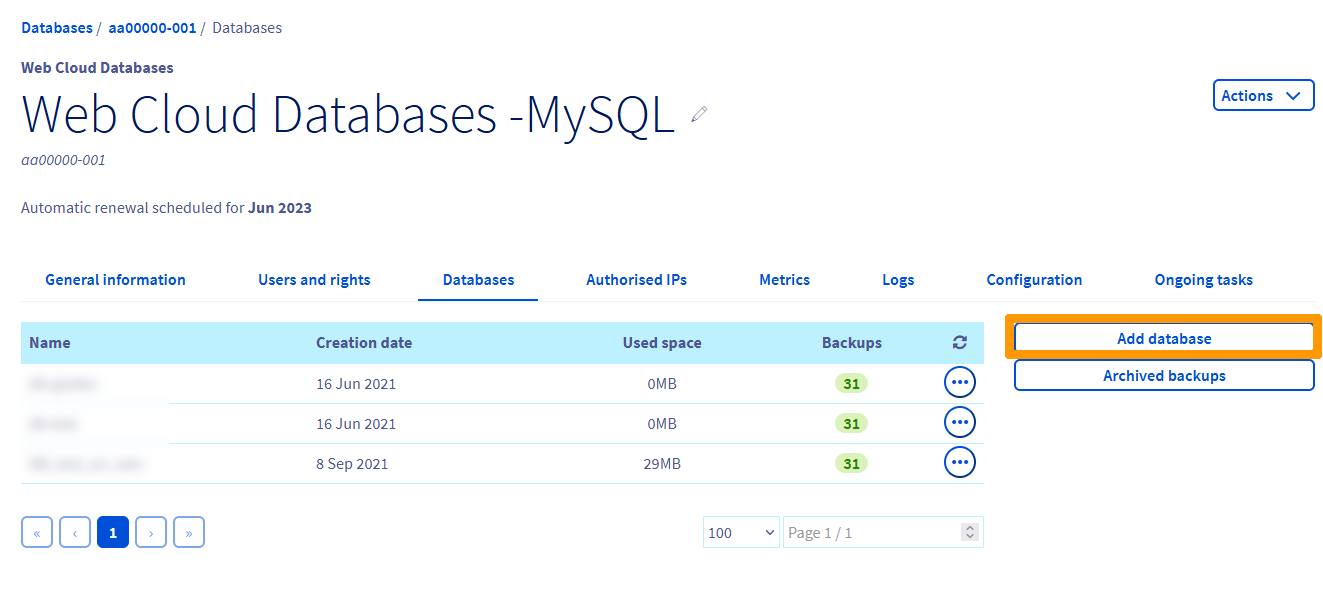
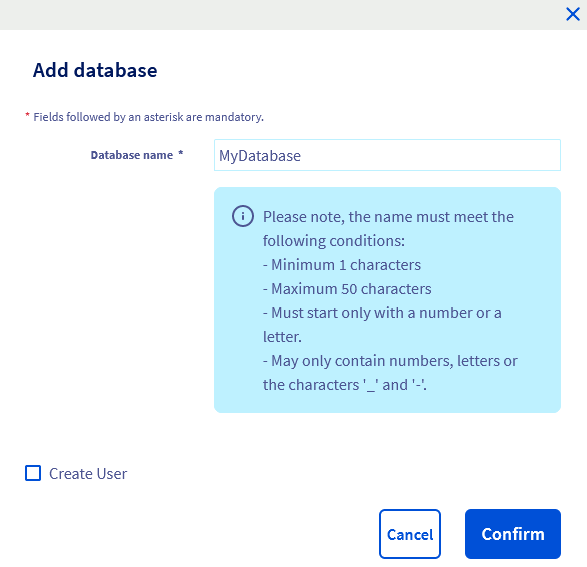
Find out how to create a database on your database server.
Objective
A database (DB) is used to store what are known as dynamic elements, such as comments or articles. These databases are used in virtually all modern content management systems (CMS), such as WordPress or Joomla!.
This guide explains how to create a database on your database server and give access to users.
Requirements
- A Web Cloud Databases instance (included in a Web Hosting Performance, Agency, Agency Plus or Agency Max plan).
OVHcloud Control Panel Access
- Direct link:
- Navigation path:
Web Cloud>Web Cloud Databases> Select your database service
Instructions
Creating a database
Click on the tabs below to view each of the 4 steps.
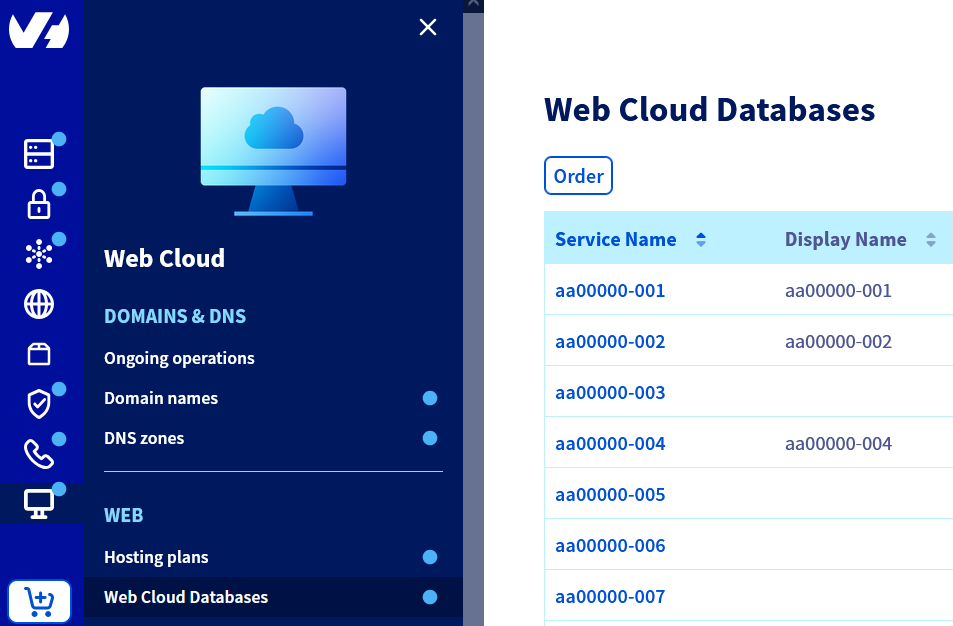
Go to the page, then select the solution concerned.
Creating a user
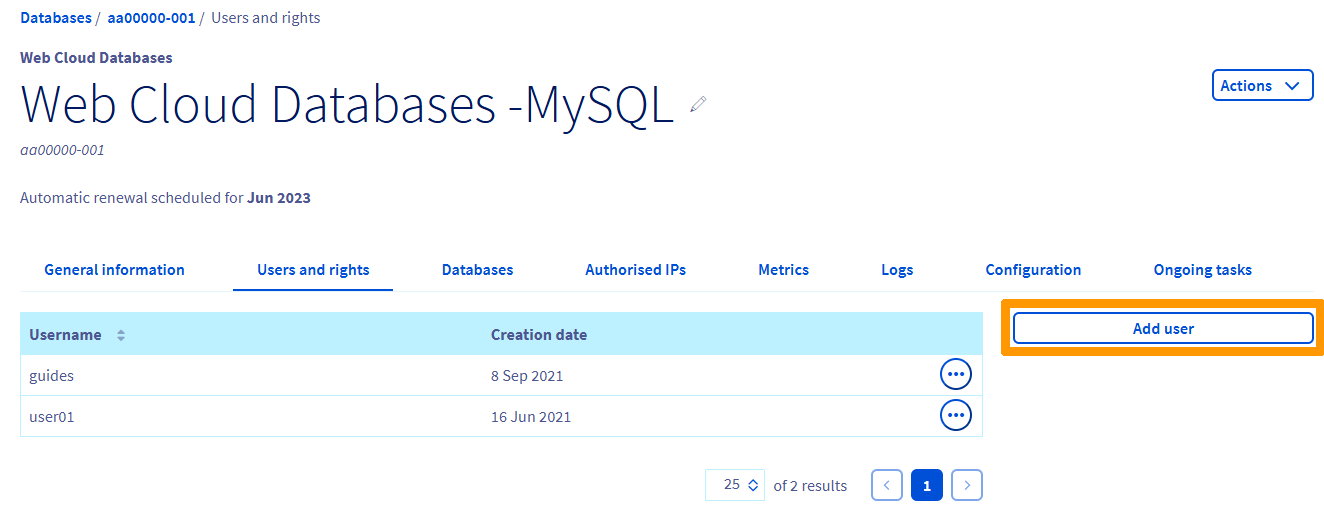
To use an OVHcloud database server, create users with specific rights to connect to a database.
Click on the tabs below to view each of the 4 steps.
Go to the page, then select the solution concerned.
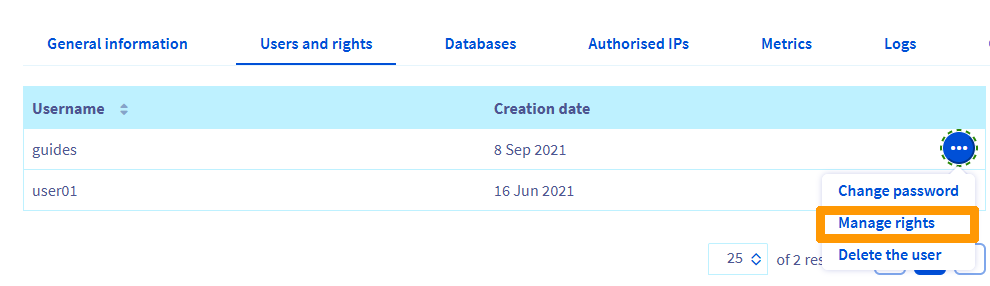
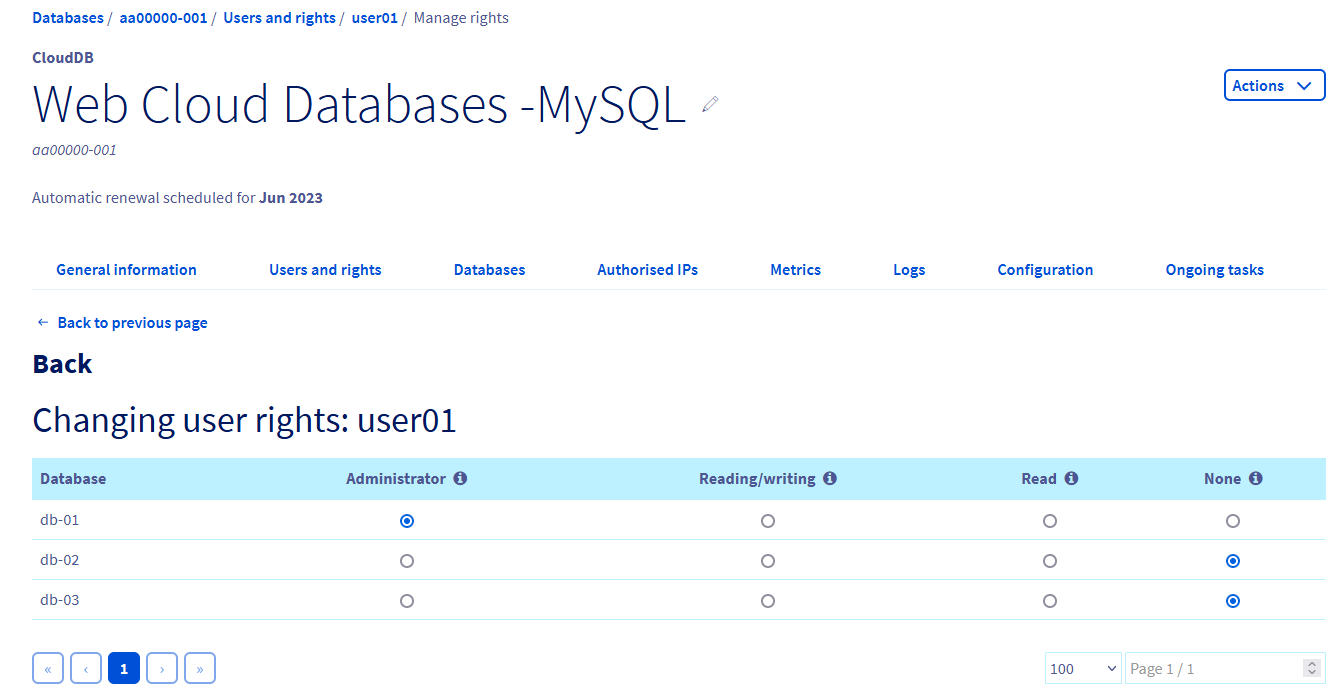
Managing user rights
To allow a user to perform actions on a database, it is necessary to assign permissions to the user.
Click on the tabs below to view each of the 4 steps.
Go to the page, then select the solution concerned.
Deleting a database
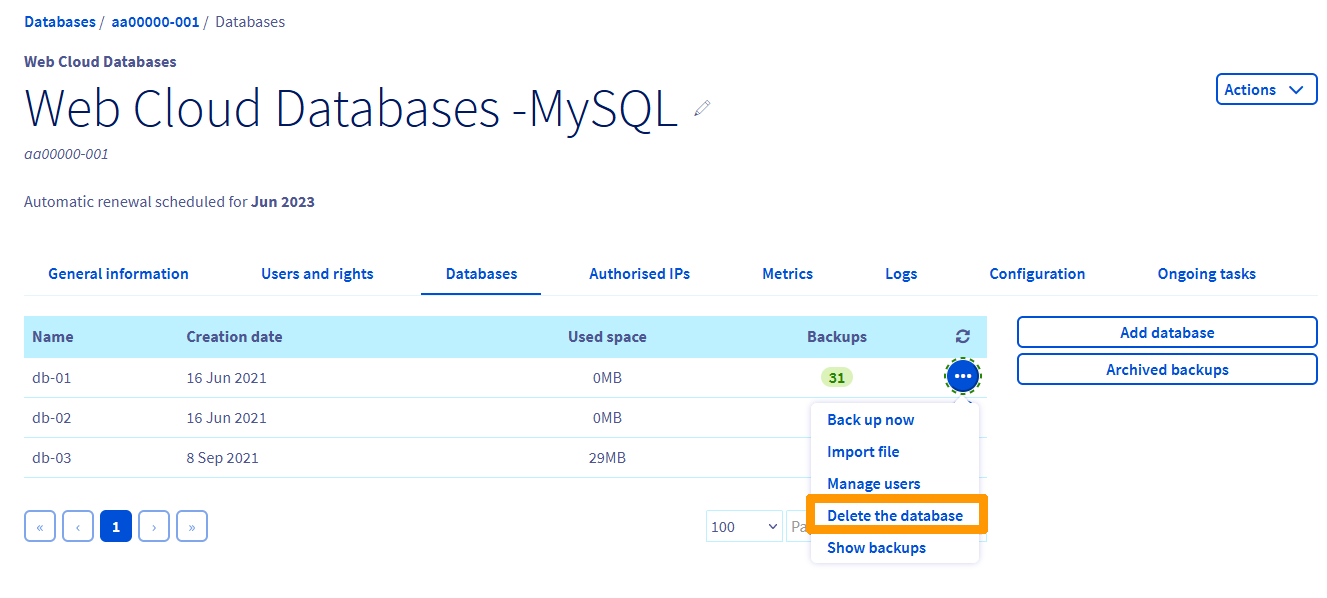
Before deleting a database on a database server, there is no verification of the database contents. It will be deleted even if data is still stored in it. It is therefore recommended to create a backup and download it before any deletion.
Click on the tabs below to view each of the 3 steps.
Go to the page, then select the solution concerned.
Go further
For specialised services (SEO, development, etc.), contact OVHcloud partners.
If you would like assistance using and configuring your OVHcloud solutions, please refer to our support offers.
Join our community of users.