
Hosting multiple websites on your Web Hosting plan
Find out how to host several websites on your Web Hosting plan
Objective
You can host multiple websites on a single web hosting offer, even if the domain names are not registered with OVHcloud.
Would you like to add a new website to your web hosting?
Discover how to host different websites on your web hosting offer.
If you have already created the website on your web hosting and want to associate it with a new domain name or subdomain, please refer to this guide directly.
Requirements
- A compatible OVHcloud Web Hosting plan
- One or more domain names
- The right to modify your domain name's configuration (the DNS Zone)
OVHcloud Control Panel Access
- Direct link:
- Navigation path:
Web Cloud>Hosting plans> Select your web hosting plan
Instructions
1 - Add a website to your web hosting offer
Click on one of the titles below to view the explanations.
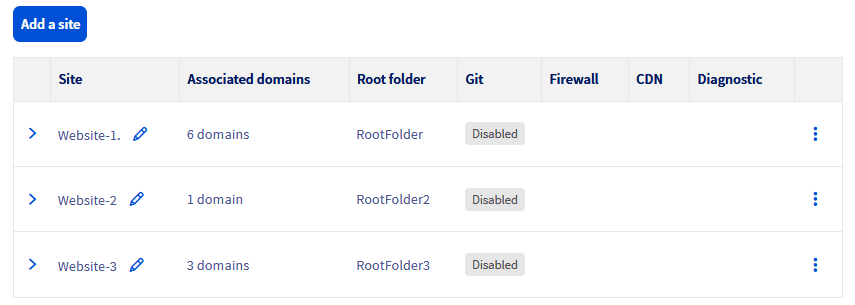
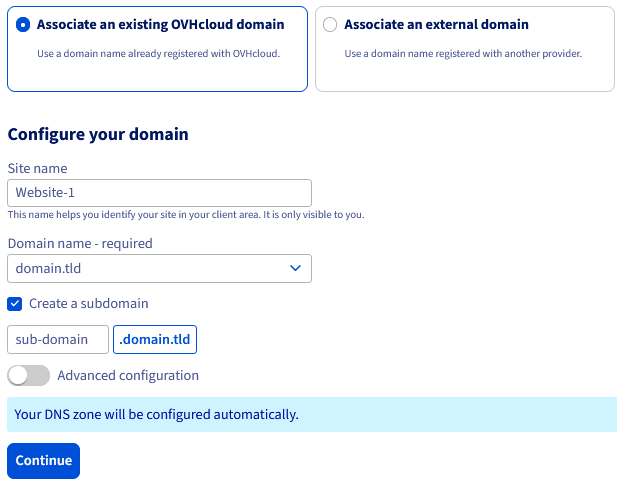
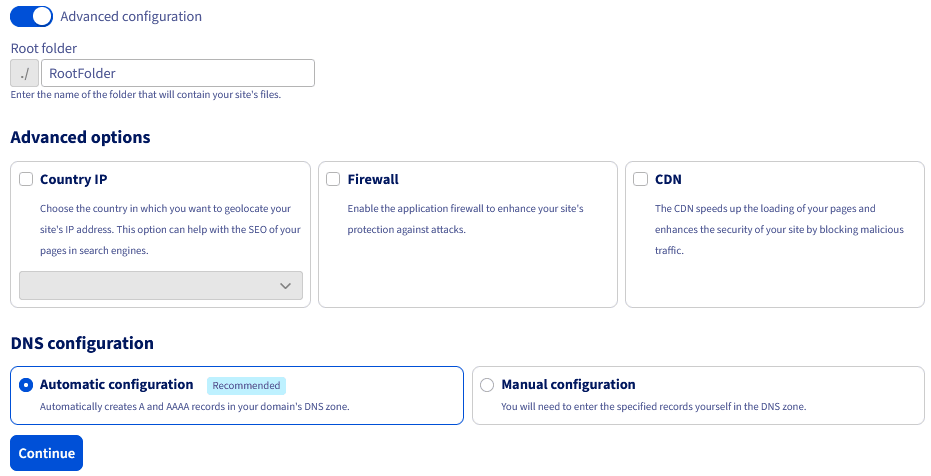
Add a website with a domain name managed from your OVHcloud Control Panel
This section applies only if the domain name (and/or its active DNS zone) with which you want to create your website is in your OVHcloud Control Panel.
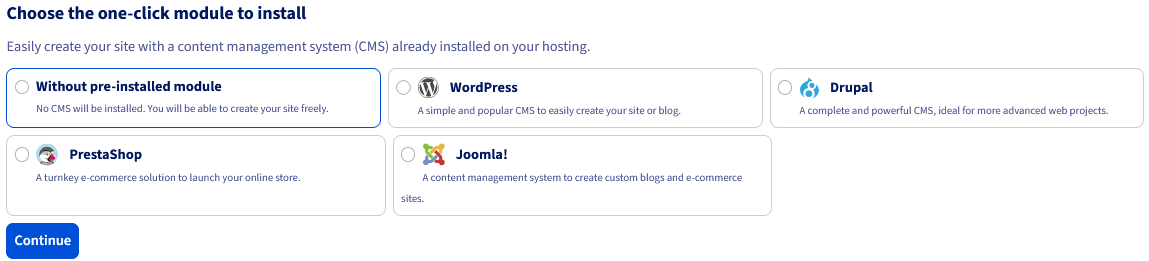
Click on the tabs below to view each of the 7 steps.
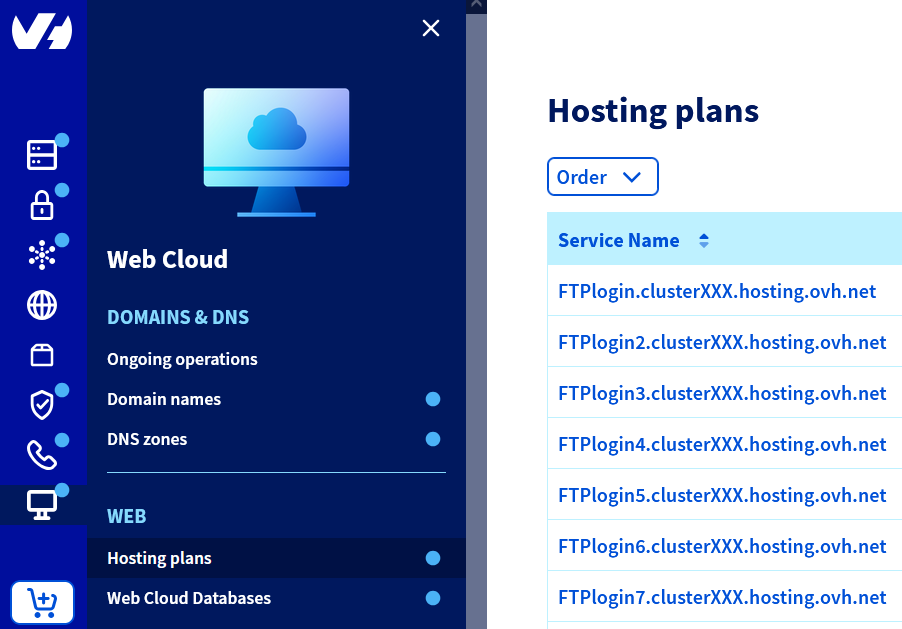
Go to the page, then select the web hosting plan concerned.

Add a website with a domain name not managed from your OVHcloud Control Panel
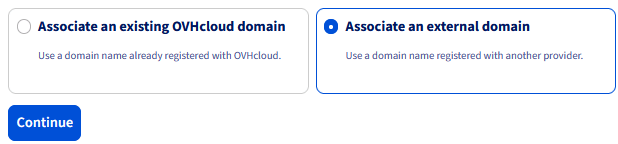
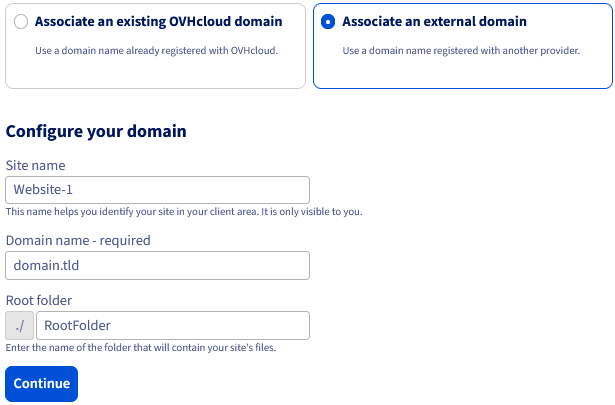
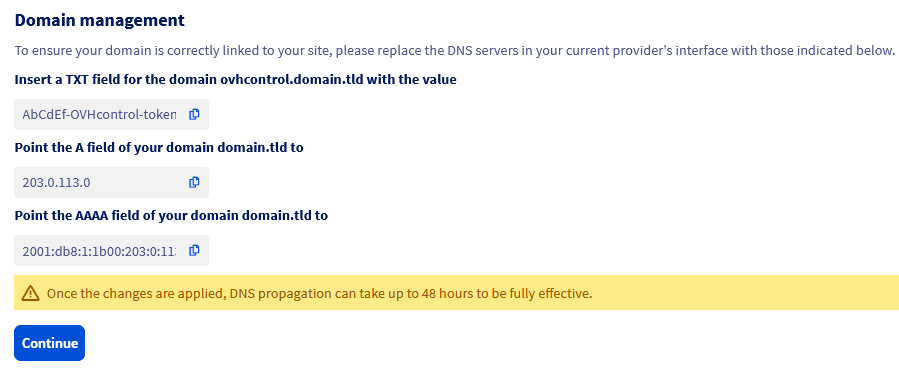
This section applies only if you want to add a website with a domain name that is not present in your OVHcloud account. It may be a domain name in another OVHcloud account or registered with another provider.
Click on the tabs below to view each of the 7 steps.
Go to the page, then select the web hosting plan concerned.
Add a website with a new domain name that has not yet been registered
This section applies only if you want to add a website with a domain name that has not yet been registered, either with OVHcloud or with another registrar. In other words, it concerns domain names that have not yet been subscribed to.
Click on the tabs below to view each of the 5 steps.
Go to the page, then select the web hosting plan concerned.

2 - Put your website online
Once the website is declared with your domain name on your web hosting, you can put the content of your website online. As a reminder, you must perform this operation in the root folder that you defined when adding the website in your OVHcloud Control Panel.
If you wish to add multiple websites, repeat the actions described in this guide.
We recommend that you be careful about the number of websites on your web hosting. The higher the number, the more your allocated resources will be used. Our web hosting offers page indicates the recommended number of websites you can host on your web hosting.
Go further
Setting up your website with 1-click modules
Publishing a website on your Web Hosting plan
If you would like assistance using and configuring your OVHcloud solutions, please refer to our support offers.
Join our community of users.