
Setting OpenStack environment variables
Find out how to set your environment variables to use the OpenStack API
Objective
By setting OpenStack environment variables on your desktop, you can use the OpenStack API to manage your infrastructure.
Requirements
- An OpenStack user account
- OpenStack installed on your system
OVHcloud Control Panel Access
- Direct link:
- Navigation path:
Public Cloud> Select your project >Users & Roles
Instructions
Step 1: Retrieve the variables
To retrieve your environment variables, you can download the OpenRC file from the OpenStack user account you have created.
In the left-hand menu, click on Users & Roles under Settings. Next, click on the ... to the right of your user, then select Download OpenStack's RC file.
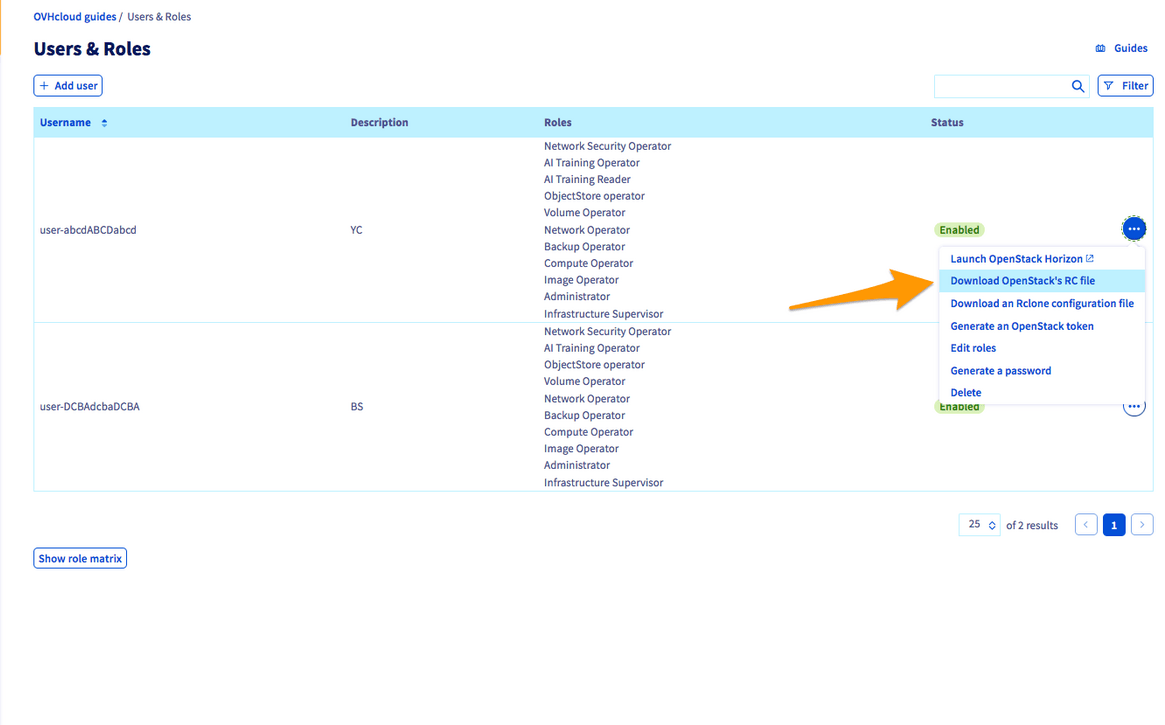
An OpenRC file corresponds to a specific user and zone. You cannot manage multiple zones in the same file.
Step 2: Set the variables
On Linux
- Open a terminal, or connect via the user who will be making the OpenStack API calls.
- Load the file’s contents in the current environment. You will then be prompted to enter the Horizon user password.
As outlined in this guide, the password is only visible once — when it is created.
If you forget your password, you will need to reset it.
If the CLIs are already installed, check if they are working properly:
On Windows
The OpenRC file is not designed to be launched on Windows.
There are two ways of setting environment variables:
- You will need to adapt the file by changing certain commands. The export part can be replaced with set:
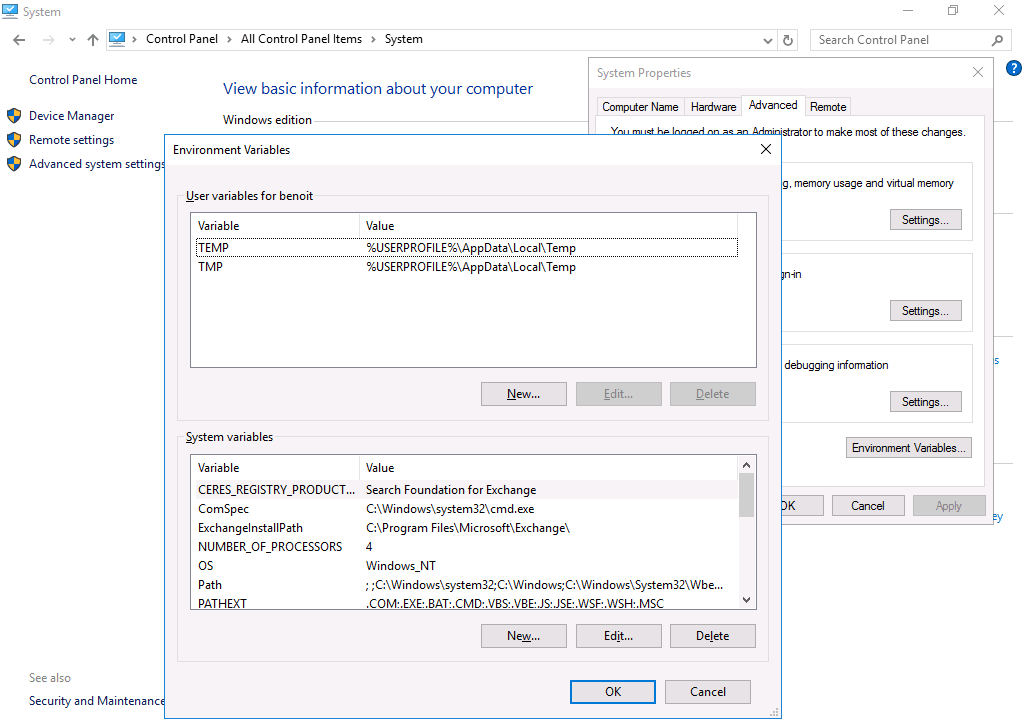
- You can set the variables directly via the system settings: Control Panel > System > Advanced System Properties > Environment Variables:
Go further
To learn how to use OpenStack: OpenStack documentation
Join our community of users.