
Public VCF as-a-Service - Declaring the public IP gateway in VCD
Declare the gateway of your public IP block on your VCD Virtual Datacenter to use public IPs on your VMs
Objective
When you order a new Public VCF as-a-Service organization, a vRack and a block of public IP addresses are delivered. To assign those public IPs to workloads, you must declare the block’s gateway inside the target VCD Virtual Datacenter.
This guide shows how to retrieve the correct gateway and add it to your VDC.
Requirements
- A Public VCF as-a-Service organization with a delivered public IP block.
- Technical administrator rights on VMware vSphere on OVHcloud.
OVHcloud Control Panel Access
- Direct link:
- Navigation path:
Hosted Private Cloud>Public VCF as-a-Service> Select your VCF service
Instructions
-
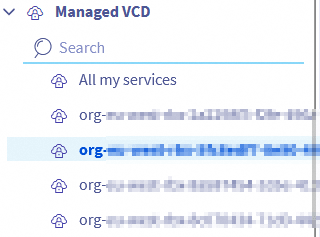
Select your organization.
-
Open the
Virtual Datacenterstab and select the VDC where you want to use the public IPs.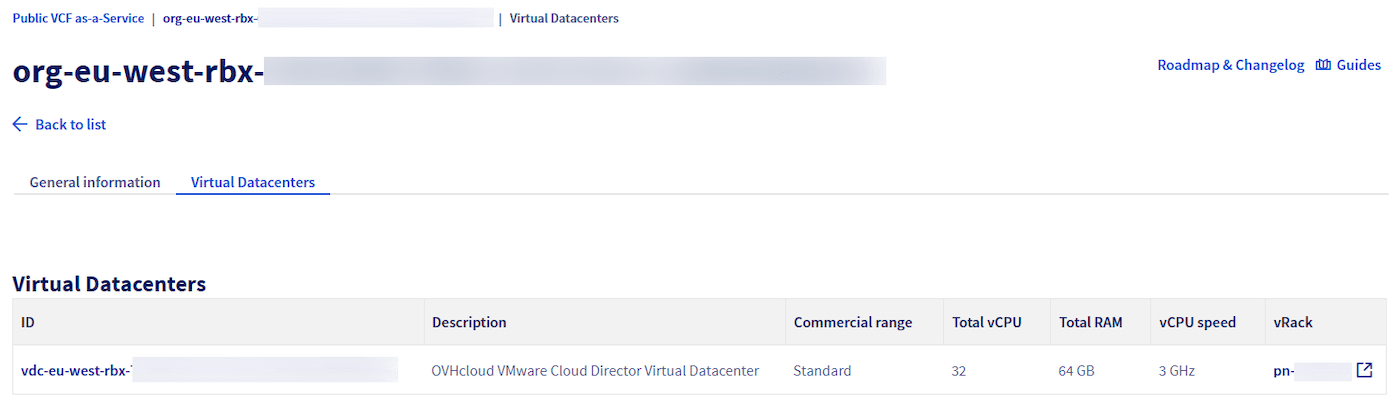
In General information, verify that the vRack shown is the one linked to your public IP block.
-
Select the
vRacktab.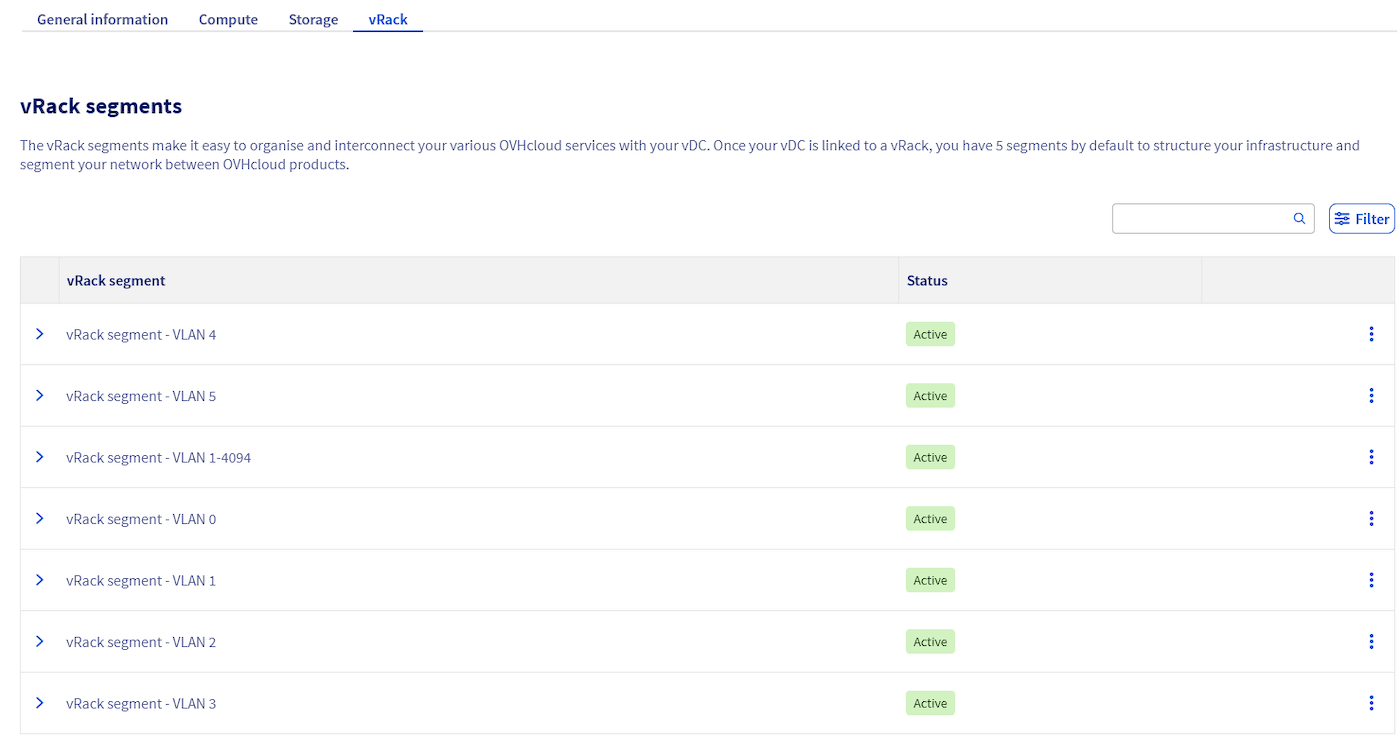
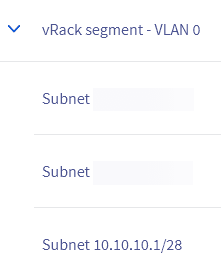
Locate the vRack segment named vRack segment - VLAN0 or vRack segment - PUBLIC.
Click the three dot menu ⋮ and Add a subnet.

-
In the modal, enter the gateway in CIDR form for your public IP block, then confirm. The gateway is the last usable host of the block.
Example: for
203.0.113.0/29, the last usable host is203.0.113.6so enter203.0.113.6/29. You can use any standard IP calculator to verify.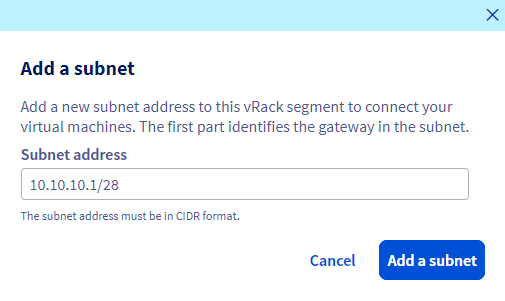
-
Wait a few seconds and refresh the page. The subnet gateway should now appear on the segment.
Use the gateway when creating workloads
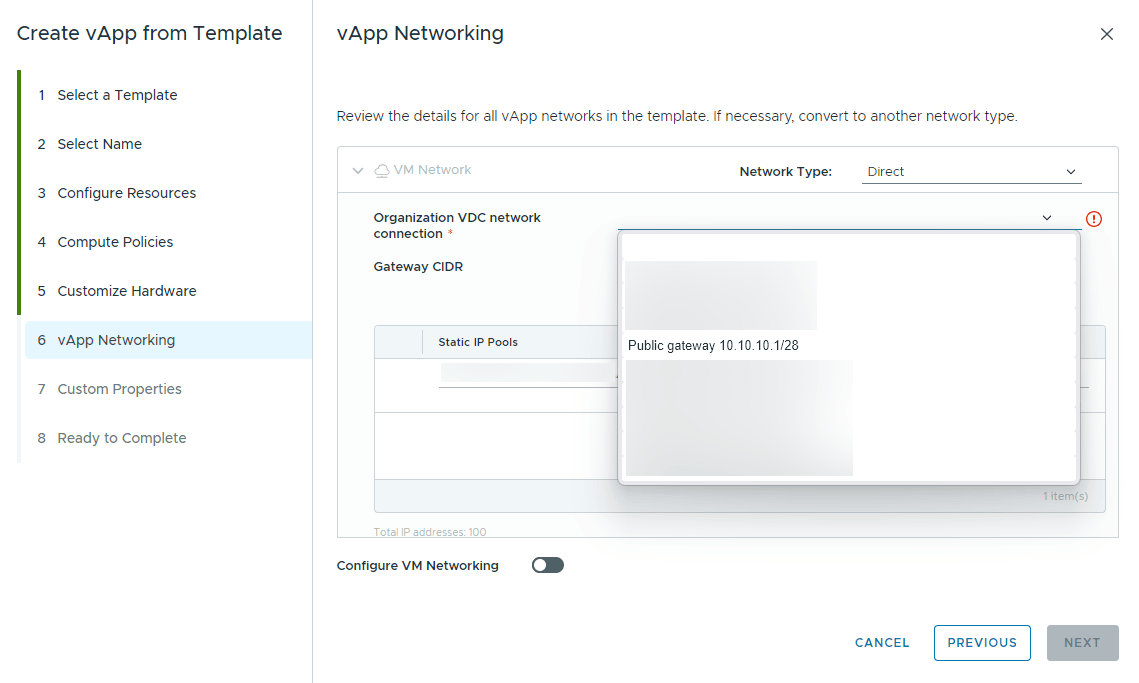
- When creating a vApp or VM in VCD, pick the corresponding Organization VDC network and choose a Direct network type to see the available public gateways.
Known limitation:
In the current VCF version, the Gateway CIDR field may display the first gateway declared on your VLAN0 segment, even if you selected another one. This is a visual only issue and does not affect IP assignment. Use any address from the selected public block on your VM, consistent with the gateway you chose in Organization VDC network connection.
Troubleshooting
- If the gateway is rejected, recheck that you entered the last usable host with the correct CIDR mask for the block.
- Ensure the VDC is attached to the same vRack that you linked to the public IP block in the previous guide Public VCF as-a-Service - Linking a public IP block with vRack.
Go further
First step guide: Public VCF as-a-Service - Linking a public IP block with vRack.
For training or technical assistance implementing our solutions, contact your sales representative or visit our Professional Services page to request a quote and have your project analysed by our experts.
Ask questions, give your feedback and interact directly with the team building our Hosted Private Cloud services on the dedicated Discord channel.
Join our community of users.