
Managing your web hosting plan with Visual Studio Code via SFTP
Administering a website on a web hosting plan with Visual Studio Code using an SFTP extension
Objective
If you have an OVHcloud web hosting plan, you can access a storage space that allows you to manage your website. You can access this storage space via the SFTP protocol. Although you can log in with a terminal, you can also use the Visual Studio Code integrated development environment (IDE) to manage folders and files in your website.
If you want to administer your website remotely without using Visual Studio Code, you can install the FileZilla FTP client. Please refer to our guide on "Using FileZilla with your OVHcloud hosting plan". If you would like to log in to your website via SSH, please read our guide on "Using SSH access for your web hosting plan".
Find out how to manage your website using Visual Studio Code.
Requirements
- a OVHcloud web hosting plan
- Install Microsoft Visual Studio Code on your machine
OVHcloud Control Panel Access
- Direct link:
- Navigation path:
Web Cloud>Hosting plans> Select your web hosting plan
Instructions
Information regarding OVHcloud service administration and how to find appropriate assistance
When using OVHcloud guides, please be aware of the following conditions:
- User instructions aim to provide as many details as possible but cannot cover individual use cases. You might need to adapt the pertinent actions to your requirements.
- The OVHcloud ecosystem is built for flexibility and freedom of choice. Customers are therefore responsible for the secure and proper configuration of their services. To prevent data loss, we strongly recommend to apply backup strategies to all your important data.
- Our guides and tutorials may reference third-party software or services in combination with OVHcloud solutions. The technical support provided by OVHcloud does not include the configuration of systems or products outside of our responsibility. This includes but is not limited to:
- Operating systems and user interfaces (Windows, Debian, Plesk, etc.).
- Any other third-party software (FTP clients, email software, etc.).
- Services offered by other providers (DNS, APIs, user interfaces, etc.).
To receive the appropriate assistance for any issues you might experience, follow these guidelines:
- You seek personalized advice or you would like to discuss a topic that is not covered in detail by our documentation?
Join the OVHcloud Community to search for your topic and reach out to other users. - You need to report an incident regarding your OVHcloud service or you are experiencing difficulties in the OVHcloud Control Panel?
Create a support request in our Help Centre. - You require professional assistance for your project or you need help with tasks outside our support scope?
Visit our partner portal to search for experts who are familiar with OVHcloud solutions. - You are looking for more detailed information regarding our support levels and Professional Services?
Please visit our web pages for OVHcloud support levels and OVHcloud Professional Services.
You can participate in improving our documentation:
- You would like to share feedback to improve a guide page or you want to report insufficient information on a specific page?
Use the "Was this page helpful?" buttons at the bottom of the page to let us know. - You would like to propose a specific documentation update?
Use the "Edit this page" function, available at the bottom of the page and in the sidebar.
If you experience any difficulties, contact the publisher of the Visual Studio Code IDE.
Install the SFTP extension for Visual Studio Code
In this tutorial, we have chosen the "SFTP/FTP sync" extension of Natizyskunk. You are free to choose another one. However, note that an extension on Visual Studio Code is software often created by an independent developer, who can stop its development at any time.
After starting Visual Studio Code, go to the horizontal menu at the top of the interface, click View then Extensions.

To do the same with the keyboard shortcut, select:
Ctrl + Shift + Xif you are on Windows,Maj + Command + Xif you are on macOS.
In the top left of the interface, enter the name of the Natizyskunk "SFTP/FTP sync" extension, and click Install.
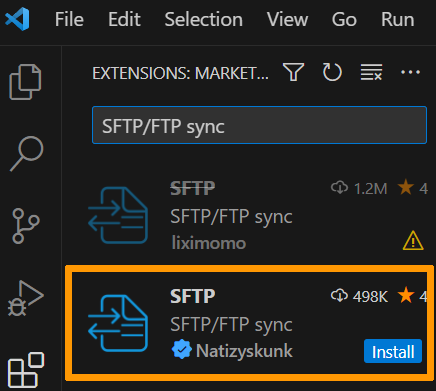
You can also install the "SFTP/FTP sync" extension from the Visual Studio Marketplace.
Initialize project locally
To synchronize your website files on the web hosting plan from Visual Studio Code, enter your project location locally. To do this, create a folder in the location you want.
Go back to Visual Studio Code in the horizontal menu at the top of the interface, click View then Command Palette to display the command editor.
To do the same with the keyboard shortcut, select:
Ctrl + Shift + Pif you are on Windows,Maj + Command + Pif you are on macOS.
Enter the following command: SFTP: Config.

With this command, Visual Studio Code will create the configuration file "sftp.json" at the root of the local folder you created earlier. But because Visual Studio Code doesn't know where your project is locally, you should see the following message:

Click Open Folder, navigate to the local folder location of your choice and click Select Folder to confirm.

In Visual Studio Code, reenter the command SFTP: Config. A configuration file named "sftp.json" appears in Visual Studio Code.

This file is located in the .vscode folder, which is located at the root of your local project.
Configure the sftp.json file
Before you work on your project, upload it to your local folder that you created earlier. However, first, make sure that the "sftp.json" file is correctly configured. Refer to our guide "Logging in to your Web Hosting plan's FTP storage space" to find the useful information.
In the "sftp.json" file, enter the values for the following entries:
name
To find the name of your web hosting plan, click on the tabs below to view each of the 2 steps.
Go to the page, then select the web hosting plan concerned.
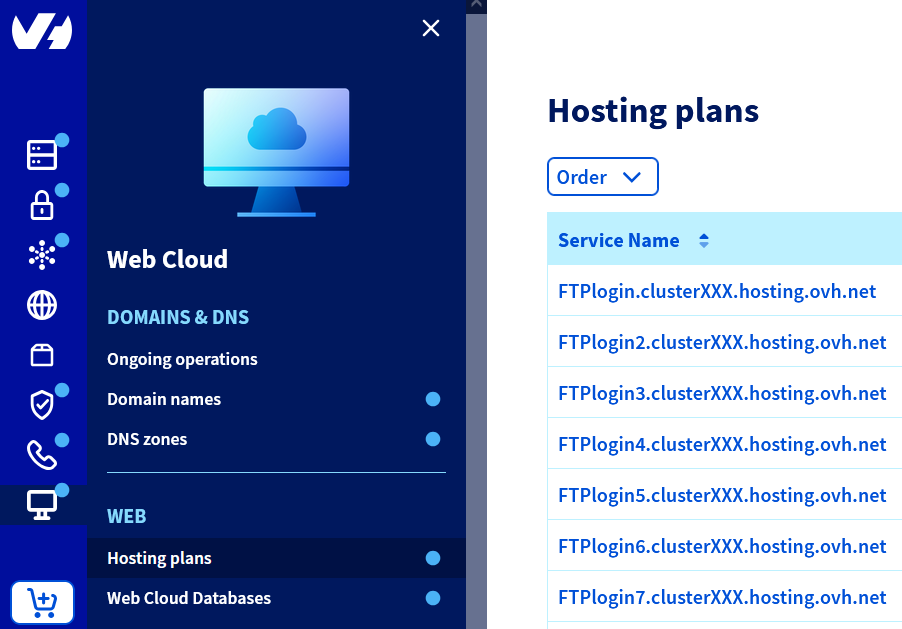

The name value is customisable, so you can assign the value of your choice. However, if you are configuring multiple "sftp.json" files, it is best to use the values visible above as a reference for organisational reasons.
host
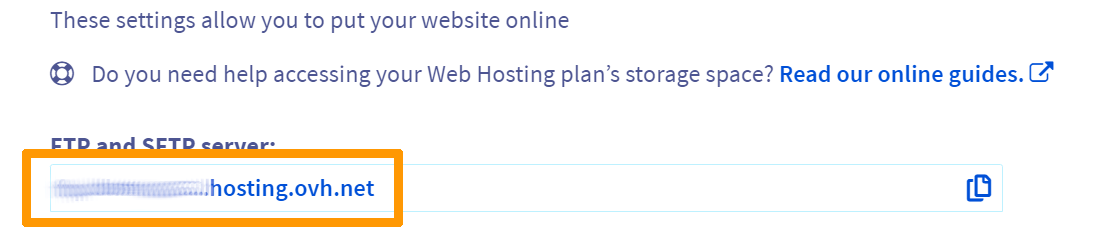
To find the host name (host), click on the tabs below to view each of the 2 steps.
Go to the page, then select the web hosting plan concerned.
username
To find the username, click on the tabs below to view each of the 2 steps.
Go to the page, then select the web hosting plan concerned.
remotePath
To find the remote path (remotePath), click on the tabs below to view each of the 2 steps.
Go to the page, then select the web hosting plan concerned.
Finally, remember to add this line in the file "sftp.json": "openSsh": true.
To avoid entering your password after each command in Visual Studio Code, save it in the file "sftp.json" by adding the line: "password": "<password>"
Here is an example of a file called "sftp.json":
For more details on the options in the sftp.json file, see the project documentation.
Download the project locally
Once you have configured the "sftp.json" file, download the contents of your project to retrieve all of the folders and files on your website. To do this, go to Visual Studio Code and enter the following command: SFTP: Download Project.
Visual Studio Code prompts you to select the folder that you want to upload to your Web Hosting plan. Enter the value name previously defined in the file "sftp.json".

If prompted, enter the user password entered in the "sftp.json" file, then click enter. After downloading, you view all of the folders and files in your project in the File Explorer located in the left column of the Visual Studio Code interface.
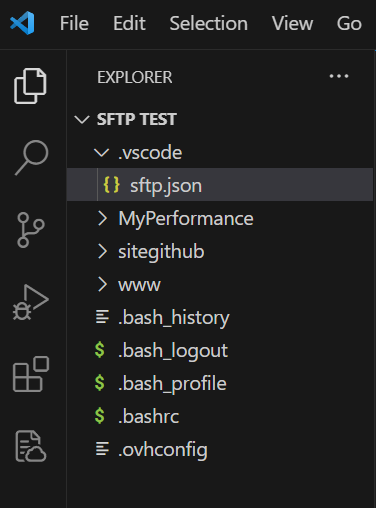
As a reminder, it is important to configure the "sftp.json" file correctly. If you encounter an error before downloading your project, it is usually caused by a configuration defect in the "sftp.json" file. If you have any questions, please refer to the Extension FAQ.
Make changes to files
Now that the project is downloaded locally to your machine. You can easily edit, add, or delete files on Visual Studio Code.
If you would like your local changes to be synchronized every time you save a file, add this line to the "sftp.json" file: "uploadOnSave": true.
To disable this feature, while keeping it in the "sftp.json" file, change the value from true to false.
So far, we have only mentioned the commands: SFTP: Config and SFTP: Download Project. There are other commands that you can observe by auto-completion by typing SFTP: in the command editor.

Find the list of commands here.
You are now able to access and edit the content of your web hosting plan via Visual Studio Code.
The purpose of this tutorial is to provide an effective introduction to managing a project from within Visual Studio Code. It is suitable for a first experience. However, if you edit several files and they are synchronized on your Web Hosting plan, you will be unable to view your change history, and possibly undo the changes.
Go further
Log in to your web hosting plan's FTP storage space
Use FileZilla with your OVHcloud hosting plan
Use SSH access on your web hosting plan (only available with a Professional, Performance, Agency, Agency Plus or Agency Max web hosting plan)
For specialised services (SEO, development, etc.), contact OVHcloud partners.
If you would like assistance using and configuring your OVHcloud solutions, please refer to our support offers.
Join our community of users.