
Expose and visualise your data
Find out how to expose your queries through an API and build a dashboard application on top of it, without writing any code
Objective
An API exposes the data of your Project to the outside world, and an application turns it into a dashboard your users can open. In this last step of the Getting Started guide, you deploy both, one after the other:
- Deploy an API, the interface between the outside world and the rest of your Project, so that applications can run your queries over HTTP.
- Build the application that reads it, the site your users open, with a dashboard and two charts drawn from your own data.
You do not write any code for either of them. Data Platform provides a template for each:
- Query API creates a Front API, a service that exposes the data of your Project over HTTP. Your applications send it their queries, including the ones saved in your Analytics Manager, and it can keep the results in a cache.
- Mosaic creates a Front App, the web application your users open, with a menu, a page layout and a chart library. Its pages are described in configuration files rather than written in code: you build them in the Visual Editor, an editor that the application itself serves inside the console.
All that is left is to name things and describe what you want to see. For an overview of APIs and applications beyond this guide, see Application APIs and Data Platform applications.
Requirements
Complete the previous steps of the Getting Started guide first: your sources are connected, your Lakehouse Manager schema is built, your workflow has run and your queries return data. The second chart of this page reuses the rides_per_cat_temperature query you saved in that last step.
Expect some waiting along the way: this page runs 3 builds and 3 deployments, each taking a couple of minutes.
Part 1: Exposing your data through an API
Creating the API
From your Project, open Applications & APIs. The list shows every application and API deployed in the Project, with its type, its URL and its status.
Click + ADD.
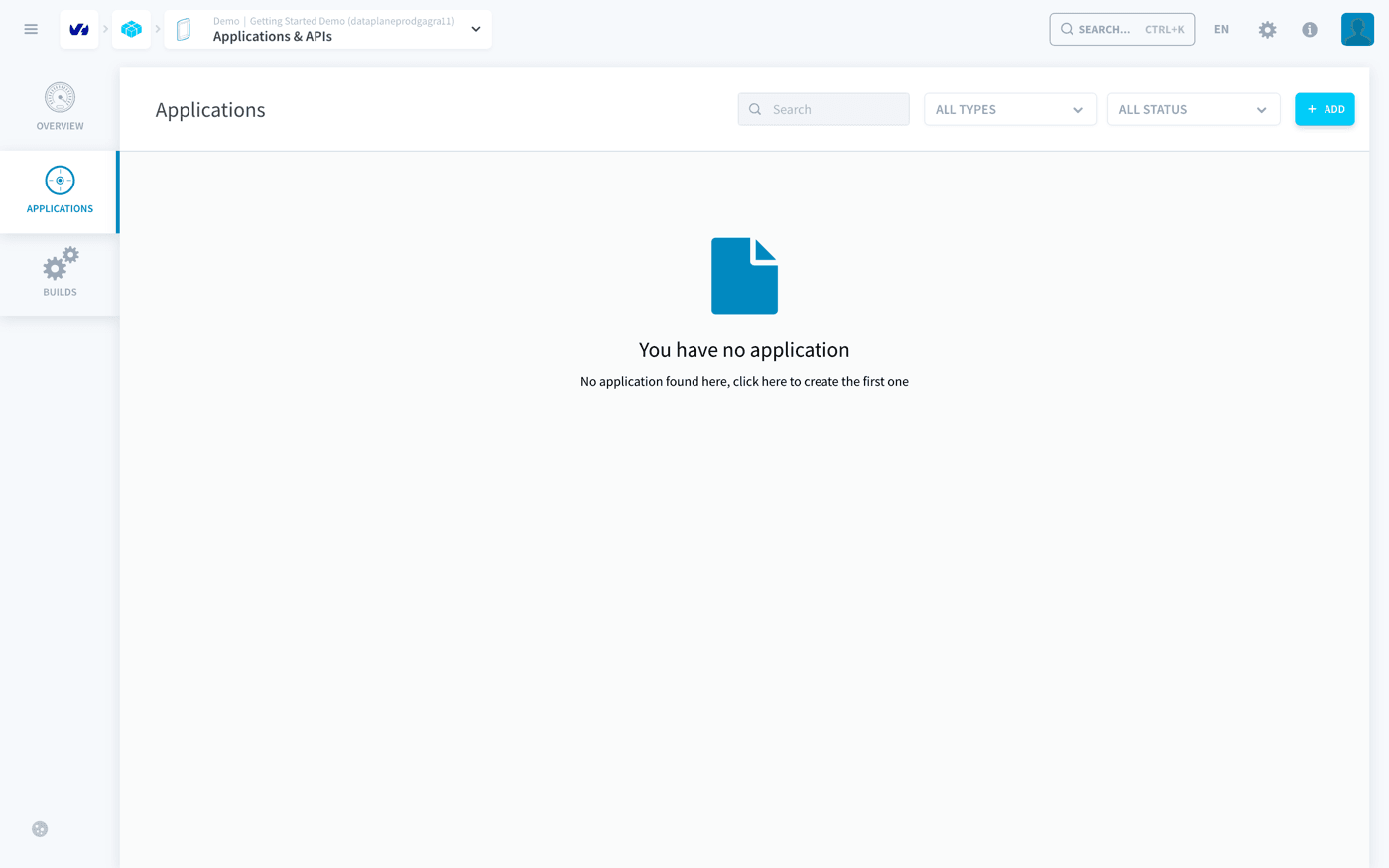
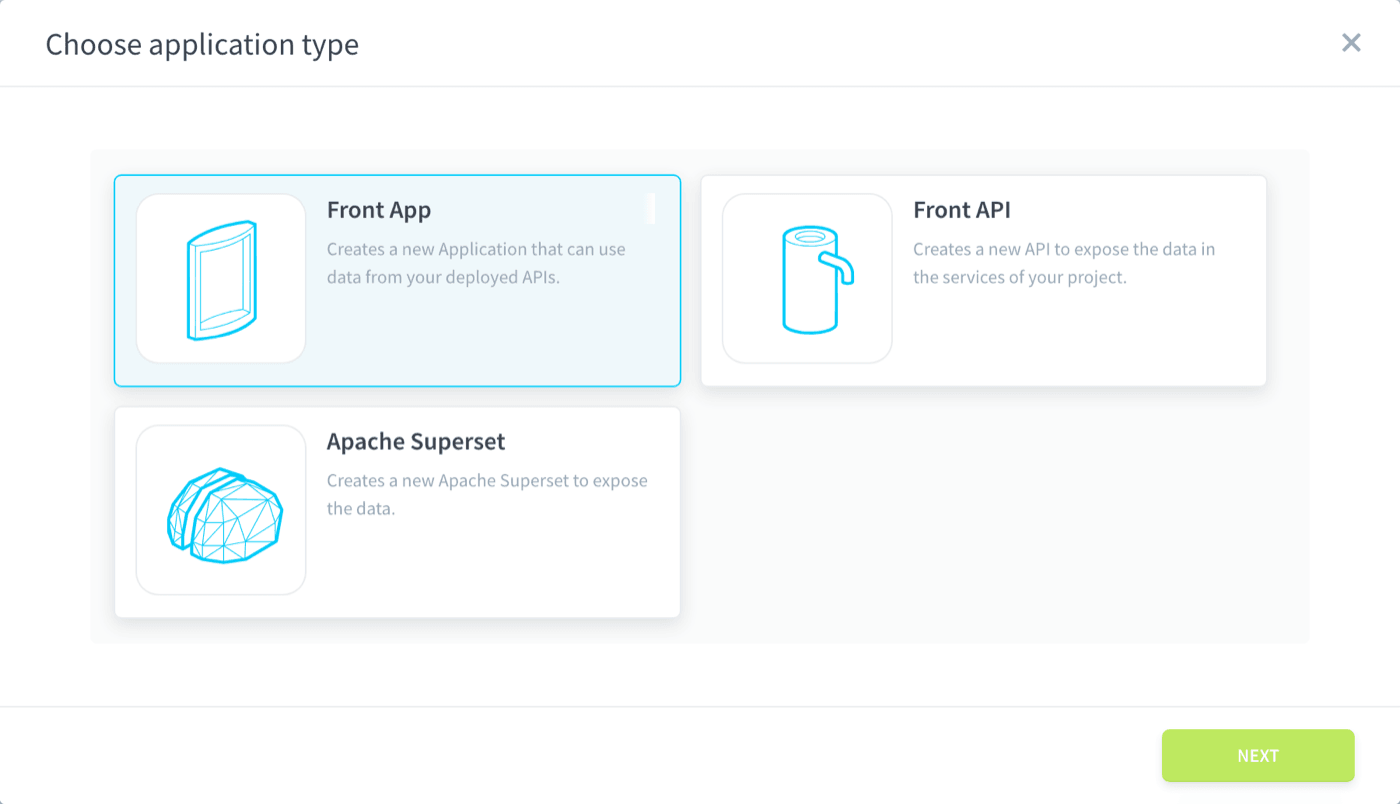
The Choose application type dialog offers three kinds of application:
- Front App: a front-end application that uses the data your APIs expose.
- Front API: an API that exposes the data of the services of your Project.
- Apache Superset: a ready-made Apache Superset instance.
Select Front API, then click NEXT.
Configuring its first version
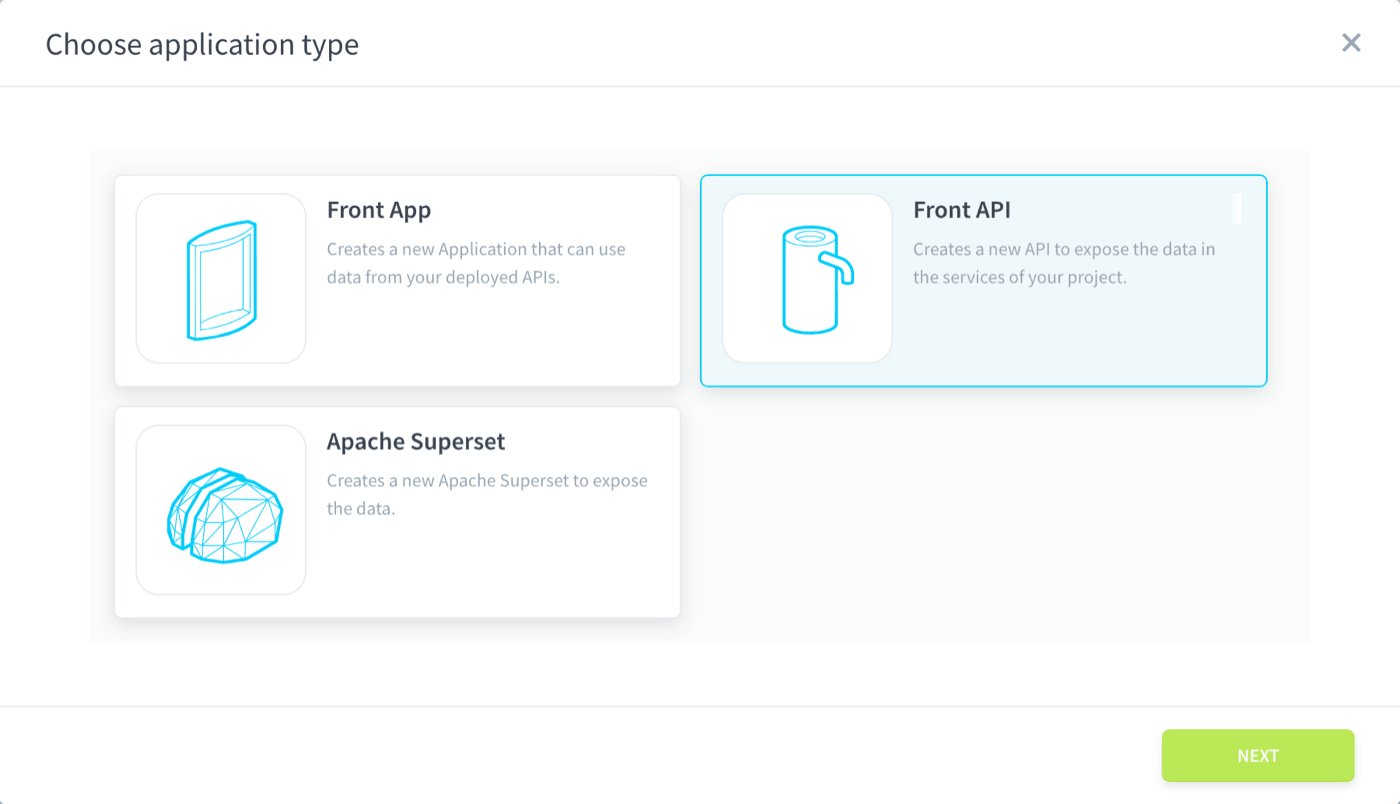
In Application name, enter rides. Data Platform derives the technical name and the URL from it, so your API is served at /rides-api/.
Leave Source on From Template. There is no version name to choose: the first version of an application is always v1. A version is a deployable snapshot of your API: you can add a v2 later without ever taking v1 down.
Under Select a template, choose Query API (Node + Express). This template lets your applications run queries on your data over HTTP, including the queries saved in your Analytics Manager.
Then tick the 3 options:
- Enable cache: deploy an in-memory cache (Valkey) alongside the API, so that repeated calls do not query your data warehouse again. The default values of Engine & version and Allocated DPU (%), Valkey 8.1.10-alpine and 20%, are enough for this guide.
- Auto Build: start a build as soon as the version is created.
- Auto Deploy: deploy the version as soon as the build succeeds.
With the last two options, a single click downloads, builds and deploys your API. Click CREATE.
Letting it build
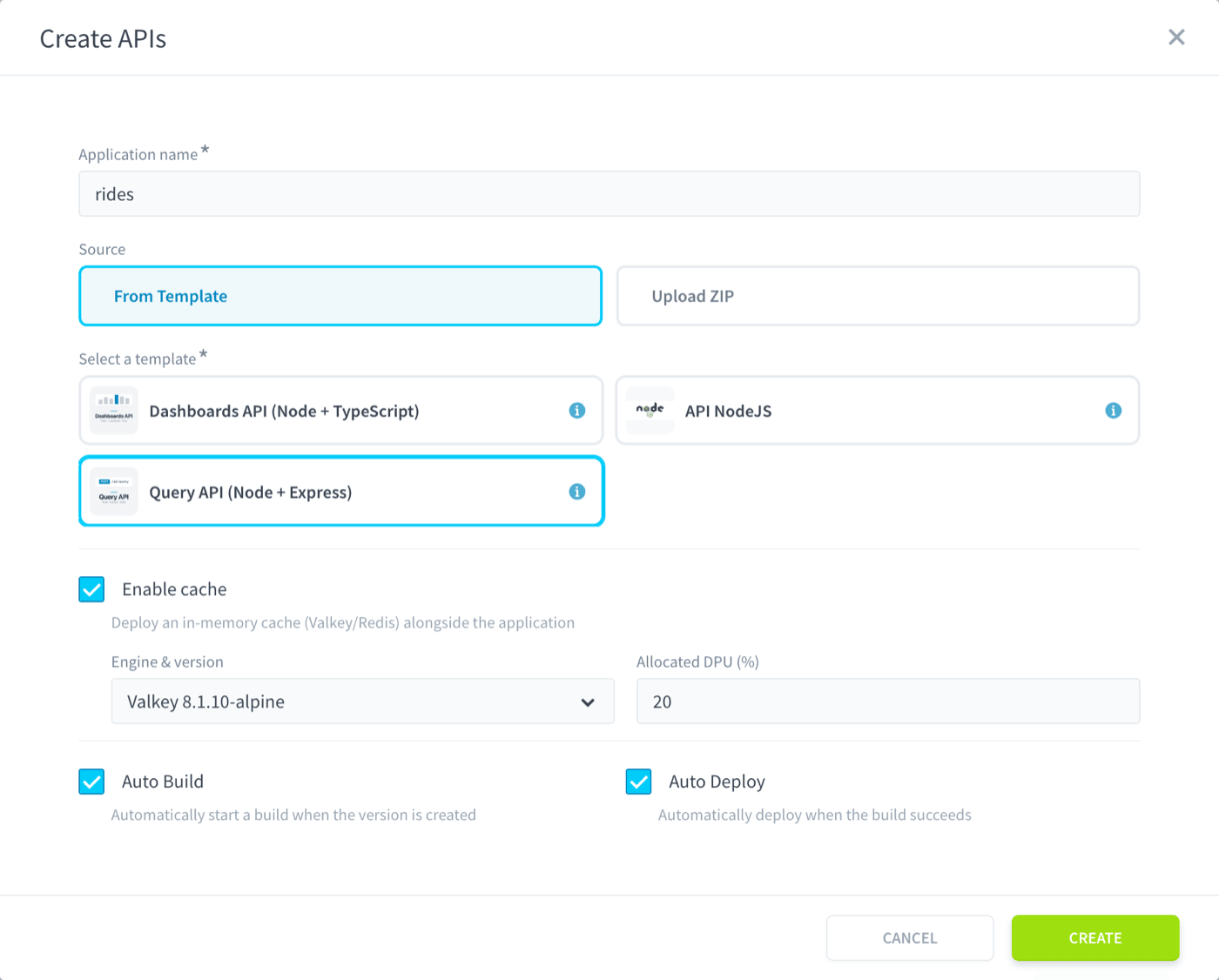
Data Platform opens the overview of your new API. On the left, Versions lists v1 with the build that Auto Build has just started: no version is deployed yet. On the right, Information shows the technical name, rides-api, and the IAM application that protects your API. The build takes a couple of minutes.
Data Platform uses a blue-green deployment methodology, so you can deploy new versions of your API without downtime.
When the build succeeds, Auto Deploy takes over. Back in Applications & APIs, your API is listed as Running.
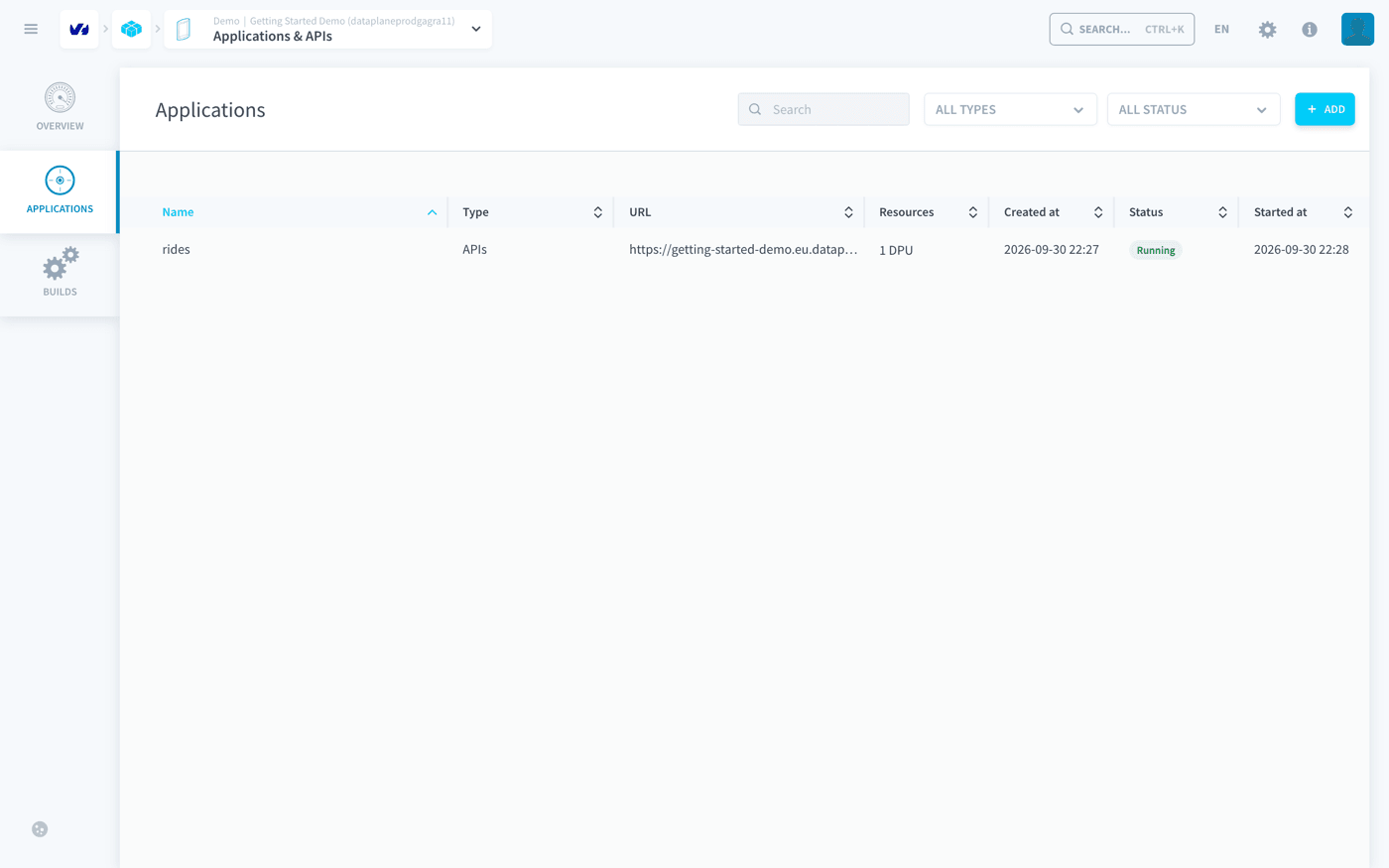
Checking that your API responds
Open your API: click its URL in the URL column of the list, or Open app on the Deployed version card of its overview. Your API answers with a welcome page.
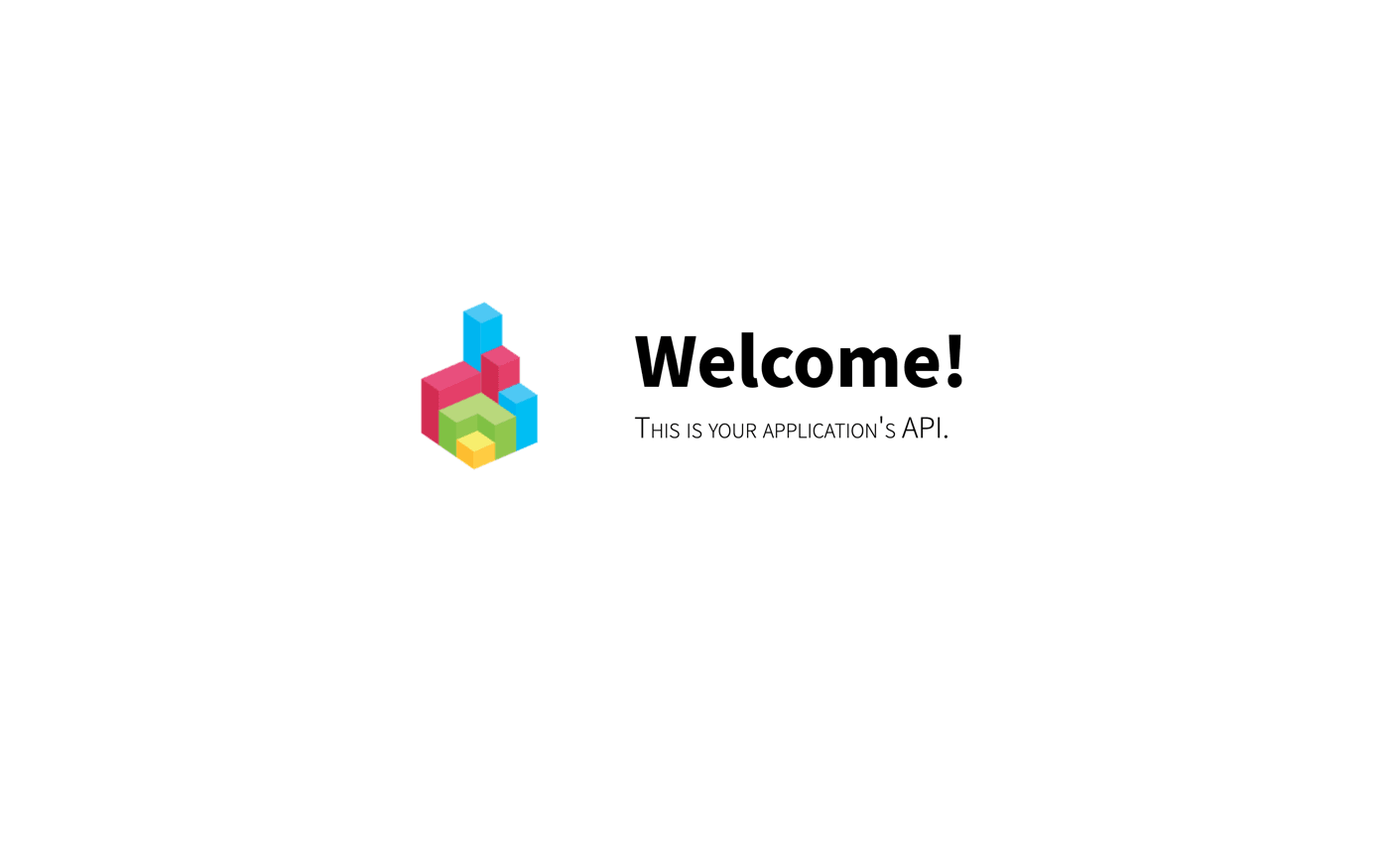
Your API is deployed and reachable.
The application you create next connects to that URL: its form offers it in the API URL field.
Part 2: Visualising your data in an application
Creating the application
Back in Applications & APIs, click + ADD, select Front App and click NEXT.
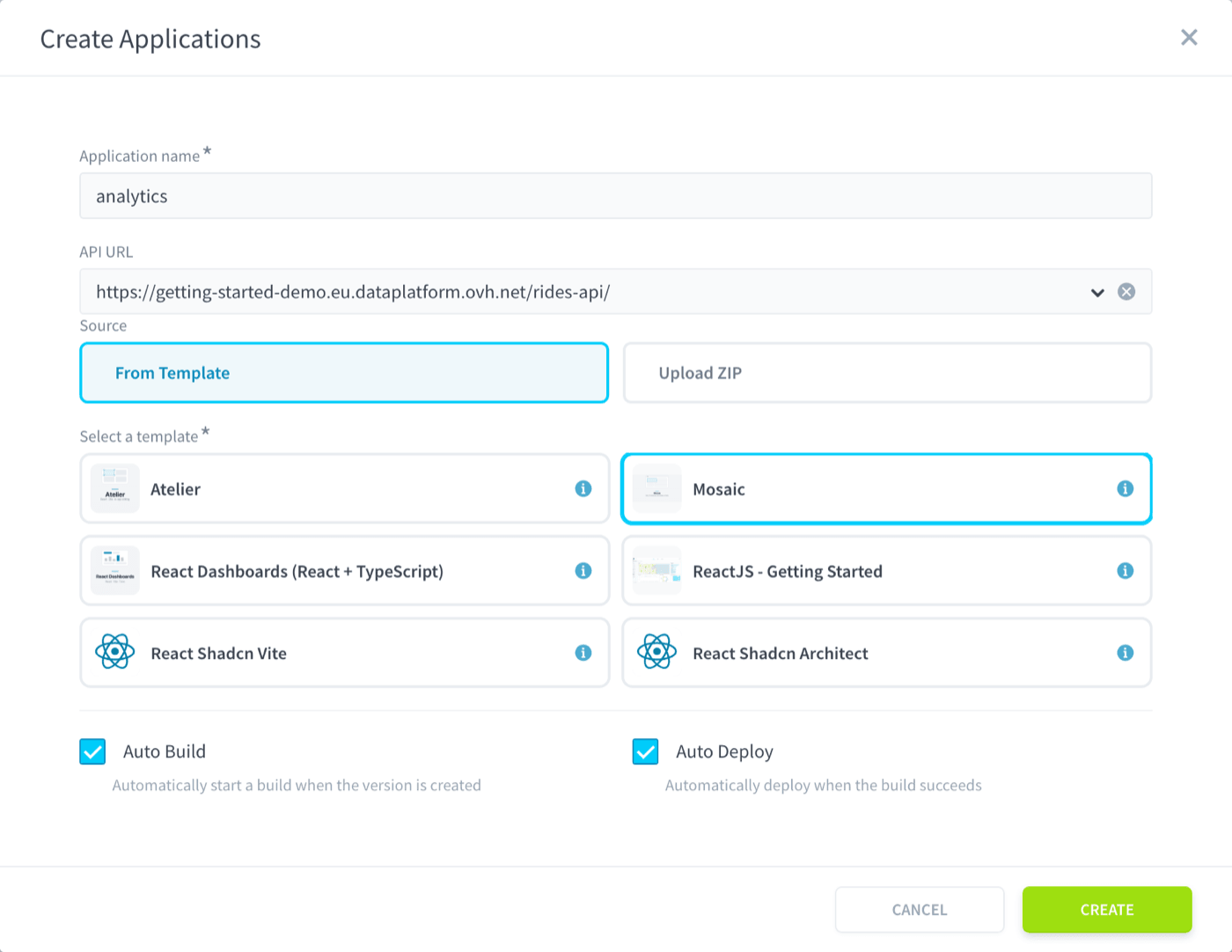
Fill in the form:
- Application name:
analytics. Data Platform derives the URL from it, so your application is served at/analytics-app/. - API URL: select the URL of the
ridesAPI you have just deployed. This field is what connects your application to your API. - Select a template: Mosaic.
- Tick Auto Build and Auto Deploy, so that the version builds and goes live on its own.
As for your API, the first version is named v1. A Front App offers no cache: it serves the pages your users open, while the data and its cache stay with the API.
Click CREATE.
Data Platform opens the new application while its first version builds. The build takes a couple of minutes.
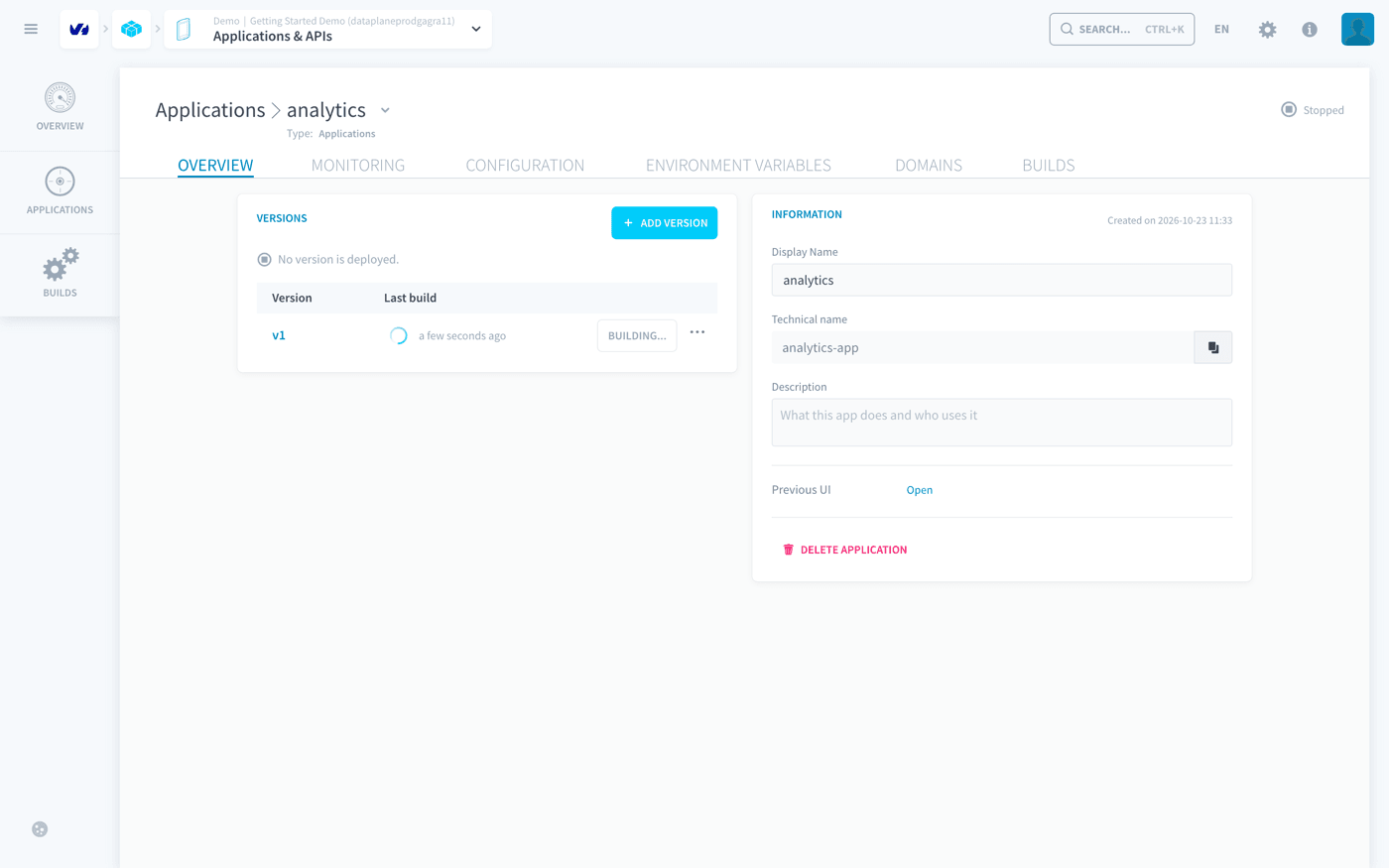
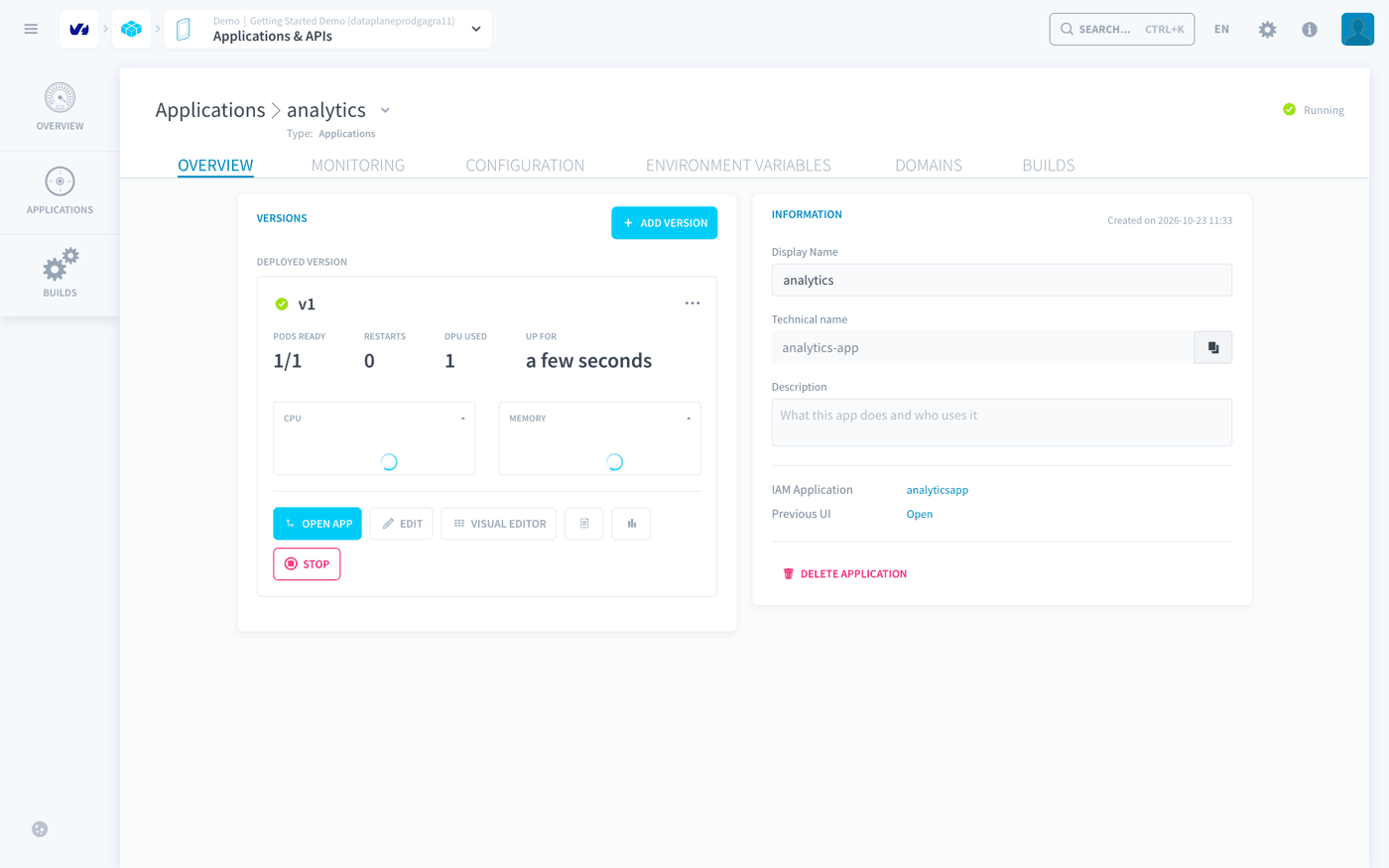
When the build succeeds, Auto Deploy takes over. On the overview, the Deployed version card now shows v1 running, with the buttons that act on it: Open app, Edit and Visual Editor.
Opening the Visual Editor
Click Visual Editor on the Deployed version card.
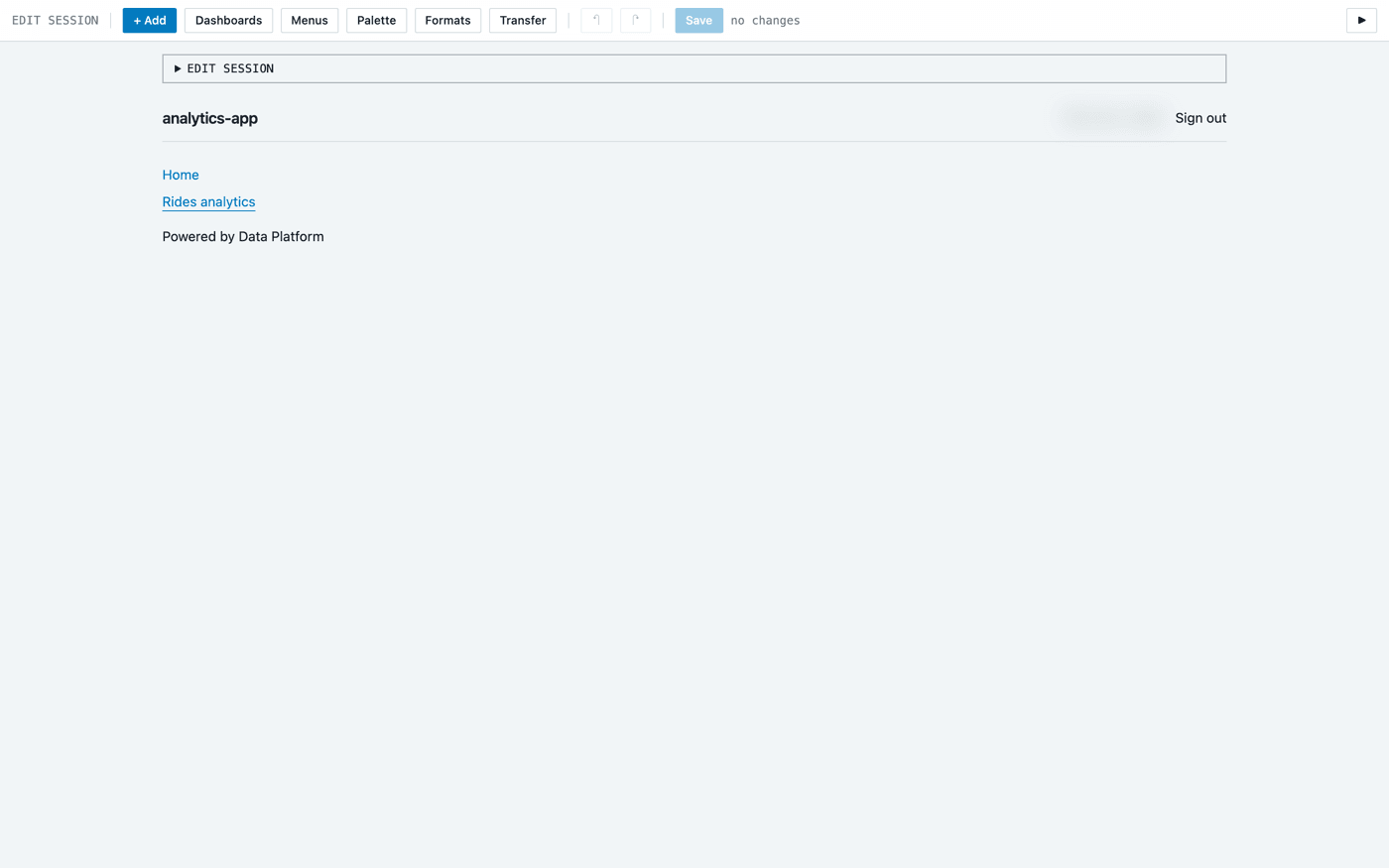
Data Platform opens the Visual Editor tab of v1, with your application inside the console, signed in as an administrator. The toolbar across the top only appears in the Visual Editor: your users never see it. From now on, you build everything (pages, charts, filters, menus, number formats) inside the application itself.
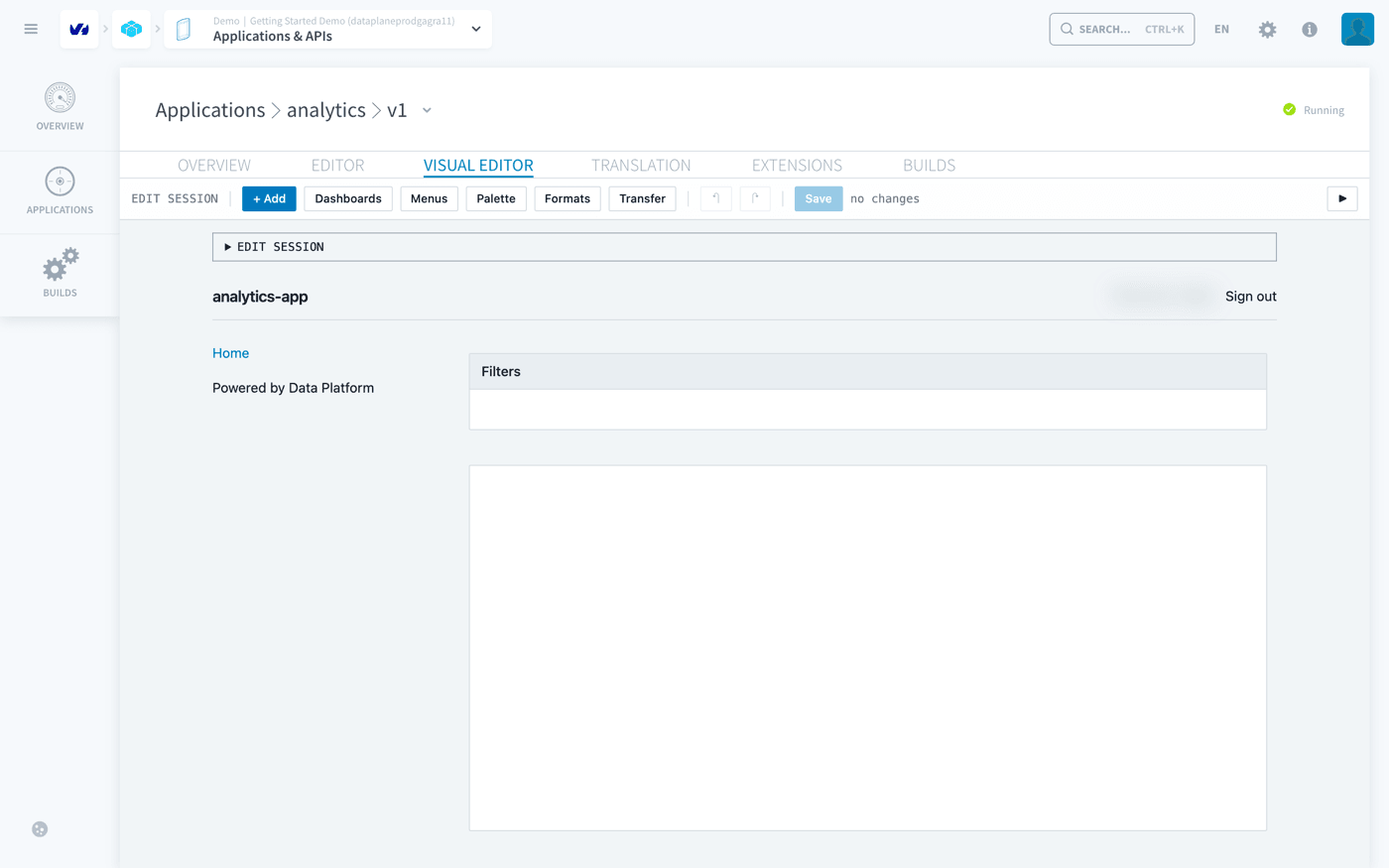
The Visual Editor button, like the tab of the same name on the version page, only appears on a running version. The editor is served by the application itself, so a stopped version has nothing to open.
Creating a page
In an application, dashboards are pages. The Mosaic template includes one, served at /home: it is the page currently displayed.
Click Dashboards in the toolbar, then the + New tab, and fill in:
- Name:
Rides analytics - Route:
/rides-analytics
Leave the description empty, and leave Add a link to it in the "sidebar" menu ticked: your users need to reach this page, and the option adds the link to the sidebar for you.
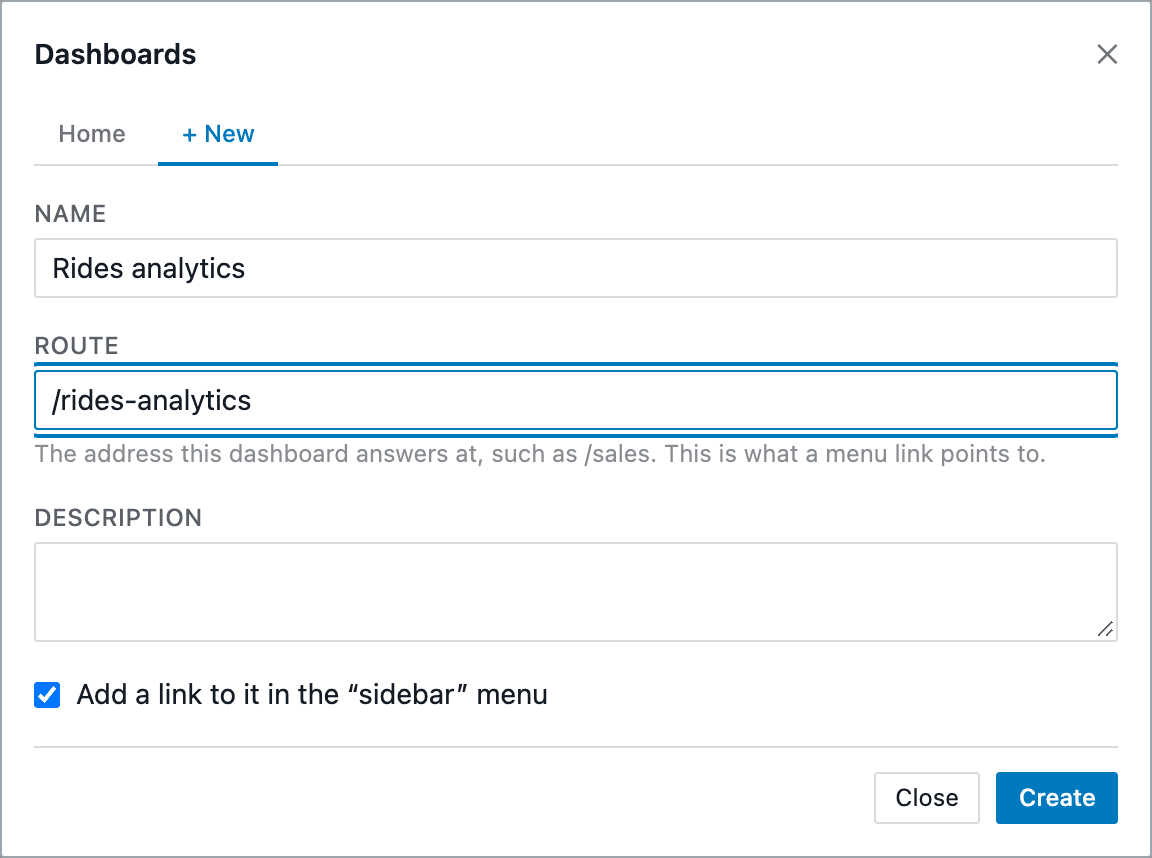
Click Create, then Close.
This creates three things at once: the page itself, its entry in the configuration of the application, and the link in the sidebar. Creating the page from this dialog keeps the three consistent.
Click Rides analytics in the sidebar to open your new page, which is still empty.
Building your first chart
Creating a panel
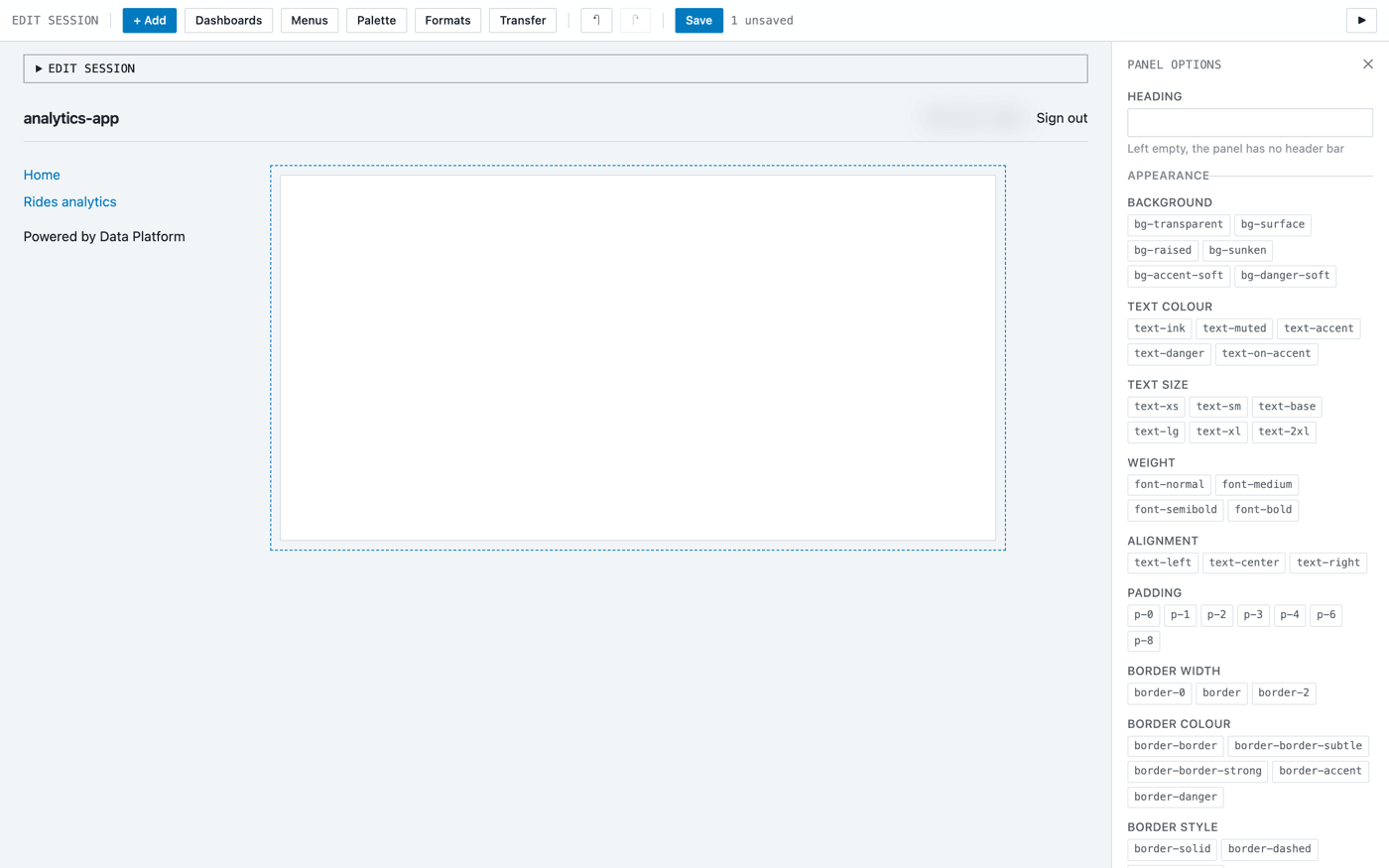
Click + Add in the toolbar and select Containers > Panel. A panel is a container for the other components. Resize it by dragging its bottom-right corner.
Adding the chart
Inside the panel, click its + button and select Charts > Semi donut.
In the General tab, name the chart Rides per temperature.
Then open the Data tab, where you describe the data to display rather than the drawing. Leave Data source on Query builder, which builds the query right here, then:
- under Measures, click + Add and select
rideswith thesumaggregation. - under Group by, click + Add and select
cat_temperature.
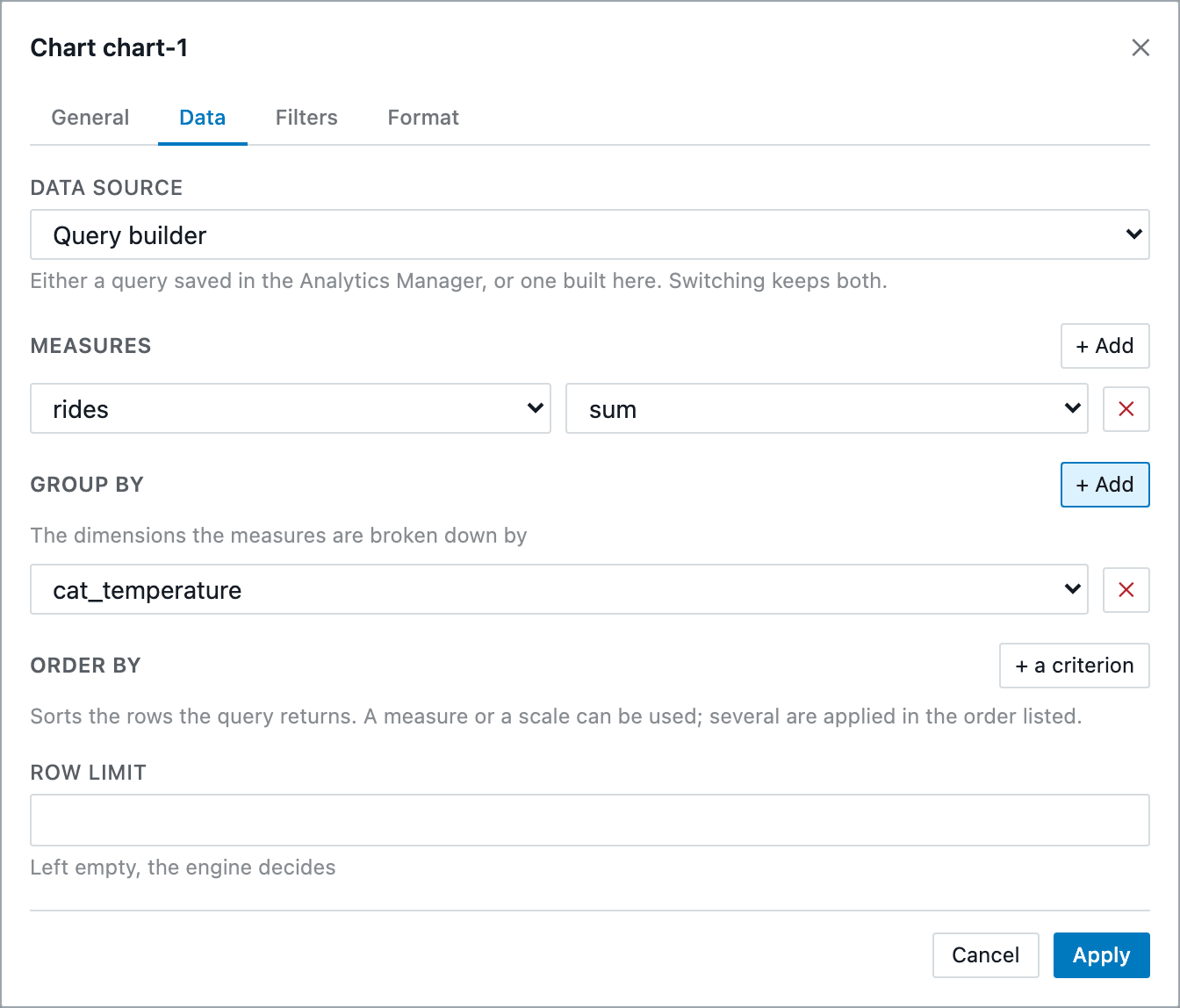
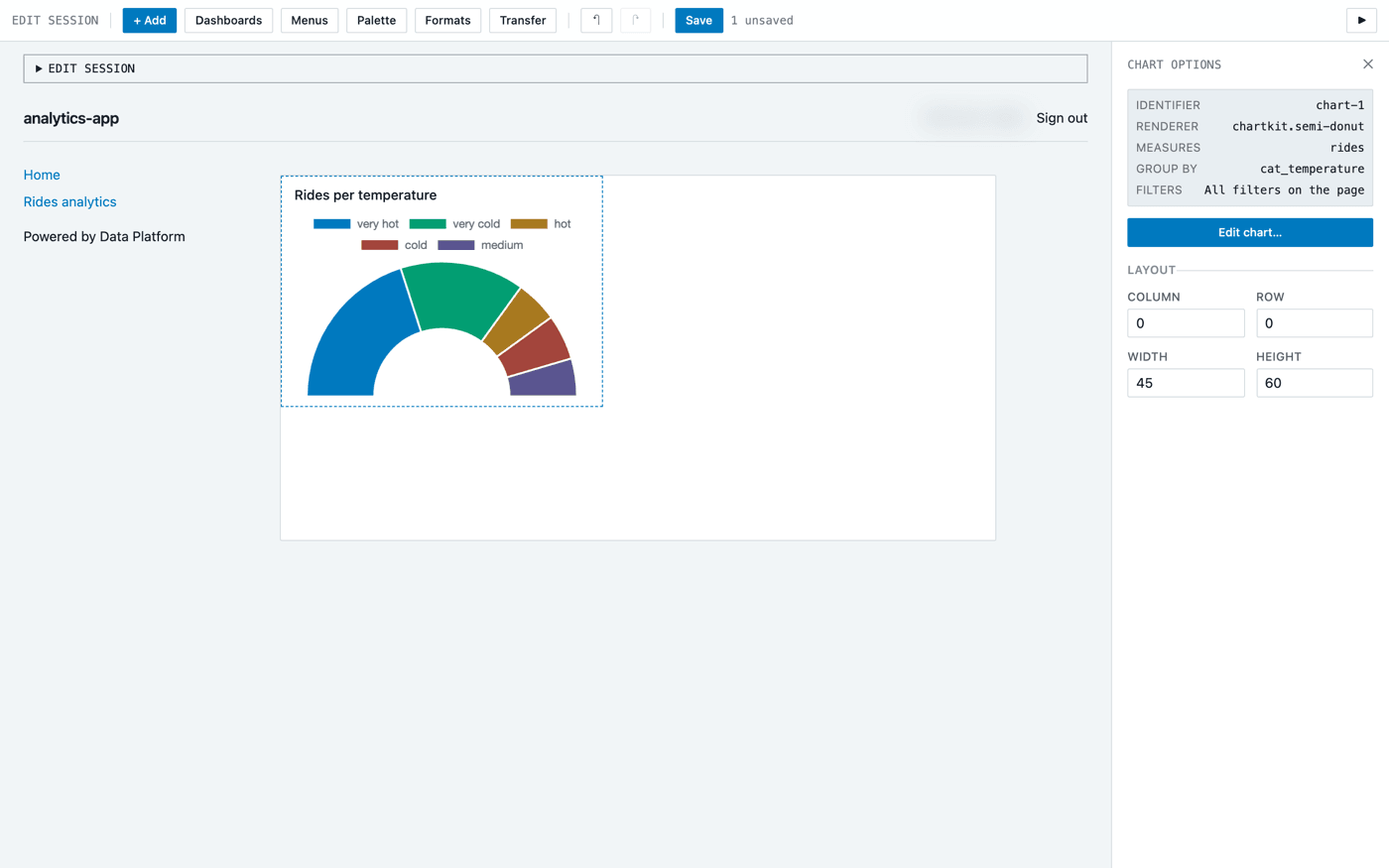
Click Apply. The chart queries your data through the API you deployed in Part 1 and displays one slice per temperature category: the total number of rides in each.
Adding a chart from a saved query
A total shows how the rides are spread across temperature categories, not how temperature affects ridership: some categories simply cover more days than others. The rides_per_cat_temperature query you saved in the Analytics Manager answers that second question, with the average number of rides per day and per station in each temperature category. A chart can reuse it as it is.
Click the + button of the panel again and select Charts > Bar: these are averages, not the parts of a whole.
In the General tab, name the chart Average daily rides per station.
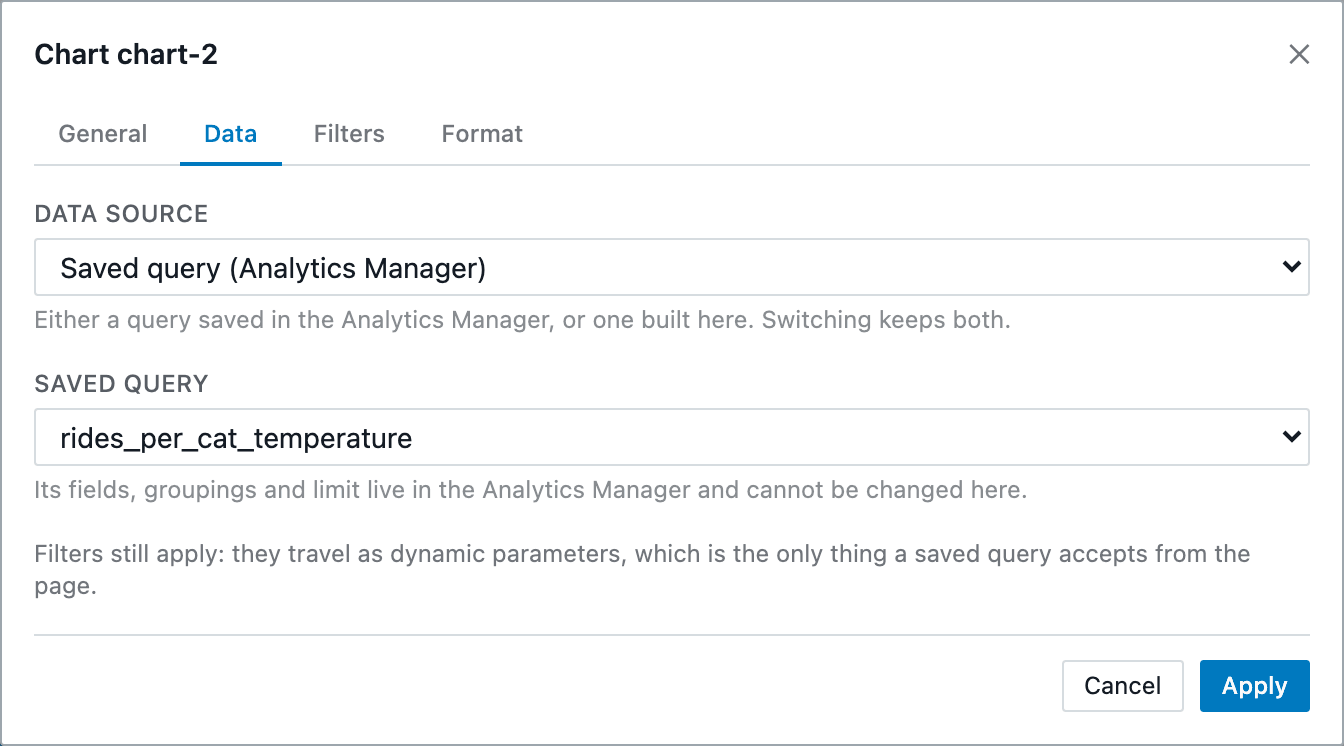
In the Data tab, set Data source to Saved query (Analytics Manager), then select rides_per_cat_temperature in Saved query. There is nothing else to fill in: the fields, the grouping and the order of a saved query live in the Analytics Manager, and you change them there.
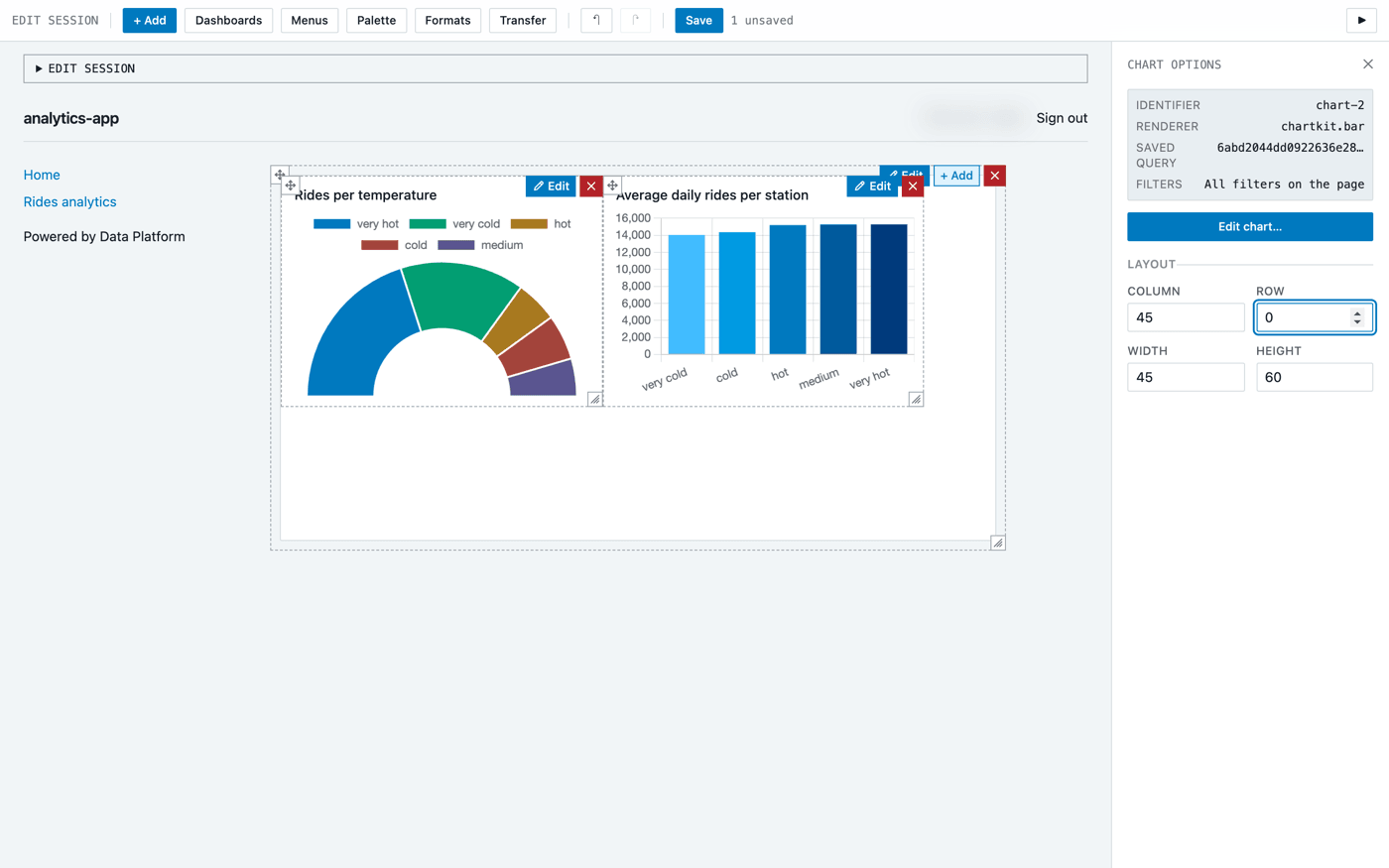
Click Apply. The chart lands under the first one, where the panel has no room left for it. Put it beside the semi donut instead: in the chart options on the right, under Layout, set Column to 45 and Row to 0.
The bars show the average for each temperature category, in the order the saved query sorts them.
The Analytics Manager is where your team keeps the queries it shares. A chart built on one of them stays in step with it: change the query there, and every chart that uses it follows.
Adding a filter
A filter lets your users narrow the charts down. Click the + button of the panel again and select Filters > Select.
The filter is added immediately and its options open on the right. Set Field to station_name, the column the filter constrains.
The options of each chart list All filters on the page under Filters, so both charts respond to this filter without any further setting. A saved query receives it as a dynamic parameter.
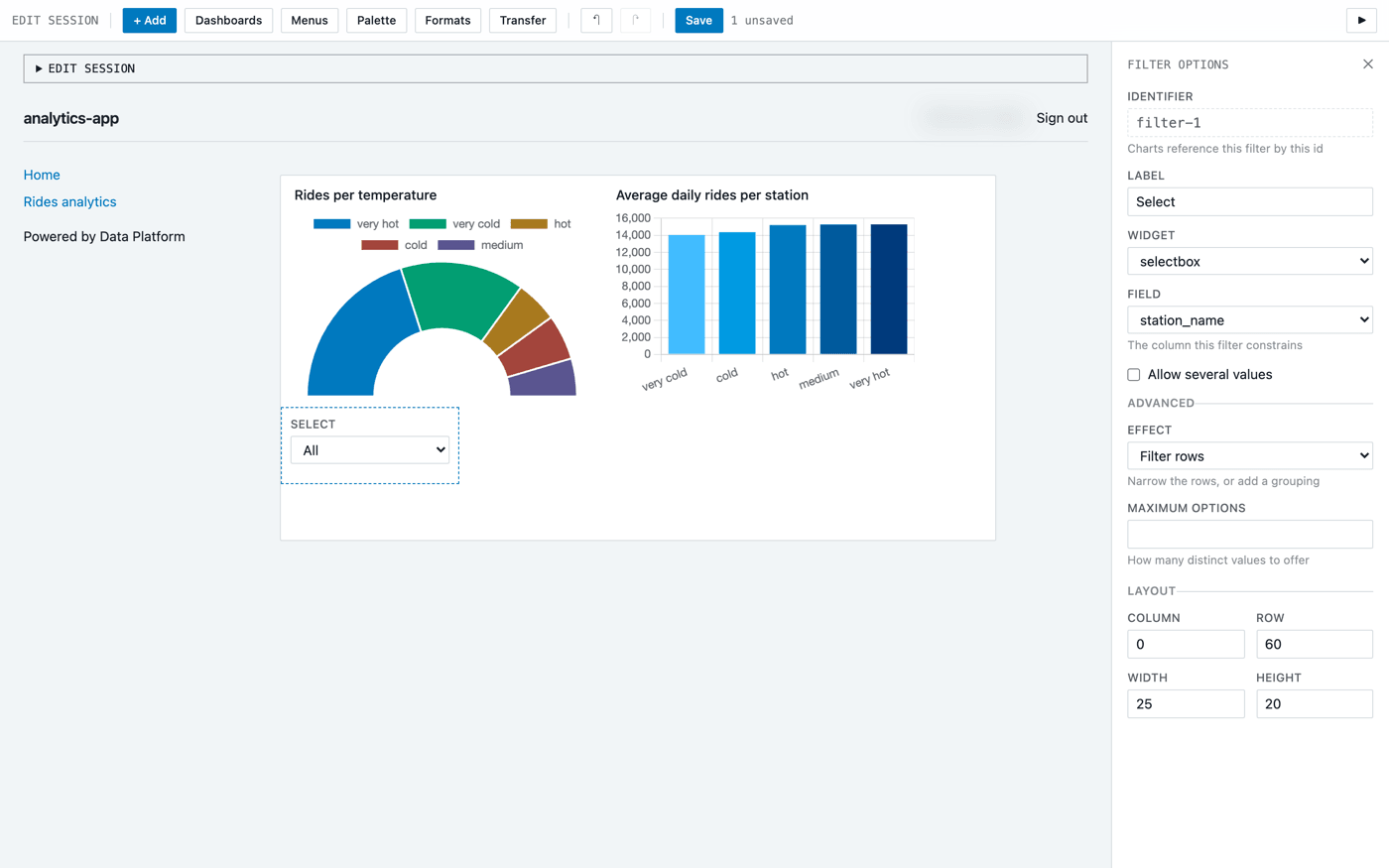
Click Save in the toolbar. The counter next to it goes back to no changes: your dashboard is saved in the sources of the version.
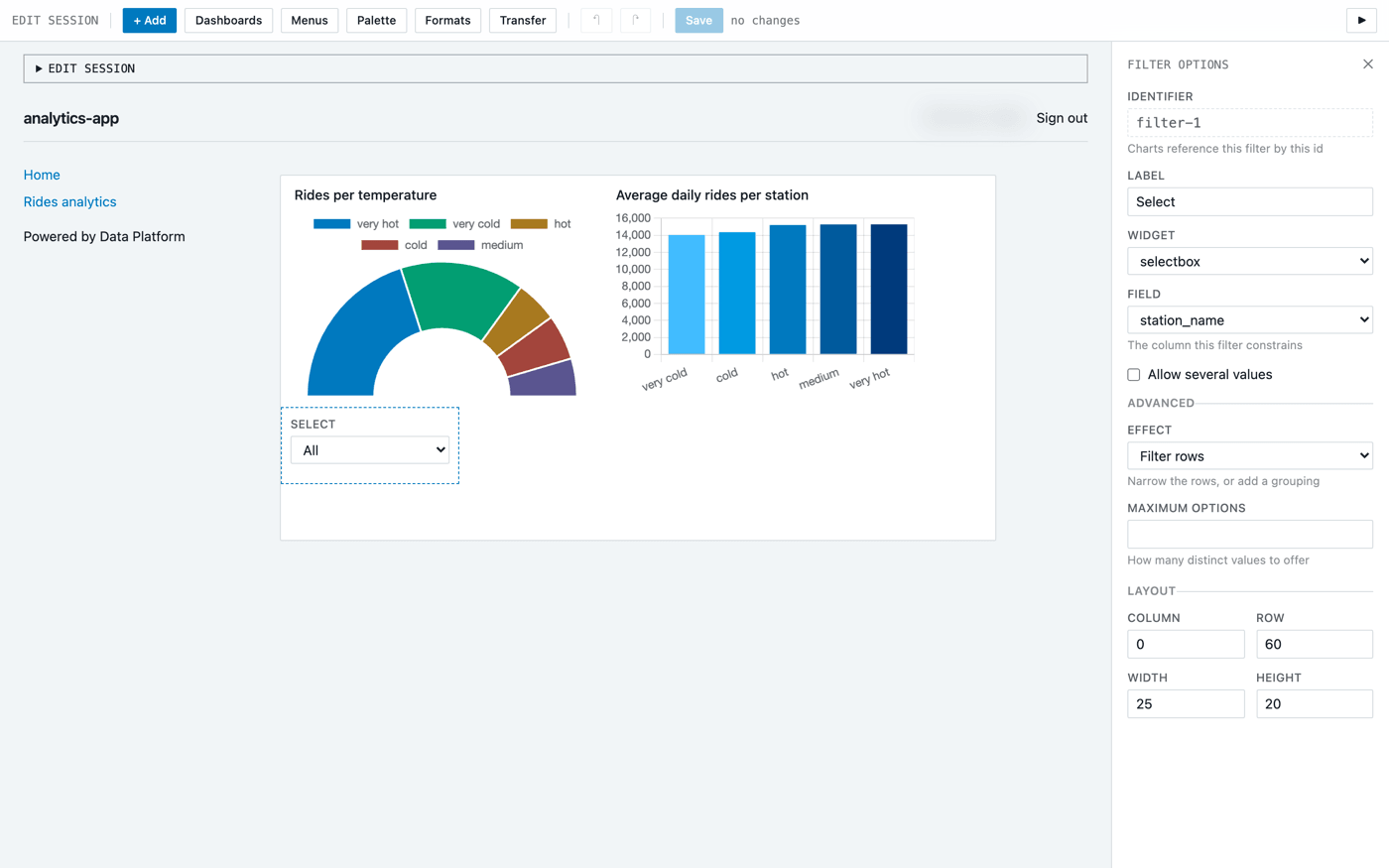
Saving writes your dashboard into the sources of the version. It does not make it available to your users yet: the build and deployment at the end of this page do that.
Trying it out
Click the ▶ button at the right end of the toolbar to leave edit mode. The toolbar collapses into a single Edit button, and you see your application as your users do.
Select a station in the filter: both charts redraw for that station only.
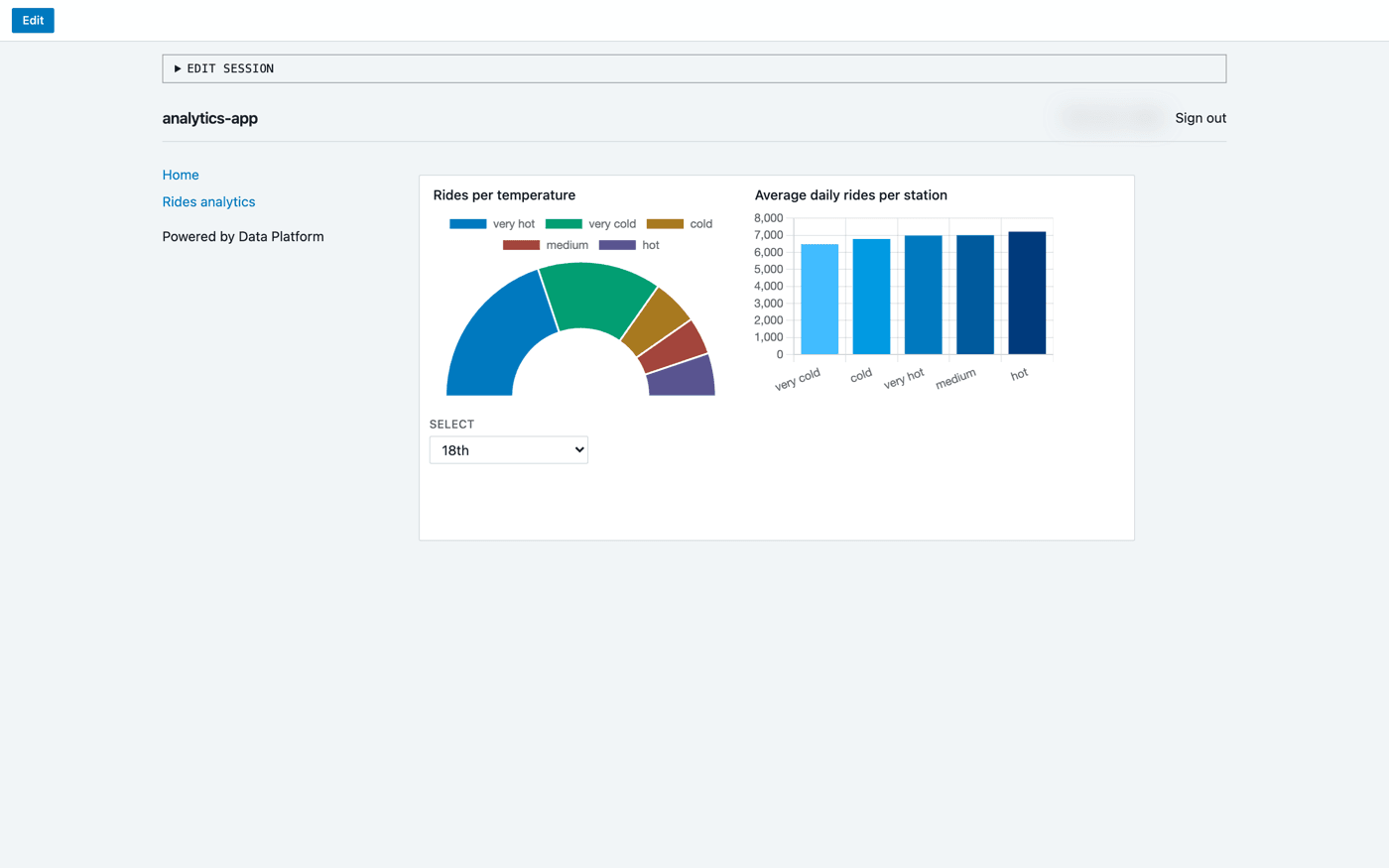
Your dashboard is ready.
Deploying a new version
Go back to the overview of your application. The Deployed version card indicates that the configuration has been modified since the last build: your users are still served the version deployed earlier, which does not include the dashboard you have just built.
The card offers to rebuild that version in place. Copy it instead, so that v1 stays as it was, a version you can go back to: open the … menu of the Deployed version card and select Copy.
In the Copy Version dialog, name the copy v2, tick Auto Build and Auto Deploy, and click CREATE.
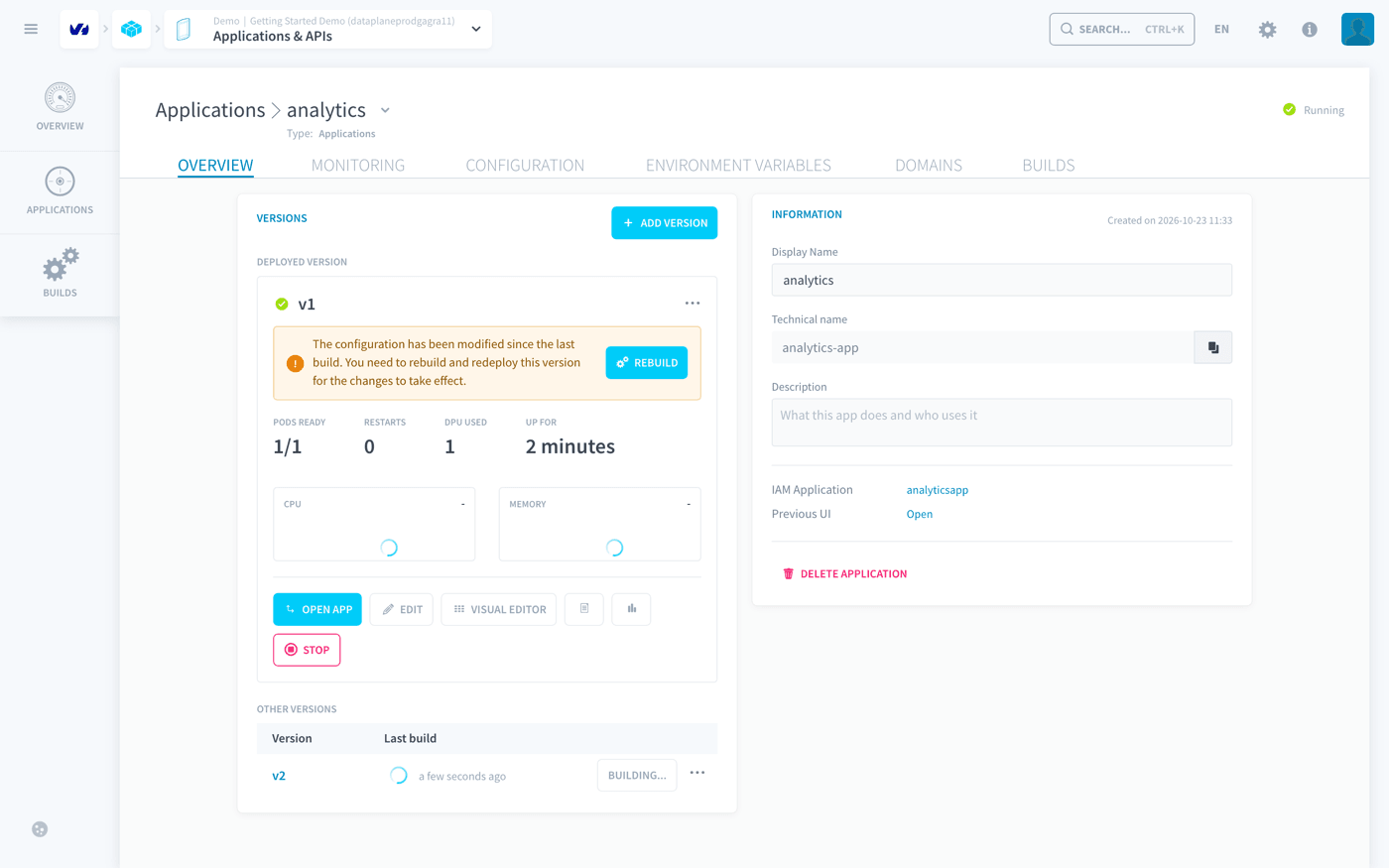
The same blue-green deployment as for your API applies: v1 keeps serving your users while v2 builds and deploys. The switch happens once the new version is ready, with no interruption.
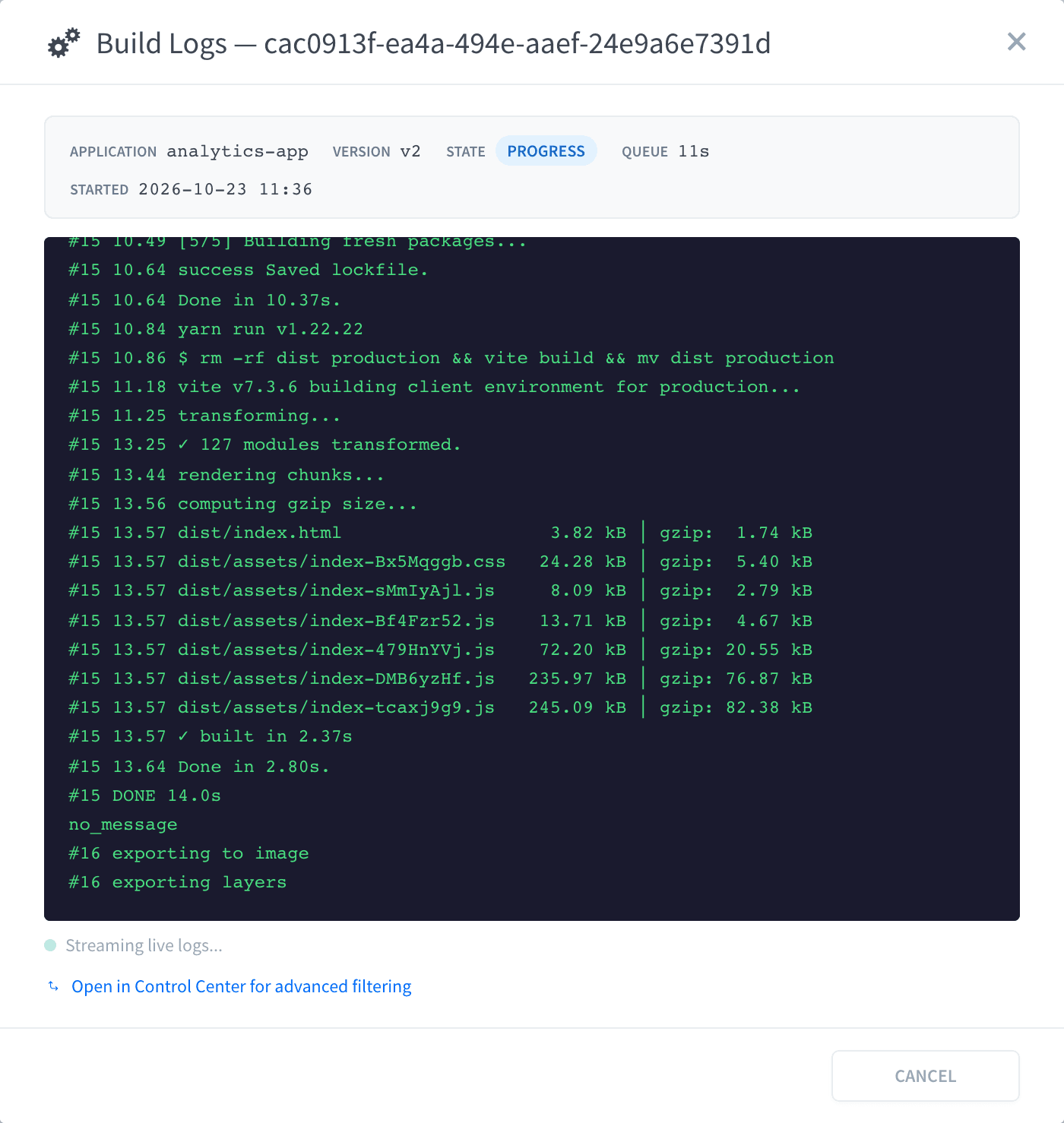
The build takes a couple of minutes. To follow it, or to investigate a failed build, open the Builds tab of the version and click the logs icon. The Build Logs dialog shows the state of the build, its time in the queue and each step as it runs, with a link to the Control Center for advanced filtering.
Opening your live application
Once v2 is built, Data Platform switches to it and stops v1. The switch can take a moment: until it completes, your users are still served the previous version, so nobody experiences an interruption.
Open your application with the Open app button of its Deployed version card. Unlike the Visual Editor, which the console opens on your behalf, your application is a standalone, protected site, so it asks you to sign in. Sign in with Data Platform.
You configure who can open your application, and how they sign in, in the Identity Access Manager.
Your application opens. Rides analytics, the menu entry you added, is in the sidebar, and it leads to your two charts, live and filterable.
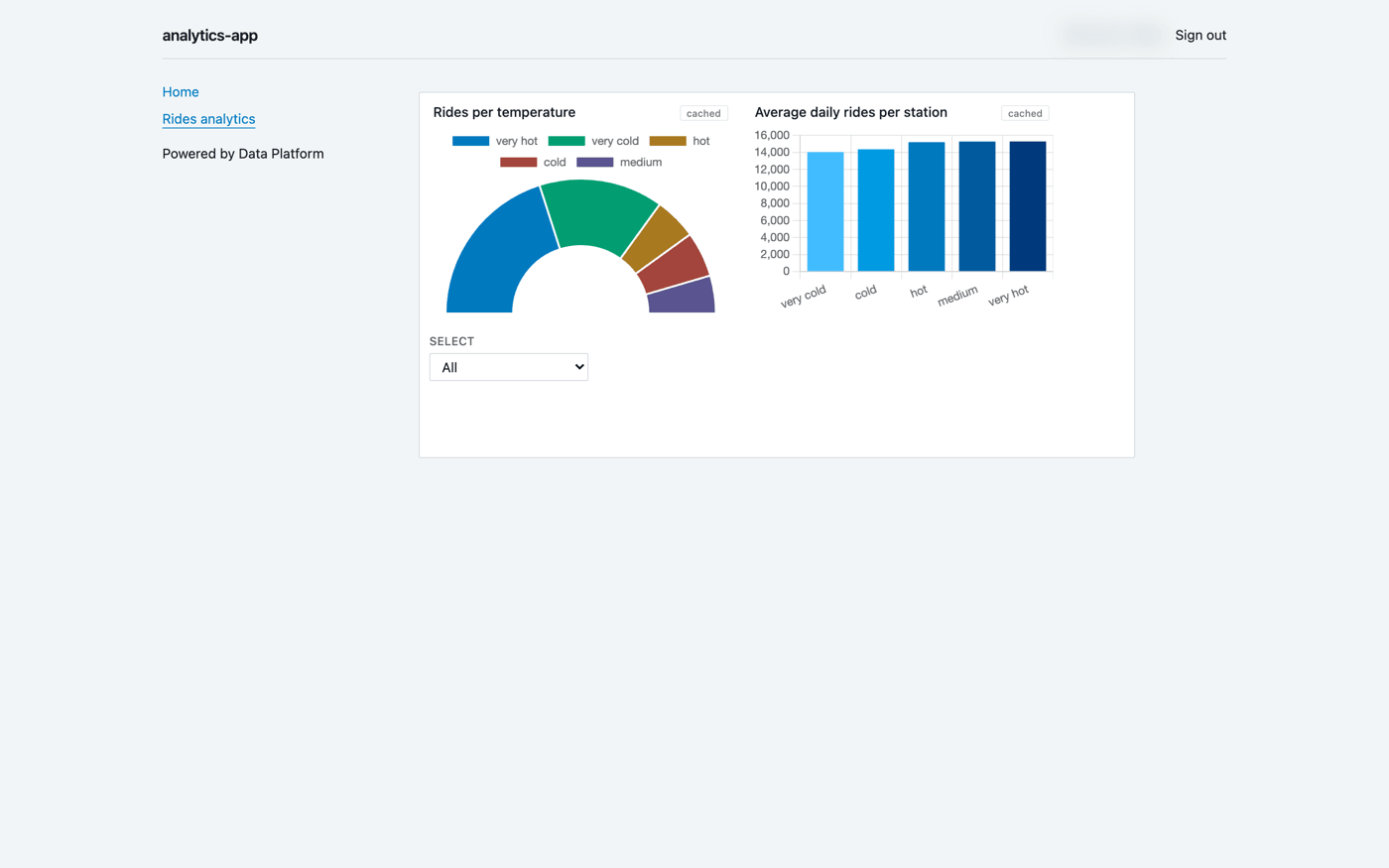
Your dashboard is online and reads its data through your own API. Nothing refreshes on a timer: each chart queries the API when a page opens and when a filter changes.
Because you ticked Enable cache, the API answers from Valkey any query it has already run, and by default it keeps those results until the cache is cleared. When new data reaches your tables, a chart can therefore still show the previous results. A cached badge on the chart says so: clicking it runs the query again without the cache, for that chart and that reader only. To make cached results expire, set the DATAQUERY_CACHE_TTL environment variable of your API to a lifetime in seconds.
You have completed the Data Platform Getting Started guide. You are now ready to explore Data Platform on your own and start new projects.
The next step goes deeper into what the Visual Editor can do.
Customise your first app further
Go further
For training or technical assistance implementing our solutions, contact your sales representative or visit our Professional Services page to request a quote and have your project analysed by our experts.
Ask questions, give your feedback and interact directly with the team building the Data Platform on the dedicated Discord channel.
If you need support with your OVHcloud services, create a request in our Help Centre.
Join our community of users.