
How to create and restore backups on the Game Panel
Create and restore backups of your game server from the OVHcloud Game Panel, with options that depend on your game server image provider.
Objective
The OVHcloud Game Panel lets you create and restore backups of your game server. The available backup features depend on the provider used by your game server image.
This guide explains how to create and restore backups from the OVHcloud Game Panel.
Requirements
- A VPS or a dedicated server in your OVHcloud account with the Game Panel feature enabled.
- A game server deployed on the Game Panel.
- Access to the Game Panel. Refer to Log in to the Game Panel.
Instructions
Accessing the Backups tab
- Open your game server in the Game Panel.
- Go to
Settings. - Open the
Backupstab.
The content of this tab varies depending on the provider of your game server image. The provider is displayed at the top of the Settings window:
- OVHcloud logo: the game server image is provided by OVHcloud.
- LinuxGSM logo: the game server image is provided by LinuxGSM.
- External: the server was added using an external image. Backup management is not supported for this provider.

OVHcloud provider
Create a backup
From the Backups tab, click Create Backup. After a few moments, the backup appears in the list below.
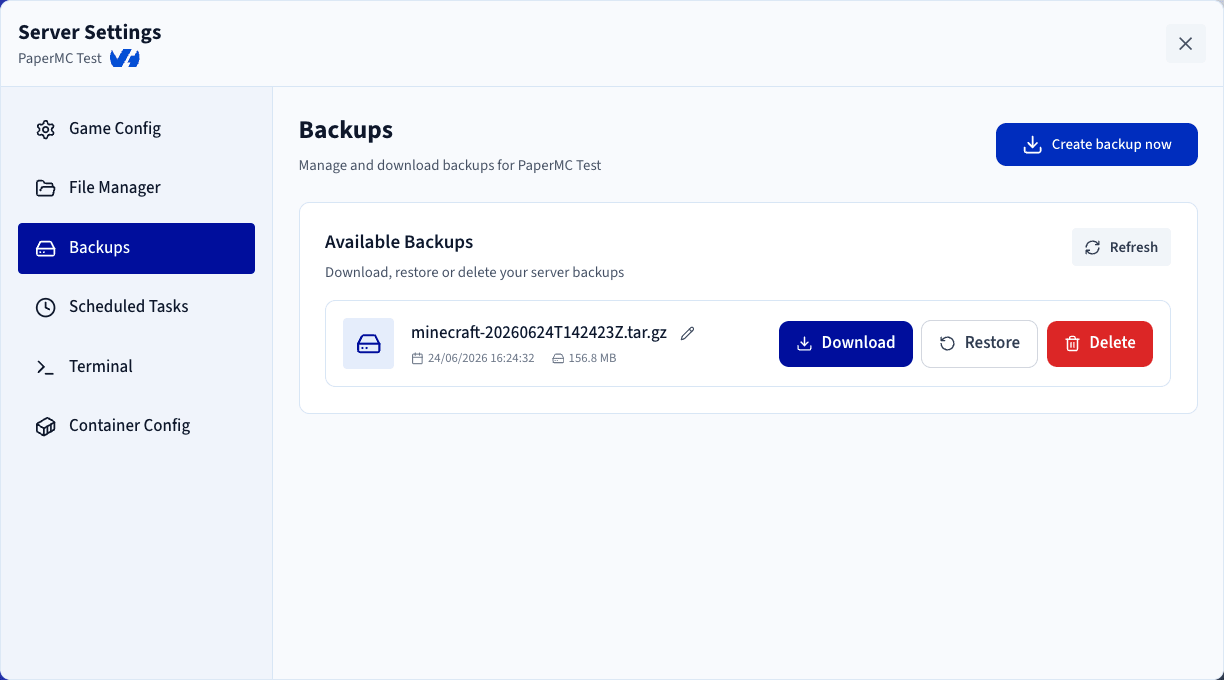
Manage backups
For each backup in the list, you can:
- Download the backup archive.
- Delete the backup.
- Restore the backup.
- Rename the backup.
LinuxGSM provider
LinuxGSM includes its own backup management system. As a result, backup functionality works the same way across all game server images provided by LinuxGSM.
Create a backup
From the Backups tab, click Create Backup. Once the backup process is complete, it appears in the backup list.
Manage backups
For each backup in the list, you can:
- Download the backup archive.
- Delete the backup.
- Rename the backup.
Automatic restoration is not available and must be performed manually. Refer to the Restore a backup section below.
Backup options
LinuxGSM provides several backup configuration options:
- Keep the last X backups: defines how many backups should be retained. When the limit is reached, the oldest backup is automatically deleted when a new backup is created.
- Keep backups for X days: defines how long backups should be kept. Backups older than the configured number of days are automatically removed.
- Stop server before backup: stops the game server before creating a backup. This helps ensure backup integrity and consistency, but it causes a temporary service interruption while the backup is being created.
Restore a backup
OVHcloud provider
To restore a backup:
- Open the
Backupstab. - Locate the backup you want to restore.
- Click
Restore.
The server automatically restarts during the restoration process.
If the local game version differs from the version contained in the backup, unexpected behaviour or game issues may occur after the restoration.
LinuxGSM provider
LinuxGSM does not support automatic backup restoration through the Game Panel. To restore a backup manually:
- Download the backup archive.
- Extract the archive on your computer.
- Open the extracted files.
- Locate the
serverfilesdirectory (present in most LinuxGSM backups).
Prepare the server
- Stop the game server.
- Go to
Settings>File Manager. - Locate the existing
serverfilesdirectory.
Before replacing it, you can delete, rename, or download it to keep a copy.
Upload the backup files
- Remove or rename the current
serverfilesdirectory. - Drag and drop the
serverfilesdirectory from the backup into the File Manager. - Wait until the upload is fully completed.
Start the server
- Start the game server again.
- Check the server logs to verify that the server starts correctly and that the restoration was successful.
Monitoring the server logs after a restoration is strongly recommended, as it helps quickly identify any issues related to missing files, configuration changes, or game version mismatches.
Go further
Join our community of users.