
Installing Ghost on a Cloud Web hosting plan
Find out how to set up a blog with the Ghost platform on Cloud Web
Objective
Ghost is an open-source blogging platform. Aimed at bloggers and journalists, it is specially designed to simplify the process of publishing content online. This platform is coded in JavaScript, and uses Node.js, a server-side JavaScript engine for websites and APIs.
With an OVHcloud Cloud Web hosting plan, you can use Node.js as a runtime environment for websites, then install and host Ghost, or any other application designed for use with Node.js.
In this tutorial, we will set up a blog with Ghost on an OVHcloud Cloud Web platform, and publish it online via your domain name.
Requirements
What you need to have
- a Cloud Web hosting plan
- Node.js enabled as a runtime environment
- the domain name added as a multisite, and Node.js defined as its runtime environment
- What you need to know:
- how to use the Node.js runtime environment
- how to log in via SSH
- access to edit text files in the command line (e.g. via Vim, Emacs or Nano)
OVHcloud Control Panel Access
- Direct link:
- Navigation path:
Web Cloud>Hosting plans> Select your web hosting plan
Instructions
Step 1: Enable Node.js as a runtime environment.
To access your Cloud Web hosting plan's runtime environments, log in to the . Click Web hosting in the services bar on the left-hand side, then choose the name of the Cloud Web hosting plan concerned. Next, go to the Runtime software applications tab.
The table that appears will list the runtime environments currently added. Check that Node.js has been enabled as the runtime environment. If it has been enabled, proceed to step 2: Link Node.js to a multisite.
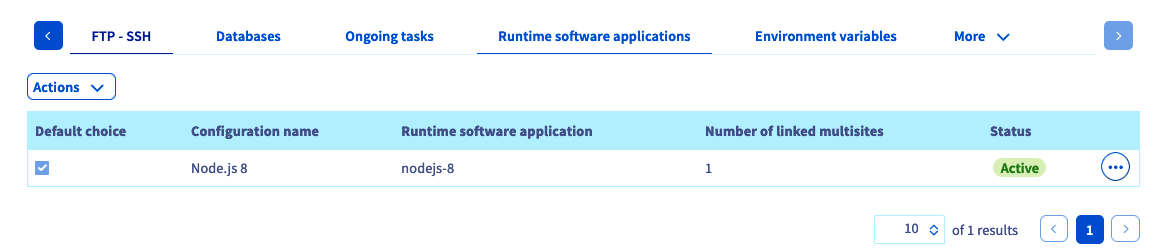
If it has not been enabled, add it as a new runtime environment (if possible with your solution) or modify the existing runtime environment.
- If you want to add a runtime environment, click
Actionsabove the table, thenAdd a runtime environment. - If you want to modify a runtime environment, click on the
...button to the right of the environment concerned, thenModify.
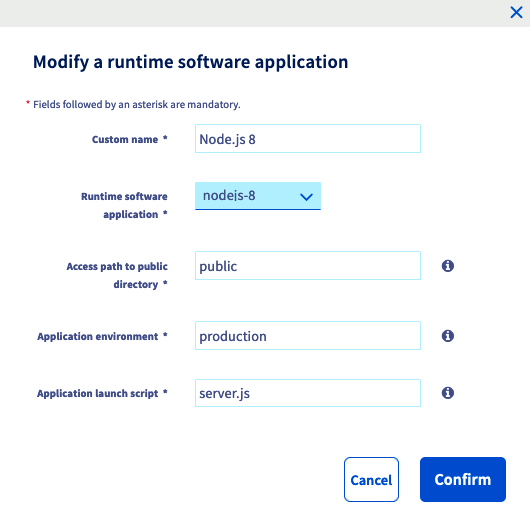
In the window that pops up, enter the information requested with the values shown in our example below, or adapt them to suit your own requirements.
Once you have entered this information, click Confirm. If you would like further information on managing runtime environments, please refer to our guide on Managing Cloud Web runtime software applications.
Step 2: Link Node.js to a multisite.
Now that Node.js has been enabled as a runtime environment, you will need to link it to one of your multisites. To do this, go to the Multisite tab. The table that opens will contain all of the domain names that have been added to your web hosting plan.
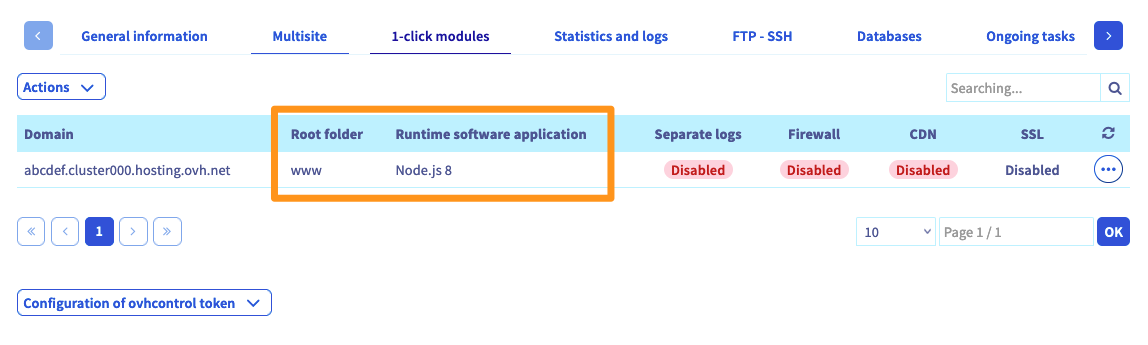
Two columns should stand out in the table below. Check that the Node.js runtime environment is correctly linked to the domain names concerned, and that the root file is correct. Use the information below if you need to. If it is correctly linked, go to step 3 - Create a MySQL database.
If this is not the case, add a new multisite or modify the existing one.
- If you want to add a multisite, click on
Add a domain or subdomainto the right of the table. - If you want to modify a multisite, click the
...button. to the right of the domain name concerned, then clickModify.
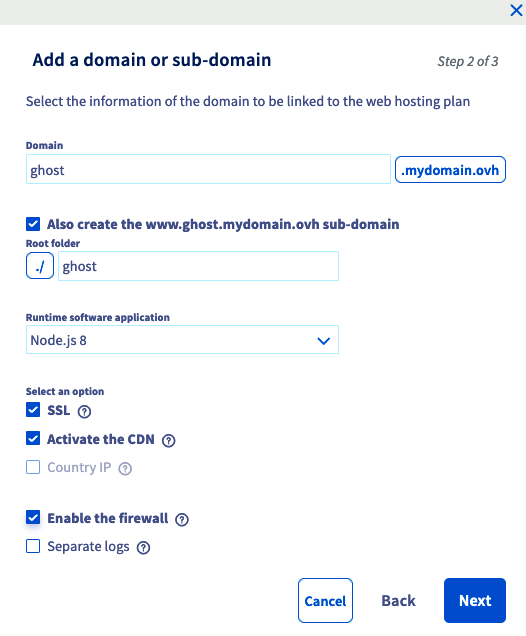
Enter the information requested in the pop-up window, and adapt the information to suit your own requirements. The table below shows the information used for this tutorial.
From the additional options, select the ones you would like to enable. Once you have entered the information, click Next, then finish the operation. This addition may take up to an hour. However, modifying the DNS configuration may require up to 24 hours to take full effect. If you would like further information on managing multisites, read our guide to Hosting multiple websites on your Web Hosting plan.
Step 3: Create a MySQL database.
Next, go to the 'Databases' tab. If this does not appear on the list, click on the three-bar button beforehand. The table displays all of the databases created on your web hosting plan. There are two ways of creating a new database:
-
If you have not created a database yet, click on the
Create a databasebutton. -
If you have already created a database, click on the
Actionsbutton, thenCreate a database.
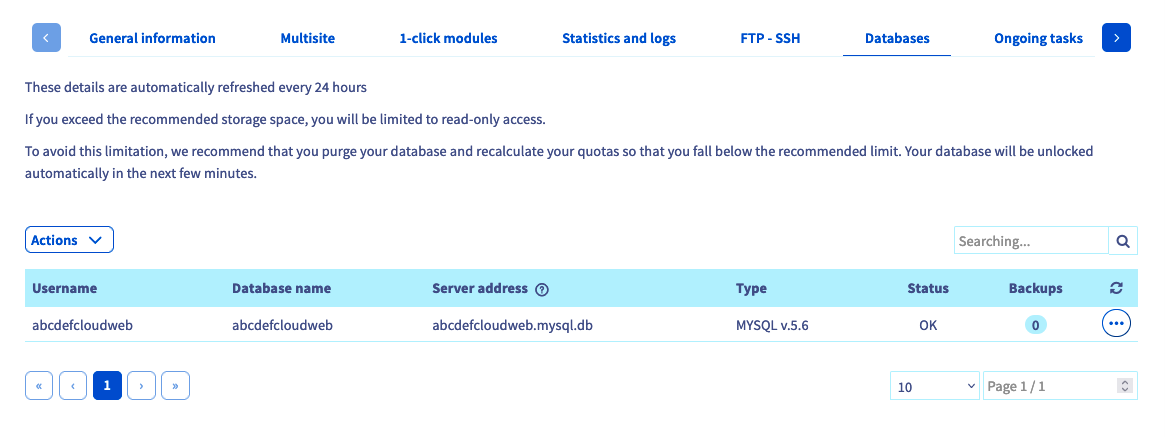
In the window that opens, Only MySQL, in version 5.6 is available.. Next, select "Stored in your Cloud Web instance", and click Next.
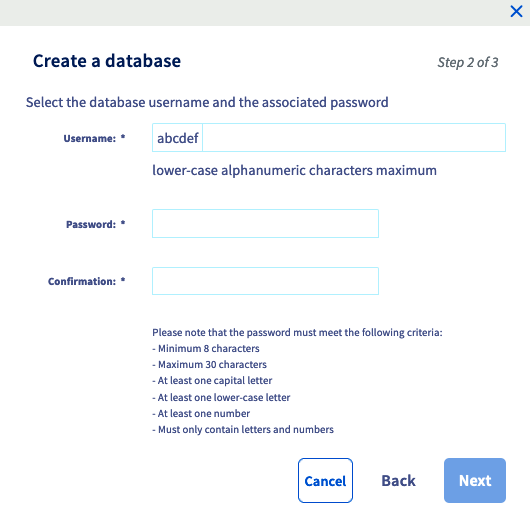
Then enter a custom username and password for the user. Once you have done so, click Next, then click Confirm. Wait a few moments for the process to finish.
Step 4: Create environment variables.
This step is optional if you do not want to create environment variables. However, we strongly recommend doing so.
For this tutorial, we will create environment variables and enter the information required for connecting to our MySQL database. This means that if the password changes, for example, we can simply modify the variable in the OVHcloud Control Panel, rather than having to modify the source code.
To do this, go to the Environment variables tab. The table will list the variables that have already been created. To add a new one, click on the Actions button below the table, then Add an environment variable.
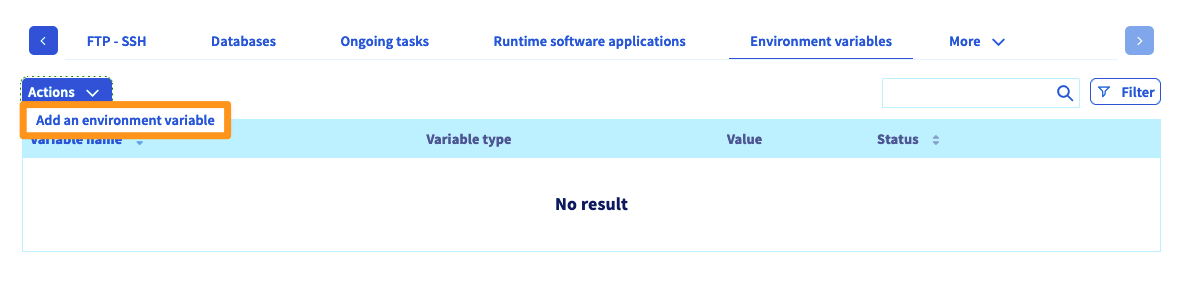
Enter the information requested in the pop-up window, adapting the information shown below to your own situation, then click Confirm to create the variable. Here is what we created for this tutorial:
Step 5: Access your Cloud Web hosting plan via SSH.
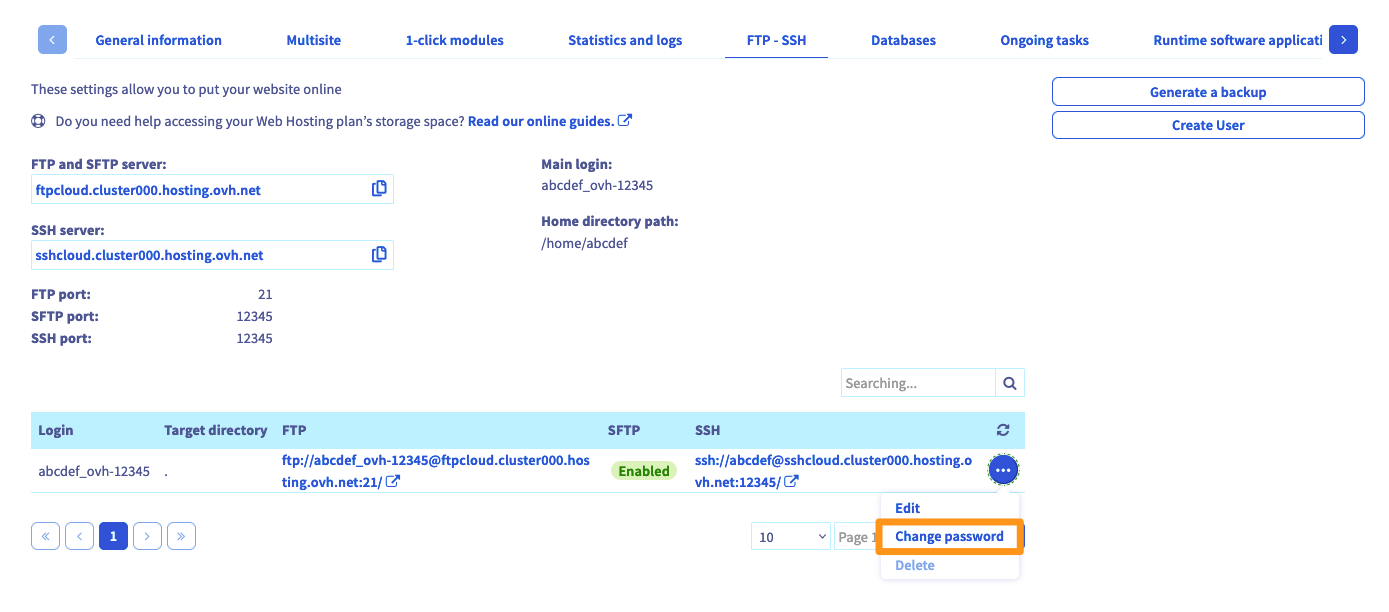
First of all, ensure that you have the information you need to connect. To do this, go to the FTP - SSH tab. If this does not appear on the list, click on the three-bar button beforehand. The information associated with your storage space will now appear. Gather the following information:
If you have forgotten your SSH user password, click on the ... button to the right of the user concerned in the table, then Change password.
Now, to connect via SSH, you need to use a terminal. This tool is installed by default on macOS or Linux. With a Windows environment, you will need to install a program like PuTTY, or add the ‘OpenSSH’ feature. Since this aspect will vary depending on which operating system you are using, we cannot provide any further details in this tutorial.
Here is an example of a command line you can use. You will need to replace "sshlogin", "sshserver" and "connectionport" with your own SSH login details. Once the command has been sent, you will be prompted to enter the SSH user password.
You can then check that the environment variables created in step 4 are present. For our tutorial, we see:
Step 6: Install Ghost.
Start by going to the root folder specified in step 2. In our tutorial, the root folder is named ‘ghost’.
Download the latest version of Ghost, and unzip its contents.
Ghost uses Yarn, an alternative to npm, as a manager for Node.js dependencies. Install Yarn via npm, and add these binaries in your ‘PATH’:
You can continue making changes to the ’PATH’ by adding the export into the ’~/.profile’ file:
Then install the Ghost dependencies using Yarn:
Stay in the ’~/ghost’ folder, and create a config.production.json file containing the Ghost configuration:
Then point the server.js file (defined in step 1) to the Ghost index.js file:
You have now finished installing and configuring Ghost. You now just need to restart the Node.js daemon, so it takes into account the changes you have made in the ’~/ghost’ file.
Step 7: Restart the Node.js daemon.
To restart the Node.js daemon, go back to the . Go to the Multisite tab, click on ... button to the right of the domain name concerned, then click Restart.
Once you have done this, your application will be accessible via the domain name you have selected in your multisite's configuration.
Step 8: Use HTTPS.
To enhance your website's security, you can set up a redirection from HTTP to HTTPS. To do this, stay in the ghost folder, and create an .htaccess file containing the following content:
Conclusion
Step by step, we have covered how to install a Node.js application on a Cloud Web hosting plan. You're now ready to get started using Ghost, and publish your first pieces of content!
Go further
Migrating your website and emails to OVHcloud
Publishing a website on your Web Hosting space
Setting up your website with 1-click modules
Hosting multiple websites on your Web Hosting plan
For specialised services (SEO, development, etc.), contact OVHcloud partners.
If you would like assistance using and configuring your OVHcloud solutions, please refer to our support offers.
Join our community of users.