
Web Hosting - Environment, PHP version, .ovhconfig
Find out how to modify a web hosting plan's runtime environment, PHP version, application firewall, engine, mode and .ovhconfig
Objective
The OVHcloud Web Hosting offers allow you to host your websites, provided they are compatible with the configuration of our shared infrastructure.
Editing the php.ini file is not available on Web Hosting plans. This is because the PHP configuration is global to the entire shared infrastructure. However, on our shared infrastructure, you can modify the following settings for your web hosting plan:
These configuration settings can be modified in two ways:
- In your
- In the FTP storage space of your OVHcloud web hosting plan using a file named ".ovhconfig"
.ovhconfig files are server configuration files and are automatically recognised as such by the shared hosting infrastructure. They are present natively and by default in the "FTP root" of your web hosting plan's FTP storage space. They contain the values of the elements mentioned above.
In short, changing your Web Hosting plan's configuration from the , or changing the values in the .ovhconfig file amounts to the same thing.
Summary
- 1 - Description of configuration settings available on OVHcloud web hosting plans
- 2 - Method 1: Modify the web hosting plan configuration in the OVHcloud Control Panel
- 3 - Method 2: Modify the web hosting plan configuration in the ".ovhconfig" file
- 4 - Advanced use of .ovhconfig files
Find out how to modify a web hosting plan's runtime environment, PHP version, application firewall, engine, mode and .ovhconfig file.
Requirements
- An OVHcloud web hosting plan, with the exception of a Cloud Web hosting plan
OVHcloud Control Panel Access
- Direct link:
- Navigation path:
Web Cloud>Hosting plans> Select your web hosting plan
Instructions
1 - Description of the configuration settings available on OVHcloud web hosting plans
Below is a technical description of each setting you can modify on OVHcloud web hosting plans.
Modifying at least one of these elements may affect the display or the proper functioning of your website. Please ensure that your website is compatible with the changes you want to make to your web hosting plan's configuration. Contact a specialist provider if you have any doubts or encounter any difficulties.
1.1 - Runtime environments
Runtime environments contain a set of programming languages. Depending on the chosen runtime environment, the languages are available in more or less advanced versions. The purpose of these environments is to allow you to correctly run the files that make up your website, in line with your technical needs.
OVHcloud web hosting plans offer 3 runtime environments: Legacy, Stable and Stable64. Below are the elements contained in our different runtime environments:
The Legacy environment can be useful for older websites that still use old PHP versions. However, we strongly recommend using the Stable64 environment, which has the latest updates. Please ensure that your website is compatible before you make any changes.
1.2 - PHP versions
PHP is a dynamic programming language used to build websites. For your website, depending on its age, the updates made, and certain variables required for it to work properly, you may need to change the PHP version it uses.
There are several versions of the PHP programming language. Version upgrades provide various patches and add or remove features. OVHcloud offers the latest major versions of PHP, a list of which can be found here.
Some PHP versions only work with certain runtime environments. Below are the PHP versions available on OVHcloud web hosting plans and compatible runtime environments:
Since some features may not be maintained with newer versions, please ensure that the new PHP version you want is compatible with your website before you start making any changes.
Although OVHcloud manages the installation of the latest PHP versions on its servers, you are responsible for ensuring that your website is always up-to-date and compatible with the latest PHP versions. There are two ways of doing this, depending on which website you are using:
Case 1: You are using a Content Management System (CMS) such as WordPress, Joomla!, PrestaShop or Drupal:
- Consult the official documentation created by the publisher of the CMS you are using.
- Take note of the information concerning the technical requirements for your CMS to work, as well as the steps needed to update it.
- If necessary, update your CMS by ensuring that the new version is compatible with OVHcloud web hostings.
Case 2: You are using a website based on a custom solution:
- Contact the webmaster who created the website.
- Use the official PHP documentation, which provides more information on version migrations.
- If necessary, update your website's code, ensuring that it remains compatible with OVHcloud web hostings.
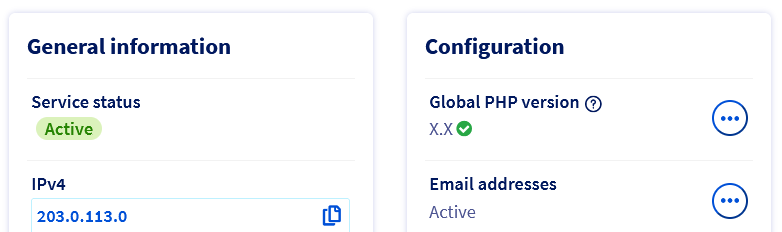
You can find out which PHP version is currently used by your web hosting plan in two ways.
Click on the 2 headings below to display the content.
In the OVHcloud Control Panel
Click on the tabs below to view each of the 2 steps.
Go to the page, then select the web hosting plan concerned.

Via a script
Create a .php script containing only the following code:
Put it online by placing it in your FTP storage space, then call it by accessing its full address/URL.
You can no longer modify the PHP version via a .htaccess file on the latest OVHcloud Web Hosting solutions.
The command to change the PHP version in the .htaccess file does not allow us to use recent PHP versions on our infrastructure.
You must use the .ovhconfig file.
1.3 - PHP runtime environments
PHP runtime software applications are programs that allow you to perform actions on the web server in a given way. Generally, this setting is modified to influence the speed at which requests generated by visitors to your website are executed.
On OVHcloud web hosting plans, we offer 2 PHP runtime environments: php (PHP-FPM) and phpcgi.
By choosing the php engine, you can enable or disable the PHP accelerator (PHP-FPM). This has been adapted to suit our infrastructure, with the aim of speeding up the execution speed of PHP scripts.
The phpcgi engine executes requests "in series", unlike the php (PHP-FPM) engine, which executes them "in parallel".
The PHP accelerator (PHP-FPM) is up to seven times faster than the phpcgi engine.
1.4 - Application firewall
A firewall is a security tool that filters incoming requests to your web hosting. On our web hosting plans, this configuration option can only be enabled or disabled. Changing the firewall rules is not possible.
Please refer to our guide "Activating the application firewall" for more details on this topic.
If you use payment modules, enabling the application firewall can sometimes cause communication disruptions between the payment module and the payment service provider. If this is the case, disable the option.
1.5 - Execution modes
The execution modes allow you to manage the cache behaviour of your website's static files (images, for example) as well as the processing of PHP errors (generally useful, for example when your website displays a blank page).
There are 2 modes that you can enable: Production and Development.
For PHP versions 7.1 and later, errors will appear on the website, regardless of the mode used.
Now that you know the different editable settings for your OVHcloud Web Hosting plan, learn about the two methods for changing these settings.
2 - Method 1: Modify the web hosting plan configuration via the OVHcloud Control Panel
As a reminder, changing at least one of these elements may affect the display or the proper functioning of your website. Please ensure that your website is compatible with the changes you want to make to your web hosting plan's configuration. If you have any doubts or encounter any difficulties, please contact a specialist provider.
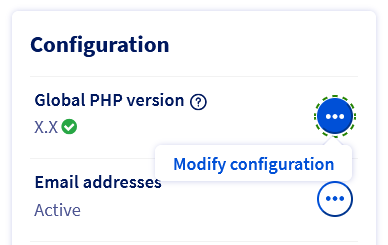
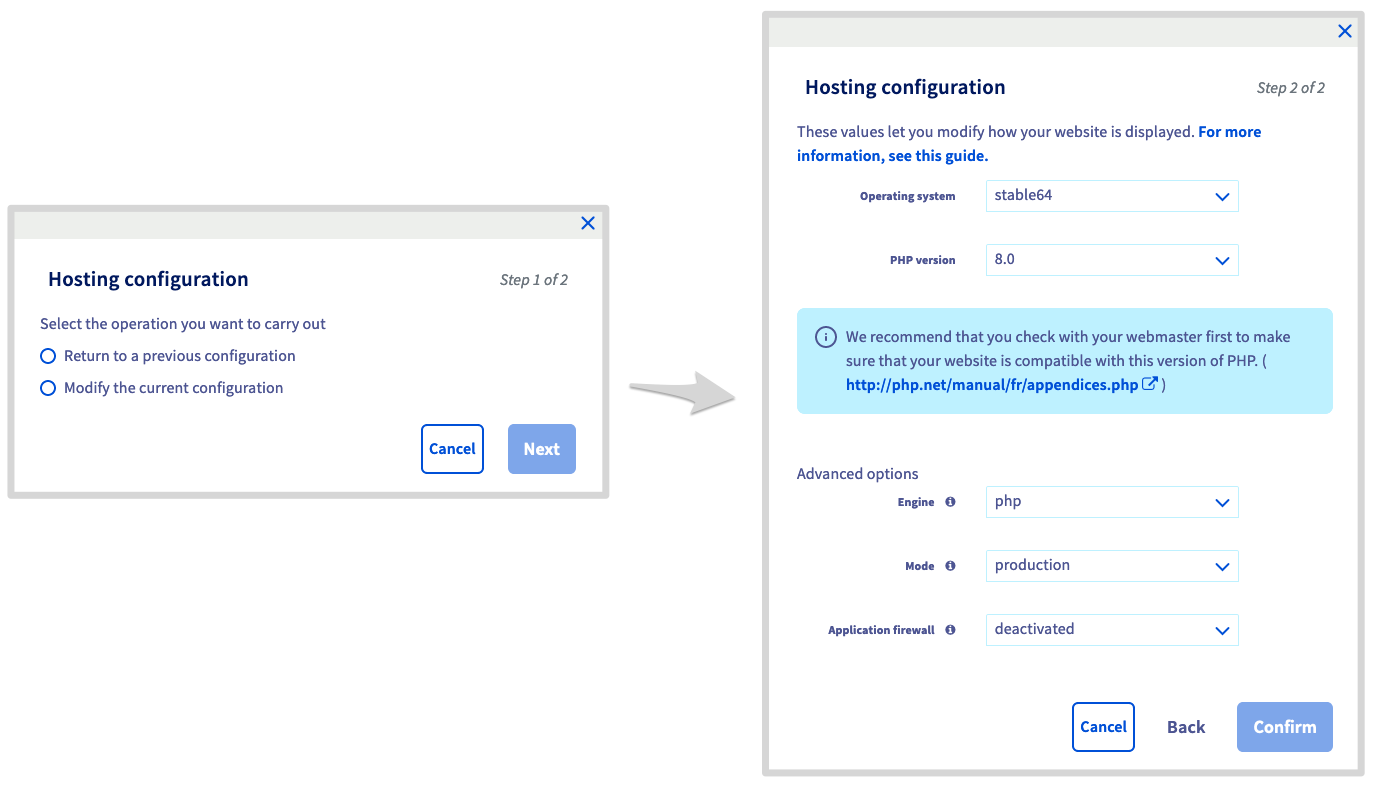
Click on the tabs below to view each of the 3 steps.
Go to the page, then select the web hosting plan concerned.
3 - Method 2: Modify the web hosting plan configuration with the ".ovhconfig" file
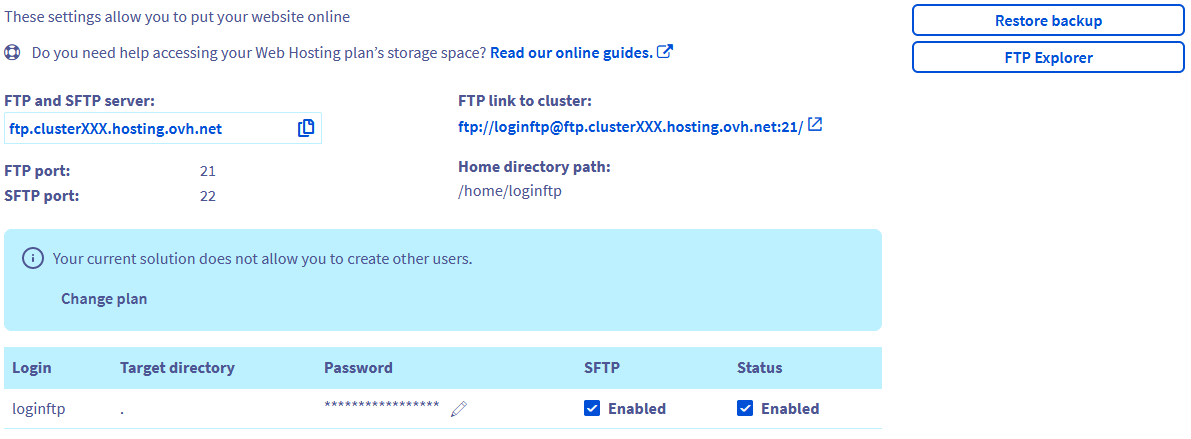
3.1 - Log in to your web hosting plan's FTP storage space
You will need your primary FTP username, its password, and the FTP server address.
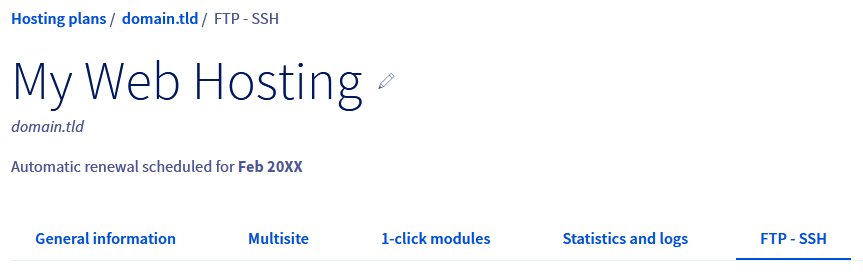
Click on the tabs below to view each of the 3 steps.
Go to the page, then select the web hosting plan concerned.
3.2 - Create or open the .ovhconfig file
Once you have logged in to your FTP storage space, you can view all of the files currently hosted on it. Inside the root directory of your hosting (which is indicated by a /) you should find the .ovhconfig file.
There are two ways of doing this:
- The .ovhconfig file is there: Download it to your device. Make a copy of it before editing it. This will allow you to restore the original file if necessary.
- The .ovhconfig file does not exist: Create a file on your own device and name it ".ovhconfig".
3.3 - Edit the contents of the ".ovhconfig" file
You can open and edit the .ovhconfig file with any common text editor. The content of your ".ovhconfig" file must have a code format as in the following example:
If you have created a new .ovhconfig file, copy the code above into your file, then continue reading this guide.
Customise the values of the variables depending on the configuration you want to use with your web hosting plan.
For detailed explanations of these settings, refer to the first part "Description of the configuration settings available on OVHcloud web hosting plans" of this guide.
Here is the detailed technical description of the .ovhconfig file:
3.4 - Upload the ".ovhconfig" file to the storage space
Once you have modified the .ovhconfig file, upload it to your FTP storage space. Connect to your FTP storage space and go to the root of your FTP storage space (which is indicated by a /). Upload the .ovhconfig file you have just edited to your FTP storage space. If the file already exists, replace it.
4 - Advanced use of .ovhconfig files
If you are using your web hosting to host multiple websites, there may be various reasons why you want to use a different PHP version for some of your websites.
Create a ".ovhconfig" file containing the desired PHP version for the relevant website or websites. Refer to the section "3.3 - Modify the contents of the ".ovhconfig" file" in this guide for assistance if needed. When you upload the ".ovhconfig" file to your FTP storage space, do so in the root folder where the files that make up the relevant website are located. Find the root folder of your website using our guide on how to configure a website on a web hosting if needed.
You cannot specify a second runtime environment, a second runtime mode and/or a second PHP runtime environment on the same web hosting plan. Only those entered in the .ovhconfig file located in the root folder of your FTP storage space will be taken into account.
Go further
Log in to your Web Hosting plan's storage space
For specialised services (SEO, development, etc.), contact OVHcloud partners.
If you would like assistance using and configuring your OVHcloud solutions, please refer to our support offers.
Join our community of users.