
Zimbra - Migrate an MX Plan email account
Migrate an MX Plan email account to an OVHcloud Zimbra account, then reassign its address to complete the switch
Objective
If you want to upgrade your MX Plan email solution to an OVHcloud Zimbra solution, you can use the OVH Mail Migrator tool to perform your migration.
Find out how to migrate an MX Plan email address to an OVHcloud Zimbra account.
Requirements
- You have an MX Plan email address (via the MX Plan solution, or included in an OVHcloud web hosting plan).
- You have an OVHcloud Zimbra email account.
- No redirection is set up on the MX Plan email address you want to migrate.
OVHcloud Control Panel Access
- Direct link: Zimbra Mail
- Navigation path:
Web Cloud>Zimbra Mail
Whatever migration method you use, we strongly recommend backing up your mailbox beforehand, as a precaution against any data loss. Our guide Manually migrate your email address explains step by step how to back up a mailbox (for example by exporting it to a PST file): make this backup before you start the migration.
Instructions
If your email account manages sensitive information, or if you encounter any issues during the migration, we recommend waiting for the automation tool to be set up in the OVHcloud Control Panel.
Migrating an MX Plan email account to a Zimbra email account is done in 2 stages. To avoid interrupting email reception on the original address, you must follow the process below:
- Transfer the contents of the MX Plan account to a Zimbra account
- Delete the original MX Plan account and reassign its address to the Zimbra account
In the example below, we are migrating the address contact@mydomain.ovh. To do this, we will create the Zimbra account under the name contact2@mydomain.ovh.
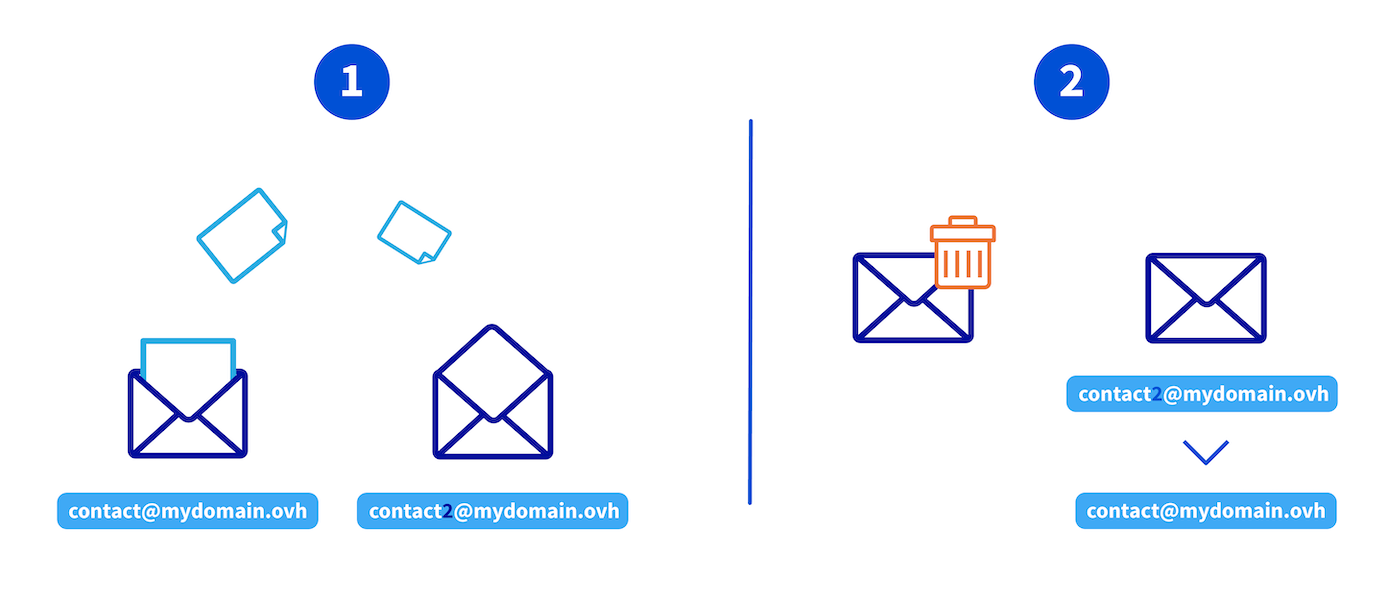
1 - Transfer the contents of the MX Plan account to a Zimbra account
1.1 - Creating a Zimbra email address
If you already have a Zimbra email address, go to Migrating emails with OVHcloud Mail Migrator.
First, create an email address with a temporary name. For example, you can create the address contact2@mydomain.ovh if you need to migrate the address contact@mydomain.ovh.
To create a Zimbra email address, please read the "Create an email account" section of our guide Getting started with the Zimbra solution.
1.2 - Migrating emails with OVHcloud Mail Migrator
Use the migration tool OVH Mail Migrator (OMM) to transfer the contents of the original MX Plan account to the new Zimbra destination account, using the example shown in the diagram above.
The migration with OMM is carried out in 3 steps: create a project, configure the migration, then track its progress. Click on each tab to display the corresponding instructions.
Create a migration project
Go to OVHcloud Mail Migrator and click New migration.
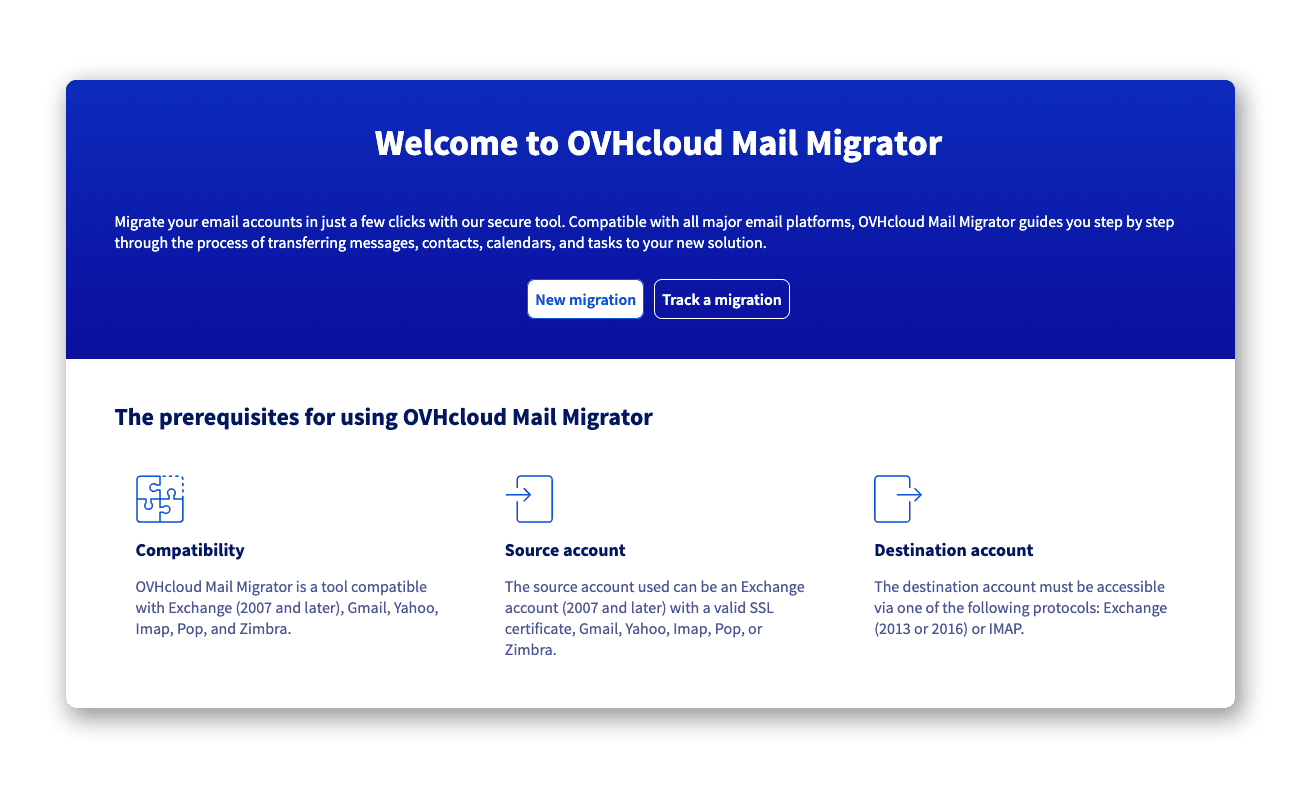
- Project contact email address: Enter an email address that will receive the login credentials and tracking notifications. Do not use an address that will be migrated in this project.
- Project password: Set a password (minimum 10 characters, with at least 1 special character, 1 number, 1 uppercase and 1 lowercase letter).
- Terms and conditions: Tick the
I agree to the terms and conditionsbox.
Click Create my project. You will receive a confirmation email containing the unique project identifier.
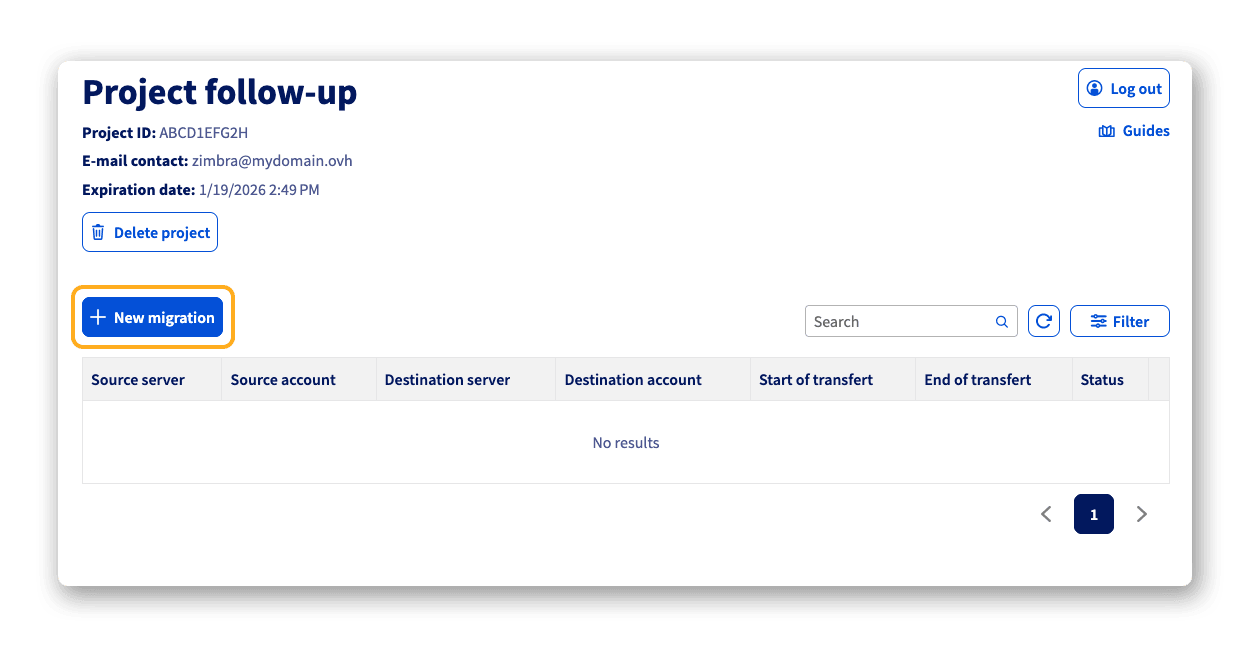
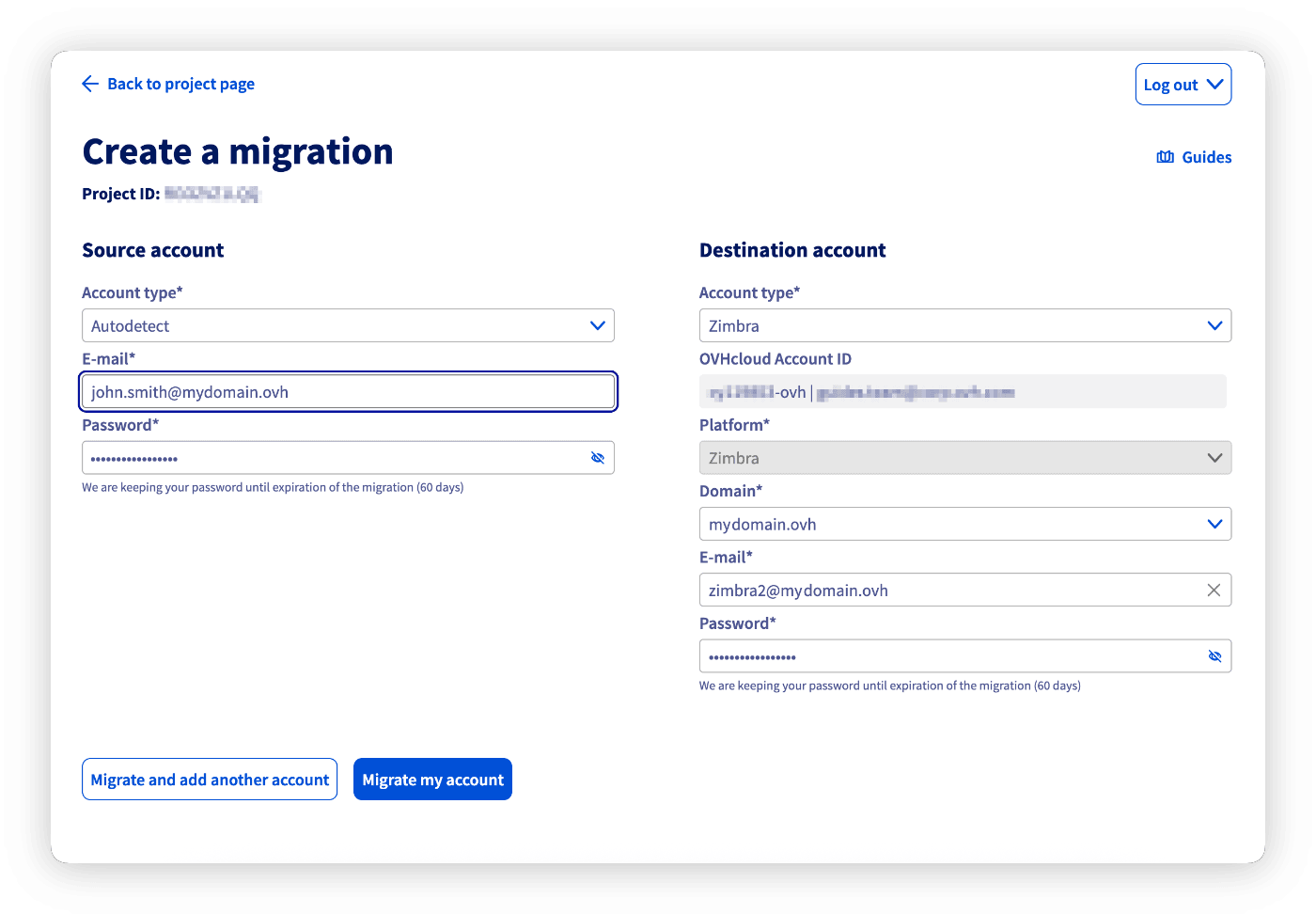
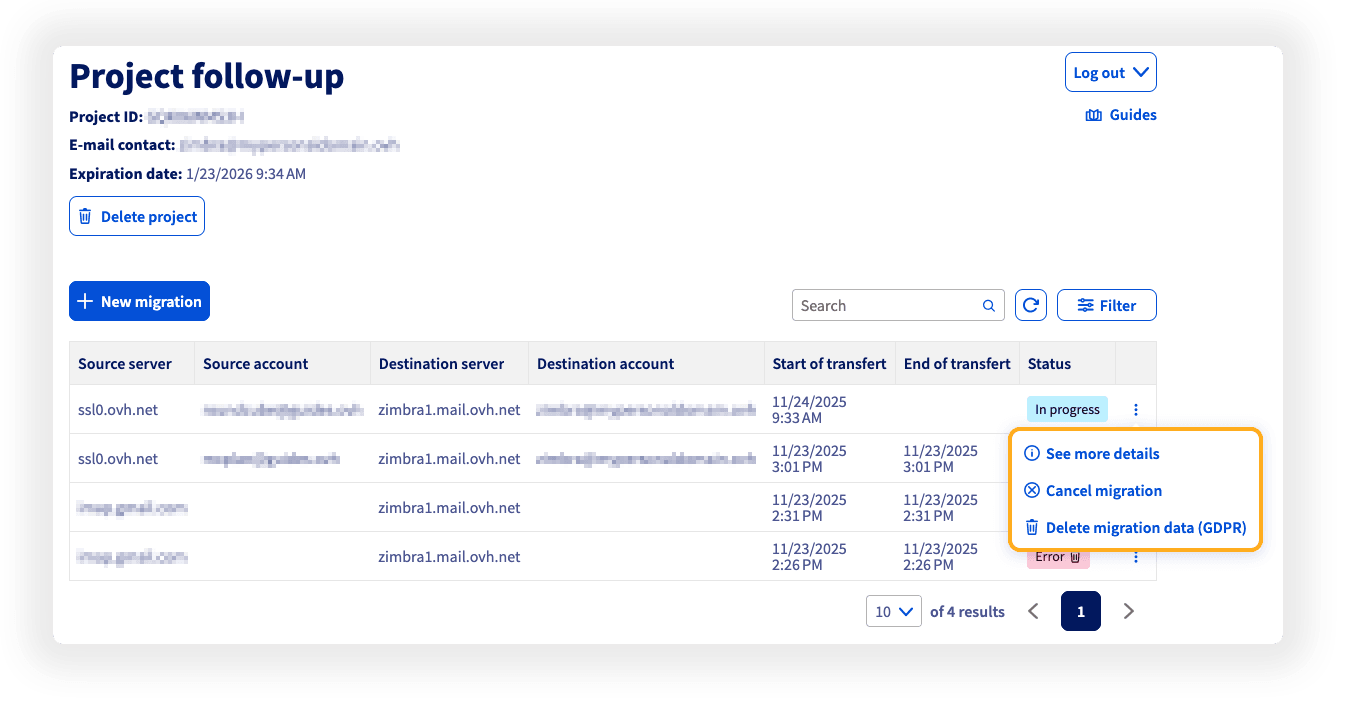
For more details on using OMM, please read our guide "Migrating email accounts via OVHcloud Mail Migrator".
The migration time varies depending on the volume of data, and can range from a few minutes to several hours. Once the migration is complete, check that all emails have been migrated.
1.3 - Source account email backup (optional)
Before deleting your MX Plan account, back up your emails to avoid any data loss.
Use the export options of your email client. In our guide "Migrating your email address manually", you can find the details for manually exporting an email address from an email client.
2 - Delete the original MX Plan account and reassign its address to the Zimbra account
Before deleting your original MX Plan account, log in to the OVHcloud webmail and check that all your items (emails, folders, contacts, calendars) have been migrated to the Zimbra account. Once the original account is deleted, any items that were not migrated will be permanently lost.
2.1 - Deletion of the original MX Plan email address
To delete the MX Plan email address (e.g. contact@mydomain.ovh), follow our guide "Delete an email account".
If you are migrating from an MX Plan account using Zimbra webmail, wait 5 minutes for the deletion to take effect before renaming the second email account.
2.2 - Rename the Zimbra email address
In your OVHcloud Control Panel, access your Zimbra service and rename the temporary Zimbra email address to the migrated MX Plan address. Using the example from step 2 of chapter 1.2 above, the temporary address contact2@mydomain.ovh will be renamed to contact@mydomain.ovh, which is the address in use.
Conclusion
Your email account is now migrated to Zimbra. To finalise the configuration, please read the guides below:
Go further
For specialised services (SEO, development, etc.), contact the OVHcloud partners.
If you would like assistance with using and configuring your OVHcloud solutions, we recommend referring to our range of support solutions.
Join our community of users.