
Migrating an infrastructure to a new vDC
Find out how to move your workload from an existing vDC to a new vDC in the same VMware infrastructure
This guide explains how to move virtual machines (VM) from a previous source virtual DataCenter (vDC) (PREMIER or SDDC) to a new destination vDC (VMware on OVHcloud).
The addition of a vDC of the latest generation and therefore the ability to move VMs to this new vDC is not yet available for all VMware infrastructures as upgrades and maintenance operations are in progress. We will notify you as soon as this option becomes available to you.
Objective
In 2023, OVHcloud has launched 4 new ranges:
- vSphere: OVHcloud Managed VMware vSphere is our most accessible solution for infrastructure migration, application, datacentre extension or disaster recovery plan needs (with Veeam or Zerto solutions available as an additional option).
- Hyperconverged Storage (vSAN): The Hyperconverged Storage solution meets your needs for ultra-powerful storage. Equipped with NVMe SSDs, our servers have been specially designed to accommodate even the most demanding applications. With VMware vSAN, you can manage your storage in a scalable way, just as you would in your own datacentre.
- Network Security Virtualization (NSX): The Network Security solution is based on VMware NSX (NSX-T) network and security virtualisation software. You can manage your security rules, operations and automation in a consistent way across your different cloud environments. NSX secures your software, whether it is hosted on virtual machines or in containers, and reduces the threat of ransomware thanks to micro-segmentation.
- Software-Defined Datacenter (NSX & vSAN): The Software-Defined Datacentre solution includes hyperconverged storage (vSAN) and network and security virtualisation (NSX-T) features. You get an optimal cloud environment for migrating and modernising your most critical applications.
You can now upgrade from commercial ranges prior to 2020 to the new ranges while keeping the same VMware infrastructure (pcc-123-123-123-123) using Storage Motion and vMotion.
There are two aspects involved in this process:
- The OVHcloud infrastructure itself which includes the customer's side of administrating an infrastructure.
- The VMware infrastructure, which includes the entire VMware ecosystem.
Requirements
- A PCC infrastructure (PREMIER or SDDC)
- Access to the (
Managed VMware vSpherein theHosted Private Cloudsection) - Access to the vSphere Control Panel
Instructions
If you want to be assisted by:
Step 1 Design your infrastructure
At the end of step 1, you should have a clear view of which 2023 commercial range you want to upgrade to, as well as which hosts and storage you want to use.
- Step 1.1: Choose between the different VMware on OVHcloud ranges
- Step 1.2: Select your hosts (compute)
- Step 1.3: Select your datastores (storage)
Step 1.1 Choose between the different VMware on OVHcloud ranges
As an Hosted Private Cloud VMware customer with host prior to 2020, you want to upgrade to VMware on OVHcloud.
Here are a few guidelines:
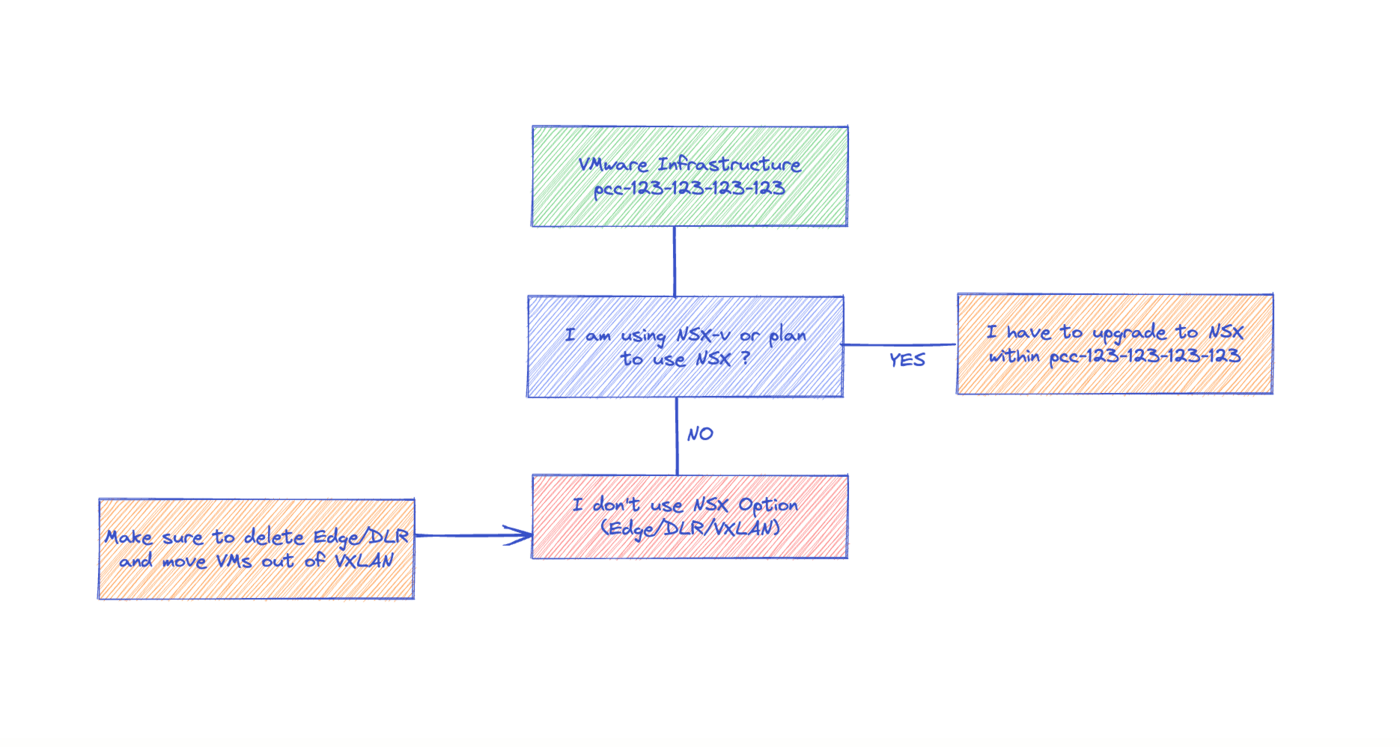
- If you are using or you plan to use NSX => you must upgrade to Network Security Virtualization or Software-Defined DataCenter
- If you need your VMware infrastructure to be certified (HDS, PCI-DSS, HIPA) => you must upgrade to VMware on OVHcloud
- If you don't have NSX on your current infrastructure and you don't have need for certifications => you can choose vSphere.
- Veeam Managed Backup and Zerto Disaster Recovery options are available.
Please be reminded that you do not create a new service, you will need to order your resources individually. Creating a new vDC will not deliver 2 hosts and 2 datastores.
Step 2 Build your new infrastructure
At the end of step 2, you should have within your existing VMware infrastructure (pcc-192-0-2-1) a new Destination vDC with new 2023 hosts, and global datastores.
- Step 2.1: Add a new destination vDC
- Step 2.2: Add new hosts and Datastores
- Step 2.3: Convert a datastore to a global datastore
Step 3 Prepare your destination vDC in the OVHcloud context
- Step 3.1: Check inherited characteristics (Certifications, KMS, access restrictions)
- Step 3.1.1: Certifications
- Step 3.1.2: Key Management Server (KMS)
- Step 3.1.3: Access restrictions
- Step 3.2: Assign users rights
- Step 3.3: Activate Veeam Managed Backup & Zerto Disaster Recovery Options
- Step 3.4: Check your network (vRack, Public IP)
- Step 3.4.1: vRack
- Step 3.4.2: Public network
Step 3.1 Check inherited characteristics (Certifications, KMS, access restrictions)
Step 3.1.1 Certifications
These options are enabled per vCenter and apply to any vDC. If an option has been enabled, they stay available on the destination vDC.
Step 3.1.2 Key Management Server (KMS)
This option is to enable and configure per vCenter and apply to any vDC. If virtual machines are protected by encryption, they stay protected on the destination vDC.
Step 3.1.3 Access restrictions
For connections to the VMware platform, you can choose to block access to vSphere by default. Please refer to our guide on the vCenter access policy for details.
If the access policy has been changed to "Restricted", the new vDC will inherit the access policy that the source vDC uses.
Step 4 Prepare your destination vDC in the VMware context
- Step 4.1: Reconfigure VMware High Availability (HA)
- Step 4.2: Reconfigure VMware Distributed Resource Scheduler (DRS)
- Step 4.3: Rebuild resource pools
- Step 4.4: Recreate Datastores Clusters (if relevant)
- Step 4.5: Enable vSAN (if relevant)
- Step 4.6: Recreate vSphere networking
- Step 4.7: Check inventory organisation (if relevant)
- Step 4.8: Migrate NSX-V to NSX (if applicable)
- Step 4.8.1: NSX Distributed Firewall
- Step 4.8.2: NSX Distributed Logical Router
- Step 4.8.3: NSX Edges
- Step 4.8.3.1: Create T1 and segments
- Step 4.8.3.2: DHCP
- Step 4.8.3.3: DNS
- Step 4.8.3.4: NAT Rules
- Step 4.8.3.5: NSX Load Balancing
- Step 4.8.3.6: T0 T1 Gateway Firewall
- Step 4.8.3.7: VPN
- Step 4.8.3.8: Reconfiguration of the Initial IP Block
- Step 4.9: Extend Zerto Disaster Recovery Protection (if relevant)
- Step 4.9.1: VPG as Source
- Step 4.9.2: VPG as Destination
Step 4.1 Reconfigure VMware High Availability (HA)
Setting up a new vDC involves reconfiguring VMware High Availability (HA), including boot order and priority. Please consult our guide about VMware HA configuration.
Here is a checklist of aspect to take into account:
- Host monitoring settings
- VM monitoring settings
- Admission control
- Advanced HA options
- VM Overrides
Automation tips: Powercli cmdlet “Get-Cluster” returns information on HA and DRS configuration settings that can be applied to the destination cluster with “Set-Cluster” cmdlet.
Step 5 Migrate your workload
- Step 5.1: Storage Motion
- Step 5.2: vMotion
Step 5.1 Storage Motion
You now have old datastores in the previous vDC (not compatible with the new ranges) and global datastores (either previous compatbile ones or new ones). You can use Storage Motion to move a virtual machine and its disk files from one datastore to another while the virtual machine is running.
Step 6 Finalize your migration
- Step 6.1: Reconfigure Veeam Managed Backup (if relevant)
- Step 6.2: Reconfigure Zerto Disaster Recovery (if relevant)
- Step 6.3: Recreate Affinity rules
- Step 6.4: Reconfigure the Private Gateway (if relevant)
- Step 6.5: Put hosts in maintenance mode
- Step 6.6: Remove old datastores
- Step 6.7: Remove old hosts
- Step 6.8: Remove vDC
Step 6.1 Reconfigure Veeam Managed Backup (if relevant)
If OVHcloud provided Veeam is currently in use to backup VMs on the source vDC, it will be necessary to use the OVHcloud API to re-check the backup jobs after the VMs have been migrated to the new vDC.
Here is how to proceed:
{datacenterId} is the old vDC id, you can get it with the following API call:
1. Enable the Veeam Managed Backup option on the new vDC from the OVHcloud Control Panel.
2. Migrate the VM(s) from source vDC to destination vDC.
3. Run the OVHcloud API to re-check the backup date:
This API call is to be executed on the old vDC (source vDC).
Warning! Between 7:00 pm and 8:00 am, the robot does not execute. It waits until 8:00 am to work. This period is defined in the operation of the robot.
4. If you have migrated only part of the virtual machines whose backups are enabled, you can repeat steps 2 and 3 in order to transfer their backup jobs to the new vDC.
Before you continue, you can check visually, in the graphic Backup Management plug-in on the new vDC, that the backup jobs are present and active. You can then disable Veeam Backup on the old vDC. You can do this via the following API call:
Warning, this last call will remove the Veeam option from the vDC. This will result in the destruction of all backup jobs / retention points that would still be present on the old vDC.
Do not hesitate to first use the API call “checkBackupJobs” (mentioned in step 3 above) several times to ensure you have backups on the new vDC.
If you have any doubts, contact OVHcloud support to monitor backup jobs.
Step 7 - How to recreate an advanced NSXv architecture on NSX
You can find all the information on setting up an advanced NSX-v architecture on NSX by watching this video.
Recreate an advanced NSX-v architecture on NSX from OVHcloud on Vimeo.
FAQ
Below is a list of frequently asked questions about vDC migration.
What are the impacts when sharing my datastores between my vDCs?
There is no impact on your production, billing or ZFS snapshots. However, it is not currently possible to unshare a datastore. We'll change that later.
Will the VMs (with public IPs) be accessible from the outside if they are in the new vDC when the PFSENSEs are in the old vDC?
Yes, the VM network is at the level of the VMware infrastructure and therefore on the 2 vDC.
Is it possible to set up a PFSENSE in the old vDC and another in the new vDC?
Yes, it is even necessary to have 2 different PFSENSEs to avoid IP conflicts.
Are the VXLANs available on both vDCs?
VXLANs are only available on Premier, not Essentials.
We do not use NSX. The migration procedure specifies that the source/destination vDS must have the same version. On the source, our only vDS is in 6.0.0, so I guess we have to update it. The documentation/video/interface indicate that we can do it ourselves without any downtime if it's vRack. I thought it was vRack but we can't update (the menu is grayed out). Does that mean it's vxlan? How do I tell the difference between vRack and vLAN?
If it is grayed out, it is probably the public DVS (vmnetwork) /vxlan. The vrack DVS is a second DVS with the word "vrack" at the end. Please open a support ticket so that we can confirm this with you and perform the DVS upgrade if required.
How do I know if my network adapters are VLAN or VxLAN and compatible with Essentials? In vSphere, I see for example and without further details: vxw-dvs-74-virtualwire-20-sid-...
All that is %-virtual-% is vxlan.
If I have several VMs that pass through the same EDGE NSX, will I need to migrate all of the VMs and the EDGE at the same time, otherwise I will no longer have an internet connection on some VMs?
Yes, you will need to move the EDGE with a redeployment before moving the VMs. Depending on the case, with or without wide area networks, the two actions can be separated.
Can we create a DRS pool for global datastores? I think I have already tried unsuccessfully between 2 vDC 2014 / 2016.
There are limitations for global datastores. We recommend only using them to migrate between the two vDCs, then having "standard" datastores on the new vDC and making the datastores global at the end of the migration.
We have an SDDC 2016 with 6 x 6 TB SSD Acceleraded (ordered in 2021) with "convert to global" available in the OVHcloud Control Panel. Can we convert them to global and keep them as they are in the new vDC (to avoid the vMotion storage phase)? Memo: the 6 DS are in a storage cluster.
Yes, if the VMs point to these DS, there will be no storage motion steps.
What are the limitations/differences in migration depending on the range you have chosen (Essentials or Premier)?
There are no differences between upgrading to Essentials or Premier. The only difference is in the steps linked to the NSX component. These steps are required for an upgrade to Premier and are not relevant for an upgrade to Essentials.
How long will it take to migrate (depending on the number of VMs)?
The speeds recorded for the Storage Motion step are between 0.5 and 1TB per hour. For vMotion, this depends heavily on the size of the VM, on average less than a minute; it can take up to 3 minutes for VMs of several TB.
Which Microsoft licenses are available in SPLA mode?
Windows licenses (standard and datacentre) and SQL Server (standard and web) are available on 2020 solutions in SPLA mode.
I need to upgrade 2 VMware infrastructure, which are currently used as part of a DRP zerto with data replication. Do I need to upgrade my secondary or primary infrastructure first?
There is no obligation, we recommend you to upgrade the secondary infrastructure first to control the process before you upgrade the primary infrastructure.
Will the historical cap on hourly resources still be deployed?
No, the hourly billing limit is disabled on the 2020 offers (Premier & Essentials). All older ranges will continue to work with the hourly billing limit in place.
Will the price of previous offers change?
No, there are no price changes planned for the old solutions.
In which language are OVHcloud Professional Services available?
OVHcloud Professional Services are available in English and French.
Can OVHcloud Professional Services recreate my NSX user accounts & configurations for me?
Our Professional Services do not carry out any operations on the customer's infrastructure. We are here to help, guide and advise you. In this scenario, we will direct our customer to a partner who will be able to execute the operations in the customer infrastructure.
What is the duration of the credits in the Pack of Technical Advice Services?
The pack is valid for 3 months from the order date.
How do I know how many hours of Credits have been used and are still outstanding?
Your OVHcloud sales representative or technical referrer is able to provide you with this information.
What happens if the consulting session takes less time than expected?
A session is scheduled and counted in 1-hour blocks. For example, a session scheduled for 2 hours and 1.5 hours would be billed for 2 hours. A session scheduled for 3 hours but only 1.5 hours would be charged at 2 hours.
Go further
For training or technical assistance implementing our solutions, contact your sales representative or visit our Professional Services page to request a quote and have your project analysed by our experts.
Join our community of users.