
What to do if you get a "Your connection is not private" error?
How to react to a security error message on your website
Objective
Several error messages may appear if your website is inaccessible. The examples below indicate that your Web Hosting plan does not contain any SSL certificate (if your website does not display one of the anomalies described in this guide, please refer to the "Go further" section):
| Browser | Error message concerned |
|---|---|
| Chrome: "Your connection is not private" | 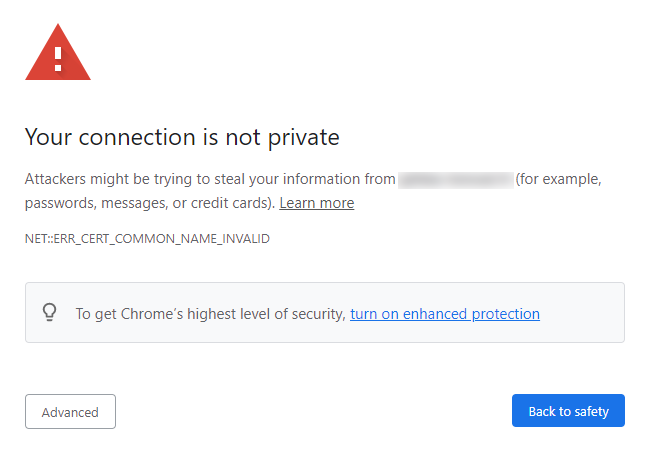 |
| Firefox: "Warning: Potential Security Risk Ahead" | 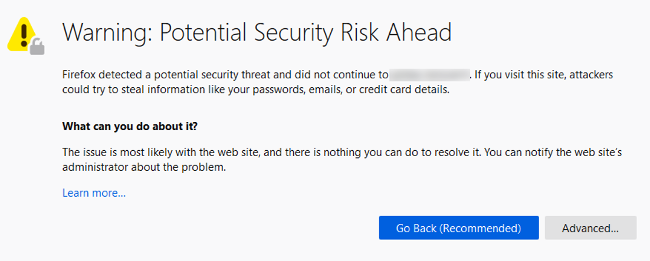 |
| Edge: "Your connection isn't private" | 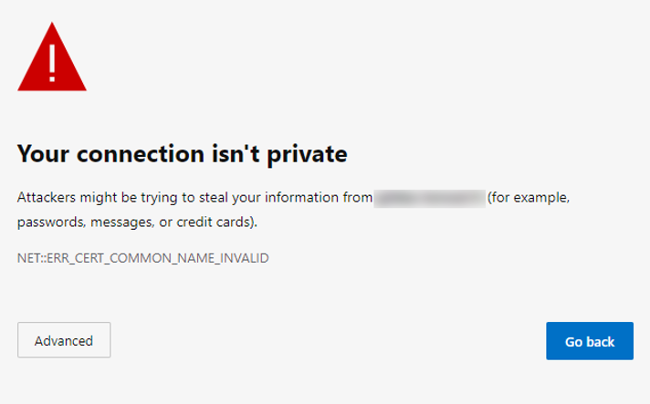 |
| Safari: "This Connection is Not Private" | 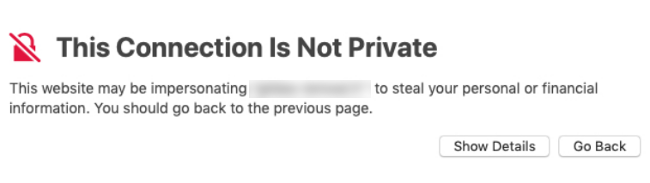 |
Find out how to solve SSL-related error messages on your website.
Information regarding OVHcloud service administration and how to find appropriate assistance
When using OVHcloud guides, please be aware of the following conditions:
- User instructions aim to provide as many details as possible but cannot cover individual use cases. You might need to adapt the pertinent actions to your requirements.
- The OVHcloud ecosystem is built for flexibility and freedom of choice. Customers are therefore responsible for the secure and proper configuration of their services. To prevent data loss, we strongly recommend to apply backup strategies to all your important data.
- Our guides and tutorials may reference third-party software or services in combination with OVHcloud solutions. The technical support provided by OVHcloud does not include the configuration of systems or products outside of our responsibility. This includes but is not limited to:
- Operating systems and user interfaces (Windows, Debian, Plesk, etc.).
- Any other third-party software (FTP clients, email software, etc.).
- Services offered by other providers (DNS, APIs, user interfaces, etc.).
To receive the appropriate assistance for any issues you might experience, follow these guidelines:
- You seek personalized advice or you would like to discuss a topic that is not covered in detail by our documentation?
Join the OVHcloud Community to search for your topic and reach out to other users. - You need to report an incident regarding your OVHcloud service or you are experiencing difficulties in the OVHcloud Control Panel?
Create a support request in our Help Centre. - You require professional assistance for your project or you need help with tasks outside our support scope?
Visit our partner portal to search for experts who are familiar with OVHcloud solutions. - You are looking for more detailed information regarding our support levels and Professional Services?
Please visit our web pages for OVHcloud support levels and OVHcloud Professional Services.
You can participate in improving our documentation:
- You would like to share feedback to improve a guide page or you want to report insufficient information on a specific page?
Use the "Was this page helpful?" buttons at the bottom of the page to let us know. - You would like to propose a specific documentation update?
Use the "Edit this page" function, available at the bottom of the page and in the sidebar.
Requirements
- Administrative rights to manage your domain name's DNS servers and DNS zone
OVHcloud Control Panel Access
- Direct link:
- Navigation path:
Web Cloud>Hosting plans> Select your web hosting plan
Instructions
To solve this issue, you will need to:
- Determine the hosting plan to which your domain name is linked, in order to intervene on the correct server.
- Create, activate or renew an SSL certificate for your domain name on the concerned hosting plan.
1 - Check the hosting plan attached to your domain name
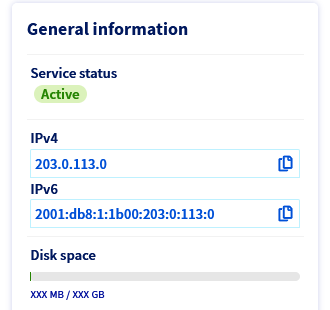
Check the hosting IP address
The error messages mentioned above do not necessarily mean that your website is hosted on one of our Web Cloud offers. For this reason, you will need to check the IP address of the server your domain name is attached to.
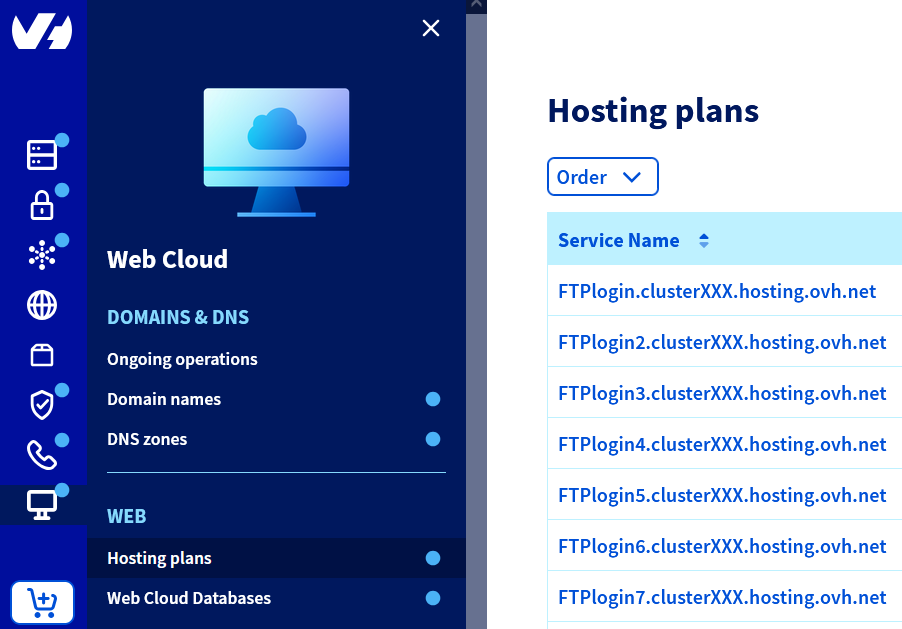
To find the IP address of your OVHcloud hosting plan, click on the tabs below to view each of the 2 steps.
Go to the page, then select the web hosting plan concerned.
Check the IP address in the DNS zone
You now need to check that the IP address listed in the DNS zone corresponds to the one of your OVHcloud Web Hosting plan.
Click on the tabs below to view each of the 2 steps.
Go to the page, select the domain name concerned, then open the DNS zone tab.

Perform the necessary actions
Click on the scenario that matches your situation to view the content.
The IP address corresponds to that of your shared hosting plan
The IP address listed in the DNS zone corresponds to your Web Hosting plan's IP address. Proceed to part 2.
The IP address does not concern any of the hosting plans within your account but appears in the Web Cloud server list
The IP address listed in the zone does not concern any of the Web Hosting plans within your , but appears in the list of our Web Cloud servers.
Check that you do not have a hosting plan with this IP address within one of your other , if you have several of them. If necessary, contact your webmaster or the OVHcloud partners for further information.
The IP address is not your hosting plan's one, nor does it appear in the Web Cloud server list
The IP address entered in the zone is not your hosting plan's one, nor does it appear on the list of our Web Cloud servers.
Contact your webmaster or the OVHcloud partners for further information.
Your domain uses other OVHcloud DNS servers (ns?.ovh.net / dns?.ovh.net)
Above the DNS zone displayed in your OVHcloud Control Panel, a message indicates that your domain name uses other DNS servers. These appear as "ns ? .ovh.net" or "dns ? .ovh.net" (replace "?" with the relevant DNS server number):
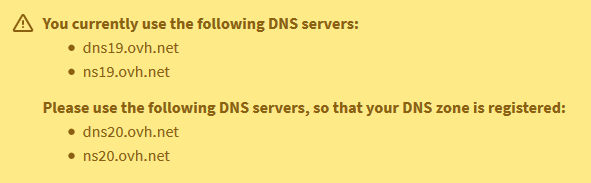
You must modify your domain's DNS servers to match the NS records of the DNS zone. To perform this operation, follow the instructions of this guide.
Your domain uses external (non-OVHcloud) DNS servers
Above the DNS zone displayed in your OVHcloud Control Panel, a message indicates that your domain uses other DNS servers and these do not appear as "ns ? .ovh.net" or "dns ? .ovh.net":
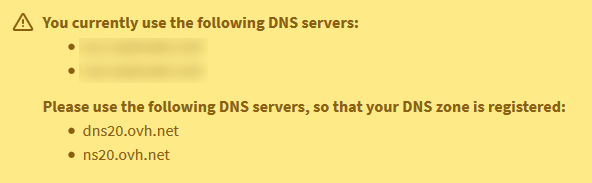
Contact your webmaster or the OVHcloud partners for further information.
Your domain name does not appear in your OVHcloud Control Panel
Your domain name does not appear on the page of your OVHcloud Control Panel.
This means that your domain name is not managed from your .
Check if it is managed from one of your other , if you have created more than one of them.
You can also check the registrar of your domain name and its actual DNS servers with our WHOIS tool.
If necessary, contact your webmaster or the OVHcloud partners about this.
2 - Check your Web Hosting plan's SSL certificate
Click on the tabs below to view each of the 2 steps.
Go to the page, then select the web hosting plan concerned.
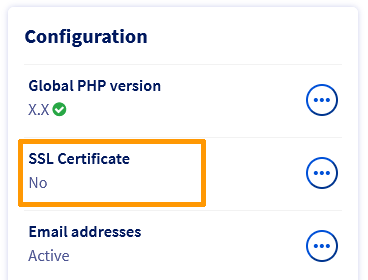
Scenario 1: Your Web Hosting plan does not contain any SSL certificate
Activate an SSL certificate on your Web Hosting plan by following the instructions in this guide.
Scenario 2: The SSL certificate on your Web Hosting plan does not work
If you have generated a Let's Encrypt SSL certificate, enable the SSL option on your hosting by following the instructions in this guide.
If you have imported an SSL certificate from another provider and it does not work, contact the appropriate support team.
If you have ordered an SSL certificate from our partner SECTIGO, check if you have received an email offering to renew it.
If necessary, contact the SECTIGO support team for more information.
To check all the emails sent by OVHcloud, go to the page.
Go further
Managing SSL certificates on a Web Hosting plan
Activating HTTPS on your website with an SSL certificate
Resolving a "Site not installed" error
Fixing the 500 Internal Server Error
Resolving the most common 1-click module errors
For specialised services (SEO, development, etc.), contact the OVHcloud partners.
If you would like assistance using and configuring your OVHcloud solutions, please refer to our support offers.
Join our community of users.