
Migrate from Gen 2 to Gen 3 for Public Cloud Databases
Learn how to upgrade your OVHcloud Public Cloud Database from Gen 2 to Gen 3 and take advantage of improved performance and features
Objective
OVHcloud Public Cloud Databases offer different generations to meet varying needs for performance, scalability, and features. This guide is specifically designed to walk you through the migration of your existing database service from Gen 2 to Gen 3. You'll discover the detailed steps to perform this upgrade, taking advantage of improved performance, enhanced features, and better reliability for your critical applications.
Requirements
- A Public Cloud project in your OVHcloud account
- An existing Gen 2 database service deployed
- Access to the (optional)
Why migrate to Gen 3?
Upgrading your database service from Gen 2 to Gen 3 brings significant improvements in performance, scalability, and reliability. Gen 3 databases are designed with enhanced architectures and optimised resource management, allowing your critical applications to run more efficiently and with better fault tolerance.
OVHcloud Control Panel Access
- Direct link:
- Navigation path:
Public Cloud> Select your project >Databases
Instructions
OVHcloud Public Cloud Databases exist in several generations that reflect the evolution of their underlying infrastructure.
- Gen 2 flavors are named DB2-X for MongoDB and DB1-X for other database engines. They are based on Compute Instance General Purpose B2 and Discovery D2 families.
- Gen 3 flavors follow the same naming convention as Compute Instance General Purpose B3 (b3-X), on which they are built.
Gen 3 provides improved performance, scalability, and reliability compared to Gen 2.
Migrate a database service from Gen 2 to Gen 3
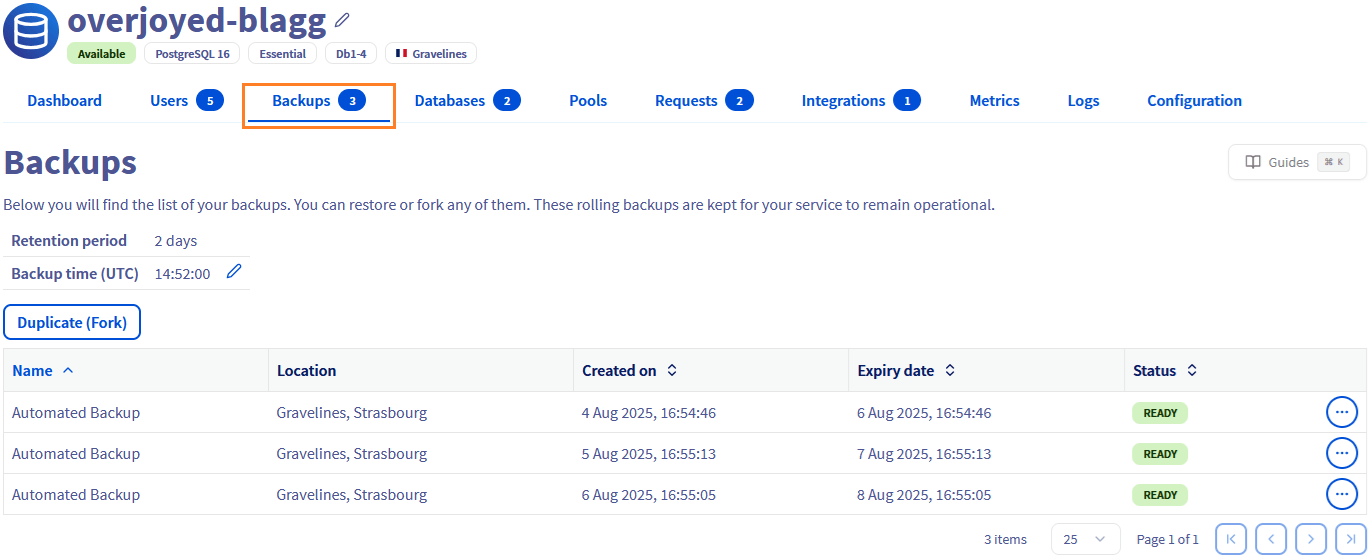
Select your database service then click the Backups tab.
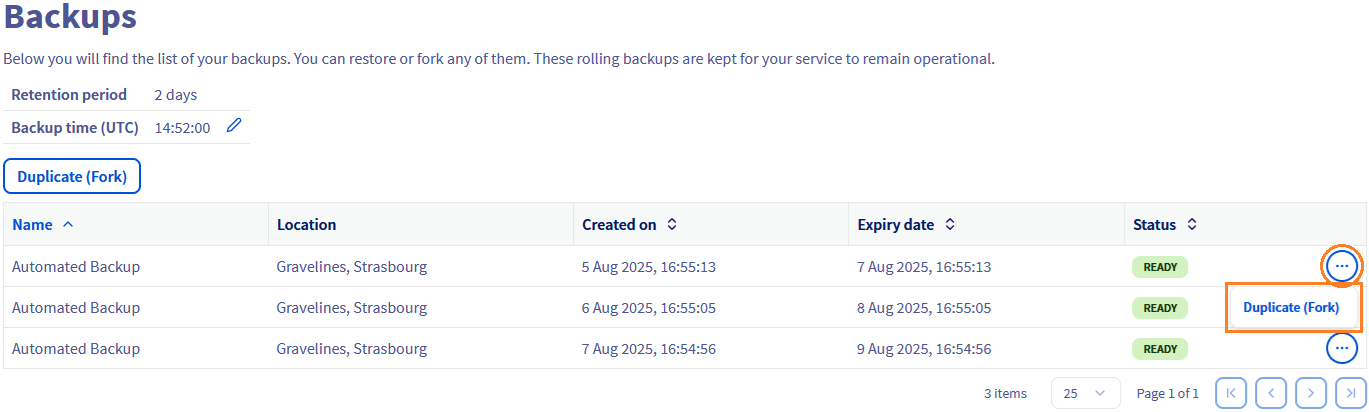
Choose the backup from which you wish to fork, click the ... button then the Duplicate (fork) button.
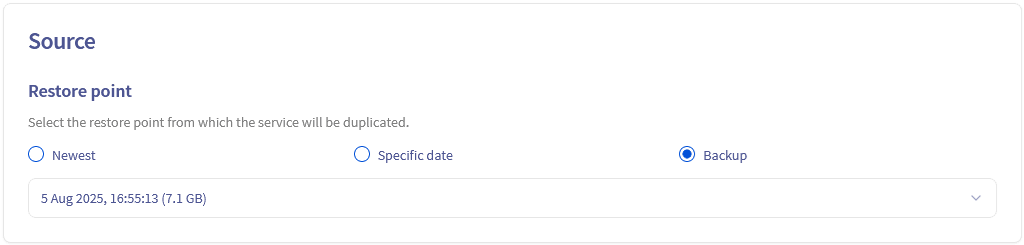
The page that appears allows you to configure your service and choose the destination region.
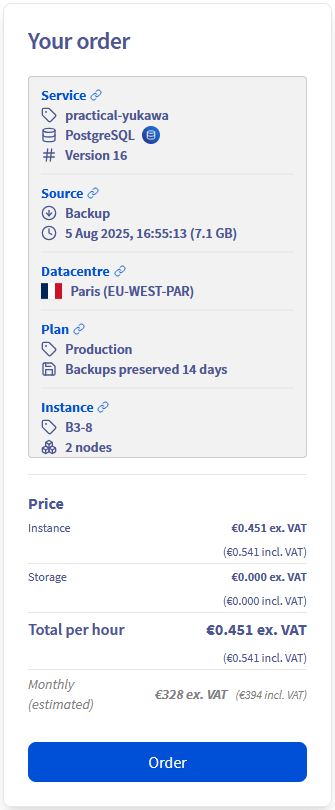
Select the Restore point named Backup.
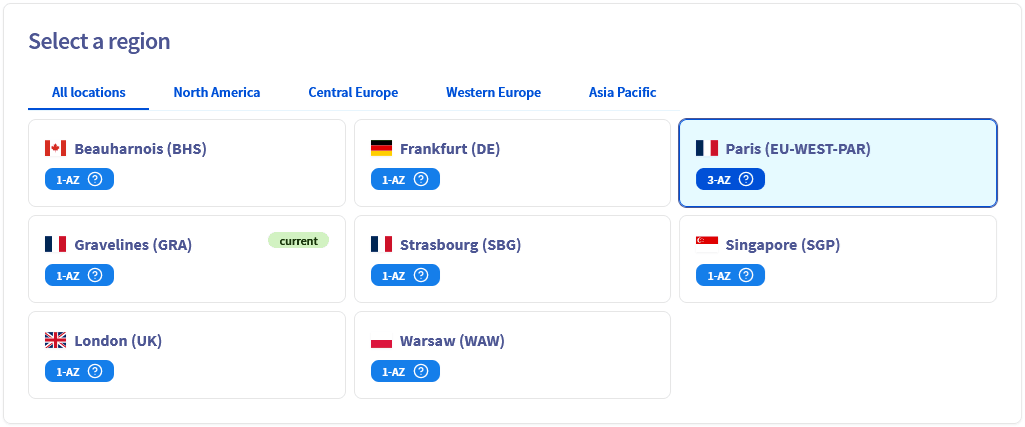
Select a region.
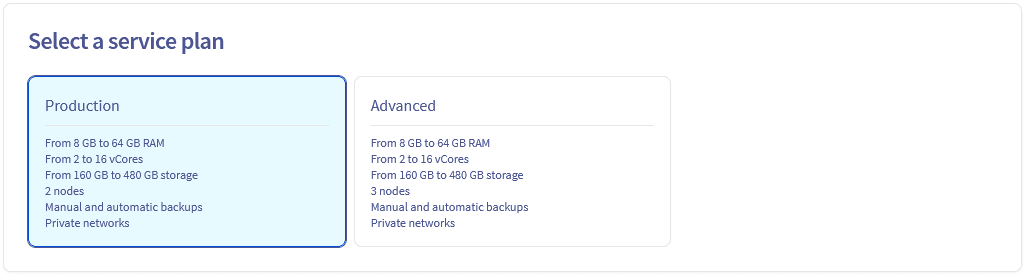
Select a service plan.
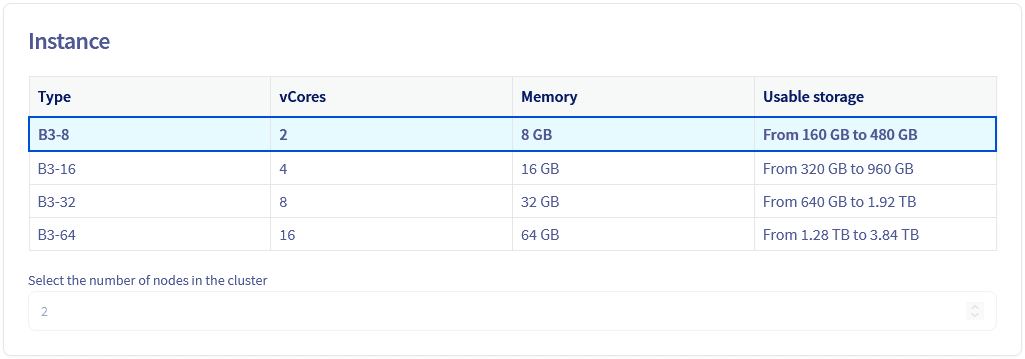
Select the instance that will host the service.
Plan mapping and considerations when migrating to Gen 3:
- Business (Gen 2) -> Production (Gen 3)
- Enterprise (Gen 2) -> Advanced (Gen 3)
- Essential (Gen 2) -> No direct Gen 3 equivalent. Essential plans used a single node, whereas all Gen 3 plans have a minimum of 2 nodes.
Migrating from an Essential plan will require selecting a different plan in Gen 3, which increases the cost due to the additional node. Even for Business and Enterprise plans, Gen 3 nodes provide higher redundancy and performance (2–3 nodes depending on the plan).
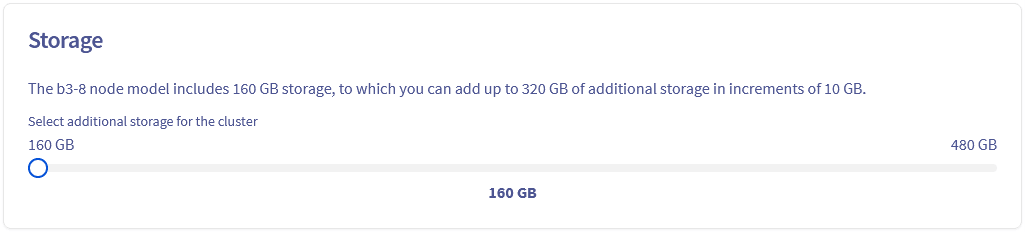
Select the storage capacity of the service.
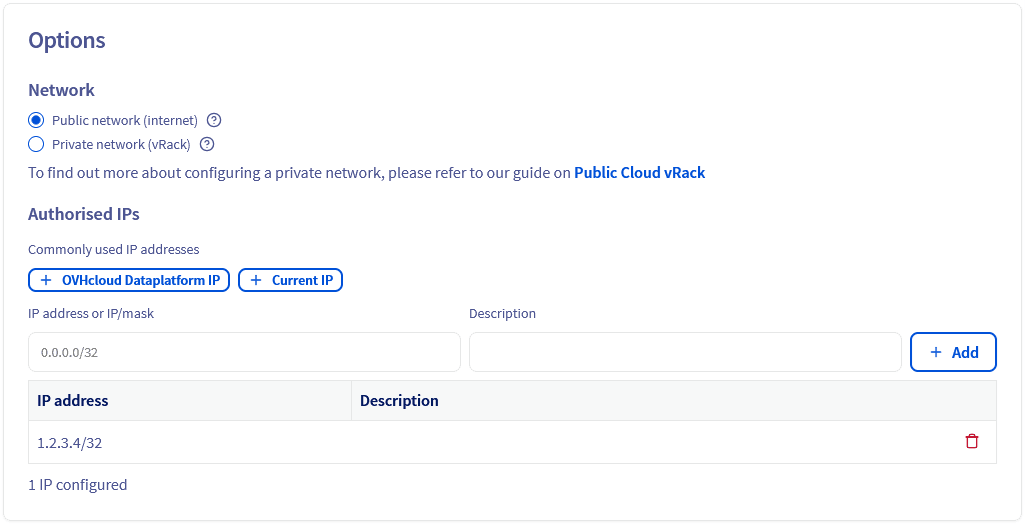
If needed, you can edit the connectivity settings, then verify the IP addresses to whitelist (the list is pre-filled by default with the origin service's configuration).
When you have completed your configuration, review your order then click on the Order button.
Validate the deployment
After your new Gen 3 database service has been successfully provisioned, it's crucial to validate its deployment and ensure your applications can connect to it.
- Test the connection to your new service:
- Use a database client (e.g., psql for PostgreSQL, mysql for MySQL) or a simple script to verify that you can connect to the new Gen 3 service endpoint using its credentials.
- Confirm that your data has been successfully restored from the backup and is accessible.
- Configure your application to use the new service:
- Update your application's configuration files or environment variables to point to the new Gen 3 database service connection string (host, port, username, password).
- Restart your application to apply the changes.
- Thoroughly test your application's functionality to ensure it operates correctly with the new database endpoint.
Clean up
Once you've fully validated that your application is working correctly with the new Gen 3 database service, and you're confident all data has been transferred and is accessible, you can proceed with deleting the old Gen 2 service.
This step is crucial to avoid unnecessary costs and maintain a clean infrastructure.
Follow these instructions to delete the old 1-AZ service:
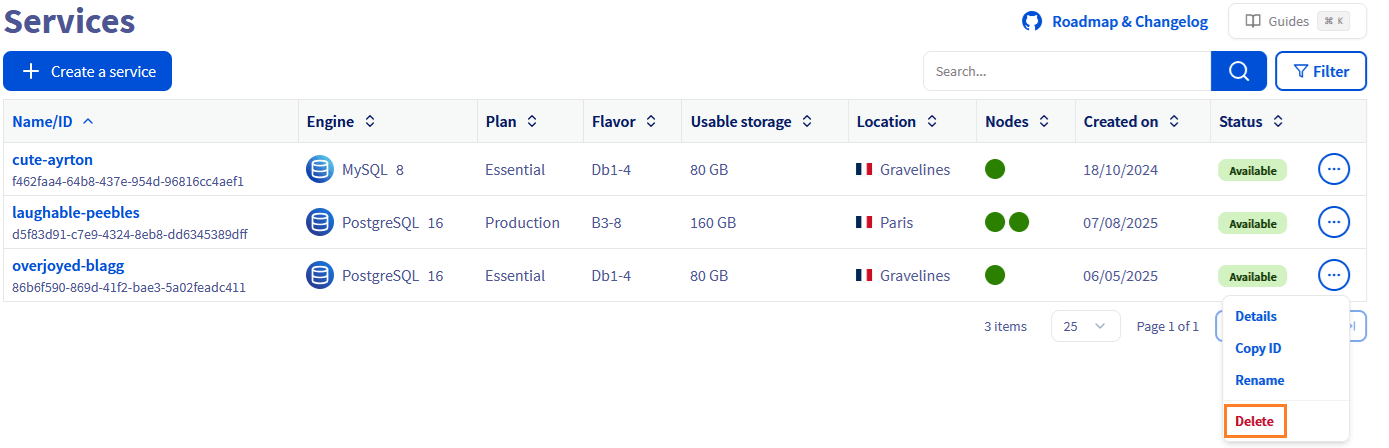
Navigate to your list of database services, click the ... button on the service line then click the Delete button to permanently delete the service.
We want your feedback!
We would love to help answer questions and appreciate any feedback you may have.
For training or technical assistance implementing our solutions, contact your sales representative or visit our Professional Services page to request a quote and have your project analysed by our experts.
Are you on Discord? Connect to our channel at https://discord.gg/ovhcloud and interact directly with the team that builds our databases service!