
How to use the Game Panel File Manager
Browse, edit, upload, download, and organise your game server files directly from the OVHcloud Game Panel File Manager.
Objective
The File Manager lets you browse, edit, upload, download, and organise your server files directly from the OVHcloud Game Panel.
This guide explains how to use the Game Panel File Manager.
Requirements
- A VPS or a dedicated server in your OVHcloud account with the Game Panel feature enabled.
- A game server deployed on the Game Panel.
- Access to the Game Panel. Refer to Log in to the Game Panel.
Instructions
Accessing the File Manager
- Open your server
Settings. - Navigate to the
File Managertab.
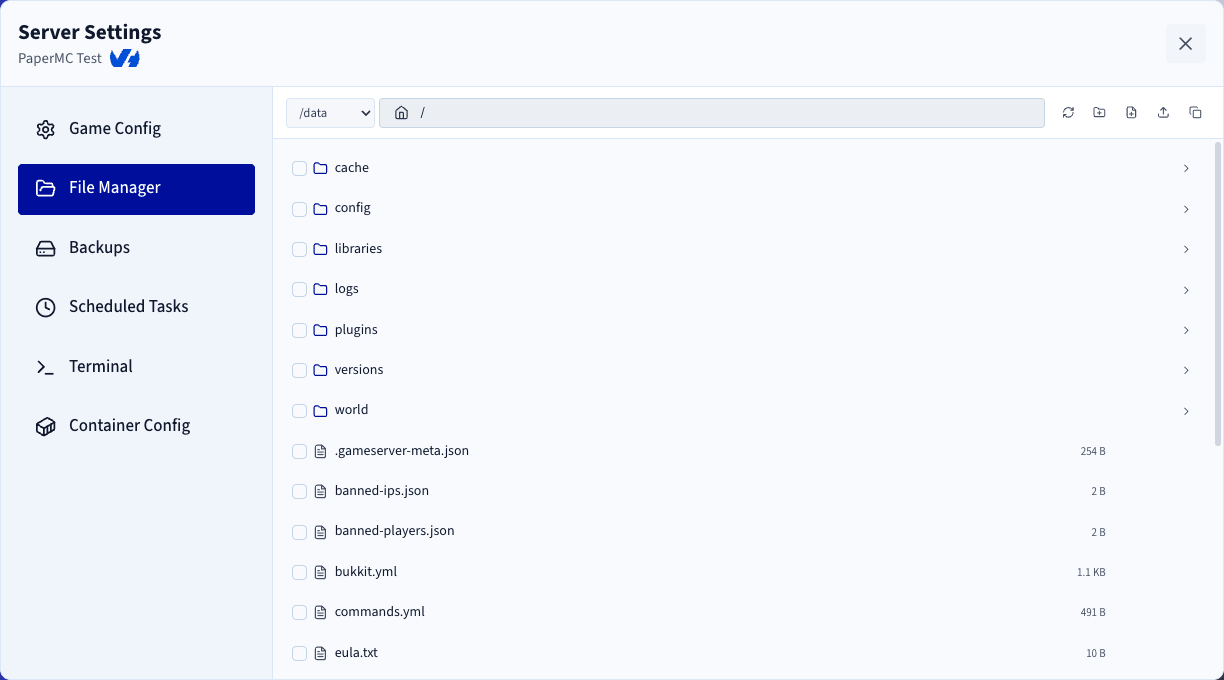
Once opened, you see the list of files and folders available on your server.
Selecting a storage volume
If your server has multiple storage volumes configured, you can select the desired volume using the dropdown menu located in the top-left corner of the File Manager.
File Manager toolbar
At the top of the File Manager, you find:
- The current path.
- A
Refreshbutton to reload the current directory. - A
Create Folderbutton. - A
Create Filebutton. - An
Uploadbutton for files and folders. - A
Copy Pathbutton to copy the current directory path to your clipboard.

Browsing files and folders
Opening a folder
Double-click a folder to navigate into it.
Editing a file
Double-click a file to open it in the built-in text editor.
Files larger than 2 MB cannot be edited online. In this case, you must download the file, edit it locally on your computer, then upload the modified version back to the server.
File and folder actions
When you hover over a file or folder, additional actions become available:
- Download
- Rename
- Delete

Renaming or deleting files while the server is running may cause unexpected behaviour. Whenever possible, stop the server before performing these operations.
When downloading a folder, it is automatically compressed into a .zip archive to speed up the download process.
Drag and drop support
The File Manager supports drag-and-drop operations.
Moving files and folders
You can drag and drop files or folders to:
- Move them into another folder.
- Move them to the parent directory by dropping them onto the
..entry, which represents the parent folder.
Uploading from your computer
You can also drag files and folders directly from your computer into the File Manager. They are automatically uploaded to the currently opened directory. For larger uploads, a progress bar appears for each file so you can monitor the upload status.
Permissions
Access to the File Manager can be restricted for specific users. To configure File Manager permissions, refer to Manage users on the Game Panel.
Go further
Join our community of users.