
Edit Minecraft server configuration on the Game Panel
Edit your Minecraft server settings on the Game Panel including game mode, difficulty, and advanced server.properties options.
Objective
The Game Panel exposes the Minecraft server configuration directly in the UI. Basic options such as game mode and difficulty are available through a graphical form, and advanced settings let you edit server.properties directly for full control.
This guide explains how to edit Minecraft server configuration on the Game Panel.
Requirements
- A VPS or a dedicated server in your OVHcloud account with the Game Panel feature enabled.
- A Minecraft server deployed on the Game Panel. Refer to Deploy a Minecraft server on the Game Panel.
Instructions
Step 1 — Open the server settings
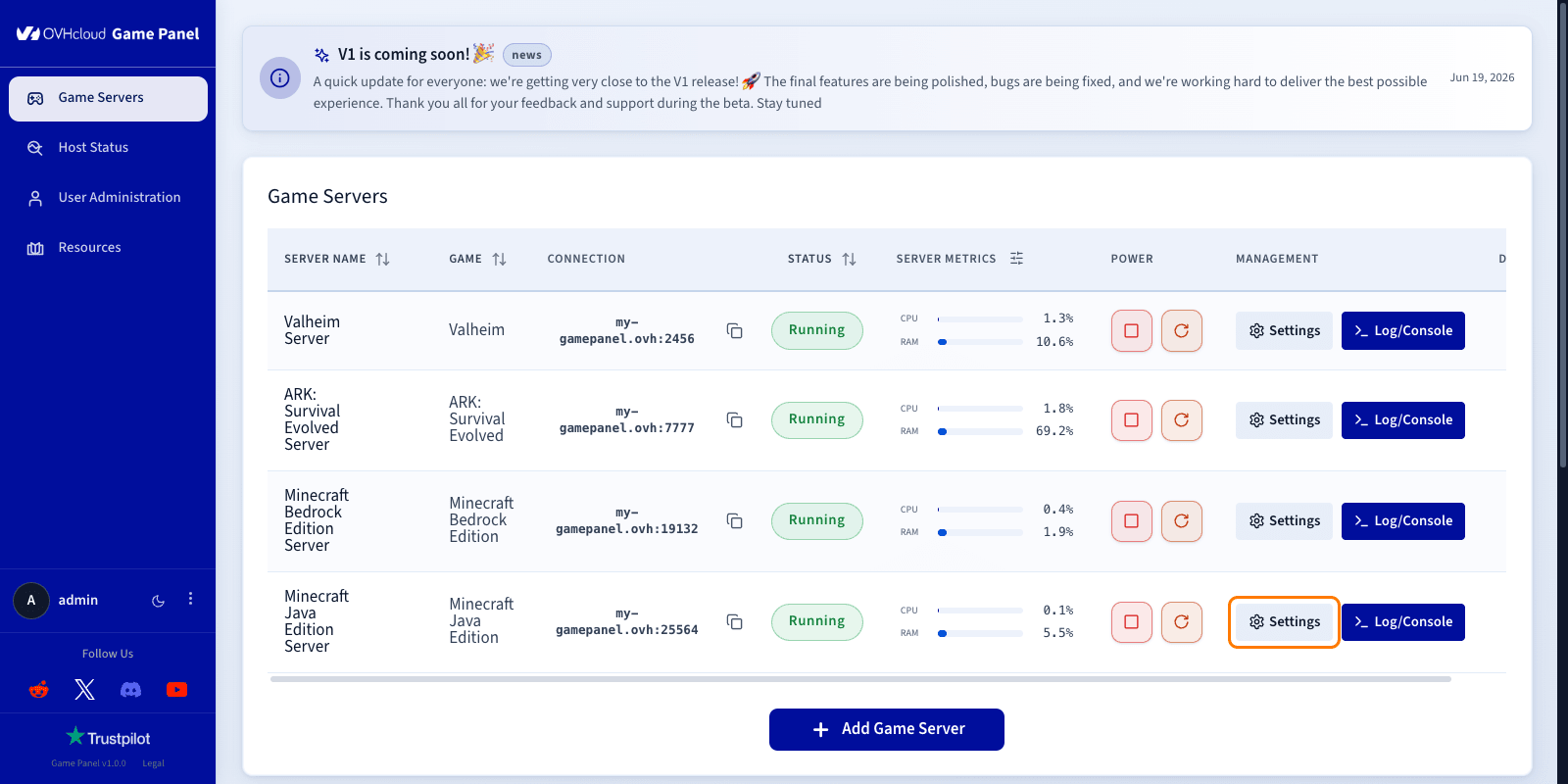
From the main Game Panel page, locate the Minecraft server you want to configure. In the Management column, click Settings.
Step 2 — Open the Game Config tab
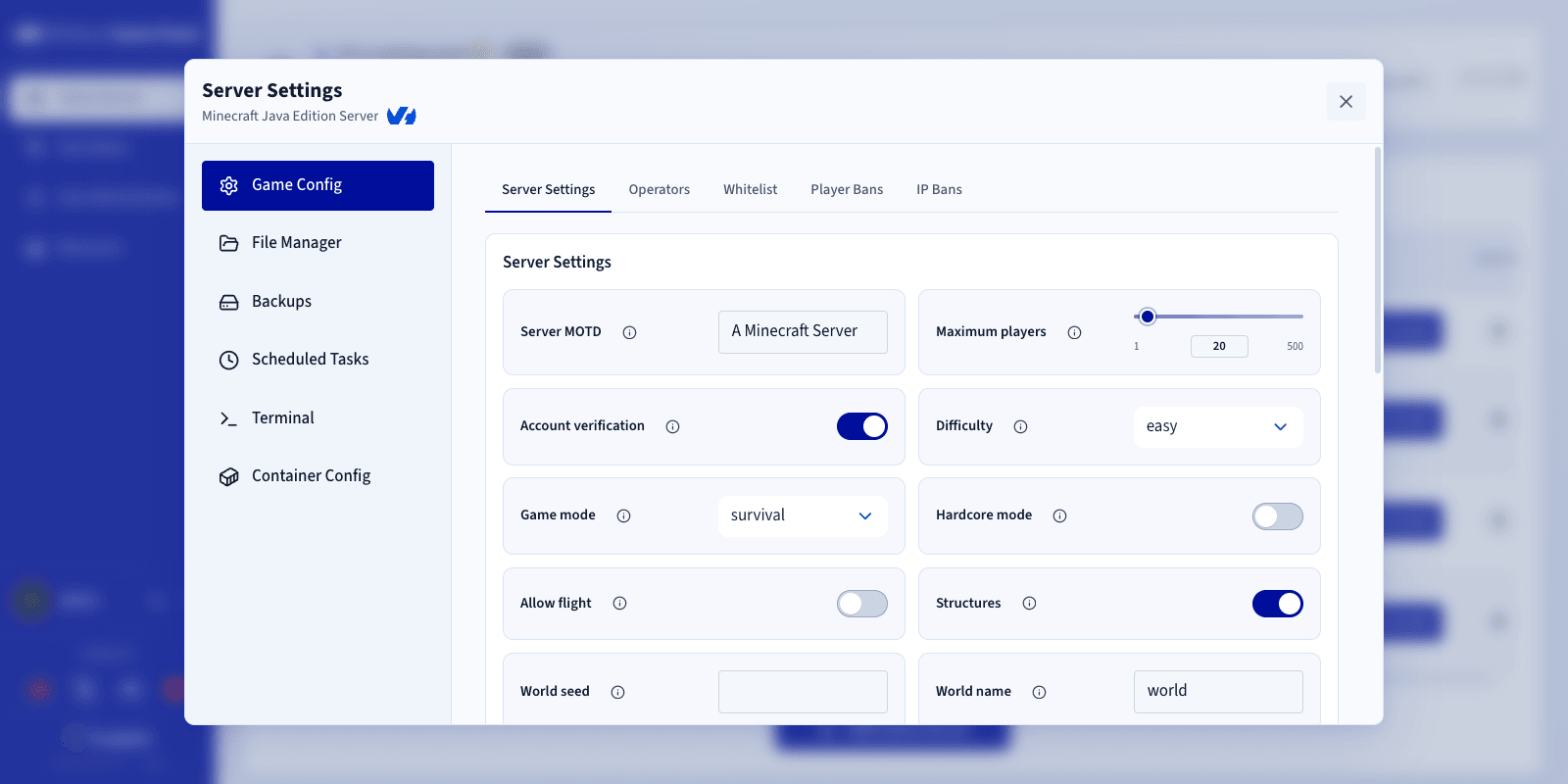
In the Server Settings panel, select Game Config in the left sidebar.
Step 3 — Configure your game
The Game Configuration section lets you manage the main settings of your Minecraft server through the following tabs:
- Server Settings: edit the game settings as well as the Minecraft version used by your server.
- Plugins/Mods: upload and manage your plugins and mods to customise the gameplay experience. This feature is only available for PaperMC, Fabric, and NeoForge server types.
- Operators: add or remove operators (OP) to manage the server's administration rights.
- Whitelist: enable or disable the whitelist, then add or remove players allowed to join the server. Administrators can always connect to the server, even if the whitelist is enabled and they are not on it.
- Player Bans: ban players to prevent them from accessing the server.
- IP Bans: ban IP addresses to block any connection from them. You can also enter a player's name, provided they are connected at the time of the operation; their IP address is then the one that gets banned.
Step 4 — Edit advanced settings
The Advanced Configuration section gives you direct access to the server.properties file, providing more control than the basic UI options.
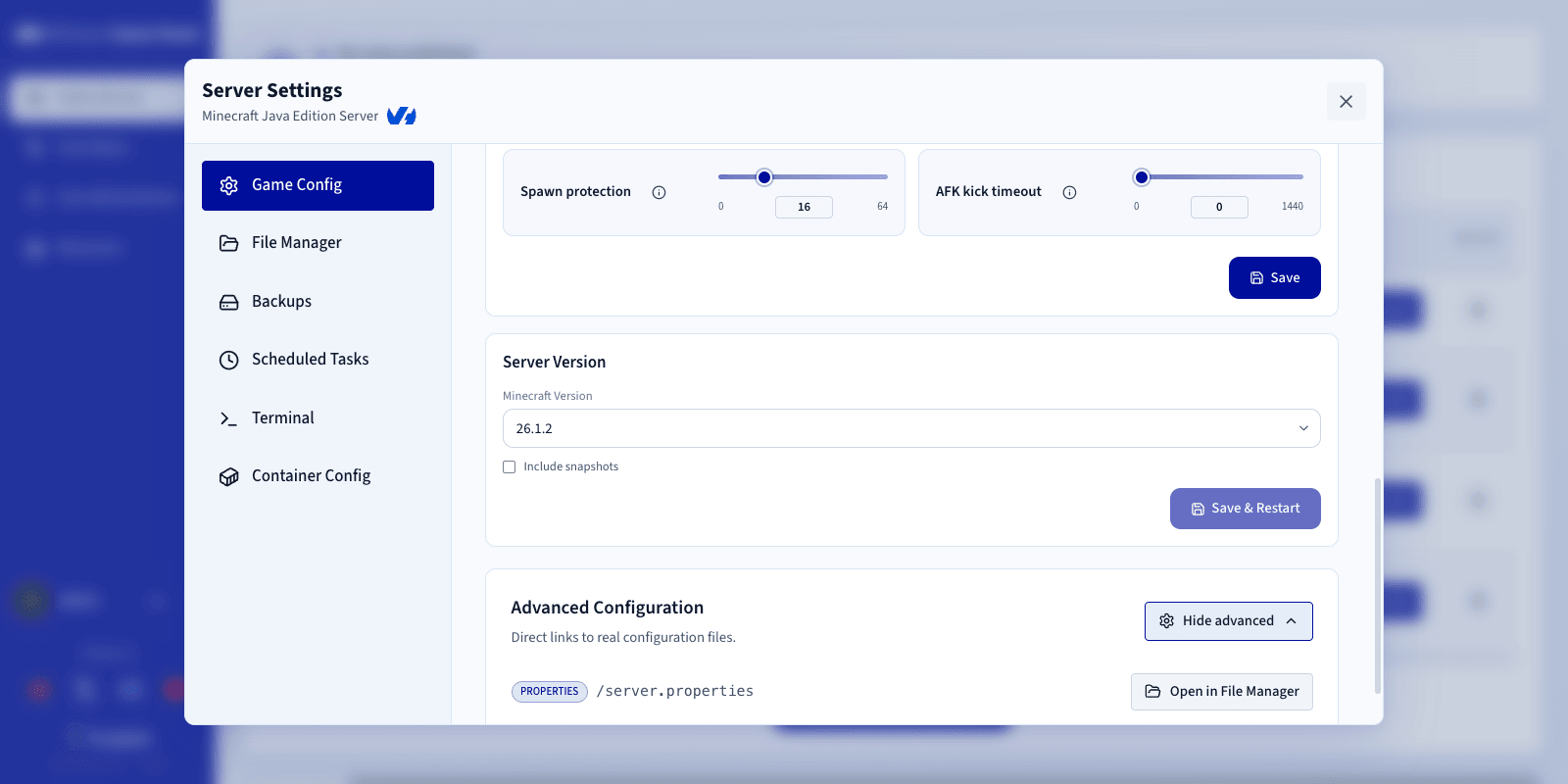
For the full list of server.properties keys with descriptions, default values, and accepted ranges, refer to the official Minecraft Wiki page on server.properties.
Common keys you may want to adjust:
Some keys (such as level-seed, level-type, generator-settings) only take effect when the world is generated. Changing them on an existing world has no effect.
Step 5 — Save and restart
After saving your changes, restart the Minecraft server from the Game Panel for the new configuration to take effect.
Go further
- Deploy a Minecraft server on the Game Panel
- Install mods and plugins on your Minecraft server
- Upload a custom world to your Minecraft server
Join our community of users.