
Editing an OVHcloud DNS zone
Find out how to edit an OVHcloud DNS zone via the OVHcloud Control Panel
Objective
DNS means Domain Name System and is a set of elements (DNS servers, DNS zones, etc.) that map a domain name to an IP address.
For further explanation, please refer to our guides "Everything you need to know about DNS servers" and "Everything you need to know about DNS zone"
This guide explains how to edit your OVHcloud DNS zone via the OVHcloud Control Panel.
Requirements
- OVHcloud DNS servers in use for the domain name concerned
OVHcloud Control Panel Access
- Direct link:
- Navigation path:
Web Cloud>Domain names> select your domain name >DNS zonetab
-
If your domain name does not use OVHcloud DNS servers, you will need to edit the configuration using the interface of your service provider that manages your domain name.
-
If your domain name is registered with OVHcloud, you can check if it uses our configuration. If needed, refer to our guide on Modifying the DNS servers for an OVHcloud domain name.
In both of the above cases, be careful when making your DNS server changes. The old configuration that can be applied to your domain name will no longer be active if you have not previously reconfigured and customised the new DNS zone present at OVHcloud. You can only have one active DNS zone per domain name at a time.
Instructions
Access the area for managing an OVHcloud DNS zone
Unlike domain names, a DNS zone has no "holder", but is managed at OVHcloud through the contact management. If you wish to assign the management of your DNS zone to another OVHcloud customer account, follow our guide Managing contacts for your services.
The DNS zone tab lists your records in a table with one row per record, showing the subdomain, the record type, its target and its TTL. You can search the table or filter it by record type.
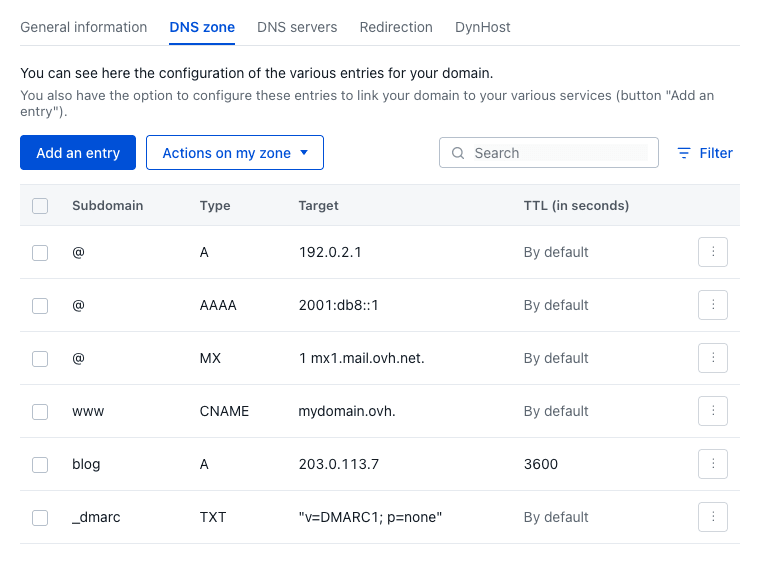
Edit your domain name's OVHcloud DNS zone
Editing a DNS zone is a sensitive procedure: An inappropriate change could, for example, make your website unavailable, or prevent your email addresses from receiving new emails.
Read our guide on DNS records to get a better understanding of your DNS changes.
See also our guide to subdomains for more information on this topic.
From the DNS zone tab you can add, edit or delete a record directly in the table, edit the whole zone in text mode, reset the zone, or view its history. Click on the headings below to see the details.
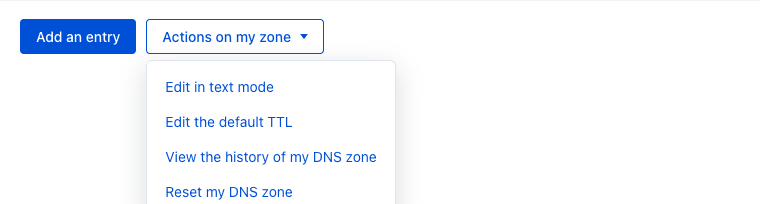
Add a new DNS record
Above the table, click Add an entry. A form opens between the toolbar and the table:
- Select the type of DNS field you want to create (A, AAAA, CNAME, MX, TXT, SPF, DKIM, DMARC, CAA, SRV, TLSA, HTTPS, etc.). Each type shows a short description of its purpose.
- Fill in the fields for that record type (subdomain, target, and any type-specific fields).
- Set the TTL — leave it on
By defaultor chooseCustomisedto enter a value. - Click
Add.
First check whether the record already exists with a different target: use the search field or filter the table by record type. If it does, edit it instead (see below).
When the target of your record is a URL, remember to punctuate it. Otherwise, your domain name is appended to the target. Example: You want to create a CNAME record from
test.mydomain.ovhtomydomain.ovh. You must then have as targetmydomain.ovh.and notmydomain.ovhwithout the . at the end.
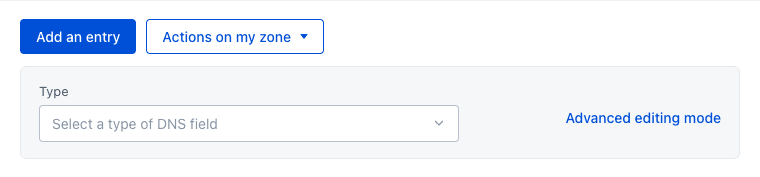
Modify an existing DNS record
In the table, on the row of the record concerned, open the actions menu ⋮ and click Edit the entry. The row expands into an edit form: change the values, then confirm.
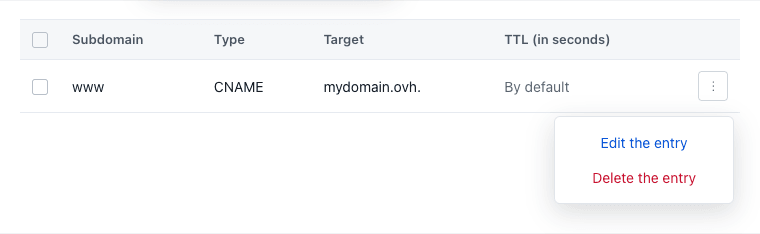
Delete a DNS record
In the table, on the row of the record concerned, open the actions menu ⋮ and click Delete the entry, then confirm.
To delete several records at once, tick their checkboxes on the left of the table, then click the Delete button that appears above the table.
Edit the zone in text mode
For informed users only. Be careful with syntax when you make changes.
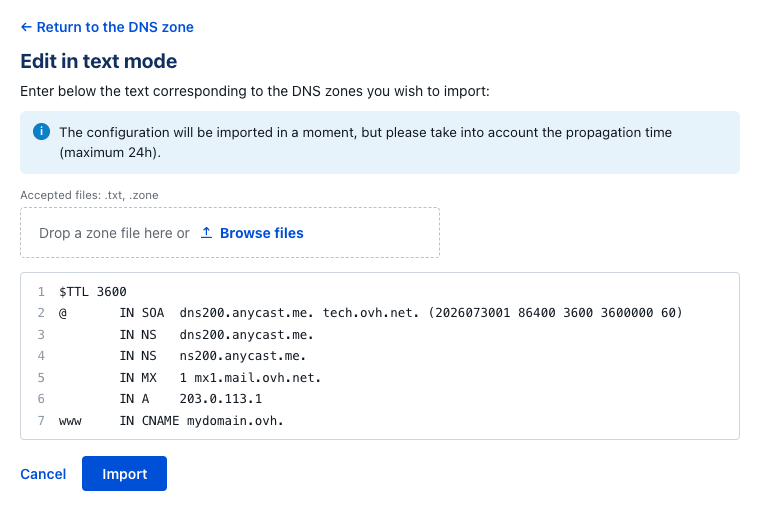
Above the table, open the Actions on my zone menu and click Edit in text mode. On the page that opens, the current content of your zone is displayed and editable: change it directly, or import a zone file by dropping it in the dedicated area or clicking Browse files (accepted files: .txt, .zone). Then click Import.
Do not modify the DNS records of your DNS zone in favour of DNS servers external to OVHcloud in text mode. This DNS zone works only with OVHcloud DNS servers.
Reset the DNS zone
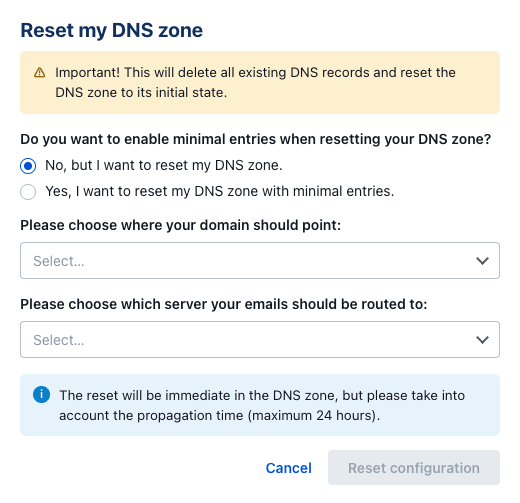
By resetting your DNS zone, you can revert back to a minimal configuration, with OVHcloud default records, or your services’ records. You can also point your domain name to custom web hosting and email services.
Before you reset your DNS zone, ensure that your domain name is not attached to services that are in use, such as a website or email addresses.
Above the table, open the Actions on my zone menu and click Reset my DNS zone, then follow the steps in the panel that opens:
- Choose whether to reset with the minimum records. Defining minimal records in a DNS zone prevents error responses when the domain name is queried.
- Set the target for the web hosting IP address (
Arecord): OVHcloudRedirection,OVHcloud web hosting, or aCustomIPv4 address. - Set the target for the mail server (
MXrecord): OVHcloudRedirection,OVHcloud email server, or aCustomserver and priority.
View the history of your DNS zone
Above the table, open the Actions on my zone menu and click View the history of my DNS zone. From there you can view, download and restore a previous version of your zone. For more details, see our guide on managing the history of a DNS zone.
Propagation time
Once you have modified your domain name's DNS zone, you will need to allow a maximum of 24 hours for the changes to propagate fully, and be effective.
If you would like to reduce this delay for the next edits of your OVHcloud DNS zone, you can adjust the TTL (Time To Live), which will apply to all of the records in the DNS zone. To do so, open the Actions on my zone menu above the table and click Edit the default TTL.
You can also modify the TTL of an individual record when adding or editing it.
Go further
Everything you need to know about DNS servers
Everything you need to know about DNS zone
Everything you need to know about DNS records
Managing the history of a DNS zone
Adding a SPF record to your domain name's configuration
Securing your domain name with DNSSEC
For specialised services (SEO, development, etc.), contact OVHcloud partners.
If you would like assistance using and configuring your OVHcloud solutions, please refer to our support offers.
Join our community of users.