It's possible to create this certificate from the dedicated entry of the KMS.
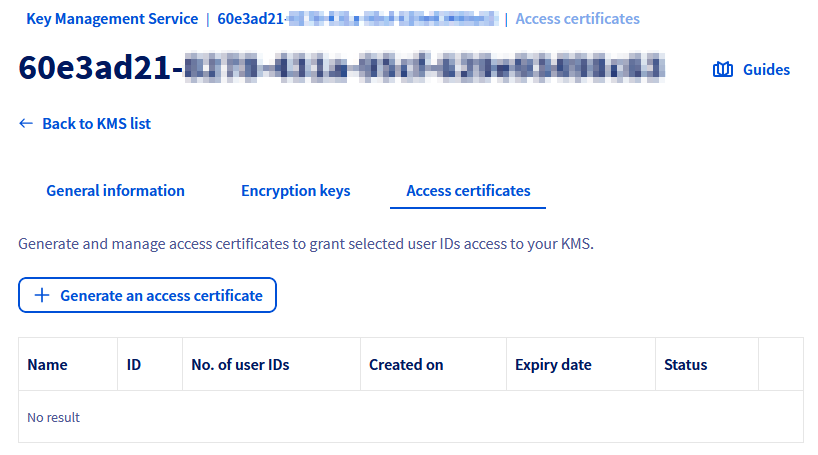
In the Access certificates tab, click on Generate an access certificate.
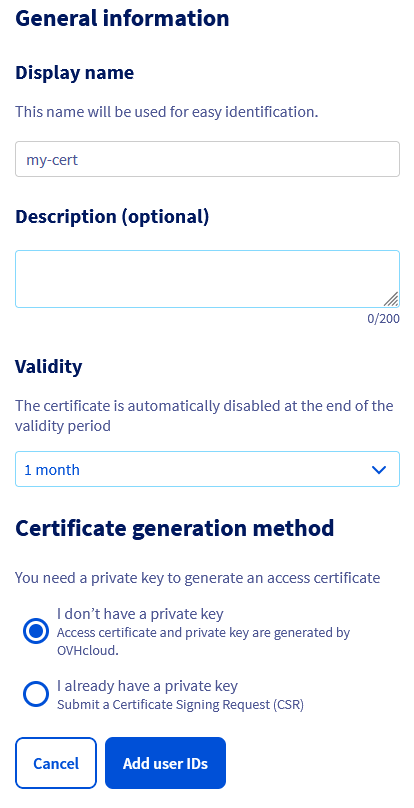
The first part of the form allows you to precise its validity duration, choose signature algorithm, and providing or not your Certificate Signing Request (CSR) in case you have your own private key.
Without providing a private key
If you do not provide a CSR, OVHcloud will generate the certificate and a private key as well.
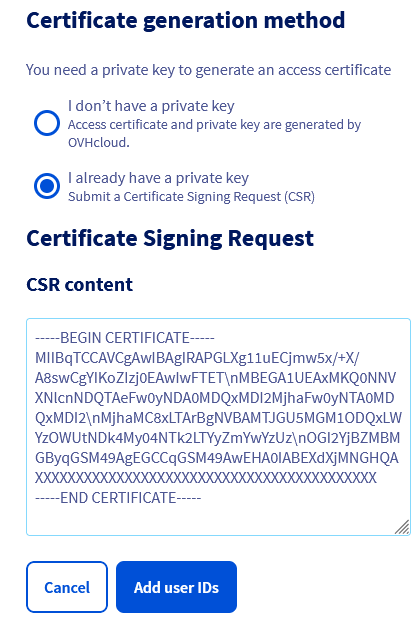
With a CSR
If you own your own private key, it's possible to use it with a CSR.
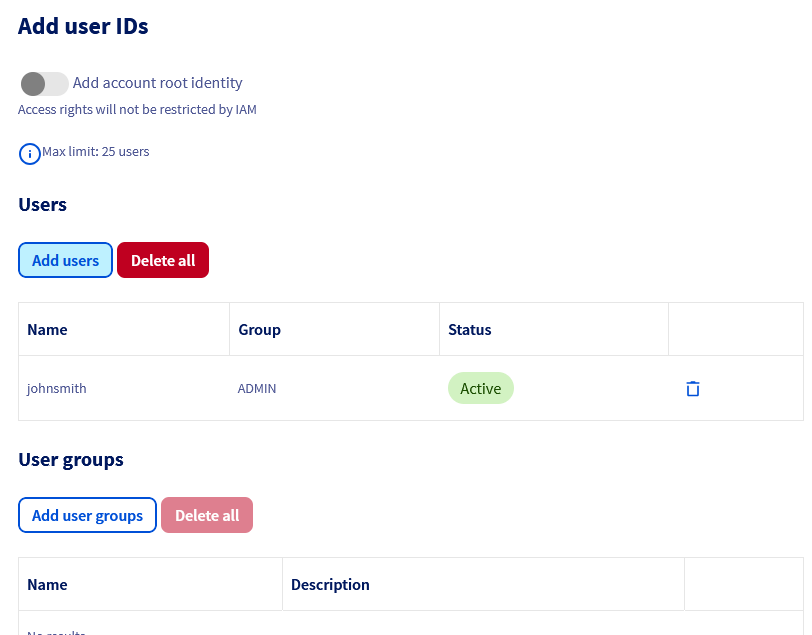
The second part of the form allows you to specify the OVHcloud identities associated with the certificate used to calculate access rights via the OVHcloud IAM.
It is possible to add the root identity to the certificate so as not to be constrained by the OVHcloud IAM.
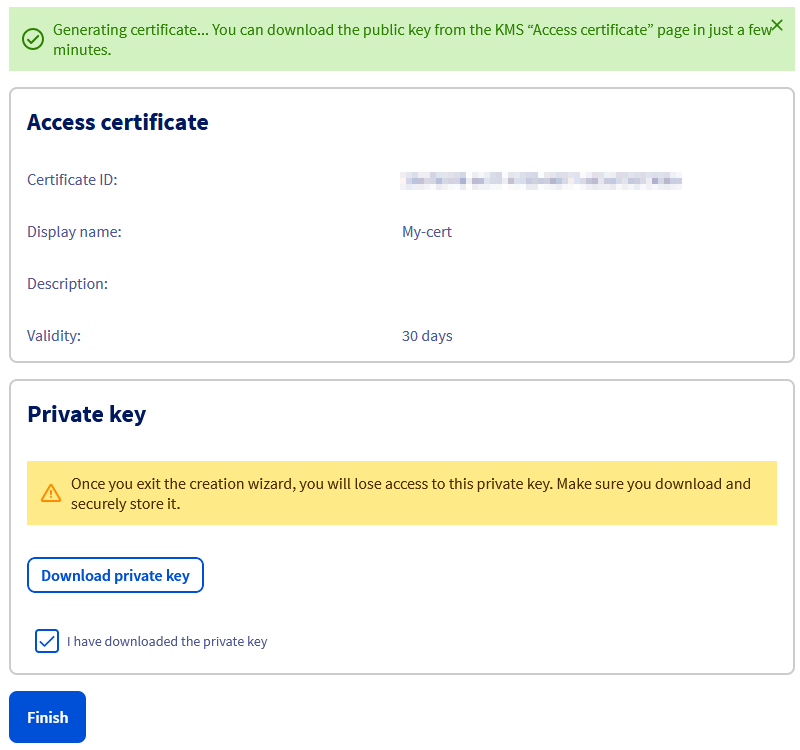
You then need to download the private key of the certificate.
Danger
The private key will no longer be accessible at a later stage. If you lose it, you will need to regenerate a certificate.
Warning
The privateKeyPEM field needs to be edited so that all instances of \n are replaced by carriage returns.
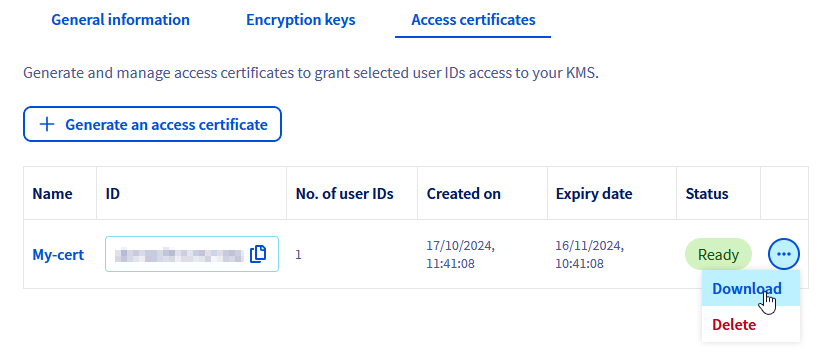
Finally it's possible to download the public key of the certificate from the dashboard.
You can generate this certificate by letting OVHcloud generate the private key, or by providing your Certificate Signing Request (CSR) in case you have your own private key.
Without providing a private key
If you do not provide a CSR, OVHcloud will generate the access certificate along with a private key.
You can generate a certificate via the following API call:
The following information is required:
- name: the name of the certificate
- identityURNs: list of OVHcloud identities in URN format that will be provided to the IAM for calculating access rights
- description: certificate description (optional)
- certificateType: certificate signature algorithm (ECDSA or RSA) - ECDSA by default (optional)
- validity: certificate validity duration in days - 365 days by default (optional)
Example of certificate creation with root account:
{
  "description": "My root access credential",
  "identityURNs": [
    "urn:v1:eu:identity:account:xx1111-ovh"
  ],
  "name": "root",
  "validity": 30
}
Example of certificate creation with local user:
{
  "description": "My access credential",
  "identityURNs": [
    "urn:v1:eu:identity:user:xx1111-ovh/john.smith",
    "urn:v1:eu:identity:group:xx1111-ovh/my_group"
  ],
  "name": "John Smith",
  "validity": 30
}
The API then returns the certificate creation status:
{
  "id": "f18b5e0d-75b8-40a3-9b0e-XXXXXX",
  "name": "John Smith",
  "description": "My access credential",
  "identityURNs": [
    "urn:v1:eu:identity:user:xx1111-ovh/john.smith",
    "urn:v1:eu:identity:group:xx1111-ovh/my_group"
  ],
  "certificateType": "ECDSA",
  "status": "CREATING",
  "fromCSR": false,
  "privateKeyPEM": "-----BEGIN EC PRIVATE KEY-----\nMHcCAQEEIDOfWuMVQxl5quoURzThF4zTI9YYTmylSaPjneLBwP+2oAoGCCqGSM49\nAwEHoUQDQgAERd1eMw0YdAD+E9oSymGc4bCL1mfJl0EZwoM2ya/uKFFVFnGMnckg\nXXXXXXXXXXXXXXX==\n-----END EC PRIVATE KEY-----\n",
  "createdAt": "2024-04-04T12:26:28.856619+02:00",
  "expiredAt": "2025-04-04T12:26:28.856616+02:00"
}
Copy the value of the privateKeyPEM field to a domain.key file
Danger
The private key will no longer be accessible at a later stage. If you lose it, you will need to regenerate a certificate.
Warning
The privateKeyPEM field needs to be edited so that all instances of \n are replaced by carriage returns.
Then copy the certificate ID and access its details via the API:
The API returns the certificate in PEM:
{
  "id": "f18b5e0d-75b8-40a3-9b0e-XXXXXX",
  "name": "John Smith",
  "description": "My access credential",
  "identityURNs": [
    "urn:v1:eu:identity:user:xx1111-ovh/john.smith",
    "urn:v1:eu:identity:group:xx1111-ovh/my_group"
  ],
  "status": "READY",
  "fromCSR": false,
  "certificateType": "ECDSA",
  "certificatePEM": "-----BEGIN CERTIFICATE-----\nMIIBqTCCAVCgAwIBAgIRAPGLXg11uECjmw5x/+X/A8swCgYIKoZIzj0EAwIwFTET\nMBEGA1UEAxMKQ0NNVXNlcnNDQTAeFw0yNDA0MDQxMDI2MjhaFw0yNTA0MDQxMDI2\nMjhaMC8xLTArBgNVBAMTJGU5MGM1ODQxLWYzOWUtNDk4My04NTk2LTYyZmYwYzUz\nOGI2YjBZMBMGByqGSM49AgEGCCqGSM49AwEHA0IABEXdXjMNGHQA/hPaEsphnOGw\ni9ZnyZdBGcKDNsmv7ihRVRZxjJ3JICEusleqD4lE27DAAdzbRdqAhpCqsTks+sSj\nZzBlME4GA1UdEQEB/wREMEKgQAYKKwYBBAGCNxQCA6AyDDBva21zLmRvbWFpbjpl\nOTBjNTg0MS1mMzllLTQ5ODMtODU5Ni02MmZmMGM1MzhiNmIwEwYDVR0lBAwwCgYI\nKwYBBQUHAwIwCgYIKoZIzj0EAwIDRwAwRAIgdWGYm1UQMg0sTIgROFH5mWiAh/lk\nDlyP5HhrWyFB9BICIDl5wtUWgCmo6TjOqXXXXXXXXXXXXXX\n-----END CERTIFICATE-----",
  "createdAt": "2024-04-04T12:26:28.856619+02:00",
  "expiredAt": "2025-04-04T12:26:28.856616+02:00"
}
Copy the value of the certificatePEM field to a client.cert file.
Warning
The certificatePEM field needs to be edited so that all instances of \n are replaced by carriage returns.
With a CSR
If you have your own private key, it is possible to use it by providing a CSR.
You can generate a certificate via the following API call:
The following information is required:
- name: the name of the certificate
- identityURNs: list of OVHcloud identities in URN format that will be provided to the IAM for calculating access rights
- description: certificate description (optional)
- validity: certificate validity duration in days - 365 days by default (optional)
- csr: the content of the CSR
Warning
The CSR must be in JSON format. The CSR file must be edited so that there are no carriage returns; instead, \n will have to be inserted where the line breaks were previously (see the example below). You can also use third-party tools available online to adjust content into the correct JSON format.
Example of certificate creation:
{
  "csr": "-----BEGIN CERTIFICATE REQUEST-----\nMIICvDCCAaQCAQAwdzELMAkGA1UEBhMCVVMxDTALBgNVBAgMBFV0YWgxDzANBgNV\nBAcMBkxpbmRvbjEWMBQGA1UECgwNRGlnaUNlcnQgSW5jLjERMA8GA1UECwwIRGln\naUNlcnQxHTAbBgNVBAMMFGV4YW1wbGUuZGlnaWNlcnQuY29tMIIBIjANBgkqhkiG\n9w0BAQEFAAOCAQ8AMIIBCgKCAQEA8+To7d+2kPWeBv/orU3LVbJwDrSQbeKamCmo\nwp5bqDxIwV20zqRb7APUOKYoVEFFOEQs6T6gImnIolhbiH6m4zgZ/CPvWBOkZc+c\n1Po2EmvBz+AD5sBdT5kzGQA6NbWyZGldxRthNLOs1efOhdnWFuhI162qmcflgpiI\nWDuwq4C9f+YkeJhNn9dF5+owm8cOQmDrV8NNdiTqin8q3qYAHHJRW28glJUCZkTZ\nwIaSR6crBQ8TbYNE0dc+Caa3DOIkz1EOsHWzTx+n0zKfqcbgXi4DJx+C1bjptYPR\nBPZL8DAeWuA8ebudVT44yEp82G96/Ggcf7F33xMxe0yc+Xa6owIDAQABoAAwDQYJ\nKoZIhvcNAQEFBQADggEBAB0kcrFccSmFDmxox0Ne01UIqSsDqHgL+XmHTXJwre6D\nhJSZwbvEtOK0G3+dr4Fs11WuUNt5qcLsx5a8uk4G6AKHMzuhLsJ7XZjgmQXGECpY\nQ4mC3yT3ZoCGpIXbw+iP3lmEEXgaQL0Tx5LFl/okKbKYwIqNiyKWOMj7ZR/wxWg/\nZDGRs55xuoeLDJ/ZRFf9bI+IaCUd1YrfYcHIl3G87Av+r49YVwqRDT0VDV7uLgqn\n29XI1PpVUNCPQGn9p/eX6Qo7vpDaPybRtA2R7XLKjQaF9oXWeCUqy1hvJac9QFO2\n97Ob1alpHPoZ7mWiEXXXXXXXXXXXXX\n-----END CERTIFICATE REQUEST-----",
  "description": "My access credential",
  "identityURNs": [
    "urn:v1:eu:identity:user:xx1111-ovh/john.smith",
    "urn:v1:eu:identity:group:xx1111-ovh/my_group"
  ],
  "name": "John Smith",
  "validity": 30
}
The API then returns the certificate creation status:
{
  "id": "f18b5e0d-75b8-40a3-9b0e-XXXXXX",
  "name": "John Smith",
  "description": "My access credential",
  "identityURNs": [
    "urn:v1:eu:identity:user:xx1111-ovh/john.smith",
    "urn:v1:eu:identity:group:xx1111-ovh/my_group"
  ],
  "status": "CREATING",
  "fromCSR": true,
  "certificateType": "ECDSA",
  "createdAt": "2024-04-04T12:26:28.856619+02:00",
  "expiredAt": "2025-04-04T12:26:28.856616+02:00"
}
Copy the ID of the certificate and access its details via the following API call:
The API returns the certificate in PEM:
{
  "id": "f18b5e0d-75b8-40a3-9b0e-XXXXXX",
  "name": "John Smith",
  "description": "My access credential",
  "identityURNs": [
    "urn:v1:eu:identity:user:xx1111-ovh/john.smith",
    "urn:v1:eu:identity:group:xx1111-ovh/my_group"
  ],
  "status": "READY",
  "fromCSR": true,
  "certificateType": "ECDSA",
  "certificatePEM": "-----BEGIN CERTIFICATE-----\nMIIBqTCCAVCgAwIBAgIRAPGLXg11uECjmw5x/+X/A8swCgYIKoZIzj0EAwIwFTET\nMBEGA1UEAxMKQ0NNVXNlcnNDQTAeFw0yNDA0MDQxMDI2MjhaFw0yNTA0MDQxMDI2\nMjhaMC8xLTArBgNVBAMTJGU5MGM1ODQxLWYzOWUtNDk4My04NTk2LTYyZmYwYzUz\nOGI2YjBZMBMGByqGSM49AgEGCCqGSM49AwEHA0IABEXdXjMNGHQA/hPaEsphnOGw\ni9ZnyZdBGcKDNsmv7ihRVRZxjJ3JICEusleqD4lE27DAAdzbRdqAhpCqsTks+sSj\nZzBlME4GA1UdEQEB/wREMEKgQAYKKwYBBAGCNxQCA6AyDDBva21zLmRvbWFpbjpl\nOTBjNTg0MS1mMzllLTQ5ODMtODU5Ni02MmZmMGM1MzhiNmIwEwYDVR0lBAwwCgYI\nKwYBBQUHAwIwCgYIKoZIzj0EAwIDRwAwRAIgdWGYm1UQMg0sTIgROFH5mWiAh/lk\nDlyP5HhrWyFB9BICIDl5wtUWgCmo6TjOqXXXXXXXXXXXXXX\n-----END CERTIFICATE-----",
  "createdAt": "2024-04-04T12:26:28.856619+02:00",
  "expiredAt": "2025-04-04T12:26:28.856616+02:00"
}
Copy the value of the certificatePEM field to a client.cert file.
