Hot Swap - Hardware RAID
Requirements
Hot swapping is only possible on the server ranges mHG, HG, and bHG.
To carry out the various steps of this guide, you must:
- Have a server mHG, HG, or bHG.
- Have a hardware RAID server (with a MegaRAID card).
- Have access to SSH (Linux and VmWare ESXi).
- Have access to RDP (Windows).
- The MegaCLI and / or StorCLI utilities must be installed (normally by default).
In Linux
Step 1: Identify the disk to be replaced
In order to replace a disk, you will have to provide the technician with the Enclosure ID, the slot ID, and the Serial Number of the disk to be replaced.
Or otherwise (disk not detected for ex), the same information but for disks that are NOT to replace and specify it to the technician.
We will start by listing the disks on the server. While being able to retrieve the information cited above.
List of disks
To list the disks, you can use the following command: MegaCli -PdList -aALL | Egrep "Slot | Device ID | Device Id"
For example :
MegaCli -PdList -aALL | egrep "Slot|Device ID|Device Id"</span>
<span className="output">Enclosure Device ID: 252</span>
<span className="output">Slot Number: 0</span>
<span className="output">Device Id: 6</span>
<span className="output">Enclosure Device ID: 252</span>
<span className="output">Slot Number: 1</span>
<span className="output">Device Id: 5</span>
<span className="output">Enclosure Device ID: 252</span>
<span className="output">Slot Number: 2</span>
<span className="output">Device Id: 4</span>
<span className="output">Enclosure Device ID: 252</span>
<span className="output">Slot Number: 3</span>
<span className="output">Device Id: 7
The MegaCli -PdList -aALL command, without GREP, can display all information on a disk.
Info
Equivalent via the storcli command :
storcli /call show all</span>
:::
<span className="blank"> </span>
<span className="output">PD LIST :</span>
<span className="output">=======</span>
<span className="blank"> </span>
<span className="output">----------------------------------------------------------------------------</span>
<span className="output">EID:Slt DID State DG Size Intf Med SED PI SeSz Model Sp</span>
<span className="output">----------------------------------------------------------------------------</span>
<span className="output">252:0 6 Onln 0 744.687 GB SATA SSD N N 512B INTEL SSDSC2BB800H4 U</span>
<span className="output">252:1 5 Onln 0 744.687 GB SATA SSD N N 512B INTEL SSDSC2BB800H4 U</span>
<span className="output">252:2 4 Onln 0 744.687 GB SATA SSD N N 512B INTEL SSDSC2BB800H4 U</span>
<span className="output">252:3 7 Onln 0 744.687 GB SATA SSD N N 512B INTEL SSDSC2BB800H4 U</span>
<span className="output">----------------------------------------------------------------------------
This is an excerpt from the return of the storcli command. Other information is visible, like the listing of the disks according to the raids etc ...
With MegaCLI, you can also list disks according to the raids with this command: MegaCli -CfgDsply -a0.
Test and identify a disk :
To test a disk / identify its serial number, you must perform the smartctl command as follows :
smartctl -a -d megaraid,6 /dev/sda | grep Serial</span>
<span className="output">Serial Number: BTWH509602CV800CGN
The number 6 in this command corresponds to the Device ID of the disk (Device ID under MegaCLI, and DID under storCLI).
This information is found in the disk listing, performed in the previous step.
We now know the Enclosure ID, the Slot ID, and the Serial Number of the drive to be replaced.
Step 2: Turn on a disk
To allow the technician to replace your drive with heater, the HS drive must be switched on (flashing).
In our example, we have Enclosure ID 252, Slot ID 0, and Serial Number BTWH509602CV800CGN to be replaced.
The command to flash the disk is as follows: MegaCli -PdLocate -start -physdrv [EncID: SlotID] -a0.
MegaCli -PdLocate -start -physdrv[252:0] -a0</span>
<span className="blank"> </span>
<span className="output">Adapter: 0: Device at EnclId-252 SlotId-0 -- PD Locate Start Command was successfully sent to Firmware</span>
<span className="blank"> </span>
<span className="output">Exit Code: 0x00
:::info
Equivalent via the storcli command :
rescue:~# storcli /call /e252 /s0 start locate</span>
:::
<span className="output">Controller = 0</span>
<span className="output">Status = Success</span>
<span className="output">Description = Start Drive Locate Succeeded.
To turn the disk off after the operation, simply replace the "start" with "stop" in the above commands.
At this point, the procedure is ready to be performed. You can then provide the previously collected information to the support team and indicate that the disk is turned on.
Step 3: Check the rebuilding
Once the intervention scheduled in the Datacenter is completed, you can re-test the RAID and disks, and see that the replaced disk is in Rebuild.
MegaCli -PdList -aALL | egrep "Slot|Device ID|state"</span>
<span className="output">Enclosure Device ID: 252</span>
<span className="output">Slot Number: 0</span>
<span className="output">Firmware state: Rebuild</span>
<span className="output">Enclosure Device ID: 252</span>
<span className="output">Slot Number: 1</span>
<span className="output">Firmware state: Online, Spun Up</span>
<span className="output">...
``````bash
storcli /call show all</span>
<span className="output">PD LIST :</span>
<span className="output">=======</span>
<span className="blank"> </span>
<span className="output">----------------------------------------------------------------------------</span>
<span className="output">EID:Slt DID State DG Size Intf Med SED PI SeSz Model Sp</span>
<span className="output">----------------------------------------------------------------------------</span>
<span className="output">252:0 6 Rbld 0 744.687 GB SATA SSD N N 512B INTEL SSDSC2BB800H4 U</span>
<span className="output">252:1 5 Onln 0 744.687 GB SATA SSD N N 512B INTEL SSDSC2BB800H4 U</span>
<span className="output">252:2 4 Onln 0 744.687 GB SATA SSD N N 512B INTEL SSDSC2BB800H4 U</span>
<span className="output">252:3 7 Onln 0 744.687 GB SATA SSD N N 512B INTEL SSDSC2BB800H4 U
The RAID is in state Degraded the time of reconstruction, this is normal.
MegaCli -LDInfo -Lall -aALL</span>
<span className="blank"> </span>
<span className="output">Adapter 0 -- Virtual Drive Information:</span>
<span className="output"> Drive: 0 (Target Id: 0)</span>
<span className="output">Name :</span>
<span className="output">RAID Level : Primary-1, Secondary-0, RAID Level Qualifier-0</span>
<span className="output">Size : 1.454 TB</span>
<span className="output">Sector Size : 512</span>
<span className="output">Is VD emulated : Yes</span>
<span className="output">Mirror Data : 1.454 TB</span>
<span className="output">State : Degraded</span>
<span className="output">Strip Size : 256 KB</span>
<span className="output">Number Of Drives per span:2</span>
<span className="output">Span Depth : 2</span>
<span className="output">Default Cache Policy: WriteThrough, ReadAhead, Direct, No Write Cache if Bad BBU</span>
<span className="output">Current Cache Policy: WriteThrough, ReadAhead, Direct, No Write Cache if Bad BBU</span>
<span className="output">Default Access Policy: Read/Write</span>
<span className="output">Current Access Policy: Read/Write</span>
<span className="output">Disk Cache Policy : Enabled</span>
<span className="output">Encryption Type : None</span>
<span className="output">Bad Blocks Exist: No</span>
<span className="output">PI type: No PI</span>
<span className="blank"> </span>
<span className="output">Is VD Cached: No</span>
<span className="blank"> </span>
<span className="output">Exit Code: 0x00
Finally, you can also check the progress of the rebuild with the following command MegaCli -PDRbld -ShowProg -PhysDrv [EncID: SlotID] -a0
MegaCli -PDRbld -ShowProg -PhysDrv [252:0] -a0</span>
<span className="blank"> </span>
<span className="output">Rebuild Progress on Device at Enclosure 252, Slot 0 Completed 93% in 0 Minutes.</span>
<span className="blank"> </span>
<span className="output">Exit Code: 0x00
:::info
Equivalent via the storcli command :
storcli /call /e252 /s0 show rebuild
In Windows
This guide is based on a Windows Server 2012 R2 Standard system. The MegaRaid Storage Manager tool is installed by default.
Step 1 : Verify that the server has a MegaRaid card
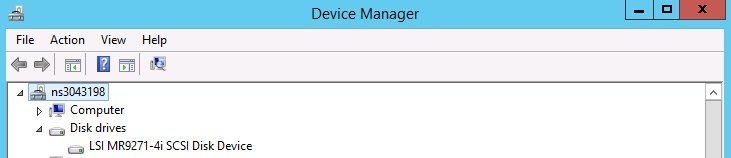
So we go to the menu Device management, and we see the presence of the MegaRaid card (9271-4i)
Step 2 : Identify the disk to be replaced
At first, we will open MegaRAID Storage Manager.
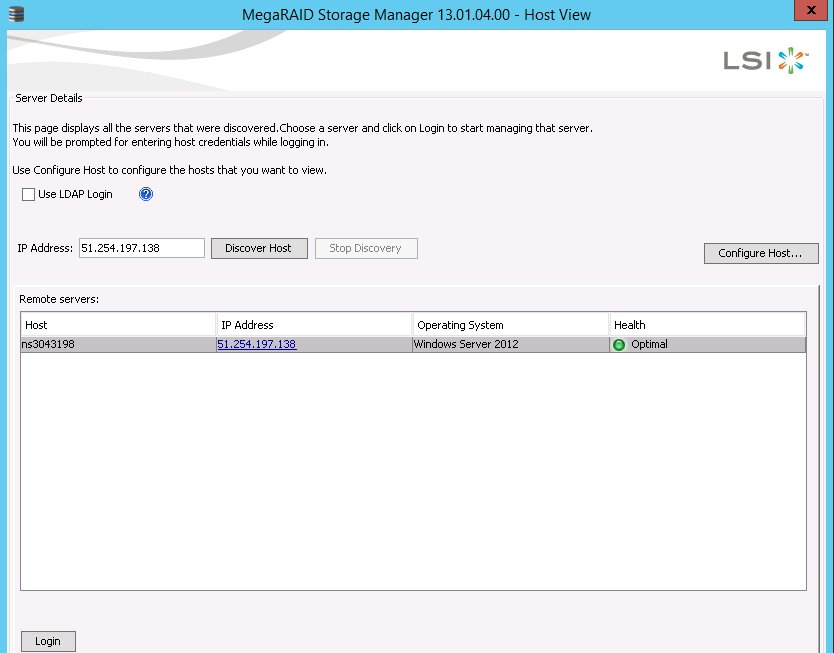
Then click Login, and fill in your login/password. (The manipulations in our case are carried out by being Administrator).
Then we arrive on the Management screen of the MegaRaid card.
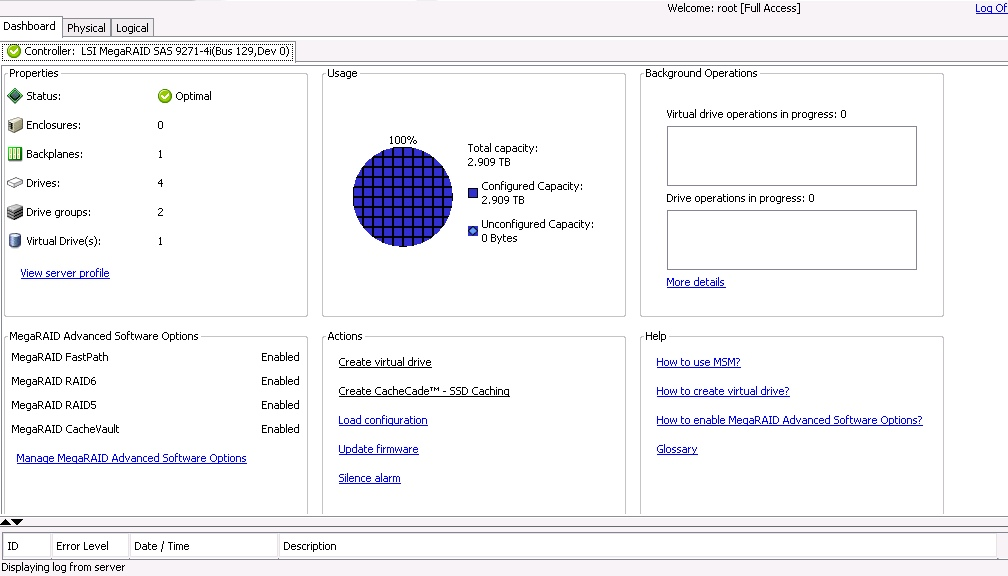
We will now check the Serial Number of our HS drive and its position in the server (Enclosure ID and Slot ID).
We go to the Logical tab, and we get to this.
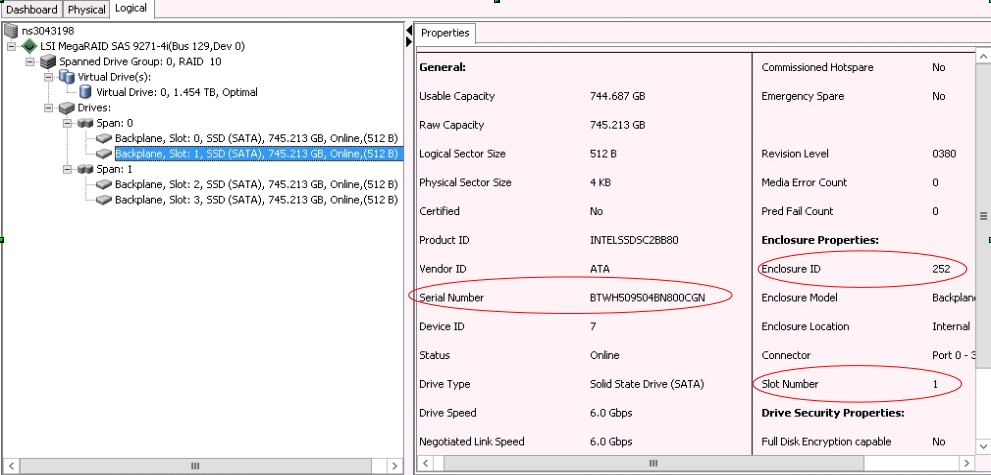
On this screen, a lot of information is present.
We see, on the left, the logical view of our RAID. Here we have a RAID 10 (id0) in optimal state. It consists of two clusters of 2 disks.
We can see that our Slot Number 1 drive is in the 1st cluster. On the right side of the screen, we retrieve the information we need (Enclosure / Slot / Serial).
So our disk has for Enclosure ID 252, Slot Number 1, and Serial Number BTWH509504BN800CGN.
From now on, we will be able to light (physically flash) the disk to be replaced for replacement by a Datacenter technician.
Step 3 : Turn on a disk
With the MegaRAID Storage Manager it will be very easy to turn on the LED of the disk to be replaced.
Info
First of all, it is better to stop the Locator on each disk in order to avoid any error in Datacentre. Indeed, if during a previous intervention the LED has not been turned off, there will be two disks of lights on the server.
To do this, right click on each disk, and click on stop locating drive.
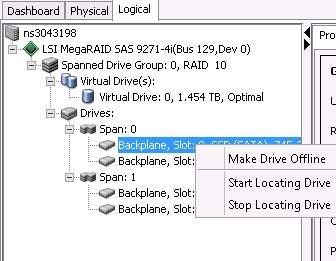
Now we can turn on the disk we are interested in.
Right click on our disk, Slot ID 1, and Serial Number BTWH509504BN800CGN.
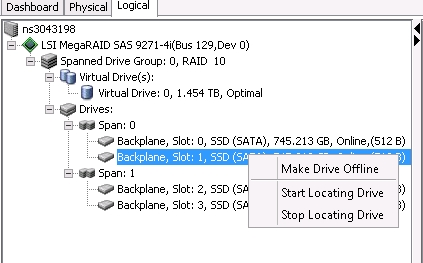
Then click on start locating drive
At this point, the procedure is ready to be performed. You can then provide the information previously gathered (Enclosure ID, Slot ID, and Serial Number), and indicate that the drive is turned on.
Step 4 : Check the rebuilding
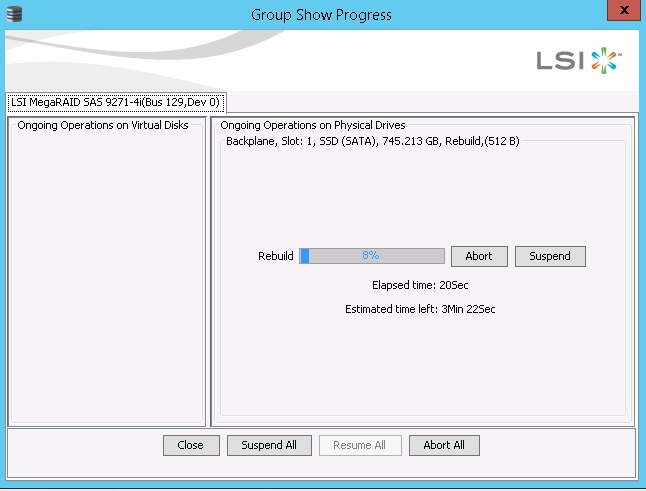
Once you have completed the Datacenter, you can go back to the MegaRAID Storage Manager in the Background operations and check that the disk is Rebuild.
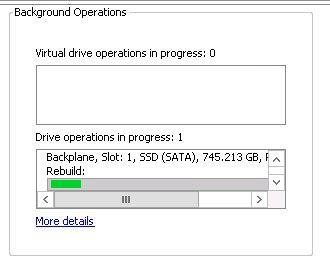
The detail will return you this type of result :
Also, on the Logical tab, we always have the details of RAID and disks.
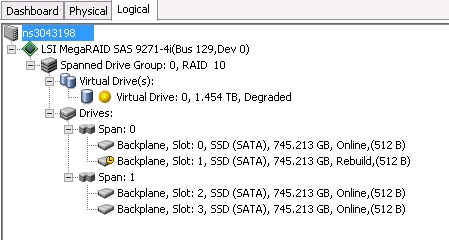
The Slot ID 1 is in doing of Rebuild.
Info
The RAID is in degraded state during Rebuild, which is normal.
Finally, it is preferable to repeat the operation of the stop locate seen previously for the disk that has just been replaced.
In VmWare ESXi
In this guide, we assume you have received an alert for the failed Slot Number 1, Serial Number BTWA547608CE800HGN and you want to replace it hot.
For this we will need the Enclosure ID, the Slot Number, and Serial Number of the disk to be replaced to communicate them to the Datacentre.
Info
The MegaCLI tool must be installed on the server.
Step 1 : Verify that the server has a MegaRaid card
Before continuing, we will verify that the server has a MegaRAID card.
lspci | grep -i mega</span>
<span className="output">0000:81:00.0 Mass storage controller: Avago (LSI / Symbios Logic) MegaRAID SAS Fusion Controller [vmhba2]
Via the Vsphere client, you can also find this information in Manage, then Hardware Tab.
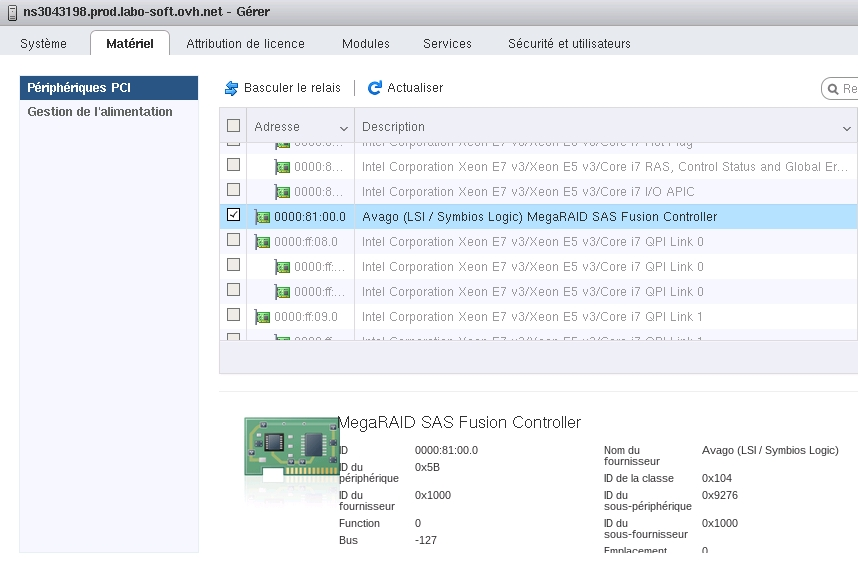
We have an LSI MegaRAID card.
Step 2 : Identify the disk to be replaced
For a disk replacement, the Enclosure ID, Slot Number, and Serial Number must be supplied to the Data Center of the drive to be replaced.
If the disk is no longer detected, for example, it will be necessary to provide the same information from all other disks to DO NOT replace.
At first, we will list the disks present on the server while being able to recover the information listed above.
List of disks
[root@ns3043198:/opt/lsi/MegaCLI] ./MegaCli -PdList -aALL | egrep "Slot|Device ID|Device Id"</span>
<span className="output">Enclosure Device ID: 252</span>
<span className="output">Slot Number: 0</span>
<span className="output">Device Id: 4</span>
<span className="output">Enclosure Device ID: 252</span>
<span className="output">Slot Number: 1</span>
<span className="output">Device Id: 7</span>
<span className="output">Enclosure Device ID: 252</span>
<span className="output">Slot Number: 2</span>
<span className="output">Device Id: 5</span>
<span className="output">Enclosure Device ID: 252</span>
<span className="output">Slot Number: 3</span>
<span className="output">Device Id: 6
We have therefore recovered the ID of our HS Slot Number 1 which is Device ID 7, and its Enclosure ID 252.
Step 3 : Turn on a disk
To perform the replacement operation, the HS drive must be switched on (flashing).
Info
Before turning on the LED of the disk that interests us here, we will first go through each disk to turn off the LEDs (in case a LED is always on after a previous intervention).
In this case, we have 4 disks that have as Enclosure ID 252, and as Slot Number 1, 2, 3, and 4.
We will use the following command: ./MegaCli -PdLocate -stop -physdrv [EncID: SlotID] -a0
[root@ns3043198:/opt/lsi/MegaCLI] ./MegaCli -PdLocate -stop -physdrv[252:0] -a0</span>
<span className="blank"> </span>
<span className="output">Adapter: 0: Device at EnclId-252 SlotId-0 -- PD Locate Stop Command was successfully sent to Firmware</span>
<span className="blank"> </span>
<span className="output">Exit Code: 0x00</span>
<span className="prompt">[root@ns3043198:/opt/lsi/MegaCLI] ./MegaCli -PdLocate -stop -physdrv[252:1] -a0</span>
<span className="blank"> </span>
<span className="output">Adapter: 0: Device at EnclId-252 SlotId-1 -- PD Locate Stop Command was successfully sent to Firmware</span>
<span className="blank"> </span>
<span className="output">Exit Code: 0x00</span>
<span className="prompt">[root@ns3043198:/opt/lsi/MegaCLI] ./MegaCli -PdLocate -stop -physdrv[252:2] -a0</span>
<span className="blank"> </span>
<span className="output">Adapter: 0: Device at EnclId-252 SlotId-2 -- PD Locate Stop Command was successfully sent to Firmware</span>
<span className="blank"> </span>
<span className="output">Exit Code: 0x00</span>
<span className="prompt">[root@ns3043198:/opt/lsi/MegaCLI] ./MegaCli -PdLocate -stop -physdrv[252:3] -a0</span>
<span className="blank"> </span>
<span className="output">Adapter: 0: Device at EnclId-252 SlotId-3 -- PD Locate Stop Command was successfully sent to Firmware</span>
<span className="blank"> </span>
<span className="output">Exit Code: 0x00
We now switch to the disk we want to replace to turn on the LED.
To do this, we use the following command: ./MegaCli -PdLocate -start -physdrv[EncID:SlotID] -a0
[root@ns3043198:/opt/lsi/MegaCLI] ./MegaCli -PdLocate -start -physdrv[252:1] -a0</span>
<span className="blank"> </span>
<span className="output">Adapter: 0: Device at EnclId-252 SlotId-1 -- PD Locate Start Command was successfully sent to Firmware</span>
<span className="blank"> </span>
<span className="output">Exit Code: 0x00
At this point, the procedure is ready to be performed. You can then provide the information previously gathered (Enclosure ID, Slot Number or Slot ID, Serial Number), and indicate that the disk is turned on.
Step 4 : Check the rebuilding
Once you have completed the Datacenter, you can re-test RAID and disks to verify that the replaced disk is in Rebuild.
[root@ns3043198:/opt/lsi/MegaCLI] ./MegaCli -PdList -aALL | egrep "Slot|Device ID|state"</span>
<span className="output">Enclosure Device ID: 252</span>
<span className="output">Slot Number: 0</span>
<span className="output">Firmware state: Online, Spun Up</span>
<span className="output">Enclosure Device ID: 252</span>
<span className="output">Slot Number: 1</span>
<span className="output">Firmware state: Rebuild</span>
<span className="output">Enclosure Device ID: 252</span>
<span className="output">Slot Number: 2</span>
<span className="output">Firmware state: Online, Spun Up</span>
<span className="output">Enclosure Device ID: 252</span>
<span className="output">Slot Number: 3</span>
<span className="output">Firmware state: Online, Spun Up
Info
The RAID is in degraded state during rebuild, which is normal.
You can also check the progress of the rebuild with the following command :
[root@ns3043198:/opt/lsi/MegaCLI] ./MegaCli -PDRbld -ShowProg -PhysDrv [252:1] -a0</span>
<span className="blank"> </span>
<span className="output">Rebuild Progress on Device at Enclosure 252, Slot 1 Completed 93% in 0 Minutes.</span>
<span className="blank"> </span>
<span className="output">Exit Code: 0x00
Go further
Managing hardware RAID
Configuring MegaRAID for RAID Level 0
OVHcloud API and Storage
Managing software RAID
Hot Swap - Software RAID
Join our community of users.