
How to use the Public Cloud interface
Objective
You have just created your Public Cloud project, and you would like to find out more about the user interface in the OVHcloud Control Panel.
Explore the main sections of the Public Cloud interface in the OVHcloud Control Panel.
Requirements
OVHcloud Control Panel Access
- Direct link: Public Cloud Projects
- Navigation path:
Public Cloud> Select your project
Instructions
Once you have created your first Public Cloud project, you will be redirected to the main Public Cloud interface.
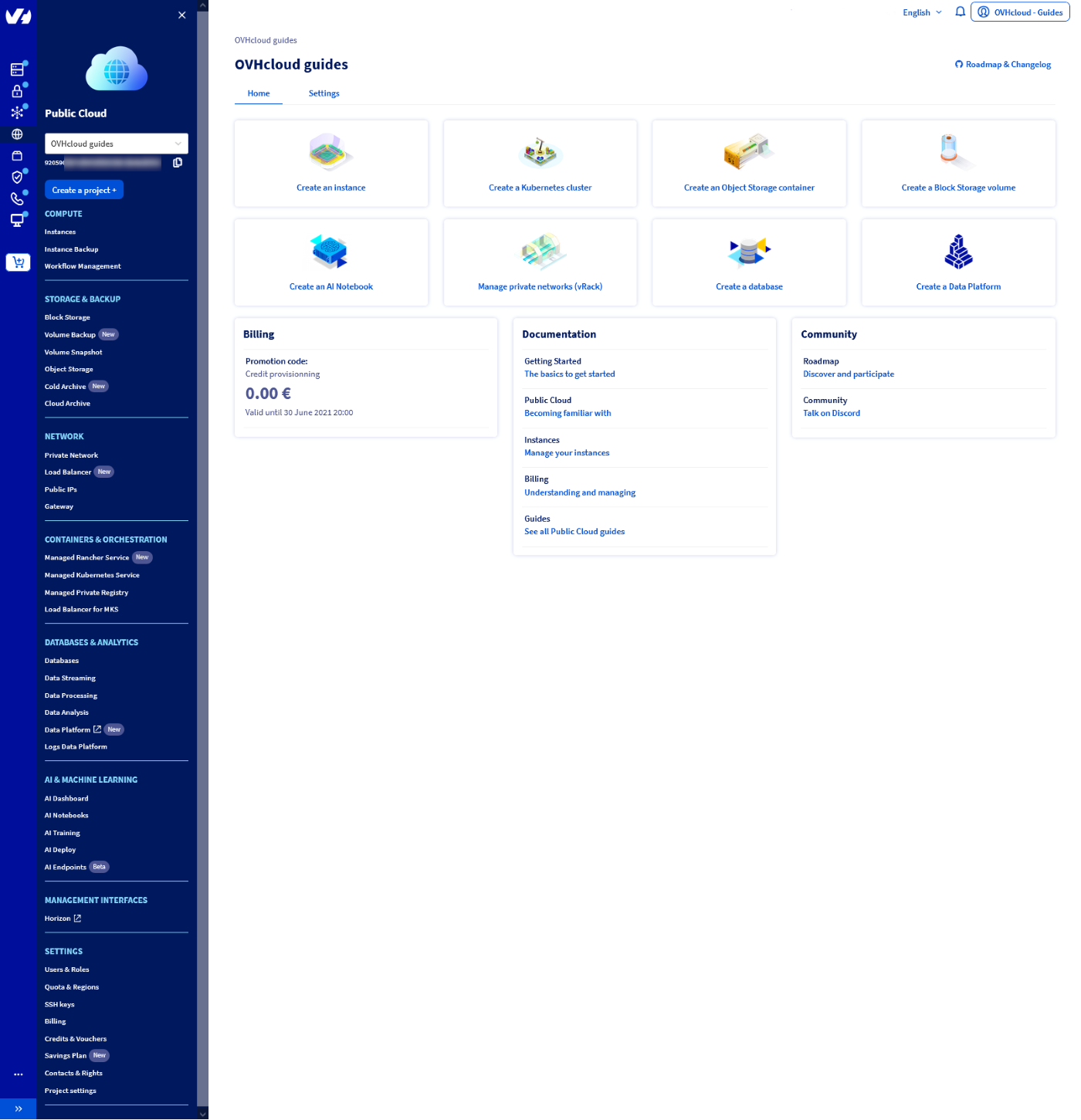
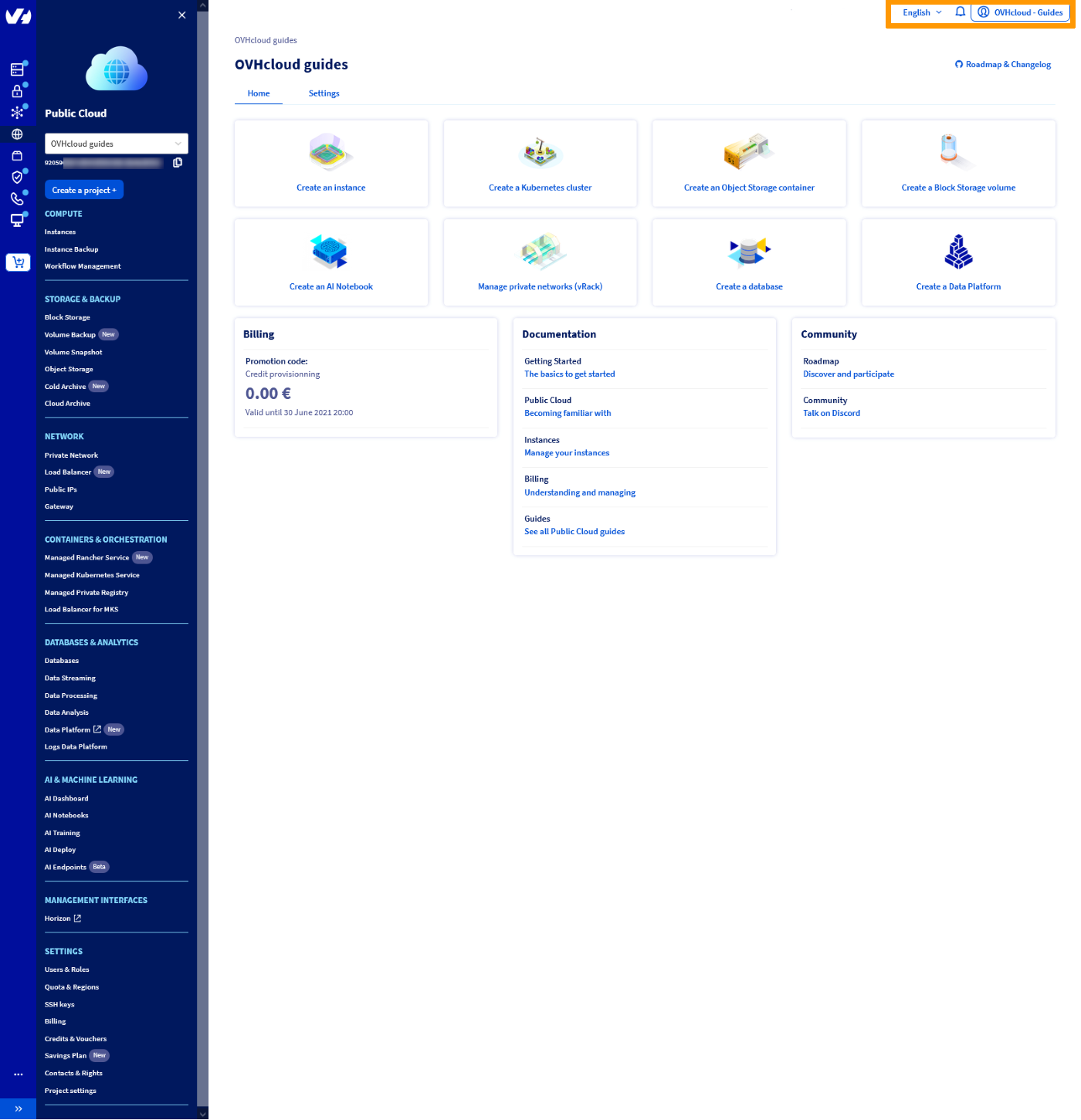
Access to your OVHcloud account information
Your OVHcloud account settings are accessible at any time, as are notifications or a change of language in the OVHcloud Control Panel.
Your Public Cloud project
Because you can use multiple projects (depending on your quotas), the project name and ID are always displayed, regardless of which screen you are visiting, so you know what environment you are acting on.
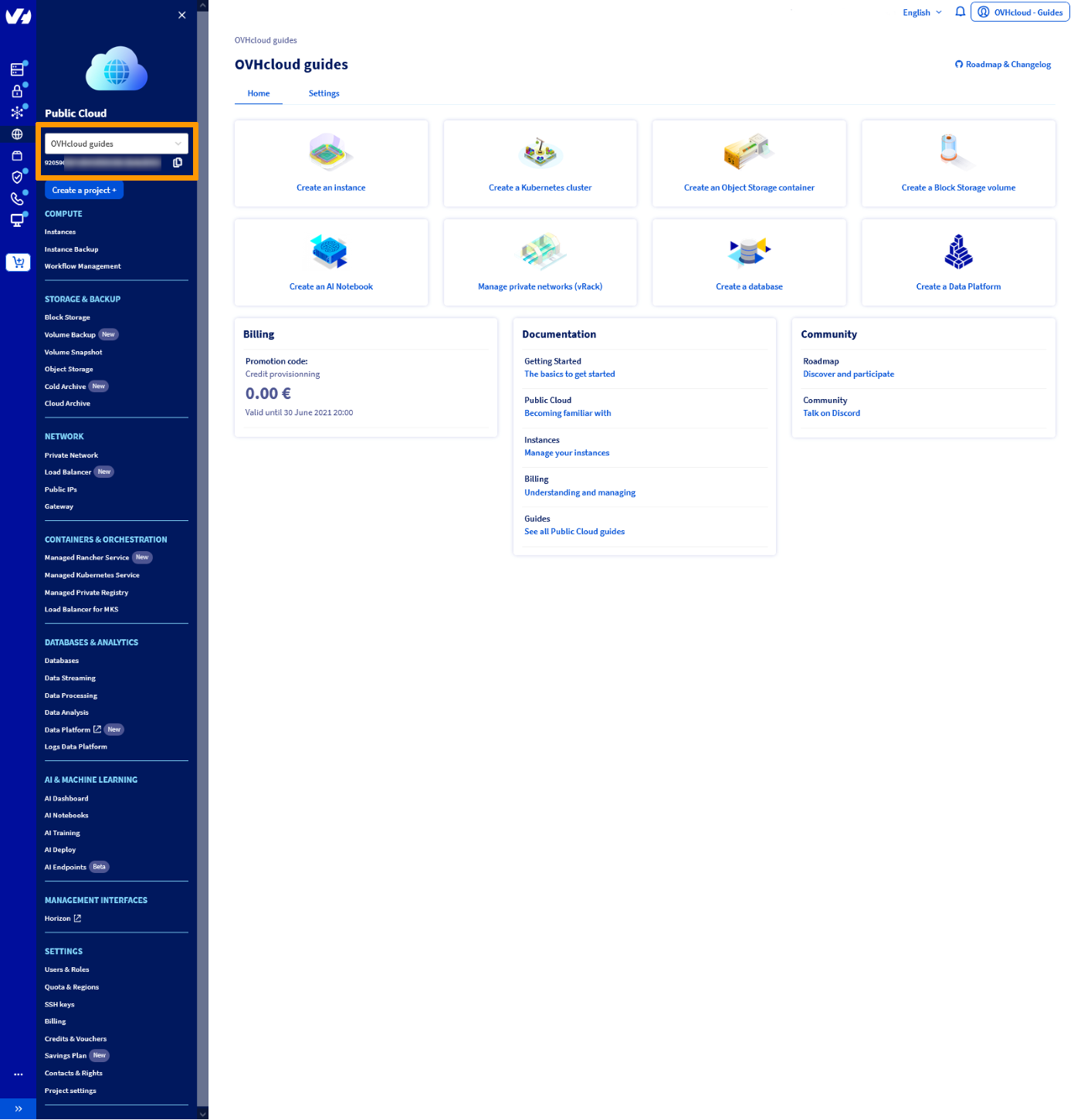
The ID may be required when using the CLI, for certain support requests or otherwise. You can copy it by clicking on the icon to the right of it.
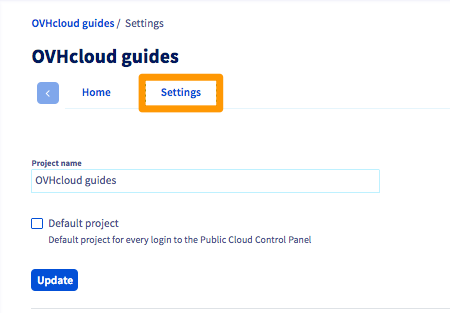
You can change the project name via the Settings tab. Enter a new name, then click on Update.
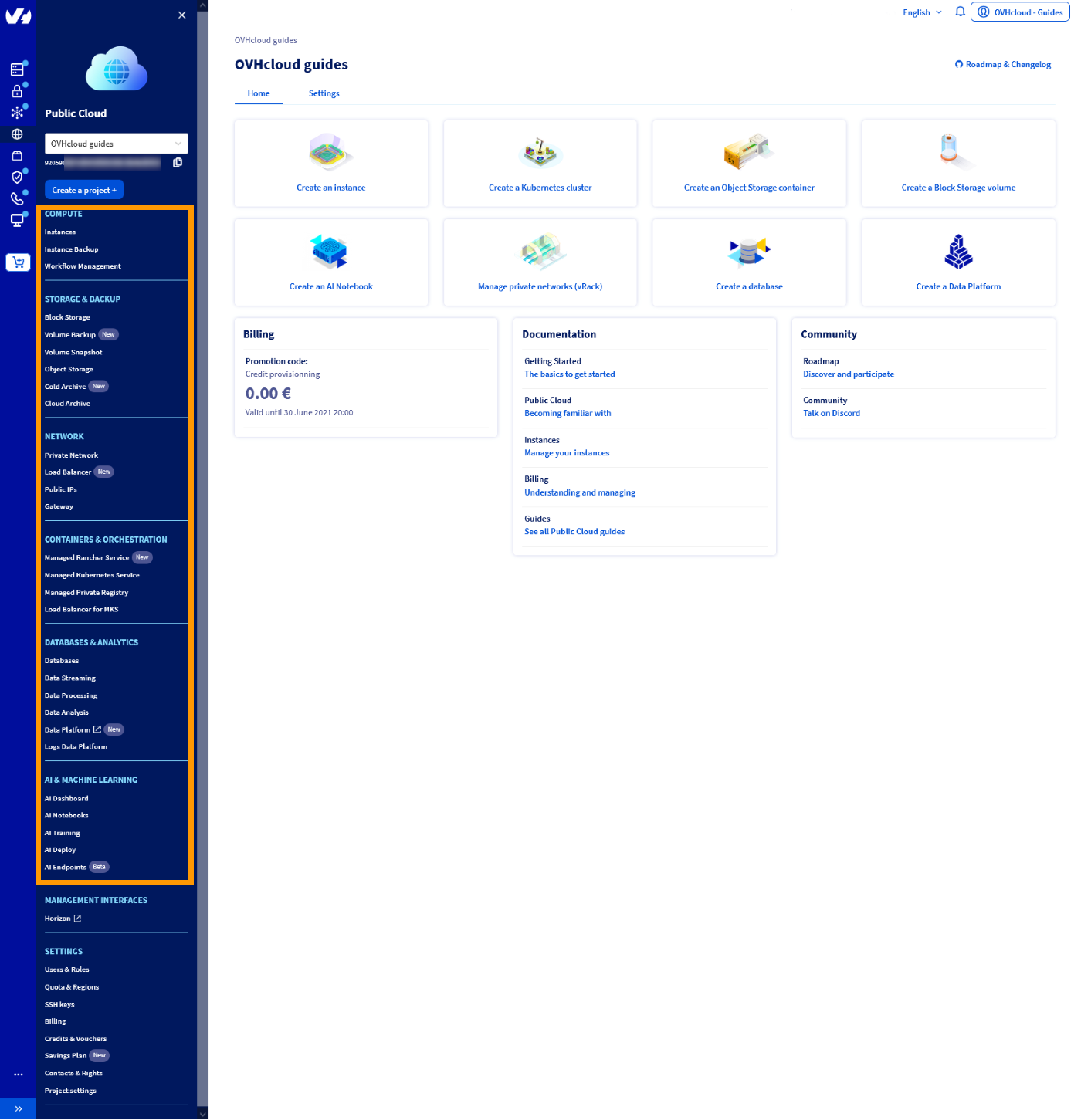
The Public Cloud main menu
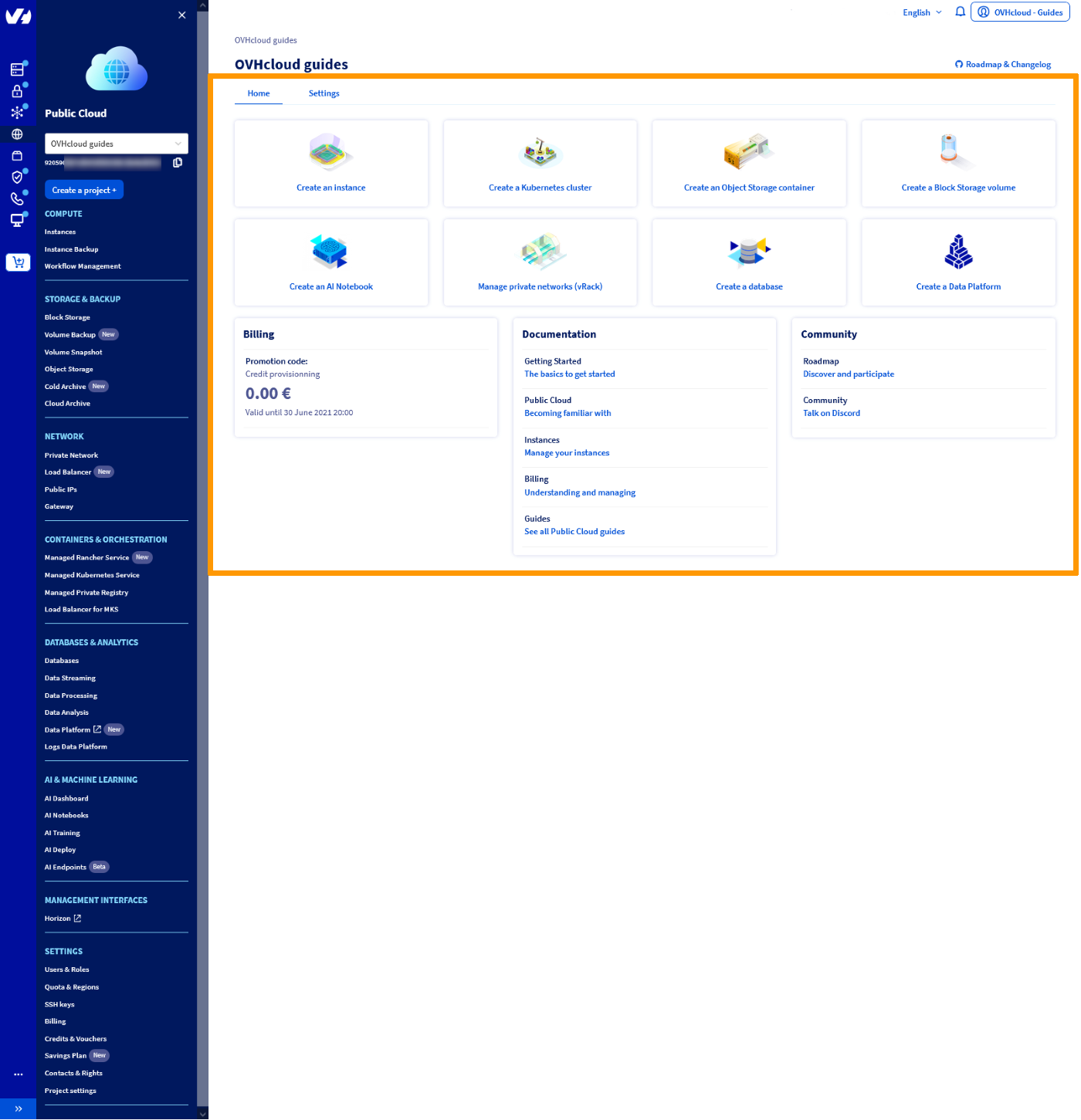
Shortcuts
The center of the screen provides shortcuts for quick access to the most useful configuration wizards and guides.
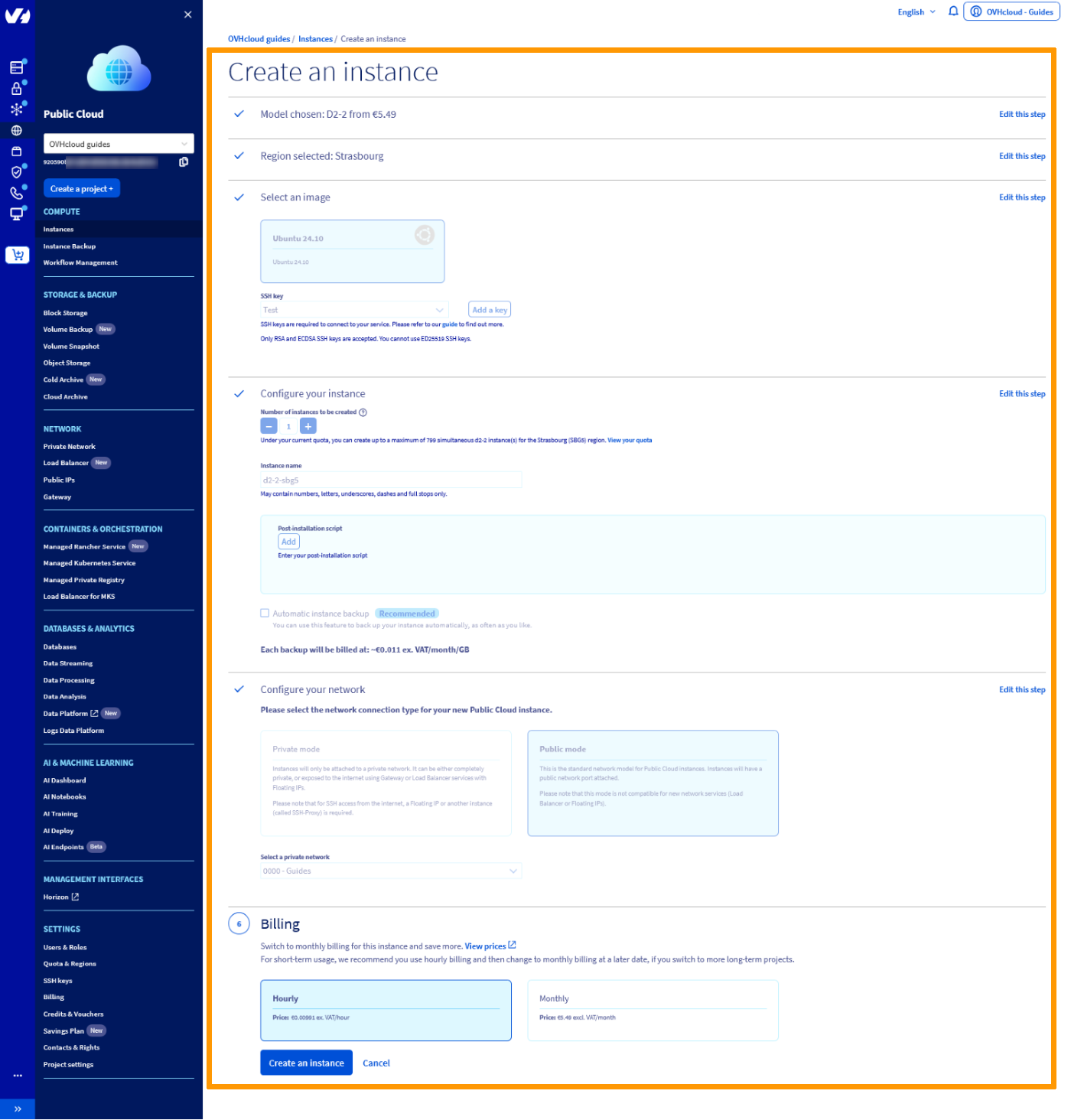
Assistance for the creation of resources
For each resource you want to create, you will be accompanied by a configuration wizard which, step by step, allows you to set up the resource according to your needs.
Most of the time, you will have to choose the location of the resource, the model, some customisable settings and, in some cases, the billing method.
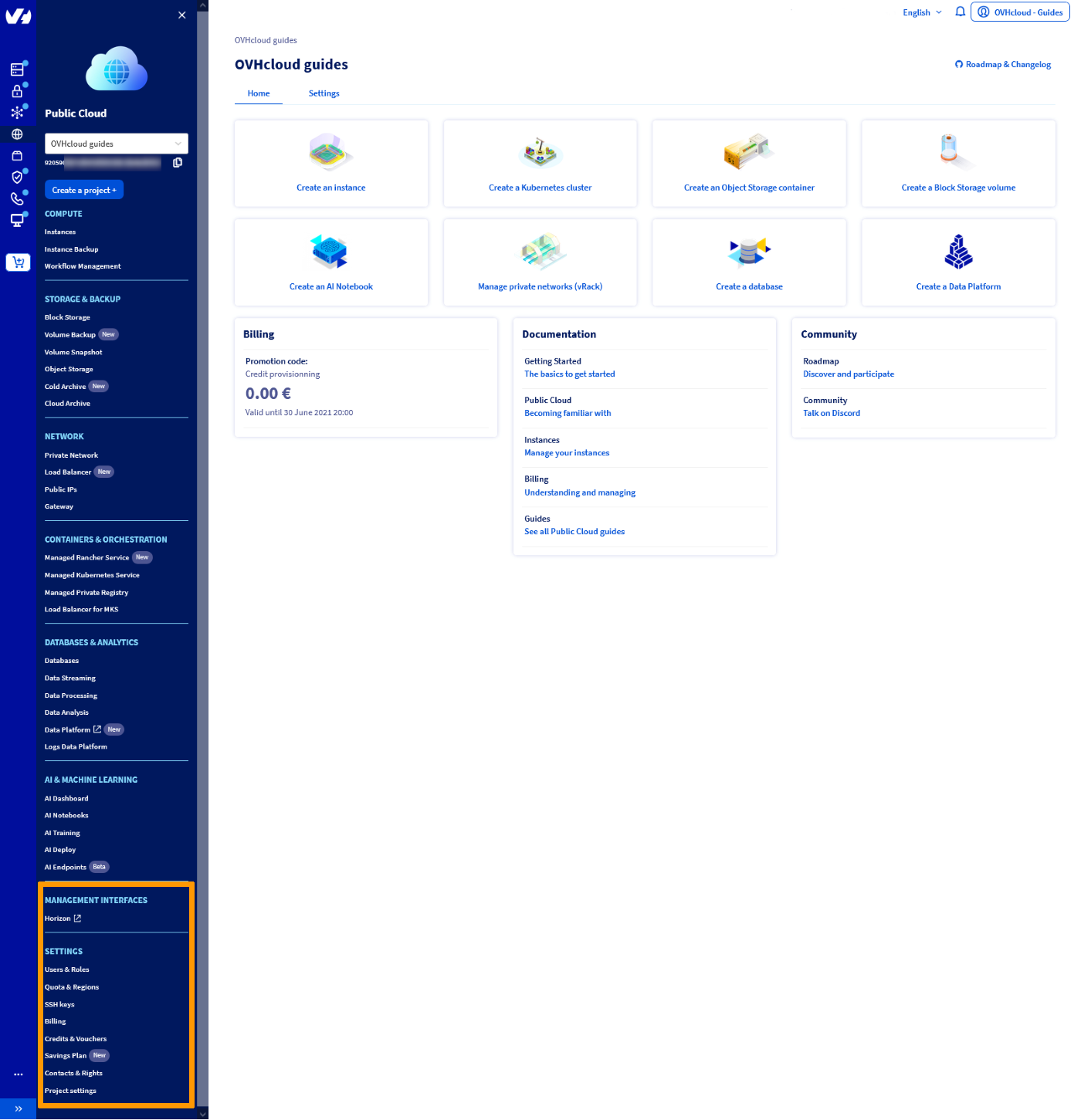
Management tools
There are several management tools available in your Public Cloud project, they are located at the bottom of the left-side menu bar.
Services management
In this section, we present an overview of the different service management options offered by OVHcloud, through three main tools: the OVHcloud Control Panel, Horizon and the OpenStack API. Each of these tools has been designed to meet specific needs according to your level of expertise, management preferences, and performance and customization requirements.
The matrix below compares the key features of each tool to help you choose the solution best suited to your needs. Whether you're a beginner, intermediate user or automation expert, this comparison will help you better understand the benefits, ease of use, skill levels required, and scalability of each tool.
Go further
Creating and connecting to your first Public Cloud instance
If you need training or technical assistance to implement our solutions, contact your sales representative or click on this link to get a quote and ask our Professional Services experts for a custom analysis of your project.
Join our community of users.