
Configuring your database server
Objective
Web Cloud Databases database servers allow you to modify the global settings of your server. You can also view your server's activity.
Find out how to configure and optimise your database server.
Requirements
- A Web Cloud Databases instance (included in a Performance web hosting plan).
OVHcloud Control Panel Access
- Direct link: Web Cloud Databases
- Navigation path:
Web Cloud>Web Cloud Databases> Select your database service
Instructions
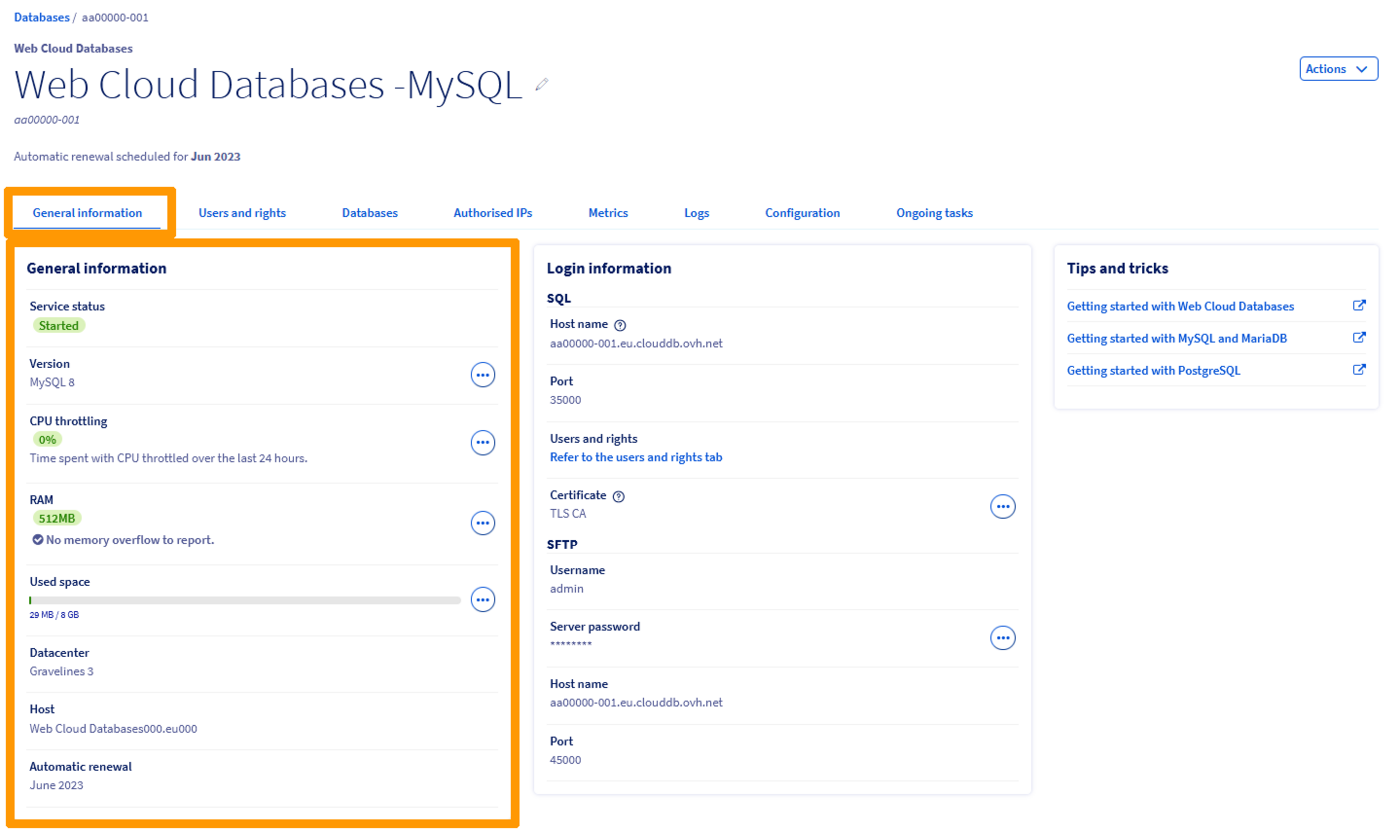
View general information on your database server
Click on the tabs below to view each of the 2 steps.
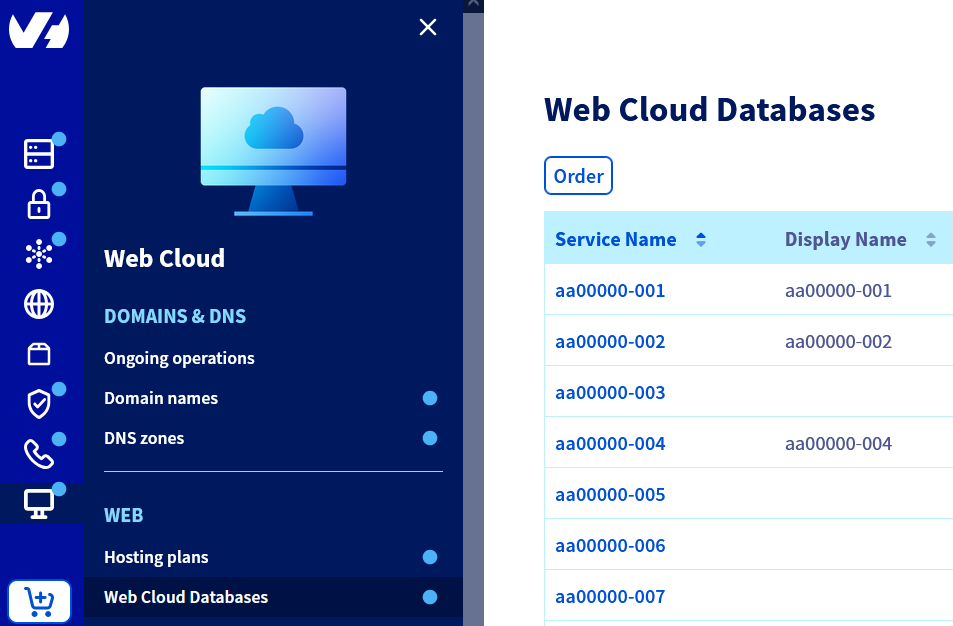
Go to the Web Cloud Databases page, then select the solution concerned.
Manage your access
Your Web Cloud Databases is accessible from your OVHcloud web hosting plans and/or from the public network.
Click on each title to view its content.
Authorise an IP address
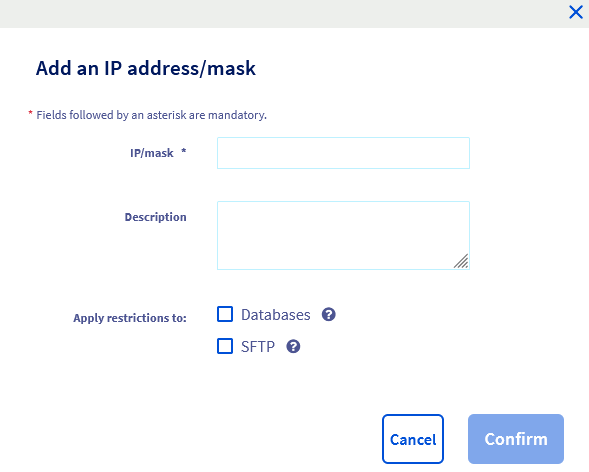
To access your Web Cloud Databases instance, you must specify the IP addresses or IP ranges authorised to connect to your databases.
Click on the tabs below to view each of the 3 steps.
Go to the Web Cloud Databases page, then select the solution concerned.

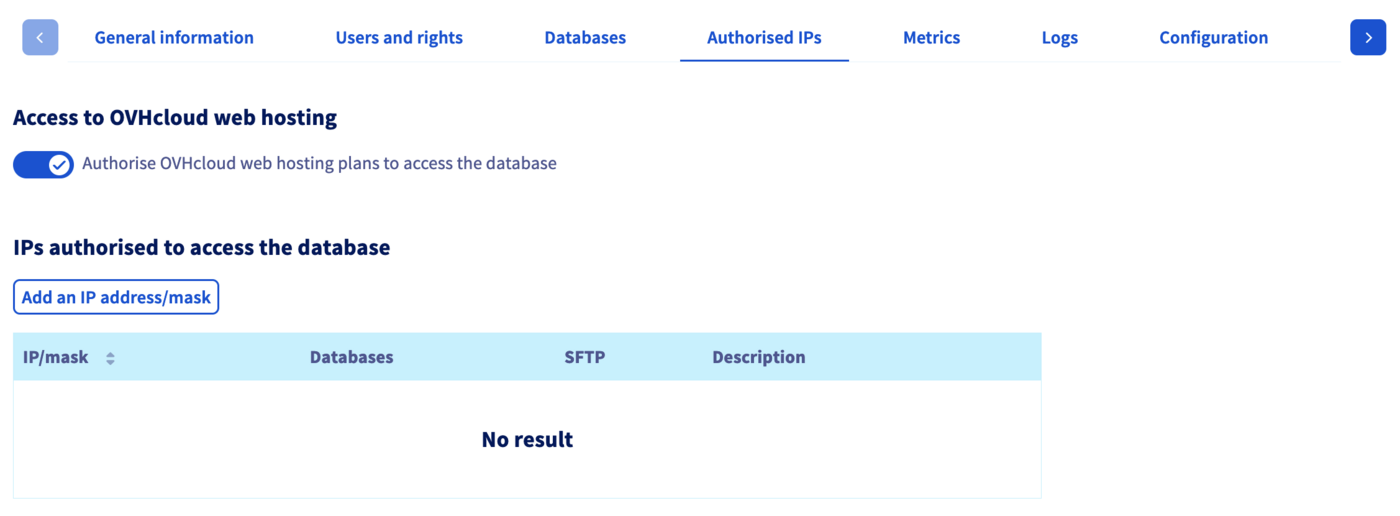
Authorise connections to OVHcloud web hosting plans
Click on the tabs below to view each of the 3 steps.
Go to the Web Cloud Databases page, then select the solution concerned.
Modify your Web Cloud Databases plan
If your Web Cloud Databases plan is linked to a Performance web hosting plan, you must first detach the Web Cloud Databases plan from your Performance hosting plan before upgrading to a higher plan.
To detach a Web Cloud Databases plan from a Performance web hosting plan, please refer to our guide "Detach my Web Cloud Databases solution from a web hosting plan".
This action is irreversible, and the Web Cloud Databases plan will then be billed separately from your Performance web hosting plan.
Click on the tabs below to view each of the 3 steps.
Go to the Web Cloud Databases page, then select the solution concerned.
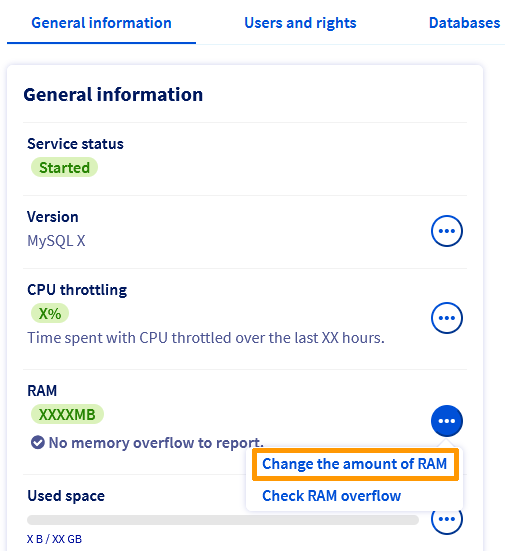
Modify my database server configuration
Click on each title to view its content.
MySQL and MariaDB instance
Click on the tabs below to view each of the 3 steps.
Go to the Web Cloud Databases page, then select the solution concerned.
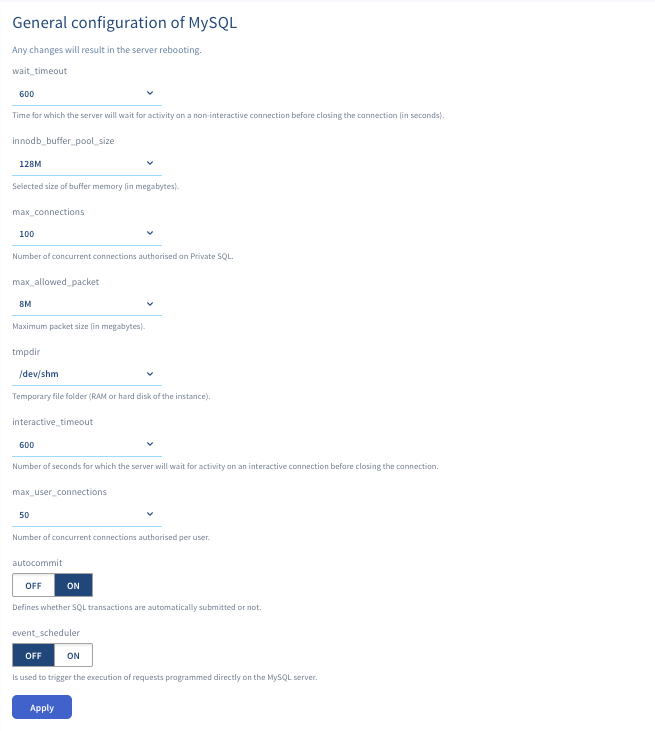
Any changes require a restart of the database server.
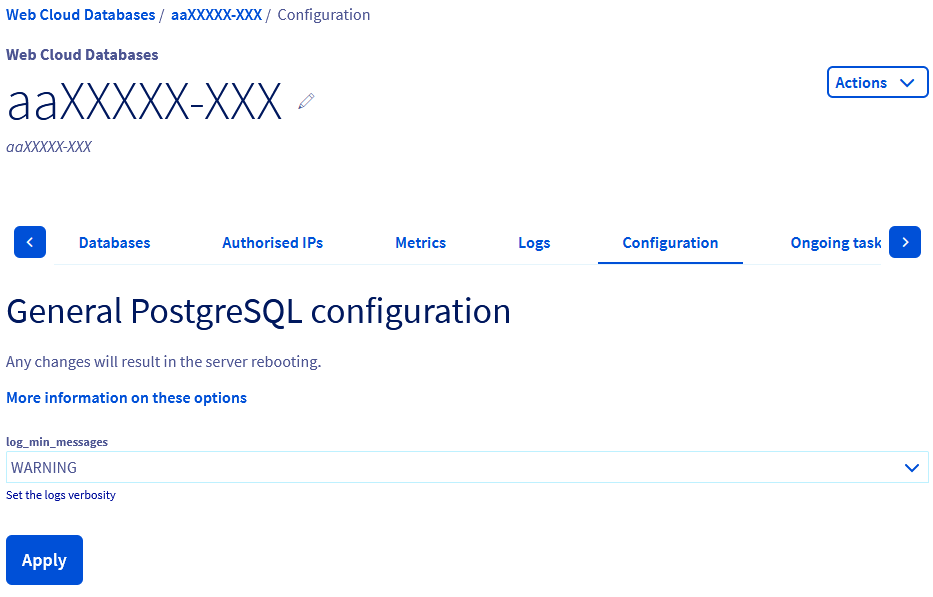
PostgreSQL instance
Click on the tabs below to view each of the 3 steps.
Go to the Web Cloud Databases page, then select the solution concerned.

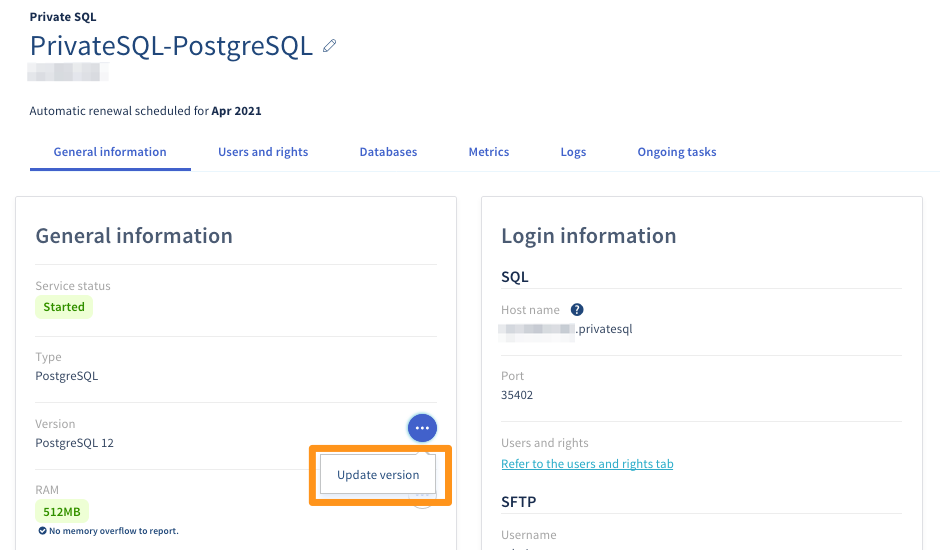
Change the MySQL, PostgreSQL or MariaDB version of the database server
Click on the tabs below to view each of the 3 steps.
Go to the Web Cloud Databases page, then select the solution concerned.
How do I know the exact version of PostgreSQL I am using?
Enter this command in phpPgAdmin by clicking on Your database in the "SQL" section, then click Launch:
How do I know the exact version of MySQL or MariaDB I am using?
Enter this command in phpMyAdmin, in the "SQL" section, then click Run:
- Before migrating to a higher version, ensure that your database is compatible with the version you have chosen.
- The modification will be effective within a few minutes.
It is not possible to switch from an old version to the latest version directly. It is mandatory to use all intermediate versions.
Logs and Metrics
Click on each title to view its content.
Log access
To access the logs for your Web Cloud Databases solution, please refer to our guide "Web Cloud Databases - How to retrieve logs".
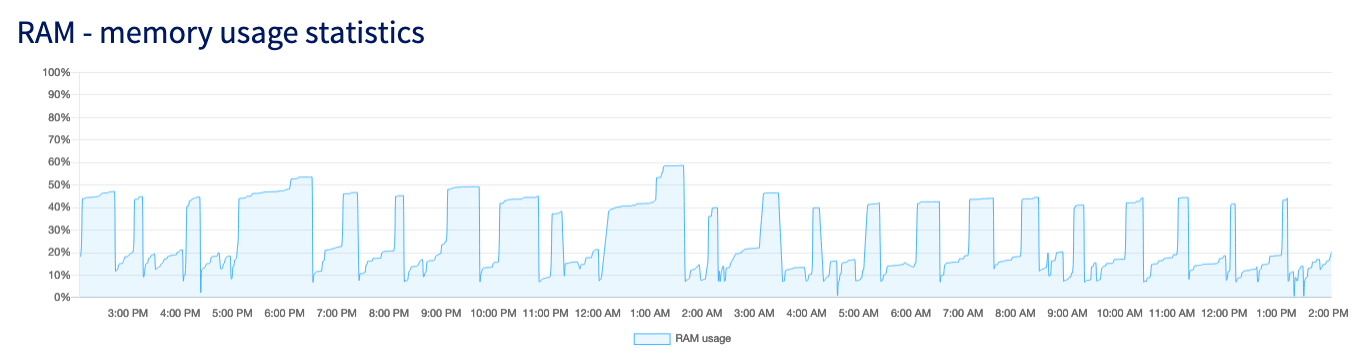
Monitor RAM usage
Click on the tabs below to view each of the 2 steps.
Go to the Web Cloud Databases page, then select the solution concerned.
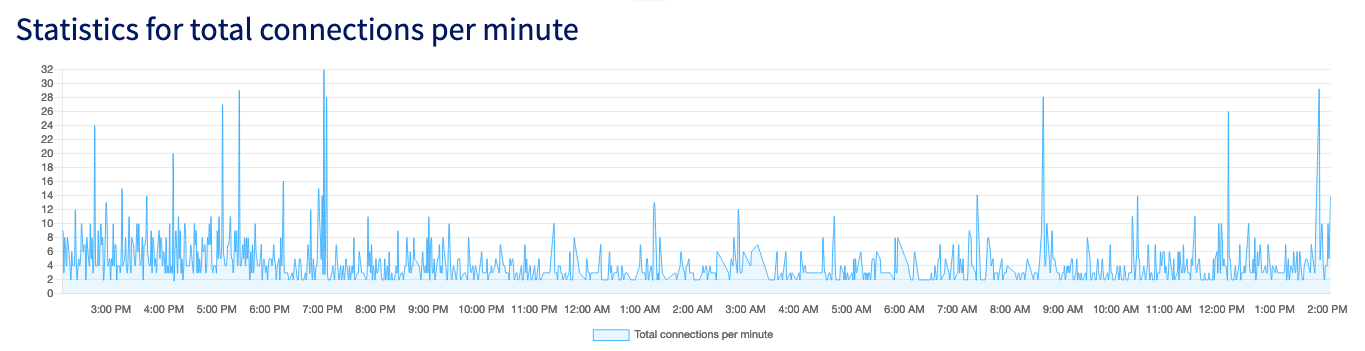
Monitor the number of connections per minute
This graph allows you to track, over the last 24 hours, the load of connections per minute on your database server.
Click on the tabs below to view each of the 2 steps.
Go to the Web Cloud Databases page, then select the solution concerned.
Optimise your databases
Maintain your database to keep it performing well and returning information to scripts quickly. This requires a structured and optimised database.
Click on each title to view its content.
Index the database
To increase the speed of searches during a query, you must index the fields used in WHERE clauses.
Example: you regularly search for people by city. Index the "city" field with the following query:
Purge the database
Some of your data is no longer being accessed? By archiving it, your tables will be less crowded and searches will be faster.
Display limit
Limit the display of records to a fixed number (for example, 10 per page) with the LIMIT portion of your SQL query.
Query grouping
Group your queries at the beginning of the script this way:
Retrieve only useful data
In your SQL queries, make sure you select only what you need, and that you have not forgotten the links between the tables.
Example:
Avoid options that consume too many resources
Avoid using "HAVING" for example. It increases your requests. Similarly, avoid using "GROUP BY", unless it is strictly necessary.
Go further
IP address list for Web Hosting clusters
For specialised services (SEO, development, etc.), contact OVHcloud partners.
If you would like assistance using and configuring your OVHcloud solutions, please refer to our support offers.
Join our community of users.