
Changing the User Password
Objective
vSphere client user permissions and passwords are managed from the OVHcloud Control Panel.
Learn how to change your user password
Requirements
- access to the OVHcloud Control Panel
- a user account created from the OVHcloud Control Panel (see this guide)
Instructions
Change Password
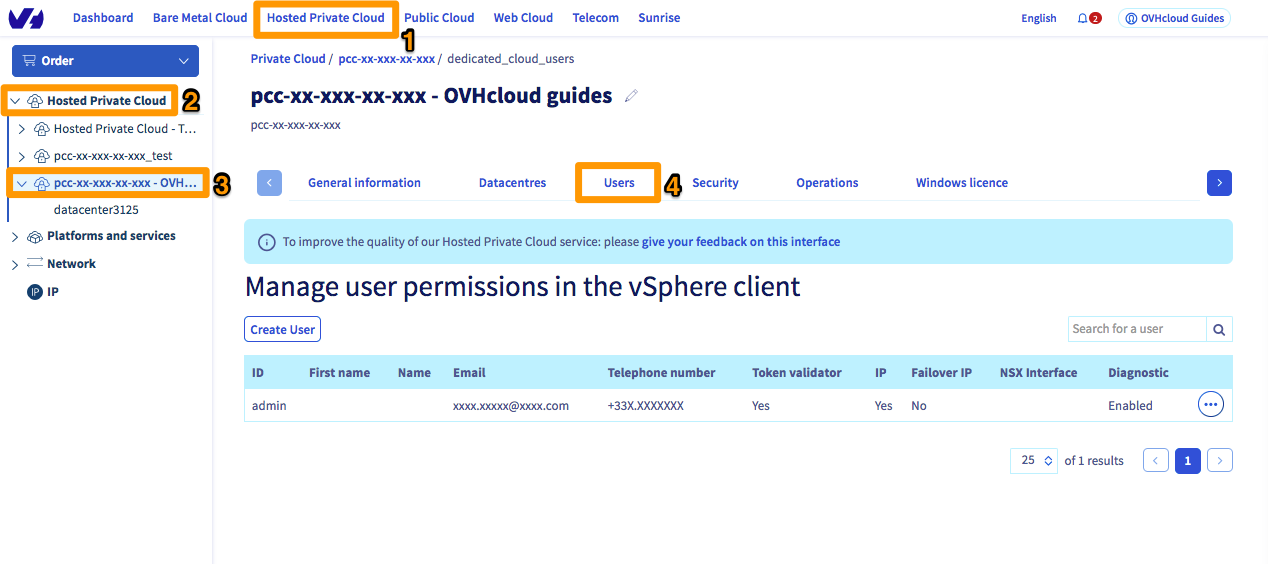
Log in to your OVHcloud Control Panel, go to Hosted Private Cloud (1), click Hosted Private Cloud (2) and select your server from the list (3). Click the Users (4) tab.
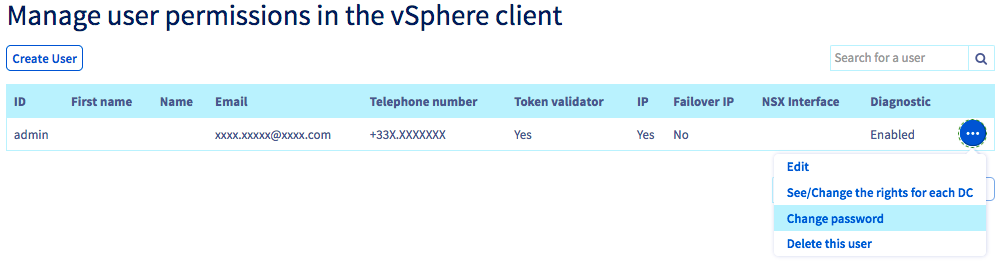
Click the (...) button to the right of the user concerned and then click Change Password.
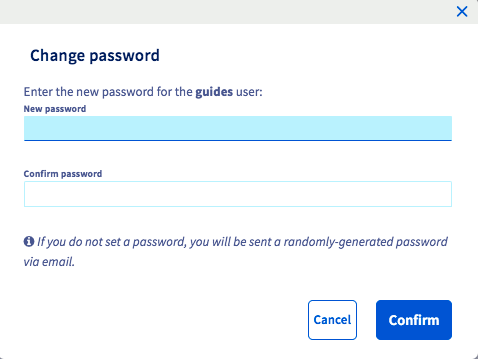
Enter a new password and confirm it.
Info
If you do not enter a password, a randomly generated password will be emailed to the user's associated address.
WARNING
- Have at least 8 characters.
- Have at least 3 character types.
- Not to be drawn from the dictionary.
- Not include personal information.
- Not be used for multiple access.
- Be stored in a password vault.
- Be changed every 3 months.
- Be different from previous passwords.
Go further
Introduction to the Private Cloud Control Panel
Setting and managing an account password
Join our community of users on https://community.ovh.com/en/.
Was this page helpful?