
Manage your SMS history
Objective
You can view and download a log of your sent SMS messages from your OVHcloud Control Panel. This guide will explain how to do this.
Requirements
- An OVHcloud SMS account with at least 1 sent SMS.
OVHcloud Control Panel Access
- Direct link: SMS
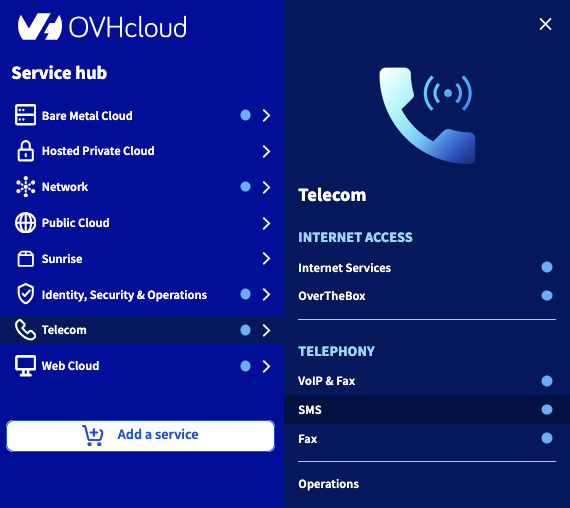
- Navigation path:
Telecom>SMS> Select your SMS account
Instructions
The log records the date, time, sender, recipient and contents of the sent SMS.
In the OVHcloud Control Panel, you can view SMS messages sent in the last 6 months (or the last 5,000 SMS messages if you have sent more than 5,000 SMS messages in the last 6 months).
To view older SMS messages (up to the last 12 months), you will need to download your SMS history in CSV format. See Step 2 of this guide.
Step 1: Viewing the log in your Control Panel
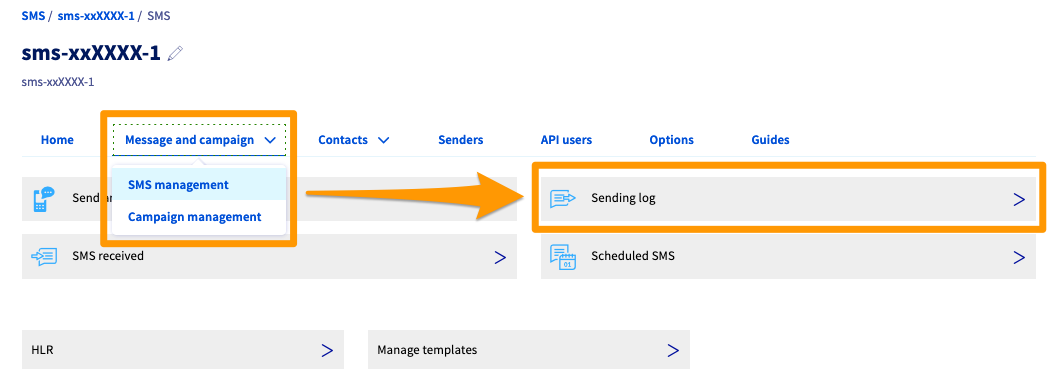
In the tab bar, click Message and campaign then SMS Management to access your unit SMS history or Campaign Management to access your SMS campaign history.
Then click on Sending log or Statistics and history.
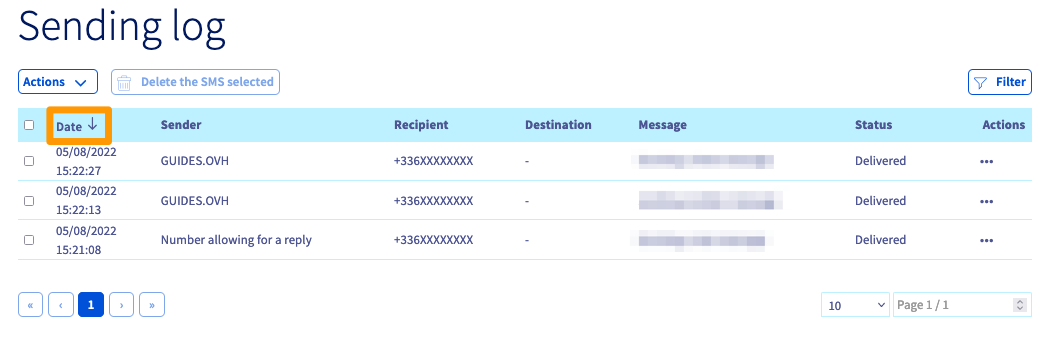
You can click on the ‘Date’ column on the left to sort your log by send date.
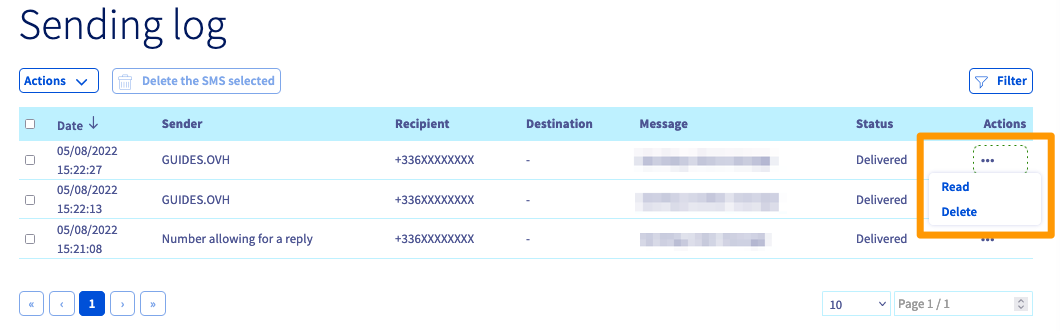
The Actions ... heading at the end of each SMS allows you to view or delete the message.
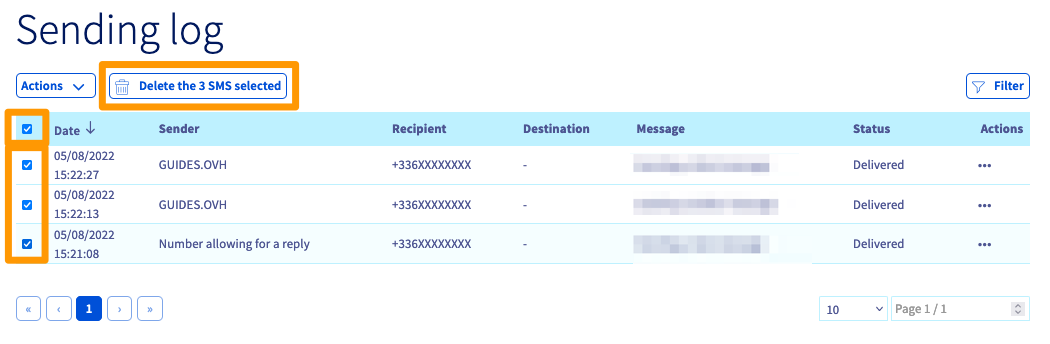
To delete several SMS messages at once, tick the boxes next to each message. The Delete the SMS selected button will appear above the log.
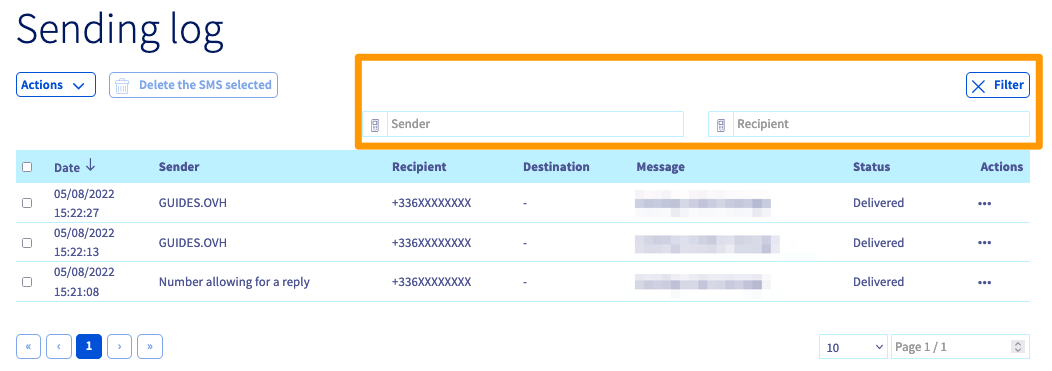
The Filter button allows you to filter your search by sender (if you have several senders) or by recipient.
Step 2: Downloading the sending log as a CSV
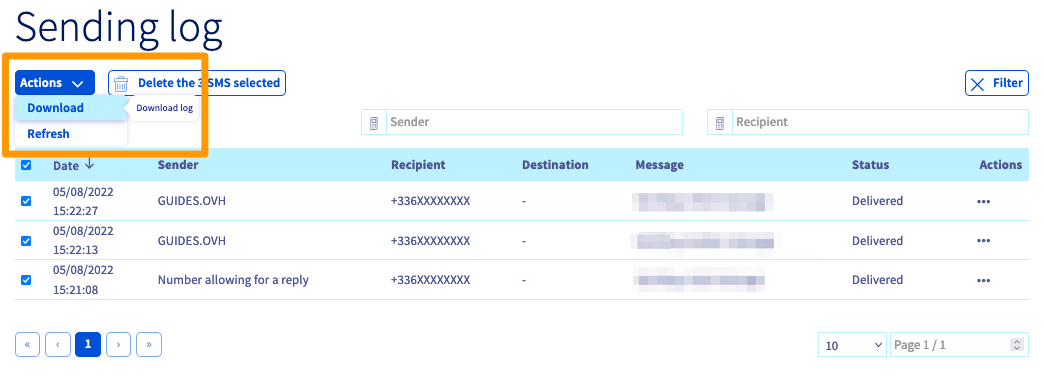
Click on the Actions button above your log then on Download to download your SMS log in a .csv format.
You can then view the log using a spreadsheet program. The information will display as in the example below.
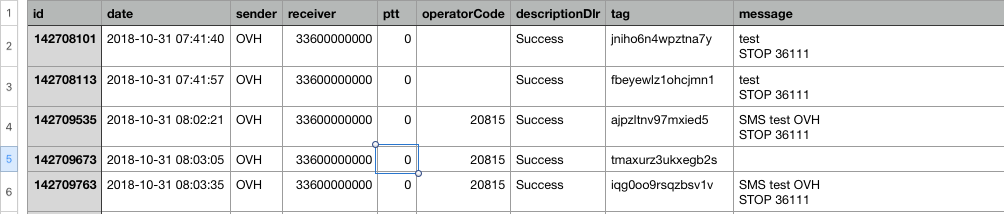
Here is a breakdown of the information included in the log:
Further information about the ptt codes and various DLR IDs can be found in the final section of the guide Everything you need to know about SMS users.
Go further
Join our community of users.