
SAP pre-installation wizard
This guide provides instructions for using the SAP pre-installation wizard from OVHcloud
Introduction
The SAP pre-installation wizard offered by OVHcloud simplifies the deployment of an SAP system on your VMware service on OVHcloud already configured in your customer account. It allows you to set up SAP NetWeaver 7.50 or S/4HANA environments, either in ABAP or Java configuration, and according to standard, distributed, or highly available schemes.
It is essential to note that the term "pre-installation" here refers to the installation of the technical stack only. This includes the SAP HANA database as well as the SAP NetWeaver 7.50 or S/4HANA technical stack. After this pre-installation phase, you will need to install the specific SAP module for your needs and finalize the configurations as part of a post-installation.
OVHcloud Control Panel Access
- Direct link:
- Navigation path:
Hosted Private Cloud>SAP Features Hub> Select your service
First Steps
To access our SAP pre-installation wizard, go to the SAP Features Hub section of the Hosted Private Cloud menu, available from the .
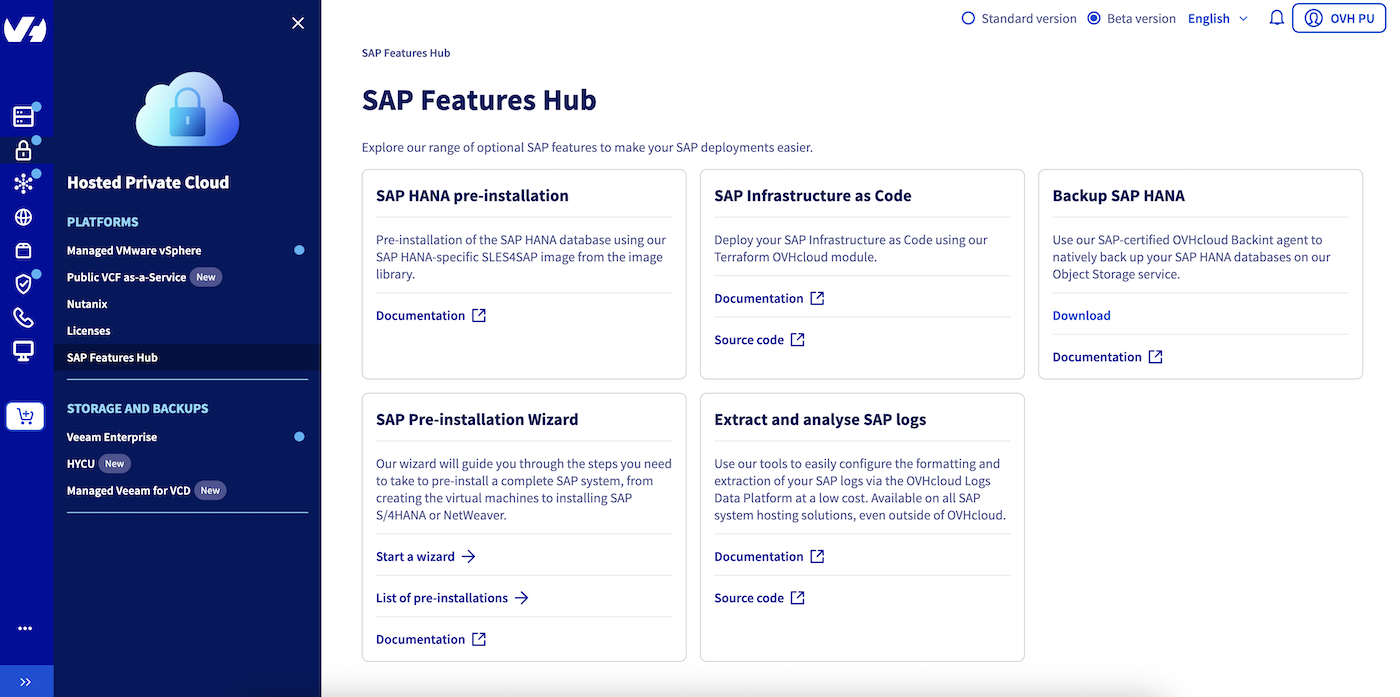
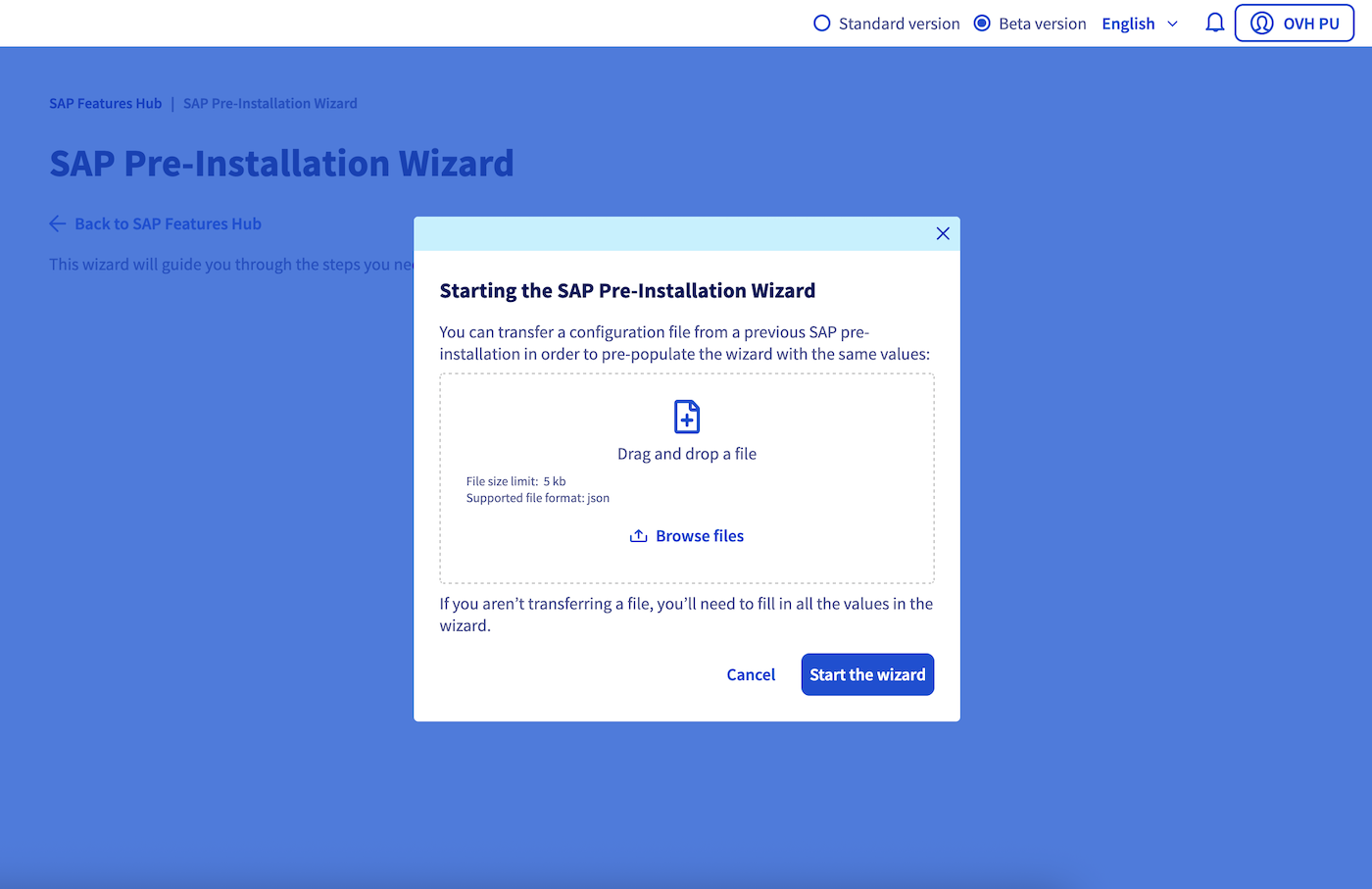
You have two options: start a blank wizard to manually enter all the necessary information or import a previously created JSON file. This file can be generated from the schema of our API or come from a previous installation, allowing you to pre-fill the information and speed up the process.
Requirements
- You must have a VMware on OVHcloud service1 already deployed in your customer account.
- A Public Cloud project must be created in your OVHcloud account.
- In this Public Cloud project, an Object Storage container must be created to store your SAP sources2.
- A DHCP server must be configured in the network where you want to deploy your SAP system for the OVHcloud virtual machine3 that will be deployed during the installation process.
It is essential to note that our SAP pre-installation wizard only supports installations using the SAP HANA database. Therefore, only SAPEXEDB sources for SAP HANA are supported. All other SAPEXEDB files must be removed from your Object Storage container if they were selected via the SAP Maintenance Planner.
In the case of an SAP S/4HANA Java installation, also download and deposit the DATA_UNITS files (available via Software Center > INSTALLATIONS & UPGRADES > By Alphabetical Index (A-Z) > S > SAP S/4HANA > {VERSION} > INSTALLATION AND UPGRADE > 5XXXXX.ZIP) into your Object Storage container.
1 If you want to deploy a production SAP system, we strongly recommend using our SAP HANA on Private Cloud range. This solution is specifically designed and certified to host SAP systems with an SAP HANA database.
2 OVHcloud is not authorized to provide the required SAP sources for an installation. Therefore, we ask you to store your SAP sources in an OVHcloud Object Storage container. To do this, use the SAP Maintenance Planner tool to generate the list and download the set of SAP sources necessary for your desired installation. Don't forget to deposit the SAPCAR executable in your Object Storage container.
3 When deploying your SAP system, a dedicated virtual machine named "ovhcloud-sap-wizard" will be deployed in your VMware on OVHcloud service. This virtual machine is essential for orchestrating the entire installation process. It is equipped with 2 vCPUs, 1 GB of RAM, and 30 GB of storage. At the end of the installation process, whether successful or failed, this virtual machine will be automatically deleted.
Step-by-Step
Step 1
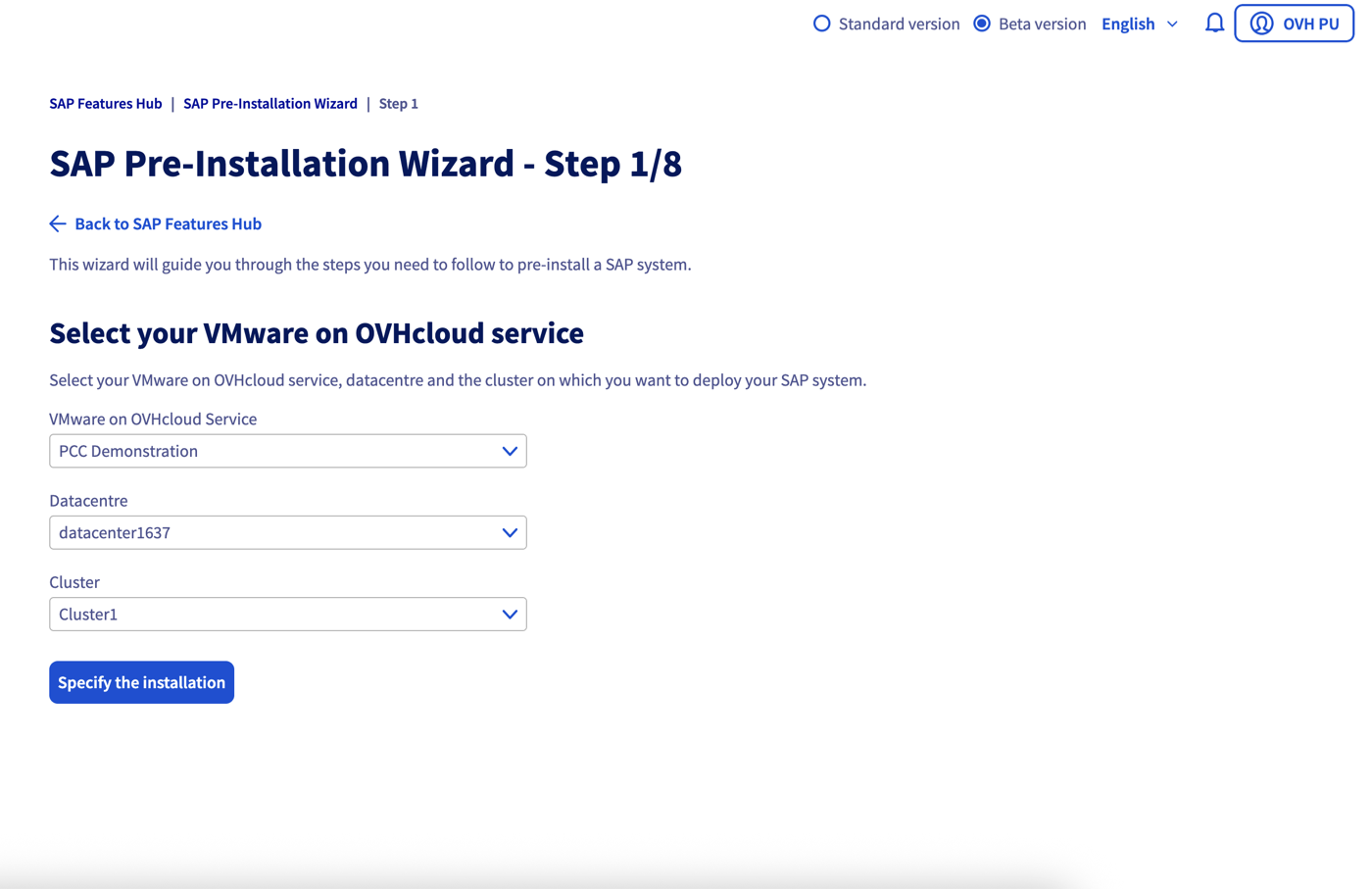
In this first step, select the VMware on OVHcloud service that you want to use for your SAP installation. Choose the datacenter, as well as the cluster that will host your SAP virtual machines.
Step 2
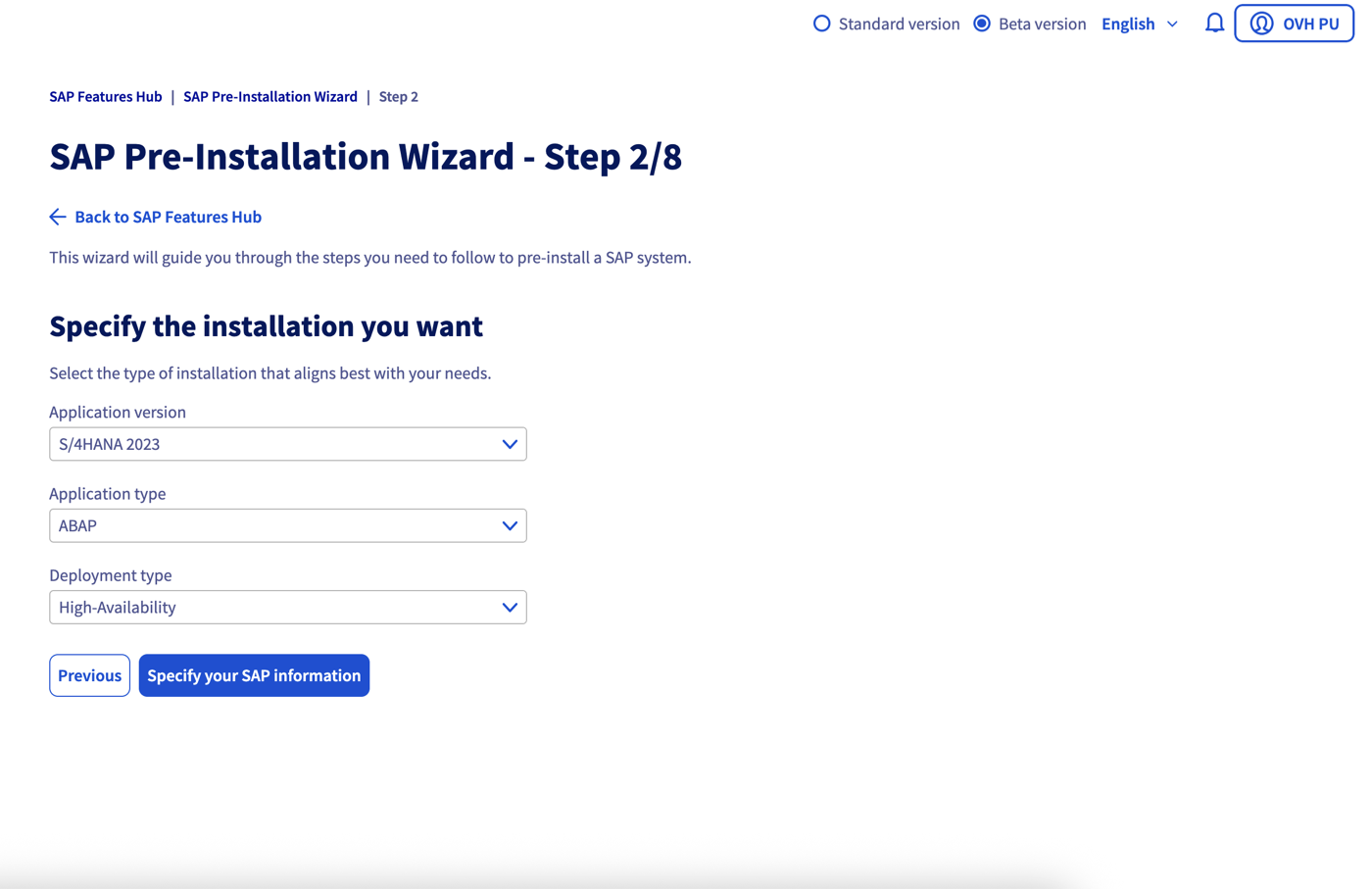
Choose the type of SAP installation you want to perform: SAP NetWeaver 7.50 or S/4HANA, in ABAP or Java configuration, and in standard, distributed, or highly available deployment. The choice of deployment type will determine the minimum number of virtual machines to create in the next step of the wizard. You will not be able to delete these virtual machines in the wizard.
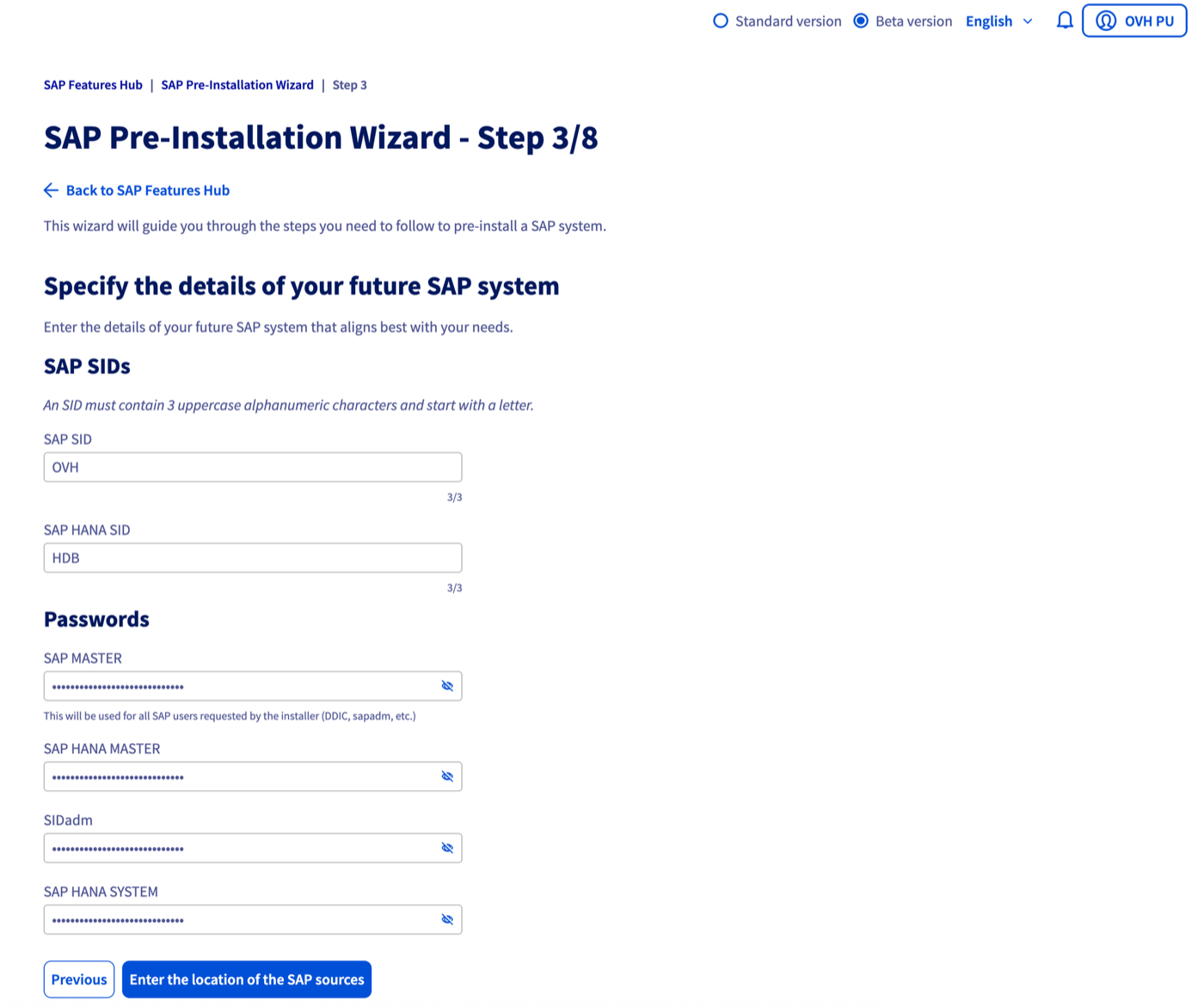
Step 3
Provide the SAP system identifiers (SIDs) and passwords that will be used during the installation.
Step 4
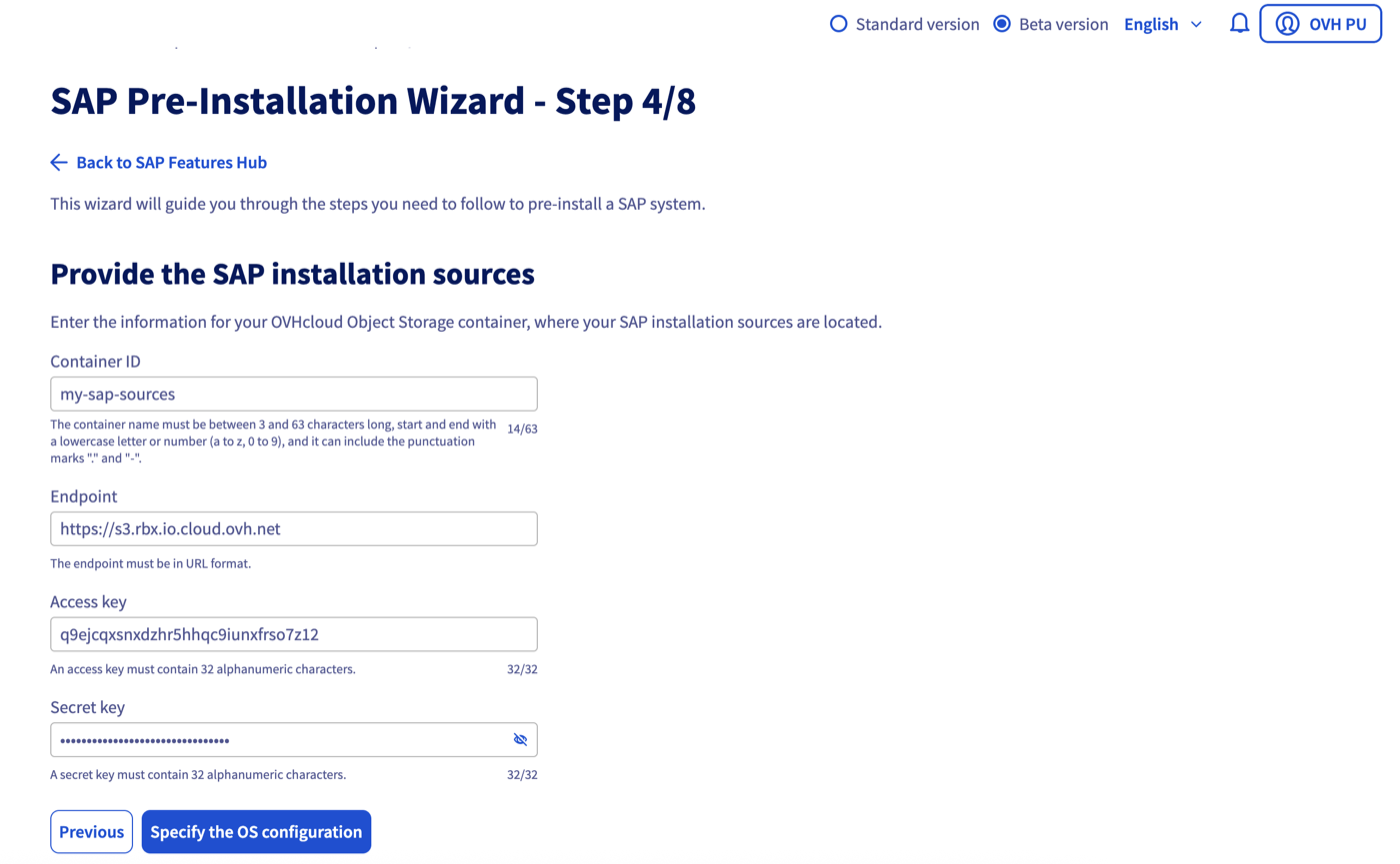
Enter the information for the OVHcloud Object Storage container hosting the necessary SAP sources for this installation. Ensure that the container only contains the content generated by the SAP Maintenance Planner corresponding to the version (NetWeaver 7.50 or S/4HANA) and application type (ABAP or Java) selected. The access key and secret key fields refer to the authentication information of the Object Storage user with read rights on this container.
Step 5
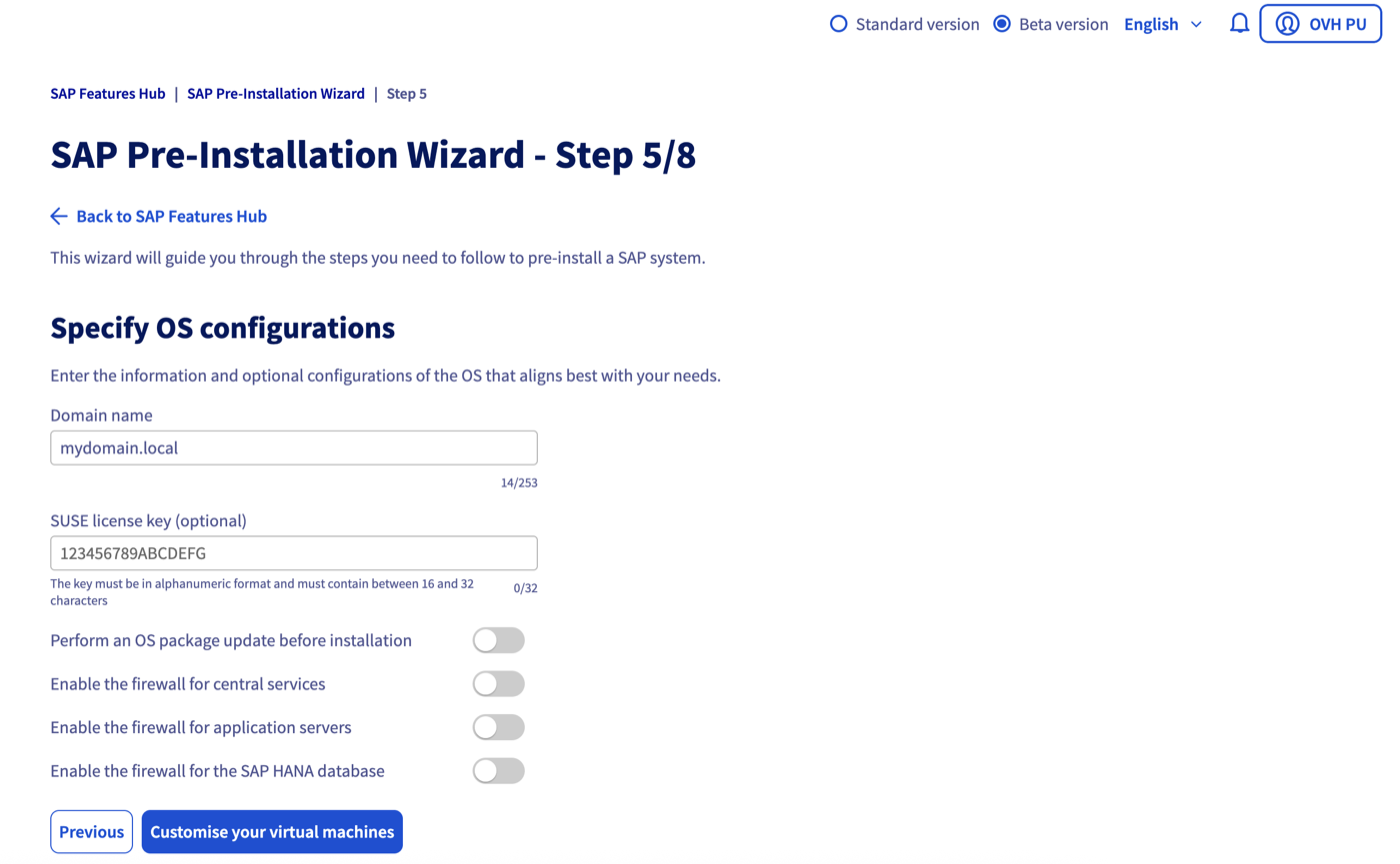
Enter the operating system parameters for your virtual machines. You can choose to update the operating system packages before installation. If this option is enabled, please provide the necessary SUSE license key to perform the updates.
You have the option to enable the firewall at the operating system level of your virtual machines. If enabled, an "SAP" zone will be created in the "firewalld" service, authorizing selected network communications.
Step 6
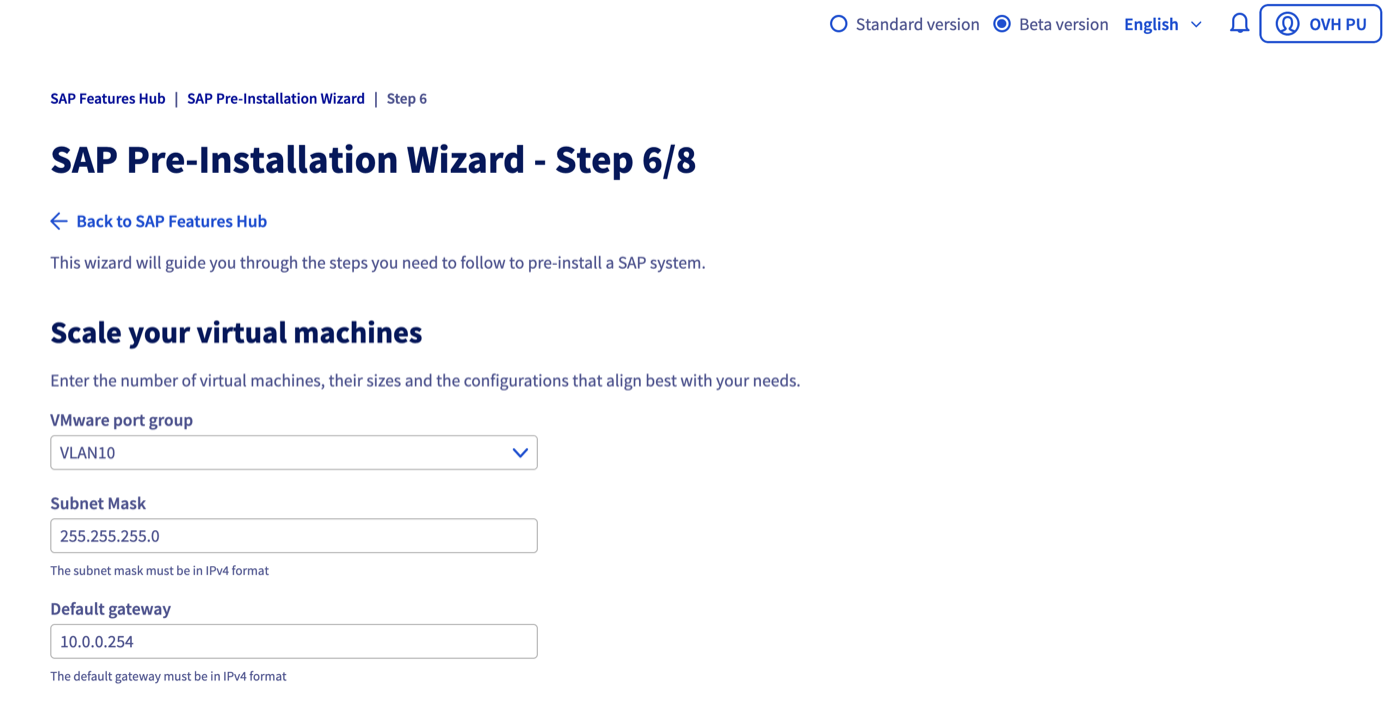
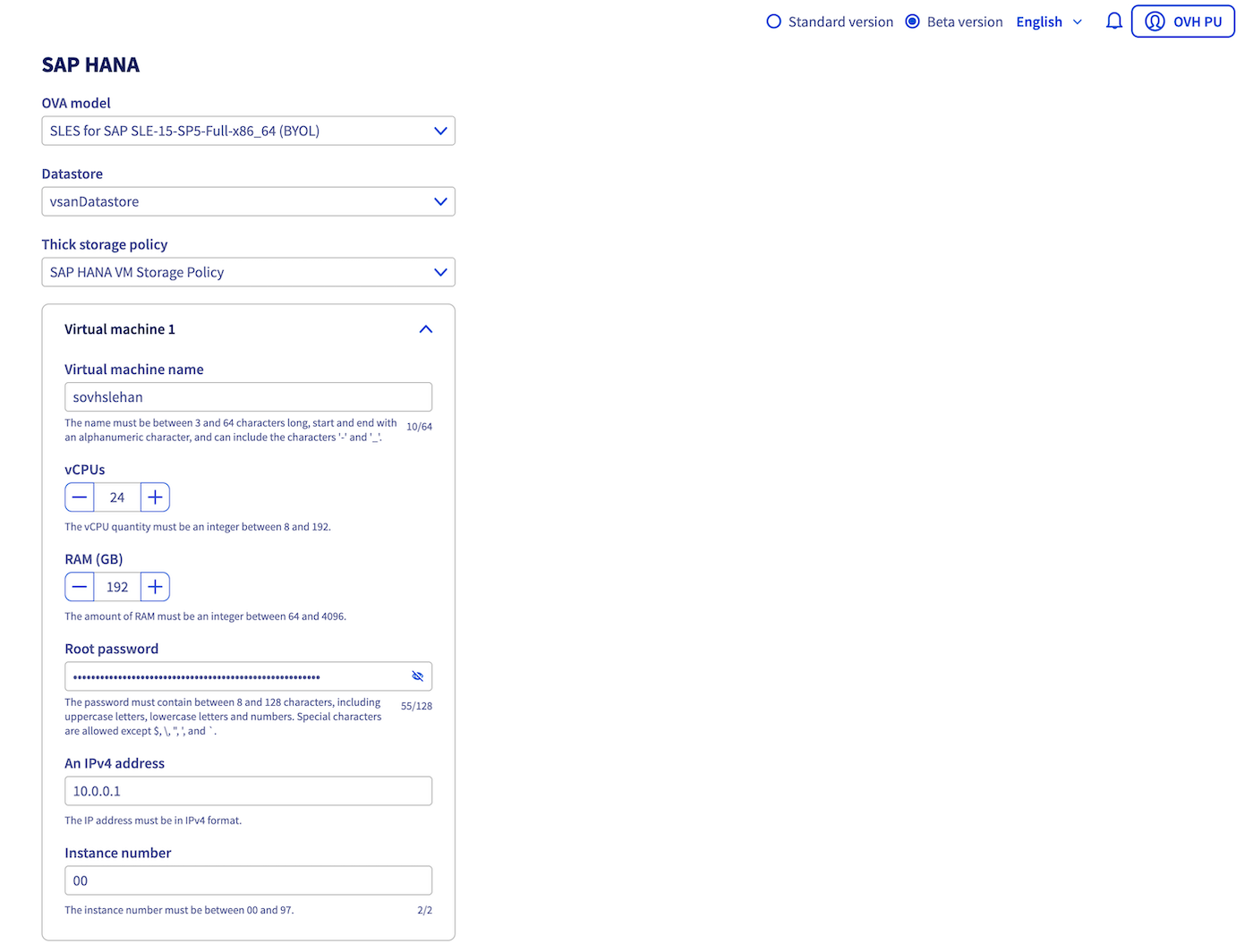
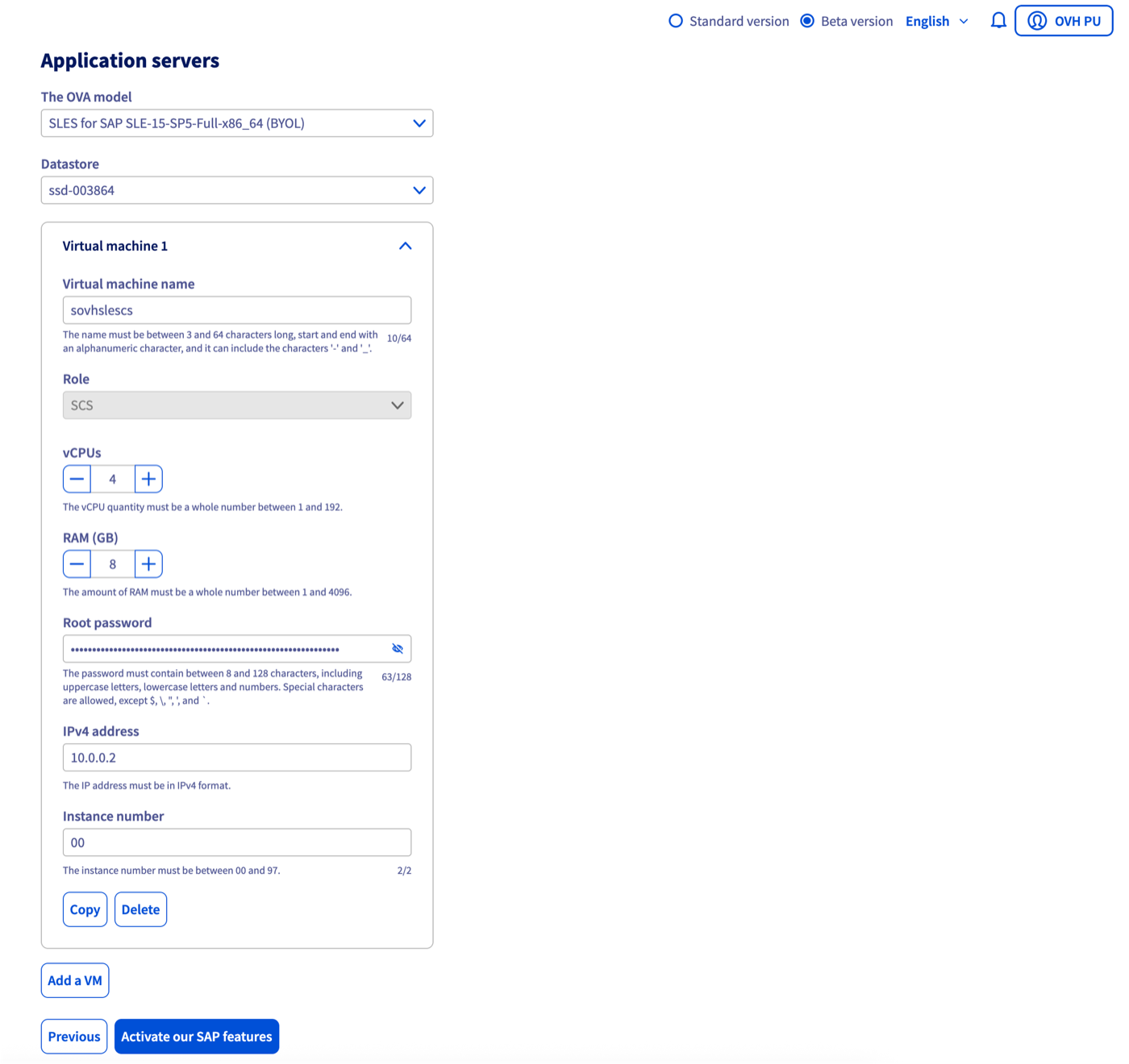
Enter the information for configuring and sizing your virtual machines.
We strongly recommend using the vSAN datastore for the virtual machine hosting the SAP HANA database, offering optimized performance. For SAP application servers, you have the option to use an NFS datastore (ssd-XXXXXX).
It is also recommended to create and select your Thick storage policy for your SAP HANA virtual machine. You can find information related to this storage policy in our documentation in the "Configuring advanced settings" chapter, point 5.
It is not possible to apply a Thick storage policy on NFS datastores (ssd-XXXXXX). Therefore, if you select an NFS datastore for your SAP HANA machine, the Thin storage policy will be used.
All virtual machines must be deployed in the same subnet. This subnet must have internet access to allow downloading SAP sources from your OVHcloud Object Storage container, as well as updating operating system packages if you enabled this option.
Our wizard gives you the option to choose a different OVA/OVF virtual machine template for your SAP HANA database and for your SAP application servers, as well as for the choice of datastore. However, it is not possible to deploy your SAP application servers on different OVA/OVF virtual machine templates and datastores. Additionally, if you decide to deploy your virtual machines with different OVA/OVF templates, the license activation feature is currently not compatible.
Step 7
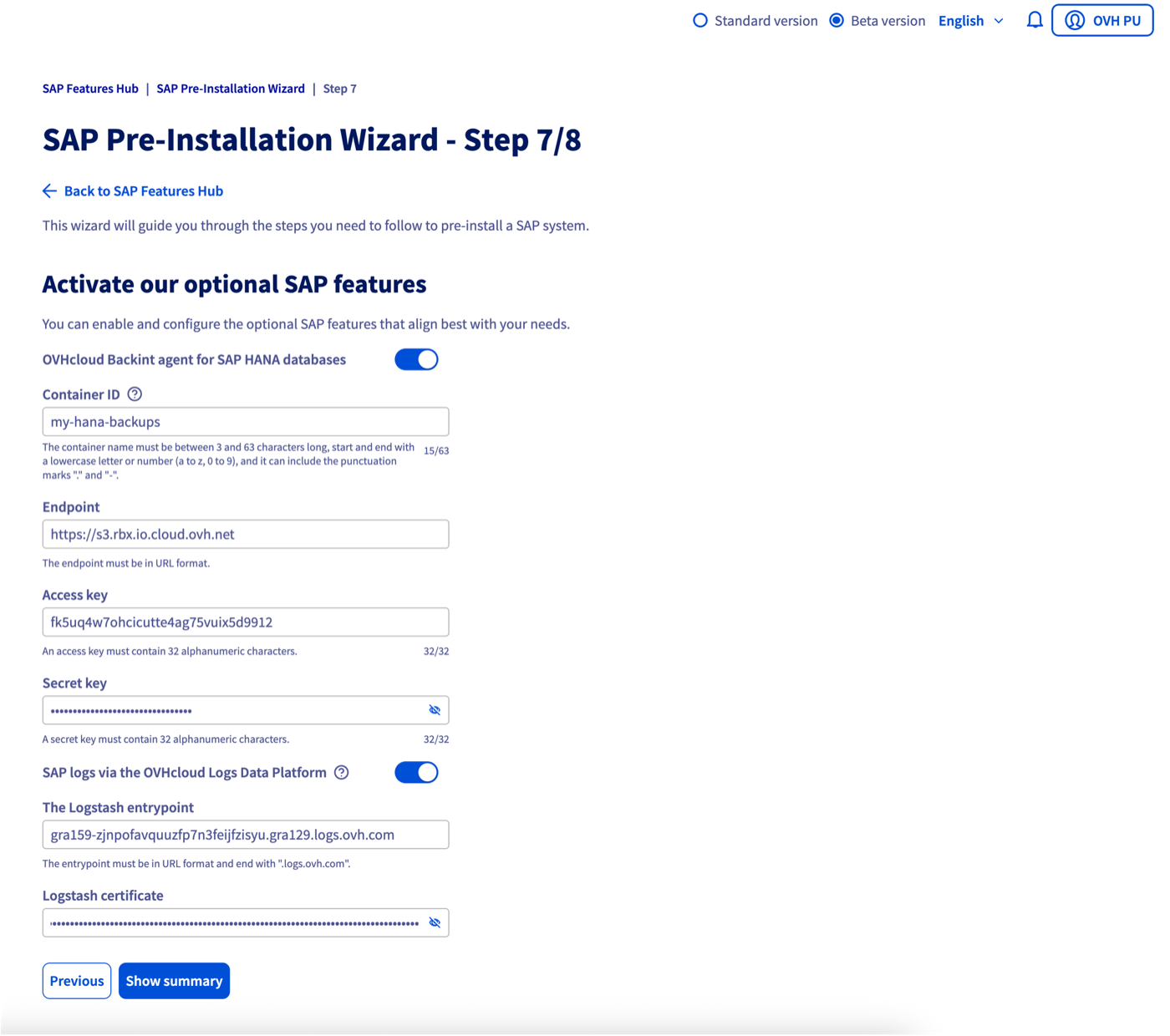
Our wizard allows you to activate our features like our backup agent for SAP HANA or export SAP logs to our Logs Data Platform.
OVHcloud Backint Agent
We invite you to review the prerequisites in our documentation.
SAP logs on Logs Data Platform
We invite you to review the chapters Logs Data Platform, Data stream, and collection tools in our documentation.
Step 8
Verify the accuracy of the previously entered information to avoid any issues during the execution of the wizard.
Once you are satisfied with the provided information, you have the option to download this configuration in JSON format. This action will allow you to import it into a new wizard later, pre-filling the information.
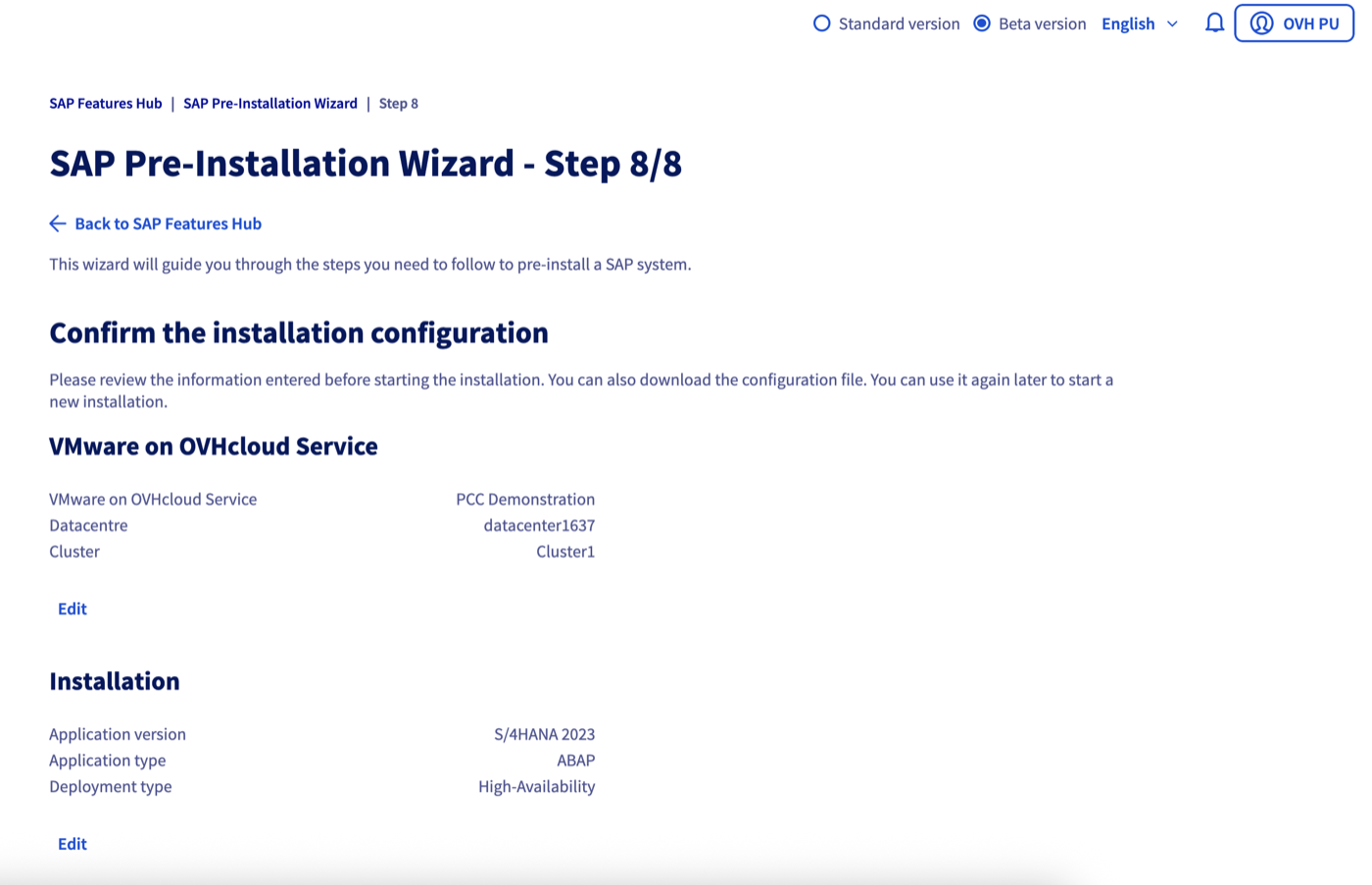
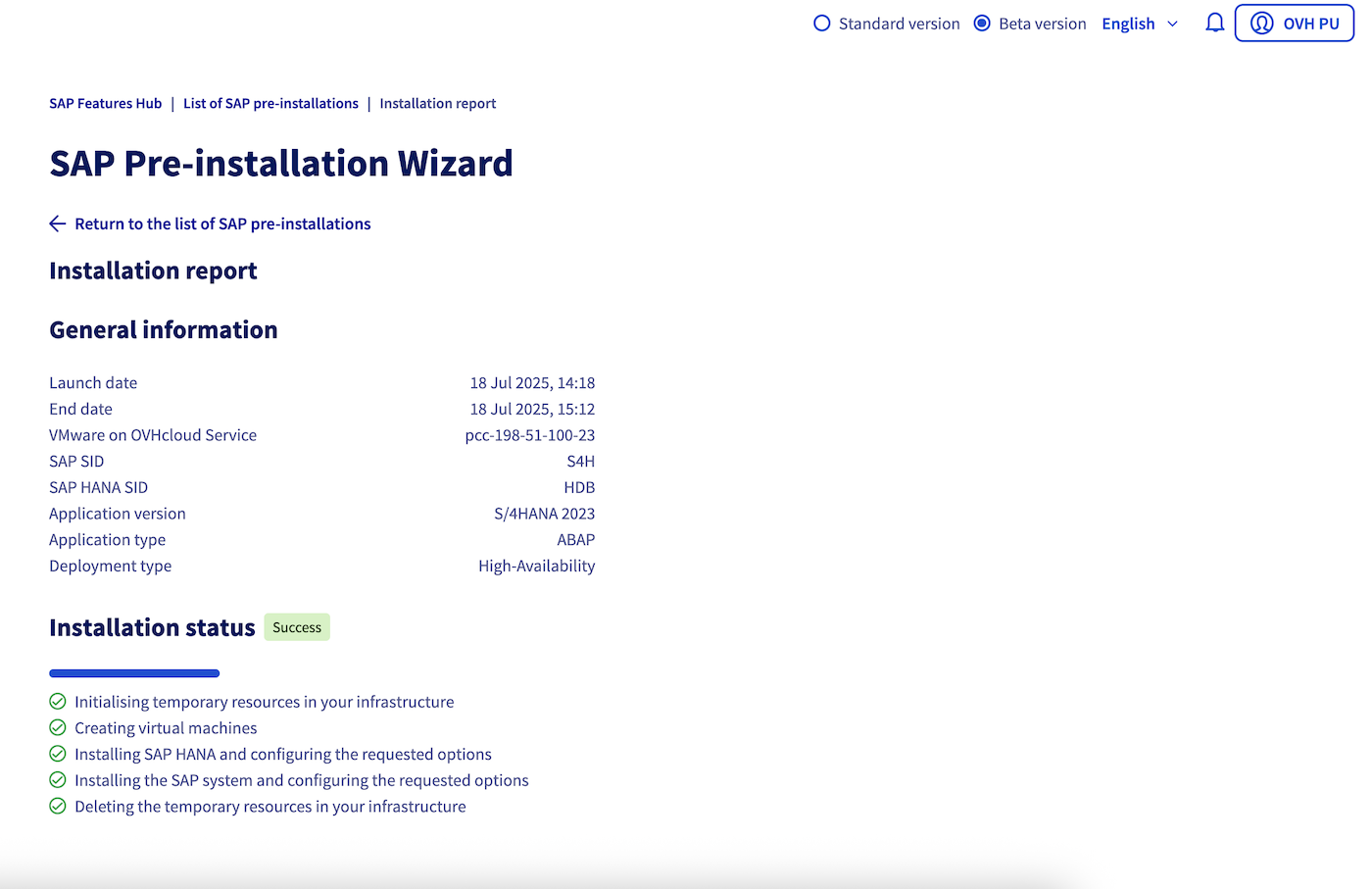
After validating the information, you will be redirected to the pre-installation tracking page. You can also find the list of all your pre-installation tasks and their details in the SAP Feature Hub section in the Hosted Private Cloud menu, List of pre-installations.
Troubleshooting Common Issues
The error message indicates that the requested configuration exceeds the capabilities of my datacenter.
If you have recently deleted virtual machines to free up capacity within your datacenter, it may be that the capacity information has not yet been updated. Please wait a few minutes before trying again. If the problem persists, do not hesitate to contact OVHcloud support for assistance.
The imported JSON file contains syntax errors.
Ensure that the JSON file is correctly formatted. You can use a JSON validator to check the file's validity before importing it into the wizard.
The SAP sources are not accessible from the Object Storage container.
Check that the Object Storage container is correctly configured and that the access permissions are appropriate. An Object Storage user with read rights is necessary for downloading the sources to your virtual machines.
The allocated memory parameters for the virtual machines are insufficient.
Increase the amount of RAM allocated to the virtual machines based on SAP's requirements for your configuration. Consult SAP documentation for recommendations on memory.
An error message indicates that an internal error occurred during installation, and I cannot start a new installation because a previous task is still in progress.
If an internal error occurs and the task status has not been correctly updated, please delete the task in question via our API.
This action will remove the task in error that is blocking new installations. Also, delete the virtual machines that were created by the failed installation task.
Frequently Asked Questions (FAQ)
Can I use a VMware on OVHcloud service other than the SAP HANA on Private Cloud range?
Although our SAP pre-installation wizard is optimized for the SAP HANA on Private Cloud range, it is possible to use a VMware on OVHcloud service from another range. However, we strongly recommend the SAP HANA on Private Cloud range for a solution specifically designed and certified to host SAP systems with an SAP HANA database.
Can I use my OVA/OVF virtual machine templates to deploy the SAP system?
You cannot currently use your OVA/OVF virtual machine templates to deploy your SAP system via our wizard.
Can I resume my installation if it failed?
In the event of an installation failure, you will not be able to resume the installation. You will need to delete the constructed SAP system and launch a new installation. If necessary, you can also contact OVHcloud support for assistance.
Can I add an SAP application server to an existing SAP system?
The OVHcloud SAP pre-installation wizard does not support adding additional components to an existing SAP system.
Go Further
For training or technical assistance implementing our solutions, contact your sales representative or visit our Professional Services page to request a quote and have your project analysed by our experts.
Join our community of users.