
Edit Counter-Strike 2 server configuration on the Game Panel
Edit your Counter-Strike 2 server settings on the Game Panel, including server name, game mode, map selection, and framework installation.
Objective
The Game Panel exposes the Counter-Strike 2 server configuration directly in the UI. Basic options such as the server name, map, and game mode are available through a graphical form, and you can also install server frameworks such as MetaMod and CounterStrikeSharp.
This guide explains how to edit Counter-Strike 2 server configuration on the Game Panel.
Requirements
- A VPS or a dedicated server in your OVHcloud account with the Game Panel feature enabled.
- A Counter-Strike 2 server deployed on the Game Panel. Refer to Deploy a Counter-Strike 2 server on the Game Panel.
Instructions
Step 1 — Open the server settings
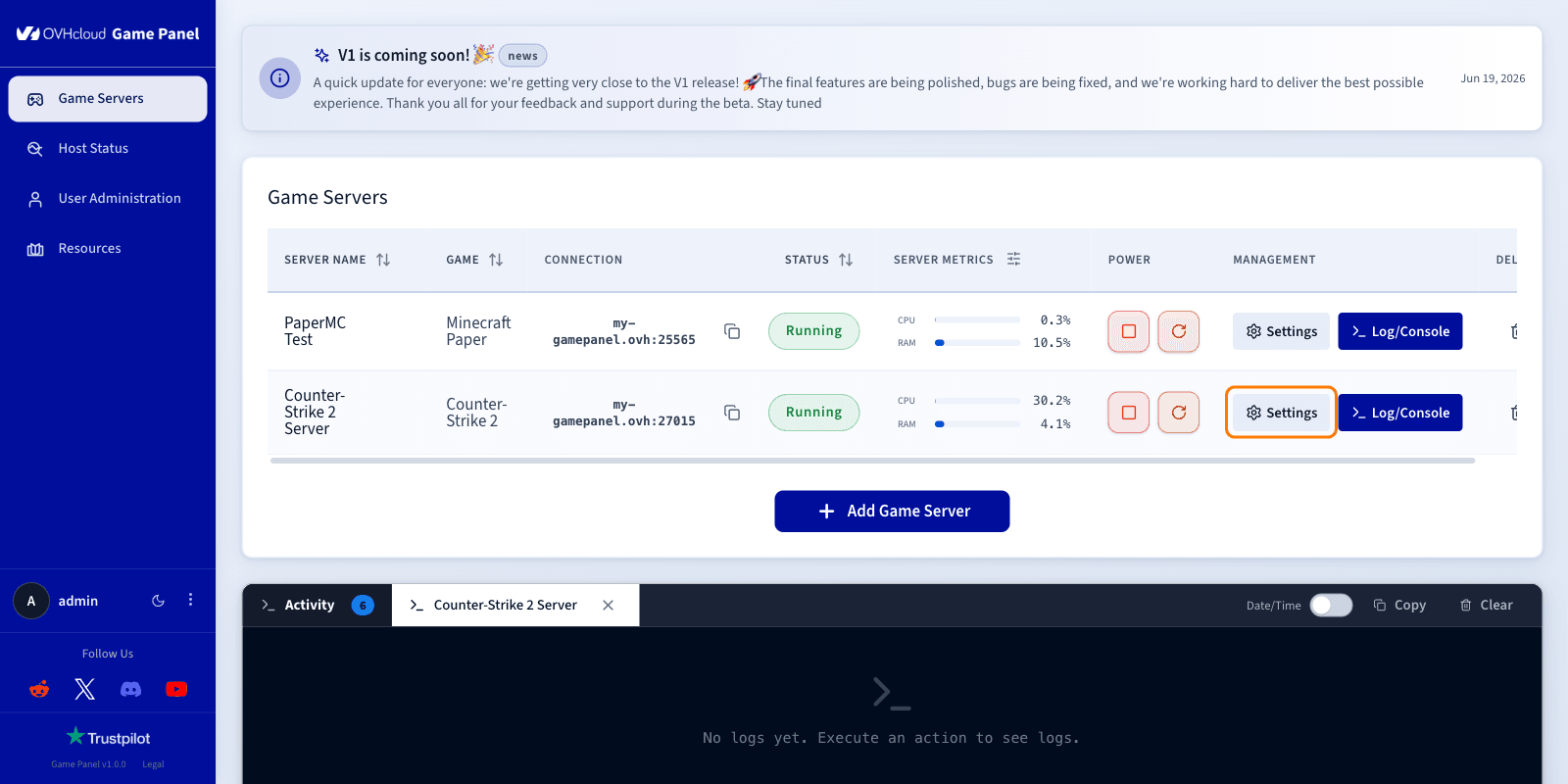
From the main Game Panel page, locate the Counter-Strike 2 server you want to configure. In the Management column, click Settings.
Step 2 — Open the Game Config tab
In the Server Settings panel, select Game Config in the left sidebar.
The Game Config section lets you manage the main settings of your Counter-Strike 2 server through two tabs:
- Settings: configure the game server settings.
- Frameworks: install and manage supported server frameworks.
Step 3 — Configure the Settings tab
The Settings tab lets you modify the main Counter-Strike 2 server parameters:
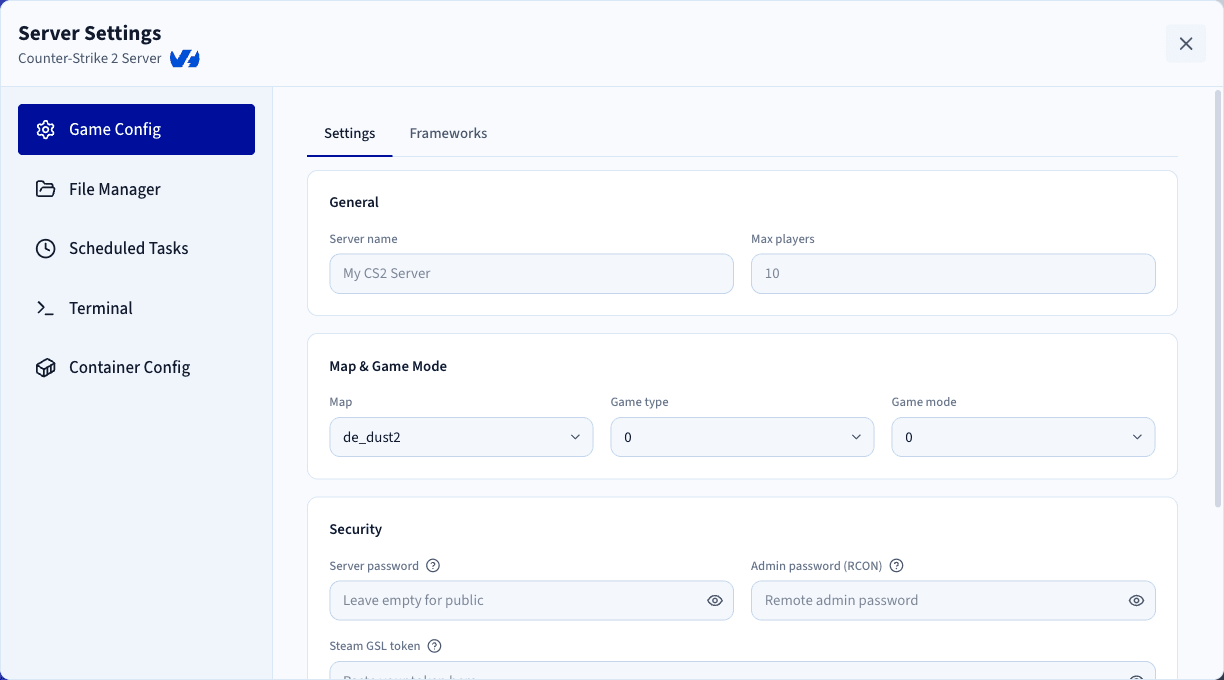
After modifying any of these settings, save your changes and restart the server for them to take effect.
Step 4 — Install frameworks
The Frameworks tab lets you install additional components to extend the functionality of your Counter-Strike 2 server.
- MetaMod: a server plugin framework that acts as a middleware layer between the game server and plugins. It provides the foundation required by many advanced server extensions and administration tools.
- CounterStrikeSharp: a modern plugin framework for Counter-Strike 2 that lets server administrators and developers create and run custom plugins using C#. It can add gameplay features, server management tools, and community-developed extensions.
You can install either framework directly from the Game Panel, and reinstall them later to update to a newer version when available.
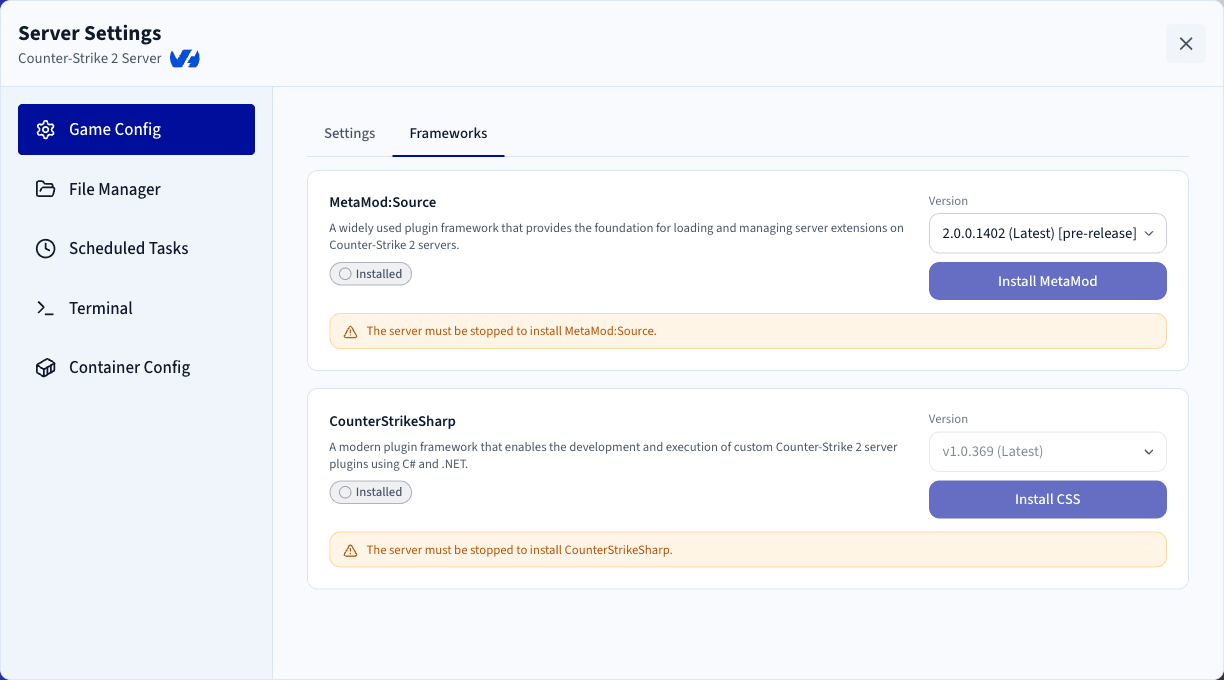
The server must be stopped before installing a framework.
Step 5 — Save and restart
After saving your changes, restart the Counter-Strike 2 server from the Game Panel for the new configuration to take effect.
Go further
Join our community of users.