
Deploying AI workloads on an 8x NVIDIA H200 NVL GPU instance
Find out how to deploy AI workloads on an 8x NVIDIA H200 NVL GPU instance while respecting its NVLink topology
Objective
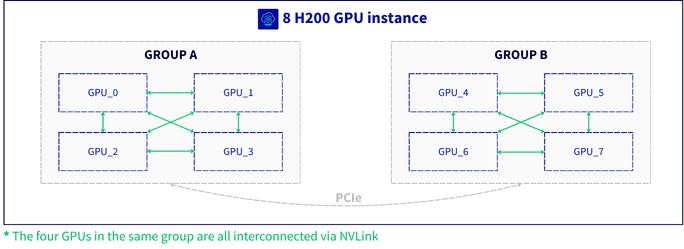
We recommend that you follow this guide if you have an h200-1920-eph or h200-1920 instance. 8x NVIDIA H200 NVL instances (h200-1920 and h200-1920-eph flavors) are organised into two groups of 4 GPUs, with NVLink connectivity only within each group and PCIe between the two groups. Taking this topology into account helps you get the best performance and stability for your AI workloads.
At the moment, 8x NVIDIA H200 NVL instances are only available in the Paris region (EU-WEST-PAR).
This guide explains how to deploy and operate AI workloads on an 8x NVIDIA H200 NVL GPU instance
Requirements
- A Public Cloud project with access to the region where the h200-1920 and h200-1920-eph instance models are available (EU-WEST-PAR)
- An SSH key created to deploy a Linux GPU instance
OVHcloud Control Panel Access
- Direct link:
- Navigation path:
Public Cloud> Select your project >Instances
Instructions
You will find below the information needed to deploy an 8x NVIDIA H200 NVL instance, understand its topology, then run and monitor your AI workloads on it.
Deploying the instance
In the Quick access section, click Create an instance. Then select the EU-WEST-PAR region and choose the h200-1920 or h200-1920-eph instance model in the Cloud GPU category.
Next, follow the remaining steps as detailed in the How to create a Public Cloud instance and connect to it guide. This process may take a few minutes.
Once the instance is delivered, install the NVIDIA driver as detailed in the Deploying a GPU instance guide.
Hardware overview
Ephemeral disk (h200-1920-eph)
The ephemeral disk of the h200-1920-eph instance model is already formatted with an Ext4 filesystem. It may already be mounted automatically under /mnt by cloud-init.
To check whether the ephemeral disk is mounted, run the following command:
If the 20 TB disk shows /mnt as its mount point, it is ready to use. Otherwise, mount it manually, replacing /dev/<device> with the device name shown by lsblk -f:
Data stored on the ephemeral disk is not included in instance backups and is lost when the instance is deleted or shelved. We recommend backing up your important data to an external storage solution, such as Object Storage.
GPU topology and NVLink architecture
The 8 GPUs are organised as follows:
When allocating workloads on this instance, we recommend the following:
- Whenever possible, run each job within a single NVLink group (4 GPUs).
- When a single model needs all 8 GPUs, treat the two groups as two separate clusters: keep communication-intensive parallelism (such as tensor parallelism) within each group, and only use lighter communication (such as pipeline parallelism) between the two groups. An example is given in the recommended configurations below.
- Keep in mind that NVLink performance benefits apply within each group of 4 GPUs only.
Keeping communication-intensive operations within each NVLink group avoids heavy traffic on the PCIe bus, which ensures both better performance and better stability.
Before dispatching a workload, we recommend checking which GPUs belong to which NVLink group:
In the matrix, GPUs connected by NVLink show an NV# value between them (# being the number of NVLink links). GPUs connected through PCIe only show a PCIe path type instead (for example PHB, NODE or SYS). The 4 GPUs showing NV# values between them form one NVLink group.
You can also display the NVLink status of a given GPU (here GPU 0):
Recommended configurations
The examples below use vLLM to illustrate how to deploy a model on 4 or 8 GPUs while respecting the NVLink topology.
To deploy on 4 GPUs, explicitly specify the device IDs to make sure they all belong to the same NVLink group:
Operational best practices
We recommend that you:
- confirm the GPU-to-NVLink group mapping before dispatching a workload (
nvidia-smi topo -m). - keep all GPUs used by a single job within the same NVLink group, unless you use a cross-group configuration such as the pipeline-parallel one described above.
- monitor NVLink status and kernel logs (
dmesg) while your workloads are running. - regularly back up your important data.
Recommended monitoring
We recommend monitoring the following metrics while your workloads are running:
GPU and NVLink errors are reported by the NVIDIA driver in the kernel logs as Xid messages. For continuous monitoring, NVIDIA DCGM can export these metrics to your monitoring stack. The smartctl and nvme commands are provided by the smartmontools and nvme-cli packages (for example sudo apt-get install smartmontools nvme-cli on Debian or Ubuntu).
Go further
Join our community of users.