
Backup Licenses - Migrating from Veeam Enterprise to Backup Licenses
Find out how to migrate your Veeam Enterprise licence to the Backup Licenses product and connect your Veeam Backup & Replication server to the OVHcloud Veeam Service Provider Console
Objective
The Backup Licenses product replaces the Veeam Enterprise offer. It is built on the OVHcloud Veeam Service Provider Console (VSPC): instead of activating a licence from the Control Panel, your Veeam Backup & Replication (VBR) server is connected to our console, which assigns and renews its licence automatically.
This guide explains what changes between Veeam Enterprise and Backup Licenses, what OVHcloud can and cannot do on your VBR server, and how to carry out the migration.
Requirements
- An active Veeam Enterprise licence with OVHcloud.
- A Veeam Backup & Replication server, installed and operational, whose public IP address you know.
- Access to the VBR console with an account that has local Administrator rights or the Veeam Backup Administrator role.
- Having read the "Known restrictions": your VBR version and operating system determine which editions are available.
Accessing the OVHcloud Control Panel
Backup Licenses is available in two universes of your Control Panel, with the same interface:
Bare Metal Cloud:
- Direct link:
- Navigation path:
Bare Metal Cloud>Storage and backups>Backup Licenses
Hosted Private Cloud:
- Direct link:
- Navigation path:
Hosted Private Cloud>Storage and backups>Backup Licenses
What changes
OVHcloud's scope of action on your VBR
When you connect your VBR server to the OVHcloud VSPC, it is important to understand what OVHcloud is allowed to do on your Veeam infrastructure and what remains out of reach.
What OVHcloud can do, via the VSPC:
- Collect metadata about your backup jobs (status, configuration) — without accessing the content of the backups.
- Track licence consumption per protected workload.
- Assign and manage the licences associated with your contract.
- Restart the service of the management agent.
What OVHcloud cannot do:
- Access backup files or backed-up data.
- Access your server's file system in general.
- Connect via RDP / remote desktop to your server.
- Access other applications on the server, the Active Directory, or modify the Windows configuration.
- Start or stop a backup job, or change the settings of VBR jobs.
- Intercept network traffic or exfiltrate your production data.
Security: the Veeam management agent
When you tick the option allowing OVHcloud to manage your VBR installation, a Veeam Management Agent is installed on the server running Veeam Backup & Replication. This agent establishes the secure link between your VBR and the OVHcloud platform.
- Outbound communication only: the connection is always initiated by the agent towards the OVHcloud platform.
- TCP port 6180 and end-to-end TLS 1.2 encryption for data in transit.
- Mutual authentication with digital certificates, including certificate revocation list (CRL) checks where applicable.
- The agent runs under the Local System account on Windows, with no domain account and no Active Directory access required for its basic operation.
- You keep control: you can cut the communication (firewall on port 6180, stopping the Windows service), uninstall the agent like any Windows program, and audit outbound traffic with your network security tools.
Network architecture and data flows
On the client side, your infrastructure:
- The VBR server initiates the flows towards OVHcloud.
- The firewall must allow outbound TCP 6180 to the OVHcloud cloud gateway. It must also allow our infrastructure to reach your server from the IP address
79.137.44.43in Europe, on ports TCP 135, 443, 445 and 49152-65535 (Windows server) or TCP 443 (Linux server). - The data exchanged covers: job status, workload count, licence consumption, VBR version — and not the backup files themselves.
On the OVHcloud side:
- The Cloud Gateway is the secure entry point.
- The VSPC handles licence management and monitoring.
- Your environment is isolated from other customers (tenant isolation).
Instructions
To migrate:
- Order your Backup Licenses licence.
- Open the required network flows.
- Connect your VBR server to the OVHcloud VSPC.
- Check that the new licence has been applied.
- Cancel your old Veeam Enterprise licence.
Step 1: Order your Backup Licenses licence
From the OVHcloud Control Panel, order a Backup Licenses licence by selecting the edition you want, then enter a name for your VBR and its public IP address.
The available editions are described in the "Ordering and configuring your first licence" guide.
Once the order is confirmed, you will receive a delivery email containing the cloud gateway URL (vspc-adv-cgw…), the port 6180, and your Company Tenant and Company Owner accounts.
Do not cancel your Veeam Enterprise licence before you have confirmed that the new licence is correctly applied on your VBR server (step 4).
Step 2: Open the network flows
Make sure the server firewall — and your network firewall — allows:
- Outbound: from your VBR server to the OVHcloud cloud gateway provided in the delivery email (
vspc-adv-cgw…), on port 6180. - Inbound: from our infrastructure's IP address to your VBR server. In Europe, this address is
79.137.44.43. The ports to open depend on the server's operating system:- to a Windows server (Veeam Backup & Replication, Veeam Backup Enterprise Manager, Veeam ONE, Veeam Backup for Microsoft 365, Veeam Cloud Connect): TCP 135, 443, 445 and 49152-65535, required for Remote Scheduled Tasks Management (RPC). This is what allows the VSPC to deploy the management agent.
- to a Linux server (Veeam Backup & Replication or Veeam Backup Enterprise Manager): TCP 443, required to deploy the management agent.
Step 3: Connect your VBR server to the VSPC
The steps below are carried out from the Veeam Backup & Replication console, not from the VSPC portal.
3.1 Open the Veeam Backup & Replication console
Log in to the server where Veeam Backup & Replication is installed (or to a machine where the VBR console is deployed), then launch the console:
- On a Windows installation: connect to
localhost. - On a Veeam Software Appliance: enter the VBR server address and the credentials of an account with the Veeam Backup Administrator role.
If your VBR runs on a Veeam Software Appliance (Linux), remote data collection must be enabled in the Veeam Host Management Console.
3.2 Start adding the service provider
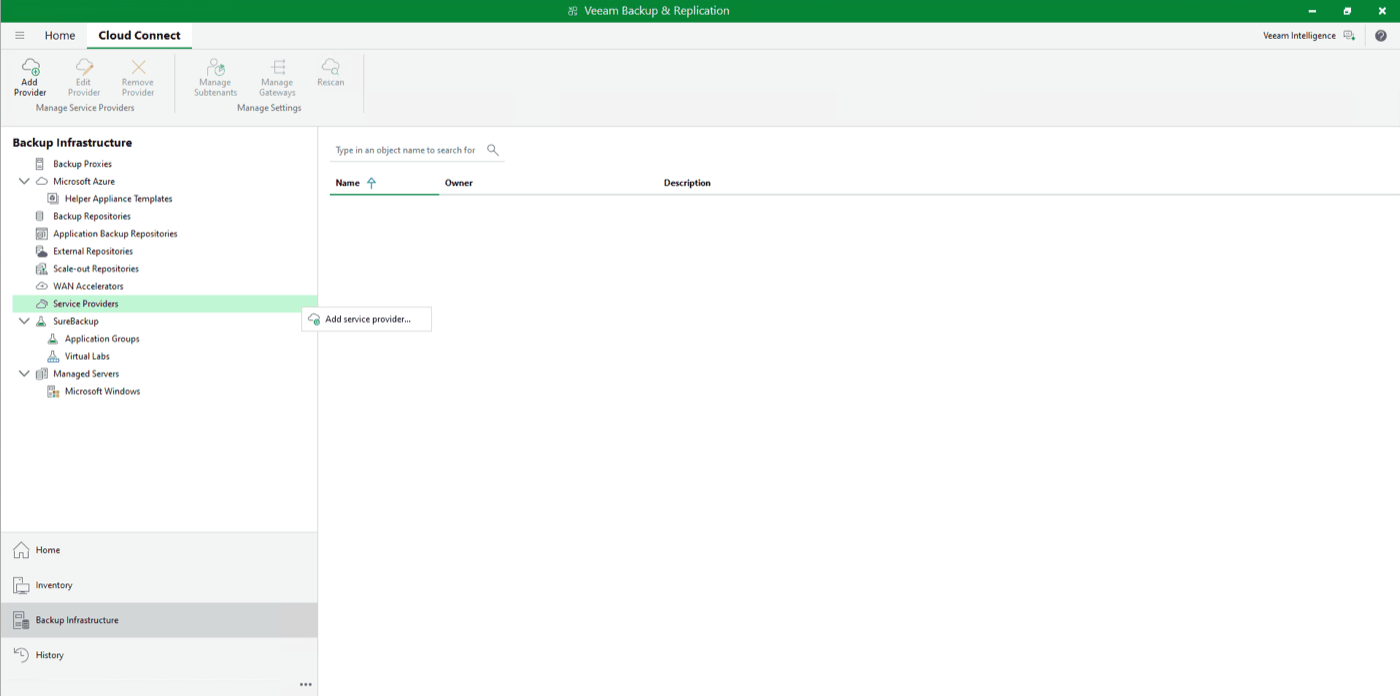
In the ribbon at the top of the console, click Add Service Provider.
You can also go through the navigation pane:
- Open the
Backup Infrastructureview. - Locate the
Service Providersnode. - Right-click
Service Providers, then clickAdd Service Provider.
3.3 Enter the service provider settings
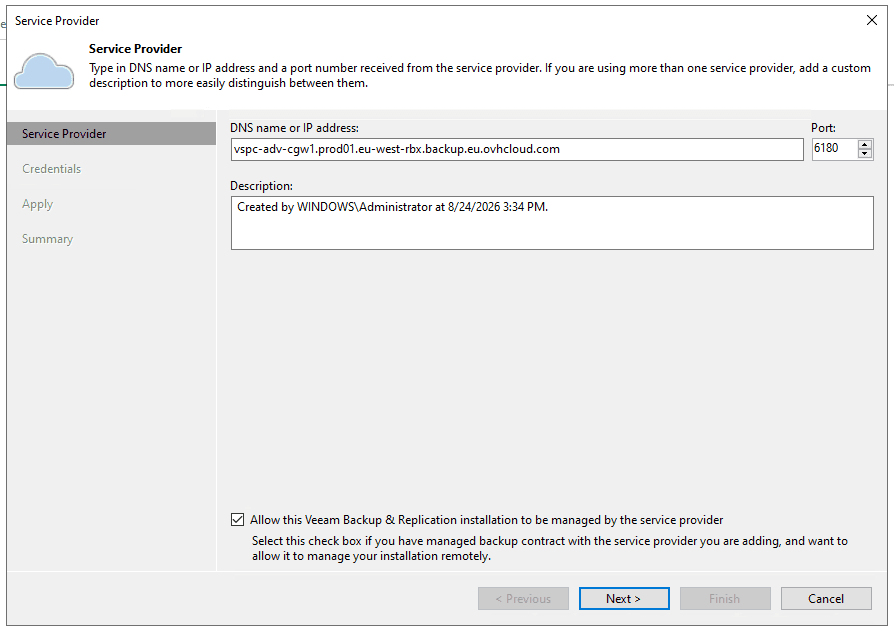
On the Service Provider step of the wizard:
- DNS name or IP address: enter the OVHcloud cloud gateway URL received in the delivery email (
vspc-adv-cgw…). - Port: enter the port provided by OVHcloud,
6180. - Description: optional, a description to identify this provider.
- Tick the
Allow this Veeam Backup & Replication installation to be managed by the service providercheckbox.
The Allow this Veeam Backup & Replication installation to be managed by the service provider checkbox is mandatory. Without it, the management agent is not installed, your server does not appear in the VSPC, and the licence cannot be assigned to it.
3.4 Enter the credentials
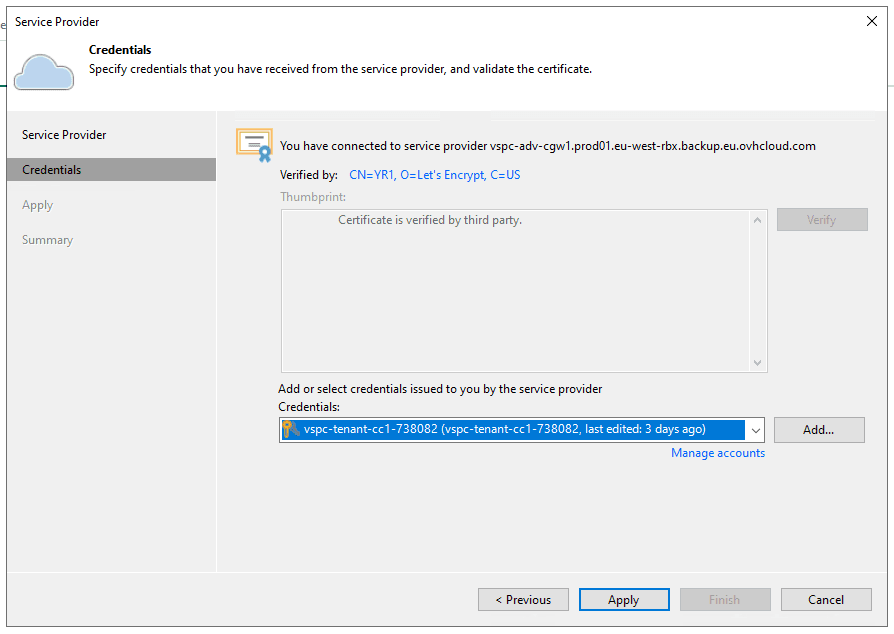
On the Credentials step, enter the Company Tenant credentials received in the delivery email, then click Apply.
3.5 Complete the wizard
The wizard saves the service provider and enables remote management. Click Next, review the summary, then click Finish on the last step.
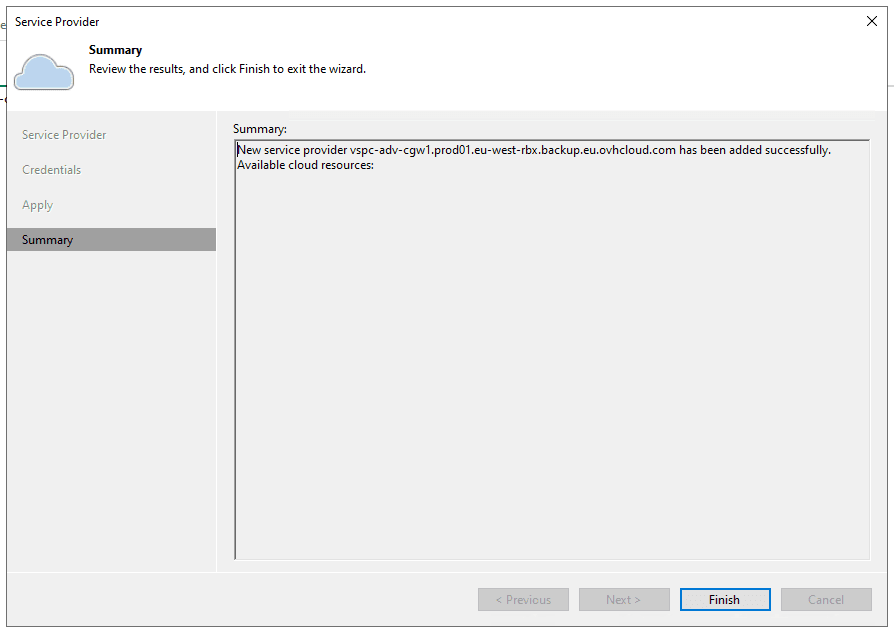
The management agent is deployed on your VBR server and the connection to the VSPC is established.
On a VBR server running Windows, enrolling the server takes at least 15 minutes after the wizard completes. During this time, it is normal for your server not to appear in the VSPC yet, and for the new licence not to be applied yet. Wait for this delay to elapse before troubleshooting — and before cancelling your Veeam Enterprise licence.
Step 4: Check the new licence
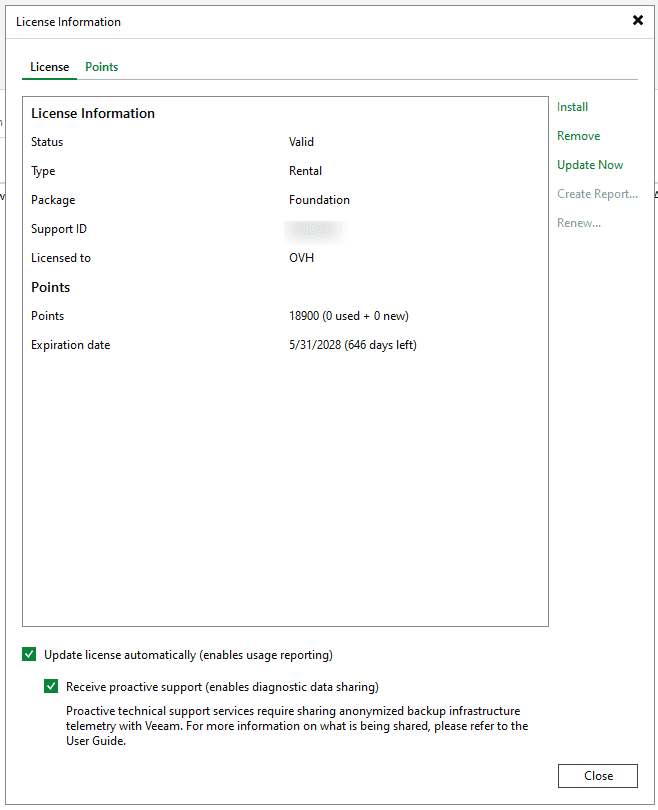
In the Veeam Backup & Replication console, open the main menu and click License. In the License Information window, check the following:
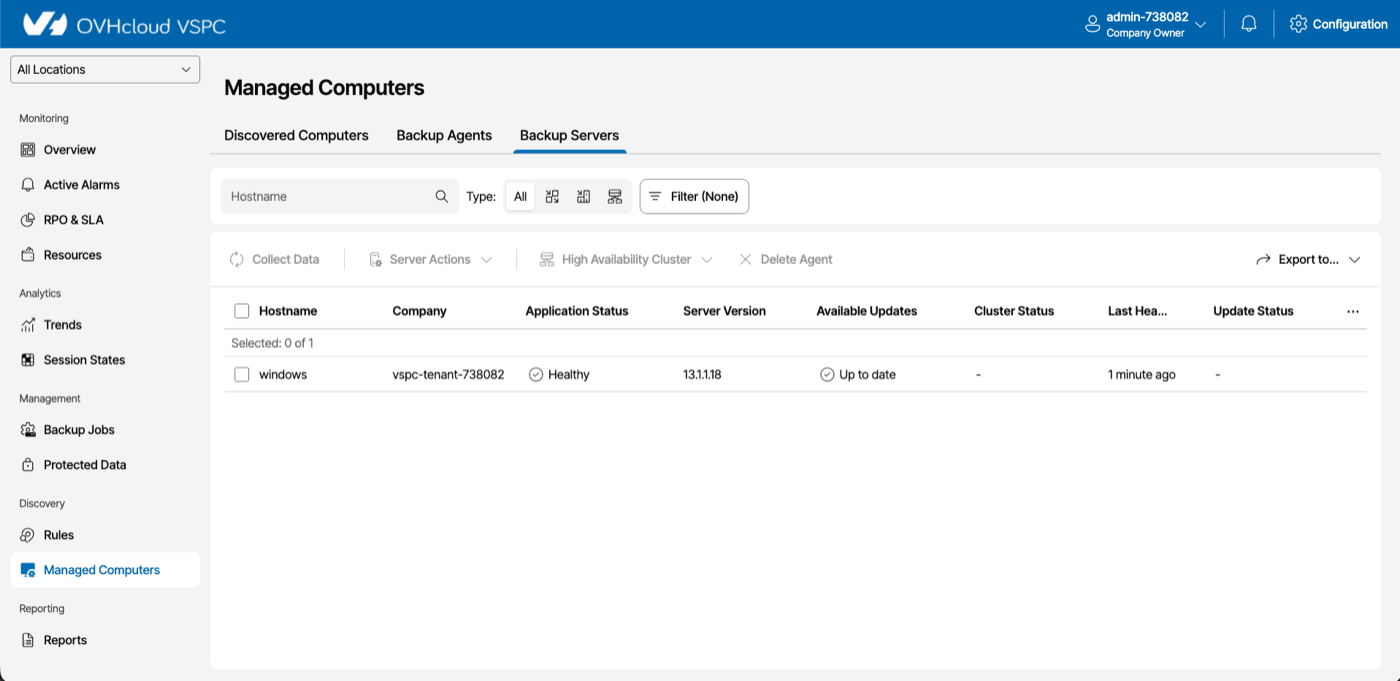
You can also log in to the VSPC portal with the Company Owner account and check, in the Managed Computers > Backup Servers section, that your server appears with the Healthy status.
Step 5: Cancel your Veeam Enterprise licence
Once the new licence shows as Valid on your VBR server, you can cancel your old Veeam Enterprise licence from the OVHcloud Control Panel.
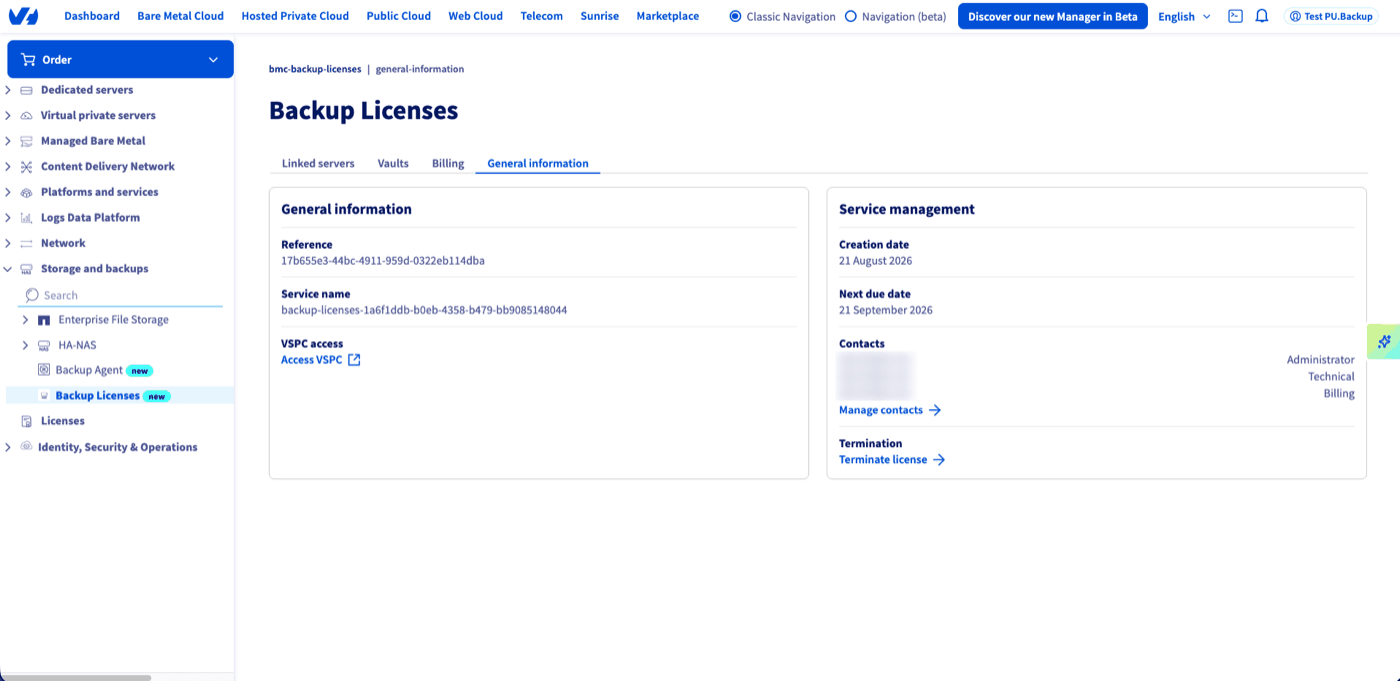
On the Backup Licenses side, cancellation is done from the General information tab, via the Terminate license link. This tab also holds the Access VSPC link.
Only carry out this step after confirming that the Backup Licenses licence is active on your VBR. While both licences coexist, only the one currently installed on the VBR is used.
Important points
- Do not connect the same VBR server twice to the VSPC with different credentials: this would skew the data displayed.
- If MFA is enabled on the VBR server, it may appear as
Inaccessiblein the VSPC. See Veeam KB 4431. - Firewall: make sure port
6180is open outbound from the VBR server to the cloud gateway. - HA cluster: if your VBR is the primary node of a high availability cluster, the secondary node must be connected separately.
Go further
- Backup Licenses - Ordering and configuring your first licence
- Backup Licenses - How Vaults work
- Backup Licenses - Known restrictions
- Backup Licenses - Troubleshooting guide
Veeam documentation:
- Managing Veeam Backup & Replication — Veeam Service Provider Console Guide for End Users
- Connecting Veeam Backup & Replication Servers — Veeam Service Provider Console Guide for End Users
- Connecting to Service Providers — Veeam Cloud Connect Guide
- Viewing License Information Using Console — Veeam Backup & Replication User Guide
Join our community of users.